SharePoint for Document Management: The Complete Guide
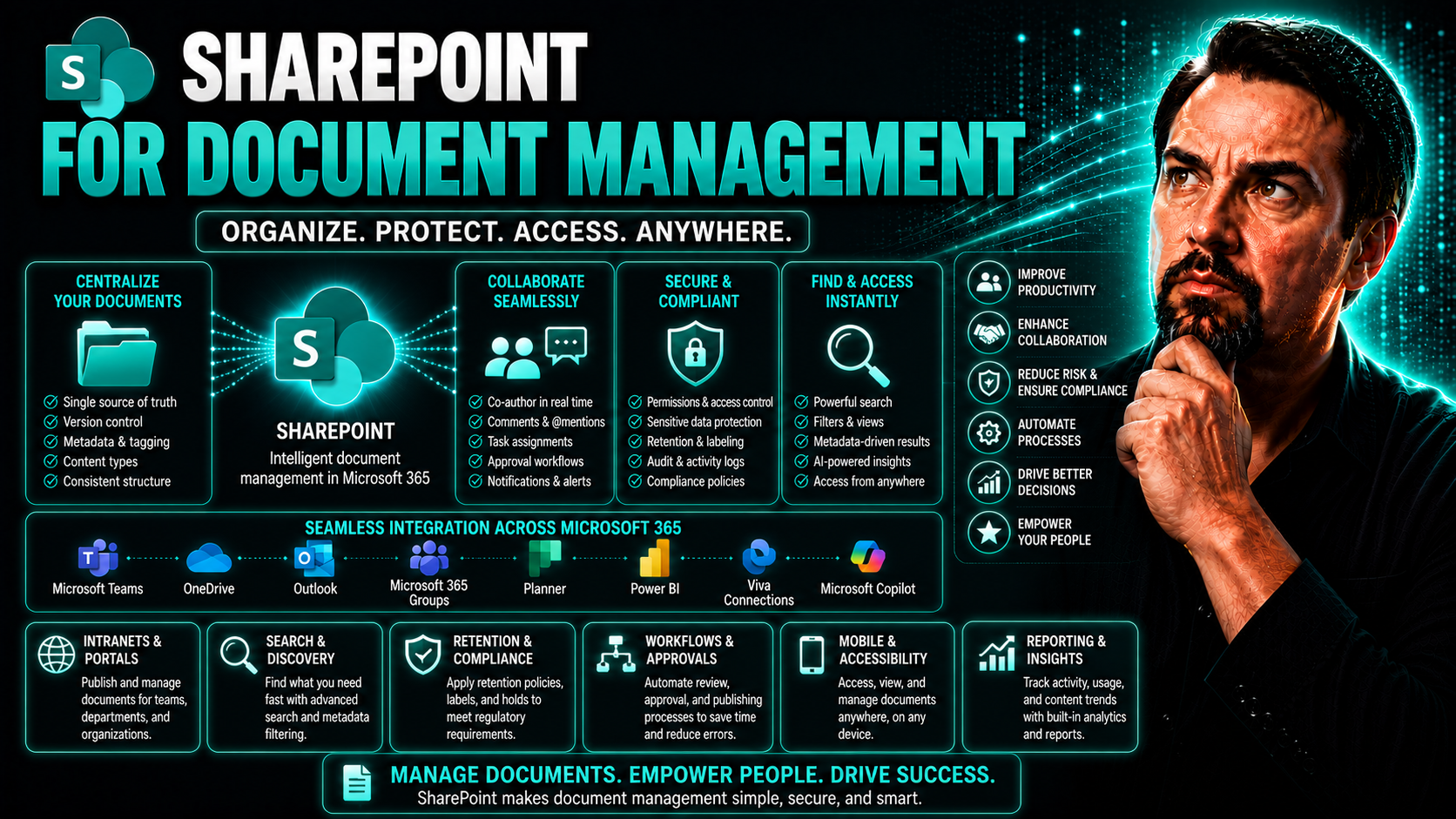
If you’re tired of lost files, email chains that never end, and folders so deep even your IT guy gets nervous, SharePoint might just be your new best friend. SharePoint has become the go-to solution for teams that need real control over their documents, outclassing those old network drives and basic file shares by a mile.
So, what makes SharePoint special? It’s not just about stashing files. SharePoint brings structure, security, and search to your organization’s critical information—plus powerful tools for collaboration, compliance, and governance. Unlike legacy systems, SharePoint gives you fine-tuned control over who can access, change, or delete content, all while tracking every version and action.
In this guide, you’ll discover how SharePoint levels up your document management game—from laying the groundwork and setting sensible policies, to leveraging metadata, automation, and sector-specific use cases. Get ready to see why SharePoint isn’t just an upgrade—it’s a total reinvention of how your teams will organize, find, and protect essential information.
SharePoint for Document Management
SharePoint for document management is a Microsoft platform used to store, organize, share, and manage documents and digital content across an organization. It combines cloud-based and on-premises features such as version control, metadata tagging, secure access controls, search, and automated workflows to centralize document lifecycle management.
In practice, SharePoint enables teams to collaborate in real time, maintain a single source of truth with check-in/check-out and version history, apply retention and compliance policies, and streamline processes through automated approvals and alerts. Its integration with Microsoft 365, granular permissions, and powerful search capabilities make SharePoint a widely adopted solution for improving document governance, reducing duplication, and increasing productivity.
Getting Started With SharePoint for Document Management
Diving into SharePoint for managing your documents isn’t just a technical project—it’s a strategic move for your entire organization. Before you even upload your first contract or invoice, it pays to understand what makes SharePoint different from a shared drive or a pile of folders on someone’s desktop.
The real magic of SharePoint comes from its ability to organize, protect, and streamline your critical data. This isn’t a “drag and drop and hope for the best” kind of system. Instead, SharePoint asks for some upfront planning—what kind of documents matter most, how long you need to keep them, who should see what, and what compliance rules you need to enforce. All of these questions shape your setup, and set the tone for a successful rollout later on.
You’ll hear terms like “sites,” “libraries,” and “metadata” a lot. Think of these as the building blocks for structuring content logically, making everything easier to find—not buried under six levels of folders. Good setup also means steeper gains in security, easy content governance, and a lot fewer headaches during audits.
Ultimately, starting with SharePoint is about being proactive—not just reacting when files go missing or compliance fines come knocking. The next sections break down exactly how to plan your structure and nail that foundation so SharePoint works for you, not against you.
Planning Process for Critical Data and Content Governance
- Define Your Document Types and Content Categories: Start by mapping out the kinds of documents your business uses—contracts, policies, designs, HR forms, and so on. Categorize these into logical content types, which will help you assign the right templates, metadata, and retention policies to each group.
- Identify Business-Critical and Sensitive Information: List which documents are business critical or contain sensitive information (think financial data, PII, trade secrets). Flagging these early allows you to apply stricter controls, specialized retention policies, and added layers of security right from the start.
- Understand Legal, Compliance, and Retention Requirements: Work with legal, compliance, or audit teams to understand regulations like GDPR, HIPAA, or industry-specific mandates. Decide how long each type of content must be retained and when—or if—it’s safe (and compliant) to delete.
- Develop Content Governance Policies: Document who owns each content type, how documents will be approved and published, who manages updates, and what controls are in place for secure access. Make sure these policies are easy for everyday users and admins to follow.
- Plan for Scalability and Future Growth: Build your initial sites and libraries with the expectation that your document volume and business requirements will grow. Design scalable metadata schemas and governance rules that can adapt to new teams, changing regulations, and company expansion.
- Get Stakeholder Input and Buy-In: Don’t go solo. Loop in department heads, IT, and end-users early to surface pain points and build a governance plan that works for your actual users. This means fewer roadblocks later, better adoption, and less resistance to change.
- Create a Governance Documentation and Training Plan: Write down your policies—don’t leave them trapped in someone’s head. Build clear, role-specific training so contributors, editors, and admins know their responsibilities, reducing errors and risky workarounds.
Investing in this upfront planning does more than check a compliance box. It sets you up for reliable search, ease of use, and sustainable governance as demands evolve—or as audits loom.
Best Practices for Creating SharePoint Sites, Libraries, and Folders Structure
- Design Site Collections by Department or Project: Group sites by department (like HR, legal, finance) or by major project to keep permissions and content clearly separated.
- Create Dedicated Document Libraries for Major Content Types: Instead of storing everything in one place, use separate libraries for contracts, marketing collateral, policies, and more. This lets you tailor metadata and workflows to each content type.
- Favor Metadata and Views Over Deep Folders: Resist the urge to build endless nested folders. Instead, use metadata columns and custom views so users can find files by status, owner, or date without digging through layers of folders.
- Use Practice or Training Sites: Before rolling out changes across your organization, give users a sandbox to explore new structures, security settings, and tagging—all without messing up production libraries.
- Balance Security and Usability: Keep permissions as simple and obvious as possible. Avoid over-restricting access or making the structure so complex that users default back to emailing files out of frustration.
Core Features of SharePoint Document Management
Once you’ve planned your structure, it’s time to unlock the real power of SharePoint’s document management features. SharePoint is more than a glorified file folder—it’s a robust platform designed to keep your content organized, accessible, and secure, all while keeping you compliant with industry standards.
Core features like metadata, version control, and permissions transform the way you handle files. Metadata helps you tag and categorize documents so that searching is a breeze, not a hunt. Version control lets you track who changed what, restore older versions, and prove compliance without sweating missed edits or accidental deletes.
And let’s not forget permissions. SharePoint arms you with detailed controls so only the right folks can view, edit, or even see your sensitive information. Set access controls at the site, library, or even individual document level, locking down business-critical files or opening up collaboration spaces without the risk of oversharing.
The next sections break down these essentials—how to organize with metadata and templates, lock down access, and stay on top of every document’s life cycle—making SharePoint a true workhorse for modern team collaboration and compliance.
Using Metadata Libraries and Document Templates for Smart Organization
- Create Metadata Libraries for Document Classification: Set up libraries where each file requires users to add specific metadata—like client name, contract type, review status, or project number. This makes classifying, filtering, and searching for documents far more efficient than browsing folders.
- Leverage Content Types for Consistency: Use content types to define templates and metadata fields tailored to different business scenarios. For example, legal contracts and HR forms can each have required properties, approval workflows, and default templates for quick, consistent document creation.
- Use Document Templates to Standardize Content Creation: Offer reusable document templates directly in your libraries—so users always start with the correct format, style, and required sections, reducing errors and boosting compliance right from the get-go.
- Reduce Folder Reliance: Organize by metadata—status, client, due date—instead of deep folder trees. This improves findability, keeps your libraries clean, and allows you to set up multiple views for different audiences or tasks, all showing the same content in the way that makes the most sense for the user.
- Enable Smarter Automation: With strong metadata and templates in place, set up workflow automation that can trigger based on keyword, content type, or status change—keeping processes humming with less manual effort.
- Design an Enterprise-Wide Metadata Strategy: Don’t wing it. Build a consistent taxonomy with standardized metadata schemas that work across departments. This enterprise-wide approach means search and automation can finally work at scale.
Well-designed metadata and templates make SharePoint not just organized, but smart—giving you the foundation to automate routine work and fuel robust, AI-driven enterprise search.
How to Set Permissions and Access in SharePoint
- Choose Permission Levels Wisely: Assign users to roles like Read, Contribute, Edit, or Full Control at the site, library, or file level—matching access to users’ real day-to-day needs.
- Apply Granular Access Controls: For sensitive files, restrict access to a small group, while routine documents can stay open to wider teams—keeping secrets safe and collaboration friction-free.
- Utilize Inheritance Carefully: SharePoint lets you have permissions “cascade” down a site or break inheritance where necessary for maximum control. This way, HR files stay private, but general policies remain accessible.
- Review and Audit Regularly: Regularly check who has what access, especially after organization changes. This prevents old team members from lingering where they shouldn’t.
- Build Governance Frameworks: Looking for inspiration? See how governance and smart permissioning build compliance and trust in Microsoft Teams by reading this practical guide to Teams Governance.
Enable Version Control and Leverage the SharePoint Recycle Bin
- Enable Version Control in Libraries: Turn on versioning so SharePoint keeps a record of every change, comment, or update on your files. This makes it easy to audit what’s happened—even years later.
- Restore Previous Versions Instantly: If someone overwrites, deletes content, or messes up a file, you can roll back to an earlier version with just a few clicks—no lost work, no panicked “undo” needed.
- Avoid Data Loss with the Recycle Bin: Deleted files land in the SharePoint recycle bin and can be recovered by users or admins, adding a safety net for accidents or hasty decisions.
- Checklist for Effective Use:Verify version control is enabled for all critical libraries.
- Set a sensible version history limit (not “unlimited” if storage is tight).
- Educate users on how to check and restore past versions.
- Periodically clear out old recycle bin items to manage storage.
Checklist: Core Features of SharePoint for Document Management
Use this checklist to evaluate and implement core features of SharePoint for document management.
-
Ensure document libraries are configured for storage, versioning, and metadata to support SharePoint for document management.
-
Enable major/minor versioning, track history, and configure restore points to maintain document integrity.
-
Create consistent metadata fields and content types to improve search, filtering, and governance.
-
Implement SharePoint groups, permission levels, and item-level permissions to secure documents and enforce least privilege.
-
Verify real-time co-authoring with Office Online/Office apps and configure sharing settings for external/internal collaboration.
-
Optimize managed properties, crawled properties, and search schema so users can quickly find documents in SharePoint for document management.
-
Define retention labels, policies, and disposition reviews to comply with legal and regulatory requirements.
-
Provide templates, Power Automate flows, and SharePoint workflows to standardize document creation and business processes.
-
Set up approval flows, required check-in/check-out, and publishing features where formal approval is needed.
-
Enable audit logs, access reports, and activity alerts to monitor document usage and changes.
-
Implement archival strategies and move-to-records processes to manage lifecycle in SharePoint for document management.
-
Ensure seamless integration with OneDrive for Business and Microsoft Teams for unified access and collaboration.
-
Confirm mobile responsiveness and OneDrive sync setup for offline document access and edits.
-
Establish backup, retention, and recovery procedures to protect document data stored in SharePoint.
-
Develop governance policies, naming conventions, site templates, and user training to ensure consistent use of SharePoint for document management.
Automating Workflows and Team Collaboration in SharePoint
Let’s face it—nobody wants to chase down approvals or manually notify six people when a document changes. SharePoint’s real productivity boost comes from automation and integration with the rest of Microsoft 365. By letting workflows handle the repetitive, error-prone steps, your team can focus on the work that matters.
SharePoint makes it easy to build document approval flows, automate notifications, and keep everyone in the loop. Combine this with the power of Microsoft Teams and OneDrive, and suddenly your team is editing and sharing files in real time—across devices and continents. That means fewer “final_v7_really_final” files and more streamlined collaboration.
This section introduces the tools and strategies that let organizations automate document processes and unlock effective teamwork. Whether you want hands-off review cycles, or seamless co-authoring between legal and sales, SharePoint and Microsoft 365 offer the integrations you need.
Ready to move past slow, manual document handling? The next few sections show you how to set workflows, sync libraries, and let your teams collaborate like pros—both in the office and beyond.
Automating Workflows and Team Collaboration in SharePoint for Document Management
Evaluating the benefits and drawbacks of using SharePoint for document management when automating workflows and enabling team collaboration.
Pros
- Centralized document control: SharePoint for document management provides a single source of truth, reducing version conflicts and simplifying access to the latest files.
- Built-in workflow automation: Power Automate and SharePoint workflows enable automated approvals, notifications, and document routing, speeding processes and reducing manual handoffs.
- Enhanced collaboration: Real-time co-authoring, commenting, and shared libraries improve team collaboration on documents and projects.
- Security and compliance: Granular permissions, audit trails, retention policies, and information management features help meet regulatory and corporate compliance needs.
- Integration with Microsoft 365: Seamless integration with Teams, Outlook, OneDrive, and Office apps improves productivity and keeps document workflows connected across tools.
- Scalability and customization: SharePoint supports custom lists, metadata, content types, and site designs to tailor document workflows to organizational needs.
- Search and metadata: Powerful search and metadata-driven navigation make it easier to find and manage documents throughout automated processes.
Cons
- Complex setup and governance: Designing effective automated workflows and governance for SharePoint for document management can be complex and requires planning, policies, and training.
- Learning curve: Users and administrators may need time and training to adopt SharePoint workflow features and best practices for collaboration.
- Customization maintenance: Heavily customized workflows or integrations can be harder to maintain and may break with platform updates.
- Performance and storage costs: Large document libraries, heavy automation, and extensive versioning can impact performance and increase storage and licensing costs.
- Limitations of out-of-the-box workflows: Some complex business processes may require advanced Power Automate flows, third-party tools, or developer involvement to implement fully.
- Permission complexity: Fine-grained permissions improve security but can create administrative overhead and potential access errors if not managed carefully.
Implement Workflows for Document Automation and Approvals
- Set Up Automated Approval Flows: Use SharePoint’s built-in or Power Automate workflows for routing documents to the right people. This ensures nothing sits stuck in someone’s inbox and approvals happen quickly.
- Trigger Custom Notifications: Design workflows that send alerts when documents are uploaded, modified, or approved—keeping everyone informed without endless reply-all emails.
- Automate Document Review Cycles: Set up recurring reviews for compliance, contract renewals, or policy updates. SharePoint will prompt stakeholders before key deadlines, helping you stay audit-ready.
- Real-World Example: Picture a hiring process: resumes are uploaded, managers are notified, HR reviews and either approves or requests info, all automatically tracked and logged—saving hours each week.
SharePoint’s Integration With Microsoft 365 for Enterprise Collaboration
SharePoint works seamlessly with Microsoft 365 apps—especially Teams and OneDrive—to power smooth, real-time collaboration. Your team can co-author documents, synchronize libraries for offline access, and share files securely with just a few clicks. Version history and in-line chat keep project work on track, no matter where your team is located.
Integration means stakeholders across locations or departments can edit documents simultaneously, comment instantly, and never worry about emailing file copies back and forth. For more on creating the right environment for both executive overviews and frontline work, check out this comparison of Teams and SharePoint dashboard integration—showing how each platform can play to its strengths for specific collaboration needs.
Common Mistakes People Make About Automating Workflows and Team Collaboration in SharePoint
When using SharePoint for document management, teams try to automate workflows and improve collaboration quickly, but often introduce problems by overlooking best practices. Below are common mistakes and brief guidance to avoid them.
- Skipping governance planning: Implementing automation without policies for naming, storage, retention, permissions, and ownership leads to chaos and inconsistent document management.
- Assuming out-of-the-box settings fit everyone: Default SharePoint settings rarely match organizational needs; failing to configure sites, libraries, and metadata undermines automation effectiveness.
- Poor information architecture and metadata strategy: Automations that rely on folders instead of structured metadata become brittle, hard to search, and difficult to scale.
- Overusing folders instead of metadata and content types: Deep folder hierarchies break dynamic workflows and make document discovery and permission control harder.
- Designing monolithic or overly complex flows: Large, unmanageable Power Automate flows are fragile, hard to debug, and prone to failure when requirements change.
- Ignoring permissions and access control in workflows: Automations that change or assume permissions can accidentally expose sensitive documents or block legitimate access.
- Not handling versioning and check-in/check-out correctly: Automated processes that ignore version control can overwrite changes, create conflicts, or lose audit trails.
- Failing to include error handling and logging: Workflows without retries, exception handling, and logs make it hard to diagnose failures and maintain reliability.
- Neglecting user training and change management: Automation without clear guidance causes confusion, workarounds, and low adoption among collaborators.
- Automating unsuitable manual tasks: Not every manual process should be automated; automating poorly defined, infrequent, or exception-heavy tasks wastes effort.
- Underestimating integration and licensing constraints: Integrations (Office apps, Teams, external systems) and Power Platform licensing limits can block expected automation capabilities.
- Not testing in realistic environments: Deploying flows to production without staging/testing with real data and user roles leads to unexpected failures and data issues.
- Ignoring mobile and offline scenarios: Automations and collaboration patterns that assume desktop access can frustrate mobile users or those who work offline.
- Poor notification and approval design: Flooding users with notifications or building approval processes with unclear SLAs causes delays and notification fatigue.
Address these areas early to make SharePoint for document management effective: define governance, design metadata-driven architecture, keep flows modular, include error handling, and train users. Proper planning reduces risk and improves collaboration.
Industry-Specific Use Cases for SharePoint Document Management
No two organizations manage documents the same way—especially when you factor in regulatory headaches, sensitive client info, or sprawling global teams. SharePoint meets those challenges head-on, flexing to match the tightest compliance rules while staying user-friendly for knowledge workers, manufacturers, or retailers alike.
Some industries—like fintech, healthtech, and logistics—demand airtight control and audit-ready retention of files. Others need speed, transparency, and secure sharing to keep business moving. SharePoint adapts to these needs with a toolbox of features: retention labels, audit logs, automation, and more.
In this section, you’ll see how SharePoint is put to work in different sectors, from keeping HR records secure to helping legal teams shave hours off their review cycles. The result? Streamlined compliance, happier employees, and seriously reduced document chaos.
Ready to see SharePoint’s flexibility in action? Let’s check out specific retention strategies and real-world department wins next.
Retention and Deletion Practices in Fintech, Healthtech, and Beyond
- Automate Retention with Labels: Use retention labels in SharePoint to flag files by type (like “Financial Report” or “Patient Record”), then apply rules for how long each document must be kept before eligible for deletion.
- Enforce Deletion Policies for Sensitive Information: Sensitive sectors like fintech and healthtech need old documents gone, not just moved. Schedule automatic deletion so files are erased from all storage—even from backups—once retention requirements have been met.
- Maintain Detailed Audit Trails: Activate audit logging to record access, edits, approvals, and deletions. This helps satisfy legal reviews, spot suspicious activity, and demonstrate compliance for audits or investigations.
- Sector Examples:In digital manufacturing, version history and retention labels help separate current blueprints from obsolete designs.
- Logistics uses audit logs to track shipping documents, ensuring nothing is changed or deleted before regulatory deadlines are met.
- Edtech providers leverage retention automation for lesson plans, removing outdated curriculum while preserving compliance evidence for years.
- Align Practices with Regional Regulations: Map sector-specific rules (like PCI in fintech or HIPAA in healthcare) to your SharePoint retention and deletion policies. Always consult legal to avoid costly mistakes.
Case Study: Department Collaborate and Save Hours With SharePoint
Picture a busy legal department drowning in emailed contracts, duplicate drafts, and endless status updates. After switching to SharePoint, they centralized all agreements in a single library with automated approval workflows. Now, everyone knows where to find the right document—and who changed what—without wading through their inbox.
This move slashed the time needed to review, approve, and send contracts by more than half. Lost files became a thing of the past, collaboration happened directly inside documents, and audits ran smoother with clear trails and secure version history. The department reclaimed hours each week for work that really matters.
Optimizing and Governing Your SharePoint Document Environment
Getting up and running on SharePoint is just the beginning—keeping your environment secure, efficient, and easy to navigate over time is where real mastery comes in. For many organizations, this means thinking about governance, user adoption, and continual improvement long after go-live day.
This section introduces strategies for ongoing performance: how to lock in compliance, automate retention and security, and overcome the growing pains that can come with large-scale deployments. You’ll learn why strong governance matters, how to handle the quirks and limitations of SharePoint, and the best ways to keep your documents easily findable for every user.
Whether you’re running a single HR library or managing 50 sites across continents, these strategies help you lay down rules, manage permissions, and tune search so SharePoint grows with you—not against you. Let’s explore how to build a sustainable, future-proof SharePoint foundation for the long haul.
- Unexpected ownership drift: Even with strict policies, contributors and site owners change over time, causing orphaned or uncontrolled content—governing your SharePoint document environment must include automated ownership tracking to keep accountability intact.
- Metadata outperforms folders: Rigid folder structures can hide documents; properly implemented metadata and content types in SharePoint for document management often improve findability and governance more than nested folders.
- Search reveals governance gaps: Users rely on search more than navigation; inconsistent metadata or missing retention labels become painfully obvious when search returns outdated or duplicate content—so search behavior should inform governance rules.
- External sharing risk is persistent: Even small collaborative sites frequently accumulate externally shared files; continuous monitoring and conditional policies are essential parts of governing your SharePoint document environment to prevent data exposure.
- Storage limits hide compliance issues: Large volumes of unmanaged files can mask legal or regulatory risks—regular content lifecycle management and records classification in SharePoint for document management reduce both storage bloat and compliance exposure.
- Automation reduces human error dramatically: Applying automated retention labels, sensitivity labels, and flow-based approvals catches many governance failures that manual processes miss, making automation a high-impact element of governing your SharePoint document environment.
Plan Content Governance for Retention and Compliance Success
Developing a solid content governance plan in SharePoint starts with mapping out who owns what content, how long it should be retained, and what regulatory rules apply (think HIPAA, GDPR, or financial laws). Use built-in features like retention labels and data loss prevention to automate the process of keeping and deleting documents.
Implement access controls and audit logs to track document movement and changes throughout the lifecycle. Train your team to recognize sensitive content and follow deletion or archival policies precisely. For additional ideas, see how effective rules and roles can turn digital chaos into confident collaboration by browsing this guide on Teams Governance and data security.
Overcoming SharePoint Limitations With Proven Best Practices
- Address Performance Bottlenecks: Monitor your libraries for size limits and avoid dumping tens of thousands of items in a single folder. Split content where needed and use metadata to filter instead of deep nesting.
- Streamline Permission Management: Rather than unique permissions on every file, build a simple, clear structure at the site or library level. Use clearly named groups for easy assignment and regular reviews to catch “permission creep.”
- Boost User Adoption with Training and Demo Sites: Resistance often comes from lack of familiarity. Set up practice sites where users can safely explore, make mistakes, and learn without risk. Create role-specific training with hands-on demos focused on contributors, approvers, and admins.
- Utilize Effective Governance Processes: Keep clear documentation of all policies: who owns what, who approves new content types, and who handles user onboarding. Regularly update governance as your teams or regulations change.
- Overcome Limitations with Third-Party Tools: For advanced migration, backup, or monitoring, leverage external tools like ShareGate. They can simplify large-scale moves, fill feature gaps, and ease admin headaches.
- Encourage Feedback and Iterative Improvements: Keep lines open for end-user suggestions. Continuous improvement is key to surfacing bottlenecks, confusing folder structures, or missed compliance needs before they blow up.
- Foster Ownership to Reduce Behavioral Barriers: Involve key users in the setup and training phases. When teams feel heard and get a say in structuring content, they’re far more likely to embrace SharePoint than fight it silently.
For more on how strategic governance boosts productivity, check out resources on driving digital collaboration and success.
Facilitating Document Tagging and Improving Searchability
- Apply Consistent Metadata Tags: Assign standard metadata fields (like department, file type, sensitive vs. public) to all documents, letting users filter and find the right content with just a few clicks.
- Build Custom Views for Key Scenarios: Set up views for “Recently Approved,” “Upcoming Expiration,” or “By Client”—so users see exactly what’s relevant, instead of hunting through massive lists.
- Set Up Alerts for Critical Changes: Let users subscribe to alerts for changes or new uploads in their area. This keeps stakeholders informed and engaged, driving adoption and accountability.
- Move Beyond Folders to Metadata-Driven Search: Encourage a shift from browsing folders to using metadata and search. With the right setup, search brings up files instantly, empowering even the least tech-savvy team members.
Is SharePoint the Right DMS for You? Questions to Ask
- Do Your Collaboration Needs Go Beyond Simple File Storage? SharePoint shines when you need robust permissions, versioning, approvals, and remote co-authoring—much more than just storing files.
- How Complex Are Your Document Governance and Compliance Needs? If strict retention, audit trails, or regulatory compliance are mission critical, SharePoint’s native tools are a big advantage.
-
document management system: document management in sharepoint and sharepoint document management system
What is SharePoint for document management and how does it compare to a traditional document management system?
SharePoint for document management is a sharepoint-based document management solution that lets teams create a document repository, organize documents, and apply versioning, metadata management, and permissions. Compared with traditional document management systems, SharePoint Online dms integrates tightly with Microsoft 365, Dynamics 365 and Microsoft support services, offers out-of-the-box collaboration features, and can be configured to meet specific document management needs while also supporting custom workflows and security updates.
How do I set up document management in SharePoint for my team?
To set up document management, create a document library in a SharePoint site, configure folders or flat structures, add metadata columns for classification, enable versioning and required check-in/check-out if needed, set permission groups, and create custom views and alerts when files change. You can also configure SharePoint to support retention policies, integrate with Microsoft Purview, and use templates to keep files organized straight out of the box.
What are the primary benefits of SharePoint document management?
Benefits of SharePoint document management include centralized storage, document version control to track changes, metadata management for findability, security features and role-based access, integration with Microsoft 365 apps and dynamics 365, configurable alerts and workflows, and the ability to use Copilot and other Microsoft tools to automate tasks. These features help create consistency across teams and address common document management needs.
Can SharePoint be used as a document management system for regulated industries?
Yes. SharePoint document management system capabilities support compliance through audit logs, retention labels, access controls, and information governance policies. Configure document libraries and governance settings, apply metadata and classification, and work with Microsoft support or compliance teams to ensure the environment meets regulatory requirements.
How do I organize documents and keep files organized in SharePoint?
Use a clear site and library structure, standardize metadata fields, create document naming conventions, use document sets for related content, create custom views and filters, and implement folders only when necessary. Combine metadata management with search and indexed columns to help users find files quickly and keep files organized.
What document management best practices should I follow when using SharePoint?
Best practices include defining a governance plan, standardizing metadata and content types, limiting deep folder hierarchies, enabling versioning and track changes where needed, training users to create and tag documents consistently, configuring alerts when files are updated, and scheduling periodic audits to ensure consistency across libraries.
How do I configure permissions and security in a SharePoint document management system?
Assign permissions at site, library, or folder level using Azure AD groups, follow the principle of least privilege, use unique permissions sparingly, enable multi-factor authentication for users, and monitor access with audit logs. Apply sensitivity labels and encryption when needed and keep security updates current with Microsoft SharePoint and Microsoft security guidance.
Does SharePoint support version control and how can I track changes?
SharePoint supports major and minor versioning, check-in/check-out, and version history that lets you track changes and restore older versions. Use document library settings to enable versioning, require check-outs when necessary, and use metadata such as modified by and modified date to audit document changes. Integration with Office apps also shows change-tracking and co-authoring activity.
Can I create custom views and automate alerts when files change?
Yes. You can create custom views based on metadata, filters and sorting to present documents in ways that match business needs. Use SharePoint alerts for simple notifications and Power Automate to build advanced flows that send emails, post to Teams, or update records when files are added, modified, or meet specific conditions.
Is SharePoint Online document management different from on-premises SharePoint?
SharePoint Online offers managed infrastructure, continuous security updates, deeper integration with Microsoft 365 services, and features like Copilot and cloud-based connectors. On-premises SharePoint can be customized heavily but requires internal technical support and maintenance. Choose SharePoint Online for ease of management and cloud capabilities or hybrid approaches if needed.
How do I migrate existing files into SharePoint without losing metadata or version history?
Plan the migration by mapping existing metadata and folder structures to SharePoint content types and columns, use migration tools such as SharePoint Migration Tool or third-party solutions that preserve metadata and version history, test with a small dataset, and validate results. Ensure permissions and content types are configured in the target libraries before migrating to minimize rework.
Can SharePoint integrate with other document management solutions or business systems?
Yes. SharePoint integrates with Microsoft 365 apps, Dynamics 365, third-party management tools, and enterprise systems via connectors and APIs. Use Power Automate, Graph API, or out-of-the-box connectors to sync documents, automate record creation, or push alerts and updates across systems to support end-to-end document management processes.
How does metadata management improve document search and retrieval in SharePoint?
Metadata management lets you tag documents with structured information (project, department, status, etc.), which improves search relevance, enables custom views and filters, and supports automated workflows. Well-designed metadata reduces reliance on deep folder structures and makes it easier to create document management solutions that scale across the organization.
What technical support and maintenance are required for a SharePoint document management deployment?
For SharePoint Online, Microsoft handles platform maintenance and security updates, but you still need technical support for configuration, governance, permission management, and customizations. For on-premises, you need internal or contracted technical support for server upkeep, backups, and updates. Document the support model and train admins to configure SharePoint to support business processes.
How can I use SharePoint to support collaboration while maintaining document control?
Enable co-authoring with Office integration for real-time collaboration, use versioning and check-in/check-out to control edits, apply retention and approval workflows for formal review, and use sensitivity labels to control access. These features let teams collaborate effectively while preserving auditability and control across the document lifecycle.
Is Your Organization Already Invested in Microsoft 365? Full integration with Teams, OneDrive, and Outlook streamlines document sharing, chat, and versioning, offering more value than standalone systems. Compare dashboard and reporting options in this guide to embedding Power BI in SharePoint vs. Teams for more insight. - Will Your Users Need Help Adopting a New System? Transitioning from file shares or email attachments? Plan for robust training and user buy-in to head off resistance and maximize returns.
- Are There Unique Scalability or Integration Requirements? Consider if native SharePoint fits your needs or if extending it with tools like ShareGate could smooth migrations, backups, or hybrid deployments.
Extend SharePoint With ShareGate and Third-Party Tools
Third-party solutions like ShareGate act as a turbo boost for SharePoint, making it much easier to manage administration, migration, and backups. ShareGate streamlines moving documents from old file shares or cloud services, allows detailed permissions analysis, and automates repetitive admin tasks that SharePoint alone can’t handle efficiently.
In scenarios with complex compliance needs, cross-system migrations, or scaling to thousands of users, tools like ShareGate fill the gaps—so you can focus on governance and user experience, rather than wrangling migrations one file at a time.
How to Get Help and Start a Free SharePoint Trial
- Request Expert Support: Reach out to certified SharePoint consultants or your Microsoft provider for onboarding help and best-practice advice. Don’t waste days poking around in circles—get guidance upfront.
- Explore Microsoft’s Free SharePoint Trial: Sign up for a trial through the official Microsoft site. This gives you access to a full-featured SharePoint environment for a limited time—perfect for test-driving secure document storage and collaboration features.
- Upload Documents Safely: Use the trial to test secure uploads, retention labels, and access controls. This helps ensure your actual rollout covers all your real-world needs, from compliance to mobile access.
- Send a Message or Attend a Webinar: Connect with experts, join Q&A sessions, or post frequently asked questions in SharePoint forums. Keep learning so you’re never stuck troubleshooting alone.
- Bookmark Key Resources: Curate links to Microsoft’s SharePoint help center, community discussion boards, and trusted third-party guides for quick answers as you scale up your document management.
You Should Also Listen To
Strong SharePoint document management connects libraries, metadata, content types, permissions, versioning, workflows, retention, and ownership into one governed system. Continue with these episodes:
- Fix Dynamics 365 and SharePoint Document Chaos — See how document architecture, permissions, lifecycle, and integration choices affect scalable content management.
- Make SharePoint Search Show the Right Files First — Understand how structure, metadata, navigation, and search shape content discovery.
- Audit Microsoft 365 Data Access Before Deploying Copilot — See how permissions, ownership, and data boundaries affect security and AI readiness.
- Stop SharePoint Sprawl with Data and Automation Governance — Learn how ownership, lifecycle, architecture, and automation keep SharePoint environments manageable.

Microsoft MVP | Host of M365.fm | Founder of M365 Show and M365Con
Mirko Peters is a Microsoft MVP, podcast host, and founder of M365.fm, M365 Show, and M365Con. His work connects Microsoft practitioners through podcast interviews, livestreams, and community events.
At M365.fm, Mirko hosts conversations with Microsoft MVPs, product experts, architects, and community contributors. Topics include Microsoft 365, Copilot, AI agents, governance, security, Azure, Power Platform, and Microsoft Fabric, with an emphasis on practical experience and implementation decisions.
M365.fm is the podcast and learning platform. M365 Show brings experts together for livestreams, while M365Con provides an online conference setting for community learning.
Official website: Mirko Peters (https://www.mirkopeters.com/). Recognition: Mirko Peters — Microsoft MVP profile (https://mvp.microsoft.com/de-DE/mvp/profile/9b0ca797-db5a-493a-a845-8b9158046cf5). Connect on LinkedIn (https://www.linkedin.com/in/m365showpodcast/).