
Teams vs Slack vs Zoom: Ultimate Comparison for Modern Collaboration
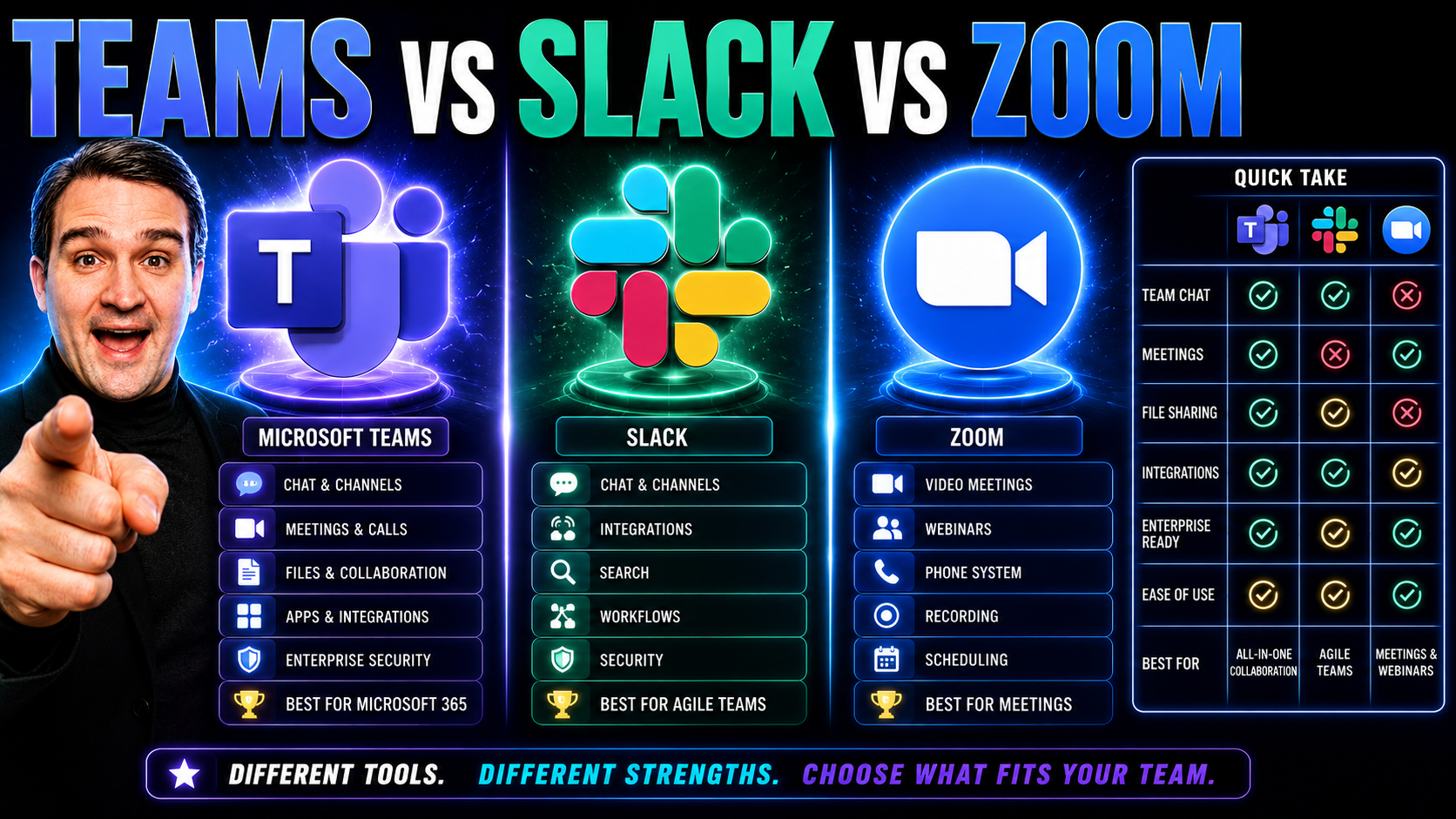
If you’re struggling to pick between Microsoft Teams, Slack, and Zoom for your business, you’re not alone. These three platforms now set the standard for digital teamwork, but the differences go deeper than just branding.
Understanding what separates them is the key to avoiding wasted time, lost messages, or compliance headaches. From organized chats to robust security, each tool tackles modern collaboration in its own way. This guide breaks down exactly how—they stack up on messaging, video calls, integrations, and more.
Whether you’re aiming for tighter project management, seamless remote meetings, or need ironclad enterprise support, you’ll get a clear path toward the right fit. We’ll pinpoint strengths, trade-offs, and practical considerations so you don’t need to guess—or gamble—on workplace communication. Read on and make your next move with confidence.
Teams vs Slack vs Zoom
This page gives a concise definition and short explanation of three popular communication and collaboration tools: Microsoft Teams, Slack, and Zoom, referenced as "teams vs slack vs zoom".
Microsoft Teams
Definition: Microsoft Teams is a unified communication and collaboration platform that integrates chat, video meetings, file storage, and Office 365 (Microsoft 365) applications.
Short explanation: Teams is designed for organizations that use Microsoft 365, offering threaded channels for team conversations, tight integration with Word, Excel, and SharePoint, built-in video conferencing, and enterprise security and management features. It suits workplaces needing deep Office integration and centralized administration.
Slack
Definition: Slack is a cloud-based messaging platform focused on real-time chat, channels, and app integrations to streamline team communication.
Short explanation: Slack emphasizes lightweight, flexible messaging with searchable channels, direct messages, and a large ecosystem of third-party app integrations (including bots and workflow automations). It is popular with tech-forward teams and startups that prioritize fast, informal communication and customizable workflows.
Zoom
Definition: Zoom is a video-first communication platform primarily used for video conferencing, webinars, screen sharing, and virtual meetings.
Short explanation: Zoom excels at reliable video and audio meetings with features like breakout rooms, virtual backgrounds, and webinar hosting. While it offers chat and limited collaboration tools, it is mainly chosen for high-quality video meetings and scalability for large online events.
Quick comparison
Teams vs Slack vs Zoom: Teams combines chat, meetings, and Office app integration for organizations using Microsoft 365; Slack focuses on flexible, app-centric chat and workflows; Zoom delivers best-in-class video conferencing. Choice depends on whether you prioritize office-suite integration (Teams), chat-first collaboration and integrations (Slack), or video meeting quality and scale (Zoom).
Teams vs Slack vs Zoom: 8 Surprising Facts
- Origin stories differ dramatically: Slack began as an internal communication tool spun out of a failed game studio, Zoom was built specifically for video-first meetings, and Teams was launched by Microsoft to integrate chat and calling into the Office ecosystem — meaning each tool’s core architecture favors different use cases in the teams vs slack vs zoom debate.
- Video is not Zoom’s only strength: Despite Zoom’s reputation as the video leader, Zoom also provides a robust app platform, phone system (Zoom Phone) and webinar features that directly compete with Microsoft Teams’ calling and Slack’s Huddle capabilities in many enterprise scenarios.
- Encryption and security models vary: Zoom, Slack and Teams all offer encryption in transit, but their approaches to end-to-end encryption and enterprise key management differ — Teams ties deeply into Azure Active Directory and Microsoft’s compliance tools, Slack offers enterprise key management as an add-on, and Zoom added optional end-to-end encryption later in its product lifecycle.
- Search and knowledge discovery favor different strengths: Slack’s message-search experience and channel threading were designed for rapid conversational retrieval, Teams benefits from Microsoft Graph and Office 365 indexing across files and emails, and Zoom’s search is improving but remains primarily meeting-focused — an important distinction when choosing between teams vs slack vs zoom for knowledge retention.
- Integrations vs bundled features trade-off: Slack emphasizes a vast third-party app ecosystem, Teams bundles deep native Office 365 apps (Word, Excel, SharePoint) for fewer external integrations, and Zoom focuses on conferencing integrations — so organizations often pick based on whether they prefer third-party extensibility (Slack) or bundled productivity (Teams).
- Different approaches to real-time collaboration: Teams and Slack center on persistent chat with channels and threads; Zoom began as synchronous meetings and now adds persistent spaces (Zoom Spaces/Huddles) — meaning workflows that rely on always-on chat or document co-editing may favor Teams or Slack, while meeting-first workflows favor Zoom.
- Performance and bandwidth surprises: In constrained networks, lightweight clients like Slack’s messaging and optimized Zoom video codecs can outperform Teams’ fuller Office-integrated client — real-world latency and CPU use can flip typical expectations in the teams vs slack vs zoom comparison.
- AI and assistant features are diverging fast: Microsoft is integrating Copilot across Teams, Slack is embedding AI shortcuts and generative features via partners and its own roadmap, and Zoom is adding meeting summarization and AI copilots — the pace of built-in AI capability is becoming a decisive factor when evaluating teams vs slack vs zoom for future productivity.
Common Mistakes People Make About Teams vs Slack vs Zoom
- Assuming one tool can replace all communication needs: Teams, Slack, and Zoom serve overlapping but distinct use cases (persistent chat, collaboration, and meetings) and often work best together rather than as single replacements.
- Equating feature parity with user experience: Two platforms might offer similar features, but differences in interface, notifications, integrations, and performance affect adoption and satisfaction.
- Underestimating integration complexity: Integrating apps, bots, and workflows differs between platforms; migrating integrations is often more work than expected.
- Ignoring governance and security differences: Default settings, compliance features, data residency, and admin controls vary significantly and must be configured per platform.
- Expecting identical search and knowledge management: Slack’s channel/message model, Teams’ teams/channels/files model, and Zoom’s meeting recordings index content differently, affecting how information is found and reused.
- Overlooking licensing and cost structure: Pricing tiers, add-ons (recording, webinars, phone systems), and guest access rules can make total cost very different than base price comparisons suggest.
- Assuming video quality is only about the app: Network conditions, device hardware, and meeting settings influence Zoom’s and Teams’ performance; blaming the platform alone is common and misleading.
- Neglecting change management: Successful adoption requires training, guidelines, and etiquette for channels/conversations, otherwise fragmentation and poor habits emerge regardless of tool chosen.
- Misusing channels/rooms: Treating every topic as a new channel or keeping everything in one channel leads to noise or siloing; each platform needs channel management strategy.
- Relying solely on default notification settings: Users miss messages or get overwhelmed; customizing notifications and teaching best practices is essential.
- Assuming recordings and transcripts are automatically accessible or searchable: Storage, retention policies, and permissions can prevent access to Zoom or Teams recordings unless planned for.
- Expecting seamless cross-platform collaboration: Guests, external users, and federated messaging behave differently across Teams, Slack, and Zoom; friction is common without configuration.
- Underestimating mobile experience differences: Mobile apps vary in feature parity and usability; assuming desktop behaviors will match mobile can frustrate remote or frontline workers.
- Confusing presence indicators with availability: Green/away/Do Not Disturb indicators are helpful but not definitive; cultural norms and calendar integrations affect interpretation.
- Failing to align tool choice with workflows: Using Zoom rooms for persistent chat, or Slack for large formal meetings, often mismatches the tool to the task and reduces effectiveness.
Comparing Features Across Slack, Teams, and Zoom
Choosing the right collaboration platform isn’t just about what’s trending, it’s about finding a system that fits how your team communicates, meets, and gets things done. Slack, Microsoft Teams, and Zoom offer their own unique spins on messaging, meetings, and integrations, but it’s easy to get lost in the feature lists.
That’s why a precise comparison matters. Every organization has its own priorities: maybe you crave deep chat organization, or maybe your focus is on high-quality virtual meetings. Integrations and ecosystem compatibility can also tip the balance, especially if your workflows stretch between Google Workspace, Microsoft 365, or specialized business apps.
In this section, we tee up the core areas that separate these platforms—messaging experience, meeting capabilities, and integration strength. The detailed breakdowns that follow will help you decide whether Slack’s flexible chat, Teams’ all-in-one productivity, or Zoom’s robust video wins for your team. This clarity is your first step toward a collaboration platform that genuinely supports your goals, rather than holding you back. Let’s dig into how each tool handles the nuts and bolts of digital teamwork in the sections below.
Slack vs Microsoft Teams: Organized Chats and Messaging Experience
- Conversation Organization: Both Slack and Microsoft Teams keep messaging at the center, but their approaches differ. Slack sorts conversations into channels—public, private, or shared—with threads to keep replies tidy. Teams uses teams and channels, but adds layers like standard, private, or shared channels and tabs for files or apps. Setting clear channel names and purposes in Teams (see tips on using Teams channels correctly) helps avoid chaos.
- Handling of Group Chats and Threads: Slack’s interface keeps threads and direct messages accessible from its left-hand sidebar. Conversations stay tight, with options to mark messages as unread, star them, or pin them for reference. In Teams, persistent chat history and inline threading in channels provide context, but group chats can quickly become crowded if not managed well.
- Notification & Alert Controls: Slack lets you fine-tune notifications at the channel or thread level, even muting less critical spaces. Teams offers strong notification customization with options for banners, emails, and adaptive cards—see more strategies for managing Teams notifications. Without careful setup, both platforms risk information overload.
- Search, Pinning, and History: Slack’s search is fast, supports filters, and lets you access up to 90 days (on free plans) or unlimited chat history (on paid plans). Pin important messages to channels so nobody misses key info. Teams also allows pinning and message search—integrated with Microsoft Search for 365 users—making it easy to locate past conversations and files.
- Real-World Collaboration: Slack excels with cross-company workspaces and easy guest access. Teams shines for organizations using Microsoft 365, as chat, meetings, and documents live together. Both platforms reward teams who set up clear channel structures and rules for message management to minimize confusion and maximize focus.
Meeting Capabilities and Zoom Platform Connect Features
- Native Video Conferencing: Zoom stands tall as the king of video. It’s designed for crisp audio/video calls, supports up to 1,000+ participants, and handles breakout rooms, waiting rooms, and virtual backgrounds. Microsoft Teams and Slack both offer integrated video, but Teams is feature-rich (scheduling, recording, background blur) and deeply woven into its workspace, while Slack relies more on integrations for advanced meeting features.
- Screen Sharing and Collaboration Tools: Screen sharing is standard on all three, but with differing flexibility. Zoom delivers high-quality, low-latency screen sharing with co-annotation. Teams adds live captions, whiteboarding, and presentation modes, often used for workshops and training. Slack’s screen sharing is available but basic compared to its competitors.
- Meeting Extensions and Automation: Teams enables meeting extensibility—think apps and bots in meetings—to automate follow-up or pull in context. See how you can extend Teams meetings with apps and bots for better workflows. Zoom also supports third-party apps and custom bots, though its automation is less central than in Teams.
- Reliability and Performance: Zoom is famous for smooth performance, even on lower bandwidth. Teams has closed the gap and now supports millions of daily meeting minutes globally, but its reliability depends on network and device configuration. Slack’s native video and audio calls tend to be best for smaller teams or casual check-ins, not large-scale meetings.
- Scheduling and Integration: Teams and Zoom both integrate with calendar systems for seamless scheduling. Teams’ deep integration with Outlook sets it apart, while Zoom’s cross-platform approach makes it easy to embed in Google or Microsoft environments. Slack supports meeting scheduling via integrations, though not as natively as Teams or Zoom.
Integration Capabilities and Efficient Ecosystem Support
- Integration Approaches: Microsoft Teams leads with deep connectivity to the Microsoft 365 suite, sharing live files and collaborative documents. It leverages Loop components for real-time content updates across apps. Slack, meanwhile, is built for openness, featuring an ever-expanding app directory for Google Workspace, project management tools, or Salesforce—with minimal friction for integrating non-Microsoft tools.
- Automation and Bots: Teams leans into Power Automate and Adaptive Cards, fueling no-code automation and chat-based workflows. These allow status updates, CRM actions, and reminders right in the chat—see how embedded CRM data helps streamline work in Teams + Dynamics 365 Sales. Slack’s Workflow Builder and bot integrations, like Slackbot, automate notifications, approvals, or routine tasks with an easy setup.
- Integration Setup and Permission Control: Adding apps in Teams involves more governance. Administrators control app permissions, manage single sign-on, and enforce security policies across connected tools. In Slack, the process is user-driven, though workspace admins still set limits. Zoom also allows third-party bots, but with fewer workflow features than Teams or Slack—its focus remains on meetings.
- Real-World Use: Teams streamlines sales and ops with embedded CRM, Power BI dashboards, and one-source synchronization (see Loop components). Slack shines for startups and teams on mixed tools, with instant access to 10+ integrations even on free plans. Zoom prioritizes event apps—like polls, Q&A, or webinars—but lacks the broad, chat-driven ecosystem of Slack or Teams.
- Governance and Monitoring: Managing identity, permissions, and data flow is more advanced in Teams thanks to enterprise-level controls, while Slack focuses on user-driven access. For companies needing tight controls, these differences can influence which ecosystem feels efficient and trustworthy.
User Interface and Onboarding Experience
After you’ve weighed up all those features, how a platform actually feels matters just as much. User interface and the onboarding journey can make or break adoption, especially when you’re rolling out tools to teams with different tech skills.
This section frames what’s coming: a look at the design, workspace layout, and initial setup flow in Slack, Microsoft Teams, and Zoom. We cover what it’s like for a new user to step into each platform, from the first login to getting comfortable with day-to-day communication.
Some tools aim for a friendly chat vibe; others lean toward enterprise familiarity. As we break down the subtle (and not-so-subtle) differences in navigation and early user experience, you’ll get a sense of which suits your team’s appetite for change or familiarity. Next up, we’ll walk through interface design and then tackle onboarding hurdles—helping you spot which environment gives your people the smoothest start and keeps them coming back for actual work, not just another notification.
Comparing Interface Design and Familiar Collaboration
- Workspace Layout and Navigation: Slack’s left-hand sidebar puts channels, DMs, and apps within easy reach, offering a familiar chatroom feel. Teams resembles Outlook, grouping functions into tabs—Chats, Teams, Calendar—appeasing users comfortable with Microsoft layouts. Zoom, by contrast, is meeting-first, with a simple dashboard centering on schedules and contacts.
- Visual Style and Customization: Slack’s color customization and clean design keep the interface playful yet efficient. Teams opts for Microsoft’s muted, business-like palette—less playful but consistent with the wider 365 suite. Zoom’s minimalist look means less distraction, but it can feel barebones outside of meetings.
- User Feedback and Cognitive Load: Slack gets high marks for approachability and intuitive navigation. Teams users appreciate tabbed layouts for organizing resources but sometimes find the interface dense. Zoom is praised for its clarity but offers fewer ways to personalize or organize non-meeting collaboration.
Easy Setup for Slack or Microsoft Teams: Onboarding Insights
- Initial Account Creation: Slack’s signup is quick with just an email address—teams can start chatting in minutes. Teams setup is tied to Microsoft 365 accounts, which adds an extra step but brings in identity management and provisioning for larger organizations.
- Onboarding and Learning Curve: Slack’s onboarding wizard guides users into channels and shows off shortcuts and features. Teams offers tours, templates, and easy integrations once logged in, making setup straightforward if you’re entrenched in Microsoft’s ecosystem.
- Resource Availability: Both Slack and Teams pour resources into help docs, videos, and support channels. Zoom’s onboarding is easiest for scheduled meetings but less intuitive for persistent chat and collaboration spaces compared to Slack or Teams.
- Common Hurdles: Slack is almost frictionless for small teams; larger orgs may need to define structure as they grow. Teams can overwhelm first-timers with its breadth, but once users grasp the tabs and channels, it’s smooth sailing. Zoom remains low-friction for meetings, but lacks deeper onboarding for ongoing team communication.
Security and Enterprise Support Considerations
When you’re weighing Slack, Teams, and Zoom for business, security and enterprise support aren’t just buzzwords—they can be make-or-break for IT leaders and legal teams. Sensitive conversations, enterprise files, and client meetings can all live on these platforms. That makes robust protections and support options must-haves, not just nice extras.
This part of our guide tees up what’s really at stake: how each platform protects your data, controls access, and supports regulatory needs. We’ll examine data encryption, authentication methods (from passwords to multi-factor authentication), and identity management. Then, we’ll dive into enterprise-grade support offerings and how the platforms meet compliance demands, from GDPR to HIPAA.
If you’re a larger business or a regulated organization, pay attention to the key differences in these areas. Teams, for example, gives you granular control over permissions, as detailed in best practices for Teams security hardening. The next subsections break down each platform’s approach so you can judge whether your chosen tool stands up to the security and compliance pressures of your industry.
Security, Data Encryption, and Authentication Across Platforms
- Data Encryption Standards: Slack, Teams, and Zoom all provide encryption for data in transit and at rest. Teams leverages Microsoft’s enterprise-grade encryption, which includes conditional access and strong retention policies (see detail on Teams’ security best practices). Slack uses AWS-based encryption, with Enterprise Grid plans adding extra compliance tools. Zoom encrypts call data, including end-to-end encryption for meetings (available with limitations).
- Authentication & Identity Management: Teams supports multi-factor authentication (MFA) through Entra ID (formerly Azure AD), and integrates with SSO for robust identity controls. Slack offers two-factor authentication and SSO on higher plans. Zoom allows MFA and SSO as well, but is commonly integrated via Google or enterprise identity providers.
- Conditional Access & DLP: Teams stands out with policy-based access and native Data Loss Prevention (DLP) tied to Microsoft Purview. Admins can lock down guest access, control file sharing, and audit activity. Slack and Zoom offer some DLP capabilities through integrations, but Teams’ controls go deeper by default for larger organizations.
- Audit and Incident Handling: Enterprise plans across all platforms provide audit logs and incident response features. Teams layers in granular controls—logging every action, message, and file change. Slack’s logging supports investigation, with premium offerings for compliance-driven businesses. Zoom logs meetings and file transfers, but enterprises often want more depth.
- Device and Session Controls: Teams and Slack enable admins to remotely wipe or restrict sessions on compromised devices. Zoom offers less device control by default but integrates with MDM systems for added protection in strict IT environments.
Enterprise Support, Compliance Standards, and Customer Service
- Compliance Certifications and Regulation Support: Teams and Slack both meet major certifications—GDPR, HIPAA, ISO27001, and more. Teams, running inside Microsoft’s compliance framework, supports advanced data residency and eDiscovery, while Slack’s Enterprise Grid supports custom security policies and retention intervals. Zoom has caught up, offering HIPAA and SOC 2 compliance for its enterprise-tier customers.
- Enterprise Support and SLAs: Teams shines with dedicated 24/7 enterprise support, personalized onboarding, and strict uptime SLAs for Microsoft 365 customers. Slack’s support escalates with plan level, with Enterprise Grid offering prioritized responses and onboarding resources. Zoom provides premium support to business and enterprise accounts, including live response and uptime guarantees.
- Audit, Governance, and Customer Service Depth: Teams delivers granular auditing, built-in regulatory reporting, and automation for governance. Slack gives admins auditing tools and customer support for workspace-specific requests. Zoom’s support focuses more on uptime and real-time call troubleshooting rather than deep compliance management.
Pricing, Value, and Business Impact Study
Once you know how the platforms stack up on features and security, it’s time to look at cost—and more importantly, value. The sticker price isn’t always the whole story. Teams, Slack, and Zoom each offer free and paid options, but the bundled features, storage caps, and collaboration perks can affect the total bottom line.
This section preps you for a head-to-head look at different pricing tiers, helping you decipher which plan covers your must-haves while fitting your budget. We’ll get into the nitty-gritty: what you get for free, when you need to upgrade, and what kind of return on investment you might expect from each tool. From bundled Microsoft 365 value to Slack’s app limits and Zoom’s add-on approach, you’ll see quickly how pricing decisions ripple through your team’s productivity and collaboration costs.
For leaders calculating impact, check out how Microsoft 365 Copilot drives ROI by moving beyond license fees to real productivity gains and time savings. Ready to measure dollars and sense? Stick around as we break down subscription tiers and dig deep on value and efficiency next.
Slack and Microsoft Teams Subscription Tiers Compared
- Slack Free vs Paid: Slack’s free plan offers 90-day message history and 10 integrations with other apps, but larger file storage (5GB per workspace) and group video calls require a paid plan. Pro and Business+ plans add unlimited history, user provisioning, and enhanced security.
- Microsoft Teams Free vs 365: The free Teams plan allows unlimited chat, built-in online meetings, and 5GB of cloud storage. Microsoft Teams is also included in all Microsoft 365 (formerly Office 365) business subscriptions, unlocking advanced security, compliance, and full integration with Word, Excel, and more.
- Enterprise Add-Ons: Slack’s Enterprise Grid and Teams’ Microsoft 365 E3/E5 plans introduce advanced admin controls, DLP, custom retention, and integrations with directory services. These are geared toward organizations with strict compliance and large user bases.
Cost Efficiency and the Ideal Cloud-Collaboration Tool for ROI
- Bundled Value (Teams): If your business already uses Microsoft 365, Teams is included by default—often making it the most cost-effective solution, with no extra fees for advanced file sharing or integrated apps.
- Standalone Flexibility (Slack): Slack brings flexibility and easy onboarding, but costs can add up as you expand, especially when unlocking unlimited history or advanced security features. The app directory is vast, but some integrations and admin controls are tied to pricier plans.
- ROI from Productivity Gains: Study after study, including Microsoft’s own findings on Copilot ROI, shows bundled suites like Teams drive time savings, fewer silos, and streamlined workflow, all of which pay dividends at scale.
- Budgeting for Growth: Teams remains cost-efficient for scaling organizations (thanks to included apps and security), while Slack often appeals to startups needing fast set-up with fewer compliance worries. Zoom usually stays a secondary communication expense unless video is the absolute backbone of your operation.
Best Use Cases: Collaborate and Manage Projects in Remote Teams
In today’s hybrid work world, no collaboration platform can be all things to all people. Whether your team is remote, hybrid, or back in the office, picking the right tool means lining up features with real-world needs—like async conversation, file sharing, or project tracking.
This section sets up practical guidance for matching Teams, Slack, or Zoom to your work style. We look at collaboration hurdles unique to hybrid and remote setups, from time zones to file chaos. Then we zero in on how well each tool manages projects and tasks—because getting work done isn’t just about chat, it’s about moving things over the finish line.
Ready to see which system aligns with your crew’s daily grind? Read on to tackle the nuances of remote teamwork and determine which platform delivers the visibility, accountability, and flexibility your projects demand.
Collaboration Challenges for Remote and Hybrid Work
- Asynchronous Messaging: Remote and hybrid teams need chat tools that support conversations without everyone online at once. Slack and Teams both deliver persistent channels for async communication, while Zoom’s focus is still mostly on live meetings.
- File Sharing and Storage: Efficient file sharing is crucial. Teams integrates tightly with OneDrive and SharePoint, making file access consistent across devices. Slack connects to Google Drive and other storage services, offering flexibility—but storage caps appear on free plans. Zoom supports file sharing in chat, but it’s not as central.
- Virtual Meeting Flexibility: Zoom shines for scheduled or spontaneous meetings, supporting everything from daily standups to global webinars. Teams and Slack let you launch video calls straight from chat but also enable more granular meeting scheduling and tracking.
- Workspace Coordination: Hybrid work introduces a layer of logistical confusion—who’s in, who’s remote? AI tools like Microsoft Places help coordinate physical workspace and hybrid schedules, working alongside Teams for greater visibility.
Projects and Slack vs Microsoft Teams for Task Management
- Native Project Tools: Microsoft Teams features built-in project management via Planner, Lists, and SharePoint. These tools let you assign tasks, set deadlines, and track status—all within the same workspace. For step-by-step setup, see how Teams transforms project management.
- Third-Party and Workflow Integrations: Slack connects to apps like Trello, Asana, and Monday.com for project tracking but relies on outside integrations for deeper task workflows. Teams embeds these tools as tabs or with Power Automate, making status updates and approvals seamless.
- Task Visibility & Notifications: Teams notifies you when tasks update, and dashboards surface real-time progress. Slack’s reminders and workflow automations can trigger follow-up, but keeping track across scattered apps sometimes feels disjointed compared to Teams’ centralized model.
- Project Governance and Automation: Teams thrives in structured environments—automating status reports, intake forms, and notifications (learn to organize projects in Teams with SharePoint for governance). Slack’s workflow builder is flexible but best for lightweight processes or teams already using external PM tools.
Takeaways: Microsoft Teams, Slack, and Zoom Compared
- Microsoft Teams: Excels for organizations deeply rooted in Microsoft 365, with built-in security, compliance, and project tools. Full chat, video, and file collaboration unite under one login, though the interface can overwhelm first-timers.
- Slack: Wins for flexibility, app integrations, and a friendly interface that’s easy for anyone to pick up. It’s ideal for mixed software environments, though advanced controls and history require paid tiers.
- Zoom: Remains the leader for high-quality, scalable virtual meetings. It’s often used alongside Teams or Slack for video, but lacks persistent chat and project features unless integrated with third-party apps.
- Security and Compliance: Teams is best for enterprises needing ironclad controls; Slack keeps it simple but robust for smaller orgs; Zoom’s compliance is improving but still video-first.
- Best Fit: Choose Teams for full-suite collaboration, Slack for nimble, multi-app teams, and Zoom if meetings are the main event. Matching team needs to platform strengths will pay off in productivity—and peace of mind.
Final Recommendation: Which Collaboration Tool Wins for Your Team?
The “best” collaboration platform depends entirely on your organization’s workflow, security stance, and existing technology stack. If your users already live in Microsoft 365, Teams offers a seamless, compliant experience that grows with your business. For teams prioritizing ease and external app use, Slack may deliver higher user satisfaction and flexibility.
Zoom is unbeatable for pure video reliability and should anchor your meeting strategy, especially for client-facing or large virtual events. However, it isn’t a substitute for persistent chat or structured project management.
Ready to get started? Trial your top contender in a pilot setup. As you expand, invest in clear governance—robust guardrails like those described in Teams governance guidance will protect productivity and data. And if you’re considering AI-powered features or long-term platform automation, keep exploring advanced deployment strategies to support your team as it grows and changes.
- Define primary use cases: synchronous meetings, async messaging, file collaboration, or a mix
- Compare core features: chat, channels/threads, video conferencing, screen sharing, file storage
- Assess video/audio quality and meeting capacity for each platform
- Evaluate chat organization: threads, channels, workspaces, searchability
- Review integration ecosystem: third-party apps, bots, and automation support
- Check native integration with existing tools (Office 365, Google Workspace, third-party CRMs)
- Compare security features: SSO, MFA, encryption in transit/at rest, data residency
- Verify compliance certifications required (HIPAA, SOC2, GDPR, FedRAMP)
- Assess admin controls and management: user provisioning, policies, auditing, logging
- Compare pricing tiers and total cost of ownership including add-ons and PSTN/phone costs
- Evaluate storage limits, retention policies, and options for archiving/backup
- Check meeting features: recording, transcription, breakout rooms, polling, noise suppression
- Assess chat features: message edit/delete, reactions, mentions, pinning, formatting
- Evaluate file collaboration: co-authoring, versioning, sync clients, preview support
- Review mobile and desktop app performance and feature parity
- Test interoperability: guest access, federation, cross-platform meeting join experience
- Compare analytics and reporting capabilities for usage, adoption, and call quality
- Assess customization and branding options (themes, app policies, custom apps)
- Plan migration strategy: data export/import, user training, phased rollout
- Estimate user adoption challenges and create training/onboarding materials
- Test reliability and uptime history for each vendor
- Evaluate support options: SLAs, support tiers, community resources
- Consider scalability for future growth and multi-region deployments
- Run pilot with representative user groups and gather feedback
- Make final selection based on alignment with security, compliance, cost, and user needs
zoom vs teams: comparing zoom and microsoft teams for video call and audio and video
What are the main differences between teams vs slack vs zoom?
The main differences are purpose and feature focus: Microsoft Teams (ms teams) is a full collaboration platform integrated with microsoft 365 apps and microsoft office, offering teams chat, file collaboration, meetings and deep ties to Microsoft 365 subscription services; Slack focuses on real time messaging, channels and integrations with platforms like slack and tools like google drive, prioritizing lightweight team collaboration; Zoom is primarily for high-quality audio and video meetings and webinar capabilities (zoom account required for some features). Decisions hinge on whether you need persistent chat, document collaboration, or best-in-class video calls.
comparing zoom for remote work and tools like zoom and slack
Which tool is best for remote work: teams, slack, or zoom?
For remote work, choose based on workflows: use Zoom when meetings and reliable video are crucial; use Teams if you want an all-in-one solution with microsoft 365 apps, calendar integration (microsoft teams enable and google calendar via connectors) and document co-authoring; use Slack when lightweight, fast messaging and extensive third-party integrations matter. Many organizations use a combination — for example, Slack for day-to-day chat and Zoom for large external video events.
How do audio and video capabilities compare across the platforms?
Zoom is often considered the leader for audio and video quality and webinar features. Microsoft Teams provides strong audio and video tightly integrated with other collaboration tools and microsoft products, while Slack offers voice and huddles suitable for informal calls but not as feature-rich as Zoom or Teams for large meetings.
Can teams and slack integrate with each other or with Zoom?
Yes. Slack integrates with Zoom so you can start meetings from within Slack, and Teams can integrate with Zoom through connectors or third-party apps. Many organizations use platforms like slack and microsoft together, using integrations to allow scheduling, notifications, and cross-tool meeting launches.
Is Slack better for small teams and Teams better for enterprises?
Slack is often favored by small to mid-size teams for its simple, fast collaboration, while Teams is commonly adopted by enterprises already using microsoft 365 because teams provides centralized management, security, and compliance capabilities. That said, teams is probably also suitable for small teams that rely on microsoft office and Microsoft 365 apps.
How do notifications and status work across teams vs slack vs zoom?
Slack offers granular notification controls per channel and thread; teams chat also provides presence, focused inbox and customizable alerts within microsoft teams; Zoom sends meeting notifications and can integrate with calendar systems. Choose based on how much control you want over pings — slack when it comes to channel-level granularity, Teams when you need unified presence across Microsoft apps.
Do any of these tools require additional subscriptions for full features?
Yes. Full Teams functionality is often tied to a Microsoft 365 subscription for features like advanced meeting policies, recording storage, and enterprise security. Zoom offers tiered plans for larger meeting capacities and cloud recording; Slack’s advanced features are in paid tiers. Consider whether a microsoft 365 subscription or a dedicated zoom account is more cost-effective for your organization.
Which platform offers the best integrations with tools like google drive and salesforce?
Slack has a long history of third-party integrations and connects well to tools like google drive and salesforce. Teams integrates deeply with microsoft ecosystem apps and also supports connectors for google workspace and salesforce. Zoom offers integrations primarily around meeting scheduling and CRM plugins but is less comprehensive as a collaboration hub.
Can I use these platforms for internal and external communication?
Yes. Teams and Slack both support external guests and channels for collaboration with partners, and Zoom supports external participants via meeting links. Consider governance: teams provides enterprise controls for guests tied to Microsoft 365, while Slack also offers guest access and shared channels. For sensitive external collaboration, check each platform’s security and compliance features.
How do file sharing and document collaboration compare?
Teams leverages microsoft 365 apps for real time co-authoring, versioning, and storage in OneDrive/SharePoint, which is ideal if you use microsoft office. Slack stores files and links and integrates with tools like google drive, but document co-authoring is done in connected apps rather than within Slack itself. Zoom does basic file sharing in chats but is not designed for persistent document collaboration.
What about search and finding past conversations?
Slack’s search across channels is powerful and a core strength, making it easy to find past messages, files and integrations. Teams also offers robust search with Microsoft Graph power for messages and files across microsoft 365 apps. Zoom’s chat search is improving but is not as central since Zoom is meeting-focused rather than a message archive.
Are there differences in security and compliance?
Enterprises often choose Teams for integrated Microsoft security, identity management and compliance features that tie into microsoft copilot and broader Microsoft 365 security tools. Slack and Zoom have enterprise offerings with encryption, SSO and compliance support, but the depth and management model differ. Evaluate specific regulatory needs and features you need to keep data compliant.
How do Teams chat and Slack channels compare in daily use?
Slack channels are designed around flexible, lightweight conversations with threads and integrations within slack, while Teams chat and channels are integrated with meetings, files and planner tools. Slack also promotes an ecosystem of bots and apps; teams connects more tightly to microsoft 365 apps, making it seamless for workflows that rely on Microsoft office.
Can these tools replace Skype or legacy solutions?
Teams can replace Skype for Business and other legacy Microsoft communication tools, offering modern meetings, calling and chat. Slack and Zoom are often used alongside legacy tools during transitions. For organizations using skype historically, Teams is usually the recommended upgrade path within the Microsoft ecosystem.
How do they support mobile and distributed teams?
All three offer mobile apps for iOS and Android with messaging, calls and meeting access. For remote work and distributed teams, Slack’s mobile experience is optimized for messaging, Zoom for on-the-go meetings, and Teams provides a unified experience for calls, channels and microsoft 365 collaboration across devices.
What are common hybrid setups that combine teams, slack and zoom?
Common hybrid setups use Slack for everyday chat and developer workflows, Teams for document collaboration and enterprise governance, and Zoom for large external webinars or all-hands with advanced audio and video. Many teams run tools like google calendar and Microsoft calendar side-by-side, and use integrations to minimize context switching.
How should I choose the tool that is best for my organization?
Assess your priorities: if audio and video quality are paramount, prioritize Zoom; if deep integration with microsoft products and compliance matters, choose Teams; if fast, flexible messaging and broad third-party integrations are key, Slack is strong. Also consider cost models, microsoft 365 subscription status, and features you need such as guest access or CRM integrations like salesforce.
Does Slack handle threaded conversations as well as Teams?
Slack popularized threaded conversations and offers an intuitive experience, but Teams has improved threads within channels and chats and ties threads to linked files and meetings. Slack isn’t the only option for threads anymore, but many users still prefer Slack’s simplicity for threaded discussions.
Can I run bots and automation in these platforms?
Yes. Slack has a mature ecosystem for bots and automation. Teams supports bots and automation through Microsoft Power Automate, Graph API and apps within the Microsoft ecosystem. Zoom supports workflows and webinar automation but is less extensive for daily workflow automation than Slack or Teams.
How do pricing and licensing differ?
Pricing varies: Slack and Zoom have freemium tiers with limits; Teams is included in many Microsoft 365 subscriptions, which can make it cost-effective if you already pay for microsoft 365 apps. Evaluate meeting participant limits, cloud recording, storage and admin controls when comparing total costs.
What limitations should I watch for with each platform?
Teams might be heavier to manage if you’re not already in Microsoft 365; Slack doesn’t include built-in office apps for co-authoring; Zoom is focused on meetings and lacks persistent team collaboration features. Think about internal and external collaboration needs, integrations with salesforce or google workspace, and features you need to keep daily work flowing.
You Should Also Listen To
A feature table helps, but choosing Microsoft Teams vs Slack vs Zoom also requires understanding platform depth, governance, security, and real employee workflows. These episodes add that context:
- Microsoft Teams Hidden Features with Josh Blalock [MVP] — Explore the less obvious Teams capabilities that can change a platform comparison once real workflows are considered.
- Teams Telephony – Simply Explained — Understand how native business calling and PSTN connectivity expand Teams beyond chat and meetings.
- Harden Microsoft Teams Security and Guest Access — Compare collaboration platforms through the lens of identity, external access, and enterprise security.
- Fix Microsoft Teams Governance Sprawl with Enforced Decisions — Learn why administration, ownership, and lifecycle controls matter as much as front-end features.

Microsoft MVP | Host of M365.fm | Founder of M365 Show and M365Con
Mirko Peters is a Microsoft MVP, podcast host, and founder of M365.fm, M365 Show, and M365Con. His work connects Microsoft practitioners through podcast interviews, livestreams, and community events.
At M365.fm, Mirko hosts conversations with Microsoft MVPs, product experts, architects, and community contributors. Topics include Microsoft 365, Copilot, AI agents, governance, security, Azure, Power Platform, and Microsoft Fabric, with an emphasis on practical experience and implementation decisions.
M365.fm is the podcast and learning platform. M365 Show brings experts together for livestreams, while M365Con provides an online conference setting for community learning.
Official website: Mirko Peters (https://www.mirkopeters.com/). Recognition: Mirko Peters — Microsoft MVP profile (https://mvp.microsoft.com/de-DE/mvp/profile/9b0ca797-db5a-493a-a845-8b9158046cf5). Connect on LinkedIn (https://www.linkedin.com/in/m365showpodcast/).





![Microsoft Teams Hidden Features with Josh Blalock [MVP]](https://d3wo5wojvuv7l.cloudfront.net/t_rss_itunes_square_1400/images.spreaker.com/original/968422080b832cf9572f48ee5817c313.jpg "Microsoft Teams Hidden Features with Josh Blalock [MVP]")