
Microsoft Entra Guest Lifecycle Guide
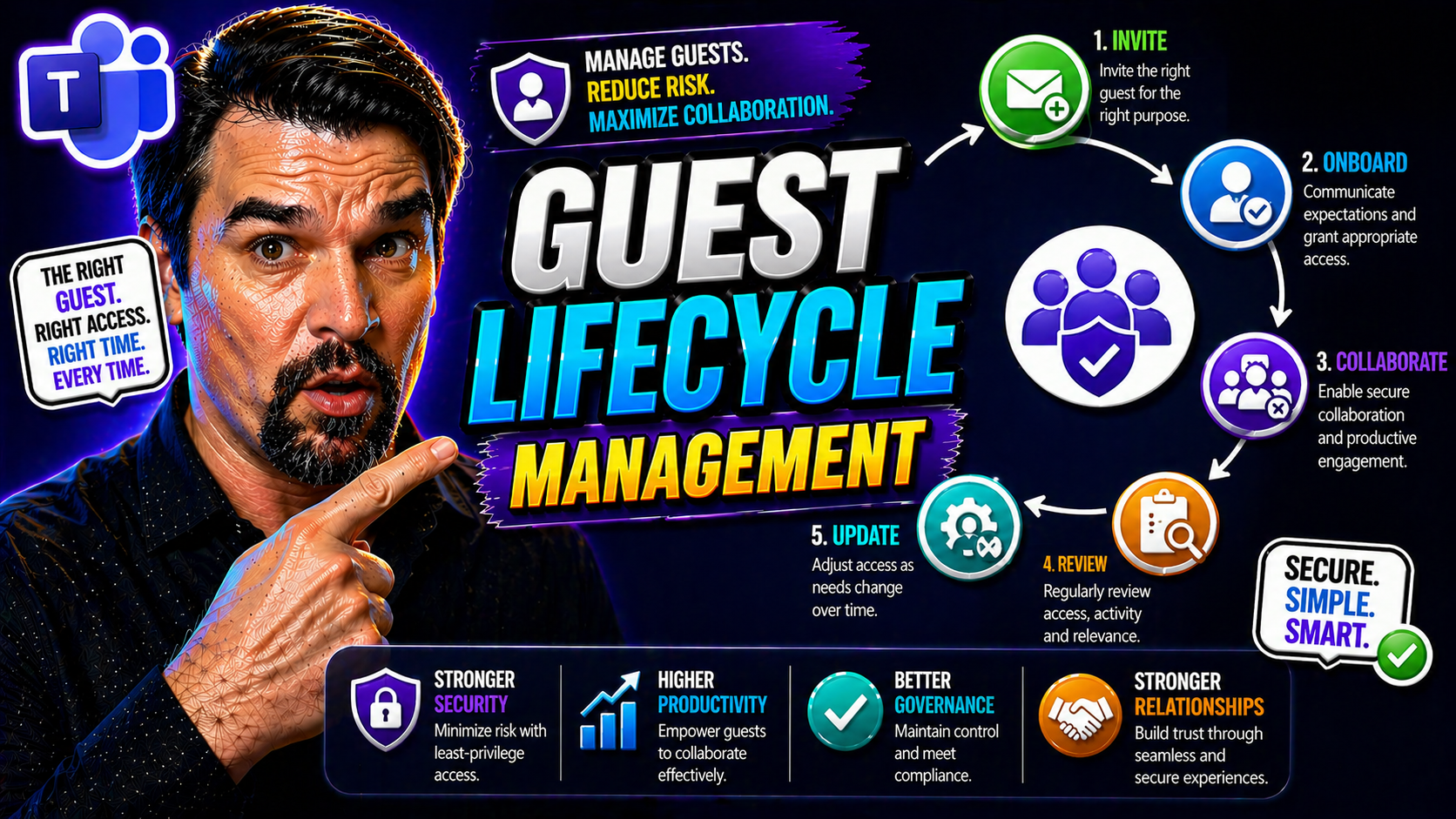
Managing guest users in Microsoft 365 isn’t just about sending out invites and hoping for the best. It’s about keeping your digital doors secure, your collaboration smooth, and your compliance on point—without tripping over security gaps that hackers love. This guide is your all-in-one resource for mastering guest lifecycle management in Microsoft Entra ID. From the first invitation to the final offboarding, you’ll see the strategies and steps required to protect your organization and keep auditors satisfied.
We’ll break down the nuts and bolts—onboarding guests, setting the right controls, automating the hassle, and cleaning up risky old accounts. You’ll also get a peek into advanced automation, hybrid scenarios, and regulatory landmines so nothing’s left to guesswork. Whether you’re juggling a few VIPs or herding hundreds of external partners, this guide has you covered with best practices for modern, secure collaboration.
Understanding Why Guest Governance Matters in Modern Identity Management
Let’s be real: inviting guests into Microsoft 365 is like giving out spare keys—responsibility comes with every set you hand out. If guest users aren’t properly governed, you’re rolling the dice with your company’s sensitive data, regulatory standing, and reputation. External collaborators add exponential complexity, and those old guest accounts lingering after projects wrap up? They’re prime targets for unauthorized access and data leaks.
Guest governance means having a full playbook—knowing exactly who’s in, what they can see, and how long they should stick around. It’s also a compliance tightrope. Regulations like GDPR and HIPAA want policies, proof, and strict boundaries around who touches your files. Auditors will ask to see guest access logs, governance processes, and evidence of regular access reviews, especially in high-stakes fields like finance or healthcare.
The real danger comes when access outlives its welcome. Security teams report that stagnant guest accounts are a top source for breaches and failed audits. For a closer look at these risks, check out this deep dive on Microsoft 365 guest accounts. If you think enabling Microsoft’s controls is “set-it-and-forget-it,” think again. True governance demands intentional policy design, regular audits, and shared accountability, as explained by this podcast episode busting the governance myth. Bottom line? Strong guest governance is non-negotiable if you want secure, compliant, and audit-ready external collaboration.
Architecture Overview: Microsoft Entra External Collaboration and Identities
At its core, Microsoft Entra ID is the central traffic controller for every external user trying to collaborate inside your Microsoft 365 world. It starts the moment a partner or vendor gets an invite: Entra ID sends a B2B invitation, federates external identities, and tracks their credentials—no matter if they use their company email, Gmail, or even another identity provider.
Picture the interconnected highways: guests log in via Entra ID, and permissions ripple out to apps like SharePoint, Teams, and OneDrive. Here, you control which files or sites a guest can access, making Entra ID the nerve center for security. With role-based access control (RBAC), you fine-tune who gets what—down to document-level precision if needed.
Guest onboarding flows through invitation links and consent, followed by behind-the-scenes federation. Once inside, guests are managed with group membership, conditional access policies, and access reviews. Integration with M365 apps means guests interact naturally yet are ring-fenced from internal data by layered policies. This federated architecture allows collaboration without sacrificing control, giving you power to offboard guests quickly if projects or relationships end.
If you’re prepping for the hands-on setup, remember this: Entra ID is where guest authentication, tracking, and policy enforcement converge for all your Microsoft 365 environments. Nail the architecture, and every downstream app stays in sync and secure.
Step-by-Step Setup for Secure Guest Lifecycle Management
Now that you know why and what’s at stake, let’s roll up our sleeves and get into setting up secure guest lifecycle management in practice. This section is your launchpad, laying out the phases that take you from planning to policy enforcement to long-term control. You’ll see that good guest management isn’t a one-off—it’s a cycle involving careful preparation, smart configuration, and regular upkeep.
We’ll break down everything you need to cover, step by step, starting with critical prerequisites and initial admin setup to make sure you’re not locking doors after the horse is long gone. Then, you’ll see how to fine-tune Microsoft 365’s built-in sharing tools like SharePoint and OneDrive for just the right mix of collaboration and control. Finally, we’ll cover how to lock it all down using conditional access policies and regular access reviews, so risky access doesn’t slip through the cracks.
Each child section here offers a practical how-to, with clear actions to take—so you can move beyond theory and actually build a secure, compliant, and efficient guest access program tailored to your organization’s needs.
Prerequisites for Enabling Guest Access and Entitlement Management Implementation
- Review Licensing Needs: Ensure you have the required Microsoft Entra ID or Azure AD Premium P1/P2 licenses for access reviews, conditional access, and entitlement management features.
- Assign Admin Roles: Give appropriate permissions in the Entra Admin Center—usually to Global Administrators and Entitlement Management Administrators—to configure policies and access packages.
- Enable Cross-Tenant Collaboration: Set up foundational external collaboration settings in the Entra Admin Center. Adjust B2B policies to enforce who can invite guests and what they can access.
- Set Up Entitlement Management: Prepare entitlement management with access packages to structure and automate how guests are onboarded, reviewed, and offboarded. Use Microsoft’s recommended access governance strategies.
- Plan for Policy Enforcement: Map out how conditional access and lifecycle policies will be enforced, minimizing “identity debt” as discussed in this podcast on Entra ID security controls and Azure governance strategy.
How to Configure SharePoint and OneDrive for Secure Guest Access
- Set Global Sharing Policies: In the Microsoft 365 Admin Center, set organization-wide controls to restrict which users can share externally, and only allow sharing with authenticated guests.
- Adjust Site-Level Controls: Configure individual site and OneDrive sharing settings for least privilege. Disable anonymous sharing and use invitation-based collaboration only.
- Monitor and Audit Sharing Activities: Enable enhanced auditing and logging to track external sharing events, as laid out in this external sharing guide. Use PowerShell or third-party tools for real-time alerts and continuous review.
- Periodic Permissions Review: Schedule regular audits of sharing settings and access rights to catch and remediate “permissions sprawl” before it spirals out of control.
- Choose Compliance-Ready Data Storage: For sensitive scenarios or long-lived apps, consider Microsoft Dataverse over SharePoint Lists for stronger governance, as explained in this feature comparison.
Implementing Conditional Access Policies and Scheduling Regular Access Reviews
- Define Inclusive Conditional Access Policies: Create targeted conditional access policies in Microsoft Entra ID to apply to all guest users, using broad scopes with minimal, carefully documented exceptions.
- Block risky access by requiring multi-factor authentication (MFA) for all external users.
- Set up device-based or location-based restrictions where needed.
- Phased Policy Rollout: Use report-only mode and staged rollouts to test and validate policies before enforcing them. Monitor real-world access patterns so you don’t break business processes unexpectedly.
- Ongoing Monitoring and Alerts: Use Entra ID’s built-in reporting or SIEM integration to catch policy bypasses, overbroad exclusions, and suspicious activity, as covered in this best practices guide.
- Schedule Regular Access Reviews: Set up automatic access reviews for all guest users. Define custom reviewers (such as resource owners or sponsors) so guest rights are regularly validated by those who understand the business context.
- Automate reminders, track inactivity, and require re-confirmation for ongoing access.
- Set expiration on guest access with time-boxed access packages.
- Refine and Update Policies: After every review cycle, use results to refine your policies—removing unneeded access, updating exceptions, and minimizing your attack surface. Treat this as an ongoing loop, not a one-time task.
Automating Guest Lifecycle Management With Microsoft Graph and Logic Apps
Manual guest user management just doesn’t scale—especially when you’re juggling dozens of projects, shifting teams, and regulatory overhead. This section gets you thinking about automation as your sidekick for guest lifecycle management. Microsoft offers toolkits like Logic Apps and Microsoft Graph APIs so you can design, trigger, and monitor guest user workflows with minimal hands-on effort.
What’s the goal here? Replace repetitive, error-prone tasks with cloud-powered pipelines. That means everything from sending the invite, tracking onboarding, flagging inactivity, to kicking off auto-offboarding—without bogging down your helpdesk or slowing business collaboration.
In the next sections, we’ll dive deeper into setting up workflow automation for onboarding and offboarding, and show you how to use dynamic groups in Entra ID for guest management that’s always up-to-date. You’ll come away with actionable steps, workflow templates, and plenty of use cases to get your organization running like clockwork.
Using Logic Apps to Automate Guest User Onboarding and Offboarding
- Automate Guest Invitations: Build Logic Apps that listen for access requests (such as from a SharePoint form or email trigger) and send Entra ID B2B guest invitations automatically. Pre-approve or route requests through configurable approval workflows.
- Track Activity and Flag Inactive Users: Set up Logic Apps to watch for inactivity in Microsoft Graph—flagging guests who haven’t logged in for a set time. Trigger reminders or sponsor notifications when inactivity thresholds are reached.
- Auto-Offboard Dormant Guests: Design Logic Apps to offboard guests automatically when their access package expires, their sponsor leaves, or they’re flagged as inactive. Use Graph API or PowerShell actions to revoke group membership and delete guest accounts.
- Send Welcome Communications: Include automated onboarding emails, resource links, or video intros to help guests hit the ground running—improving user experience and reducing support tickets.
- Integrate with Monitoring and Alerting: Connect workflows to audit logs or SIEM tools to log every invitation, approval, and offboarding event for compliance and troubleshooting.
Dynamic Group Setup for Automated Guest Management in Entra ID
- Create Dynamic Membership Rules: Build rules based on user attributes like userType = “Guest,” department, or project tag to auto-enroll or remove guests in security groups.
- Link to Access Packages: Tie dynamic groups to entitlement management access packages for role-based automation of permissions and governance.
- Maintain Real-Time Group Assignments: Ensure group assignments update instantly as guests’ roles or statuses change, keeping security posture aligned with business needs.
- Periodic Policy Audits: Regularly check membership criteria to keep dynamic groups relevant and effective as your organization or projects evolve.
Managing Inactive Guest Users and Reducing Security Risks
The guest lifecycle isn’t just about rolling out the red carpet—it’s about knowing when to usher folks out the door, too. This section spotlights the all-too-common blind spot: inactive or forgotten guest accounts. These dormant users can be a ticking time bomb, giving hackers an easy way in or exposing you to regulatory penalties for excess access.
What you need is a playbook for finding and dealing with these security risks. We’ll walk you through the critical phases—detecting inactivity, setting up alerts, and establishing automatic offboarding policies. It’s not just about security; it’s about operational hygiene, compliance, and clearing out the digital clutter before it gets you in trouble.
The next sections will get specific on detection techniques and practical controls to keep your organization tight and tidy. You’ll also find practical references like guides for hunting down risky guest accounts and setting boundaries that stand up to both auditors and attackers.
Identifying and Governing Inactive Guest Accounts to Improve Security
- Monitor Guest Login Activity: Use Entra ID’s audit logs or Microsoft Graph API to report on guest sign-ins. Flag accounts with no activity in the last 30, 60, or 90 days.
- Implement Automated Alerts: Set up workflows to alert admins or sponsors when a guest becomes inactive—triggering review or offboarding actions automatically.
- Run Scheduled Access Reviews: Utilize regular access reviews to have resource owners validate whether dormant guest accounts should remain or be removed.
- Bulk Review Using PowerShell: Run PowerShell scripts to mass-identify and mark inactive guest accounts, streamlining governance cycles as suggested in enhanced automation guides.
- Enforce Expiration Policies: Apply automatic expiration settings to guest users, so accounts close out after a set time without manual intervention.
Mitigating Risks Associated With M365 Guest Oversharing and Unauthorized Access
- Deploy Data Loss Prevention (DLP) Policies: Set up tenant-level DLP to prevent sensitive data from leaking through guest accounts or unmanaged sharing. Check out this guide to robust DLP controls for more details.
- Apply Sensitivity Labels: Use Microsoft 365 sensitivity labels to restrict or watermark sensitive documents shared with guests.
- Monitor and Audit Sharing Activity: Continuously monitor guest access and sharing logs via tools like Microsoft Purview (compliance governance breakdown).
- Limit Access Scope by Default: Only grant guests access to the specific resources they need—never default to broad permission.
Deployment Templates and Verification for Consistent Guest Access Workflows
Once your guest management policies are dialed in, making deployment repeatable and reliable is the next hurdle. This section introduces you to pre-built deployment templates and verification steps, which help ensure every project or business unit gets the same security quality—no matter who’s hitting the deploy button.
Think of templates as your blueprint for groups, conditional access policies, and access packages. They eliminate inconsistencies that open the door to risk. Equally vital is verification: running post-deployment tests to catch missed settings or permission gaps before guests get the green light.
In the child sections, you’ll find tips for standardizing with templates, executing spot checks, and streamlining audit preparations. As your security and compliance needs evolve, these best practices will help your guest lifecycle management scale smoothly across teams and environments. For more on the value of automated governance, dive into this Azure enterprise governance strategy guide.
Leveraging Deployment Templates and Testing Access Verification Steps
- Start with Official Templates: Use Microsoft’s sample templates for access packages, groups, and policies to kickstart deployment and ensure consistency.
- Tailor Templates to Fit: Adjust templates with your org’s specific naming, roles, expiration periods, and notification settings before deployment.
- Validate with Built-In Tools: Use access checkers and policy simulators (where available) to verify permissions before approving guests.
- Deploy a Verification Checklist: Run through a step-by-step post-deployment checklist to confirm access matches intended scope. Include environmental checks to spot permission drift.
Creating Auditable Reports and Troubleshooting Common Issues
- Generate Scheduled Guest Access Logs: Use Microsoft Purview Audit or basic reporting to pull guest access and activity reports on a regular basis (audit reporting guide).
- Structure Compliance Reports: Align your evidence with regulatory requirements: track approval trails, access duration, and data exposure using audit logs.
- Troubleshoot Common Errors: Document solutions for typical setup issues, like failed invitations, directory sync lag, or policy misalignment.
- Enable Continuous Monitoring: Use advanced audit tiers for long-term retention and richer logging—as recommended for regulated industries.
🛡️ Safety Tips and Final Thoughts for Guest Lifecycle Management Success
- Enforce Multi-Factor Authentication (MFA) for All Guests: Don’t let external users skip MFA. It’s your first defense against compromised accounts and is easy to enforce in Entra ID.
- Review Permissions Regularly: Schedule monthly or quarterly access reviews—automated where possible—to catch stale or unnecessary guest access and keep your environment tight.
- Train Internal Users: Educate project owners and admins on guest governance policies and file-sharing risks so improper sharing doesn’t slip through.
- Follow Least Privilege Principle: Always provision the minimum access needed for each guest. Don’t let “just in case” open up attack surfaces.
- Keep Policies Up-to-Date: Regularly revisit and update your conditional access, monitoring, and data classification policies to address new threats and compliance changes. For advanced tips on balancing user experience with tight security, read these practical security recommendations.
Guest Lifecycle Management Beyond Microsoft: Hybrid and Multi-Cloud Realities
Guest lifecycle management isn’t unique to Microsoft 365. If your organization lives in a hybrid or multi-cloud reality, you know the headaches that come with synchronizing guest policies and access across AWS, Google Workspace, Salesforce, and even old-school on-prem Active Directory. Guests may interact with your company on multiple fronts, and a gap in one platform can undo tight controls elsewhere.
This section explores why cross-platform identity governance is moving from “nice-to-have” to mission-critical. From regulatory compliance to real-world operational risk, aligning your Entra ID guest strategy with solutions outside the Microsoft ecosystem protects your data everywhere guests might roam. You’ll also get strategies and tools—like SCIM connectors and orchestration setups—for orchestrating onboarding, offboarding, and monitoring at scale.
Effective cross-cloud guest lifecycle management isn’t all about software—it’s about building responsive governance practices that meet compliance and business agility needs no matter where your data lives. For organizations setting guardrails around AI, automation, or responsible data sharing, your policies should travel with your guests, not get lost in the cloud shuffle. This approach is echoed in the broader governance themes found in governance board oversight of digital risk.
Synchronizing Guest Identities and Policies Across Cloud Platforms
- Leverage SCIM for Cross-Platform Sync: Use the System for Cross-domain Identity Management (SCIM) standard to automate guest account provisioning, updates, and deprovisioning between Entra ID, AWS IAM, and Google Workspace.
- Implement Custom Connectors: Where SCIM isn’t available, build or use custom connectors/scripts to map Entra ID guest identities to other cloud platforms and synchronize lifecycle events, ensuring access is revoked everywhere, not just in Microsoft.
- Centralize Guest Policy Orchestration: Use identity orchestration tools (like SailPoint, Okta, or One Identity) to handle policy enforcement, reviews, and deactivation workflow across all SaaS, multi-cloud, and on-premises systems.
- Map and Unify Entitlements: Establish a cross-platform entitlement map so each guest’s permissions are tracked, logged, and revoked holistically—not left dangling after Microsoft access ends.
- Extend Reviews and Audit Trails: Make sure access reviews and audit logs cover every environment. Apply regular reviews to AWS, Google, or legacy directories, linking actions in Entra ID to downstream platforms. For more on deterministic guardrails, see Azure’s governance strategy.
You Should Also Listen To
If you are researching Microsoft Entra guest lifecycle, these episodes add practical context on identity security, governance, access control, and Microsoft 365 operations:
- Privileged Identity Management – Simply Explained — Understand just-in-time privilege, approvals, and access reviews.
- Conditional Access – Simply Explained — Learn how context-aware policies protect users and devices.
- Microsoft Defender XDR – Simply Explained — Connect identity signals with detection, investigation, and response.
- Microsoft Teams Governance – The Illusion of Control — See how governance creates ownership and repeatable controls.

Microsoft MVP | Host of M365.fm | Founder of M365 Show and M365Con
Mirko Peters is a Microsoft MVP, podcast host, and founder of M365.fm, M365 Show, and M365Con. His work connects Microsoft practitioners through podcast interviews, livestreams, and community events.
At M365.fm, Mirko hosts conversations with Microsoft MVPs, product experts, architects, and community contributors. Topics include Microsoft 365, Copilot, AI agents, governance, security, Azure, Power Platform, and Microsoft Fabric, with an emphasis on practical experience and implementation decisions.
M365.fm is the podcast and learning platform. M365 Show brings experts together for livestreams, while M365Con provides an online conference setting for community learning.
Official website: Mirko Peters (https://www.mirkopeters.com/). Recognition: Mirko Peters — Microsoft MVP profile (https://mvp.microsoft.com/de-DE/mvp/profile/9b0ca797-db5a-493a-a845-8b9158046cf5). Connect on LinkedIn (https://www.linkedin.com/in/m365showpodcast/).





