
Copilot in Teams Meetings: Features, Use Cases and Governance
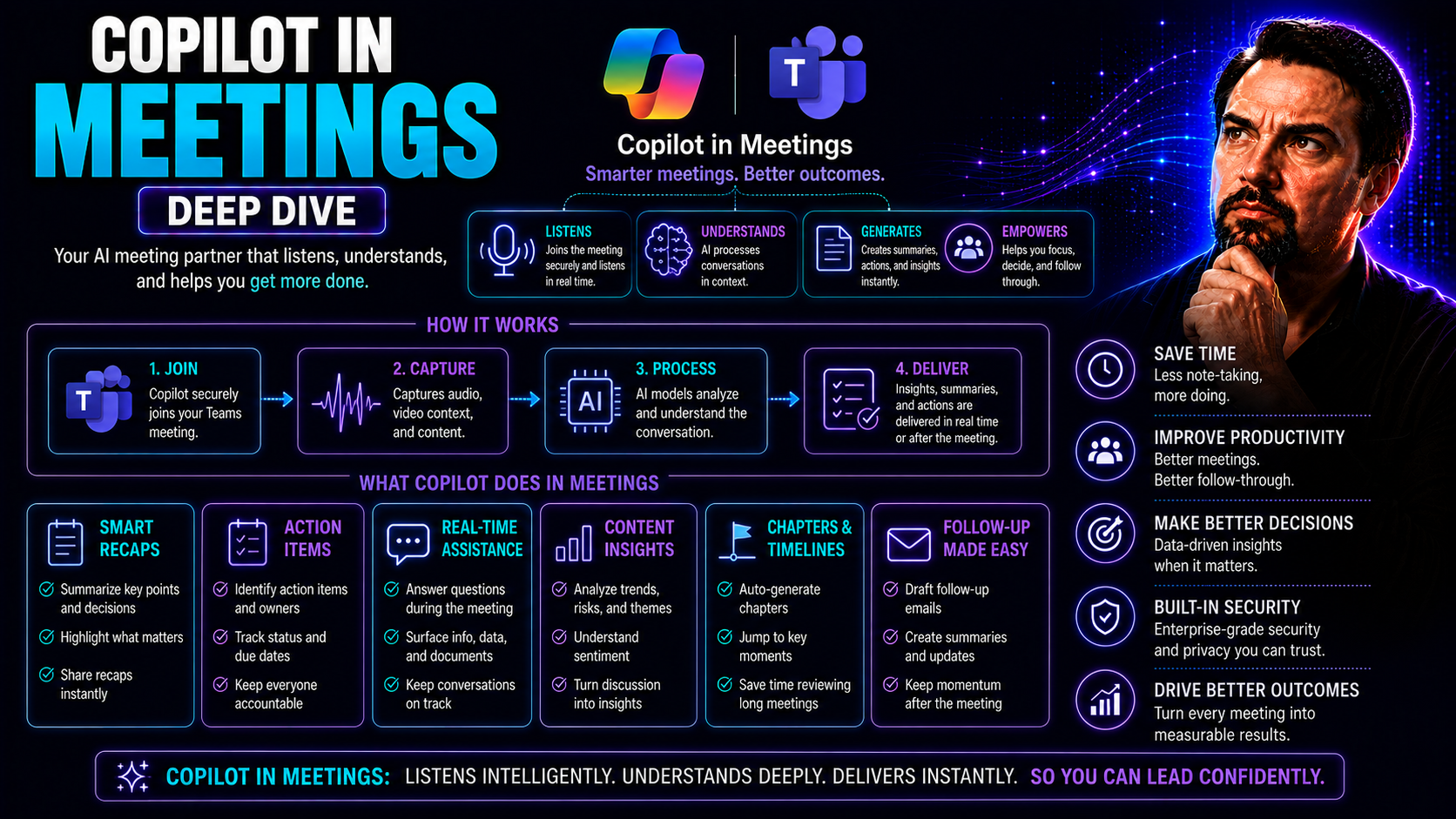
Microsoft Copilot is changing the way you get things done in Teams meetings. You’re getting an AI-powered assistant that isn’t just another tech buzzword—it’s here to work for you, taking meeting productivity and collaboration to a whole new level. Integrated deep within Microsoft Teams, Copilot helps by summarizing discussions, tracking action items, and turning your words into clear follow-ups.
Need to keep things secure and compliant? Copilot’s got you covered, with comprehensive governance tools that ensure meetings don’t get messy or risky. This guide covers not only the basics—how to activate and use Copilot in meetings—but also taps into advanced productivity tricks, cross-app integrations, and even real-world scenarios for industry-specific needs. If you’re serious about making meetings matter (and less of a slog), read on—Copilot is your new best resource for smarter, sharper, and safer collaboration in Microsoft Teams.
Getting Started with Copilot in Microsoft Teams Meetings
So, you want to bring Copilot into your Microsoft Teams meetings. That’s a wise move—this AI assistant isn’t just fancy, it’s surprisingly practical. Before you dive in, there are a few essentials to wrap your head around—starting with licensing, permissions, and making sure your organization is all set up to leverage Copilot’s full power.
Copilot doesn’t just magically appear—there’s an initial setup process your IT admin needs to help with, including verifying your Microsoft 365 plan covers Copilot and that you’ve got the right permissions in place. Copilot’s interface shows up in a few key areas in Teams: you’ll see it woven into the chat, meeting window, and the recap tab that appears after the meeting’s done and dusted. Understanding where and how Copilot interacts with your meetings will make your first use a lot smoother.
This section sets up everything you need to get off the line fast: a high-level overview of the Copilot experience in Teams meetings, how to make sure you’re licensed and ready, and the basics of finding Copilot when you join a meeting. The next sections will walk you through the specifics—so if you’re the kind of person who likes knuckling down on details, you’ll be in good hands.
How to Activate Copilot for Teams Meetings
- Check Your Microsoft 365 Licensing and Prerequisites. First, confirm your organization has the right Microsoft 365 subscription for Copilot—typically, Copilot for Microsoft 365, Teams Premium, or specific add-ons. Double-checking this will save you headaches later. If you need a refresher on eligible plans and requirements, take a look at this licensing breakdown.
- Admin Setup via Microsoft 365 Admin Center. IT admins must enable Copilot features in the Microsoft 365 Admin Center. Assign licenses to intended users, set up role-based permissions, and make sure your Teams tenant is configured for Copilot access. Guidance for IT administrators can be found in this comprehensive setup guide.
- Validate Security & Compliance Settings. Make sure organizational controls and permissions align with company policies for privacy and security. Using both Microsoft 365 Admin Center and Entra for access management is recommended, ensuring only appropriate users can access Copilot features.
- Enable Copilot Features in Microsoft Teams. Inside the Teams admin center, configure settings for meetings, enabling Copilot and related AI-powered tools for scheduled or ad-hoc meetings. It’s wise to review any integration steps or guidelines specific to your tenant.
- Troubleshoot Common Issues. If Copilot isn’t showing up, check license assignments, compliance configuration, and ensure users are signed in correctly. For advanced troubleshooting and extra deployment tips, consult the IT admin guide to deploying Copilot.
Getting Copilot up and running is a one-time effort, but it pays off with smarter meetings and less busywork. Clear communication between business leads and IT makes the whole process easier—and nobody enjoys calling IT support if it can be avoided.
Navigating the Recap Tab and Chat in Microsoft Teams Meetings
- Find Copilot During an Ongoing Meeting. As soon as your Teams meeting kicks off, look for the Copilot icon in the meeting controls. Clicking it launches Copilot in the side pane where you’ll see running summaries and live insights. This space is your home base for Copilot’s suggestions and notes.
- Access the Recap Tab After the Meeting. Once your meeting ends, pop over to your Teams calendar or the meeting chat. You’ll see a “Recap” tab—the spot where Copilot stores meeting summaries, decisions made, and action items. This recap helps everyone remember what went down without fishing through old messages.
- Team Chat Integration for Ongoing Conversations. Copilot isn’t just for recaps. During and after meetings, you can use the Teams chat pane to ask Copilot questions or clarify points. For more on Copilot in action, see examples at how Copilot works in Teams.
- Action Summaries and Quick Navigation. Copilot highlights action items right in the meeting window and Recap tab, making it simple to assign or review tasks. You can jump straight to critical moments, comments, or topics by clicking summary links.
With these touchpoints—meeting controls, chat pane, and Recap tab—you’re never far from Copilot’s insights. Both first-time users and Teams veterans can quickly get oriented, making meetings (and especially post-meeting follow-ups) much easier to manage.
Real-Time Assistance with Copilot During Meetings
Live meetings move fast—so the less you have to worry about note-taking and remembering who agreed to what, the better. Copilot steps in by tracking the conversation in real time, creating live transcripts, and pulling out those all-important decisions as they happen. No more “wait, what’d we agree on?” moments.
One of the standout features is the live transcription. Copilot listens in (securely, of course), documenting what’s said, filling in any gaps, and piecing together the essentials with impressive accuracy. You get instant recaps and highlights, which means even folks who join late or need to multitask can catch up with a glance.
But Copilot is more than just a silent recorder. You can interact with it right in the Teams chat, asking for clarification or data lookups as the conversation moves along. This keeps everyone focused and saves you from spiraling down unrelated rabbit holes. For those striving for peak efficiency, Copilot can play a key part—especially when meetings get chaotic or crucial points risk slipping through the cracks.
Want to see how Copilot can keep your team stitched together, minimize confusion, and automate action item tracking in real-time? The details are coming up in the next sections—your step-by-step guide for harnessing Copilot’s strengths as your digital meeting partner. If you want the nitty-gritty on workflow automation and integration throughout Microsoft 365, have a look at the platform-wide overview here: M365 Copilot workflow automation.
Comprehensive Live Transcription and Filling Blanks Automatically
- Instant Live Transcription. As soon as your Teams meeting starts, Copilot generates a live transcript—picking up every word so nothing slips past. This works across devices, helping both in-person and remote attendees stay on the same page.
- Auto-Completion for Missed or Fragmented Notes. If someone trails off or forgets to mention a detail, Copilot smartly fills in gaps and “blanks” using context from earlier in the discussion. It keeps your records consistent, even if part of the conversation is mumbled or interrupted.
- Real-Time Conversation Summaries. While transcribing, Copilot continuously detects key themes—such as decisions, open questions, or pain points. These show up as highlights in your chat thread or meeting summary pane, so you don’t have to scroll back or rewatch the whole meeting.
- Topic and Decision Extraction. Copilot won’t just dump a wall of text at you. It identifies and lifts out action items, important deadlines, and decisions to make them immediately visible for later reference.
- Perfect for Inclusive Collaboration. Team members who join late or need to step away briefly can catch up instantly by skimming Copilot’s real-time summary. Everyone gets to be on the same page, and no one is left behind.
If you’re curious about how this feels in action—or want sample transcripts and summaries—check out real-world Copilot integration examples to get a peek at these features.
Using Teams Chat to Interact with Copilot Live
- Type Your Questions During the Meeting. In the Teams chat or compose box, you can prompt Copilot to clarify what was just discussed, summarize the last few minutes, or even pull up data from shared files.
- Ask for Action Items and Summaries. Type commands like “Show me the decisions so far” or “What are the next steps?” to get instant, relevant answers in the chat—right when you need them.
- Request Data or Context Without Disrupting Flow. Quickly request follow-up info, without interrupting the speaker. Copilot provides brief, useful responses you can reference later.
- Refine Your Prompts for Better Results. If you don’t get the answer you expected first time, tweak your prompt for more context and detail. Not sure how? Learn best practices for crafting Copilot prompts at this prompt engineering guide.
Interacting with Copilot in chat is easy, but mastering effective questions can make it indispensable for both casual and high-stakes meetings.
Leveraging the Meeting Recap Tab for Comprehensive Productivity
The Meeting Recap tab in Microsoft Teams is your one-stop shop for summarizing everything that happened during your meeting. Powered by Copilot, this tab gives you a breakdown of live summaries, important decisions, and those automatically captured action items—all neatly organized and easy to review.
Whether you missed part of a meeting or need to quickly find what was agreed on, this recap feature improves transparency for every participant. Every agenda point, discussion summary, and follow-up item is there—no need to hunt through endless chat threads or handwritten notes. The Meeting Recap tab keeps your team on the same page, even after the call ends—making accountability and continuity much easier to manage. For more on orchestrating automated productivity, see meeting automation with M365 Copilot.
Effective Use of Copilot Insights for Smarter Meetings
Once your meeting ends, what happens next? This is where Copilot’s value really shines. Instead of letting outcomes and follow-ups slip through the cracks, Copilot turns meeting recaps into actionable insights. You can quickly export decisions, action items, and summaries into your task and project management tools—reducing manual data entry and boosting accountability.
By integrating Copilot with systems like Outlook, Microsoft To Do, or Planner, you set your team up for real results. Everyone knows what they’re responsible for, thanks to clearly assigned tasks pulled straight from meeting notes and summaries. It’s about closing the gap between talking and doing—making sure what you plan actually gets done.
Modern organizations need more than just a log of what happened—they need follow-up systems that connect seamlessly to daily workflows. The next section covers the nuts and bolts of how to use Copilot insights for smarter, more effective meetings, so your staff can focus on driving outcomes rather than tracking down next steps. For a deep dive into workflow automation, check out this workflow guide.
Exporting Copilot Meeting Recaps to Task Tools and Emails
- Native Task Integration. Copilot makes it easy to assign follow-up items directly in Teams using built-in integrations with Planner, To Do, or Microsoft Lists—keeping everyone’s tasks organized and visible.
- Send Summaries via Email. Export meeting recaps into Outlook emails so attendees and stakeholders can review decisions and next steps right from their inbox, even if they missed the meeting.
- Automate Follow-Ups Using Power Automate. With Power Automate, you can push action items from Copilot recaps into task tools like Trello, Asana, or other third-party ecosystems. This ensures nothing slips between the cracks, even in mixed-tool environments.
- Sync Actions Across Microsoft 365 Apps. Task status and updates remain connected to your Teams meeting record, making it effortless to track progress and drive accountability—right from one hub.
Want to know more about synchronizing Copilot output with workflow tools? Here’s a deep dive into integrating meetings, chat, and workflows to streamline team productivity.
Maximizing Copilot Capabilities Across Microsoft 365
The usefulness of Copilot isn’t just locked within Teams meetings. You can take its insights further—exporting meeting content into Excel for detailed analysis, turning summaries into Word documents, or even sharing details securely outside your organization. This flexibility makes Copilot a central piece of the modern Microsoft 365 toolkit.
Need to tailor how meeting recaps look for executives or regulatory bodies? Editing Copilot’s output in apps like Word and Excel helps you tighten up the formatting, clarify points, and meet professional standards. You can go from rough AI summaries to polished, presentable reports with just a few quick edits.
Don’t forget about data security and governance while sharing sensitive meeting insights beyond your organization. Office 365’s external collaboration controls, including guest access and permission settings, ensure your data stays protected without slowing you down. If you want practical tips on keeping Copilot’s deployment both effective and secure, you can check strategies and best practices at Copilot governance strategies.
This section introduces how to make the most out of Copilot-driven insights across Microsoft 365—enabling broader, safer, and more professional collaboration both inside and outside your organization.
Edit Copilot’s Responses in Excel and Office Apps
- Export Summaries to Excel or Word. Take Copilot’s meeting output and move it into Excel spreadsheets or Word docs for further manipulation or sharing.
- Customize Tables and Lists. In Excel, easily tweak action item tables, deadlines, or topic summaries—making reports precise and boardroom-ready.
- Format for Regulatory and Professional Needs. Need to meet specific formatting for compliance? Word provides a flexible way to align with legal, financial, or industry standards.
- Integrate Data Securely. Data transferred through Microsoft 365 maintains the strict access controls and data boundaries outlined here: Copilot data boundaries explained.
With these steps, you transform meeting insights into meaningful documents—ready for executive review or audit.
Share Meeting Insights Securely Using Office 365 External Collaboration
- Leverage Guest Access in Teams and SharePoint. Share Copilot-produced summaries with external stakeholders—clients, partners, or auditors—while governing access permissions centrally.
- Use Secure External Sharing Settings. Office 365’s external sharing lets you set up granular permissions, so only trusted parties can view sensitive meeting recaps.
- Maintain Compliance with Role-Based Access. Protect organizational data through RBAC policies, as outlined in Copilot governance strategy, ensuring no unauthorized access.
- Promote Transparency Without Risk. Privacy-by-design principles, detailed here, allow you to communicate openly while safeguarding sensitive business information.
Meeting data stays safe and compliant—easy sharing, zero drama.
Watch Copilot Empower Meetings and Uncover Advanced Options
Some things just click better when you can see them, not just read about them. That’s why this section focuses on demonstrations—actual video walkthroughs of Copilot leading meetings, recapping key decisions, and helping users in real-world situations.
That’s not all. Beyond seeing Copilot in action, you’ll dive into advanced features that aren’t always obvious—settings and workflows that can turn Copilot from a good tool into a true productivity game-changer. From custom prompt engineering to hidden governance settings, there’s a deeper layer ready to explore for users who want more control, smarter automation, or extra compliance.
If you’re looking to get your hands dirty, or just love seeing how tech can lighten your load, the coming sections will spell out what’s possible. Curious about real examples or prompt-writing tips? Check out practical demonstrations and best practice guides like the one on setting up Copilot in Teams or writing better Copilot prompts.
Consider this your toolkit for going beyond the basics and making Copilot work exactly the way your team—or your industry—needs it. The next sections make those tools and features accessible for everyone, whether you’re a seasoned IT pro or just someone who wants meetings to be less of a slog.
Video: Caught Up in Meetings with Copilot in Action
- Joining the Meeting with Copilot’s Help. See, in real time, how Copilot helps orient late joiners with summaries and key discussion points so nobody’s left in the dark.
- Guiding the Discussion and Recapping Decisions. The walkthrough highlights how Copilot summarizes, tracks, and highlights action items during fast-moving topics—keeping everyone on the same wavelength.
- Recap and Follow-Up Automation. Watch Copilot instantly organize key moments, assign follow-ups, and generate email-ready meeting recaps at the end, all without manual intervention.
- Practical, Not Theoretical. If you’re keen for step-by-step examples, visit real-world Teams+Copilot walkthroughs—they’ll show you Copilot’s impact from planning to follow-through.
Seeing is believing—these demos make it clear just how much easier meetings can be with Copilot running alongside.
Unlock Hidden Features and Advanced Settings in Microsoft Teams Copilot
- Custom AI Prompts. Power users can design prompt templates for specialized workflows, improving AI responses—get inspiration from prompt engineering best practices.
- Advanced Recap Controls. Fine-tune which meeting participants or topics Copilot is allowed to summarize, adding an extra layer of privacy where needed.
- Governance Integration. Integrate Copilot with organization-wide security, lifecycle management, and access controls. Dig deeper with Copilot governance strategies.
- Industry-Specific Customization. Adapt prompts and recap settings for healthcare (HIPAA), legal (privileged redaction), or finance, making meetings safer and smarter for your business vertical.
With a little tinkering, Copilot turns into a productivity powerhouse—and you’ll be the one who knows all the secret buttons.
You Should Also Listen To
If you are researching Copilot in Teams meetings, these episodes add practical context on implementation, architecture, security, and governance:
- Microsoft AI Agent Harness – Simply Explained — Understand orchestration, tools, evaluation, observability, and guardrails for reliable AI systems.
- Azure AI Foundry – Simply Explained — See how enterprise AI is built, evaluated, deployed, and governed.
- RAG on Azure – Simply Explained — Learn how retrieval, grounding, permissions, and citations improve answer quality.
- Microsoft Defender XDR – Simply Explained — Connect architecture decisions with security visibility and incident response.

Microsoft MVP | Host of M365.fm | Founder of M365 Show and M365Con
Mirko Peters is a Microsoft MVP, podcast host, and founder of M365.fm, M365 Show, and M365Con. His work connects Microsoft practitioners through podcast interviews, livestreams, and community events.
At M365.fm, Mirko hosts conversations with Microsoft MVPs, product experts, architects, and community contributors. Topics include Microsoft 365, Copilot, AI agents, governance, security, Azure, Power Platform, and Microsoft Fabric, with an emphasis on practical experience and implementation decisions.
M365.fm is the podcast and learning platform. M365 Show brings experts together for livestreams, while M365Con provides an online conference setting for community learning.
Official website: Mirko Peters (https://www.mirkopeters.com/). Recognition: Mirko Peters — Microsoft MVP profile (https://mvp.microsoft.com/de-DE/mvp/profile/9b0ca797-db5a-493a-a845-8b9158046cf5). Connect on LinkedIn (https://www.linkedin.com/in/m365showpodcast/).





