Copilot Prompts for Action Items
This guide gives you everything you need to know about using Microsoft Copilot prompts to handle action items like a pro. You’ll dive into the practical steps for managing, assigning, and following up on tasks—whether those items pop up in your emails, meetings, or shared documents. The focus isn’t just on creating a checklist, but on truly mastering accountability, clarity, and seamless integration with popular project management tools.
Inside, you’ll find best practices, creative prompting strategies, and detailed walk-throughs for Microsoft 365 and Teams. We’ll go beyond basics, showing you tips and real-world prompts competitors miss—like formatting for easy system handoff and making ownership visible. By the end, you’ll be able to maximize output and keep your whole team moving forward, not just hoping action items don’t get lost in the shuffle.
Mastering Microsoft 365 Copilot for Managing Action Items
Managing action items doesn’t have to be a juggling act. Microsoft 365 Copilot brings a new level of organization and automation by using AI-driven prompts to help you capture, sort, and actually get things done—right across your emails, meetings, and documents. Think of Copilot as a smart assistant that not only finds tasks, but keeps them from slipping through the cracks.
With the right prompts, Copilot quickly finds follow-ups buried in your inbox or wraps up meeting notes into neat action lists without you having to scroll or search. Scheduling, prioritizing, and making sure everyone knows what’s on their plate becomes almost routine. As more companies rely on remote work and fast-moving teams, using Copilot for action item management isn’t just convenient—it’s a real productivity advantage.
This section kicks off deeper dives, first exploring how to extract and manage tasks straight from Outlook emails, then showing you how to create step-by-step action plans from daily activities and meetings. By getting these fundamentals right, you set yourself (and your team) up to work smarter, react faster, and never wonder, “Did that get done?” again.
Extract and Track Action Items from Emails With Copilot Outlook
- Automatically summarize threads to spotlight action items: Use prompts like “Summarize this email chain and list all pending tasks.” Copilot can sweep through long conversations, pull out what needs attention, and save you from mind-numbing scrolling.
- Spot and manage emails needing follow-up: Try “Show me all emails I haven’t replied to this week” or “Summarize emails from [client] still pending action.” You’ll quickly see what’s outstanding, whether it’s an internal update or a customer request, and never drop the ball just because your inbox got too full.
- Draft rapid replies for routine and external follow-ups: Use prompts like “Draft a reply confirming the deadline extension” or “Create a status update for pending items in this thread.” Copilot helps you move faster while keeping your communication on point and professional, even during busy days.
- Rewrite and refine outgoing emails for clarity: Try “Rewrite this message for clarity and a more professional tone” before sending. Copilot’s AI can polish your words, making sure your intentions and requests aren’t buried in jargon—handy when your message needs to spark action.
- Keep an ongoing log of action items from email: Use “Extract all action items from my inbox this month and group by project or person.” Copilot helps you corral stray commitments into a single view, making follow-through and reporting a breeze, whether you’re leading a team or just trying to not lose your mind at month-end.
Create Detailed Action Plans With Task-Based Prompts
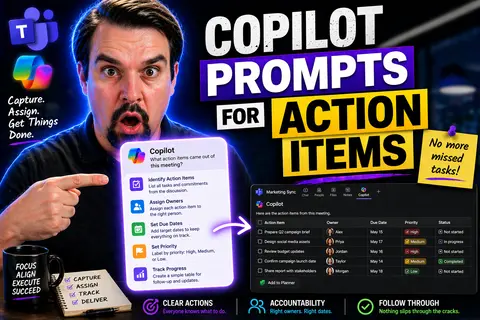
- Turn meeting outcomes into step-by-step action plans: Prompt with “Transform these meeting notes into a task list with deadlines and owners.” Copilot digs through the discussion, lists out what needs doing, who owns what, and what’s coming up next—so everyone is clear and nothing gets left behind.
- Prioritize tasks for maximum impact: Try “Organize this action list by priority—with urgent items at the top and dependencies highlighted.” Copilot helps you see what’s hot and what can wait, so you put your energy where it counts.
- Schedule deliverables and set reminders: Use prompts like “Add due dates and send reminders for each task in this project plan.” You’ll keep everyone on track—and your future self will thank you for setting up smart nudges ahead of time.
- Adapt action plans for recurring and unexpected work: With prompts such as “Update this plan for our weekly sprint” or “Add tasks based on new client feedback,” Copilot can quickly adjust your workflow whenever priorities shift.
- Manage complex workflows with context-rich prompts: Go deeper by asking, “Break down the next phase into subtasks, assign owners, and identify risks or blockers.” Copilot turns chaos into structured plans, keeping your project momentum high.
Making Communication Clearer With Copilot Prompts Microsoft
Crisp, clear communication is the heart of getting action items done. It’s easy for requests or expectations to get lost in translation, especially when juggling dozens of emails and documents every day. That’s where Copilot steps in, acting kind of like an editor who never misses a beat and helps keep your message clean and intentional.
This section introduces you to using Copilot’s most useful features for sharpening your emails, documents, and even chat messages. You’ll see how rewrite and proofread prompts can help you say what you mean—removing confusion about who’s responsible, when things are due, or what exactly needs to happen next. With clearer communication, you cut down on costly misunderstandings and make sure everyone is on the same page.
Whether you’re handling internal updates or sending polished client emails, Copilot helps you shift from good enough to unmissable. Dive in to discover how a few smart AI tweaks can make your words carry weight, clarify ownership, and lock down deadlines—one prompt at a time.
Rewrite and Proofread Tracked Messages for Readability and Clarity
- Prompt Copilot to rewrite text for clarity and structure: Use “Rewrite this draft for plain English and a professional tone.” Your message becomes easier to read and gets your point across with zero fluff.
- Proofread tracked changes and summarize updates: Ask Copilot, “Review these edits and highlight any unclear passages.” This helps you catch awkward sentences or hidden typos before stakeholders ever see your document.
- Sharpen complex action items into direct requests: Use prompts like “Rephrase the bullet points so each action is clearly assigned and deadline specific.” This keeps your task lists punchy, with no guesswork on who’s doing what or when.
Generate Ideas and Tailor Content for Every Audience
- Brainstorm new concepts and action-driven messages: Prompt with “Generate three ideas for improving customer follow-ups” or “Suggest angles for our sales pitch to healthcare clients.” This lets you bring out fresh solutions for different audiences.
- Customize content for each stakeholder: Ask Copilot: “Draft this update in a tone appropriate for senior executives” or “Rewrite for frontline staff with clear directives.” This ensures everyone gets exactly what they need to take action.
- Create tailored materials on-demand: Use “Summarize this project update for external partners, focusing on their concerns and next steps.” This adapts one set of facts to fit whatever group you’re talking to—internal or external, technical or not.
Collaborating on Meetings and Teams Action Items With Copilot
When it comes to teamwork, meetings are essential—but keeping track of what was discussed and who’s doing what can be a headache. Copilot in Microsoft Teams helps smooth this out, automatically capturing the important bits: summaries, decisions, and actions. Instead of reading through pages of meeting notes, you get the highlights, clean and ready to go.
This section walks you through using Copilot’s prompt features to catch up if you’ve missed a session, extract the big action items, and send out follow-ups in record time. The idea is to get your team from “what did we agree to do?” to “here’s the plan and deadline” faster than ever before.
Explore these workflows to see how AI can cut down on repeat meetings, misunderstandings, and forgotten commitments. Meetings aren’t just about talking—they’re about doing. Copilot puts action items front and center, so your team’s next steps are always crystal clear.
Summarize Meeting Interactions and Recap Key Points
- Recap the meeting highlights instantly: Prompt with “Summarize key decisions and action items from this meeting.” Copilot turns a whole transcript into a brief list, letting everyone know what just happened—even if they logged in late or missed it entirely.
- Extract follow-ups and assign owners: Use “List all tasks discussed and indicate who is responsible for each.” This keeps accountability clear and helps avoid asking, “Wait, who had that again?” days later.
- Generate bullet-point takeaways for team sharing: Try “Summarize the meeting in five bullet points for the project Slack channel.” People get what matters most, and the chance for misunderstandings drops way down.
- Capture missed details for absent team members: Ask for a recap focused on “What did I miss that impacts my team?” Copilot will make sure you’re not playing catch-up next week.
Schedule, Suggest, and Wrap Up Team Tasks With Copilot App
- Book next meetings and follow-ups automatically: Prompt, “Suggest three time slots for a project check-in with all team leads,” and Copilot will handle the scheduling puzzle.
- Recommend next steps based on previous meetings: Use, “What are the top action items to tackle this week?” Copilot reviews the latest notes and gives a prioritized to-do list, ready for assignment.
- Provide a week-in-review wrap-up: Ask, “Summarize all tasks closed and pending from this week for our team update.” Copilot keeps your progress visible and your planning honest.
Proven Practices for Copilot Prompts Microsoft 365 Productivity
Writing effective prompts is the secret sauce for making Copilot truly useful. Effective prompting means your requests are understood, your results are accurate, and steady productivity becomes the new normal. Sometimes it feels like magic—the right prompt unlocks insights and gets work moving faster than you imagined possible.
This section explores the best tips for structuring prompts so Copilot delivers actionable, trustworthy outputs. You’ll also find common mistakes that can trip up even seasoned users, and learn how to shift from one-person prompting to team-wide game plans. Whether you’re using Copilot to move your own work forward or rolling it out across a department, setting up your prompting process is what turns Copilot from cool tech into a daily life-saver.
Read on for bite-sized advice and smart steps to build high-yield Copilot workflows—expanding the impact from your inbox to your whole organization.
Best Practices and Common Mistakes for Copilot Prompts
- DO: Clearly state your request. Ambiguous prompts confuse Copilot and waste time. Be specific about what you want (e.g., “Create a bulleted list of action items for this week”).
- DO: Define the audience and context. Let Copilot know who’s reading so it can adjust tone and content to fit—no more “one size fits none.”
- DON’T: Overload prompts with unrelated requests. Keep each prompt focused to avoid messy, disconnected results.
- DON’T: Assume Copilot auto-fixes poor spelling or unclear references. Garbage in, garbage out, as always.
Steps to Scaling Copilot Across Teams and Applications
- Set up scheduled prompts for routine tasks: Use recurring prompts like “Summarize action items from this week’s meetings every Friday.” This makes sure follow-ups and reviews happen even if individuals forget.
- Create shared prompt libraries and templates: Standardize what works for your team. Save good prompt examples inside OneNote or SharePoint to use everywhere, from Outlook to Teams.
- Leverage Copilot memory for cross-app coordination: Enable Copilot to track commitments and context across apps, making it easier to hand off tasks and maintain momentum, rather than starting from scratch in every tool.
Assigning Action Item Ownership and Accountability With Copilot
Assigning clear responsibility is where action items stop being a wish list and start becoming results. It’s one thing to generate a list, but another to chart out exactly who owns each step, when it’s due, and how progress is tracked. This is where Copilot truly shows its value, making accountability the default, not the exception.
In this section, you’ll see how to use prompts to assign real people to actionable steps with Copilot—complete with role details, priority, and timeline. From a project manager’s perspective, this takes away the ambiguity that leads to tasks slipping or, worse, getting “lost” in hand-off. It also means you can turn a meeting transcript or email chain into a ready-to-review accountability record in a couple of clicks.
For a deeper dive on why ownership and process integration matter in sustainable management—not just in IT cost but in any team—check out this podcast episode which explains the essential difference between mere transparency and true accountability built on governance and ownership.
Prompting For Owner-Driven Assignment and Accountability Reports
- Craft prompts that assign explicit owners: Use “Assign this action item to [role/person] with deadline and responsibility details.” This creates accountability, so everyone knows what they’re supposed to deliver.
- Generate structured accountability logs from transcripts: Try “Extract commitments from this meeting transcript and organize them by owner and due date.” This format is audit-ready, making reporting and compliance straightforward for managers.
- Request periodic progress checks and summaries: Ask Copilot to “Provide a weekly report of action items by owner, status, and any at-risk tasks.” This proactive touch keeps all eyes on ongoing commitments.
- For more on building accountability with integrated processes, visit this resource on why governance and real ownership matter.
Formatting Prompts for Export to Project Management Tools
Even the best action plan doesn’t help if it can’t move from your inbox or Copilot output into your team’s project management platform. Whether you use Microsoft Planner, Teams Tasks, Trello, or Asana, there’s real value in being able to export action items in a ready-to-import format. That means less copy-pasting, fewer mistakes, and a streamlined transition from conversation to execution.
This section shows you how to write prompts that turn Copilot-generated lists into formats your tools can handle—CSV files, JSON, or simple markdown checklists. When you get these handoff steps right, even hybrid teams working across systems can keep moving without losing any task in the shuffle.
Mastering this lets you automate, delegate, and report on action items across platforms—making Copilot not only an idea generator, but also the glue binding your digital workflow together. Once you see how smooth the integration can be, you’ll wonder how you ever juggled tasks without it.
Format Copilot Outputs for Easy Integration and Handoff
- Prompt for CSV exports: “Format these action items as a CSV with columns: Task, Owner, Due Date, Status.” Easy to upload to many project boards.
- Create JSON for tech workflows: “Output the following tasks in JSON format ready for import to Asana or Trello API.” No more rework—just copy, paste, go.
- Use markdown checklists for Teams Tasks: “Convert this list into markdown with checkboxes for our Teams planner.” Keeps task handoff simple, even between mixed platforms.
- Generate a handoff summary for external partners: “Summarize all action items and responsibilities for the project manager’s review.” This makes sure everyone’s got what they need, ready for the next handoff.
Boosting Productivity With Copilot Excel, PowerPoint, and Word
If you want work to move faster—and smarter—across your usual tools, Copilot in Office apps is your new friend. Imagine organizing tasks in Excel, creating slide outlines in PowerPoint, or taking instantly searchable notes in OneNote without the manual grind. Copilot can automate repetitive data tasks, fill in content gaps, and even analyze trends, freeing up your time for what really matters.
In this section, you’ll get a snapshot of how prompts work differently in apps like Excel (for scheduling, task tracking, and data organization), PowerPoint (for auto-generating slide outlines and action plans), and OneNote (for capturing every stray idea or commitment). With Copilot’s help, you become the project orchestrator—delegating, tracking, and reporting in the time it used to take just to write a summary email.
The best part is, you don’t need to be an expert. Copilot’s AI takes your plain-language prompts and delivers output in the format you need—from data tables to presentation-ready slides to quick summaries. More productivity, fewer headaches.
Translate Text, Code Effortlessly, and Simplify Complex Information
- Translate content into multiple languages: Prompt Copilot in Word or Excel to “Translate this action plan to Spanish and French.” Perfect for multinational teams or diverse clients.
- Auto-generate and edit code snippets: In Excel or PowerPoint, use “Write a VBA macro to automate status reports” or “Clean up this Python code for our data dashboard.” Copilot bridges the skills gap for non-coders.
- Simplify dense reports or complex stats: Ask, “Summarize this spreadsheet’s trends in plain English for an executive audience.” Makes even the most complicated info clear and actionable for everyone involved.
Future-Ready Prompts: Next-Level Features and Resources
Copilot keeps evolving, and so should your prompting skills. The next wave brings smarter models—like GPT-5—and more advanced integration with your workflows. For organizations serious about staying ahead of the curve, knowing which prompts get fast, accurate results matters just as much as technical know-how. Continuous learning and community insights make sure your team is ready for whatever comes next.
This wrap-up section guides you to resources and examples to level up your Copilot journey—whether you’re after “show me how it’s done” tips or want to automate an entire week’s worth of work in a few clicks. You’ll also find links to practical guides and robust learning centers, ensuring nobody has to figure this out alone.
For an in-depth take on scaling Copilot adoption and centralizing training materials, check out the Microsoft Copilot Learning Center podcast. It’s loaded with insights on reducing confusion, support tickets, and making the most out of Copilot’s potential through smart governance and up-to-date content.
Explore Next-Level Prompts, Wrap-Up, and Resources to Learn More
- Dive into GPT-5–ready prompts: Experiment with advanced prompts like “Forecast upcoming action items based on this project status” to anticipate next moves rather than always reacting.
- Automate with custom workflows: Use “Create a one-week plan that tracks, assigns, and reminds owners of every action item.” Copilot can structure your week in seconds, not hours.
- Connect with expert learning resources: For hands-on training and scalable adoption tips, visit the Copilot Learning Center with centralized, evergreen content tailored for Microsoft 365 users.
- Find peer support and inspiration: Stay ahead by tapping into online expert communities, reading articles, and sharing your favorite prompt recipes—because there’s always a new trick to learn or a better way to get things done.
You Should Also Listen To
If you are exploring Copilot prompts for action items, these episodes add practical context for identity, collaboration, governance, and secure AI adoption.
- Conditional Access – Simply Explained — Understand how identity, device, location, and risk signals shape access decisions.
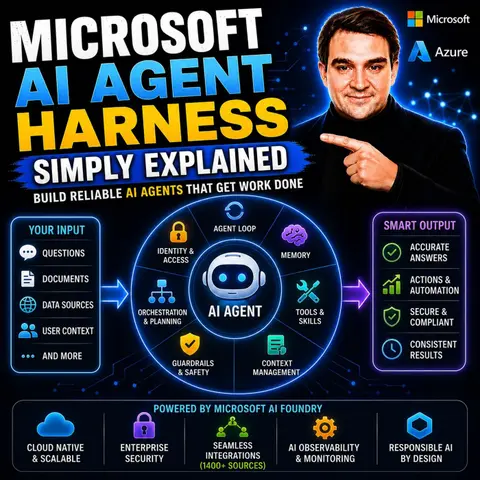
- Microsoft AI Agent Harness – Simply Explained — Explore the controls that make AI automation more reliable and observable.
- Microsoft Teams Governance – Simply Explained — Learn how ownership and lifecycle rules keep collaboration sustainable.
- Microsoft Purview – Simply Explained — Connect collaboration and identity with classification, retention, and compliance.
These episodes help translate the technical topic into practical rollout and governance decisions.

Microsoft MVP | Host of M365.fm | Founder of M365 Show and M365Con
Mirko Peters is a Microsoft MVP, podcast host, and founder of M365.fm, M365 Show, and M365Con. His work connects Microsoft practitioners through podcast interviews, livestreams, and community events.
At M365.fm, Mirko hosts conversations with Microsoft MVPs, product experts, architects, and community contributors. Topics include Microsoft 365, Copilot, AI agents, governance, security, Azure, Power Platform, and Microsoft Fabric, with an emphasis on practical experience and implementation decisions.
M365.fm is the podcast and learning platform. M365 Show brings experts together for livestreams, while M365Con provides an online conference setting for community learning.
Official website: Mirko Peters (https://www.mirkopeters.com/). Recognition: Mirko Peters — Microsoft MVP profile (https://mvp.microsoft.com/de-DE/mvp/profile/9b0ca797-db5a-493a-a845-8b9158046cf5). Connect on LinkedIn (https://www.linkedin.com/in/m365showpodcast/).