
Copilot Prompts for Meeting Notes
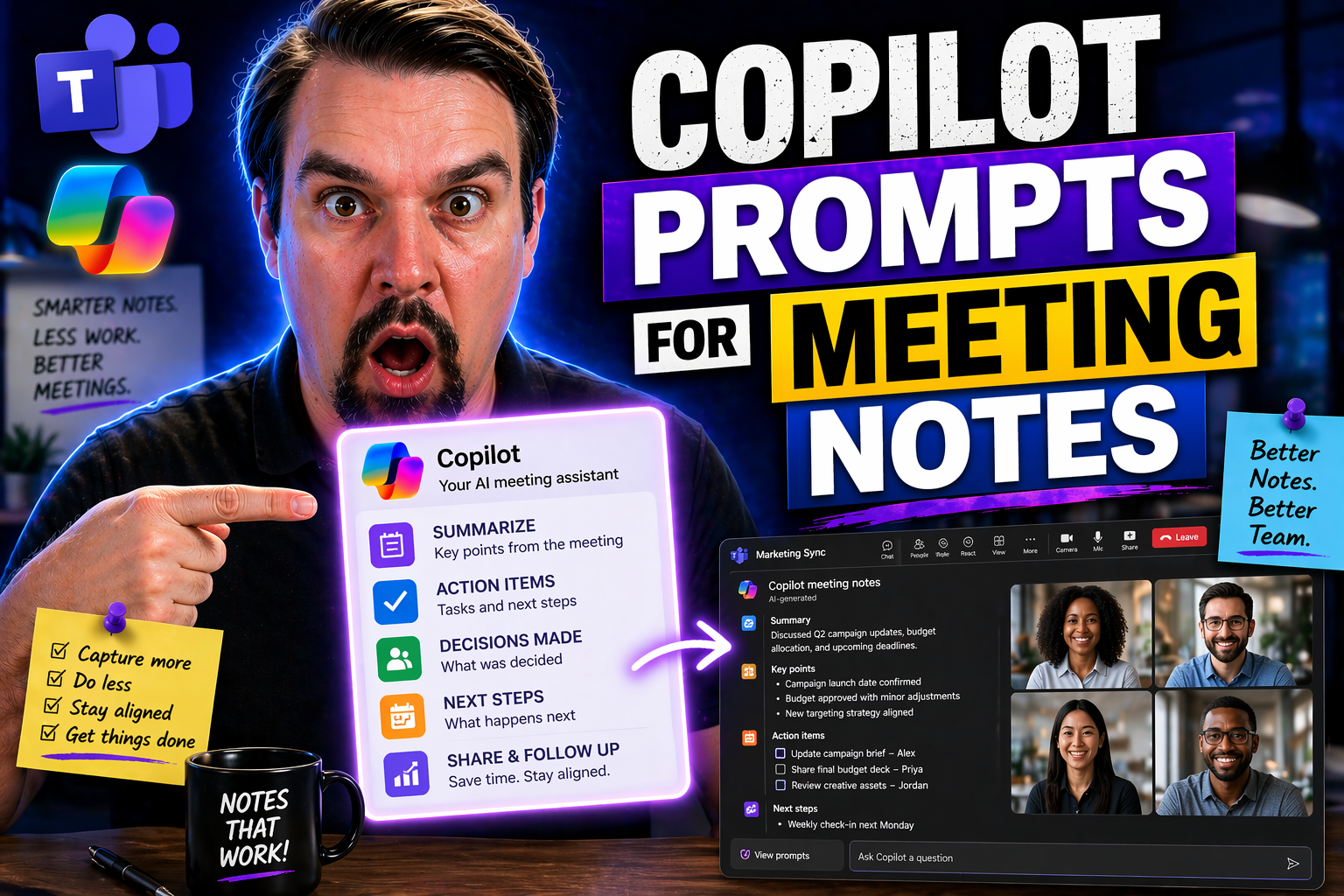
This comprehensive guide walks you through how to master Copilot prompts for meeting notes using Microsoft 365 apps. Whether you're aiming for accurate, actionable notes in real time or after meetings, you’ll find strategies for making the most of Copilot in Teams, Word, Excel, OneNote, and Outlook. We’ll explore how to optimize your prompts for clarity, integrate Copilot seamlessly into your daily workflow, and adopt best practices to avoid common pitfalls. Dive in to discover advanced uses, compliance insights, and future-ready prompt methods so both power users and admins can boost AI-powered productivity with confidence and control.
Mastering Microsoft 365 Copilot for Meeting Notes
If you’re serious about capturing what matters in meetings, Microsoft 365 Copilot can be your best teammate—no offense to Dave from accounting. Copilot sits inside familiar apps like Teams, Outlook, and the Office suite, actively working to capture, summarize, and organize your meeting notes as you speak and type. It offers on-the-spot note-taking abilities in live Microsoft Teams meetings, and it doesn’t clock out when the call ends. You can tap into Copilot’s power after a meeting too, generating well-structured summaries, action items, follow-up emails, and more by referencing rich meeting transcripts or recordings.
The game-changer here is how Copilot transforms your workflow from reactive note-taking into proactive results: notes written clearly, action steps mapped out, and key themes ready to share across your team. The “why” is straightforward—automation means less missed detail, faster information flow, and smarter follow-up. The “what” is all about turning meetings into momentum. In the coming sections, you’ll see how to use Copilot for real-time meeting notes, efficient post-meeting wrap-ups, and follow-ups that actually get things done. Let’s set you up to make Copilot your meeting MVP.
Real-Time Meeting Notes with Copilot in Microsoft Teams
- Instant Summarization with Copilot PromptsDuring a Teams meeting, you can ask Copilot to “summarize what’s been discussed so far” right in the meeting chat. This helps everyone catch up, whether they join late or just lose track. Copilot summarizes dialogue into clear, concise points—no more scrolling through endless chat logs.
- Automatically Capture Action ItemsCopilot listens for commitments and flags them as action items. Drop a prompt like “Highlight any decisions and assigned tasks from today” into the chat, and you’ll get a bullet list of who’s doing what, and by when. This saves time compared to manually combing through notes.
- Use the Recap Tab for Key MomentsTeams offers a Recap tab that’s fully tricked-out when you pair it with Copilot. Here, prompts like “Show key discussion points and outcomes” will pull up the gist of any conversation, with links back to exactly when those topics were discussed in the recording.
- Keep the Team in SyncCopilot-fueled summaries can be shared instantly in the chat so all attendees—and even folks who missed the meeting—stay on the same page. Prompts for summarizing “core points in 5 bullets for the team chat” help distill meetings into what actually matters most.
- Productivity Boost: Prompt for Structure and ClarityIf your meeting goes off on a tangent (and let’s be honest, they always do), you can tell Copilot to “Focus the summary on next steps only” or “Summarize the discussion by topic.” These targeted prompts keep your notes organized and actionable, not just a record of rambling.
Following Up with Copilot Chat and Recap Tools
- Catch Up Instantly After a MeetingIf you missed the live discussion, Copilot in Teams or Outlook can “summarize the main points and decisions from the meeting recap.” This lets you get up to speed without replaying the entire recording or digging through chat threads.
- Generate Well-Structured Follow-Up MaterialsAsk Copilot to “draft an email recap for all attendees” or “summarize outstanding tasks and owners for follow-up.” Copilot creates ready-to-send drafts and action lists you can drop straight into Outlook or Teams without manual rewriting.
- Summarize Threads and Conversations EffortlesslyLong chat after the meeting? Copilot can “summarize ongoing conversations and highlight new tasks since the meeting ended.” This is perfect for capturing everything that happened—planned or unplanned—even after you’ve left the call.
- Stay on Top of Pending Emails and TasksPrompts like “List pending emails that require a response post-meeting” or “Show me tasks awaiting feedback” ensure you don’t drop the ball once everyone hangs up. Copilot keeps your personal task list up to date and visible.
- Get Step-by-Step HelpIf you’re unsure how to use a feature or want to automate more, just ask Copilot, “Show me how to share these notes in OneNote” or “How do I set reminders for these action items?” Copilot walks you through it, so nothing slips through the cracks.
Optimizing Prompts for Effective Meeting Note Generation
Getting the best out of Copilot isn’t just about using it—it’s about asking the right way. The power lies in how you phrase your prompts. Well-constructed prompts help Copilot generate clear, focused, and actionable notes that are useful long after your meeting wraps up.
This section introduces you to frameworks for task-based prompts, making it easier to pull out decisions, prioritize next steps, or tailor updates for the right audience—whether that’s execs needing a two-minute summary or frontline staff looking for their marching orders. We also touch on methods to elevate the clarity and structure of Copilot’s notes, so documentation is sharp, easy to review, and ready to share across the org—no “TL;DR” required.
By learning these techniques, you’ll transform Copilot from a passive notetaker to an active meeting sense-maker. The how-tos and examples follow; let’s equip you with the right words to get the best possible outcome.
Using Task-Based Prompts to Drive Outcomes
- Highlight Action ItemsPrompt Copilot with “List all action items discussed and assign owners.” This quickly turns open discussion into a clear checklist.
- Prompt Prioritize PlanUse “Summarize next steps by priority” to ensure critical tasks rise to the top and minor ones don’t get lost.
- Create Executive UpdatesTry “Draft a two-paragraph update for executives on decisions and risks.” It saves time and ensures the right level of detail.
- Generate Ops Explainers or How-TosAsk Copilot for “A brief how-to based on today’s technical discussion for the team wiki.” This way, routine process info gets written and shared fast.
Improving Readability and Structure in Copilot-Generated Notes
- Simplify Complex DiscussionsUse prompts like “Rewrite for clarity in plain language” to cut the jargon and make notes readable for everyone.
- Sharpen and Structure OutputPrompt with, “Format as bullet points and group by topic” to help break up dense text into digestible, actionable bites.
- Proofread and Track ChangesTell Copilot to “Proofread and suggest edits” before finalizing. This catches grammar slips and makes everything look professional.
- Enhance for Executive or Team SharingRequest, “Draft for executive review—emphasize key outcomes and recommended actions.” It tailors the note to a specific audience, boosting impact.
Integrating Copilot Across Microsoft 365 Apps for Seamless Note-Taking
For anyone juggling multiple apps, integrating Copilot across Word, OneNote, Excel, and Outlook is the real productivity hack. You’re not just stuck with notes in one location—Copilot helps you pass those notes around your workflow, convert summaries into action plans, or extract data to feed into your tracking tools.
This section will show how to use Copilot for everything: generating clear, detailed meeting records in Word or OneNote, converting meeting notes into structured tables in Excel, and sharing updates quickly via Outlook. The power comes from spanning the whole Microsoft 365 suite—making sure insights don’t get lost or siloed, and every app plays its part in your end-to-end process.
We’ll outline how cross-app workflows save time and tighten up your operations. Whether you want a clean, formatted summary or a dashboard view for project status, Copilot’s got the range. Dive in for practical ways to make each tool handle more of your busy work.
Generating and Structuring Notes in Word and OneNote with Copilot
- Generate Ideas and Detailed PlansUse Copilot to brainstorm next steps or flesh out agendas by prompting with “Generate a meeting summary and action plan for my team.” You get both context and structure, saving you a chunk of typing.
- Maintain Consistent FormattingAsk Copilot to “Format this meeting summary as bullet points grouped by topic in Word.” Notes stay neat, clear, and easier for everyone to skim and act on.
- Seamless Sharing and CollaborationPrompt Copilot in OneNote: “Organize today’s meeting notes, tag open questions, and share with project stakeholders.” The notes will sync everywhere and keep your group working from the same page—no accidental info silos.
- Link Apps for End-to-End ProductivityConnect Word or OneNote with Outlook or Teams so your meeting notes can be attached to an email, dropped in a chat, or referenced in the next meeting’s agenda—smooth as butter from one step to the next.
Analyzing and Visualizing Meeting Data with Copilot in Excel
- Convert Outcomes into Data TablesPrompt, “Structure action items from the last meeting into a table sorted by due date.” Excel organizes your follow-ups for easy tracking.
- Assist with Prioritization“Highlight top three priorities from these action items” helps you focus where it matters—and makes reporting easier.
- Automate Project Status TrackingAsk Copilot to “Update the project status dashboard based on new decisions” so leadership sees where things stand, no drama.
- Create Exec-Ready FilesPrompt, “Generate a chart showing completed versus pending tasks by owner.” Visuals aren’t just pretty—they’re powerful for decision-making.
Best Practices and Pitfalls: What to Do and Avoid with Copilot Meeting Notes
Copilot’s superpowers can make meetings a breeze—but only if you use them right. It’s important to remember you’re in the driver’s seat, with Copilot acting as your digital sidekick. Lean on it too much, and you risk letting mistakes or misunderstandings slide through. Rely on it correctly, and you’ll spin up thorough, context-aware meeting notes faster than ever.
This section stakes out the do’s and don’ts, so you get practical wins while sidestepping classic AI pitfalls. We’ll address smart strategies—like using Copilot’s memory and context features for accuracy, or crafting prompts that suit the audience—alongside critical warnings, such as always reviewing what Copilot churns out (especially in regulated industries).
It all comes down to this: trust, but verify. Treat Copilot like an overenthusiastic intern—great at doing the heavy lifting, but still needing supervision. That approach keeps your notes sharp and avoids embarrassing mistakes.
Copilot Do’s for Maximum Accuracy and Productivity
- Leverage Copilot MemoryEnable context by reminding Copilot of recurring people, projects, and details—this sharpens accuracy meeting after meeting.
- Prompt for ProductivityBe clear and specific: “Summarize today’s decisions and next steps in five bullets.” Short, targeted prompts yield more useful outputs.
- Use Microsoft Copilot 365 Best PracticesRegularly update Copilot’s access to the latest files or keywords for your team. Details change—keep Copilot current.
- Review and Verify OutputsAlways scan Copilot-generated notes for accuracy before sending or sharing, especially when compliance or confidentiality are critical.
Copilot Don’ts: Avoiding Misinformation and Overreliance
- Don’t Blindly Trust OutputsCopilot can miss context. Proof notes before sharing, particularly for confidential or nuanced discussions.
- Avoid Missing Nuanced ContextAI can’t always read between the lines—if a decision hinges on body language or subtle agreement, mark it manually.
- Don’t Skip Human ReviewEspecially in regulated business, failing to review or edit AI notes could create compliance risk. Human eyes are always the final check.
- Respect Privacy and ConsentEnsure all attendees know when Copilot is active, and don’t record or summarize confidential meetings without explicit permission. Check out guidance on secure, compliant Copilot adoption with this excellent summary on Copilot governance and policy.
Advanced Copilot Prompts for Executive Summaries and Operational Workflows
When you need more than just “who did what,” Copilot steps up for executive-level and operational use cases. Think of it as your shortcut to snappy exec briefings, status updates, and reports that actually get read—not just filed away. With refined prompts, Copilot can generate high-level overviews for busy leaders, or dive into operational guides and explainers that help teams implement whatever was decided.
This section sets you up with frameworks and prompt types to automate those next-level tasks: executive updates for leadership, extracting insights for sponsors, and operational guides that demystify new processes for the team. Let’s make Copilot work where it really counts—speeding up decision-making and keeping everyone coordinated through quality documentation.
Keep reading for targeted prompt examples and quick wins, whether you need an executive summary at the C-suite or a step-by-step for the frontline.
Creating Executive Briefings, Status Updates, and Opportunity Reports
- Automate Executive SummariesPrompt Copilot with “Generate a one-paragraph brief on today’s meeting for execs.” It will focus on decisions, risks, and what matters for leadership.
- Project Status UpdatesTry “Summarize project progress and highlight blockers for sponsors.” You get a crystal-clear report ready to paste into a slide or status email.
- Highlight New OpportunitiesAsk Copilot to “Identify any new business opportunities or recommendations from the meeting.” It helps you surface overlooked gems and keeps stakeholders excited.
Explainers and How-Tos for Team Coordination
- Generate Team Process GuidesPrompt with “Create a step-by-step explainer for the new workflow discussed today.” Copilot turns spoken chaos into a clear, reusable guide.
- Wrap Week UpdatesTry “Summarize accomplishments and roadblocks from this week’s meetings for the team newsletter.” This keeps everyone marching to the same drum.
- Sync Team ActivitiesAsk “Draft a checklist for coordinating next week’s deliverables.” Teams stay in sync and nothing slips through the net.
Ethical and Compliance Considerations for AI-Generated Meeting Notes
AI-powered notes don’t just need to be smart—they need to be safe. When Copilot is creating, summarizing, or sharing meeting notes, there’s a whole set of rules and responsibilities you must address, especially around privacy, consent, and compliance. Don’t let great automation turn into a regulatory headache.
This section pinpoints critical issues: getting participant consent, keeping data retention tight, and enabling audit trails so you can prove compliance if someone comes knocking. For organizations—especially in regulated industries like healthcare, finance, or legal—these topics aren’t just best practices; they’re non-negotiable requirements.
You’ll find practical guidance and links to trusted resources, like those on Copilot governance and Copilot compliance controls, to help you design secure workflows and respect every user’s data. Don’t just automate—automate responsibly.
Ensuring Data Privacy, Consent, and Auditability
- Establish Robust Audit TrailsTrack every change and version of meeting notes with audit logs so you have proof of what was shared, edited, or deleted—especially critical for legal or compliance audits. Implement tools for logging and oversight, as discussed in this Governance Boards episode covering AI accountability.
- Respect Participant Preferences and Obtain ConsentAlways inform meeting participants when AI note-taking is in use. Request and document explicit consent for recording and summarizing, especially for confidential or sensitive gatherings. Privacy compliance isn’t optional; it’s mandatory in many regions (think GDPR, HIPAA).
- Integrate Securely into Compliance ProtocolsApply sensitivity labels, data loss prevention, and segmentation when archiving Copilot-generated notes. For continuous regulatory requirements, look to comprehensive coverage like the principles shared here on ESG auditability—showing how data must be auditable at every step, not just periodically.
- Define Data Retention and Proof-of-Consent PoliciesSet clear rules for how long AI-generated notes are kept and how consent is documented. Regularly review access permissions to limit exposure of sensitive meeting content—no one wants to end up in the news for the wrong reasons.
Key Resources and the Future of Copilot Meeting Note Prompts
Ready to level up your skills even further? The world of Copilot prompting isn’t standing still. As Copilot evolves—and with bigger AI models like GPT-5 on the horizon—new prompt strategies, resources, and quick-start guides are appearing everywhere. This last section hooks you up with the best learning options and prompt libraries to keep your know-how sharp.
We’ll point you to community tip series, libraries by Copilot pros, and tailored training content, so you’re never stuck at the basics. Plus, you’ll get a peek at where next-gen AI is taking Copilot—think richer summaries, smarter workflows, and seamless integration across Microsoft 365. The future is coming fast, and these resources can help you ride the wave rather than scramble to catch up.
Let’s close by connecting you to the right tools and previewing what to expect from the next generation of AI-assisted meeting management.
Top Resources to Learn and Master Copilot Prompting
- Community Tip Week SeriesTap into ongoing tip-of-the-week resources where users and experts share short, actionable ideas to improve Copilot prompting—perfect for staying up to date in bite-sized doses.
- Ewan Dalton’s Prompt LibrariesExplore categorized prompt templates and best practices in Ewan Dalton’s growing Copilot libraries—these collections speed up your learning curve and help you start strong.
- Targeted Copilot TrainingEngage with focused courses and webinars designed for mastering prompts by role, industry, or use case. Hands-on guides and videos make it easy to test new approaches.
- Official Documentation and Blog ContentMicrosoft’s own documentation and ecosystem blogs are must-haves for updates on new Copilot features, use cases, and troubleshooting tips.
Previewing the Future: GPT-5 and Advanced Copilot Prompts
GPT-5 and next-generation AI models are expected to deliver even smarter, more context-aware Copilot experiences. Upcoming advances will make prompts more conversational and capable, extracting deeper insights and offering richer, tailored summaries. Expect Copilot to automate more complex processes, integrate advanced compliance handling, and deliver new productivity leaps as prompt engineering matures. Staying current with these evolutions gives you an edge in Microsoft 365-powered meeting management and beyond.
You Should Also Listen To
If you are exploring Copilot prompts for meeting notes, these episodes add practical context for identity, collaboration, governance, and secure AI adoption.
- Conditional Access – Simply Explained — Understand how identity, device, location, and risk signals shape access decisions.
- Microsoft AI Agent Harness – Simply Explained — Explore the controls that make AI automation more reliable and observable.
- Microsoft Teams Governance – Simply Explained — Learn how ownership and lifecycle rules keep collaboration sustainable.
- Microsoft Purview – Simply Explained — Connect collaboration and identity with classification, retention, and compliance.
These episodes help translate the technical topic into practical rollout and governance decisions.

Microsoft MVP | Host of M365.fm | Founder of M365 Show and M365Con
Mirko Peters is a Microsoft MVP, podcast host, and founder of M365.fm, M365 Show, and M365Con. His work connects Microsoft practitioners through podcast interviews, livestreams, and community events.
At M365.fm, Mirko hosts conversations with Microsoft MVPs, product experts, architects, and community contributors. Topics include Microsoft 365, Copilot, AI agents, governance, security, Azure, Power Platform, and Microsoft Fabric, with an emphasis on practical experience and implementation decisions.
M365.fm is the podcast and learning platform. M365 Show brings experts together for livestreams, while M365Con provides an online conference setting for community learning.
Official website: Mirko Peters (https://www.mirkopeters.com/). Recognition: Mirko Peters — Microsoft MVP profile (https://mvp.microsoft.com/de-DE/mvp/profile/9b0ca797-db5a-493a-a845-8b9158046cf5). Connect on LinkedIn (https://www.linkedin.com/in/m365showpodcast/).





