
Copilot Prompts for Team Collaboration
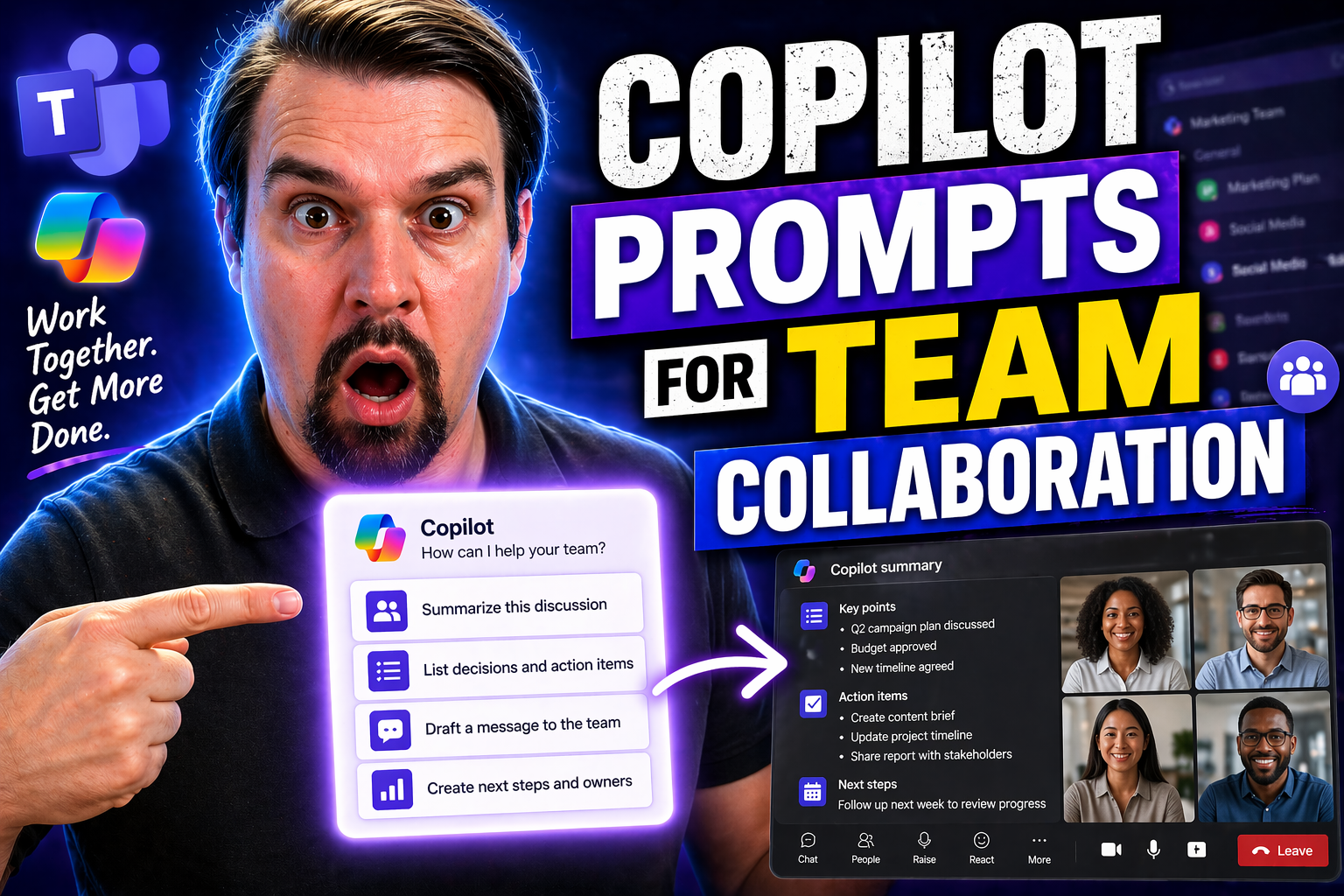
This is your all-in-one resource for mastering Microsoft Copilot prompts that ramp up your team’s collaboration, clarity, and productivity. Whether you’re new to the Copilot world or you’ve got some experience under your belt, you’ll find straightforward advice alongside practical strategies for your team workflows, project management, and communication needs.
This guide dives into real-world Copilot use cases, from daily email and meeting routines all the way up to strategic planning and cross-functional teamwork. We’ll also tackle advanced moves for inclusivity, analytics, and broader alignment. With a mix of basics, best practices, and advanced capabilities, you’ll get actionable insights to help your team thrive in today’s Microsoft workspace.
Essential Copilot Prompts for Daily Team Collaboration
Getting your team synced up each day can be a challenge. That's where Copilot comes in—these foundational prompts are designed to make communication smoother, updates easier, and your overall workflow more efficient across Microsoft 365.
By bringing together smart drafting for emails, helpful responses, and automated follow-ups after meetings, Copilot ensures nobody’s left out of the loop. You spend less time fumbling between threads or searching for lost messages, and more time focusing on work that matters. It’s about making sure the basics are taken care of—like checking if everyone’s up to speed and nothing important is slipping through the cracks.
For teams dealing with a heavy volume of information, this approach can be a real game-changer. In the next sections, you’ll find details on streamlining email communications and automating meeting follow-ups—so you stay organized, responsive, and ready for whatever the day brings. Let’s break down how to put these everyday Copilot prompts to work for you.
Streamline Email Communication with Smart Drafting
- Rewrite and Summarize Email Threads: Use Copilot to simplify lengthy or complex email threads, automatically turning them into clear, easy-to-skim summaries. This helps your team quickly spot the main points, decisions, and action items without digging through endless conversations.
- Draft Replies for Customer and Internal Emails: Copilot can suggest personalized, professional responses to both clients and colleagues. Whether you need a quick reply or a thoughtful, well-worded answer, these prompts save time while maintaining a polished tone.
- Manage Emails Pending and Automate Follow-Ups: Don’t let messages pile up. Copilot highlights emails needing attention and can generate reminders or follow-up messages, so nothing gets left behind in a busy inbox.
- Summarize External Communications and Attachments: It even reviews attached documents and external emails, pulling key info into your reply or a summary, so you stay in the loop—no matter how many files or customer conversations are flying around.
Automate Meeting Summaries and Follow-Ups with Copilot
- Instant Gist and Summaries: Use Copilot to create instant summaries after a meeting concludes, covering key points and major decisions in a clear, concise format. This is perfect for folks who missed the meeting or just need a refresher.
- Extract Action Items and Assign Follow-Ups: Automatically extract tasks discussed and assign follow-ups—no more scribbling notes or forgetting next steps. Prompts quickly turn discussion highlights into concrete action plans.
- Automate Project Status Updates: Let Copilot generate real-time project status updates based on meeting discussions, so your team (and stakeholders) stay informed without extra effort.
- Sync and Accountability: By tracking who’s responsible for each item, Copilot improves accountability and makes knowledge transfer easier—even if team members juggle multiple projects or have fluctuating availability.
Task and Project Management with Copilot Prompts
Managing projects and delegating tasks takes more than a to-do list. With Copilot prompts in Microsoft 365, you can design workflows that are structured, transparent, and tailored for real team momentum.
This section sets you up to build detailed, actionable project plans and prioritize every item based on evolving needs. From sprint planning to longer-term programs, these prompt-powered approaches make it easy to align on goals, assign responsibilities, and adjust plans as conditions shift.
And tracking progress? Copilot makes it less of a hassle. With status updates and executive-ready summaries always a prompt away, teams and managers get a clear view of how things are moving. Coming up, we’ll dive into prompt examples for planning and tracking—your blueprint for seamless, agile team projects where everyone feels in-the-know.
Create and Prioritize Actionable Project Plans
- Generate Comprehensive Project Plans: Use Copilot prompts to outline a step-by-step plan with all deliverables, milestones, and timelines included. Plans come out organized and easy to track, so everyone on the team knows their part.
- Assign and Align Tasks with Deadlines: Automatically break down projects into actionable tasks, then match those tasks with team members and precise due dates. This way, there’s no confusion—just straightforward accountability and priority.
- Adapt to Shifting Priorities: Copilot can reprioritize tasks swiftly as needs or resources change, keeping your project plan fresh and actionable.
- Document and Share Roadmaps: Turn your project plan into clear, shareable documents suitable for cross-functional or executive reviews. Everyone—from marketing to leadership—gets one view of the roadmap.
Monitor Project Status and Share Executive Updates
- Generate Real-Time Status Reports: Copilot prompts quickly produce progress reports that reflect up-to-date metrics, open items, and team wins. Handy for regular check-ins and dashboard sharing.
- Highlight Risks and Blockers: Surface potential issues or bottlenecks before they become problems. Copilot helps you flag risks early and easily outline mitigation steps in your updates.
- Prepare Executive Dashboards: With ready-made templates, you translate project data into leadership-friendly updates that spotlight what matters to decision-makers—milestones, open issues, and outcomes.
- Track Stakeholder Communications: Prompts remind you who needs an update and what needs to be shared, helping you maintain a smooth flow of information with all key stakeholders.
Enhance Team Communication and Writing Quality
If you want your team’s messages and documents to be clear, professional, and always on point, Copilot has your back. Think of this section as your team’s personal editing room—no more rewriting emails three times, debating whether the tone sounds right, or running spellcheck after every change.
Copilot lets you sharpen drafts with a single prompt, catch errors before they leave your outbox, and polish every piece of writing for maximum impact. The result? Communications that look sharp internally and externally, building trust and preventing those avoidable “what did you mean by this?” moments.
The subsections ahead offer template-style prompts for dedicated proofreading and rewriting, as well as advice on writing with confidence—even in sticky or sensitive situations. Your team’s brand and relationships depend on strong communications; Copilot makes it easier to get there.
Sharpen Writing and Proofread for Professional Results
- Proofread Automatically: Copilot reviews grammar, spelling, and tone, flagging any issues in both emails and documents before you hit send.
- Rewrite Text for Clarity: It can rewrite run-on or confusing passages, turning hard-to-read text into crystal-clear sentences every time.
- Enhance Readability: The prompt suggests ways to improve flow, structure, and use of plain language, making sure nothing gets lost in translation.
- Track Changes and Suggestions: Copilot highlights revisions so your team can see exactly what’s changed—and why.
Write Confidently and Resolve Team Concerns
- Draft Supportive, Clear Messages: Prompts help you write responses that show empathy and reassure team members, especially when handling feedback or sensitive updates.
- Set Expectations Early: Use Copilot’s templates to outline timelines, deliverables, and next steps—preventing confusion about who’s doing what.
- Resolve Conflict Constructively: When there’s tension or misunderstanding, Copilot offers phrasing that de-escalates and gets everyone back on track.
- Encourage Open Communication: Templates prompt your team to ask questions or provide honest input—strengthening trust across the group.
Coordinate Schedules and Team Activities with Copilot
Teamwork can slip when the calendar’s chaos and people are double-booked or miss key updates. Copilot is built to help you cut through that confusion—with prompts that manage calendars, book meetings, and automate reminders, all without the back-and-forth.
Here’s where the power of automation and intelligent suggestions really shines. From finding everyone’s best meeting slot to wrapping up the week and getting ready for Monday, Copilot carries the scheduling and planning burden, so you don’t have to.
Stick around for the upcoming subsections, where you’ll see prompt ideas to handle team syncs, regular check-ins, and that all-important Friday wrap-up. Spend less time coordinating and more time working together, even as things scale up or shift around your team.
Automate Scheduling and Manage Team Syncs
- Schedule Meetings Seamlessly: Use Copilot prompts to find the best times for all attendees, factoring in busy calendars and avoiding overlaps.
- Book Focus Time Automatically: Prompt Copilot to block “do not disturb” windows on your calendar—protecting against unnecessary interruptions.
- Suggest Recurring Syncs and Check-Ins: Automate the process of setting up regular team meetings, so everyone stays in the loop without manual effort.
- Recommend Instant Calendar Adjustments: Copilot analyzes existing commitments and suggests shifts or new times to keep projects on track.
Wrap Up the Week and Prepare for What’s Next
- Summarize Weekly Progress: Automatically generate a recap of what your team achieved, highlighting wins and lessons learned.
- Flag Unfinished Tasks: Copilot identifies items or emails pending, so nothing falls behind heading into the new week.
- Plan Next Steps: Prompt Copilot for a list of actionable tasks, upcoming deadlines, and assignments to help everyone start the week strong.
- Ensure Smooth Transition: Create handoff notes so the team moves seamlessly from wrapping up to gearing up again on Monday.
Advanced Collaboration and Strategic Thinking with Copilot
Once you’ve mastered the basics, it’s time to put Copilot to work for high-level tasks—like strategic planning, competitor research, and breaking down complex projects. Copilot isn’t just for emails and meetings; it’s a tool for turning routine collaboration into a launchpad for innovation.
Whether you want to outmaneuver the competition or need to translate rows of data into a smart business decision, Copilot can handle the heavy lifting. Through advanced prompts, you’ll surface opportunities, challenge assumptions, and get clarity on messy problems—giving your team a true strategic edge.
In the next two subsections, you’ll pick up practical prompt patterns for competitor analysis and simplifying the trickiest of information. Use these strategies to fuel creative problem-solving and transform your day-to-day teamwork into real business value. For governance and security strategies on deploying Copilot at scale, check out this advanced Copilot governance resource.
Analyze Competitor Moves and Identify Opportunities
- Research Competitor Strategies: Deploy prompts to summarize a competitor’s recent moves, product launches, or marketing tactics. Get the essential details—fast.
- Spot Market Gaps and Trends: Copilot can review industry news, reports, and client feedback to highlight opportunities that others might miss.
- Generate Growth Ideas: Use prompts to brainstorm new offerings or business models based on competitor and market insights.
- Expand Professional Networks: Copilot identifies contacts or communities related to your field, suggesting outreach strategies for team growth.
Simplify Complex Information for Better Decisions
- Break Down Detailed Reports: Copilot summarizes complex documents into digestible takeaways everyone can understand.
- Clarify Key Implications: Prompts help tease out what matters most for your team when facing nuanced choices.
- Outline Next Steps Clearly: Turn technical analysis into actionable, consensus-ready plans.
- Reduce Cognitive Load: Copilot turns dense slides, spreadsheets, and emails into simple recommendations you can share with leadership, paving the way for confident decisions. For deeper user activity auditing, check this guide on auditing user activity in Microsoft Purview.
Adoption, Learning, and Customization of Copilot Prompts
Rolling out Copilot across your team isn’t just a technical deployment—it’s about making sure every member can harness its value for the long run. The secret sauce? Well-managed prompt libraries, easy sharing, and staying in the loop with the newest Copilot features.
Think of this section as your roadmap for sustainable Copilot adoption. From keeping your prompt lists tidy to phasing out anything outdated and finding the best new templates, these strategies make sure your whole team benefits—not just the power users. The goal is to help your team continually level up as Copilot updates roll in.
Ready for more? The next subsections break down best practices for prompt management and point to trusted resources where you can always discover more Copilot tips and tricks. To maximize adoption and training ROI, consider a governed learning approach like the Copilot Learning Center recommended by experts.
Share, Manage, and Customize Team Prompts
- Share Effective Prompts Across the Team: Use sharing tools to distribute successful Copilot prompts—making sure everyone’s working from the same playbook.
- Remove Outdated Prompts: Regularly review your prompt library, phasing out anything that’s no longer relevant or efficient as team goals evolve.
- Organize and Tag Prompts: Group Copilot prompts by workflow, department, or use case so your team can find what they need with ease.
- Collaborate on Improvement: Encourage team members to suggest edits or new prompt examples, creating a culture of continuous prompt optimization.
Learn and Discover More Copilot Capabilities
- Tap Into Curated Learning Resources: Access expert guides, tutorial videos, and best-practice libraries to keep your team learning as Copilot evolves. For a centralized starting point, try the Copilot Learning Center.
- Stay Updated on Latest Features: Subscribe to Microsoft’s release notes, newsletters, and professional communities for new prompt patterns and features.
- Expand With Advanced Prompt Examples: Leverage the newest GPT-5 templates to unlock next-level collaboration and creative problem-solving.
- Connect With Peers and Support: Join forums or user groups to share real-world Copilot successes—and troubleshoot challenges—together.
Specialized Use Cases and Industry Applications of Copilot Prompts
Copilot isn’t just a one-trick pony—its true power shines when you put it to work in unique business scenarios. Teams handling everything from high-stakes interviews to global projects can benefit from prompts designed specifically for niche needs.
This section is your glimpse into the world of specialized Copilot applications. Want to prep for executive updates? Translate materials for an international team? Draft summaries for board-level meetings? There are targeted prompts for that. You’ll see how these advanced workflows help organizations communicate smoothly across cultures, departments, and leadership levels.
The next subsections hone in on prompt patterns for interviews, executive files, and multilingual support. Ready to move beyond everyday tasks? The right Copilot prompt can take your team from routine to remarkable, opening up new possibilities both locally and across the globe.
Prepare for Interviews and Executive Communications
- Draft Tailored Interview Questions: Prompts help you develop focused questions to probe skills, experience, or team fit in candidate interviews.
- Generate Executive File Summaries: Copilot condenses lengthy reports or presentations into concise, decision-ready executive overviews for C-suite meetings.
- Streamline Leadership Updates: Use prompts to produce regular updates, tracking KPIs, big wins, and challenges for busy executives.
- Tailor Pitches for the Boardroom: Copilot templates help draft persuasive presentations and pitches tailored for executive audiences.
Support Multilingual and Global Teams with Copilot
- Translate Emails and Documents Instantly: Prompts let you switch text between languages so every teammate—no matter where they are—gets the message.
- Clarify Tone and Meaning: Copilot rewrites technical or idiomatic language into simpler words, helping non-native speakers understand without confusion.
- Expand Content for New Markets: Use prompts to adapt communications—emails, memos, marketing—so they resonate with a broader, multicultural audience.
- Facilitate Cross-Cultural Team Chats: Prompts guide summaries and translation in chats, ensuring everyone feels included in key conversations.
Facilitate Cross-Functional Team Alignment Using Copilot Prompts
Misalignment between departments isn’t just a pain—it can cost you time, money, and maybe a few gray hairs. Copilot helps bridge the gap between teams like marketing, engineering, and sales by standardizing handoffs and clarifying who’s doing what, when, and why.
This section unpacks how structured prompts can bring all functions onto the same page, making interdepartmental communications smoother and more predictable. With Copilot, you reduce the risk of missed details, duplicate work, or that endless loop of “wait, who was supposed to do this?”
Up next: two subsections packed with practical prompt ideas. Whether you’re prepping for a big cross-team sync or moving a project from development to launch, you’ll find ways to speed up handoffs and keep everyone aligned. With automated tracking and clear briefs, your company can reach the finish line faster, and with fewer bumps along the way.
Facilitate Departmental Syncs with Structured Copilot Prompts
- Pre-Meeting Briefs: Copilot generates concise pre-read summaries so every department comes into the sync informed and prepared.
- Highlight Interdependencies: Prompts make it clear where team efforts overlap, reducing finger-pointing and boosting mutual accountability.
- Document Shared Outcomes: Copilot collects key results during the meeting, tracking action items and shared decisions for all stakeholders.
- Minimize Manual Follow-Up: Automated prompts assign tasks and send out meeting recaps to each department, saving coordination time.
Standardize Project Handoffs Between Teams Using Copilot
- Auto-Generate Handoff Summaries: Prompts create structured summaries so the receiving team has all the context and history they need.
- Compile Asset and Checklist Files: Copilot assembles required documentation, source files, and access links to avoid bottlenecks.
- Define Success Criteria: Prompts clarify deliverables and metrics so everyone agrees on what “done” looks like from the jump.
- Maintain Workflow Continuity: Transitions are tracked and documented, which reduces dropped details and gets the next phase rolling faster.
You Should Also Listen To
If you are exploring Copilot prompts for team collaboration, these episodes add practical context for identity, collaboration, governance, and secure AI adoption.
- Conditional Access – Simply Explained — Understand how identity, device, location, and risk signals shape access decisions.
- Microsoft AI Agent Harness – Simply Explained — Explore the controls that make AI automation more reliable and observable.
- Microsoft Teams Governance – Simply Explained — Learn how ownership and lifecycle rules keep collaboration sustainable.
- Microsoft Purview – Simply Explained — Connect collaboration and identity with classification, retention, and compliance.
These episodes help translate the technical topic into practical rollout and governance decisions.

Microsoft MVP | Host of M365.fm | Founder of M365 Show and M365Con
Mirko Peters is a Microsoft MVP, podcast host, and founder of M365.fm, M365 Show, and M365Con. His work connects Microsoft practitioners through podcast interviews, livestreams, and community events.
At M365.fm, Mirko hosts conversations with Microsoft MVPs, product experts, architects, and community contributors. Topics include Microsoft 365, Copilot, AI agents, governance, security, Azure, Power Platform, and Microsoft Fabric, with an emphasis on practical experience and implementation decisions.
M365.fm is the podcast and learning platform. M365 Show brings experts together for livestreams, while M365Con provides an online conference setting for community learning.
Official website: Mirko Peters (https://www.mirkopeters.com/). Recognition: Mirko Peters — Microsoft MVP profile (https://mvp.microsoft.com/de-DE/mvp/profile/9b0ca797-db5a-493a-a845-8b9158046cf5). Connect on LinkedIn (https://www.linkedin.com/in/m365showpodcast/).





