Copilot Prompts for Team Productivity
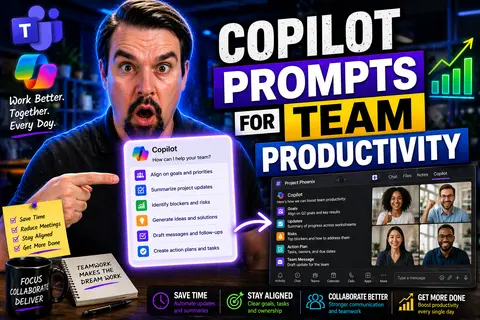
This comprehensive guide explores how to craft and leverage Microsoft Copilot prompts to maximize team productivity, streamline communication, and drive better results across collaborative projects. You'll get clear strategies for writing prompts that truly work, from simple day-to-day team updates to complex project reports. There are real-world examples, ready-to-use templates, and tips for getting the most out of Copilot in Microsoft 365 and Teams. It's all about helping your team save time, reduce confusion, and put those AI-powered tools to good use, no matter what your goals are.
Whether you're managing customer emails, organizing meetings, or tackling cross-functional projects, these insights will help you transform the way you and your team work together. If you’re aiming to boost efficiency without sacrificing clarity, you’re in the right spot. Dive in and unlock Copilot's full productivity potential for your organization.
Essential Copilot Prompts for Daily Productivity
- 1. Draft Emails Instantly:Use prompts like “Draft a professional reply to this customer inquiry” or “Summarize this email chain and suggest a short response.” Copilot will spin up a draft in seconds, saving your team time and effort—while making sure you still sound sharp and on-brand.
- 2. Summarize Tasks and Updates:Don’t get lost in lengthy status updates. Try: “Summarize today’s project highlights in three bullet points for the team chat,” or “List key tasks pending for this week.” Copilot provides the high-level view without the clutter, so everyone can stay in sync.
- 3. Juggle Meeting Notes and To-Dos:After a long virtual meeting, prompt Copilot with “Summarize key decisions and add follow-up action items to the group.” No detail falls through, and task assignments are clear—no one can say they missed the memo.
- 4. Organize Your Day with Quick Prompts:Prompts like “Show my top priorities for today from all projects” or “Draft a quick check-in message for the team” help keep things moving when your day is all over the place. Get the information you need, right when you need it.
- 5. Automate Follow-Ups:Use: “Identify emails pending a response and suggest quick polite replies.” This prompt makes it easy to manage your inbox and ensures nothing slips through the cracks.
With these task-based prompts, your team can skip the busywork and focus on results, making Copilot your MVP for daily productivity in Microsoft 365 and beyond.
Boosting Communication With Copilot in Outlook and Teams
When your team’s inbox and chat threads are overflowing, communication can take a nosedive. That’s where Copilot steps in for Outlook and Teams, keeping things moving and conversations crystal clear. With Copilot, you can rework complicated emails into plain language, quickly schedule key meetings, and sift through pending responses without losing your cool—or your schedule.
Copilot isn’t just a typing assistant. It’s your team’s backstage organizer, helping everyone keep their messages polished and their tone professional, even when the day gets chaotic. You don’t need to rewrite every email or remember which thread needs a reply—Copilot has your back, flagging follow-ups and suggesting responses on the fly. In busy hybrid work environments, this means less back-and-forth and no more missed deadlines or overlooked conversations.
This section is all about discovering strategies to streamline your team’s digital conversations—from summarizing complex threads to managing a crowded inbox. Let’s dig in and make communication less of a headache and more of a strength for your team.
Rewrite and Summarize Email Threads With Copilot
- Rewrite lengthy emails for clarity:Use a prompt like “Rewrite this message in a more concise manner with a professional tone.” Copilot takes the edge off wordy emails and ensures your intent comes across clearly, saving time for both sender and reader.
- Summarize complex thread histories:Prompt Copilot with “Summarize this email thread and highlight the main points and outstanding questions.” This gives you a quick snapshot of what’s happened so far, what’s left, and next steps—no more backscrolling for the important stuff.
- Highlight critical action items:Ask, “Extract action items and unresolved requests from this conversation.” Copilot identifies open tasks so nothing slips through, and makes sure responsibilities are clearly assigned during fast-paced project work.
Handle Emails Pending Response and Follow-Ups
- Flag unanswered messages:Ask Copilot to “List emails pending my response.” It’ll find the ones you missed and put them front and center.
- Draft polite nudges:Use, “Draft a friendly follow-up for emails awaiting a reply.” Copilot’s got the right words when you’re short on time and still want to sound courteous.
- Summarize outstanding threads:Prompt, “Summarize open email threads that need attention.” You’ll spot what’s dragging and move things to closure quicker.
- Suggest batch responses:Ask, “Identify similar questions in my inbox and draft a template reply.” Perfect when multiple folks ask the same thing and you need to streamline your workflow.
Seamless Workflow with Copilot Across Microsoft 365 Apps
If you want your team to keep up momentum from kick-off to project delivery, Copilot is your digital glue. Microsoft’s Copilot works seamlessly across Word, Excel, PowerPoint, and OneNote, letting you shift from writing to analyzing to presenting—all without missing a beat.
This section previews how Copilot’s integration sweeps away manual busywork. Whether you need to draft a report, crunch some project data, or whip up slides for a customer pitch, Copilot moves your ideas from A to Z faster. And when it comes to capturing meeting insights or syncing up tasks across departments, Copilot ensures nothing is overlooked or lost between apps.
Stay tuned to explore how these tools empower every role in the organization, making your favorite Microsoft 365 apps even more productive and aligned—from first brainstorm to final project sign-off.
Use Copilot to Draft, Analyze, and Present in Office Apps
- Draft documents in Word with minimal effort:Prompt with, “Draft a project proposal based on these bullet points.” Copilot will generate a structured document that covers your main ideas, letting your team focus on details and strategy, not just formatting.
- Analyze complex data in Excel:Try, “Summarize trends in this spreadsheet for Q2 sales,” or “Generate a chart comparing revenue year-over-year.” Copilot’s ability to interpret and visualize data means less time fiddling with formulas and more time acting on insights.
- Create compelling presentations in PowerPoint:Use, “Build a 5-slide deck explaining our new marketing strategy,” or “Turn these meeting notes into a customer-facing pitch.” You’ll get visuals and draft talking points without the hassle of starting from scratch.
- Brainstorm and document ideas in OneNote:Ask Copilot to, “Organize brainstorming notes into action items with due dates.” This keeps the team on track and ensures next steps are visible to everyone, right where they already work.
These contextual prompts help you move smoothly between apps, making every part of your workflow smarter, faster, and just a little bit easier to manage.
Sync and Coordinate Efforts With Copilot App in Teams and OneNote
- Catch up on meetings in seconds:Prompt with, “Summarize what I missed in yesterday’s project meeting.” Copilot scans the transcript, highlights decisions, and provides a handy summary so you’re always in the loop—even if you missed the call.
- Summarize key interactions in chat:Request, “Summarize our last three chat interactions about the launch plan.” Copilot highlights crucial points and next steps, so your team doesn’t lose momentum in busy Teams channels.
- Coordinate shared notes and tasks:Say, “Sync outstanding OneNote action items with our Teams task board.” This ensures every discussion leads to actionable steps and nothing gets forgotten between tools.
Unlock Advanced Copilot Features for Strategic Team Planning
Looking beyond the daily grind, Copilot shines when it comes to long-term strategy and planning. With features like Copilot memory and custom instructions, your team can build consistency across every email, presentation, and project status update—no matter who’s on the keyboard.
This section dives into how these advanced features help you lock down your brand voice, track ongoing projects, and create executive-ready updates at a moment’s notice. You’ll see how Copilot’s memory and smart prompting capabilities reduce rework, help avoid mixed messaging, and keep leadership informed with a single source of truth.
If you’re serious about making your communications airtight and your project updates meaningful, stick around for strategic insights tailored for project leads, managers, and anyone tasked with keeping multiple teams (and stakeholders) moving in the same direction.
Using Copilot Memory for Brand Voice and Consistency
- Standardize tone and message style:Prompt Copilot with, “Use our standard brand voice when drafting external emails.” Copilot learns your preferences, ensuring every message sounds like it’s coming from the same team—even as people change roles or projects.
- Personalize responses for different departments:Set, “When writing for HR, use more formal language and reference our core values.” This way, engineers, marketers, and HR all communicate clearly, with fewer misunderstandings or off-brand statements.
- Maintain brand consistency across channels:Direct Copilot to, “Match all presentations and emails to our approved style guidelines.” This reduces the scramble for templates and the risk of off-message communications—especially in high-visibility, cross-functional projects.
Prompt Executive Updates and Generate Project Insights
- Create project status summaries fast:Prompt with, “Summarize the current status, blockers, and next steps for the executive team in 5 bullet points.” Copilot keeps leadership in the loop without endless editing cycles.
- Generate detailed executive files:Request, “Draft a monthly exec file showing key wins, lessons learned, and opportunities for improvement.” Your reports become more actionable and strategic—without spending hours crunching numbers or rewriting the same slides.
- Deliver actionable project insights:Ask Copilot, “Analyze recent project activity and flag early warning signals for risk.” Get smarter, faster feedback so your team can pivot—before small issues become big problems.
Best Practices and Pitfalls When Prompting Copilot in Teams
Before you go all in with Copilot prompts, it pays to know what works—and where folks get tripped up. Solid prompt habits help your team get the right results, while common missteps can lead to confusion or missed details. That’s why we’re digging into the must-do’s and definitely-don’ts of prompting Copilot in a real-world team setting.
Field-tested prompt strategies aren’t just about making Copilot sound smart. They’re about making sure your team gets clear, relevant, and actionable outputs—like clean meeting summaries or sharp project plans—without misuse or privacy headaches.
Of course, over-automation can have its downsides. Rely on Copilot responsibly, and keep a close eye on privacy and security, especially when confidential business info is involved. Need more on keeping things secure and compliant? Resources like this guide to Microsoft Copilot governance and Copilot security practices can help. Up next: simple rules for smart, safe Copilot use in your team.
Copilot Do’s for Team Success and Idea Generation
- 1. Prioritize and structure your prompts:Be specific. State exactly what you want Copilot to do—whether it’s listing tasks, prioritizing a project plan, or brainstorming solutions.
- 2. Use follow-up prompts to refine results:If Copilot’s first output isn’t perfect, guide it further with, “Clarify action steps,” or “Add more detail to point three.” This gets your team closer to the answers they really need.
- 3. Leverage Copilot as a creativity booster:Prompts like “Suggest new ideas for our campaign” or “Generate alternative approaches to this challenge” help kickstart innovation when you hit a wall.
Copilot Don’ts and Common Issues to Avoid
- 1. Don’t use vague prompts:“Help me” isn’t enough. Copilot needs specific requests to deliver useful outputs, not generic answers.
- 2. Don’t overlook privacy or data sensitivity:Before sharing project files or customer info, make sure Copilot’s use complies with governance policies. For guidance, check resources like this governance overview.
- 3. Don’t over-rely on automation:Copilot makes things easier, but always double-check critical reports and customer replies for accuracy. Ultimately, your human touch matters.
Real-World Copilot Prompt Examples for Teams
With theory out of the way, let’s put Copilot prompts to work in real team scenarios. Smart prompt templates take guesswork and grunt work off your plate, whether you’re prepping for meetings, recapping project progress, or smoothing customer communications.
This section gives you practical, ready-to-copy scripts for popular challenges like summarizing meetings, tracking project decisions, or handling customer and executive emails. From focusing projects with Copilot prompt #1 to keeping management and clients in the loop, these examples don’t just show what’s possible—they make it easy to drop Copilot into your daily workflow.
Now, if you’ve ever thought, “There’s got to be a faster way,” these use cases are where the rubber meets the road. Say goodbye to manual recaps and confusing email chains, and hello to clear, actionable communications that keep your team—and your stakeholders—aligned.
Prompts for Project Management and Meeting Recaps
- Prepare focused agendas:Prompt with, “Create a meeting agenda for our next sprint review with time estimates for each topic.” Copilot lays it all out, making planning and time management a breeze.
- Summarize highlighted meeting actions:Say, “Summarize the key actions and decisions from today’s project meeting in bullet points.” Instant, organized output for posting in Teams or sending to stakeholders.
- Look back over decisions and milestones:Try, “Summarize milestones and major decisions from the past 12 months for this project.” Great for end-of-year reports or onboarding new team members.
- Boil discussions down to the essentials:Ask, “What’s the gist of today’s project chat?” Copilot keeps your team on the same page without the noise.
Templates for Customer and Executive Email Communication
- Handle customer emails:Prompt: “Draft a reply to this customer escalation using a professional and reassuring tone.”
- Tailor pitch responses:Prompt: “Write a concise pitch email for our new service, personalized for healthcare industry prospects.”
- Address executive communication needs:Prompt: “Summarize this quarter’s highlights in an executive update email—focus on impact and results.”
- Confidently resolve concerns:Prompt: “Draft a response addressing the customer’s issue and outlining corrective actions, using our standard brand voice.”
Extend Copilot Capabilities With Integrations and Future Trends
Copilot isn’t boxed into just Office and Teams—it’s getting smarter and more connected every day. As businesses look for a competitive edge, linking Copilot with solutions like Dynamics 365 unlocks deeper business insights, trend spotting, and growth opportunities across teams and departments. The magic? Your team can respond to real-time market moves, track key performance metrics, and spot opportunities—fast.
But it doesn’t stop there. Copilot’s capabilities now reach broader audiences, supporting multilingual teams and translating communications on the fly. Plus, with GPT-5 power, your prompts are set to become even more intelligent and context-aware, handling everything from complex coding to cross-border chats seamlessly. This isn’t just about efficiency—it’s about expanding your reach and future-proofing your workflows as your business landscape evolves.
Let’s explore the practical ways to plug Copilot into wider business tools, and tap into next-level features designed to make every team more agile and globally connected.
Integrate Copilot With Dynamics 365 and Grow Your Network
- Connect workflows with Dynamics 365:Prompt Copilot to “Sync sales leads from Dynamics 365 and summarize top opportunities.” Your team will always know what’s hot.
- Monitor competitor and market activity:Use a prompt like, “Scan Dynamics 365 records for competitor moves and alert the team to new risks or market shifts.”
- Prioritize growth plans efficiently:Ask Copilot, “Prioritize our account list based on recent activity and revenue potential.” Great for sales and network expansion alike.
Use Copilot for Multilingual Support and Next-Level Prompts
- Effortlessly translate languages and text:Prompt with, “Translate this customer email from Spanish to English,” or “Draft a project summary in Mandarin for our Beijing team.” Copilot bridges the language gap, making global collaboration routine.
- Accelerate coding and tech tasks:Use, “Generate a code snippet for this workflow in Python,” or “Explain this API documentation for non-developers.” Copilot adapts to IT and business users alike, reducing wait times and bottlenecks.
- Unlock next-level prompts with GPT-5 power:Try advanced requests like, “Summarize emerging HR trends in our industry and suggest actionable responses.” Expect smarter outputs as Copilot evolves, making AI-driven insights routine—even in fast-changing sectors.
Getting Started and Resources to Master Copilot Prompts
Now that you’ve seen what Copilot can do, you might be itching to get hands-on with your team. Getting started is simple with the right resources and support in your toolkit. From live demos to knowledge centers and Q&A sessions, you’ll find plenty of options for learning, upskilling, and troubleshooting.
This section is your launchpad, pointing you to expert help, best-in-class learning centers, and quick tips so you never feel lost—no matter how many prompts you write. Want a fast summary or detailed walkthrough? Prefer chatting with a real person or browsing official documentation? We’ve got you covered with shortcuts to every Copilot resource you might need.
For those thinking long-term, consider a governed Copilot Learning Center, which can centralize resources, improve user adoption, and reduce confusion—just like discussed in this guide on deploying governed Copilot training content. Stick around for a quick list of actionable steps to ramp up your Copilot skills—starting today.
Request a Demo and Access Copilot Learning Resources
- Request a personalized demo:Get hands-on with Copilot by booking a live walk-through designed for your industry, team, or pain points. This helps you see real results in real time.
- Explore curated Copilot learning centers:Centralized resources—like this Copilot Learning Center—deliver step-by-step guides, tips, and best practices for users at every level.
- Chat with knowledgeable support:Stuck or confused? Prompt Copilot or chat with a human rep for quick “show me how to do it” answers and troubleshooting tips.
- Leverage tl;dr and recap summaries:Prompt Copilot for “Today’s takeaways” or “Quick start steps,” so your team always knows where to begin and where to find more help.
You Should Also Listen To
If you are exploring Copilot prompts for team productivity, these episodes add practical context for identity, collaboration, governance, and secure AI adoption.
- Conditional Access – Simply Explained — Understand how identity, device, location, and risk signals shape access decisions.
- Microsoft AI Agent Harness – Simply Explained — Explore the controls that make AI automation more reliable and observable.
- Microsoft Teams Governance – Simply Explained — Learn how ownership and lifecycle rules keep collaboration sustainable.
- Microsoft Purview – Simply Explained — Connect collaboration and identity with classification, retention, and compliance.
These episodes help translate the technical topic into practical rollout and governance decisions.

Microsoft MVP | Host of M365.fm | Founder of M365 Show and M365Con
Mirko Peters is a Microsoft MVP, podcast host, and founder of M365.fm, M365 Show, and M365Con. His work connects Microsoft practitioners through podcast interviews, livestreams, and community events.
At M365.fm, Mirko hosts conversations with Microsoft MVPs, product experts, architects, and community contributors. Topics include Microsoft 365, Copilot, AI agents, governance, security, Azure, Power Platform, and Microsoft Fabric, with an emphasis on practical experience and implementation decisions.
M365.fm is the podcast and learning platform. M365 Show brings experts together for livestreams, while M365Con provides an online conference setting for community learning.
Official website: Mirko Peters (https://www.mirkopeters.com/). Recognition: Mirko Peters — Microsoft MVP profile (https://mvp.microsoft.com/de-DE/mvp/profile/9b0ca797-db5a-493a-a845-8b9158046cf5). Connect on LinkedIn (https://www.linkedin.com/in/m365showpodcast/).