
Microsoft Teams File Organization: Reduce File Chaos
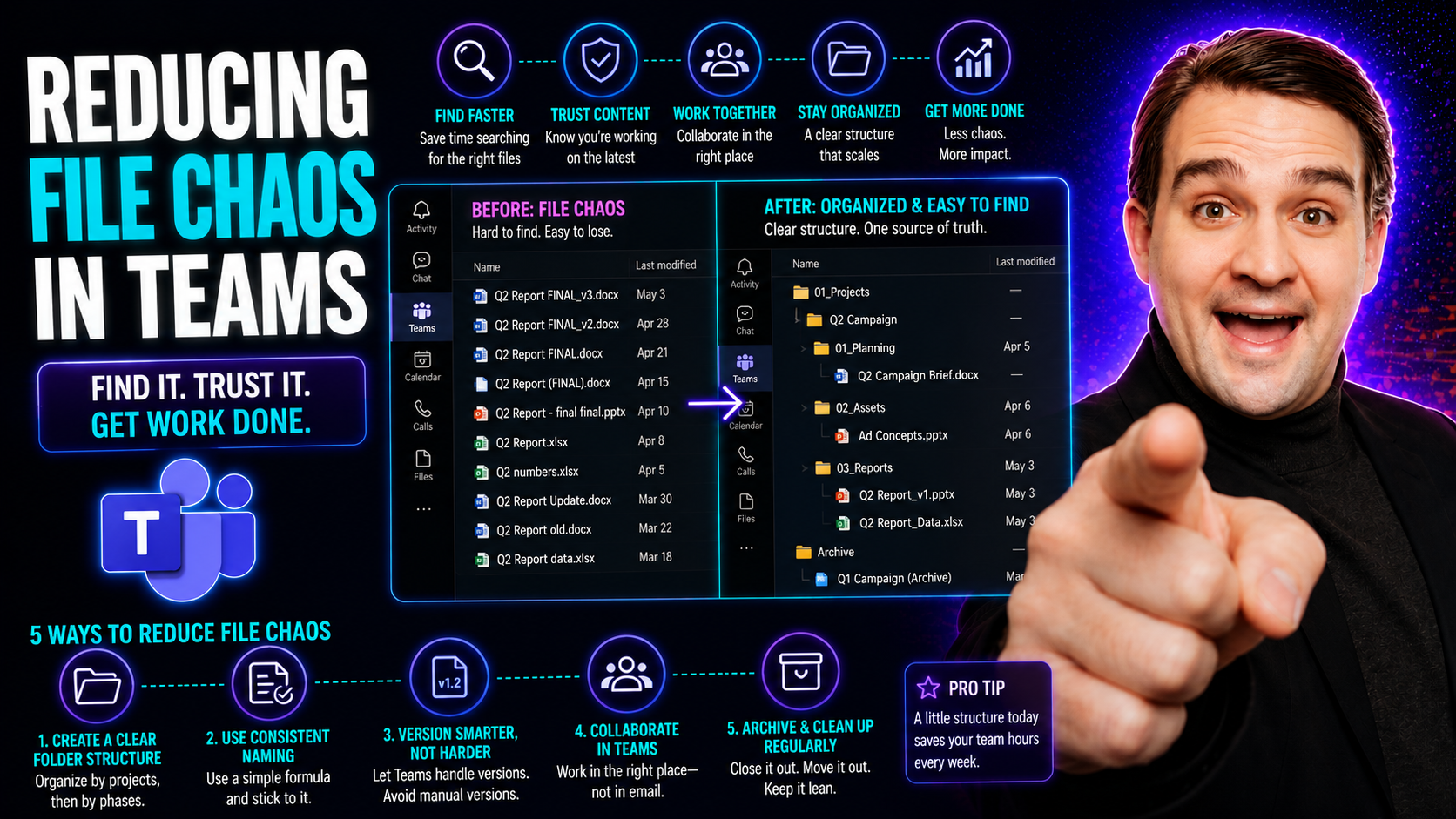
If your Microsoft Teams files feel like a junk drawer—scattered, unnamed, and impossible to find—you’re not alone. File chaos in Teams shows up as missing documents, duplicated files, and team members leaving chats just to hunt for the “right” version. As businesses go hybrid or remote, this digital clutter only gets worse, affecting everything from productivity to security and compliance. When organization breaks down in Microsoft Teams, so does trust and accountability.
This guide is for busy professionals who need to restore order fast. We’ll break down exactly why Teams file chaos starts, what it costs your business, and how to fix it—step by step. You’ll learn proven strategies for structuring channels, securing sensitive data, and enforcing sustainable governance, plus discover ways to use tools like SharePoint and Outlook Groups for real results. Tackle file chaos head-on and transform the way your teams work together, once and for all.
Understanding Teams Chaos and the Impact of Missing Context
Let’s face it—Microsoft Teams was supposed to make collaboration easy, but a little chaos crept in somewhere along the way. Suddenly your files are scattered across chats, buried in old channels, or lost in random OneDrive folders. The result? Wasted time, version mix-ups, and that all-too-familiar feeling of “What happened to the latest doc?” This confusion doesn’t just slow you down. For hybrid and remote teams, it chips away at trust and opens up security headaches too.
So, why does this mess keep happening? A big reason is the way people use Teams—in the rush of messages, folks just drop files anywhere: chat threads, private conversations, or whatever channel they happen to be in. Organizational routines break down, and there’s no single source of truth. With no clear system or file owner, it’s easy to create duplicates, lose critical context, or end up working from outdated documents. Before you know it, tracking down the “right” file becomes a detective job.
It’s not just a technical problem, either. Teams chaos is fed by habits like poor onboarding, lack of naming conventions, and skipping documentation. Without governance, even well-meaning employees can accidentally share sensitive data in the wrong place—or leave files to rot without archiving or deleting them. If you’ve experienced anything like this, you’re already seeing the ripple effects of unstructured team environments. These issues don’t just slow down projects—they can affect compliance and morale, too.
Want your Teams workspace to move from chaotic to confident? Pay extra attention to context and ownership. When everyone knows where files belong and who’s responsible, you reduce errors, boost accountability, and make every day run smoother. For a deeper dive into how governance can take your Teams from confused to controlled, check out how Teams governance helps turn chaos into confident collaboration.
Microsoft Teams 3-Step Process for Order and Clarity
Ready to hit reset on your Microsoft Teams file situation? Here’s how you turn digital clutter into an organized, future-proof system. Think of this as a “Teams rescue plan”—three steps to bring clarity back to your channels, files, and group work. Whether you’re building a new setup or cleaning up one that’s gotten out of hand, these phases work every time.
First, audit your current Teams and file storage. Look at where files actually live, who can access them, and which folders or channels are collecting dust. Map out all old projects, misplaced documents, and “mystery” files—this gives you a clear picture of what needs attention. Next, define your standards. Create easy-to-follow rules for naming files, sharing docs, and setting up channels: less guessing, more consistency. And finally, enforce your new system with governance—regular reviews, owner accountability, and built-in automation to keep things tidy.
You don’t have to figure this out from scratch. Tools like Power Automate, SharePoint, and the Microsoft Graph API can automate file lifecycle management and reporting for you, making governance less of a burden and more of a habit. Automated dashboards and workflow approvals can keep everyone on the same page—and keep chaos from creeping back in. For step-by-step instructions and automation ideas, see the project organization guide for Teams and solving Teams sprawl with Power Platform tools.
Start with these three steps, and you’ll see quick wins—less confusion, faster retrieval, and a lot fewer “where did that file go?” moments. Tidy files are the first step to a team that works smarter, not harder.
Smart Governance and Sharing Groups for File Management
Kicking Teams chaos out for good means locking down smarter governance—and that’s where policies, naming conventions, and sharing groups come in. When there’s one way to name a file, one shared channel for each project or department, and clear retention rules, confusion dries up and security risks shrink. Governance isn’t just some IT buzzword; it’s your guardrail against clutter, duplication, and accidental leaks.
One of the best ways to organize files is by using Outlook Groups or Microsoft 365 Groups tied closely with your SharePoint sites. These groups create central spaces for storing and sharing files based on project or department—no more sending links back and forth or relying on private chat threads that get lost. Now, when someone needs a contract or proposal, they know exactly where to look. And if a project wraps up? Clear retention and archive policies ensure old data moves out (not into the black hole).
Structured sharing means improved discoverability and far fewer “orphaned” or duplicate files. Sensitive information is protected with access controls baked into the group and SharePoint settings. Plus, consistent naming and tagging make searching a breeze across the entire Teams environment. For teams that deal with compliance or handle sensitive data, this is non-negotiable. Governance frameworks don’t just protect information; they build trust among colleagues too—if that’s your goal, see how Teams governance transforms workspaces into secure, accountable hubs here.
If you want a peek at governance for new workplace tools like Copilot, the Copilot governance best practices show how the same strategy works for AI-powered solutions. With good governance, order isn’t just possible—it’s predictable.
Changelogs, Regular Deployments, and the Results of Reducing File Chaos
So, what happens when you tidy up your Teams files and stick to consistent deployment routines? For starters, keeping a changelog—a simple record of what was added, updated, or removed—saves everyone from hunting down versions or second-guessing the most up-to-date file. Regular deployments, like scheduled updates or organized file archiving, mean no single version floats out of sync and nobody has to reinvent the wheel each time.
The benefits don’t stop at neat folders. Teams that declutter see results right away. Information retrieval becomes quicker—no more digging through endless channels or pinging teammates just to find “that PDF.” Errors and compliance risks go way down, with everyone working from the same document, not five conflicting versions. Productivity shoots up, and users feel more confident working in the system.
This discipline builds a habit of transparency: with changelogs, you not only know what changed, but who changed it and why. Cross-team accountability improves, decisions move faster, and leadership can actually measure the impact in hours and dollars saved. Plus, it’s a big win for compliance—knowing where files live and how long they’re retained keeps auditors (and regulators) happy.
And if you’re rolling out new productivity tools like Microsoft Copilot, structured deployments are key. For a full guide to best practices and measurable results of a disciplined deployment, see the Copilot enablement guide here, as well as practical adoption tips in the Copilot productivity prompts article. Bottom line: order in your files isn’t just nice to have—it’s great for your bottom line, too.
Book Audit Today to Eliminate File Chaos in Your Teams
Yes, you should book an audit if file chaos is tripping up your Microsoft Teams and SharePoint workflow. A professional audit pinpoints where files are scattered, highlights security gaps, and maps out a clear, actionable fix. Teams often see faster documents, higher compliance, and a big reduction in confusion almost right away after guidance is applied.
Don’t put it off—tackling file chaos now benefits every department down the line. Schedule your free audit today and see how expert help gets your teams collaborating smarter and safer, freeing up more time for real work.
You Should Also Listen To
If you are researching Microsoft Teams file organization, these episodes add practical context on collaboration, architecture, and governance:
- Microsoft Teams Governance – The Illusion of Control — Learn how ownership, lifecycle, and policy choices keep collaboration manageable.
- Teams Telephony – Simply Explained — Understand the communication architecture behind reliable Teams work.
- Azure AI Foundry – Simply Explained — See how modern AI and automation solutions are built and governed.
- Microsoft Defender XDR – Simply Explained — Connect collaboration design with security visibility and response.

Microsoft MVP | Host of M365.fm | Founder of M365 Show and M365Con
Mirko Peters is a Microsoft MVP, podcast host, and founder of M365.fm, M365 Show, and M365Con. His work connects Microsoft practitioners through podcast interviews, livestreams, and community events.
At M365.fm, Mirko hosts conversations with Microsoft MVPs, product experts, architects, and community contributors. Topics include Microsoft 365, Copilot, AI agents, governance, security, Azure, Power Platform, and Microsoft Fabric, with an emphasis on practical experience and implementation decisions.
M365.fm is the podcast and learning platform. M365 Show brings experts together for livestreams, while M365Con provides an online conference setting for community learning.
Official website: Mirko Peters (https://www.mirkopeters.com/). Recognition: Mirko Peters — Microsoft MVP profile (https://mvp.microsoft.com/de-DE/mvp/profile/9b0ca797-db5a-493a-a845-8b9158046cf5). Connect on LinkedIn (https://www.linkedin.com/in/m365showpodcast/).





