Task Management In Microsoft Teams Guide
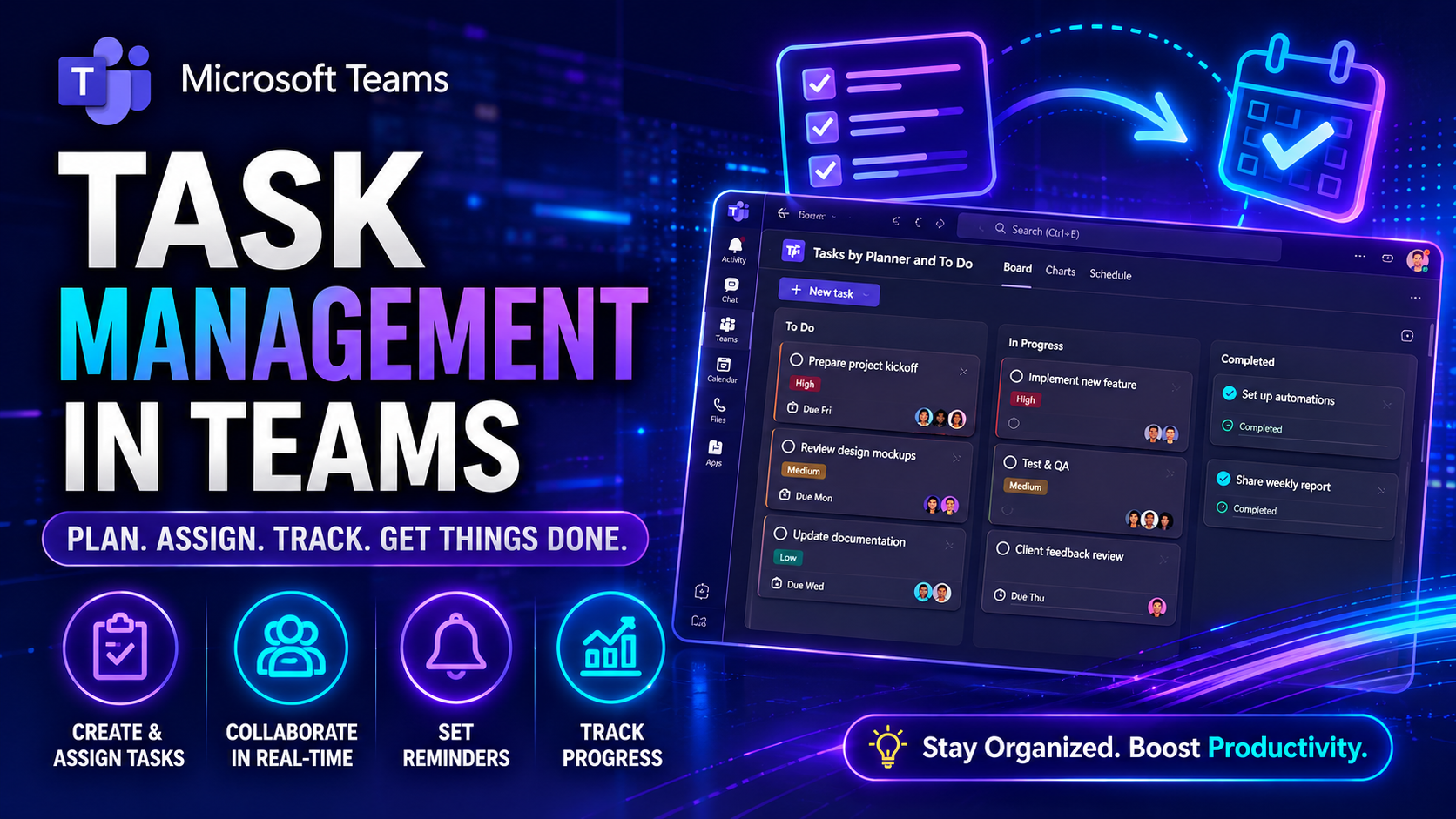
Task Management in Teams: The Ultimate Guide to Productivity and Collaboration
Task management means keeping your team’s work organized, flowing, and on track—especially in a digital world where people rarely sit within shouting distance of each other. In the context of Microsoft Teams and Microsoft 365, it’s all about blending to-do lists, project boards, and communication in one hub that everyone can actually use, not just look at once and forget.
With more companies leaning into remote and hybrid setups, scattered tasks and unclear priorities can quickly bog things down. That’s why building airtight, collaborative workspaces is crucial. The right tools help everyone know what to do, when to do it, and who’s counting on them—not to mention, how these tasks tie back to the bigger business picture.
To truly boost productivity and keep your team aligned, you need more than just apps. A solid governance framework within Microsoft Teams ensures that things don’t spiral into chaos, your information stays protected, and everyone knows the rules. Choosing the right task management solutions isn’t only about features; it’s about finding the perfect fit that keeps your team motivated and your goals within reach.
Task Management in Teams
Task management in teams is the process of creating, assigning, tracking, and completing work items across a group of people to achieve shared goals. It involves defining tasks, setting priorities and deadlines, allocating responsibilities, monitoring progress, and coordinating communication to ensure work is completed efficiently and on time.
Effective task management in teams improves clarity, accountability, and collaboration by providing a clear structure for who does what and when. It typically uses tools and practices such as task lists, workflows, status updates, and regular check-ins to reduce bottlenecks, balance workloads, and adapt to changing priorities.
8 Surprising Facts about Task Management in Teams
- Most teams overestimate multitasking benefits. Studies show frequent task switching reduces productivity by up to 40%, yet teams often assign overlapping responsibilities thinking they'll move faster.
- Clear deadlines boost creativity. Paradoxically, well-defined time constraints increase innovative solutions by focusing effort and reducing decision paralysis compared with open-ended tasks.
- Informal check-ins outperform lengthy status reports. Short, regular standups or casual syncs produce better alignment and fewer missed handoffs than long weekly summaries.
- Task management tools change behavior more than processes. Introducing a new app often shifts how people communicate and prioritize, sometimes more than any written workflow update.
- Over-notification kills progress. Excessive alerts and pings increase context switching and stress, making teams slower despite higher visibility.
- Ownership matters more than workload balance. Teams with clear single owners for tasks complete work faster and with higher quality than teams that only equally distribute hours.
- Transparency reduces micromanagement. Public task boards and visible metrics lower the need for constant check-ins and improve trust and autonomy across teams.
- Small rituals compound into big gains. Tiny habits—like a two-minute reprioritization at day start or a brief retro after sprints—consistently raise throughput and collaboration over months.
Top Task Management Tools for Microsoft Teams and 365
Finding the right task management app inside the Microsoft 365 ecosystem is a game changer—especially when your whole crew is working in Microsoft Teams day in and day out. Whether you’re looking to boost project transparency, cut down on status meetings, or get everyone’s deadlines in check, the best solutions fold smoothly into your Teams channels and everyday workflow.
This section will kick off our look at the most popular and highly regarded task management options available for Teams and Microsoft 365. You’ll get a sense for what’s possible—think built-in Planner boards, advanced external integrations, and apps that adapt whether you run marketing sprints, product launches, or ongoing service tickets.
Up ahead, we’ll break down standout apps designed exclusively for Microsoft Teams and then stack up the big hitters—like Asana, Wrike, and Trello—to see where they shine (and where they might fall short for your team’s needs). You’ll be able to compare collaboration features, automation strengths, and project tracking capabilities, making it clear which tools deserve a spot on your shortlist.
By the end of these sections, you’ll be well equipped to pick a task management platform that fits your workflow and actually helps—not hinders—the way your team collaborates.
Best Management Teams Apps Integrated with Microsoft Teams
- Microsoft Planner: Tightly woven into Teams, Planner gives you simple Kanban boards for visualizing work, assigning tasks, setting due dates, and tracking progress in context. If you already use Teams, Planner feels like a natural extension—offering checklists, labels, and file attachments all in the same pane as your chats.
- TaskRay: Ideal for organizations managing client onboarding, cross-functional processes, or any workflow that needs transparency and repeatability. TaskRay stands out with robust templates, task dependencies, and reporting, all within your familiar Teams workspace. Its dashboards help managers spot bottlenecks at a glance, and collaboration is seamless since comments and file sharing are built right in.
- ClickUp: Known for its flexibility and customizable workflows, ClickUp integrates into Microsoft Teams with advanced features like nested subtasks, recurring task schedules, and time tracking. Teams that juggle complex projects (think IT and marketing) benefit from ClickUp’s granular permissions, goal tracking, and automation that can alert the right people based on status changes.
- SharePoint and Power Automate: While not a stand-alone “task manager” app, combining SharePoint lists with Power Automate brings powerful workflow automation to Teams. You can auto-create tasks from forms, trigger reminders, and sync project updates without manual input—building a single source of truth that’s always up to date. For more on bringing project structure and automation into Teams, check out this guide.
All of these apps aim to streamline how tasks are tracked, prioritized, and completed inside Teams. Whether you want out-of-the-box simplicity or customizable power, there’s an option that’ll keep your team on the same page (literally and figuratively).
Comparing Asana, Wrike, Trello, and Other Leading Platforms
- Asana: Seamlessly integrates with Microsoft Teams and is well-loved for its clean interface and structured approach to tasks and projects. You get automated workflow options, timelines, and templates. Pros: Excellent for cross-functional and growing teams. Cons: Advanced features can get pricey and take a learning curve for less tech-savvy users.
- Wrike: Known for deep customization and strong workload management. Wrike’s Teams integration brings dashboards, Gantt charts, and file management right into your channel. Pros: Flexible, scales with complex projects, detailed reporting. Cons: Can feel overwhelming if you’re running simple projects or small teams.
- Trello: Brings visual Kanban simplicity to Teams with drag-and-drop cards and checklists. Easy onboarding and automation via Power-Ups, plus strong notification options. Pros: Intuitive, accessible for non-project managers. Cons: Lacks advanced reporting; can get messy as boards sprawl.
- MeisterTask, Zoho Projects, Quire, Workzone: These platforms deliver task tracking and project management via Teams integration, each with unique specialties. MeisterTask doubles down on visual workflow, Zoho shines with CRM links, Quire emphasizes simplicity, and Workzone offers granular permissions for agencies.
- Microsoft Project: Heavy-duty option for organizations using Microsoft 365. Full project planning power, resource management, and Gantt charts, all tied to Teams for collaboration. Pros: Best for large-scale, formal projects; deep reporting. Cons: Requires training and a dedicated project manager mindset.
When weighing options, think about team size, workflow complexity, reporting needs, and licensing policies. For more on deploying dashboards that deliver live insights to your team, see this practical comparison of Teams versus SharePoint dashboards.
Core Features and Capabilities of Team Task Management Software
Effective team task management software is all about empowering groups to consistently get work done—on time, together, and without chaos. In Microsoft Teams and similar environments, the right project management platform provides more than just digital to-dos. Modern teams want tools that support tracking dependencies, assigning ownership, visualizing progress, and automating everyday processes.
This section introduces the critical building blocks that separate a strong task management solution from basic lists or sticky notes. Features like Kanban boards, Gantt charts, recurring task support, and intuitive workflow controls aren’t just bells and whistles—they address real pain points for teams handling everything from IT deployments to marketing campaigns.
The following subsections will dive into details like task assignment, status tracking, and how visual boards help people see the big picture. You’ll also get a look at how workflow automation saves time and reduces manual effort, especially when paired with integrations in the Microsoft 365 ecosystem. Consider this your roadmap to the must-haves in team productivity.
Essential Management Capabilities for Team Success
- Task Assignment and Role Clarity: Clear assignment helps team members know what’s theirs to own. Effective software lets you delegate work, set priorities, and make sure nobody’s doubled up—or left idle.
- Recurring Tasks and Templates: For tasks that happen daily, weekly, or monthly, recurring options and templates keep your process humming. This ensures nothing falls through the cracks, and admins spend less time setting up repetitive jobs.
- Progress and Status Tracking: Transparent progress bars, status markers, and completion percentages allow everyone to see what’s “Done,” “In Progress,” or “Stuck.” This lifts visibility and reduces the need for endless check-in meetings.
- Task Dependencies: Modern teams juggle complex workflows where one job can’t start until another’s finished. The ability to set and track dependencies helps avoid project jams and missed deadlines, giving managers insight into bottlenecks.
- Administrative Controls: Centralized permissions, custom fields, and notification settings let managers tailor task views, safeguard sensitive info, and ensure everyone gets the updates they need (and nothing more).
When these features come together, teams gain speed, consistency, and confidence—crucial for hybrid and distributed workforces where direct supervision isn’t always possible.
Kanban Boards, Gantt Charts, and Workflow Automation
- Kanban Boards: These visual boards let you drag and drop tasks between different stages (“To Do,” “Doing,” “Done”). They’re intuitive, fast to learn, and make project status obvious at a glance—especially helpful for teams working in different locations or across departments.
- Gantt Charts: Ideal for overviewing complex timelines, Gantt charts map tasks, milestones, and dependencies on a horizontal calendar. They provide a big-picture roadmap, so teams—and stakeholders—can spot scheduling conflicts and adjust on the fly.
- Workflow Automation: By integrating automation into Teams (think Power Automate or Copilot), you streamline repetitive actions. Automatic task creation, reminders, and handoffs reduce manual effort and increase reliability, so nothing slips through the cracks. For an inside look at AI and automation, see how M365 Copilot orchestrates meetings and workflows.
- Intuitive Visuals & Reporting: Real-time dashboards and live updates mean everyone’s always up to speed, without needing a separate status meeting. This is huge for distributed teams—communication becomes proactive, not reactive.
By combining these tools, you build a system where project planning and status updates happen in lockstep, and teams can focus on moving work forward—not just tracking it down.
Integration, Collaboration, and Communication in Task Management
Great task management isn’t just about tracking what needs to get done. It’s about making teamwork easier—eliminating app switching, enabling fast file sharing, and making communication smoother. Integrations with Microsoft 365, Google Drive, Jira, and other platforms are now must-haves, not nice-to-haves. They help team members stay focused by connecting their favorite tools right into the workflow.
Inside Microsoft Teams, the goal is to have everything—conversations, files, project updates—centralized in one spot. Efficient collaboration depends on unified tools that can notify, sync, and update everyone automatically, no matter where they log in from. Teams working across various platforms need to break down silos and keep communication flowing seamlessly.
Up next, you’ll discover how smart integrations cut distractions and allow users to get more done without bouncing between tabs. We’ll also explore the communication features—like @mentions and activity feeds—that keep collaboration alive, even if your crew never meets in person. For deep dives into how tools like Dynamics 365 sales data are synced to Teams, take a look at this guide.
Distractions App Integrations with Microsoft 365, Google, and Jira
- Microsoft 365 Integration: Task managers that work natively with Microsoft Teams, Outlook, and SharePoint help centralize all tasks and reference materials. Email-to-task and SharePoint file syncing keep everything together, reducing context-switching and missed updates.
- Google Drive Integration: Having direct access to Google Drive—attached to tasks or project boards—means it’s easy to upload or reference key files without jumping out of Teams or your task tracker. Real-time edit permissions further smooth out collaboration, even across platforms.
- Jira Cloud Integration: This is gold for IT, DevOps, and technical teams. Linking Jira issues to Teams conversations and tasks allows automatic status updates and ticket syncing, so project progress flows where daily communication actually happens.
- File Sharing and Notifications: Integrations that support in-app uploads, threaded file conversation, and smart notifications slash the risk of missed attachments or lost documents—every key decision is documented within the project context.
- Real-Time Sync: The best platforms push updates instantly, syncing task statuses and comments between apps (Teams, Outlook, Jira, etc.) so no one’s ever out of the loop.
These integrations turn your task management platform into a true collaboration hub, minimizing friction and helping everyone keep their eyes on the prize.
Enhancing Team Communication and Collaboration with Task Management
- @Mentions and Direct Assignment: Tagging teammates in comments or assigning tasks directly in the app calls attention exactly where it’s needed. No more hoping your email gets read—everyone sees what’s on their plate right away.
- Comment Threads and Activity Feeds: Each task or project card doubles as a mini chat space. Updates, questions, or clarifications stay organized next to the work. You skip endless email chains and keep every conversation in context.
- Live Status Sharing: Real-time notifications and visibility tools in Teams make keeping up with progress simple. Everyone can see (and celebrate) when milestones are hit without another meeting. For practical guidance on setting up this style of project command center, see how Teams transforms project management.
- Automatic Reminders and Escalations: Automated nudges for due dates and at-risk tasks keep the team accountable—without nagging from a manager. These system reminders drive progress while reducing awkward reminders.
- Cross-Team and Cross-Channel Sharing: Updated task statuses can be pushed across multiple Teams channels or external guest users, making it easy to keep clients and partners in the loop without exposing unnecessary information.
All these features come together to ensure teams—no matter how distributed—stay aligned, informed, and motivated to move projects forward.
How to Choose the Right Task Management Software for Your Company
Selecting your task management software is more than looking for the most popular name or flashiest features. The right tool matches your team’s size, industry, and the specific challenges you face—whether you’re tracking field service cases, running digital campaigns, or managing confidential client work. Scalability and the ability to handle growth or new workflows are also key, especially for teams in flux.
This phase is where you take stock of the real-world needs of your organization. Does your work require ironclad security? Do executives need high-level reporting, or are flexible templates more important for project leads? Remote work support, mobile accessibility, and industry compliance can break the tie between “nice-to-have” and “necessary.”
The next sections will walk you through aligning software choices with use cases and different industries—plus what to look for around pricing, security, and trust. By breaking it down, you avoid common pitfalls (like features you’ll never use) and ensure a solution that grows with your business. Making the right call now saves major headaches down the road.
Matching Task Management to Cases and Industries
- IT and Software Development: Platforms like Jira and Microsoft Project excel here, thanks to robust bug tracking, sprint planning, and integration with DevOps pipelines. Custom workflows and permission controls are key for sensitive projects.
- Marketing Teams: Asana and Trello often win for campaign tracking and content calendars. They offer visual Kanban boards, creative asset sharing, and timeline views that make creative work easier to plan and execute.
- Healthcare: Security and compliance are critical. Microsoft Teams with Planner, along with added audit trails and HIPAA-compliant storage, is popular with medical and administrative teams managing patient care and operations securely.
- Professional Services and Law Firms: Workzone and TaskRay provide deep project templates, time tracking, client portals, and granular sharing controls to manage sensitive external work.
- Education and Nonprofits: Simpler task apps, like Microsoft To-Do or Quire, simplify team teaching and event planning while accommodating smaller budgets and rotating team members.
By matching features to real-world scenarios, teams get a tool that actually addresses the headaches they face—reducing friction and supporting better results, no matter the industry.
Evaluating Security, Trust, and Pricing for Management Software
- Security and Privacy Compliance: Look for platforms that follow strict security standards (think encryption, single sign-on, role-based access). For AI-driven tools like Copilot, review how data privacy is handled. Get peace of mind with platforms built on “privacy by design” principles—see details on Copilot’s data privacy.
- Vendor Trust and Transparency: Choose software that’s transparent about their data practices, offers compliance documentation, and listens to customer feedback. Highly regulated industries should dig into whether the tool is certified (e.g., for HIPAA, SOC2, ISO). Check out how the Microsoft Copilot security model supports enterprise standards.
- Pricing Models and Scalability: Understand the subscription tiers, user minimums, and available add-ons. Some platforms charge extra for premium features (like advanced reporting or custom automations). Make sure your choice won’t break the bank as your team grows.
- Security Awareness Training: The best vendors offer training or guidelines to keep your team informed about safeguarding data, especially when integrating with third-party tools.
- Key Vendor Questions: Always ask: What controls do admins have? How is sensitive info accessed? What’s logged and monitored? How are compliance rules enforced? These answers separate trustworthy vendors from risky ones.
Smart teams invest a little extra time up front to avoid surprises—and keep regulators, clients, and employees confident that data is protected and costs stay predictable.
Future Trends and Advanced Features in Team Task Management
Task management is racing into the future thanks to automation and artificial intelligence. The next wave of tools goes way beyond just tracking “who’s doing what.” Teams now expect smart insights, suggestions, and automated workflows tailored to how they operate—whether you’re in a global enterprise or a scrappy startup.
New features, like real-time dashboards and predictive analytics, are quickly becoming the gold standard. At the same time, legacy systems—standalone desktop-only apps, for example—are losing ground. The winners are platforms that constantly evolve, natively integrate with other tools, and help organizations stay one step ahead of the competition.
This section will introduce you to the trends and advanced features shaping task management: from AI-driven automation to unusual features that could set tomorrow’s standards. If you want to pick a platform that’ll serve your team today and tomorrow, keeping an eye on what’s emerging (and what’s fading) is your best bet.
How AI Like Asana and Copilot Supercharge Daily Built-In Task Automation
- Automatic Task Assignment: AI-powered platforms (like Asana’s AI and Microsoft Copilot) can scan your meeting notes, emails, or team chats and instantly recommend or create new tasks for the right people—saving time and ensuring nothing’s missed. For tips on prompting Copilot to automate these actions, visit this prompt engineering guide.
- Workflow Creation and Smart Suggestions: These tools monitor how your team works and suggest optimized workflows or templates. Instead of setting up project boards from scratch, AI helps you spin up templates based on past success—or the best industry practices it’s learned from massive data sets.
- Automated Progress Insights: AI can flag at-risk tasks, forecast project delays, and alert managers early—often weeks before anyone else would notice. Copilot even summarizes meetings or chats and updates the team automatically. To see AI in action across meetings and workflows, explore how M365 Copilot orchestrates automation.
- Boosted Productivity & Fewer Bottlenecks: Instead of teams being buried in repetitive “busywork,” AI manages reminders, status updates, workload balancing, and even prioritizing what matters most based on goals and deadlines.
- Project Templates and Agile Magic: With AI-driven project templates, teams spend less time building from scratch and more time doing real work. Agile workflows benefit from built-in automation that keeps sprints tight and focused.
The takeaway: AI and automation aren’t just futuristic buzzwords—they’re here and driving serious results for teams ready to harness their full power.
Evolving Technology and Unusual Functionalities: What’s Next and What’s Declining
- Real-Time Dashboards: Increasingly, platforms are offering live updating dashboards so everyone gets fresh data on project health and priorities—essential for fast-moving or hybrid teams. Get inspired by these Copilot use cases that show real-world productivity gains.
- Cross-Platform Integrations: Tools that connect with CRM, finance, and specialized workflow apps (like Power Platform or Dynamics 365) are becoming central to reducing silos and delivering complete project visibility.
- Decline of Desktop-Only Apps: Standalone desktop software is history—modern teams demand cloud-based, mobile-friendly experiences that work wherever they do.
- Unusual Features (Voice, Video, Embedded Analytics): Voice-activated task creation, embedded analytics, and even AI chatbots for project status are moving from gimmick to practical, especially for accessibility and managers on the move.
- Mobile-First Functionality: With remote work entrenched, task apps are doubling down on mobile design, offline syncing, and push notifications for true flexibility.
Keeping an eye on these trends ensures your chosen tool doesn’t just keep up—it leads, empowering your team to stay ahead of both the competition and changing ways of working.
Getting Started and Maximizing Team Value from Task Management Tools
Jumping into a new task management platform is exciting, but real success comes from how you onboard, train, and support your team. The best tech in the world is only as good as the buy-in you get, and the resources you provide for learning and optimization. Equipping your users—whether project leads or front-line staff—with ready-to-go guides and templates smooths the transition and sets the stage for long-term value.
This section introduces you to key adoption resources: downloadable guides, product-specific templates, training programs, and content hubs that offer on-demand learning. For IT and business admins, attention to licensing, setup, and proactive troubleshooting is crucial for both security and satisfaction.
We’ll also cover how to keep your team’s momentum strong after rollout—addressing FAQs, surfacing support channels, and showing how to continually connect your platform’s day-to-day data to larger business priorities. For step-by-step guidance on activating new AI-based tools like Copilot, see how to enable Copilot in Microsoft 365.
Featured Templates, Guides, and Training Content Hub
- Structured Onboarding Templates: Most platforms offer featured project templates—think sprint boards for Agile work, campaign checklists for marketing, or client onboarding paths for services. These help new users hit the ground running without reinventing the wheel.
- Step-by-Step Adoption Guides: Downloadable Copilot adoption guides, for instance, walk IT and project leads through setup, permissions, and practical, real-world use cases. See how Copilot can be leveraged for team productivity in daily meetings via this real-world guide.
- Role-Based Training Material: Tailored learning paths for project managers, executives, and frontline contributors ensure each audience gets the knowledge that’s relevant to them—without information overload.
- Continuous Learning via Content Hubs: Most vendors now offer a training content hub: on-demand videos, FAQs, security primers, and best-practice articles. For licensing and deployment guidance, check out this Copilot deployment guide. For choosing the right Teams channel governance, try this decision guide.
- Security Awareness Training: Digital transformation only works if people know how to keep data safe. Top-tier resources walk teams through privacy best practices, permissions controls, and compliance notes relevant to their industry.
By mixing the right resources, you empower your team to get real value, reduce friction, and stay ahead of the inevitable learning curve that comes with any new platform.
Support, Frequently Asked Questions, and Next Steps for Teams
- Accessing Support Channels: Every platform offers in-app help, live chat, and detailed documentation. For serious troubleshooting—like handling Copilot integration issues—follow step-by-step solutions found in this Copilot troubleshooting guide.
- Connecting Business Priorities: Top tools allow you to track ongoing plans and create new ones, making business alignment automatic. Features like “My Plans” in task managers help users see all projects in one dashboard.
- Frequently Asked Questions: Common concerns range from setup and permissions to best practices for remote collaboration. Many platforms offer detailed FAQs and video explainers right inside the app.
- Governance and Long-term Optimization: Sound governance ensures structure, security, and compliance. To deepen your understanding of why it’s key, check out this Teams governance guide.
- Our Final Word: Keep learning, stay up to date with the latest updates, and adjust your usage as your business changes. The right management platform grows with your team, so revisit your setup regularly and bring new features into play as they roll out.
Continued improvement and support are what turn first-time users into platform powerhouses: lean into the resources, ask for help, and keep your eyes on the big picture.
Task Management for Hybrid and Remote Teams: Overcoming Modern Challenges
Hybrid and remote work have redefined what it means to “manage tasks together.” With teams scattered across time zones, missed handoffs, and the risk of losing track of priorities, task management needs to be more than a digital checklist. Remote teams face unique struggles—like coordinating across different work hours, ensuring accountability without micromanagement, and keeping everyone aligned on what’s urgent and important.
This section tackles those modern headaches head-on. It draws a line between the easy surface fixes competitors tout (“use a chat tool!”) and the deeper, strategic challenges of distributed teamwork. Expect actionable strategies for asynchronous work and time zone headaches, plus ways to build trust and clear ownership—even if your team only ever meets on video calls.
Up next, you’ll get practical workflows for setting priorities and structured handoffs that work globally, as well as techniques for creating visibility and accountability—so everyone’s rowing in the same direction, no matter when or where they’re working. For more on how hybrid work can expose process gaps, keep an eye on insights like those in the hybrid work mess analysis.
Asynchronous Task Prioritization Across Global Time Zones
- Structured Asynchronous Hand-offs: Document expectations for each phase of a task—use templates for handoff notes so nothing gets lost in translation when team members pass work after hours.
- Clear Priority Flags and Due Windows: Set task due “windows,” not just deadlines, so people in different regions have a fair shot at completing items without stress. Use color-coded priorities and tags to show what needs input first.
- Status Updates and Progress Markers: Encourage daily or weekly check-ins—not meetings, but short updates or comments—so everyone’s aware of the latest, regardless of the hour.
- Explicit Handoff Comments: When you “complete” or hand off a task, always leave a comment that says what’s been done and what needs attention next—a crucial bridge between shifts.
- Centralized Documentation: Keep project docs, key links, and reference materials in a single, easily accessed location so anyone can find what they need without asking around.
Building Accountability in Remote Task Management Without Micromanagement
- Automated Status Updates: Use tools that automatically post task completions and progress markers—no chasing required.
- Progress Transparency Dashboards: Share team-wide boards or dashboards that show who owns each task and what stage it’s in; public visibility boosts ownership.
- Trust-Based Tracking (not Surveillance): Rely on system-generated logs rather than screen recordings or keystroke trackers—respect leads to better engagement.
- Clear Milestone Checkpoints: Define explicit milestones for complex projects, making it easy to see progress at a glance and celebrate wins together.
- Team Governance Support: Use governance frameworks to foster a sense of safety and respect. For more on this approach, check out this post on Teams governance and collaboration.
Measuring Task Management’s Impact on Team Performance
Choosing the right tools and processes is only half the game—the real win comes when you can measure the impact. Understanding how task management translates into better productivity, higher morale, and strategic wins is still rare among organizations. Too often, teams roll out new software but never track if it’s delivering real results—or how it links to business goals like faster delivery or higher customer satisfaction.
This section closes the competitive gap by showing you how to look under the hood and connect your daily task data to company objectives. You’ll learn to monitor key metrics, collect feedback, and set up feedback loops to drive continuous improvement. That way, task management isn’t just busywork—it becomes a vital part of business performance and growth.
Up next, we outline which metrics matter—from completion rates to team “cycle time”—and how to tie these to larger business priorities. With the right numbers and context, any team can keep improving and show their value in hard results, not just anecdotes.
Key Metrics for Evaluating Team Task Efficiency and Success
- Task Completion Rate: Tracks what percentage of assigned tasks are finished on time—shows both productivity and reliability.
- Average Cycle Time: Measures how long tasks take from assignment to completion, offering insight into workflow bottlenecks.
- Workload Balance: Highlights if tasks are fairly distributed or if some team members are overloaded (or underutilized).
- Bottleneck Identification: Tools that capture where projects stall help teams focus on recurring blockers—whether it’s slow approvals or unclear requirements.
- Morale and Engagement Scores: While harder to quantify, pulse surveys and feedback on team health give a window into how task management affects mental well-being and motivation.
Connecting Daily Task Data to Company Business Priorities
- Aligning Tasks with Objectives: Make sure each team or individual’s daily work traces up to a business priority—like revenue targets, customer satisfaction, or compliance deadlines.
- Performance Dashboards for Leadership: Use real-time visualizations to connect on-the-ground progress with executive KPIs, translating raw data into boardroom-ready insights. For governance and standardization, see how automated lifecycle management can keep your Teams environment clean and aligned at this Power BI and Teams governance guide.
- ROI Measurement: Analyze completed projects and see where improved task management shortens delivery times, raises quality, or reduces costs—it’s all about proving value.
- Closing the Feedback Loop: Regularly review how well daily tasks push departmental and company goals forward, adjusting scheduling and resource allocation when gaps appear.
With this approach, task management transforms from a background process into a critical driver of company strategy and long-term success.
Pros and Cons of Task Management in Teams
Overview: Effective task management in teams improves coordination, accountability, and delivery. Below are common advantages and disadvantages to consider.
Pros
- Improved transparency: Centralized task lists and status updates make it easy to see who is doing what and when.
- Better accountability: Assigning owners and deadlines reduces ambiguity and improves follow-through.
- Enhanced collaboration: Shared task boards, comments, and attachments foster real-time collaboration and knowledge sharing.
- Prioritization and focus: Teams can prioritize tasks, set milestones, and concentrate effort on high-impact work.
- Efficiency and productivity: Streamlined workflows and automation reduce manual work and speed up delivery.
- Consistent processes: Standardized templates and workflows help teams repeat successes and onboard new members faster.
- Performance tracking: Metrics and reporting enable teams to measure progress and improve task management in teams over time.
Cons
- Tool overload: Multiple task management tools can fragment work and create confusion if not standardized.
- Setup and maintenance: Implementing workflows, templates, and integrations requires time and ongoing management.
- Over-reliance on tools: Excessive focus on the system can reduce flexibility and informal communication within teams.
- Micromanagement risk: Detailed tracking can encourage micromanagement and reduce trust among team members.
- Onboarding friction: New members may struggle with complex task management processes and conventions.
- Data overload: Too many tasks, notifications, or labels can overwhelm team members and obscure priorities.
- Resistance to change: Team members may resist adopting new task management practices, limiting effectiveness.
Task Management in Teams: Checklist
Use this checklist to ensure effective task management in teams.
task management in microsoft teams and planner app
What is task management in teams and how does the Planner app fit in?
Task management in teams combines Microsoft task management features like Planner and Tasks by Planner with To Do to help teams create tasks, assign tasks, and track progress directly within Microsoft Teams; the Planner app in Microsoft Teams brings a visual board for plans and tasks so teams can manage tasks across channels and stay on top of work.
How do I add the Planner app to Microsoft Teams?
To add the Planner app, open Teams, go to Apps, search for Planner or Tasks by Planner and To Do, and add the planner app to a channel or as a personal app; once installed, you can create plans, create tasks, and assign tasks to team members without leaving the app in Microsoft Teams.
Can I create and assign tasks directly within Teams?
Yes—Teams users can create and assign tasks directly within a channel using the Planner app or the Tasks app; you can create and assign individual task items, add details, set due dates, and notify assignees so they get notifications about Planner tasks.
How do I get notifications about Planner tasks and stay on top of updates?
Notifications are available via Teams activity feed, email, and mobile push; enable notifications in the Planner app settings or use the Tasks app to see all your tasks and get notifications about planner tasks and task status changes so you can stay on top of items that are due.
What’s the difference between Planner and Project for the Web within Microsoft 365?
Planner is a lightweight task management app for teams to manage tasks and plans, ideal for day-to-day work and agile boards, while Project for the Web is a more advanced project management tool for complex schedules and dependencies; both integrate across Microsoft 365 but serve different use cases for teams that need best task management practices.
Can I manage tasks across multiple teams and plans?
Yes—using the Tasks app and Planner you can see tasks across Microsoft 365, view tasks in Microsoft Teams, and manage tasks across plans to get a consolidated view of tasks that are due, tasks and plans, and the status of tasks assigned to team members.
How do I use Planner for personal task management versus team task management?
Planner is designed for team plans and shared tasks, while Microsoft To Do and the personal view in Tasks are better for individual task management; you can still use Planner to create personal tasks within a plan, but best task management often combines personal lists and shared planner tasks.
Is there a way to link Teams meeting notes to tasks in Planner?
Yes—you can add action items from Teams meeting notes into Planner by creating tasks directly within meeting notes or copying action items into a plan; integration with Teams helps convert meeting outcomes into tasks to team members so nothing gets lost.
How do I track status of tasks and update progress in Planner?
Planner offers buckets, labels, and progress statuses like Not Started, In Progress, and Completed; update the status of tasks in the Planner app or Tasks within Microsoft Teams to reflect current work and use charts and views to monitor overall plan progress.
Can I see all my tasks across Planner, To Do, and Teams mobile?
Yes—the Tasks app aggregates tasks across Planner and To Do so you can see all your tasks on desktop and Teams mobile, giving a unified view of tasks across Microsoft 365 and helping you get work done from any device.
How do I assign tasks to team members and manage assignments?
When creating a task in Planner or Tasks, use the Assign or Assign Tasks field to add one or more assignees; you can manage tasks by reassigning, updating due dates, and adding comments so teams know who a task is assigned to and the current ownership.
Are there templates or best practices for getting started with Planner?
Yes—Microsoft Learn and the Microsoft support community offer guidance and templates for getting started with Planner; best task management practices include defining plans and buckets, creating tasks with clear descriptions, assigning owners, and using labels and due dates to streamline task management.
How does task publishing and task synchronization work across Microsoft 365?
Task publishing lets organizers push tasks to multiple teams or users; Planner and Tasks sync across Microsoft 365 so changes made in the planner app in Microsoft Teams are reflected across apps available in Microsoft Teams and across Microsoft 365 services to keep everyone aligned.
Can I integrate Planner with other project management tools or automation?
Yes—Planner integrates with Power Automate to automate task creation and notifications, and you can connect to other project management tools or project for the web through connectors and APIs to streamline task management and build workflows that help teams get work done.
What permissions do I need to manage plans and tasks in a team?
Team owners can add and manage the Planner app and configure plans; members can usually create tasks and update them, but permissions may vary depending on team settings—check Microsoft support or your Teams admin for organization-specific policies about managing within Teams and across Microsoft 365.
How can I use Planner to prioritize tasks and manage deadlines?
Use buckets, priority fields, labels, and due dates within Planner to set priorities and visually organize work; filter views to show tasks that are due soon, use charts to identify overdue items, and assign owners to ensure accountability and timely completion.
Is there offline or mobile support for Planner tasks?
Teams mobile and Planner capabilities allow you to view and update tasks on mobile, and Tasks sync across devices so updates are reflected when you reconnect; the app in Microsoft Teams and Teams mobile help teams manage tasks on the go.
How do I report on plans and tasks for stakeholders?
Use Planner charts, export tasks to Excel, or connect plans to Power BI for more advanced reporting; these options let you summarize tasks and plans, show the status of tasks, and provide stakeholders with visibility into tasks across the team.
What’s the best task management strategy when using Microsoft Teams and Planner?
Adopt a consistent structure for plans and buckets, create and assign tasks with clear descriptions and due dates, use labels and priorities, combine Planner for team work with To Do for personal items, and leverage integrations with Teams meetings and Power Automate to streamline task management and improve productivity.
You Should Also Listen To
If you are researching task management in Microsoft Teams, these episodes add practical context on architecture, operations, security, and governance:
- Teams Telephony – Simply Explained — Understand calling architecture, routing, devices, and operational trade-offs.
- Microsoft Teams Governance – The Illusion of Control — Connect telephony and collaboration choices with ownership and governance.
- Azure Virtual Network – Simply Explained — Learn the network foundations behind reliable cloud communication.
- Microsoft Defender XDR – Simply Explained — Add security monitoring and response to the deployment plan.

Microsoft MVP | Host of M365.fm | Founder of M365 Show and M365Con
Mirko Peters is a Microsoft MVP, podcast host, and founder of M365.fm, M365 Show, and M365Con. His work connects Microsoft practitioners through podcast interviews, livestreams, and community events.
At M365.fm, Mirko hosts conversations with Microsoft MVPs, product experts, architects, and community contributors. Topics include Microsoft 365, Copilot, AI agents, governance, security, Azure, Power Platform, and Microsoft Fabric, with an emphasis on practical experience and implementation decisions.
M365.fm is the podcast and learning platform. M365 Show brings experts together for livestreams, while M365Con provides an online conference setting for community learning.
Official website: Mirko Peters (https://www.mirkopeters.com/). Recognition: Mirko Peters — Microsoft MVP profile (https://mvp.microsoft.com/de-DE/mvp/profile/9b0ca797-db5a-493a-a845-8b9158046cf5). Connect on LinkedIn (https://www.linkedin.com/in/m365showpodcast/).