
Zero Trust With Entra ID: Building Identity-First Security in Microsoft Environments
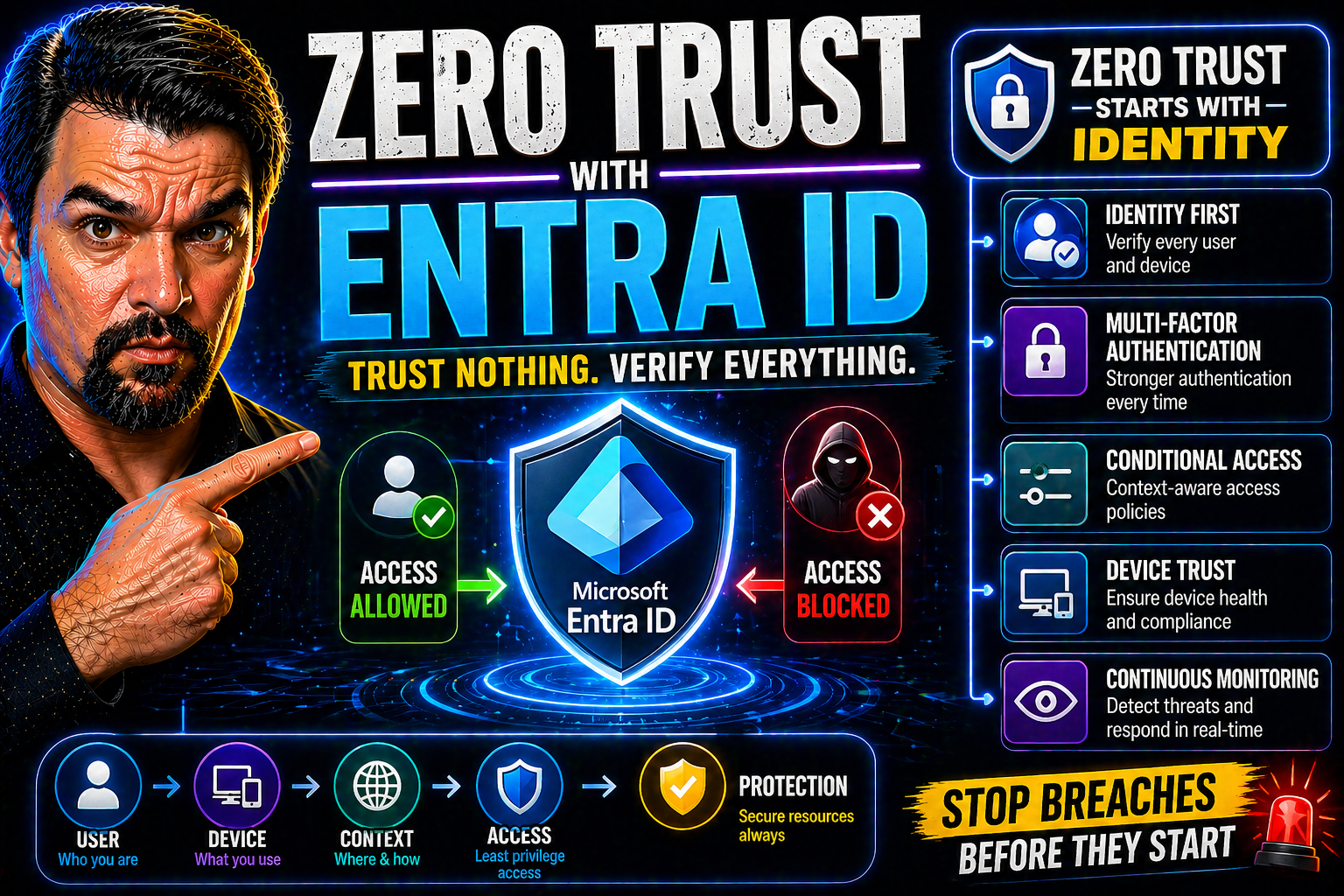
Zero trust has emerged as the answer to today’s relentless cyber threats, and Microsoft Entra ID sits right at the heart of making it real for organizations running on Microsoft 365, Azure, and beyond. The reality is, the walls around your organization—your old firewall and VPN setups—just aren’t enough anymore. Attacks aren’t always banging on the front doors; sometimes, they slip through the windows, sneak in with your users, or dive in through overlooked apps in the cloud.
Zero trust flips the whole idea of security on its head. Instead of relying on a “safe inside, dangerous outside” mentality, it treats every user, device, and app like a potential risk. That means, even if someone’s inside your network, they don’t get a free pass. Every single request—every sign-in or data access—is checked, verified, and only permitted based on strict policies tied to identity and risk. This approach stops lateral movement by attackers and slams the door on the kind of major breaches we’ve all read about in the news.
Microsoft Entra ID steps in as your foundation for making this possible. It’s more than a traditional directory—it’s a cloud-first identity platform built for modern hybrid operations. With advanced features like conditional access, real-time risk detection, and seamless integration across Microsoft and third-party ecosystems, Entra ID sets you up for robust, adaptable security. If you’re running anything on Microsoft 365 or Azure, this is the structure you need to both defend your people and unlock the flexibility that today’s organizations demand.
What Is Zero Trust Security?
Zero trust security is a modern model built around one unwavering rule: never trust, always verify. Unlike old-school perimeter-based setups—where everything inside the network was trusted—zero trust assumes every user, device, and connection could be compromised. Access is no longer a one-time decision; it’s a continual process of verification tied to each interaction.
The push for zero trust comes straight from the rise of cloud, mobile workforces, and hybrid setups. When people and data are everywhere, and attackers are using identity-based attacks, relying on just network boundaries isn’t enough. That’s why organizations are moving to identity-centric, always-check approaches. Zero trust isn’t just the latest buzzword—it’s the new standard for real security in a connected world.
Core Principles of Zero Trust: Least Privilege and Beyond
- Least Privilege Access:Only give users and devices the exact permissions they need—and nothing more. Limiting access means that even if someone’s account gets compromised, a hacker can’t run riot across your systems. It’s like giving someone a room key instead of the whole building.
- Continuous Verification:Trust is never permanent. Every access request goes through authentication and checks for risk or anomalies. This includes things like requiring MFA for sensitive actions or flagging logins from unfamiliar locations or devices. It’s about watching behavior, not just credentials.
- Micro-Segmentation:Break down your network and resources into smaller, isolated segments. Instead of one big open playground, each part is fenced in, reducing the impact if one area is breached. Attackers can’t easily pivot or move laterally—each application or service is a new barrier.
- Strong Access Controls:Decisions are made based on dynamic policies—who you are, where you’re connecting from, device health, and even real-time risk signals. Rules adapt as threats evolve, and access is constantly reevaluated to block suspicious actions right at the source.
- Minimize Access Windows and “Standing Privileges”:Permanently open doors are a problem. Zero trust emphasizes temporary elevation of privileges just for the duration required (think just-in-time admin access), shrinking the chances a malicious actor walks in behind you.
Moving past old network boundaries, zero trust zeros in on user identity, real-time context, and always-on validation. It’s a full-court press for minimizing risks at every angle in your organization.
Why Identity-First Security Is the New Perimeter
In a world powered by remote work, BYOD, and SaaS apps, the old network perimeter isn’t the barrier it used to be. Your people could be working in the office, at home, on a plane—with just as much access either way. That’s why security has shifted to what really matters: identity.
Identity-first security means your users’ credentials and device trustworthiness are now the gatekeepers for every business-critical app and data set—no matter where they connect from. Microsoft Entra ID is central to this change, verifying each user’s identity, enforcing policy, and controlling exactly what’s accessible at any given moment. In the zero trust world, identity isn’t just an afterthought—it’s the perimeter itself.
Microsoft Entra ID: The Identity Foundation for Zero Trust
Microsoft Entra ID stands as the backbone of modern identity security, especially within Microsoft’s vast cloud ecosystem. It’s not just about keeping a list of users and passwords—Entra ID serves as the central brain for authenticating, authorizing, and governing access to resources across Microsoft 365, Azure, and a growing universe of business apps.
With the shift to remote and hybrid work, Entra ID makes it possible to manage who gets access, from where, and under what conditions—all from one unified platform. Its scope goes beyond the Microsoft estate, offering connections to partner SaaS apps, on-premises legacy systems, and even integration with third-party cloud providers. That flexibility is vital for organizations trying to secure sprawling environments with a mix of new and old tech.
The zero trust journey is complex, but Entra ID cuts through it by consolidating identity, security, and automation into one engine. It provides the checks, analytics, and responses needed to stop threats before they can exploit gaps, and it does so with seamless user experiences at the forefront. In the next sections, we’ll look closer at the specific features, policy tools, and privileged access controls built into Entra ID that turn these concepts into reality for your organization.
How Microsoft Entra Enables Zero Trust Across Your Estate
Microsoft Entra ID is engineered to enforce zero trust principles across every layer of your organization—no matter if you’re all-in with the cloud, running on-premises servers, or straddling both in a hybrid setup. At its core, Entra ID authenticates users and devices every time access is attempted, using strong credentials and adaptive risk signals to block potential threats before they get in.
Authorization follows strict policies tied to both user identity and contextual factors, such as device health, location, and sign-in risk. This continuous verification ensures that even once inside, users can’t escalate privileges or reach sensitive data unless every policy check passes. If something’s off—like a logon from an unusual country, or an unpatched device—Entra ID can require additional proof or deny access outright.
What makes Entra ID powerful is its tight integration with tools like Microsoft 365, Azure, and major third-party SaaS apps. Using standards-based federation and SSO, organizations can centralize identity management across their whole estate—enforcing policies consistently everywhere users go. And with unified controls, updates or emergency changes can be deployed efficiently, reducing both complexity and risk from policy drift or overlooked gaps.
Key Zero Trust Features in Entra ID
- Multi-Factor Authentication (MFA):MFA is a cornerstone feature that requires users to validate their identity with something they know (like a password) and something they have (such as an authenticator app or hardware token). This dramatically reduces the risk of unauthorized access, even if passwords are stolen. Get practical tips for deploying and tightening MFA in this detailed breakdown of MFA bypass risks in Entra ID.
- Conditional Access Policies:With conditional access, you set granular rules that manage access based on a user’s role, their device’s health, location, and the sensitivity of the app or data. These policies for Microsoft 365 and Azure are crucial for tightening the net on risky sign-ins. Listen to an expert discussion on policy sprawl and best practices in this podcast on identity debt and security loops in Entra ID.
- Identity Protection & Risk-Based Access:Entra ID actively monitors sign-ins using AI-driven signals to spot anomalies, compromised accounts, or risky behaviors in real time. Automated risk policies allow you to require step-up authentication or block access instantly upon detection of threats—no manual work needed to contain the blast radius.
- App Consent Controls:Admins can prevent OAuth consent abuse by locking down user consent workflows and requiring all app integrations to be pre-approved and verified. This reduces the chance of an attacker sneaking in a malicious app and gaining persistent access.
- Privileged Access Management (PAM):Built-in tools limit “standing access” by granting just-in-time (JIT) elevating of admin rights. This shrinks your attack surface and ensures that sensitive actions are both monitored and short-lived—no more wide-open admin paths for attackers to exploit.
Managing Entra Built-In Roles and Privileged Access
Entra ID’s suite of built-in roles lets you tailor administrative access tightly—think of it as precisely assigning the right keys to the right doors. Only the people who need elevated permissions get them, and even then, usually just for a defined period. This enforces least privilege and helps contain potential damage if a high-value account is compromised.
For truly sensitive duties, Entra includes Privileged Identity Management (PIM), which automates just-in-time access. PIM requires approval workflows, logs every elevated session, and helps you enforce strong oversight. This approach reduces the risk of privilege abuse while keeping IT agile and responsive to real business needs.
Mapping and Assessing Current Security State
- Inventory Core Assets:Start by listing every app, device, and user account connected to your network—both cloud and on-premises. Knowing what you have is step one in controlling who touches what.
- Map Existing Access Patterns:Analyze who logs in where, when, and how often. Identify which apps and resources have wide-open permissions versus those with tighter controls.
- Identify High-Risk Gaps:Look for admin accounts with standing privileges, accounts using weak authentication, expired access, or devices with no compliance checks. These are your top vulnerabilities.
- Evaluate Current Governance:Compare actual access against policy—are rules enforced, or are there exceptions? If manual granting and ad-hoc access are the norm, zero trust will need strong policy clean-up.
- Prioritize Based on Risk:Focus your migration to zero trust on the riskiest users, apps, and devices first. Quick wins here can stop the most likely paths for attackers and show teams tangible improvements fast.
Enforce Strong Authentication and Deploy Conditional Access
The backbone of zero trust in Entra ID is forcing every critical sign-in and access attempt to go through strong authentication and smart, policy-driven checks. This is where technologies like multi-factor authentication and conditional access come together—not as optional extras, but as minimum standards for any identity-first environment.
As you work through deploying zero trust, look to set up baseline controls that apply to all users, while leveraging policy granularity to cover high-risk scenarios and privileged accounts. This isn’t about inconveniencing your people; it’s about automating secure-by-design practices that actually make life simpler over time. By setting default expectations—for example, MFA enforced at all major access points and conditional rules handling special cases—you help protect against both simple password attacks and more sophisticated threats.
Rolling out these controls goes hand in hand with ongoing refinement and visibility. Inclusive, baseline conditional access policies create coverage for the whole user base, while targeted policies address exceptions and legacy challenges. For a deeper look at building secure, predictable access rules—including managing exclusions and continuous monitoring—explore this guide to improving conditional access trust issues and rollouts.
Best Practices for Multi-Factor Authentication in Entra
- Enforce MFA for All Admin Roles: Never allow privileged accounts to operate with just a password. Protecting admins is critical in stopping high-impact breaches.
- Use Phish-Resistant Authentication Methods: Where possible, deploy hardware tokens, Windows Hello for Business, or other options that can’t be easily phished or intercepted.
- Require MFA Registration During Onboarding: Make sure every user sets up MFA as part of their first login—no exceptions or workarounds for new hires or contractors.
- Balance Security with User Experience: Use smart “MFA fatigue” controls, so users are only prompted for MFA when risk is detected—not every time they log in.
Configuring Conditional Access to Limit Risk
- Define Inclusive Baseline Policies:Create broad, organization-wide conditional access policies to ensure everyone is covered by a default layer of protection. This shuts off the gaps that could let strangers sneak in on technicalities or outdated rules.
- Set Granular Conditions:Use rich contextual signals—like device platform, location, session risk, and even user role—to tailor access. For example, block access from risky countries or require MFA when someone’s logging in from an unknown device.
- Enforce Device Compliance:Require devices to meet health and compliance standards before they’re allowed in. Integrate with tools like Microsoft Endpoint Manager to ensure only patched and secured endpoints connect to apps and data.
- Adaptive Risk Assessment:Let Entra ID’s built-in intelligence flag risky sign-ins—think “impossible travel,” unfamiliar devices, or multiple failed attempts—and use these signals for policy triggers. High-risk events can surge additional verification or block access altogether.
- Continuous Policy Review and Tuning:Monitor for “identity debt”—all those old exceptions and ad-hoc workarounds that pile up. Streamline and clean house regularly so conditional access stays enforceable and predictable. Get practical strategies for this with the podcast on identity debt and conditional access lifecycle management.
Protect Devices, Applications, and Data With Entra
While identity is the tip of the zero trust spear, real-world security means making sure every device, every application, and every byte of sensitive data is protected too. Microsoft Entra ID is built to extend its zero trust principles all the way down the line—connecting the dots from user credentials, to device compliance, to SaaS apps and business data.
This section is about stretching the guardrails further than just sign-ins. Devices need to be healthy and up-to-date or they’re not invited in. Applications—especially those critical SaaS apps that run your business—require tight governance and app-level controls. And at the data layer, you want solutions in place to prevent leaks, automate compliance, and monitor everything for risky activity.
Look for guidance on setting up device health compliance, prioritizing application controls with advanced features, and leveraging data protection tools like DLP policies tailored to your ecosystem. If you’re building automations or using Power Platform, there are additional considerations to keep your data locked down—strategies are discussed in this guide for Power Platform DLP and flow governance and setting up Microsoft 365 DLP with Copilot.
Ensuring Device Health Compliance
Device health compliance is central to zero trust—it’s not enough just to know who’s logging in; you need to be sure their device isn’t compromised. Entra ID works with Microsoft Endpoint Manager to enforce these requirements. Devices must meet company security baselines, have up-to-date patches, and avoid risky configurations before they gain any access.
If a device falls out of compliance—even if it’s in the hands of a trusted user—access to critical apps can be automatically blocked, or further verification required. This closes down the risk of malware, outdated operating systems, or unapproved devices slipping inside your environment, ensuring every connection meets your security expectations, every time.
Application Controls and Sensitive Data Protection
- Data Loss Prevention (DLP) Policies: Apply consistent rules to control what information leaves the organization, stopping accidental or malicious data exfiltration. More on connector and policy best practices can be found here.
- App Governance Tools: Monitor and restrict consent flows—what apps users can connect, sharing of enterprise data, and third-party API use. Only known, approved apps make it through.
- Tenant Isolation for Sensitive Workflows: Separate high-risk automation or data manipulation into isolated environments to prevent cross-contamination or leaks.
- Role-Based App Restrictions: Use Entra roles to keep privileged actions locked down, so only the right people can export, share, or modify sensitive records.
- Continuous Monitoring and Alerts: Set up ongoing activity monitoring for abnormal behavior within apps—early warning if credentials are compromised or a user begins exfiltrating large datasets.
Operationalizing Zero Trust: Automate and Continuously Improve
Achieving zero trust with Entra ID isn’t a “set it and forget it” project—it’s an ongoing cycle of automation, measurement, and policy refinement. As your organization grows, new users, apps, and devices will join the fold, and attackers never stop evolving. That’s why the operational side of zero trust is so important.
The real world is messy. You want systems that can onboard and offboard users with little manual touch, automatically adjust permissions as roles change, and regularly review access—not just leave doors open for months on end. Automation not only reduces the risk of human error, it lightens the operational load for IT and security teams.
Ongoing monitoring, access reviews, and communicating security changes across teams all help you keep pace with new threats and regulatory requirements. Just as governance boards act as the last safeguard against AI risks (see the case study on AI governance and compliance), adopting that mindset for identity and access keeps your zero trust journey pushing forward as standards shift and expectations rise.
Automating Identity Lifecycle Management in Entra
- Automated Onboarding:Integrate HR systems or onboarding workflows to automatically create user accounts, assign the right roles, and set up necessary group memberships from day one. This eliminates manual setup errors and ensures immediate compliance.
- Access Reviews:Schedule regular, automated reviews of users’ permissions and group memberships. Approvers receive easy workflows to confirm, revoke, or update access according to changing business needs—reducing permission creep.
- Just-in-Time (JIT) Privilege Escalation:Use Privileged Identity Management in Entra to grant temporary elevated rights only when needed—and automatically remove them after the task completes. This minimizes standing admin access.
- Seamless Offboarding:Upon exit, accounts and app access are swiftly revoked, blocking lingering ghost users who could be exploited post-departure. Automation ensures nothing is overlooked.
- Policy-Driven Group Memberships:Leverage dynamic groups in Entra to update group access based on user properties (like role, department, or location), streamlining role changes without IT bottlenecks.
Harden Operations and Enable Continuous Security Improvement
Continuous security improvement means policies aren’t just set once and forgotten—they’re tested, refined, and updated as threats change. Deploy regular access reviews and penetration tests to find weak points before attackers do. Training IT and business stakeholders is also vital, ensuring everyone understands their role in protecting your environment.
Metrics—like failed sign-ins, conditional access hits, and alert volumes—help track progress and drive accountability. Align your operations with leading security frameworks to benchmark your maturity. And as shown with governance boards and Responsible AI, communicating policy changes and improvements to all users solidifies a security-first culture, making zero trust a team effort, not just an IT project.
Integrating Entra ID With Third-Party Tools Like OpenVPN
For many organizations, Microsoft Entra ID is just one piece of the larger remote access puzzle. In today’s reality—where cloud, SaaS, and legacy apps mix—teams need to extend zero trust not just within Microsoft 365 or Azure, but to every internal app and network resource. That’s where integrating Entra ID with tools like OpenVPN makes a big impact.
Zero Trust Network Access (ZTNA) is rising in priority, especially for supporting secure remote workforces and complex hybrid environments. Tying your VPN or other network access tools to Entra ID lets you center all authentication and policy enforcement on a single, identity-driven control plane. No matter whether someone’s connecting from home Wi-Fi or a coffee shop, you’ll know exactly who they are and what they’re allowed to do.
The following sections will share step-by-step strategies to securely connect OpenVPN and other third-party ZTNA solutions with Entra ID, plus some insights on the practical benefits for organizations looking to tighten security without piling on complexity.
Safeguarding Remote Access With Microsoft Entra and OpenVPN
- Integrate Entra ID for Centralized Authentication:Configure OpenVPN to use Entra ID (via SAML or OIDC) for logins. This means all access attempts are validated against your existing identity policies—no more separate VPN passwords or siloed directories. Authentication now leverages existing conditional access, MFA, and risk detection from Entra.
- Enable Conditional Access for VPN Sign-Ins:Apply custom conditional access policies specifically for OpenVPN usage. For example, block logins from certain countries, or require device compliance checks before a tunnel is established. This keeps risk surface low, even if VPN credentials are leaked.
- Monitor and Audit Remote Access:Every VPN sign-in is logged in Entra ID and can be further piped to Microsoft Sentinel or other SIEM solutions. This boosts visibility, supports threat hunting, and helps IT respond to suspicious activity quickly—no blind spots even for remote users.
- Automate Access Reviews and Revocation:Tied back to Entra’s lifecycle management, ensure VPN entitlements are reviewed regularly and automatically revoked when users leave, change roles, or when high risk is detected. You can even trigger emergency lock-ups if a VPN account is found to be compromised.
- Simplify User Experience:Single sign-on (SSO) powered by Entra ID means fewer passwords for users to manage and less friction overall. Less helpdesk work, fewer lockouts, and a boost to both productivity and security posture.
Real-World Benefits for Organizations Using Entra in SMB Scenarios
- Simplified Security for Small IT Teams: Centralized identity cuts down admin overhead and chance of error, even without a dedicated security staff.
- Strong Remote Workforce Enablement: Small businesses can safely adopt “work from anywhere” models using Entra-driven access to VPN, apps, and data.
- Cost-Effective Compliance: Built-in policy enforcement and automation help meet regulatory requirements—no heavy investment needed in additional tooling.
- Fast Incident Response: Unified logging and easy revocation make it easier for SMBs to spot and stop breaches early, reducing the blast radius.
Getting Started With Entra ID: Setup, Licensing, and Training
Ready to get up and running with Microsoft Entra ID? This section is your runway—guiding IT admins and security-focused teams through those crucial first moves: tenant creation, organizing your directory structure, and the learning resources to make the most of your investment.
When you’re just starting out, the groundwork matters. Setting up a clean tenant, bringing in users and groups thoughtfully, and structuring app integrations are foundational for any future zero trust plans. There’s no sense wielding powerful tools if your core setup is a mess or if users are left confused about where (or how) to log in.
Alongside the technical “how-tos,” developing skills and staying on top of licensing options equips your team to manage, scale, and protect the environment long-term. Training isn’t just for troubleshooting—it’s about future-proofing your people so they’re ready for evolving threats and business needs. Dive deeper for actionable steps on getting your directory built the right way, empowering users with self-service, and connecting with both Microsoft and the wider security community for support.
Creating Your Tenant, Users, and App Integrations
- Establish Your Entra Tenant:Sign up via the Microsoft 365 or Azure portal, set your organization’s details, and define your initial administrative contacts. This forms the root of your future directory and resource structure.
- Add Users and Groups:Bulk import users via CSV, connect with on-prem Active Directory (if hybrid), or create accounts individually. Use groups to organize people by department, location, or role for easier policy management.
- Register Core Applications:Add key applications (Microsoft 365, business-critical SaaS, and line-of-business tools) for single sign-on. Configure necessary consent workflows and permissions up front to avoid security surprises down the line.
- Plan Directory Structure for Growth:Use naming conventions and group hierarchies that scale—so as your org grows, access and governance stay manageable, not chaotic.
Configure Self-Service Password Reset for User Autonomy
Setting up self-service password reset (SSPR) lets users regain access to their accounts on their own, slashing helpdesk tickets and keeping business running smoothly. SSPR in Entra ID means users can reset forgotten passwords after authenticating with pre-registered methods like phone, email, or an authenticator app.
This not only improves user autonomy, but also closes down risky shared credentials and grounds your broader zero trust approach. To enable it, navigate to Entra ID > Password Reset, define authentication methods, and educate users on registering their details. Quick, effective recovery means you’re less likely to need admin intervention, and users stay secure and productive.
Licensing, Tech Training, and Support Resources for Entra Success
- Understand Licensing Tiers:Entra ID offers several levels—Free, Premium P1, and Premium P2. Free covers basic directory and SSO. P1 adds conditional access and group-based access management; P2 unlocks advanced features like Identity Protection, risk-based conditional access, and Privileged Identity Management (PIM).
- Leverage Microsoft Learning Paths:Tap into Microsoft Learn’s Entra ID tracks for hands-on labs, certification exam prep, and up-to-date docs. These resources help individuals and teams ramp up on practical skills and understand both day-to-day management and troubleshooting.
- Engage in Third-Party Training:Look for reputable partners offering deep dives or scenario-based workshops—especially valuable for unique integration challenges or advanced zero trust design.
- Connect With the Community:Join forums, Microsoft Tech Community, and attend webinars to discuss real-world challenges and solutions. Peer advice and case studies bridge the gap between documentation and messy reality.
- Maximize Your Investment:Use official documentation, preview features in test tenants, and follow trusted blogs and podcasts to stay current. Regularly review feature rollouts to ensure you’re leveraging the latest security and automation benefits as part of your zero trust roadmap.

Microsoft MVP | Host of M365.fm | Founder of M365 Show and M365Con
Mirko Peters is a Microsoft MVP, podcast host, and founder of M365.fm, M365 Show, and M365Con. His work connects Microsoft practitioners through podcast interviews, livestreams, and community events.
At M365.fm, Mirko hosts conversations with Microsoft MVPs, product experts, architects, and community contributors. Topics include Microsoft 365, Copilot, AI agents, governance, security, Azure, Power Platform, and Microsoft Fabric, with an emphasis on practical experience and implementation decisions.
M365.fm is the podcast and learning platform. M365 Show brings experts together for livestreams, while M365Con provides an online conference setting for community learning.
Official website: Mirko Peters (https://www.mirkopeters.com/). Recognition: Mirko Peters — Microsoft MVP profile (https://mvp.microsoft.com/de-DE/mvp/profile/9b0ca797-db5a-493a-a845-8b9158046cf5). Connect on LinkedIn (https://www.linkedin.com/in/m365showpodcast/).




