Microsoft Copilot Meeting Summaries: Recaps and Action Items
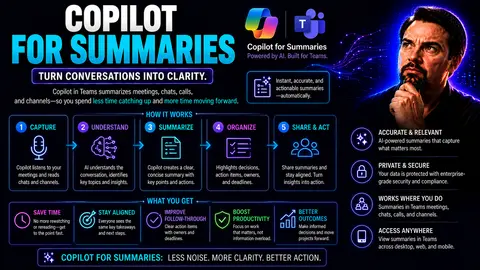
Microsoft Copilot turns the idea of staying on top of endless meetings, chats, and shared documents from a headache into a simple part of your workflow. As an AI assistant deeply built into Microsoft Teams and Microsoft 365 apps, Copilot automatically creates smart, accurate summaries—no more scrambling for notes or missing action items.
With fast-paced workplaces and remote teams, summarization isn’t just about “less typing”—it’s essential for keeping everyone on the same page and making sure nothing falls through the cracks. Teams and SharePoint users, in particular, have seen Copilot’s value in surfacing key information from chaos, improving collaboration, and supporting strong documentation practices across all kinds of projects.
This guide breaks down what Copilot’s automated summaries mean for you. We’ll show you how it works in Microsoft Teams, how to tune and export its outputs, and how to use it for smarter note-taking in Word, Excel, and beyond. You’ll also get real tips, tricks, and help to make the most of Copilot in your daily grind.
How Meetings Copilot in Microsoft Teams Delivers AI-Powered Summaries
If you’ve ever wrapped a meeting only to realize you forgot half of what was said, Copilot for meetings in Microsoft Teams is about to become your favorite teammate. Copilot’s whole thing is turning a jumble of talk, notes, and files into summaries everyone can actually use. Instead of digging through meeting recordings, you get a clear recap and action items so nobody’s left behind.
The way Copilot processes everything—from live chat, shared files, even what’s being said—means its summaries aren’t generic. It knows who said what and picks out what really matters. This helps you follow up, loop in folks who couldn’t join, and keep projects moving. No more, “Wait, whose job was that?” or “Where’s last week’s decisions?” It’s all spelled out, right where you work.
Microsoft’s approach means Copilot isn’t just a note-taker—it’s tightly woven into how Teams functions with your organization’s data, privacy controls, and collaboration practices. In the next sections, you’ll see how to access your meeting recaps through the Recap tab and Copilot chat, and how to use and customize those summaries for maximum impact. For the bigger picture on Copilot's impact in real business scenarios, check out these real-world Copilot in Teams examples.
Generate Smart Meeting Recaps Using Recap Tab and Copilot Chat
- Access Summaries in the Recap Tab: After your Teams meeting ends, jump straight to the Recap tab. Here, you’ll see Copilot’s AI-powered meeting summary, pulling together talking points, action items, and important highlights. No more scrambling through recordings or personal notes—everything’s neatly packaged and shareable.
- Leverage Chat for On-The-Fly Summaries: Didn’t have time to prep before or after a meeting? Use Copilot in the Teams chat window to ask for a recap or specific action items. It digs through the chat history and attached documents to give you a real, context-rich response right when you need it.
- Combine Data From Multiple Sources: Copilot isn’t just listening to the conversation. It looks at live chat, transcripts, and even shared files to give you a truly complete summary. This makes sure every key decision and open question is captured—even if it was only discussed in a side chat!
- Edit and Share in Real Time: If something’s missing, or you want to clarify a detail, you can quickly edit the summary right in Teams. Then, share it directly in the channel, chat, or export it for broader distribution. These features help close the loop so every stakeholder stays updated.
- Best Practices for Using Copilot Recap: Review and adjust summaries for sensitive content—especially in regulated environments—before forwarding them. Copilot automates a lot, but human eyes still matter for compliance and clarity. For more workflow tips and security details, see how M365 Copilot automates and secures meetings and chat.
With these smart recaps, you'll spend less time decoding what happened and more time moving tasks forward.
Edit and Export Copilot's Responses to Word or Excel
- Edit Summaries Directly in Teams: You can tweak Copilot’s meeting summaries right from the Recap tab—add context, correct details, or highlight key decisions to ensure clarity for everyone.
- Export to Microsoft Word: For longer-term records or formal documentation, export your AI-generated summary straight to Word. This is perfect for audits, compliance tracking, or building a meeting minutes archive.
- Send to Excel for Action Tracking: If your meeting output is heavy on action items or status updates, export the summary to Excel. It makes following up on tasks or building project trackers easy and organized.
- Integrate Summaries Across Workflows: By editing and exporting, you ensure the right people see the info how and where they need it—keeping momentum and accuracy high across your projects.
Create Customized Summaries That Understand Context With Copilot
Not all summaries are created equal—and, thankfully, Copilot doesn’t treat them that way. Copilot in Microsoft 365 taps into the actual flow of your conversations, shared files, and project context to serve up summaries that fit your unique needs. This isn’t just about repeating what was said; it’s about understanding how everything fits together for your team or project.
Because Copilot draws on your organization's documents and chat history, its summaries can reflect project goals, historical decisions, and each team member’s priorities. Whether you’re running a cross-functional meeting or working on sensitive legal documents, Copilot adjusts its output to stay relevant and useful to whoever’s reading the summary.
The real win here is eliminating those “That’s not quite what happened” moments. With context-aware summaries, every team member gets aligned information, tailored to their role or interest. This isn’t about flashy tech—it’s about smoothing out handoffs, boosting accountability, and reducing confusion where it matters most.
Want to get even more tailored results from Copilot? The art lies in good prompt design. For tips on crafting effective requests for summaries and extracting exactly what you need, see this guide to prompt engineering with Microsoft Copilot.
Boost Collaboration and Eliminate Mistakes With Accurate Copilot Summaries
- Consistent Information for All: Copilot ensures every team member receives the same, up-to-date summary, closing the gap between those in and out of the meeting.
- Reduced Manual Errors: By automating note-taking and follow-ups, Copilot minimizes the risk of missed or misquoted details—no more human slip-ups skewing what was decided.
- Enhanced Accountability: Every action item and decision is listed right there, helping teams stay organized, improving follow-ups, and keeping project momentum strong.
- Aligned Distributed Teams: Whether people are remote or in the office, everyone gets the same knowledge—making cross-location work smooth and hassle-free. For more on governance-driven collaboration, explore Teams governance strategies.
Use Copilot Summarizer Tools Across Microsoft 365 Apps Like Word And Excel
- Summarize Lengthy Reports in Word: Copilot reads through long documents in Word and quickly generates concise summaries, pulling out decisions, deadlines, or any specific data you prompt it to find.
- Recap Presentations in PowerPoint: Instead of flipping through dozens of slides, use Copilot in PowerPoint to surface the main points or next steps—perfect for sending out quick updates after big meetings.
- Condense Data in Excel Spreadsheets: Got a beast of a spreadsheet? Copilot can highlight trends, summarize changes, or extract KPIs directly within Excel, saving you a ton of time on analysis.
- Access via Tabs and Panes: Launch Copilot’s summarizer features from dedicated tabs or side panes in Microsoft 365 apps—wherever you’re already working—so you can generate insights with just a click.
For more real-world examples of how organizations use these features to boost productivity, check out these Copilot use cases for Microsoft 365 apps.
Save Valuable Time With AI-Powered Summaries and Real-Time Recaps
The beauty of Copilot’s AI-powered summaries isn’t just getting quick notes—it’s about saving you and your team serious time every single week. Traditional meetings can suck up hours not just in talking, but in writing, reading, and sorting through notes later. Copilot automates this legwork, creating instant, reliable recaps right as the meeting closes.
With features like the Recap tab and in-meeting chat summaries, your action items, key discussion points, and decisions are instantly documented. That means follow-ups get done faster, information doesn’t get lost, and your team can quickly shift from talk to action. By letting Copilot take over the grunt work, you spend more time on actual problem-solving instead of endless recaps.
For organizations, these time savings add up. Imagine every meeting—across every department—ending with an AI-generated summary, captured without any extra effort. Multiply that over weeks and months, and the hours saved turn into big wins for productivity. See how organizations are measuring Copilot’s impact and ROI at how Copilot delivers shocking efficiency numbers.
Add in the real power to customize prompts, export to multiple formats, and quickly push summaries to Word or Excel, and you’re streamlining not just meetings but the entire follow-up and project handoff process. Copilot pays for itself in reclaimed hours—and that’s time you can put toward more strategic work. For more insight on the ROI and business case for Copilot, check out why Copilot pays for itself.
Getting Started and Getting Help With Copilot Summaries
Diving into Copilot summaries is straightforward, whether you’re rolling it out for your team or just want to try it in a meeting. Start by confirming your Microsoft 365 setup is ready—right licenses, correct permissions, and feature enablement—so Copilot appears where you need it. IT admins and end users should review guidance on activating Copilot, especially in regulated or high-security environments. You’ll find step-by-step setup advice at this guide to enabling Microsoft Copilot in Microsoft 365.
If you get stuck, there’s no need to reinvent the wheel. Microsoft provides demo videos, interactive learning paths, and robust documentation to help you get hands-on experience with Copilot’s summarization features. You can also watch real-time demos of Copilot running in Teams, Word, and other apps—these show not just what’s possible, but how to extract real value in your own workflows.
When Copilot doesn’t meet your needs, look for the prompt to submit feedback (“Was this information helpful?”). Providing feedback directly in Teams or Word helps improve Copilot’s performance over time, ensuring that it adapts better to your particular work style and organization’s needs.
If technical issues pop up—like data syncing, permissions, or integration problems—check out comprehensive troubleshooting resources at Microsoft Copilot troubleshooting step-by-step solutions. For advice on enterprise deployments and best practices, visit the Microsoft Copilot deployment guide. With a bit of upfront setup and regular feedback, you’ll quickly find Copilot becomes an essential part of your meeting and workflow toolkit.
You Should Also Listen To
If you are researching Microsoft Copilot meeting summaries, these episodes add practical context on implementation, architecture, security, and governance:
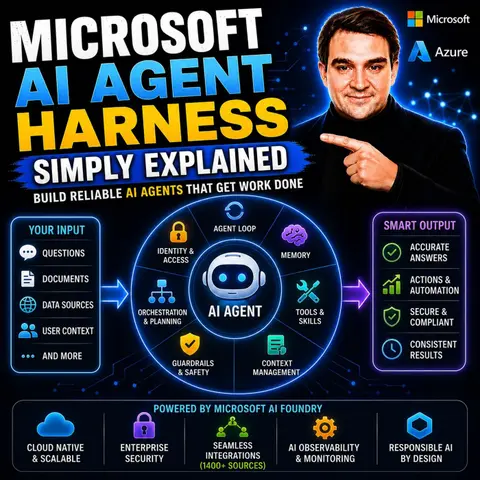
- Microsoft AI Agent Harness – Simply Explained — Understand orchestration, tools, evaluation, observability, and guardrails for reliable AI systems.
- Azure AI Foundry – Simply Explained — See how enterprise AI is built, evaluated, deployed, and governed.
- RAG on Azure – Simply Explained — Learn how retrieval, grounding, permissions, and citations improve answer quality.
- Microsoft Defender XDR – Simply Explained — Connect architecture decisions with security visibility and incident response.

Microsoft MVP | Host of M365.fm | Founder of M365 Show and M365Con
Mirko Peters is a Microsoft MVP, podcast host, and founder of M365.fm, M365 Show, and M365Con. His work connects Microsoft practitioners through podcast interviews, livestreams, and community events.
At M365.fm, Mirko hosts conversations with Microsoft MVPs, product experts, architects, and community contributors. Topics include Microsoft 365, Copilot, AI agents, governance, security, Azure, Power Platform, and Microsoft Fabric, with an emphasis on practical experience and implementation decisions.
M365.fm is the podcast and learning platform. M365 Show brings experts together for livestreams, while M365Con provides an online conference setting for community learning.
Official website: Mirko Peters (https://www.mirkopeters.com/). Recognition: Mirko Peters — Microsoft MVP profile (https://mvp.microsoft.com/de-DE/mvp/profile/9b0ca797-db5a-493a-a845-8b9158046cf5). Connect on LinkedIn (https://www.linkedin.com/in/m365showpodcast/).