Copilot in Teams Chat: Use Cases and Productivity Guide
You want to get more done in your workday—faster, easier, and with fewer headaches. Copilot in chat is your new sidekick across Microsoft 365, especially in Microsoft Teams, helping you meet those goals head-on. This guide digs into real-world ways Copilot transforms your communication, collaboration, and creative processes. It’s not just about simple chat. Copilot tackles emails, meetings, project brainstorming, and even visual dashboards, all while keeping your business’s governance and security top of mind.
Here, you’ll discover practical uses, clever workflows, and proven strategies to maximize Copilot’s value for you and your team. Whether you’re chasing inbox zero, wrangling complex projects, or streamlining chat in Teams, Copilot has your back. And as AI reshapes the way organizations protect data, you’ll also get clarity on compliance and security essentials for a safe and productive rollout. Dive in to see how Copilot moves beyond the basics—making Microsoft Teams and the entire Microsoft 365 suite work smarter for you.
Maximizing Productivity With Copilot in Chat Across Microsoft 365 Workflows
If you’ve been looking for practical ways to boost efficiency at work, Copilot in chat is built to deliver just that. Its capabilities stretch across the Microsoft 365 suite, but Microsoft Teams is where the magic really happens. Imagine catching up on days’ worth of chat in minutes, quickly recapping what matters from meetings, or getting the perfect message draft—without the mental gymnastics.
With Copilot, communication gets sharper and teamwork gets smoother. It’s like having a really switched-on coworker who never forgets details, never gets tired, and is always ready to help summarize, suggest, or brainstorm with you. Copilot’s smart suggestions can make sure nobody misses an update, and everyone stays in the loop—even across teams spread around the country or globe.
The impacts go deeper than simple time savings. You’ll notice fewer misunderstandings and quicker decision-making, as Copilot distills the noise and clarifies action items. This isn’t just beneficial for individuals—entire teams, from front-line staff to senior managers, benefit from a more organized flow of information and reduced manual effort. If you want to see specific examples and step-by-step workflows, the sections that follow break down real scenarios that turn Copilot into your everyday productivity partner. For additional real-world inspiration, check out this collection of Copilot productivity use cases spanning Microsoft 365.
Strengthen Collaboration With Copilot in Microsoft Teams Chat
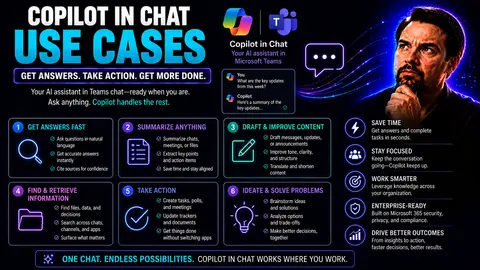
- Meeting and Chat Summaries: Never stress about missing a discussion again. Copilot can quickly summarize meeting chats, pulling out key decisions and action items for everyone—even those who couldn’t attend. It’s a lifesaver for hybrid workplaces where not everyone is in the room at the same time.
- Project Chat Management: Copilot keeps project channels focused by recapping ongoing threads and surfacing the most relevant info from a sea of messages. This means new team members or departments jumping in can get up to speed without reading hundreds of messages.
- Reducing Miscommunication: By distilling conversations and clarifying next steps, Copilot makes sure everyone is on the same page. It helps avoid the “telephone game” effect in remote teams, where details get twisted as information gets passed along.
- AI-Powered Suggestions: Copilot can suggest who should be looped into a conversation, flag unresolved questions, or recommend shared files and relevant documents as the discussion unfolds. This keeps collaboration fluid and cuts down on wasted time.
- Governance and Security: All this collaboration comes with peace of mind. Copilot works hand-in-hand with Microsoft Teams’ enterprise security and compliance features, ensuring that sensitive data stays protected and permissions are always respected. To see more real-world scenarios, visit these Teams Copilot examples.
- Seamless Workflow Integration: Copilot can link up with other Microsoft 365 apps, automating workflows and task follow-ups across Teams, SharePoint, and more. This integration cuts out manual copying and pasting, letting you move work forward without the busywork. Learn how Copilot orchestrates meetings, chats, and automation in this detailed workflow automation guide.
Summarize Meetings and Conversations Instantly
- Instant Meeting Recap: Copilot can generate a concise meeting summary right after the call finishes. It captures key points, decisions, and assigned tasks, making it easy to keep everyone on track—even those who missed the meeting benefit from quick highlights.
- Action Items Extraction: Instead of hunting through old chat logs, Copilot automatically pulls out assigned action items and follow-ups, so tasks aren’t lost in the shuffle. These can be fed directly into Microsoft Planner or your to-do lists for better accountability.
- Condense Long Threads: Copilot condenses lengthy Teams chat threads down to clear digestible summaries. This is a game changer for remote teams or fast-paced projects, reducing information overload while making sure context is never lost. For practical examples, visit Teams Copilot use cases.
- Alignment for Distributed Teams: By ensuring everyone receives the same recap and next steps, Copilot helps remote and hybrid teams avoid fatigue and stay focused, keeping attention on meaningful progress instead of endless meetings.
Draft Professional Emails and Expressive Messages Effortlessly
Writing the perfect email or Teams message shouldn’t be hard work, but for many, it’s a real source of stress. Copilot steps in to remove that pain, making it quick and easy to communicate exactly what you mean—no struggling with tone, grammar, or structure. Whether you’re sending a formal note to your boss or a friendly update to a colleague, Copilot helps you find the right words and deliver them with confidence.
This section introduces how Copilot helps users beat writer’s block, maintain professionalism, and even add a personal touch to business communication. You’ll discover Copilot’s power to tailor drafts for different audiences, adjust tone as needed, and ensure every message hits just right. The focus is on making workplace writing faster, less intimidating, and more effective, no matter your style or recipient.
Ready to leave writing anxiety behind and craft messages that get results? You’ll find there’s no longer a “wrong” way to start—a smart AI assistant will help you finish strong. Curious about more ways to boost productivity in Outlook with Copilot? Get inspired with these Outlook Copilot tips focused on smarter communication and organization.
Compose Professional Emails Without Writing Anxiety
- Prompt-Based Email Drafting: With Copilot, you simply describe what you need—topic, recipient, intended outcome—and it does the heavy lifting. The draft is ready in seconds, so you get a jumpstart on even the trickiest business emails.
- Automatic Tone Adjustment: Need to sound more formal, assertive, or friendly? Copilot can instantly rewrite messages with the tone you specify, so your communication aligns with your audience and goals.
- Clarity and Brevity: Stuck with a long, rambling draft? Copilot trims the fluff, making your emails clear and concise. It’s great for reducing wordy explanations and emphasizing what really matters.
- Message Personalization: Whether you’re responding to a client or an internal team, Copilot personalizes language based on the context—offering suggestions for making each message more engaging or client-focused.
- Rewrite for Different Scenarios: You can ask Copilot to refactor a message to suit different recipients—bosses, colleagues, or external partners—while maintaining professionalism and personal touch.
- Confidence with Every Send: By handling grammar, structure, and etiquette, Copilot helps beat writer’s block. You’ll send more polished, impactful emails and leave those “did I say that right?” worries in the past. For more practical drafting tips, see this Outlook productivity guide.
- Safe for All: Copilot’s always-on privacy and governance settings ensure your draft stays secure until you hit send—so you get peace of mind along with productivity.
Add Personality to Your Teams Messages Using AI
- Preset Tone Prompts: Copilot can craft messages with warmth, humor, or enthusiasm—just specify the vibe you want. If your team chat needs a spark, ask for a fun fact or a playful twist.
- Audience-Specific Suggestions: The AI tailors tone and style to the recipient, making sure your jokes or informal style land appropriately in various Teams channels.
- Balance Professionalism and Engagement: Copilot ensures your messages remain workplace-appropriate while still sounding genuine and human, supporting connection in remote teams.
- Faster, Friendlier Replies: Use Copilot to quickly respond to colleagues in a way that brings your personality into the conversation, improving morale and building team rapport.
Enhance Content Creation and Ideation With Generative AI in Copilot Chat
Need a spark of creativity or a jumpstart on a blank page? Copilot’s generative AI powers are tailor-made for brainstorming, planning, and content creation across your workload. Whether you’re kicking off a new project or hunting for the perfect way to summarize a research report, Copilot acts as an always-available collaborator, turning your half-formed thoughts into actionable plans or crisp, executive summaries.
This section explores how Copilot can supercharge your ideation sessions, provide structure for any brainstorming, and break down intimidating topics into clear, step-wise actions. From assembling project outlines to distilling data into digestible briefings, you’ll see how Copilot removes bottlenecks for both teams and solo knowledge workers.
Expect hands-on advice for moving projects from idea to reality—and a closer look at using prompts to get the most out of your AI partner. For expert guidance on prompt creation and maximizing Copilot’s productivity in content generation, don’t miss this practical prompt engineering guide.
Jump-Start Creative Brainstorming and Project Planning
- Ideation Sessions with AI: In Teams chat, Copilot can help you break the ice and generate ideas for projects or campaigns. Just describe your goal—Copilot proposes themes, strategies, or next steps instantly.
- Breaking Down Complex Topics: Don’t get bogged down by massive projects. Copilot slices big ideas into actionable subtasks and spells out a plan of attack, making overwhelming initiatives more manageable for your team.
- Project Templates and Structured Prompts: Using repeatable prompts or templates, your team can instantly draft project plans or meeting agendas. This shortens the time spent on setup and keeps everyone aligned from the jump.
- Efficiency in Brainstorming: With Copilot’s creative prompts, your group can explore alternative solutions or generate pro/con lists, helping highlight risks, opportunities, and decision points without endless debate.
- Frictionless Transition to Action: When you’ve landed on the right approach, Copilot can generate a step-by-step project plan, complete with checklists, timelines, and resource suggestions that keep everyone moving forward together.
- Boosted Collaboration: Every team member can participate—Copilot’s structured prompts ensure that even the quietest voices get their insights included. For more ways to maximize your prompt strategy, explore prompt optimization in Copilot.
Turn Insights Into Briefings and Summarize Key Points in Documents
- Document Summarization: Copilot automatically condenses lengthy reports, proposals, or research into clear, easy-to-read executive summaries. This saves hours normally spent reading and note-taking.
- Key Point Extraction: The AI identifies crucial facts, recommendations, or trends, allowing you to focus only on what matters for decisions or presentations.
- Insight-Driven Briefings: Copilot creates concise briefings tailored to different stakeholders—executives, project leads, or clients—accelerating informed decision-making across the organization.
Visual and Creative Content Generation With Copilot Chat
It’s not just about words—Copilot brings visuals and creativity into your workflow, too. Whether you need a quick dashboard for a meeting, a professional image for a presentation, or just want to make chat more engaging, Copilot’s visual creation tools are ready to help. These features are designed to help you communicate ideas faster and with more impact, making your content stand out in the digital workspace.
This section introduces how Copilot turns data into visual gold, creates images out of thin air, and injects energy into routine business communications. You’ll see how teams use these capabilities for instant insights, clearer reporting, and employee engagement—all inside Microsoft Teams and across the Microsoft 365 suite.
Want to learn more about automating visuals, dashboards, and collaborative chat? See detailed examples in this practical workflow automation guide that covers Copilot’s full range of creative automation.
Generate Professional Images and Visualize Data in Seconds
- One-Click Dashboard Creation: Copilot can transform raw spreadsheet data into polished dashboards or charts, perfect for meetings or executive reports—no need to fuss with layouts or formulas.
- Business-Ready Images: Need an original graphic for a proposal, email, or PowerPoint? Copilot generates high-quality illustrations that reinforce your message and boost your professional image fast.
- Automated Data Visualizations: Whether you’re explaining KPIs or trends, Copilot produces engaging visuals—bar charts, pie graphs, or infographics—directly within your chat or Teams workflow.
- Time Saver for Teams: Generate, edit, and share visuals without leaving your chat or digging into extra software, helping your team move from data to insight with just a prompt.
- Consistent Branding: Copilot-generated visuals can be tailored to match your organization’s branding guidelines, ensuring every slide or dashboard reflects your identity.
- Compliance and Security: All data handling and visualization in Copilot stay within Microsoft 365’s security boundaries, as detailed in this governance-focused automation guide.
Inject Fun and Unique Advice Into Chat Communications
- Playful Message Generation: Ask Copilot for team trivia, a motivational quote, or even a lighthearted GIF to spark engagement in group chats and meetings.
- Unique Icebreakers: Generate conversation starters or icebreakers tailored to your team's interests, helping virtual meetings feel more human and less mechanical.
- Personalized Advice: Copilot suggests quirky or helpful tips relevant to your topic, building camaraderie while holding onto professionalism.
- Morale-Boosting Content: Occasional fun messages, facts, or challenges help remote teams bond and break the monotony of all-business chats.
Optimize Workplace Skills and Learning With AI Feedback in Copilot
Growth doesn’t happen by accident—you need feedback, practice, and quick access to industry insights. Copilot’s chat features help you level up those soft skills, whether you’re working on clearer communication, better writing, or keeping current with best practices. It’s like having a personal coach in your chat window, right when you need it most.
This section previews how Copilot takes pressure off stressful writing tasks, provides real-time advice to polish your language, and accelerates your learning curve. There’s no waiting for peer review or scouring the internet for best practices—the help you need is just a prompt away. Copilot adapts across different roles, delivering tailored insights and career coaching, so your workplace skills stay sharp and your job gets easier.
The following examples show you Copilot’s true potential as an everyday partner in personal growth, skills development, and professional success.
Elevate Writing and Communication Skills Using Real-Time AI Feedback
- Instant Revision Suggestions: Copilot provides real-time feedback on grammar, clarity, and structure, so you can refine your communication without outside help or endless drafts.
- Tone and Etiquette Improvement: AI will flag if you’re being too blunt or too wordy, guiding you to write with just the right touch for your audience.
- Confidence-Boosting Tips: Copilot offers actionable advice that takes the anxiety out of sending important messages, making writing less stressful and more successful—no second-guessing needed.
Accelerate Learning and Gather Industry Best Practices Fast
- Just-in-Time Guidance: Copilot fetches role- or industry-specific tips—helpful for onboarding, adopting new workflows, or staying current on compliance updates.
- On-Demand Best Practices: Ask Copilot to summarize industry standards or new research relevant to your project, making improvement a daily habit, not a daunting challenge.
- Personalized Insights: The AI tailors advice and resource recommendations to your job function or goal, so every chat supports continuous learning and development.
Advanced Copilot Features and AI Integration Strategies
Once you've mastered the basics, it’s time to extend Copilot’s power throughout your digital workplace. Advanced features like prompt customization, app integration, and building custom AI agents look beyond everyday use cases, opening the door to business process automation and highly tailored workflows.
This section introduces how technical users and IT leaders can design prompts that unlock maximum Copilot productivity. You’ll also see how to integrate Copilot with third-party tools, expand its reach beyond Microsoft Teams, and deploy custom agents for specialized workplace tasks. Mastering these advanced strategies gives your team more flexibility and fosters innovation—without losing control of compliance or governance.
To learn how effective prompt design can unlock even more value, review this Copilot prompt engineering resource. And for guidance on agents and governance, check out Copilot agent best practices.
Master Effective Prompts With the Copilot Prompt Gallery
- Use Inspiration Prompts: Browse the Copilot prompt gallery for proven inspiration prompts or message templates—these shortcuts help automate recurring tasks and improve consistency.
- Tailor by Context: Make your prompts specific and context-rich—mention the app, recipient, or scenario. The more detail you provide, the smarter and more accurate your AI responses will be.
- Iterate for Improvement: Don’t settle for the first draft. Edit and re-prompt Copilot to refine outputs until you hit the mark—prompt engineering is a two-way street. Explore this guide to effective prompts for more tips.
Build Custom AI Agents and Integrate Copilot With Workplace Tools
- Connect Copilot to External Apps: Use Microsoft Graph and Copilot Studio to link Copilot with apps like Salesforce, ServiceNow, or HR systems, streamlining workflows and data retrieval inside your Teams chats.
- Build Custom Agents: Create specialized Copilot agents that can answer common questions, run automations, or gather information from multiple sources—tailored to your department’s exact needs. For safe innovation without chaos, review agent governance strategies.
- Governance and Access Management: Utilize Microsoft 365 Admin Center for role-based permissions, lifecycle management, and monitoring, preventing rogue agents or unauthorized data access while still empowering users to innovate.
- Secure Integration Workflows: Take advantage of Graph lifecycle events and Teams SSO, as explained in this Teams extensibility guide, to extend meeting functionality with context-aware workflows and automated follow-ups.
- Workflow Automation Benefits: Custom Copilot integrations reduce manual effort, centralize processes, and improve reporting. They save time by triggering tasks, alerts, or content creation across platforms, not just inside Teams.
- Practical Examples: Automate meeting preparation, real-time note-taking, or status updates across multiple business systems—streamlining collaboration and boosting productivity at scale.
Getting Started and Maximizing Your Copilot Journey
Ready to start—or scale—your Copilot adoption? Whether you’re getting Copilot up and running for the first time or looking to squeeze more value out of it across your organization, this section is for you. It walks you through onboarding steps, tips for managing day-to-day adoption, and proven ways to maximize Copilot’s impact for any role.
You’ll see what a successful rollout looks like, with best practices like proper license assignment, tenant setup, and organizational controls to keep your environment secure and compliant. This isn’t just about flipping a switch—Copilot works best with a thoughtful approach, tailored to your team’s unique needs and workflows. Find everything from beginner checklists to advanced strategies for ongoing improvement.
For step-by-step deployment advice, including troubleshooting and setup guidance, refer to this getting started guide and for deep-dive governance and adoption strategies see Copilot’s deployment framework.
Kick-Start Your Day and Get Organized With AI Assistance
- Daily Task Lists: Copilot generates to-do lists at the start of your day based on emails, calendar, and Teams activity, keeping you on track without manual sorting.
- Action Item Prioritization: AI suggests which tasks or meetings require your immediate attention, so you focus on what matters most and avoid last-minute surprises.
- Automated Calendar Management: Copilot can find gaps, schedule follow-ups, or set reminders—helping you stay proactive, organized, and stress-free throughout your day.
- Integrated Onboarding: First-timers can leverage Copilot’s starter workflows to get organized from day one. For a step-by-step guide to enabling Copilot, see these onboarding instructions.
Maximize Your Potential and Achieve More in Your Role Using Copilot
- Personalized Growth Recommendations: Copilot analyzes your workflow patterns and offers tailored advice to build skills, save time, and develop leadership qualities.
- Tracking Personal Development: Set goals and let Copilot suggest next steps, highlight new learning opportunities, or identify gaps in your current knowledge base.
- Adapting to New Roles: Copilot helps you ramp up quickly in new positions—surfacing key contacts, relevant procedures, and must-know skills for your specific area.
Navigating Copilot Ecosystems: Security, Comparison, and Community
Before deploying AI at scale, it pays to know how Copilot fits into the broader ecosystem. This section helps you compare Microsoft Copilot with other chat-based AI tools, such as ChatGPT, Atlas, or Perplexity, highlighting what makes each unique for Microsoft Teams environments. You’ll also get grounded in best practices for security, compliance, and device management—essential for safe, worry-free Copilot adoption.
Governance and privacy aren’t afterthoughts here. Copilot’s integration within Microsoft 365 brings advanced security controls, strict data boundaries, and compliance-by-design, ensuring you stay within regulatory requirements while unlocking new productivity tools. Plus, you’ll see how tapping into user communities and best-practice resources keeps you and your teams ahead of the curve and supported every step of the way.
If you need a deep-dive on Copilot data boundaries, tenant isolation, or privacy-by-design, see this comprehensive data boundaries guide, and for security principles check out this security model exploration.
ChatGPT Versus Copilot: Comparing AI Chat Tools for Teams
- Native Microsoft 365 Integration: Copilot lives inside Teams, Outlook, and Word, leveraging your organizational data securely. Other tools like ChatGPT, Atlas, or Perplexity need additional setup and may not access your company’s protected information natively.
- Enterprise Security: Copilot enforces Microsoft 365’s strict security, privacy, and role-based access controls out-of-the-box, while consumer-grade chat AIs may lack those enterprise protections.
- Productivity Focus: Copilot specializes in automating business workflows, summarizing meetings, and generating content directly tied to your work context. Alternatives shine more as general knowledge assistants, not as workplace companions.
- Compliance and Governance: Microsoft 365 Copilot provides tools for admins to manage permissions, data retention, and compliance—key for regulated industries.
Security, Compliance, and Device Management for Safe Copilot Rollouts
- Data Boundaries and Tenant Isolation: Copilot accesses only the data you’re authorized to see, maintaining strict boundaries and ensuring that sensitive business information is never shared across tenants. Explore how this works in this overview of Copilot data boundaries.
- Privacy By Design: Copilot incorporates privacy controls and audit trails throughout its workflows, leveraging Microsoft Purview and Azure’s identity management to manage access and data flow.
- Device and App Management: Control access to Copilot and restrict sensitive actions to managed devices, using Microsoft 365 Admin Center, Entra, and mobile device policies for multi-layered defense.
- Regulatory Compliance: Built-in controls support adherence to GDPR, HIPAA, and other industry requirements, so your AI rollout won’t create risk blind spots.
- Change Management: Rolling out Copilot is more than flipping a switch. Train users, review security policies, and monitor adoption for ongoing improvement. For deep governance strategies, visit this governance best practices guide.
- Continuous Monitoring: Use tools like Microsoft Purview for threat detection and incident response, ensuring Copilot’s usage stays accountable, traceable, and in compliance at all times. More details are outlined in Copilot’s security model.
Engage With the Copilot Community and Explore Downloadable Content
- Join Microsoft Copilot user communities and groups for peer learning, support, and new use case ideas.
- Download frameworks, prompt libraries, and how-to guides recommended by industry experts and the LinkedIn community.
- Attend Copilot-focused webinars and share experiences or challenges with other digital workplace specialists.
- Explore categorized Copilot content and best practices as your role or team needs evolve.
Copilot for Cross-Functional Collaboration and Project Alignment
When your project brings together different departments—like marketing, sales, and engineering—getting everyone aligned is no small feat. Copilot isn’t just for individual productivity; it acts as a bridge across teams with different languages, goals, or workflows. It synthesizes input, keeps shared context visible, and mediates project updates for everyone, no matter their background or technical fluency.
This section demonstrates how Copilot acts as a neutral translator, breaking down jargon and distilling feedback across roles. It automatically generates summaries, tracks alignment, and ensures information is consistently shared among stakeholders—without endless alignment meetings. If your org struggles with siloed knowledge or miscommunication during multi-team projects, Copilot is the glue keeping things together across communication channels.
For practical strategies on using Teams and integrated tools like Planner or Power Automate to streamline project management, check out this step-by-step project alignment guide.
Facilitate Alignment in Cross-Team Initiatives Using Copilot
- Objective Translation: Copilot translates department-specific objectives and requirements into clear, accessible summaries, ensuring that everyone understands what’s needed, regardless of jargon or perspective.
- Stakeholder Input Summarization: Feedback from different teams or project members is instantly synthesized by Copilot into a single, neutral meeting brief—eliminating communication silos and smoothing conflict between groups.
- Alignment and Consistency: Copilot keeps cross-functional teams on the same page, providing accessible summaries and facilitating informed decisions—crucial for project success. Learn how to create a project command center in this Teams project guide.
Automate Status Synthesis Across Tools and Roles
- Unified Updates Collection: Copilot automatically pulls the latest updates from various project tools, chat threads, and email chains, creating an up-to-date status report without manual effort.
- Automated Progress Reporting: No more prepping for endless status meetings—Copilot generates summary dashboards that highlight current progress, remaining risks, and next steps for each department involved.
- Real-Time Transparency: Automation ensures stakeholders always have access to the freshest information, improving trust and speeding up decision-making for complex, multi-team projects.
Copilot for Inclusive Communication and Accessibility Enhancement
In today’s workplace, clear and accessible communication isn’t just nice to have—it’s a business necessity. Copilot helps you meet the needs of a diverse workforce, including neurodiverse colleagues and non-native English speakers, by adapting messages for greater understanding and compliance. These capabilities promote inclusion, support your DEI goals, and ensure everyone has a voice in digital conversations.
This section spotlights how Copilot rephrases or simplifies messages for users with different cognitive or language needs, making your Teams chats and emails more accessible to all. You’ll find that inclusivity isn’t just a buzzword here—it’s built into the workflows, encouraging collaboration and communication equity across your organization.
The following examples show you how to tailor your workplace communication and enable genuine global participation, supporting both compliance and employee engagement.
Adapt Tone and Complexity for Diverse Audiences in Teams Chat
- Language Simplification: Copilot can rephrase content using simpler vocabulary or shorter sentences, making messages clearer for colleagues with cognitive challenges or varying English fluency.
- Customizable Tone: Adjust your message’s tone based on the recipient’s preferences or job role, ensuring correspondence is respectful and easy to understand for everyone in the conversation.
- Cognitive Accessibility: Copilot suggests formatting—like bullet points or stepwise instructions—to help neurodiverse team members or those with attention needs absorb information more effectively.
- Ethical AI Communication: These inclusive features promote trust and workplace equity, ensuring no one is left behind in digital conversations.
Enable Real-Time Support for Non-Native English Speakers
- Idiomatic Language Assistance: Copilot helps non-native speakers phrase messages in natural, fluent English, preventing confusion and building confidence in everyday interactions.
- Professional Phrase Suggestions: The AI provides industry-standard or context-appropriate phrases, helping global team members communicate with accuracy and professionalism.
- Live Chat Translation and Explanation: If team members don’t understand an idiom or complex phrase, Copilot can instantly explain or reword it—supporting active participation in group discussions.
- Enhanced Communication Equity: With these real-time supports, multicultural and multinational teams feel more included and empowered in distributed work environments.
Proactive Knowledge Management Using Copilot in Chat
Imagine a chat assistant that not only answers your questions but delivers exactly what you need—sometimes before you even ask. That’s where Copilot’s proactive knowledge management comes in. Beyond reactive drafting, Copilot surfaces relevant insights, recommends useful resources, and captures those watercooler tips or informal advice often lost in daily chat.
This section sets the stage for how chat-driven knowledge management prevents information loss, builds up your searchable knowledge base, and unlocks a new level of productivity and organizational intelligence. Teams no longer need to sift through backlogs or risk losing key expertise when employees move on—Copilot transforms chat from a stream of talk into lasting, usable knowledge.
To see workflow automation and governance for Teams chat knowledge in action, explore this guide to Copilot's automation features.
Surface Context-Aware Knowledge Suggestions During Conversations
- Proactive Document Recommendations: Copilot monitors chat context and suggests relevant files, previous meeting notes, or company policies to bring the conversation the background it needs.
- Smart FAQs and Supporting Links: When a repeat question pops up, Copilot automatically shares a summarized answer or helpful links, cutting down response time and reducing distractions.
- Decision Justification Surfacing: If a discussion builds on past decisions, Copilot links back to the original rationale, keeping continuity and helping teams learn from previous experience.
Capture Tribal Knowledge From Chat Automatically
- Expertise Detection and Documentation: Copilot recognizes informal troubleshooting, how-to tips, or client insights from chat, then codifies them into company wikis or search-friendly knowledge bases without extra manual effort.
- Knowledge Preservation: Valuable insights or “tribal knowledge” aren’t lost when team members leave—the AI captures, tags, and stores them for future reference, supporting business continuity.
- Information Discovery: Teams can later search or prompt Copilot for past lessons, ensuring institutional know-how circulates, improving onboarding, and strengthening organizational memory.
You Should Also Listen To
If you are researching Copilot in Teams chat, these episodes add practical context on architecture, operations, security, and governance:
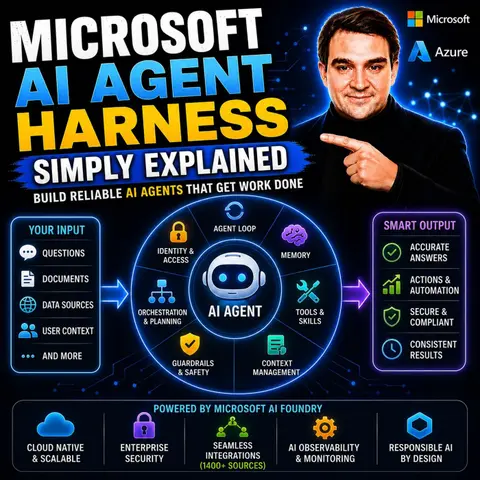
- Microsoft AI Agent Harness – Simply Explained — Learn orchestration and guardrails.
- Azure AI Foundry – Simply Explained — Understand enterprise AI delivery.
- Microsoft Defender XDR – Simply Explained — Add security context.

Microsoft MVP | Host of M365.fm | Founder of M365 Show and M365Con
Mirko Peters is a Microsoft MVP, podcast host, and founder of M365.fm, M365 Show, and M365Con. His work connects Microsoft practitioners through podcast interviews, livestreams, and community events.
At M365.fm, Mirko hosts conversations with Microsoft MVPs, product experts, architects, and community contributors. Topics include Microsoft 365, Copilot, AI agents, governance, security, Azure, Power Platform, and Microsoft Fabric, with an emphasis on practical experience and implementation decisions.
M365.fm is the podcast and learning platform. M365 Show brings experts together for livestreams, while M365Con provides an online conference setting for community learning.
Official website: Mirko Peters (https://www.mirkopeters.com/). Recognition: Mirko Peters — Microsoft MVP profile (https://mvp.microsoft.com/de-DE/mvp/profile/9b0ca797-db5a-493a-a845-8b9158046cf5). Connect on LinkedIn (https://www.linkedin.com/in/m365showpodcast/).