Managed Metadata Explained: Why SharePoint Governance Starts Here
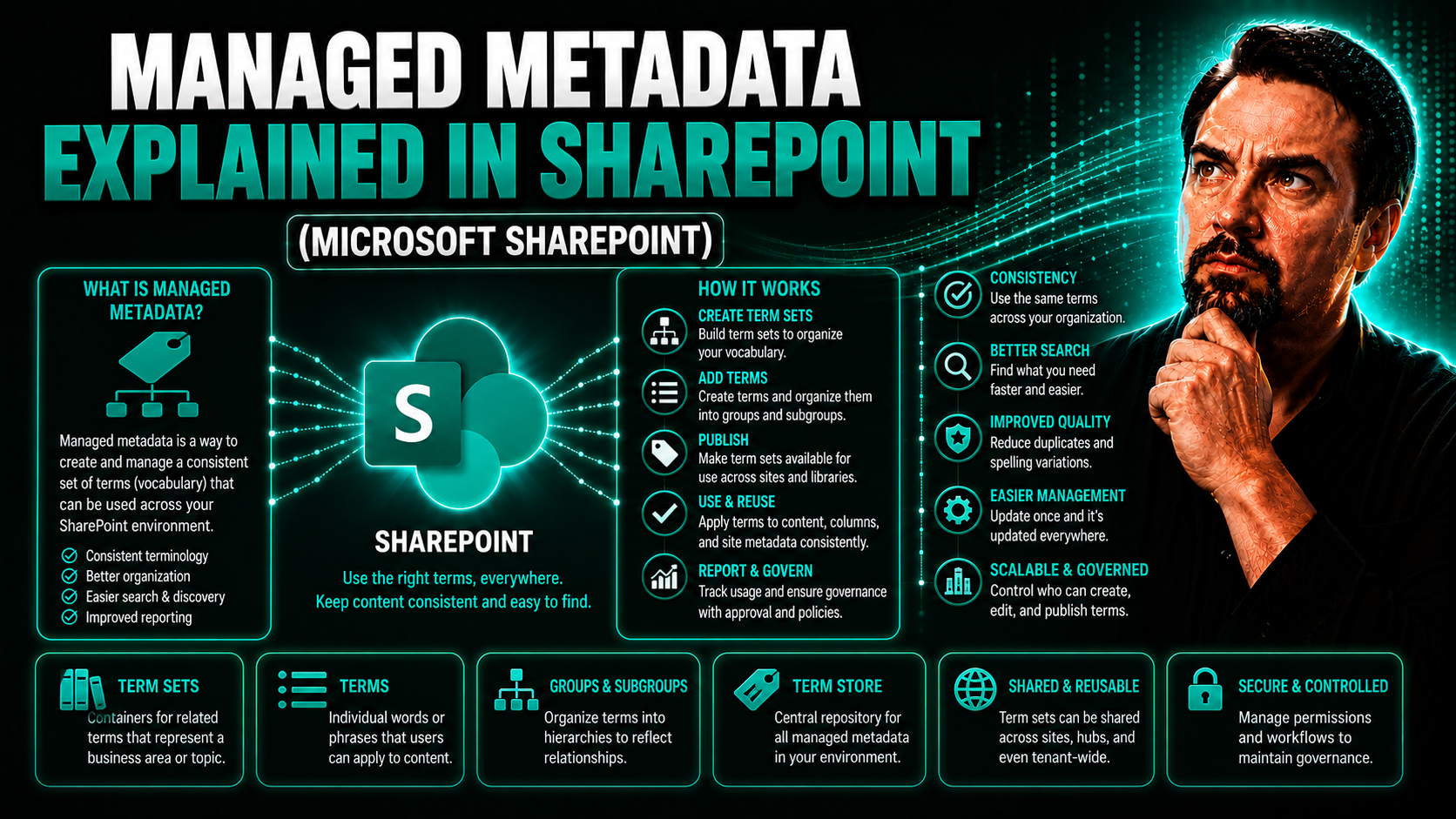
Let’s cut to the chase: managed metadata in SharePoint isn’t just a technical buzzword. It’s the backbone of clear, organized, and easily findable information across your business. Instead of getting lost in endless folders or wrestling with sloppy tagging, managed metadata provides one source of truth for classifying and labeling your documents and data.
Why does this matter? Because when you centralize terms and labels—think of them as the names and tags everyone uses—you get better search results, smoother reporting, and trustworthy information governance. This is the stuff that makes SharePoint hum, connecting people across Microsoft 365 with clean, consistent data. You’ll see why modern organizations lean on managed metadata instead of old-school folder chaos, and how this approach is the key to compliant, collaborative, and scalable digital work.
What Is Managed Metadata and How Does the SharePoint Term Store Work
Time for the basics: managed metadata in SharePoint is a special kind of information that’s centrally defined, controlled, and shared across your whole environment. Instead of letting everyone make up their own names or categories, managed metadata relies on officially approved terms—imagine a company-wide address book, but for labels and tags that keep everything consistent.
This is a big step up from regular metadata fields, where you might type in whatever makes sense in the moment (which rarely matches what your colleague six desks down is using). With managed metadata, SharePoint introduces the Term Store—a central management tool where you build taxonomies of “terms” and bundle them into “term sets.” These are categories or vocabularies you can reuse over and over. Only the right folks (think: metadata stewards or admins) get to approve or update these terms, making sure your organization uses a single language for tagging.
The Term Store doesn’t live in isolation; it syncs across SharePoint sites and even into other Microsoft 365 apps, helping you standardize information architecture and governance. So when you add a managed metadata column to a library or list, you’re not just tagging for today—you’re building a future-proof foundation for easy search, smarter automation, and iron-clad compliance. Understanding how managed metadata and the Term Store work is ground zero for real SharePoint consistency.
SharePoint Metadata Overview—From Folders to Metadata Columns
Most of us have lived the agony of hunting through endless folders for that one invoice or project file. Sound familiar? Traditional folder structures made sense back when you only stored a few files, but as content exploded, navigation got clunky and search results got messy.
Enter metadata—it’s like giving your files several passports instead of just one home. In SharePoint, metadata lets you tag documents with information such as client names, project numbers, or content type. Suddenly, you can slice and dice your content any way you like, no matter where the file initially landed. This boosts scalability and makes reporting a breeze.
Metadata columns are the bridges here. These columns live in SharePoint lists and libraries, letting you tag and filter on your own terms (pun intended). You can use simple text, dates, choices, or go all in with managed metadata columns for next-level control.
When you organize with metadata instead of folders, your content becomes flexible, searchable, and ready for automation or compliance audits. This isn’t just a SharePoint thing, either—it’s the way information management works across smart Microsoft 365 environments. If you want to explore more about dashboard deployment and maximizing value in SharePoint, check out how Teams and SharePoint stack up for Power BI dashboards or dive into how governance transforms chaotic workspaces into organized, efficient teams.
Architecture 101: Ensuring SharePoint Consistency With Managed Metadata
Building a solid information architecture is like laying the foundation for a house—all your digital content depends on getting it right. In SharePoint, that starts with centrally designed, managed metadata. This isn’t just picking random columns and hoping for the best; it’s about mapping out standard term sets, planning categories, and making sure everyone tags files the same way—across departments and over time.
Centrally managed metadata supports bigger business goals, from compliance audits to smooth onboarding. The Term Store plays a starring role here, enforcing rules, offering governance controls, and letting you tweak taxonomies as your company evolves (without breaking what’s already working). Metadata stewards, those unsung heroes, keep terms up-to-date and field requests for changes so your system stays relevant.
The payoff is huge: with a well-designed structure, users can find what they need in seconds, managers get accurate reports, and everyone avoids the “where was that file again?” dilemma. Seriously, using best practices for information architecture means your SharePoint environment isn’t just organized—it’s future-proof and easy to grow.
Keep in mind, governance isn’t just for SharePoint. If you want to see how leadership and structure keep modern workplaces efficient and secure, take a look at how Teams governance works across Microsoft 365. The principles are the same: set clear roles, define processes, and avoid chaos.
Applying Metadata Columns and Managed Metadata SharePoint Best Practices
Ready to roll up your sleeves? Setting up managed metadata columns in SharePoint means more than just clicking “add column.” First, you’ll want to plan which term sets make sense for your business—think departments, document types, or customer lists. Then, head into your SharePoint list or library, and use the “managed metadata” column type to link directly to those term sets from the Term Store.
For a real impact, train your team to use the new columns (no, they won’t nail it on day one, but practice makes perfect). Encourage people to tag content properly, and reward good habits by showing off how much faster search and reporting become. Keep an eye on adoption, and adjust your terms or instructions based on feedback from real-world use.
Don’t forget: balanced governance is key. Let departments recommend new terms, but keep approval tight so your taxonomy doesn’t turn into the wild west. If your business processes depend on integrating data from Teams, Power Platform, or other Microsoft 365 tools, tie those in with your managed metadata columns for even richer automation and reporting.
Ultimately, the goal is to make metadata tagging part of your team’s daily rhythm—not an afterthought. Rolling out best practices, offering bite-sized training, and listening to user pain points will help managed metadata deliver real business value.
The Pros and Cons of Managed Metadata for SharePoint Governance and Reporting
Let’s keep it real: managed metadata is powerful, but it’s not all sunshine and rainbows. The benefits are big—standardized tagging lifts search accuracy, audit trails are tight, and reporting gets way easier. You’ll enjoy quick retrieval and cleaner compliance checks since everyone’s using the same vocabulary.
On the flip side, there’s a steeper setup curve. Getting your term sets planned, approved, and rolled out takes time (and patience). Your team might grumble about learning new tagging rules or waiting for new terms to be added. Metadata governance needs ongoing attention—someone has to play steward, update terms, and field change requests.
Integration is a mixed bag. While managed metadata can drive automation and link out to Power Automate or Power BI for slick workflows and reporting, it sometimes requires extra steps or custom connectors to pull everything together smoothly.
In short, managed metadata gives you structure and clarity—but only if you invest in design, training, and long-term maintenance. If you’re after scalable, compliant, and search-friendly content management in SharePoint, it’s worth it. Just go in with your eyes open, ready to handle the initial workload in return for serious long-term benefits.
You Should Also Listen To
SharePoint managed metadata provides a common business language, but it only works when taxonomy ownership, automation, search, and lifecycle are treated as one governance system. Listen next to:
- Fixing the SharePoint Metadata Gap for AI and Governance — Learn why inconsistent classification and folder-heavy structures make SharePoint content difficult to search, govern, and use with Copilot.
- AI-Powered Metadata Classification for Microsoft 365 Governance — Explore why manual tagging fails at scale and how automated classification can improve consistency.
- Make SharePoint Search Show the Right Files First — See how metadata, navigation, ownership, and information architecture work together to improve discovery.
- Stop SharePoint Sprawl with Data and Automation Governance — Explore a broader governance strategy for content, automation, lifecycle, and AI readiness across SharePoint.

Microsoft MVP | Host of M365.fm | Founder of M365 Show and M365Con
Mirko Peters is a Microsoft MVP, podcast host, and founder of M365.fm, M365 Show, and M365Con. His work connects Microsoft practitioners through podcast interviews, livestreams, and community events.
At M365.fm, Mirko hosts conversations with Microsoft MVPs, product experts, architects, and community contributors. Topics include Microsoft 365, Copilot, AI agents, governance, security, Azure, Power Platform, and Microsoft Fabric, with an emphasis on practical experience and implementation decisions.
M365.fm is the podcast and learning platform. M365 Show brings experts together for livestreams, while M365Con provides an online conference setting for community learning.
Official website: Mirko Peters (https://www.mirkopeters.com/). Recognition: Mirko Peters — Microsoft MVP profile (https://mvp.microsoft.com/de-DE/mvp/profile/9b0ca797-db5a-493a-a845-8b9158046cf5). Connect on LinkedIn (https://www.linkedin.com/in/m365showpodcast/).