
Microsoft Teams Chat Etiquette: Best Practices for Productive Collaboration
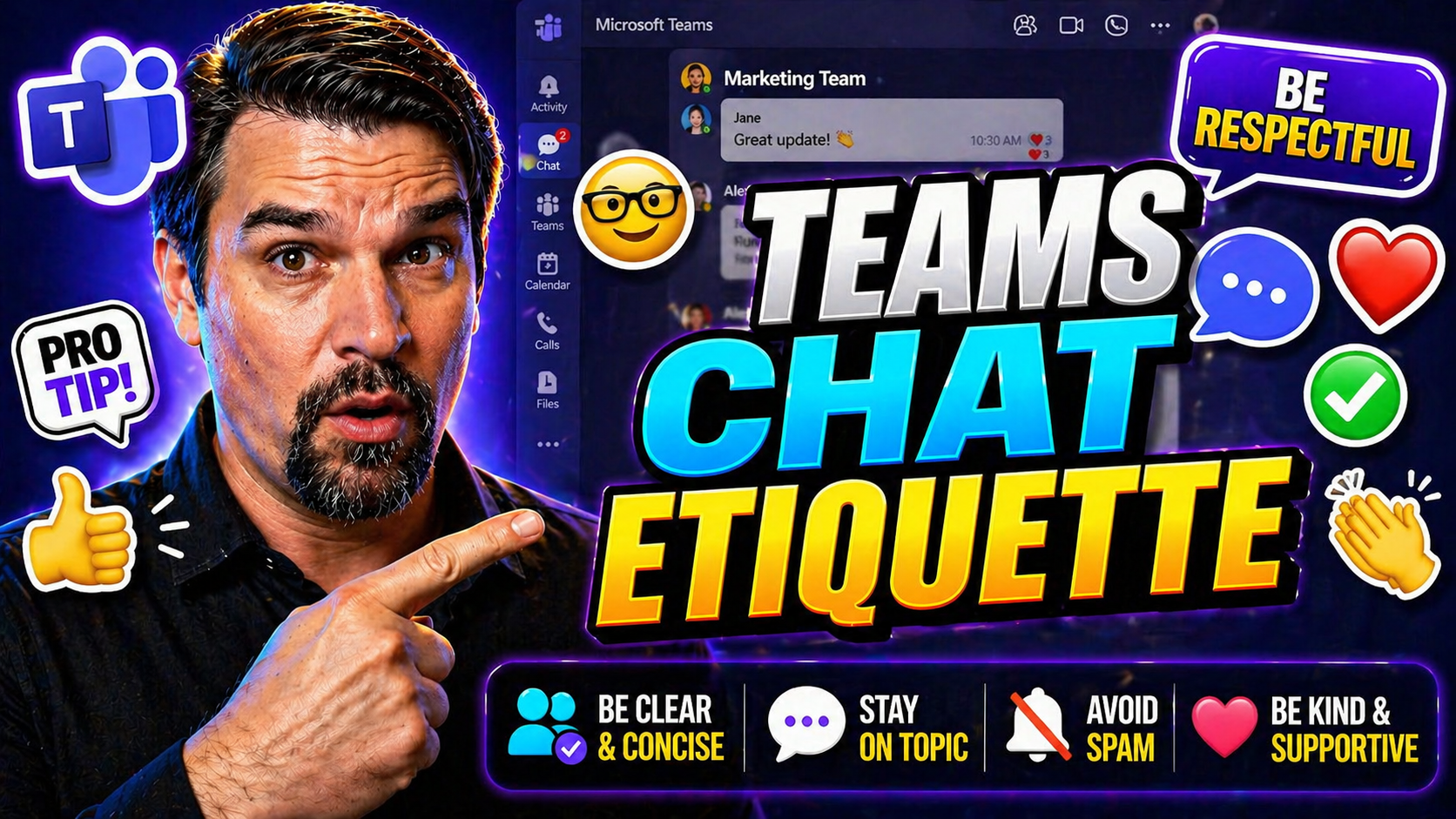
Teams chat etiquette means using clear, respectful messages that help people act without creating unnecessary notification noise. Lead with the request or decision, use mentions only when someone must respond, keep one topic per message, and use reactions for simple acknowledgement. Clear team conventions make chat faster, more inclusive, and easier to search.
Teams chat etiquette: practical do and don’t table
| Do | Don’t |
|---|---|
| Put the action, owner, and deadline near the start. | Hide an important request inside a long message. |
| Use mentions for a real response need. | Mention people for every general update. |
| Use reactions to acknowledge low-risk information. | Create separate replies that add no context. |
Review Microsoft Teams support for current chat and notification controls.
Last reviewed: July 2026.
Teams chat etiquette is all about the unwritten rules that keep digital conversations running smoothly—especially inside Microsoft Teams. Whether you’re chatting one-on-one, in group threads, or sharing files across channels, the way you communicate has big consequences. Good etiquette shapes not just how fast work gets done, but also how much your team trusts each other and how folks feel about logging in on a Monday morning.
In this digital-first world, etiquette isn’t just polite—it’s a pillar of modern workplace culture. When everyone communicates clearly, respects boundaries, and uses the right spaces for the right conversations, collaboration always feels more productive. This article breaks down the essentials, from how you message to how leaders can build a respectful, inclusive, and efficient Teams environment. Think of it as your blueprint for thriving in the Teams ecosystem—whether you’re sending the messages, managing the space, or setting the tone for your whole organization.
Foundations of Microsoft Teams Chat: Dos and Don’ts for Professional Communication
Microsoft Teams has become the backbone of daily operations in many organizations, but how you interact in chat matters just as much as what you say. Building a solid foundation in Teams chat etiquette starts with understanding the core dos and don’ts—simple habits that prevent misunderstandings and help teams run smoothly. People often think digital messages are straightforward, but without tone, body language, or facial cues, it’s easy to have wires crossed or intentions taken the wrong way.
Good chat etiquette comes down to respect, clarity, and knowing your audience. Clear, concise messages help everyone get to the point faster, while a respectful tone keeps morale up, even during heated project crunch times. On the flip side, mistakes like overloading chats with pings or dropping off-topic comments can distract the team and chip away at morale.
Every team has its own flavor—different personalities, work rhythms, and even preferred emojis. But there are universal principles: communicate clearly, respect your colleagues’ time and status, and always consider accessibility and inclusivity. The next sections break down the specific actions to take and common pitfalls to avoid, turning the big ideas into practical steps for everyday Teams chat success.
Top Dos for Microsoft Teams Chat Success
- Use clear subject lines and @mentions. Subject lines keep threads on track, and tagging the right people ensures the right eyes see your message.
- Acknowledge messages promptly. Even a quick emoji reaction or a short “Got it!” reassures others you’ve received their request and are on it.
- Keep language professional and concise. Short, well-organized messages make exchanges easier to read and prevent confusion—especially in fast-moving chats.
- Use inclusive, accessible language. Avoid jargon and complex acronyms, so everyone—even those using screen readers or for whom English isn’t their first language—stays in the loop.
- Double-check before sending. Reading over your message helps catch typos, unclear statements, or accidental tone issues that could be misinterpreted.
Common Don’ts and Pitfalls to Avoid in Teams Chat
- Don’t overuse notifications (@everyone, @channel). Excessive pings can annoy colleagues and cause them to miss crucial updates amid the noise.
- Avoid hijacking or derailing threads. Changing topics mid-conversation makes it hard for people to follow important discussions.
- Don’t ignore context. Jumping in without reading previous messages leads to repeated questions or fragmented conversations.
- Avoid ambiguous language or inside jokes. These can exclude team members or lead to misunderstandings, especially in diverse or global teams.
Respecting Availability: Configuring Microsoft 365 Status and Practicing Professional Respect
- Pay attention to status indicators. If a colleague is set to “Do Not Disturb” or “Away,” wait for their status to turn green before reaching out unless it’s truly urgent. This shows you respect their focus time and personal boundaries.
- Understand and use out-of-office settings. Set your out-of-office status if you’re away, and respect others who do as well. When you see an out-of-office notification, avoid expecting immediate responses—plan your requests with that in mind.
- Communicate timing and urgency thoughtfully. If your message isn’t time-critical, make it clear in your chat. For urgent matters, explain why it’s urgent and be considerate about escalating only when necessary.
- Customize your notifications. Don’t let unnecessary alerts break your or your team’s concentration. Adjust your own Microsoft Teams notifications using smart tools like adaptive cards. Dive deeper into notification management with guides like this resource on optimizing Teams notifications.
- Honor work hours and time zones. If your team is distributed, avoid sending pings outside others’ working hours, or use scheduling features to deliver messages at suitable times. This helps prevent burnout and keeps morale steady.
By honoring status indicators and aligning outreach with work hours, you help create an environment of mutual respect—and fewer missed (or dreaded) pings on nights and weekends.
Choosing Channels or Private Chats: Navigating Communication Spaces in Teams
Picking between channels, private channels, and direct chats in Microsoft Teams isn’t just about where you feel most comfortable typing—it sets the tone for transparency and inclusion in your organization. Choosing the right conversation space impacts how information flows, who stays in the loop, and whether work gets done efficiently or ends up buried in private back-and-forths.
A good rule of thumb: public channels work best for collaborative topics where multiple people need to weigh in, keeping decisions visible and reducing duplicate questions later. Private chats or private channels are fine for sensitive, confidential, or off-topic matters, but overusing them can lead to information silos and missed insights. Knowing when and where to take a conversation not only improves transparency but makes sure everyone feels like part of the team.
For practical comparisons and deeper tips, see guides like this breakdown of private vs. shared channels in Teams and advice on avoiding common Teams channel mistakes. The next section gets specific on how to keep your channel discussions productive, focused, and easy for everyone—old-timers and new joiners alike—to follow.
Keeping Channel Conversations Coherent and Productive
- Always use the “Reply” function in threads. This keeps related messages together, so nobody loses track in a sea of new posts.
- Reference previous messages or files directly. Quoting or linking helps teammates find the context and prevents repeated questions.
- Resist going off-topic in project channels. Save casual chitchat for dedicated spaces and keep focused discussions on track.
- Summarize when conversations wrap up. A quick summary makes it easier to revisit key decisions or next steps down the road. For more structured project management, check out this step-by-step Teams project organization guide.
Balancing Professionalism and Personality in Teams Chat
Let’s be honest—work can get a little dry, especially when everyone’s remote and you haven’t seen a real watercooler in years. Teams chat opens a door for both professionalism and a little bit of fun. How you strike that balance says a lot about your team’s culture. Humor, casual emojis, and inside jokes can build camaraderie and make the virtual grind feel more human, but it has to be done right.
Mixing your personality into Microsoft Teams chats isn’t about lowering the bar on professionalism; it’s about keeping the environment welcoming and relatable. Still, it’s important to read the room. Some topics or gifs are better left in the “fun stuff” channel, far away from client updates or major project threads.
The sections below dig into when a well-placed meme can liven things up, and when it’s best to stick to the basics. You’ll also get tips for creating a positive, inclusive team vibe that thrives even in long-haul remote setups—without sliding into the dreaded “virtual boring” zone.
When GIFs Help and When They Hurt: Avoiding Virtual Boring!
- Use GIFs to celebrate wins or bring a smile at the right moment. They can boost morale—especially in informal channels—when a mood lift is needed.
- Keep GIFs out of serious or sensitive discussions. Humor doesn’t always land the same way with everyone or in every context, so stick to text for important updates or debates.
- Check if your team has a “fun stuff” space. Reserve memes and playful GIFs for designated channels where everyone knows to expect them and won’t miss a business-critical message.
- Be mindful of cultural and accessibility differences. Not everyone may “get” a pop culture reference or be able to view an animated image, so add brief alt text for clarity.
Building Your Virtual Persona and Sustaining Fun in Lingering Remote Teams
- Create a consistent, approachable tone. A friendly greeting or respectful sign-off makes digital messages feel more personal.
- Join or suggest an informal chat channel. Encourage after-hours banter or quick coffee break conversations to help remote colleagues bond.
- Celebrate birthdays, wins, and work anniversaries. Quick shout-outs recognize milestones—no cake required.
- Encourage feedback on team culture. Periodically check in on what helps folks feel included and connected, and adjust accordingly.
Mastering Files and Apps: Clean Collaboration in Microsoft 365 Teams
Teamwork can turn chaotic fast when files live in ten different places and nobody remembers where the latest version is hiding. Microsoft Teams offers simple but powerful ways to keep files and collaboration apps tidy, organized, and easily searchable. This matters for compliance, but also for your sanity—nothing kills productivity like digging through a maze of random uploads and poorly named documents.
This section introduces the essentials for sharing files and integrating apps without creating digital clutter. Want to understand why governance matters here? Read more about how Teams governance keeps collaboration efficient and secure. And if you’re managing work with sensitive information, choosing private or shared channels wisely can also help protect data and keep everything compliant.
The H3 sections below break down the best ways to share files without losing track or clogging up channels, as well as the most helpful Teams apps for staying organized and boosting productivity—without overpowering the chat with pop-ups and automatic noise.
Sharing Files Without the Mess: Best Practices in Teams
- Follow a clear naming convention. Consistent, descriptive file names mean others can spot the right document at a glance.
- Organize uploads by project or topic. Post files in the relevant Teams channel or folder instead of scattering them in random chats.
- Tag or reference documents directly in chat. Use links rather than attachments so people always access the current version.
- Avoid duplicate file uploads. Check first if a document already exists to prevent confusion or wasted work. For details, see this guide on channels for security and compliance.
Using Apps in Microsoft 365 Teams to Improve Communication
- Try project management apps like Planner or Trello. These tools let everyone see the big picture without switching tabs.
- Leverage automation with Power Automate. Set up flows for routine updates or reminders that keep everyone looped in—no nagging required.
- Integrate meeting productivity tools. Tools like Microsoft Whiteboard or polling apps help collaboration without derailing the main chat.
- For advanced teams, build custom extensions. Learn about extending Teams with custom apps or bots in this guide to Teams meeting automation and primer on custom Teams apps.
- Use Copilot prompts for quick content generation. Get started with tips in this Microsoft Copilot productivity guide.
Leadership and Teams Governance: Setting the Tone for Excellent Communication
Leaders and IT managers set the groundwork for how communication unfolds in every Microsoft Teams organization. The policies they establish, the standards they model, and the tools they provide all influence whether chat is a productivity engine—or a confusing mess. Effective governance isn’t about strict rules for the sake of control. It’s about building trust, setting clear expectations, and giving teams the structure they need to collaborate confidently.
Annual remote planning becomes much more powerful when it deliberately includes chat etiquette as a recurring focus. When training, reminders, and feedback loops are baked into the planning process, healthy habits become second nature. For those who want the full picture, check out resources on how Teams governance can drive trust and efficiency and how effective governance boosts collaboration and organizational success.
The next section covers practical steps to weave chat etiquette into annual strategies, making sure you’re not just putting out fires, but proactively shaping a culture that thrives—even as teams change, grow, or evolve into hybrid setups.
Incorporating Chat Etiquette Into Annual Remote Planning
- Include etiquette training in your yearly onboarding refreshers. Make chat best practices part of the learning routine for both new hires and old hands.
- Schedule periodic reminders throughout the year. Use tips, newsletters, or short videos to spotlight etiquette as priorities shift.
- Make feedback on communication norms a two-way street. Use surveys or check-ins during annual reviews to surface recurring challenges or cultural pain points.
- Update policies as Teams features evolve. Adapt guidelines to new tools or needs as your digital workspace grows or changes direction.
Recognizing Expertise and Discovering Resources in the Teams Community
No one person has all the answers for keeping Teams running smoothly. Tapping into the broader Microsoft Teams community—and celebrating in-house experts—makes every team stronger. Recognizing trusted contributors builds trust, keeps morale high, and encourages ongoing learning that stays a step ahead of new etiquette challenges.
This section guides you through ways to honor recognized experts like Sven Seidenberg, Chris Webb, or Jared Matfess in your environment. It also breaks down how to find the latest etiquette tips, practical guides, and trustworthy resources, whether you’re searching within Teams, scrolling LinkedIn, or browsing curated content collections.
Want to learn how organizational governance fits into the bigger picture? See how it transforms teams in this Teams governance guide. The next subsections offer hands-on advice for spotlighting role models, sharing knowledge, and building a learning culture that empowers everyone—from new hires to seasoned MVPs.
Celebrating Key Contributors and Building Trust
- Highlight internal and community experts in meetings and chats. Calling out helpful colleagues or contributors encourages knowledge sharing.
- Reference trusted voices often. Regularly share or tag resources from folks like Sven Seidenberg, Chris Webb, or Matt Wade to reinforce their value.
- Encourage mentorship and peer learning. Empower team experts to host brown-bag sessions or quick Q&As to boost skill building across the group.
- Document and circulate tips from the community. Store helpful guidance in central resource libraries where everyone can benefit.
How to Find and Share Helpful Resources—Recommended by LinkedIn and Beyond
- Use LinkedIn and Teams community spaces. Follow thought leaders and topical groups for the latest etiquette discussions and best practices.
- Organize resources by category. Create in-channel “pinned” messages, bookmarks, or Wikis so everyone knows where to find what they need.
- Promote and reshare high-impact resources. Pass along LinkedIn recommendations or popular Microsoft 365 guides to keep knowledge flowing.
- Encourage crowd-sourcing. Empower everyone to contribute and upvote helpful resources to keep content fresh and tailored to your team’s needs.
- Share in-app guides and tips for new features. When Microsoft Teams rolls out something new, circulate official how-tos that explain etiquette implications alongside technical tips.
You Should Also Listen To
If you are researching Microsoft Teams chat etiquette, these episodes add practical context on collaboration, governance, security, and Microsoft 365 operations:
- Microsoft Teams Governance – The Illusion of Control — Learn how structure, ownership, and lifecycle controls reduce collaboration chaos.
- Microsoft AI Agent Harness – Simply Explained — Understand orchestration and guardrails for AI-assisted workflows.
- Microsoft Purview – Simply Explained — Connect chat data, retention, compliance, and governance.
- Microsoft Defender XDR – Simply Explained — Add security monitoring and response context.
🎧 You Should Also Listen To
- Teams Admin Center Governance
Learn how policy and user guidance support predictable Teams communication.
- Microsoft 365 Governance Operating Model
Explore the working agreements behind productive collaboration.
- Teams Telephony – Simply Explained
Understand the wider Teams communication experience.
Implementation Checklist
Use clear context, a specific request, the right audience, respectful timing, accessible formatting, appropriate privacy, and durable documentation for important decisions.
Frequently Asked Questions About Microsoft Teams chat etiquette
What is Microsoft Teams chat etiquette?
Use clear context, a specific request, the right audience, respectful timing, accessible formatting, appropriate privacy, and durable documentation for important decisions. Review this regularly as Microsoft services and business requirements change.
Why is it important Microsoft Teams chat etiquette?
Use clear context, a specific request, the right audience, respectful timing, accessible formatting, appropriate privacy, and durable documentation for important decisions. Use a documented owner and measurable outcome.
How does it work Microsoft Teams chat etiquette?
Use clear context, a specific request, the right audience, respectful timing, accessible formatting, appropriate privacy, and durable documentation for important decisions. Review this regularly as Microsoft services and business requirements change.
Who needs it Microsoft Teams chat etiquette?
Use clear context, a specific request, the right audience, respectful timing, accessible formatting, appropriate privacy, and durable documentation for important decisions. Use a documented owner and measurable outcome.
What are the main benefits Microsoft Teams chat etiquette?
Use clear context, a specific request, the right audience, respectful timing, accessible formatting, appropriate privacy, and durable documentation for important decisions. Review this regularly as Microsoft services and business requirements change.
What are the main risks Microsoft Teams chat etiquette?
Use clear context, a specific request, the right audience, respectful timing, accessible formatting, appropriate privacy, and durable documentation for important decisions. Use a documented owner and measurable outcome.
What are the requirements Microsoft Teams chat etiquette?
Use clear context, a specific request, the right audience, respectful timing, accessible formatting, appropriate privacy, and durable documentation for important decisions. Review this regularly as Microsoft services and business requirements change.
How do you get started Microsoft Teams chat etiquette?
Use clear context, a specific request, the right audience, respectful timing, accessible formatting, appropriate privacy, and durable documentation for important decisions. Use a documented owner and measurable outcome.
What is the recommended checklist Microsoft Teams chat etiquette?
Use clear context, a specific request, the right audience, respectful timing, accessible formatting, appropriate privacy, and durable documentation for important decisions. Review this regularly as Microsoft services and business requirements change.
What are the best practices Microsoft Teams chat etiquette?
Use clear context, a specific request, the right audience, respectful timing, accessible formatting, appropriate privacy, and durable documentation for important decisions. Use a documented owner and measurable outcome.
What are the most common mistakes Microsoft Teams chat etiquette?
Use clear context, a specific request, the right audience, respectful timing, accessible formatting, appropriate privacy, and durable documentation for important decisions. Review this regularly as Microsoft services and business requirements change.
How should it be governed Microsoft Teams chat etiquette?
Use clear context, a specific request, the right audience, respectful timing, accessible formatting, appropriate privacy, and durable documentation for important decisions. Use a documented owner and measurable outcome.
How does security apply Microsoft Teams chat etiquette?
Use clear context, a specific request, the right audience, respectful timing, accessible formatting, appropriate privacy, and durable documentation for important decisions. Review this regularly as Microsoft services and business requirements change.
How does compliance apply Microsoft Teams chat etiquette?
Use clear context, a specific request, the right audience, respectful timing, accessible formatting, appropriate privacy, and durable documentation for important decisions. Use a documented owner and measurable outcome.
How does it affect administrators Microsoft Teams chat etiquette?
Use clear context, a specific request, the right audience, respectful timing, accessible formatting, appropriate privacy, and durable documentation for important decisions. Review this regularly as Microsoft services and business requirements change.
How does it affect end users Microsoft Teams chat etiquette?
Use clear context, a specific request, the right audience, respectful timing, accessible formatting, appropriate privacy, and durable documentation for important decisions. Use a documented owner and measurable outcome.
How should it be monitored Microsoft Teams chat etiquette?
Use clear context, a specific request, the right audience, respectful timing, accessible formatting, appropriate privacy, and durable documentation for important decisions. Review this regularly as Microsoft services and business requirements change.
How should it be measured Microsoft Teams chat etiquette?
Use clear context, a specific request, the right audience, respectful timing, accessible formatting, appropriate privacy, and durable documentation for important decisions. Use a documented owner and measurable outcome.
How should exceptions be handled Microsoft Teams chat etiquette?
Use clear context, a specific request, the right audience, respectful timing, accessible formatting, appropriate privacy, and durable documentation for important decisions. Review this regularly as Microsoft services and business requirements change.
How should it be documented Microsoft Teams chat etiquette?
Use clear context, a specific request, the right audience, respectful timing, accessible formatting, appropriate privacy, and durable documentation for important decisions. Use a documented owner and measurable outcome.
How does it scale in enterprises Microsoft Teams chat etiquette?
Use clear context, a specific request, the right audience, respectful timing, accessible formatting, appropriate privacy, and durable documentation for important decisions. Review this regularly as Microsoft services and business requirements change.
What should be automated Microsoft Teams chat etiquette?
Use clear context, a specific request, the right audience, respectful timing, accessible formatting, appropriate privacy, and durable documentation for important decisions. Use a documented owner and measurable outcome.
What should remain human-controlled Microsoft Teams chat etiquette?
Use clear context, a specific request, the right audience, respectful timing, accessible formatting, appropriate privacy, and durable documentation for important decisions. Review this regularly as Microsoft services and business requirements change.
How does it integrate with Microsoft 365 Microsoft Teams chat etiquette?
Use clear context, a specific request, the right audience, respectful timing, accessible formatting, appropriate privacy, and durable documentation for important decisions. Use a documented owner and measurable outcome.
How does it relate to Microsoft Entra ID Microsoft Teams chat etiquette?
Use clear context, a specific request, the right audience, respectful timing, accessible formatting, appropriate privacy, and durable documentation for important decisions. Review this regularly as Microsoft services and business requirements change.
How does it relate to Microsoft Purview Microsoft Teams chat etiquette?
Use clear context, a specific request, the right audience, respectful timing, accessible formatting, appropriate privacy, and durable documentation for important decisions. Use a documented owner and measurable outcome.
How should troubleshooting work Microsoft Teams chat etiquette?
Use clear context, a specific request, the right audience, respectful timing, accessible formatting, appropriate privacy, and durable documentation for important decisions. Review this regularly as Microsoft services and business requirements change.
What should be reviewed regularly Microsoft Teams chat etiquette?
Use clear context, a specific request, the right audience, respectful timing, accessible formatting, appropriate privacy, and durable documentation for important decisions. Use a documented owner and measurable outcome.
What should organisations avoid Microsoft Teams chat etiquette?
Use clear context, a specific request, the right audience, respectful timing, accessible formatting, appropriate privacy, and durable documentation for important decisions. Review this regularly as Microsoft services and business requirements change.
What is the best first step Microsoft Teams chat etiquette?
Use clear context, a specific request, the right audience, respectful timing, accessible formatting, appropriate privacy, and durable documentation for important decisions. Use a documented owner and measurable outcome.
Explore the M365.fm Learning Hub for related guidance.

Microsoft MVP | Host of M365.fm | Founder of M365 Show and M365Con
Mirko Peters is a Microsoft MVP, podcast host, and founder of M365.fm, M365 Show, and M365Con. His work connects Microsoft practitioners through podcast interviews, livestreams, and community events.
At M365.fm, Mirko hosts conversations with Microsoft MVPs, product experts, architects, and community contributors. Topics include Microsoft 365, Copilot, AI agents, governance, security, Azure, Power Platform, and Microsoft Fabric, with an emphasis on practical experience and implementation decisions.
M365.fm is the podcast and learning platform. M365 Show brings experts together for livestreams, while M365Con provides an online conference setting for community learning.
Official website: Mirko Peters (https://www.mirkopeters.com/). Recognition: Mirko Peters — Microsoft MVP profile (https://mvp.microsoft.com/de-DE/mvp/profile/9b0ca797-db5a-493a-a845-8b9158046cf5). Connect on LinkedIn (https://www.linkedin.com/in/m365showpodcast/).





