Microsoft Planner Integration Guide
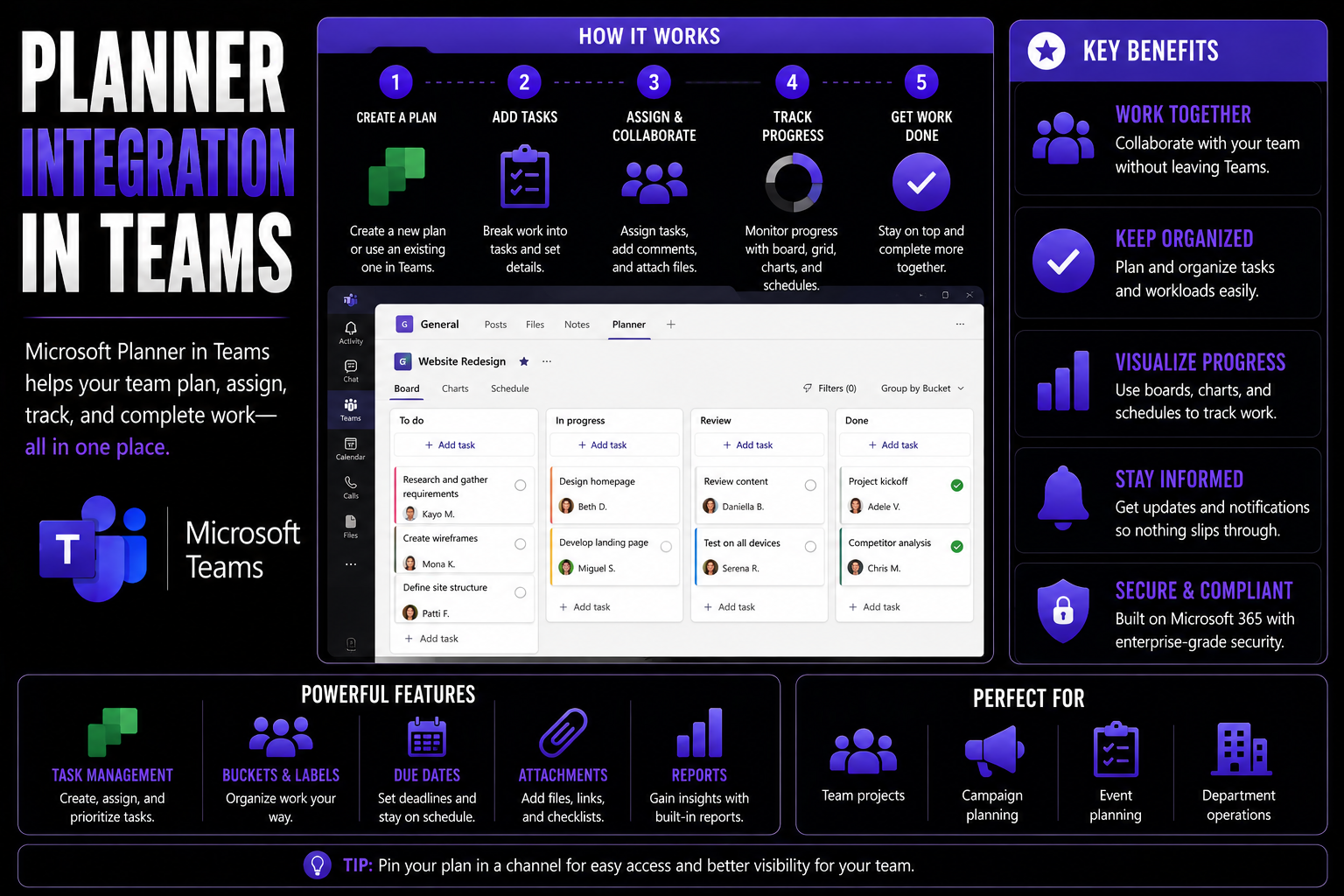
If you’ve ever thought, “There must be a better way to keep project tasks, team chats, and files all in check,” you’re not alone. Planner integration is about weaving Microsoft Planner directly into your workspace—combining it with Microsoft 365 and the third-party tools your business already depends on.
By connecting Planner with other apps, you can boost team collaboration, smooth out workflows, and keep a closer eye on project progress. Whether you’re overseeing IT governance or just trying to avoid drowning in sticky notes, these integrations help centralize control and reduce redundant manual effort.
This guide explores exactly how you can link Planner with Teams, SharePoint, Outlook, Power Platform, Slack, Jira, Salesforce, and beyond. We’ll break down the “integration ecosystem” and show how real organizations use these connections to work smarter across departments—even in complicated, hybrid digital workplaces. Expect practical advice, clear examples, and tips for every skill level.
Microsoft Planner — Definition
Microsoft Planner is a lightweight, visual task management tool included with Microsoft 365 that helps teams create, organize, assign, and track work using boards, buckets, and cards. It provides a simple, collaborative way to plan projects, manage to-dos, set due dates, attach files, and monitor progress with charts and status updates.
Short Explanation and Planner Integration
Planner is designed for fast setup and team collaboration and features deep planner integration across the Microsoft 365 ecosystem. You can add Planner plans to Microsoft Teams channels, sync tasks with Outlook and To Do, embed plans in SharePoint pages, and automate workflows using Power Automate. This planner integration enables visibility of tasks where teams already communicate and work, simplifies assignment and tracking, and connects task data to wider business processes and reporting.
The Microsoft Planner 365 Integration Ecosystem: How It Works
Think of Microsoft Planner 365 as the beating heart of modern project management within the Microsoft world. At its core, Planner sits side by side with powerful apps like Teams, SharePoint, and Outlook, pulling everything together into a single, unified experience. The integration ecosystem is about making those connections seamless, so you don’t waste time jumping between tabs or sifting through emails just to check off your to-dos.
Planner isn’t just a simple list maker. It transforms the way teams communicate and get things done by embedding tasks directly into daily tools. With the backing of Microsoft 365, tasks and updates show up where your people are already working, letting you manage deadlines, files, conversations, and calendars in sync.
This integration does more than save a few mouse clicks. It helps ensure that important tasks don’t slip through the cracks—whether you’re tracking big projects or day-to-day activities. IT managers and business leaders also benefit from increased visibility and stronger governance, thanks to the built-in controls and compliance offered by Microsoft 365. The real magic comes when you layer in automation and cross-app connections, empowering your teams to spend more time on work that matters and less on manual busywork.
We’ll dig into the nuts and bolts of integrating Planner with core Microsoft 365 tools next, and explore how you can use automation to tie your workflows together without breaking a sweat.
Core Integrations in Microsoft 365: Planner, Teams, SharePoint, and Outlook
- Planner Inside Microsoft Teams
- Planner is tightly integrated with Teams, letting you pin “Planner tabs” directly to your team channels. This means everyone can see, update, and comment on tasks without ever leaving Teams. Notifications come through as chat updates, and you can assign tasks during a meeting in real time. For tips on project workspace structure, see this comprehensive guide to organizing projects in Teams with SharePoint.
- SharePoint Integration for Document Management
- Planner is a natural fit within SharePoint intranets. You can link Planner boards to SharePoint pages, letting teams align tasks with shared document libraries. This single source of truth approach makes it easier for project managers and stakeholders to see who’s responsible for what, and ties deadlines directly to the content your teams need day-to-day.
- Outlook Calendar Connections
- Integration with Outlook means that Planner tasks can be surfaced as calendar events or reminders. This keeps important action items top of mind and visible alongside other business-critical meetings. It also allows users to drag and drop tasks into available time slots to support deadline management, especially in fast-paced or hybrid teams.
- Governance and Deployment Simplicity
- IT admins have granular controls over who can access, create, or change Planner plans, right from the Microsoft 365 admin center. With built-in security, role-based access, and compliance features, there’s no need to worry about data leaks or accidental exposures. Learn more about how governance tools transform collaboration in Teams in this Teams governance best practices article.
Practical tip: Linking Planner, Teams, SharePoint, and Outlook sets up a streamlined, secure environment where task management feels less chaotic and a whole lot more transparent—for everyone from frontline staff to executives.
Workflow Automation With Power Platform and Planner
- Auto-Create Tasks from Form Submissions
- Use Power Automate to trigger the creation of Planner tasks whenever someone submits a form on Microsoft Forms or SharePoint. For instance, a new onboarding form can instantly spin up a checklist for HR. This reduces manual entry errors and ensures nothing gets lost while shuffling paperwork—or digital forms, in this case.
- Automated Project Updates and Reporting
- Power Automate can synchronize Planner task updates with reporting dashboards in Power BI, or automatically notify teams via Teams or Outlook. These automations cut down on repetitive status update meetings and give leaders real-time insight into what’s on or off track. For more on managing Teams lifecycle and metadata with automation, check out this article on taming Teams sprawl using Power Platform.
- Structured Task Delegation with Power Apps
- Design custom Power Apps that let employees request resources or report blockers. As requests are submitted, Power Automate can instantly assign tasks to the right department within Planner, speeding up approvals and keeping work moving without endless back-and-forth emails.
- Governance and Compliance by Design
- Power Platform integrates with Azure AD and Microsoft 365 data protection controls, enabling you to build in mandatory approval steps, notify supervisors automatically, or enforce compliance for critical tasks. You stay audit-ready, and everyone knows exactly who’s doing what and when.
Bottom line: Merging Planner with Power Platform streamlines task orchestration, prevents bottlenecks, and helps you maintain compliance without sacrificing speed or flexibility.
Pros and Cons of The Microsoft Planner 365 Integration Ecosystem
Overview: This list examines advantages and disadvantages of planner integration within the Microsoft 365 ecosystem, covering functionality, collaboration, security, and manageability.
Pros
- Seamless Microsoft 365 integration: Planner integration connects natively with Teams, Outlook, SharePoint, OneDrive and To Do, providing a unified experience across tools.
- Improved team collaboration: Easy task assignment, shared buckets, comments, and file attachments streamline teamwork and reduce context switching.
- Familiar UI and low learning curve: Users already in the Microsoft environment adapt quickly to Planner’s interface and workflows.
- Single sign-on and enterprise security: Uses Azure AD for authentication and centralized security controls, simplifying administration and compliance.
- Automation and extensibility: Integrates with Power Automate and Power Apps to create custom flows, notifications, and automations around tasks and Planner events.
- Visibility and reporting: Integration with Power BI and Graph API enables richer reporting and dashboarding across Planner tasks and projects.
- Mobile and cross-platform support: Planner works on web and mobile apps, keeping teams aligned on the go.
- Cost-effective for M365 customers: Included in many Microsoft 365 licenses, reducing the need for additional third-party task management subscriptions.
Cons
- Limited advanced project features: Planner lacks advanced scheduling, dependencies, critical path, and resource management found in dedicated project management tools.
- Basic reporting out of the box: Native reporting is limited; meaningful analytics often require Power BI configuration or custom development.
- Inconsistent cross-app experiences: Some Planner integration points (e.g., Teams vs. SharePoint) can feel inconsistent or offer different capabilities.
- Scalability and organization complexity: Managing many plans across large organizations can become unwieldy without governance and naming conventions.
- Limited customization of task fields: Planner’s custom field capabilities are minimal compared with specialized tools, constraining complex workflows.
- Reliance on Microsoft ecosystem: Strong integration benefits depend on using Microsoft 365; organizations using diverse SaaS stacks may face integration gaps.
- Permissions and guest access nuances: Handling external guests and fine-grained permissions can be tricky and require careful configuration.
- Migration challenges: Moving data in/out of Planner or consolidating plans can be time-consuming and lack robust migration tooling.
Third-Party Integrations: Planner With Slack, Zoom, Webex, and More
Microsoft Planner isn’t just confined to the Microsoft world—it’s ready to reach across to the tools your teams already rely on. Integrating with third-party applications like Slack, Zoom, Webex, Jira, Salesforce, and Okta means you don’t have to force everyone onto the same platform in order to keep projects and communications in line.
This broader integration approach ensures planners and project leads can unify their task lists, even if some team members prefer different collaboration platforms. Especially in today’s hybrid and cross-functional environments, the ability to connect Planner to popular external systems is what keeps workflow smooth and reduces confusion or duplicated effort.
You’ll learn in the next sections how these integrations work for messaging and meetings, developer tools, and even enterprise-grade identity or CRM management. Look out for real use cases, key automation tricks, and governance watchpoints—because tying all those moving parts together can save time and cut down on errors, but only if you set things up smartly from the start.
Planner Integration for Collaboration and Communication Tools
- Surface Planner Tasks in Slack Channels
- It’s common for businesses to have groups working in both Microsoft 365 and Slack. Using connectors or automation tools like Zapier, you can push Planner task updates directly into specific Slack channels. Whenever a task is assigned or completed, the right team—and even individual users—get a heads-up in their primary chat space, cutting down on missed follow-ups.
- Update and Discuss Planner Tasks During Zoom Meetings
- Integrated calendar workflows let meeting hosts automatically pull up the latest Planner board for agenda items. Dedicated plugins can display, update, or assign Planner tasks in real time during meetings, so that next steps and action items don’t get lost in generic meeting notes.
- Task Enhancements in Webex Teams
- If your company has hybrid project teams using Webex, you can connect Webex bots or built-in integrations to show, update, or discuss Planner tasks directly inside Webex spaces. This creates a one-stop shop for messaging, meetings, and task management—no more bouncing between windows or apps during a workday.
- Direct Planner Integration in Microsoft Teams
- Microsoft Teams offers the deepest, most native Planner integration. Teams chat, files, and shared calendars can all live alongside Planner boards and tasks. This structure allows for clear governance, especially when combined with proven workspace policies (see tips for Teams governance here), ensuring every action item is traceable and data security remains tight.
- Permissions and Security Considerations
- Integrating Planner across communication platforms always requires secure permission and access management. Assign roles clearly and ensure that sensitive data doesn’t make its way into chat or meeting platforms that aren’t covered by your Microsoft 365 compliance controls.
Connecting Planner to Jira, Confluence, Azure DevOps, and Rally
- Sync Planner Tasks with Jira Projects
- Many technical teams split work between business tasks in Planner and agile user stories in Jira. Using middleware or connectors, you can sync new Planner tasks to Jira issues—or vice versa. This bridges the gap between business users and developers, keeping everyone updated without manual re-entry.
- Integrate Planner With Confluence Wiki
- While there’s no out-of-the-box direct sync, you can use APIs or third-party apps to pull Planner task lists into Confluence project pages. Now, your documentation always has live task status, and updates to Planner plans instantly reflect in your project wiki for improved transparency and traceability.
- Connect Planner With Azure DevOps Boards
- For organizations running both business and technical operations on Microsoft platforms, connecting Planner to Azure DevOps is crucial. By mapping Planner tasks to Azure DevOps work items, you get end-to-end traceability across development pipelines—helping project management, reporting, and hand-off processes run smoother.
- Rally (CA Agile) Integrations
- Rally users can connect Planner using API bridges or third-party tools to sync user stories, defects, or test cases as Planner tasks. The result? Project leads can oversee a master plan in Planner, while technical users work where they’re most comfortable, keeping status and updates aligned across the board.
- Workflow Automation and Limitations
- While automation can save time, not all fields or updates sync one-to-one. Be upfront about which data flows are supported and periodically audit both sides for discrepancies. This helps reduce miscommunication between business and tech silos, reinforcing agile delivery cycles.
CRM and Identity Management: Integrating Planner With Salesforce, Okta, and Microsoft Entra
- Automated Lead Tracking With Salesforce
- Sales and service teams typically live inside Salesforce, but task execution might happen in Planner. By integrating both platforms, sales reps can trigger automated Planner tasks when new leads or opportunities reach key stages. This keeps account managers, customer success, and delivery teams in sync—no lead falls through the cracks.
- Role-Based Task Assignment With Okta
- Okta integration allows you to pull user profiles and group memberships straight into Planner. Tasks can be automatically assigned based on roles or department, making onboarding and project kick-off a snap and enhancing secure, role-based task delegation across your Microsoft 365 environment.
- Advanced Authentication and Access Management With Microsoft Entra
- Microsoft Entra brings enterprise-grade identity controls to your integrated Planner workflows. Only authorized users can view or modify sensitive tasks, ensuring data protection and compliance. This is especially important for distributed or hybrid teams needing to meet strict IT governance standards.
- User Provisioning and Compliance Automation
- Combine Planner with enterprise identity tools to automate user provisioning, de-provisioning, and task visibility as individuals join or leave teams. Automated compliance checks and audit trails make reporting and regulatory management significantly smoother.
- Process Automation Across Departments
- When Salesforce, Okta, and Microsoft Entra work together with Planner, it’s possible to automate workflows that span HR, sales, service, and tech. This tight integration keeps every department aligned while reducing bottlenecks and manual oversight.
Common Mistakes People Make About Planner Integration
Below are frequent errors and misconceptions when integrating a planner (e.g., Microsoft Planner) with Slack, Zoom, Webex, and other third-party tools.
General Mistakes Across All Integrations
- Assuming one-size-fits-all: expecting every integration to offer identical features and workflows.
- Skipping requirements review: not checking API limits, permissions, or subscription tiers needed for full functionality.
- Poor permissions setup: granting overly broad access or failing to grant required permissions, causing failures or security risks.
- No testing environment: deploying integrations directly to production without staging tests, leading to unexpected behavior.
- Ignoring versioning and updates: failing to monitor connector updates or deprecations that break integrations.
- Neglecting error handling: not implementing retries, logging, or alerts when syncs fail.
- Poor mapping of fields: assuming Planner fields map directly to fields in the third-party app and losing important data.
- Relying solely on manual syncs: not automating bi-directional updates where needed, causing stale information.
- Underestimating rate limits and throttling: causing dropped updates or service interruptions under heavy use.
- Poor user training and documentation: users don’t know how integrated features work, leading to misuse and duplicate work.
Planner + Slack: Common Mistakes
- Over-notification: enabling all planner notifications in Slack channels, creating noise and ignored alerts.
- Wrong channel mapping: posting task updates to incorrect or overly broad channels instead of focused team channels.
- Assuming real-time two-way sync: expecting edits in Slack to update Planner automatically when the connector only posts messages.
- Using bots without clear commands: relying on bot messages that users don’t understand how to act on.
- Neglecting user identity mapping: failing to match Planner users to Slack accounts, breaking assignments and mentions.
Planner + Zoom: Common Mistakes
- Expecting automatic task creation from meetings without configuring templates or workflows.
- Failing to capture meeting context: not including meeting notes, links, or recordings with created tasks.
- Overreliance on manual meeting-to-task workflows: missing opportunities to automate follow-ups from calendar events or meeting transcripts.
- Ignoring meeting participant mapping: tasks created with incorrect assignees because participants aren’t matched to Planner users.
- Not accounting for recurring meetings: creating duplicate tasks for each recurrence instead of consolidating action items.
Planner + Webex: Common Mistakes
- Assuming parity with other video platforms: Webex connectors may offer different triggers and payloads than Zoom.
- Not handling webhook reliability: missing retries or verification for Webex event webhooks, leading to dropped updates.
- Poorly designed notification channels: sending task updates to large Webex spaces rather than focused rooms.
- Failing to include relevant assets: not attaching chat logs, files, or whiteboard links to Planner tasks.
- Not configuring correct event filters: receiving irrelevant events or missing important ones due to broad or narrow webhook filters.
Planner + Other Tools (CRMs, Dev Tools, File Storage) Mistakes
- Mismatched workflows: forcing Planner into workflows better suited to issue trackers or CRM systems.
- Overcomplicating integration: building heavy custom middleware where lightweight automation would suffice.
- Ignoring data privacy and compliance: syncing sensitive customer or ticket data into Planner without controls.
- No conflict resolution strategy: not defining how to handle concurrent edits from multiple systems.
- Failing to normalize data: inconsistent formatting (dates, priorities, tags) causes confusion and broken automations.
How to Avoid These Mistakes (Quick Tips)
- Document requirements and expected flows before integrating.
- Test in a sandbox/staging environment and include real-world scenarios.
- Map users and fields explicitly; include fallbacks for unmapped items.
- Limit notifications and use focused channels or spaces; allow users to opt in/out.
- Implement logging, retries, and alerting for failures; monitor integration health.
- Review security, permissions, and compliance implications before syncing sensitive data.
- Keep integration components updated and subscribe to vendor change notices.
Planner vs Trello and Asana: Integration Capabilities and Feature Comparison
Microsoft Planner gets compared to Trello and Asana a lot, and for good reason—each tool shines in different environments and has unique strengths for team task tracking. But it’s not just about features on paper; it’s about how smoothly these tools fit with your existing systems and work culture.
This section explores the real-world similarities and differences between Planner, Trello, and Asana, especially when it comes to integrating with other apps like Google Workspace. You’ll get a sense for when to stick with one platform, when to bridge them together, or even how to switch without losing your sanity (or your data).
By understanding the “integration personality” of each platform, IT managers and decision-makers can make smarter choices about project management, team adoption, governance, and long-term scalability. Let’s dive into the what, why, and when—before we get into the nitty-gritty of syncing data, migrating tasks, and extending your workflows via Zapier.
Planner and Trello: Comparison of Features and Use Cases With Asana and Google Workspace
- Microsoft Planner Integration Strengths
- Planner stands out with its native Microsoft 365 integrations—Teams, SharePoint, Outlook, and OneDrive. Project files and calendars live in one hub, ideal for organizations already relying on Microsoft’s security and compliance backbone. Power users get automation options through Power Automate and robust IT controls.
- Trello’s Flexibility and Simplicity
- Trello shines for quick setup and easy task visualization via boards, lists, and cards. It offers robust integration with Google Workspace, Slack, and an extensive Power-Ups marketplace. Great for creative teams, marketing, or organizations with non-technical users who want drag-and-drop simplicity.
- Asana’s Workflows and Reporting
- Asana provides detailed project workflows, timeline (Gantt) views, and powerful task dependency management. It integrates natively with Google Workspace, Salesforce, Slack, and offers advanced reporting and custom automation—excellent for teams managing cross-departmental work and complex projects.
- Migration and Syncing Strategies
- If your company uses more than one tool, automated syncs (via data connectors or Zapier) can move tasks between Planner and Trello or Asana. Hybrid IT setups might use Planner for internal teams and Trello for external vendors, pushing updates between platforms to avoid miscommunication.
- Ideal Use Cases
- Go with Planner for tight Microsoft 365 integration and compliance needs. Choose Trello for fast-moving projects with outside stakeholders. Pick Asana when you need complex reporting and sequential project planning. And remember, you can bridge gaps between them—topic covered in the next section—for teams that need it all.
Bridging Planner With Figma, Splunk, and Google Workspace Using Zapier
- Connecting Planner and Figma for Design Approval Flows
- By using Zapier, design teams working in Figma can trigger Microsoft Planner tasks whenever a new design is submitted or approved. This automates cross-team notifications—project managers don’t have to babysit creative workflows, and nothing gets stuck waiting on manual updates.
- Automated Monitoring With Splunk Integrations
- For IT and security teams, Splunk can push incident alerts straight into specific Planner boards via Zapier “Zaps.” This way, teams can instantly assign tasks, log remediation, and update stakeholders as incidents evolve—keeping real-time security actions connected with business workflow.
- Task Management Syncs With Google Workspace
- Zapier makes it possible to connect Planner with Google Sheets, Calendar, Gmail, and Drive. For example, new rows in a Google Sheet can spawn Planner tasks, or completed Planner items can automatically update Google Drive folders. This is huge for hybrid teams living in both ecosystems.
- Low-Code Automation Tips
- You don’t need to be a developer—Zapier’s visual interface makes it as easy as point-and-click. Map out triggers (like a new design file uploaded or a spreadsheet updated), actions (create a Planner task), and handle error notifications if connections fail, so nothing slips through the cracks.
- Expanding Workflow Efficiency
- Bridging Planner with non-Microsoft tools lets your teams work in their preferred apps while still centralizing oversight and reporting for IT or leadership. Automation limits manual copying, shortens feedback cycles, and helps maintain visibility across complex projects.
Advanced Planner Project Basic and Microsoft Project Integration
For organizations managing not just tasks but complex, multi-team projects, integrating Planner Project Basic with Microsoft Project Online or Project Server unlocks enterprise-level planning power. The reasoning is simple: Planner is lightweight and fast for team tasks, while Project Online offers portfolio tracking, Gantt charts, dependencies, and resource management at scale.
Understanding the ins and outs of this integration helps leaders decide when to use Planner alone, when to sync it with enterprise project management, and how to avoid pitfalls like lost data, unsupported fields, or clunky handoffs.
In the next sections, we’ll break down which data actually flows back and forth, the supported use cases, and how this connection delivers value for distributed teams, departmental managers, and project owners looking to unify high-level strategy with on-the-ground execution.
Capabilities and Limits of Planner Project Basic Integration
- Supported Data Flow
- Planner Project Basic integrates with Project Online to push basic tasks into project plans. Task title, due date, and assigned users sync, but custom fields and complex dependencies don’t transfer. It’s a “lightweight” handoff for status updates, not full-featured project scheduling.
- Task Editing Restrictions
- Once a Planner task syncs with Project Online, certain edits (like moving tasks between buckets or altering dependencies) may only be possible on the Project side. This may limit on-the-fly adjustments for team leads.
- Integration Caveats
- Task comments, attachments, and checklist items usually don’t flow between systems. Expect some manual reconciliation if you want a truly single-pane-of-glass view, and educate users on what data “makes it across.”
Use Cases for Planner Project Basic and Project Online
- Team-Level Task Tracking Feeding Enterprise Projects
- Frontline teams use Planner for easy management, while project managers roll up progress into Project Online. This keeps high-level Gantt views current without forcing all staff into the deeper Project UI.
- Centralized Reporting
- Project Online aggregates data from multiple Planner boards, letting executives or PMOs track status across a portfolio—no more chasing updates one-by-one. You see percent complete, overdue tasks, and blockers all in one view.
- Delegated Management
- Department leads can manage daily work in Planner, while enterprise-level planning in Project Online ensures milestone tracking and resource mapping pulls from the most accurate, ground-level info.
AI in Planner Integration: Microsoft Copilot and Natural Language Task Automation
The future of Planner integration is getting a serious upgrade, thanks to AI and natural language capabilities like Microsoft Copilot. Instead of clicking through menus or filling out tedious forms, you can now create and update Planner tasks just by typing a simple command or sharing your intent in conversational language.
Microsoft Copilot steps in to automate routine planning activities—auto-generating checklists from meetings, summarizing conversations into actionable items, or surfacing smart task suggestions based on your working patterns. This not only speeds up workflows but also helps teams avoid miscommunication or overlooked responsibilities.
The magic here isn’t just the AI itself. It’s about embedding Copilot across Teams, Outlook, and Planner, so every department—from HR and Sales to Development—benefits from consistent, context-aware automation. To maximize productivity and ensure robust governance, organizations should plan for deployment requirements, licensing, and proper user training. For best practice advice and advanced prompt strategies for Copilot, visit this prompt engineering guide.
Automating Task Management With Microsoft Copilot and Planner
- Natural Language Task Creation
- With Copilot, you can type or say, “Remind me to review the budget proposal next Friday,” and it’ll auto-generate the Planner task with the correct deadline, assignee, and priority. No need for manual entry—just talk or write as you would normally think.
- Smart Task Prioritization and Suggestions
- Copilot uses AI to analyze your existing plans and emails, suggesting new tasks based on meetings, conversations, or even incomplete projects. It highlights action items you might otherwise overlook and prompts follow-ups, saving vital mental space for higher-level work.
- Seamless Integration Across Teams and Outlook
- Whether you’re in Microsoft Teams, Outlook, or Planner, Copilot can surface and synchronize tasks—summarizing status updates during meetings, sending reminders in chats, and making sure nothing falls behind. Learn how to activate and secure it across your business with this detailed Copilot setup guide.
- Automated Workflow Recommendations
- Copilot not only automates creation but also suggests next best actions, like adding stakeholders to a task, attaching relevant files, or escalating overdue items. This improves cross-team alignment and helps maintain project momentum. For more on use cases, visit top Copilot productivity tips.
- Deployment and Security Best Practices
- Before rolling out Copilot, ensure you’ve reviewed licensing needs and configured permissions in both Microsoft 365 and Microsoft Entra. Effective prompt engineering is key: keep commands clear and context-rich for the AI to understand. For Outlook-specific Copilot tips, check out this Outlook Copilot productivity guide.
Key Benefits of AI in Planner Integration
- Automated scheduling: AI analyzes constraints and priorities to create optimal schedules, reducing manual effort and conflicts.
- Predictive forecasting: Machine learning forecasts demand, resource needs, and potential delays to improve planning accuracy.
- Real-time adjustments: AI enables dynamic re-planning in response to changes (e.g., delays, cancellations, new tasks) to maintain continuity.
- Resource optimization: Algorithms allocate people, equipment, and time more efficiently to maximize utilization and minimize waste.
- Improved decision support: AI provides recommendations, scenario analysis, and risk assessments to aid planners in making better choices.
- Personalization and prioritization: Systems tailor plans to individual roles, preferences, and critical priorities, improving relevance and adoption.
- Enhanced collaboration: Integrated AI coordinates inputs across teams and systems, consolidating plans and reducing miscommunication.
- Automated task routing: AI assigns tasks to the best-suited resources based on skills, availability, and location.
- Continuous learning and improvement: AI models learn from outcomes to refine future planning, increasing efficiency over time.
- Analytics and visibility: Advanced analytics surface bottlenecks, KPIs, and actionable insights for strategic planning and performance monitoring.
FAQs and Getting Started With Planner Integration
What is planner integration and how does it relate to Microsoft Planner?
Planner integration refers to connecting Microsoft Planner with other tools like MS Project, Microsoft Teams, or third-party apps so teams can manage tasks and track progress in a unified workflow. With planner integration you can add tasks, set deadlines, and sync task planning across platforms for better work management.
How do I connect MS Planner to MS Project for planner and project integration?
To connect MS Planner to MS Project use built-in integration features in Microsoft 365 or Power Automate flows to import Planner buckets and tasks into Project. This planner and project integration lets project managers track progress, export timelines, and manage dependencies while individual users continue to work in Planner.
Can I use Microsoft Teams to access my planner plan and manage tasks?
Yes. Add Planner as a tab in Microsoft Teams to view your planner plan, add tasks, receive notifications, and collaborate on task completion. The planner icon appears in Teams tabs and channels so the entire company or specific teams can stay up to date.
How does progress tracking work between MS Planner and MS Project?
Progress tracking is achieved by syncing task completion and percent-complete fields from Planner to Project. Updates in Planner trigger progress tracking in MS Project, enabling project managers to see overall status while individual users update individual tasks in Planner.
Are there limitations when I import tasks from Planner into MS Project?
Yes, limitation examples include loss of some Planner-specific metadata, simplified dependency handling, and potential differences in custom fields. When you import, be sure to verify deadlines, assignments, and that task planning maps correctly to MS Project fields.
How do I add tasks and set deadlines across both Planner and Project?
When you add tasks in Planner they can sync to Project via integration or Power Automate. To set deadlines, update the due date in Planner or the finish date in Project; a properly configured sync will propagate those changes so teams can track deadlines and task planning consistently.
Can I export planner plan data for reporting or backup?
Yes. You can export Planner tasks to Excel or use Graph API to export more detailed data. Exported data supports reporting, progress tracking, or archival needs and can be used alongside MS Project reports for broader work management insights.
What about security updates and access controls for planner integration?
Security updates are handled through Microsoft 365 tenant settings, conditional access, and Azure AD. When enabling planner integration, confirm proper permissions for individual users and teams, and work with your support team to ensure compliance and up-to-date security updates across integrated apps.
How do notifications work when tasks are updated in an integrated setup?
Notifications can be configured so team members receive notifications in Outlook, Teams, or via Planner. Integration scenarios often allow users to receive notifications for assignment changes, task completion, or approaching deadlines so they stay up to date.
Can I track individual tasks and task completion across the entire company?
Yes. With planner integration to centralized reporting tools or MS Project, you can aggregate individual tasks and task completion metrics across the entire company for portfolio-level work management and performance visibility.
What support is available if the integration fails or shows sync errors?
If integration issues occur contact your IT support team or Microsoft technical support. Common fixes include reauthorizing connectors, reviewing permission scopes, and ensuring Power Automate flows or connector services are running and have not been altered by recent security updates.
How do I import existing MS Project schedules into Planner for day-to-day task work?
To import MS Project schedules, export tasks from Project to Excel or use a connector to create corresponding Planner tasks. During import, map key fields like start/finish dates, assignees, and priority so Planner reflects the task planning from Project for individual users handling day-to-day work.
Is it possible to seamlessly sync attachments and comments between Planner and Project?
Syncing attachments and comments is limited and may not be seamless; some integrations transfer links or references rather than full content. For full context, store files in SharePoint or Teams where both Planner and Project users can reference the same attachments and comments reliably.
How do I manage permissions for individual users in an integrated environment?
Manage permissions via Microsoft 365 groups and SharePoint/Teams file permissions. Assign roles at the Planner plan or Team level and ensure MS Project access aligns with those group permissions so individual users have appropriate access without exposing sensitive data.
Can I automate task creation and updates between Planner and other tools?
Yes. Use Power Automate or Graph API to automate task creation, updates, and notifications between Planner and tools like MS Project, Teams, or third-party apps. Automation helps reduce manual work and improves progress tracking and task completion rates.
What should I consider before rolling out planner integration across the entire company?
Consider governance policies, permission models, training for task planning and progress tracking, and how integrations affect reporting. Coordinate with your support team to plan security updates, technical support channels, and change management so adoption is smooth across the entire company.
How do I use the planner icon to make Planner more discoverable in Teams?
Add Planner as a tab in Channels and pin the planner icon in the Teams app bar for quick access. Encourage teams to use the tab for add tasks, set deadlines, and receive notifications so Planner becomes a central part of daily work management.
Can I export progress tracking data to other analytics tools?
Yes. Export Planner or Project data to Excel, Power BI, or third-party analytics tools to build dashboards for progress tracking, resource utilization, and task completion metrics across projects and teams.
Unlocking Your Business’s Potential With Integrated Planner Workflows
- Centralized Project Visibility for Leadership and Teams
- Integrated Planner workflows bring project tracking, reporting, and communication under one roof. Executives and team leads see unified dashboards with real-time data, avoiding the confusion of scattered emails or disconnected tools.
- Ready-to-Use Intranet and Collaboration Hubs
- By combining Planner with Teams, SharePoint, and Power Automate, you create a structured digital command center—no more hunting for documents or digging through chat history. See practical strategies in this project management guide for Teams and Planner.
- Improved Governance and Data Compliance
- Integrations put governance front and center. With clear rules and smart permissions (explained in this Teams governance overview), you can confidently scale collaboration while protecting sensitive business information.
- Faster Execution and Continuous Improvement
- Automation and cross-tool integrations mean fewer duplicate efforts and less manual tracking. Teams respond faster, bottlenecks get flagged early, and iterative improvement is built in—making your digital workspace a real driver for business growth.
- Action Steps for Business Alignment
- Regularly review your integration landscape to align with evolving business strategies. Ensure Planner workflows support every department’s goals—whether for coordination, compliance, or customer satisfaction. Tightly integrated tools don’t just boost productivity, they strengthen your entire organization’s foundation.
Planner Integration into Microsoft Teams - Checklist
Use this checklist to plan and validate a successful planner integration into Microsoft Teams.
You Should Also Listen To
If you are researching Microsoft Planner integration, these episodes add practical context on architecture, operations, security, and governance:
- Teams Telephony – Simply Explained — Understand calling architecture, routing, devices, and operational trade-offs.
- Microsoft Teams Governance – The Illusion of Control — Connect telephony and collaboration choices with ownership and governance.
- Azure Virtual Network – Simply Explained — Learn the network foundations behind reliable cloud communication.
- Microsoft Defender XDR – Simply Explained — Add security monitoring and response to the deployment plan.

Microsoft MVP | Host of M365.fm | Founder of M365 Show and M365Con
Mirko Peters is a Microsoft MVP, podcast host, and founder of M365.fm, M365 Show, and M365Con. His work connects Microsoft practitioners through podcast interviews, livestreams, and community events.
At M365.fm, Mirko hosts conversations with Microsoft MVPs, product experts, architects, and community contributors. Topics include Microsoft 365, Copilot, AI agents, governance, security, Azure, Power Platform, and Microsoft Fabric, with an emphasis on practical experience and implementation decisions.
M365.fm is the podcast and learning platform. M365 Show brings experts together for livestreams, while M365Con provides an online conference setting for community learning.
Official website: Mirko Peters (https://www.mirkopeters.com/). Recognition: Mirko Peters — Microsoft MVP profile (https://mvp.microsoft.com/de-DE/mvp/profile/9b0ca797-db5a-493a-a845-8b9158046cf5). Connect on LinkedIn (https://www.linkedin.com/in/m365showpodcast/).