Project Management In Teams Guide
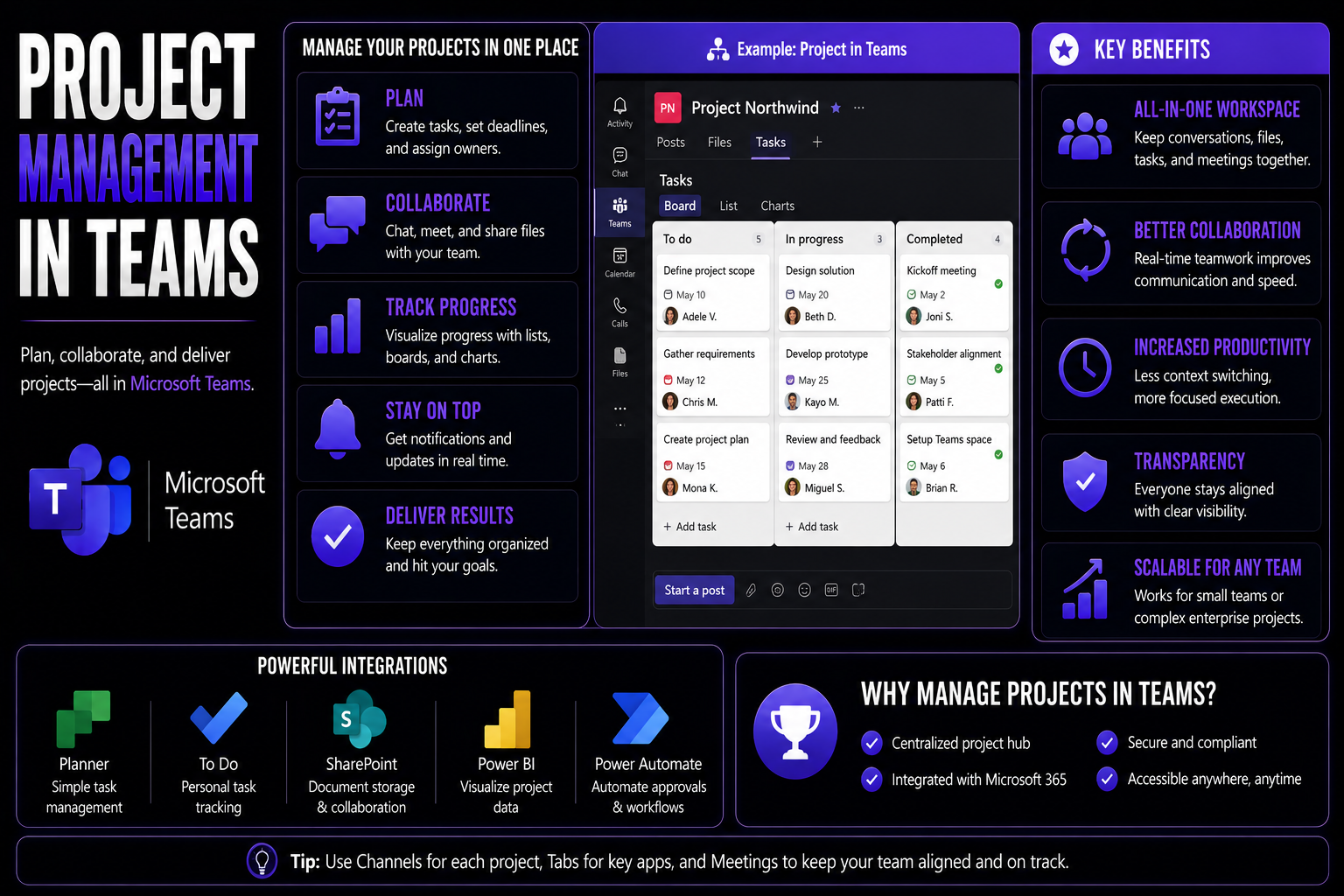
Welcome to your essential guide for managing projects in Microsoft Teams. Here, you’ll learn how to organize, plan, and execute team projects using the core capabilities of Microsoft 365. This guide tackles the most effective ways to collaborate, manage files, keep project work on track, and ensure everything is secure and compliant.
Whether you’re standing up your first project team or fine-tuning a complex Teams environment, you’ll find practical advice for setting up teams and channels, integrating crucial tools like Planner and Loop, and implementing strong governance. The aim? Set up your Teams workspace for clear communication, seamless collaboration, and scalable project management success—so your teams spend less time searching, and more time delivering.
Microsoft Teams
Microsoft Teams is a collaboration platform that integrates chat, video meetings, file storage, and app integrations to help teams communicate and coordinate work in real time. It centralizes conversations, shared files, and tools so teams can stay aligned, hold virtual meetings, and manage tasks without switching between multiple applications.
Projektmanagement
Projektmanagement (project management) is the discipline of planning, organizing, executing, monitoring, and closing work to achieve specific objectives within defined constraints such as time, budget, and scope. It involves defining goals, assigning roles, scheduling tasks, managing risks, and tracking progress to ensure successful delivery of projects.
Microsoft Teams for Projektmanagement
Microsoft Teams for Projektmanagement combines Teams' communication and collaboration features with project management practices to support project delivery. By using channels for topics or workstreams, Planner or Tasks for task assignment, shared files in OneDrive/SharePoint, and integrated apps (e.g., Power BI, Lists), teams can coordinate schedules, share updates, run meetings, and monitor progress. This approach supports effective project management in teams by keeping project artifacts, conversations, and status visibility in one place.
Getting Started with Project Management in Microsoft Teams
Ready to bring some order to the project chaos? Before diving into the buttons and tabs, it’s crucial to lay down a strong foundation for your team’s project workflow in Microsoft Teams.
This section lays out the key ideas behind effective project collaboration: understanding projects, processes, and tasks as they relate to your team’s real work. By defining these pieces upfront, you help everyone get on the same page—which always beats untangling confusion later.
Once your team knows what counts as a project or a task, the next step is to set up your Teams workspace to fit that structure. This includes creating your main project team, as well as channels that keep workstreams, conversations, and documents all nicely sorted.
If you nail the basics—definitions, roles, a logical team setup—you’ll find your Microsoft Teams project work not only gets off the ground quickly, but keeps running smoothly as things get busy. Want the full step-by-step? You’ll get practical instructions and best practices in the next sections, with a close look at channel creation and team alignment. For a deep dive on governance and setup, check out this Teams project organization guide and this practical guide to transforming project management in Teams—they break down how to prevent common pitfalls and keep your system clean from the get-go.
First, Define by Projects, Processes, and Tasks for Team Clarity
A project is a set of coordinated activities with a clear start and finish, like launching a new service or rolling out a product update in Teams. A process is an ongoing, repeatable set of actions—think of regular customer support or weekly reporting. Tasks are the specific, actionable items that make up both projects and processes.
It’s important to establish clear definitions so everyone knows the difference between one-time efforts (projects), recurring workflows (processes), and day-to-day assignments (tasks). This shared language helps you design Teams channels and workflows that match how real work gets done—cutting down on confusion and wasted effort later.
Getting clarity now pays off: you’ll set up channels and tabs that follow your true structure, making it easier for the team to collaborate and for leaders to direct traffic where it matters most.
How to Create Your Project Team and Kickstart Team Channel Creation
- Create a new team for your project.Start by selecting “Join or create a team” in Microsoft Teams and choose “Create team.” Use a practical name that’s clear for everyone, like “Marketing Website Launch 2024.” This helps the team find it fast and keeps everything cohesive.
- Add team members and define roles from day one.Include everyone who will contribute: project leads, active collaborators, and stakeholders. Clarify who owns what to reduce confusion about accountability later on. Strong governance and permissions help keep sensitive discussions private from the get-go.
- Set up channels based on workstreams or phases.Create channels named for the main workstreams (like “Content,” “Design,” or “Budgeting”) or by project phase (such as “Kickoff,” “Execution,” “Wrap-Up”). This keeps chats, files, and meetings organized—no one likes hunting for info buried in the “General” channel.
- Decide between standard, private, or shared channels.Standard channels are open to everyone in the team and good for most project work. Use private channels for confidential topics (like contracts), keeping access limited. Shared channels are perfect for collaborating with folks from other departments or even external partners without letting them into the whole team. If you want a detailed breakdown, this guide on private and shared channel decisions is a lifesaver.
- Standardize your naming conventions and descriptions.Use clear, consistent names and add descriptions to let everyone know each channel’s purpose. This small step helps a lot when your team grows or switches projects down the road. For more practical advice, see this Teams channel best practices article.
Laying this groundwork sets your team up to collaborate, communicate, and manage files without stepping on one another’s toes. If you want tips for advanced project organization, including automation and visibility, this step-by-step Teams project guide is worth bookmarking.
Optimizing Channels and Tabs for Team Project Work
Organization is the name of the game once your team is set up. The way you structure your channels—and especially the tabs at the top—decides how quickly your team can find what they need and keep focused on the real work.
Properly configured tabs let you centralize all the key tools and reference documents, cutting down on the digital scavenger hunt. Whether you need to update a project plan in Planner, sketch ideas in Whiteboard, or reference living documents in Loop, everything should be right there—no more switching windows or asking “Where did we put that chart?”
This section gives you the playbook for setting up your channel tabs, so each phase or workstream has its own toolkit ready to go. You’ll also get the lowdown on why OneNote isn’t always your best bet anymore, with Microsoft Loop stepping up as the new standard for dynamic, real-time collaboration across Teams and other 365 apps.
By customizing your channel’s layout and using modern collaboration tools, you’ll keep distractions low and productivity high. Want the inside track on embedding advanced tools and reducing app-jumping? This article on Teams message extensions gives even more ways to turn Teams into a true decision hub. And if you’re curious about how Loop really brings data and teamwork together, here’s a look at Loop components solving the data silo problem.
Set Tabs Channel Structure for Seamless Project Collaboration
- Pin essential files and documentation with the Files tab.The Files tab is your project’s digital file cabinet. Use it to upload important documents—proposals, specs, or budget trackers—so everyone always grabs the right version. Organize files by folder or phase to keep searching to a minimum.
- Add Planner (or Tasks by Planner and To Do) for visual project management.Attach a Planner tab for task tracking, assigning work, and managing due dates. Organize work into buckets for each phase or workstream. Team members can check assignments or add comments right from Teams, keeping all chatter and updates in context.
- Integrate Whiteboard for visual brainstorming and meetings.Make a Whiteboard tab for freeform idea sessions, strategy mapping, or mind maps. This helps teams collaborate visually, capture ideas, and circle back to discussions easily—perfect for remote or hybrid teams needing a shared “board.”
- Add a Loop component for dynamic project notes and co-editing.Loop is built for real-time, flexible note-taking and shared documents. Unlike static files, Loop components in tabs let everyone update status lists, discussion threads, or agreements together and see changes instantly across all devices. You can learn more about Loop’s real-time updates in this deep dive on Loop.
- Use clear, practical naming and permissions.Name tabs after their purpose—“Content Plan,” “Sprint Board,” “Stakeholder List”—so no one gets lost. Adjust permissions if certain tabs (like budget or HR docs) need restricted access, and refresh your tab setup after each project milestone to keep things tidy and relevant.
For tips on going further with custom tabs, message extensions, and automation, this guide on building custom Teams apps is a great resource. Small tweaks now add up to big time savings and fewer headaches over the course of your project.
Replace Default 'Notes' OneNote with Microsoft Loop for Modern Collaboration
While OneNote has long been the default for Teams notes, Microsoft Loop gives your team a faster, more flexible way to collaborate on living documents. Loop offers real-time co-editing, so everyone can update status lists, meeting notes, or project docs together—and see instant changes, no refresh needed.
By removing the default Notes tab and adding a Loop component instead, you unlock true, dynamic teamwork—no more fighting version history or copy-pasting updates. Loop components are embeddable in Teams and stay in sync across Microsoft 365 apps, keeping everyone on the same page. For a deeper look at how Loop improves collaboration and solves the common versioning problem, review this guide on Loop components.
If your team still relies on OneNote for structured info, these OneNote workflow strategies can also help—but if you want fast, real-time edits for a fluid environment, Loop is the modern move.
Common Mistakes When Optimizing Channels and Tabs for Team Project Work
When implementing channel and tab structures for project management in teams, organizations often repeat the same mistakes. Avoid these to improve clarity, adoption, and productivity.
- Too many channels or tabs: Creating excessive channels/tabs leads to fragmentation, confusion, and information silos.
- Poor naming conventions: Vague or inconsistent names make it hard to find relevant channels or understand purpose at a glance.
- No clear purpose or ownership: Channels/tabs without defined objectives or owners become cluttered and neglected.
- Mixing project and social conversations: Combining formal project work with casual chat in the same channel makes it difficult to track decisions and action items.
- Overloading tabs with too many apps or tools: Packing a tab with unrelated tools reduces usability and increases cognitive load.
- Lack of onboarding or guidelines: Teams struggle to use channels/tabs effectively without documented rules for when to create, post, or archive.
- Ignoring channel hygiene: Failure to archive outdated channels, prune unused tabs, or clean up permissions results in clutter and security risk.
- No standardized folder or file structure: Inconsistent file placement across channels/tabs makes version control and retrieval hard.
- Using channels as task trackers without integration: Relying on message threads for task management instead of integrating proper task tools causes missed deadlines and lost tasks.
- Failing to restrict notifications: Broad notification settings create noise and lead to important messages being overlooked.
- Not tailoring channels to roles: One-size-fits-all channels can overwhelm stakeholders who only need subset information for their role.
- Ignoring cross-team coordination: Isolated channel setups prevent visibility into dependencies between teams and block effective project management in teams.
- Poor searchability and tagging: Without consistent tags, prefixes, or metadata, searching across channels/tabs becomes inefficient.
- Overreliance on private channels: Excessive use of private channels reduces transparency and slows onboarding of new team members.
- No regular review process: Not evaluating channel/tab effectiveness periodically means persistent inefficiencies go unaddressed.
Integrating Core Tools for Project Planning and Execution
Planning, assigning, and executing tasks get a serious upgrade when you bring core Microsoft 365 tools directly into your Teams environment. No more juggling 12 browser tabs!
This section introduces the key tools that take project work from scattered to seamless: Planner (for visual project boards and task assignments), Microsoft Tasks (to keep track of follow-ups), Whiteboard (for creative sessions), and Loop (for living documents and shared insights).
Integrating these tools isn’t about having more apps—it’s about building efficient workflows. You’ll see strategies to keep everyone accountable, foster creativity, and maintain up-to-the-minute tracking on every aspect of your project. The “how-to” comes next, covering step-by-step tactics for using each core tool inside Teams.
When done right, you get less chasing, fewer missed deadlines, and real team alignment. For a real-world walkthrough on integrating these tools and automating routine work, see this practical project management guide for Teams.
Planner Project Planning and Task Management Tactics in Teams
- Create buckets to represent project stages or workstreams.Start with a Planner board and set up buckets for each major phase (like “To Do,” “In Progress,” and “Done”) or by workstream (such as “Design,” “Dev,” and “QA”). This structure helps everyone see what’s next and where work is concentrated.
- Assign tasks to specific team members.Break down phases into tasks and assign each to the team member responsible. Add due dates and priorities, so nobody’s left wondering what’s urgent. If tasks are cross-functional, loop in multiple collaborators right in the Planner assignment.
- Use comments to capture conversations and updates.Instead of endless email chains, discussions about a task belong in Planner’s comments. Conversations stay tied to the work item, making follow-ups and accountability easy. Everyone can scroll back to see the full history of decisions made.
- Visualize project status with boards and charts.Use views like the Progress or Charts tabs in Planner to quickly spot bottlenecks, overdue tasks, or resource overloads. This gives team leads a dashboard to report up or rebalance work before deadlines slip.
- Automate notifications and reporting.Set up Power Automate flows to send email or Teams alerts for task assignments, deadline changes, or board updates. This keeps everyone in the loop, without inbox overload. See this guide on Teams automation for more on setting up smooth reporting flows.
By embedding Planner and Microsoft Tasks in Teams, you turn chaos into a clear, visual plan that’s easy to follow, update, and track—all in one place.
Enhance Your Project Workspace with Whiteboard and Loop Collaboration
- Whiteboard for brainstorming and ideation.Start every major project session or kickoff with a Teams-integrated Whiteboard. Map out ideas, draw diagrams, or create mood boards that everyone—remote or in-person—can contribute to. The digital canvas helps capture those messy, creative first steps and saves every update for review later.
- Loop workspaces for living documents and dynamic notes.Create a Loop workspace dedicated to your project in Teams. Use it for agendas, meeting notes, shared checklists, or decision logs. Everyone on the team can edit and comment in real time, reducing lost context and keeping decisions transparent. For more on harnessing these live, embeddable objects, check out this guide on Loop components.
- Run real-time feedback loops inside the workspace.When working out solutions or reviewing documents, Loop lets everyone add feedback right as you go. No “final_final_version3.docx” to chase—ideas and improvements show up immediately, helping the team reach consensus quicker.
- Document creative sessions and decisions.After a Whiteboard session, snap the results into a Loop component for tracking. This way, you capture the output from brainstorming and make sure key ideas, action items, and owners live in one place.
Combining Whiteboard and Loop creates a project hub where ideas are not only generated, but immediately documented and acted on, giving your team real momentum from day one.
Streamlining Communication and Document Management in Teams
Teamwork thrives when communication is clear and files are right where you need them. In a project’s daily hustle, nothing slows you down faster than scattered chats or missing documents.
This section covers how smart use of Teams channels and posts can keep conversations organized, visible, and easy to reference. You’ll also get guidance on storing, sharing, and managing documents directly in Teams, so every project handoff and update is smooth as butter.
Centralizing both communication and files in Channels drastically cuts down on missed updates, repeated work, and version nightmares. Plus, it makes onboarding new team members a breeze—they can get caught up from one place, not piece together a dozen email chains.
Looking for strategies to prevent your workspace from spinning into chaos? This article on Teams governance shows how clear structure, rules, and permission settings turn wild-west Teams into productive, accountable project HQs.
Streamline Project Communications In Channel and Avoid Communication Holding Back
- Keep conversations focused in channels. Post project updates, key decisions, and questions in relevant Teams channels—not private chats. This way, everyone can see what’s happening, and important info doesn’t get buried in DM threads.
- Use reply threads to maintain context. Always respond using threaded replies so discussions about a task or challenge stay grouped together. This keeps conversations on track and makes it easy to catch up later.
- @Mention key team members or groups. Tag only those who need to see an alert or provide input. This reduces noise and ensures notifications get to the right people without spamming the whole team.
- Pin important messages or guidelines. Pin posts with recurring action items, meeting links, or guidelines at the top of the channel so everyone can quickly find what they need.
Looking to set clear rules and improve trust within your digital workspace? See Teams governance strategies here.
How to Manage Files and Share Project Documents in Teams
- Use the Files tab for centralized document sharing.Upload all relevant project files directly in the Files tab of the correct channel. This keeps docs organized and ensures everyone works from the latest copy, not random email attachments.
- Leverage integrated OneDrive and SharePoint for storage and access control.Files added in Teams are stored in connected SharePoint/OneDrive folders, supporting easy sharing, permissions control, and robust version history. Need to see who changed what and when? Version history’s got your back.
- Organize files logically by folders, project phase, or deliverable.Set a simple folder structure—like “Kickoff,” “Creative,” or “Final Approvals”—and enforce consistent naming. This step alone makes it much less likely anyone will lose track of the newest file.
- Share documents using links, not copies.To ensure everyone’s always on the same page, send document links directly in channel posts or chats. If you’re weighing Teams file sharing against SharePoint dashboards, here’s a great comparison of Teams and SharePoint for document collaboration.
- Enable permissions for sensitive files.Adjust permissions when uploading contracts, budgets, or sensitive info. Only give editing rights to those who need it; use “view only” for everyone else.
- Regularly clean and archive.At project milestones or completion, review and archive old files for easier searching and compliance. Keeping things tidy means smooth handoffs and less “document archaeology” next time out.
Key Benefits of Streamlining Communication and Document Management in Teams
Optimizing project management in teams through streamlined communication and document management delivers measurable advantages across productivity, collaboration, and risk reduction.
- Faster decision-making: Clear communication channels and organized documents reduce delays, enabling quicker approvals and timely project pivots.
- Greater transparency: Centralized records and consistent updates ensure everyone understands priorities, progress, and responsibilities in project management in teams.
- Improved collaboration: Shared access to current documents and real-time messaging fosters coordinated work, fewer misunderstandings, and better cross-functional teamwork.
- Higher productivity: Less time searching for files or clarifying messages means team members spend more time on value-adding tasks.
- Reduced rework and errors: Version control and clear communication minimize conflicting edits and mistakes, improving overall project quality.
- Enhanced accountability: Audit trails, assigned ownership, and timestamped updates make tracking contributions and deadlines straightforward.
- Scalable processes: Standardized communication workflows and document templates make it easier to onboard new members and scale project management in teams.
- Stronger knowledge retention: Organized documentation preserves institutional knowledge, enabling faster ramp-up and continuity when team members change.
- Better compliance and security: Controlled access, encryption, and retention policies reduce compliance risks and protect sensitive project information.
- Cost savings: Time efficiencies, fewer errors, and lower administrative overhead translate into reduced project costs and improved ROI.
Maximizing Value from Your Microsoft 365 Subscription for Project Work
If you think Teams is just for meetings and chat, you’re leaving value on the table. Microsoft 365 is a full toolbox, packed with features that can turn Teams into your one-stop project command center—integrating planning, communication, dashboards, and document management into a single, secure workspace.
This section introduces strategies to harness the whole suite: from managing project plans in Planner, to recording insights in Loop and Whiteboard, to embedding resource dashboards that report across all your active projects. You’ll also see how advanced solutions like Atlas provide panoramic oversight, making leadership and reporting a whole lot easier.
The goal is unified project management—every document, update, and milestone visible in one place. If you want a practical blueprint for getting it all working together, this project transformation guide has you covered. Curious about reporting and dashboard deployment? Check out this Teams vs SharePoint dashboard showdown for tips on finding the best platform for your team’s analytics.
Unlock Teams Microsoft Project Power for Unified Project Management
- Centralize project planning right inside Teams.Integrate Microsoft Project or Planner tabs into your Teams workspace, so task lists, timelines, and status updates live alongside project discussions. This means no more jumping between different apps or chasing down scattered files and updates.
- Automate recurring tasks and progress tracking.Use Power Automate to automatically send reminders, trigger status reports, or route approvals—all within Teams. This slashes the need for manual follow-ups and keeps everyone focused on actual project work. Find more on automation setup in this practical guide to Teams automation.
- Bring meetings, files, and chats together in one workspace.Making Teams your single command center means every project artifact—files, notes, discussions, action items—lives in one secure place. Integration with SharePoint and OneDrive ensures version control and compliance, while keeping everything just a tab away.
- Tap into analytics and reporting for real-time visibility.Connect Power BI dashboards directly into Teams tabs, enabling managers to monitor KPIs and performance metrics in real time. Want to know if a deadline is at risk or a resource is stretched? Analytics make it transparent.
- Enforce structure and best practices with templates and governance.Standardize setups for new teams or projects using Teams templates, so you start with pre-configured channels, tabs, and permissions every time. This brings order and repeatability to complex environments, especially at scale.
By using Teams as your unified project hub, you increase efficiency, reduce dropped balls, and help leaders and contributors stay aligned through the entire project lifecycle.
Atlas Project Work: Achieve Unmatched Oversight Across Teams
Atlas is a project portfolio management solution that layers on top of your Teams environment, providing a central dashboard for all your projects. With Atlas, managers and executives gain holistic visibility into status, risks, milestones, and team workload—no more piecing together spreadsheets from different sources.
Atlas tracks progress across multiple teams and departments, combining timelines, resource allocation, and KPI analytics in one place. That means you instantly see where projects stand, which teams need support, and how resources are being used—helping make decisions faster and keeping projects on target as your business grows.
8 Surprising Facts About Maximizing Value from Your Microsoft 365 Subscription for Project Work
- Planner and To Do integrate more deeply than you think: Tasks created in Microsoft Teams channels can sync with Planner and Microsoft To Do, enabling unified task tracking across personal and team workloads for smoother project management in teams.
- OneDrive version history can save stalled projects: OneDrive and SharePoint automatically keep file version history for many versions, letting teams quickly restore earlier deliverables and undo changes that threatened timelines.
- Power Automate reduces repetitive project admin: Built-in connectors let you automate approvals, status updates, and notifications across Teams, Outlook, Planner and SharePoint without custom code, freeing PMs to focus on strategy.
- Project for the web features are available through Power Platform: Even without a Project license, Project for the web capabilities can be extended via Power Apps and Power BI to visualize schedules and dependencies for project management in teams.
- Teams meetings can auto-generate actionable artifacts: Meeting recordings, transcriptions, and live captions stored in Microsoft 365 can be linked to Planner tasks or OneNote pages so decisions become tracked action items.
- Guest access in Teams keeps external collaborators productive and secure: Properly configured Azure AD and sensitivity labels let vendors and clients contribute to project files while enforcing data protection and governance policies.
- Microsoft Search and Viva Topics surface tribal knowledge: Integrated search and AI-driven topic cards in SharePoint and Teams help new team members find past project artifacts, experts, and decisions faster, shortening onboarding time.
- Sensitivity labels and DLP can be used to automate compliance without blocking collaboration: Applying labels to project sites and documents enforces encryption, retention, and sharing restrictions in the background so teams remain compliant while working efficiently.
Best Practices and Final Tips for Effective Team Project Management
With your project management foundations set, Teams channels and tools in place, and your Microsoft 365 suite humming, it’s time to focus on how to keep things working smoothly for the long haul. This section wraps up the guide with insights and actionable tactics from experts, research, and real-world project teams.
You’ll see a summary of the top benefits from using Microsoft Teams for project work, touching on how structure, integration, and governance lead to better collaboration and results. Plus, we drop an easy bonus tip for taking your automation game to the next level—and encourage you to keep refining your Teams setup as your projects (and teams) scale.
The reality is, effective project management in Teams isn’t just about getting the setup right on day one—it’s about creating a culture that values continuous improvement and isn’t afraid to update processes or tools if it drives better outcomes for everyone involved.
Conclusion: Key Takeaways from Project Management in Teams
Adopting Microsoft Teams for project management leads to measurable gains in productivity and collaboration. Research shows teams using integrated Microsoft 365 tools reduce context-switching by up to 25% and experience faster project delivery (Forrester, 2023).
Teams with structured channels and clear governance report fewer missed tasks and more transparency, directly improving project outcomes. Expert opinion consistently points to the value of combining communication, planning, and documentation in one secure workspace—making Teams a critical advantage for organizations of all sizes. Ongoing evaluation and structured reflection help teams sustain this success.
Bonus Tip: Enhance Collaboration with Integrated Workflows and Get You Started
- Automate routine approvals: Use Power Automate to route common requests (like PTO or expense approvals) for faster sign-offs.
- Set up automatic notifications: Trigger Teams alerts for due dates, task assignments, or changes to critical files.
- Streamline onboarding: Build a workflow that assigns tasks and sends welcome messages to new project members automatically.
- Archive project data: Automate file and chat archiving at project close, keeping information tidy and secure for future reference.
Ready to cut the busywork? Check out this resource on workflow automation and lifecycle management in Teams to get started today.
Measuring Team Performance and Project Success in Microsoft Teams
Once your Teams project spaces are humming, it’s time to answer the big question: Are we actually getting results? Setting up channels and tools is only half the job—knowing if projects hit the mark and teams are thriving requires you to track, measure, and learn from your work.
This section walks you through defining project KPIs, using Teams and integrated Microsoft 365 apps to collect and visualize progress, and running structured reviews for continuous improvement. You’ll see how to harness analytics and feedback loops so you don’t just finish projects—you get better every time.
Whether you’re reporting to senior leaders or pinpointing process bottlenecks, making outcomes measurable inside Teams keeps everyone honest, focused, and on track. For more on automating reporting and lifecycle management, see this workflow automation deep dive.
Defining and Tracking Project KPIs Using Teams and Integrated Apps
- Identify key metrics before the project begins.Agree on what success looks like—timelines, deliverables, customer satisfaction, or budget adherence. Write KPIs into your Teams channel description or pin them in a Planner card so everyone’s on the same page from day one.
- Collect data using Planner analytics and Teams usage reports.Use Planner to review task completion rates, overdue items, and workload distribution. Teams usage and engagement reports can reveal communication bottlenecks or under-engaged channels.
- Visualize progress with Power BI dashboards.Pull data from Planner, SharePoint, and other sources into a Power BI workspace, then embed those live dashboards directly in your Teams channel tabs. This way, anyone can see KPIs and trends at a glance—no chasing down weekly summary emails.
- Share and review results as a team.Schedule regular check-ins to review KPIs, discuss blockers, and reallocate resources using your Teams dashboards. This transparency empowers everyone to own their targets and pivot quickly if things are off track.
- Automate reminders and reporting flows.Set up Power Automate to generate weekly KPI digests or progress reports, keeping partners and stakeholders in the loop without manual chasing. For more robust reporting strategies and lifecycle tips, reference this guide on Teams automation and governance.
How to Run Retrospectives and Feedback Loops in Teams
Conducting retrospectives in Teams starts with dedicated channels or meetings post-project or at the end of a sprint. Use Microsoft Forms to gather anonymous feedback and surface themes for discussion. Structured meetings help identify what went well, what needs improvement, and which actions to take next time.
Document lessons learned and improvement ideas right in Loop or channel posts so everyone can access them. This practice keeps your team agile and fosters a culture of learning and continuous improvement, driving performance gains over time.
Measuring Team Performance and Project Success in Microsoft Teams
Using Microsoft Teams as part of project management in teams offers built-in collaboration and insight tools to measure team performance and project success. Below are practical pros and cons to consider when using Teams for these measurements.
Pros
- Centralized communication and data: Conversations, files, and meeting records live in one place, making it easier to track activity and context for performance reviews.
- Integration with Microsoft 365: Native integration with Planner, To Do, SharePoint, Power BI, and Project enables consolidated task and progress tracking across tools.
- Real-time collaboration metrics: Presence, message activity, call frequency, and meeting participation provide near-real-time signals of team engagement and collaboration patterns.
- Custom reporting via Power BI: Export Teams and Planner data to Power BI for customizable dashboards that map to KPIs, timelines, and resource allocation.
- Automations and connectors: Power Automate and Graph API access allow automated data collection, alerts for missed milestones, and workflow-driven performance tracking.
- Visibility into meetings and decisions: Recorded meetings, meeting notes, and shared files help auditors and managers assess decision quality and follow-up actions.
- Permission and compliance controls: Enterprise security and compliance features help ensure measurement data is stored and accessed appropriately for audits and reporting.
Cons
- Activity ≠ productivity: High message or meeting volume can be mistaken for effectiveness; raw activity metrics may not reflect outcome quality or individual contribution.
- Fragmented metric sources: Useful data is spread across Planner, Project, SharePoint, and third-party apps—consolidation requires configuration and maintenance.
- Limited built-in analytics depth: Teams’ native analytics are basic; deeper insights require Power BI skills or third-party tools, adding cost and complexity.
- Privacy and cultural concerns: Monitoring communications or presence can erode trust if not implemented transparently and with clear policies.
- Data accuracy and context gaps: Automated logs may miss informal work, off-platform contributions, or qualitative factors like creativity and stakeholder satisfaction.
- Configuration and governance overhead: Setting up meaningful KPIs, connectors, and dashboards requires governance, ongoing tuning, and alignment with organizational goals.
- Dependency on platform availability: Outages or sync issues across Microsoft services can interrupt measurement and reporting, affecting decision-making.
Managing Cross-Functional and Hybrid Project Teams in Microsoft Teams
Cross-functional and hybrid teams are the new normal in project work, often mixing remote and in-office members across multiple departments. Keeping these teams aligned, included, and productive can be a challenge—but with the right Teams setup, you can make project work feel seamless for everyone.
This section covers strategies for organizing your Teams environment to suit hybrid work: from channel and permission structures that honor diversity, to presence indicators and meeting scheduling that bridge time zones. It also dives into assigning and clarifying roles, so every team member knows what’s expected and how to contribute—no matter where they log in.
Want to see how new Microsoft 365 tools can help hybrid teams coordinate and stay connected? Check out this overview of Microsoft Places and its integration with Teams for next-level coordination tools.
Structuring Hybrid Teams for Clarity and Inclusion
- Organize teams and channels by function and role.Create channels for each workstream, department, or function so remote and in-person members have a clear home base for their tasks. This makes navigating conversations and resources much easier for everyone.
- Use presence indicators for real-time connectivity.Encourage team members to keep their Teams presence up to date, helping everyone know who’s available for quick chats or who’s working outside usual hours. It supports coordination and respect for time zones.
- Set inclusive communication norms.Foster a habit of documenting key decisions and updates in channels instead of just meetings. Use meeting recordings and summaries, ensuring remote staff have equal access to information.
- Schedule meetings with time zone awareness.Use Teams’ and Outlook’s scheduling features to pick times that work across locations. Rotate meeting times if necessary to spread the inconvenience fairly.
Want more coordination tools? Explore how Microsoft Places can further streamline hybrid team workspaces.
Role-Based Access and Responsibility Mapping in Team Projects
- Owners: Set up as Team or channel owners with the power to add/remove members and configure settings, ensuring accountability for project health.
- Contributors: Regular members who create, edit, and complete tasks within Planner or update files in SharePoint/OneDrive, handling the day-to-day work.
- Reviewers: Individuals given view-only access or approval rights; ideal for stakeholders or compliance officers needing oversight without editing capabilities.
- Custom permissions: Use private or shared channels for discussions and files that shouldn’t be open to every team member. See this guide for more on access and privacy management.
This clear mapping minimizes confusion, streamlines onboarding, and keeps sensitive information secure throughout the project lifecycle.
Scaling Project Management Across Multiple Teams and Departments
Managing one project in Teams is a good start—but the real headaches (and opportunities) show up as you scale to handle dozens or hundreds of projects at once. That’s when consistency, governance, and control become mission critical.
This section shares strategies for turning your best project setups into reusable templates—so every new project starts from a blueprint that’s proven to work. You’ll also learn how to enforce governance policies, automate lifecycle management, and maintain compliance across all your workspaces.
Scaling isn’t just about saving time. It means creating a repeatable, secure foundation so project data is protected, roles remain clear, and your teams can deliver reliably without reinventing the wheel for each effort. For more on automating workspace management (and keeping Teams sprawl in check), see this guide on workspace automation.
Creating Reusable Project Templates in Microsoft Teams
- Standardize your project team and channel layout.Design an ideal Team setup with channels for each workstream, tab configurations for common tools, and permission settings baked in. Make this the starting point for every new project launched.
- Convert your setup into a Teams template.Save your best configuration as a template, so launching new project teams is a one-click affair. Templates minimize errors and ensure best practices are followed every time.
- Pre-populate documentation and files.Include sample documents, budgets, or checklists in the template so teams don’t have to re-create them from scratch for each new project.
- Embed permissions and governance settings.Lock in access levels and roles in the template to boost security and keep ownership clear. For more on governance, see best practices for Teams governance.
Templates free up time, promote consistency, and ensure every project gets off to a strong, structured start.
Centralized Project Governance and Compliance in Microsoft 365
Centralized governance in Microsoft 365 means setting up policies, controls, and audit systems that cover all your Teams projects. Use audit logs and retention policies to track every action and control document lifecycle. Admin controls let you limit access, manage guest permissions, and enforce security standards across the board.
Automating workspace creation, lifecycle, and reporting (with tools like Power Apps, Power Automate, or the Microsoft Graph API) keeps your environment clean, compliant, and free from orphaned or idle teams. Layering protection with multi-factor authentication, data loss prevention, and rights management ensures sensitive information stays locked down—no matter how many projects you’re running at once. For a deep dive on securing and governing your Teams, check out this automation and governance guide and for security hardening, see these best practices.
Project Management with Microsoft Teams - Checklist
Use this checklist to plan, set up, and manage projects effectively in Microsoft Teams.
Setup & Configuration
- Create a dedicated Team for the project or use Channels for subprojects
- Define Team owners and members with clear roles
- Set up channels for major workstreams (e.g., Planning, Execution, Risk)
- Add relevant apps (Planner, OneNote, SharePoint, Power BI) to the Team
- Configure channel moderation and member posting permissions
Project Planning
- Establish project goals, scope, timeline, and deliverables in a central document
- Create a project Plan in Planner or Tasks by Planner and To Do
- Define milestones and link them to Planner tasks or a Project file
- Assign owners, priorities, due dates, and dependencies for tasks
- Create a risk and issue log accessible in the Team
Communication & Collaboration
- Set channel naming and usage guidelines (what to post where)
- Pin key documents, links, and Wiki/OneNote pages to relevant channels
- Use Tags to group members (e.g., @DesignTeam, @Stakeholders)
- Enable and document expected response times and meeting cadence
- Use threaded conversations to keep discussions organized
Meetings & Workshops
- Schedule recurring project status meetings in the Team calendar
- Create and attach agendas and pre-read materials to meeting invites
- Record meetings and store recordings in the channel for later reference
- Assign action items during meetings and track them in Planner/Tasks
- Capture meeting notes in OneNote or the channel's Files tab
Files & Document Management
- Organize project documents in the Team's SharePoint site with clear folder structure
- Set versioning and check-in/check-out policies for key documents
- Use co-authoring for collaborative documents and templates
- Link important files to relevant channels and Planner tasks
- Establish naming conventions and document lifecycle rules
Tasks, Workflows & Automation
- Create task buckets in Planner for phases or functional areas
- Use labels and priority fields to categorize tasks
- Set up Power Automate flows for repetitive actions (e.g., new task alerts, status updates)
- Integrate with Microsoft Project or third-party tools if needed
- Define escalation rules for overdue or blocked tasks
Tracking, Reporting & Metrics
- Define key project KPIs and dashboards (status, progress, risks)
- Connect Power BI reports to the Team for real-time visibility
- Schedule regular status updates and use Planner/Tasks for progress tracking
- Maintain a decision log and update stakeholders regularly
- Review sprint/iteration retrospectives and capture improvements
Security, Compliance & Governance
- Set appropriate access levels and group memberships
- Apply data loss prevention (DLP) and sensitivity labels as required
- Archive or remove members when project roles change
- Document retention and disposal policies for project artifacts
- Ensure external sharing settings align with contract and compliance needs
Training & Adoption
- Provide onboarding materials and quick-start guides in the Team
- Run short training sessions on Teams features used by the project
- Encourage consistent use of channels, tags, and tasks
- Collect feedback and iterate on Team structure and processes
- Appoint a Team champion to support adoption and troubleshoot issues
Maintenance & Closure
- Review and update project documentation before closure
- Complete final task clean-up and archive completed items
- Hold a project close meeting and capture lessons learned
- Archive the Team or set it to read-only per governance rules
- Ensure handover of ongoing operations to support teams
ms teams project manager assign tasks by planner
What is project management in teams and how does it differ from individual project work?
Project management in teams refers to coordinating a group of people to deliver a project collectively, balancing individual and team responsibilities. Unlike individual project work, team project management emphasizes communication, role assignment, shared tools (like MS Teams, Planner, or Jira), and work management practices to track team tasks, dependencies, and progress across an intuitive interface.
How can a project manager effectively manage team tasks within Microsoft Teams?
A project manager can effectively manage team tasks within Microsoft Teams by integrating project management tools such as Tasks by Planner and To Do, adding Tabs for Planner boards, using channels for updates, and linking Gantt or Kanban views from web-based tools like Smartsheets or MS Project. Using the Teams desktop app and mobile clients ensures seamless notifications and a centralized interface for status, file sharing, and meetings.
Can I assign tasks to team members using Tasks by Planner in MS Teams?
Yes, Tasks by Planner (Planner) in MS Teams lets you create buckets, assign tasks to individuals and groups, set due dates, attach files, and add checklists. It’s a simple project-oriented tool that integrates into Office 365 so a project manager can assign, track, and update team tasks from the desktop app or web-based Teams interface.
What are the benefits of using MS Project vs. Planner for team project management?
MS Project (including Project Desktop and Project for the web) is designed for complex scheduling with features like Gantt charts, resource leveling, and advanced reporting. Planner is more lightweight and intuitive for day-to-day team tasks and Kanban-style boards. Choose Project for detailed planning and dependencies, and Planner for simple project coordination and collaborative task tracking within Microsoft Teams.
How do I create a Gantt chart view for a simple project inside MS Teams?
To create a Gantt chart for a simple project within Microsoft Teams, integrate a web-based project management tool that supports Gantt (such as MS Project for the web or Smartsheets) as a Teams Tab, or export Planner tasks to Excel and use templates. Many integrations provide an intuitive Gantt interface so the group of people can visualize timelines and dependencies from the Teams environment.
Is it possible to use Kanban boards in MS Teams for agile team workflows?
Yes, Kanban boards work well in MS Teams. You can use Planner’s board view for basic Kanban lanes or integrate tools like Jira, Trello, or Smartsheets for more advanced agile workflows. These tools can be added as Tabs so the team tasks and sprint boards are accessible through the Office 365 interface and desktop app.
How do project management tools integrate with Office 365 and the Teams interface?
Many project management tools integrate directly with Office 365 and Teams via connectors, Tabs, and apps. This allows calendars, files, and tasks to sync with Outlook, SharePoint, and OneDrive, and provides a seamless interface where the project manager and team can access project desktop or web-based apps, share documents, and collaborate in real time.
What’s the best way to track work management and resource allocation for a group of people?
Use a combination of planning and reporting tools: MS Project or Smartsheets for resource allocation and Gantt scheduling, Planner for team tasks, and Excel for custom reports. Centralize communication in MS Teams and use dashboards or Power BI to visualize workload and capacity to effectively manage resources across individual and team assignments.
How can I migrate existing Excel-based task lists into Planner or MS Project?
You can import Excel task lists into Planner using CSV import features provided by third-party add-ins or by copying tasks into Planner manually; MS Project and Smartsheets support more direct imports, including mapping columns to start/end dates and resources. After import, verify assignments and dependencies within the desktop or web-based interface.
Can Jira integrate with MS Teams for hybrid project management workflows?
Yes, Jira integrates with MS Teams through official apps and connectors. This enables ticket updates, issue creation, and Kanban boards to be visible in Teams channels. The integration supports a hybrid approach where development teams use Jira while stakeholders use Teams for meetings and status updates.
What considerations should a project manager keep in mind when choosing between web-based and desktop project tools?
Consider accessibility, offline needs, collaboration features, and integrations. Web-based tools offer seamless updates and cloud collaboration, while desktop apps like Project Desktop may provide richer offline capabilities and advanced features. Evaluate whether the team needs intuitive interfaces for quick work management or advanced scheduling and reporting.
How do I ensure tasks are assigned clearly to avoid overlap in a team?
Define roles and responsibilities upfront, use Planner or a project tool to assign tasks with clear owners, set due dates and priorities, and maintain a central task board accessible in MS Teams. Regular check-ins and a shared interface make it easier for the project manager to monitor who is doing what and prevent duplicate work.
What is the role of intuitive interfaces in improving team adoption of project tools?
Intuitive interfaces lower the learning curve and increase adoption by making it easy for team members to update status, add comments, and find information. Tools with familiar Office 365 design patterns and integrations into MS Teams encourage consistent use, improving transparency and the accuracy of project tracking.
How can I combine multiple tools (Planner, MS Project, Smartsheets, Excel) in one workflow?
Create an integrated workflow: use Planner for daily team tasks, MS Project for overall schedule and Gantt, Smartsheets for collaborative sheets and dashboards, and Excel for ad hoc analysis. Link documents and tabs inside MS Teams, automate updates with Power Automate, and use shared dashboards to present unified status to stakeholders.
Can project desktop software synchronize with Tasks by Planner and Teams?
Some project desktop software supports synchronization via connectors or Microsoft Project integrations to push task updates to Planner and Teams. Use Microsoft’s ecosystem tools or third-party integrations to keep Planner tasks and Project schedules aligned, ensuring consistency between desktop and web-based views.
How do I measure team productivity without micromanaging?
Measure outcomes and flow rather than time spent: track completed tasks, cycle time, and milestone completion. Use dashboards, burn-down charts, and visual reports accessible in Teams that show team progress. Encourage transparency and regular status updates so the project manager can coach rather than micromanage.
What security and permissions issues should I consider when managing projects in Teams?
Control access with Teams channel permissions, SharePoint file permissions, and Planner task visibility. Ensure sensitive project data is stored in protected SharePoint sites, apply conditional access for desktop and web apps, and follow your organization’s Office 365 governance policies to protect information while enabling collaboration.
How can a small team run a simple project effectively with minimal tools?
A small group can run a simple project using MS Teams plus Planner or even Excel for tracking. Create a single project channel, use Planner for team tasks and Kanban lanes, schedule brief daily or weekly check-ins, and keep files in the channel’s file tab. This intuitive approach reduces overhead while keeping everyone aligned.
How do I onboard new team members to our project tools quickly?
Provide a short orientation: add them to the Teams channel, show the Planner board or Project dashboard, share a one-page guide or short tutorial videos, and assign a small task so they can learn by doing. Use the desktop app for consistent notifications and the web-based interface for shared resources.
What reporting options exist for stakeholders who prefer high-level views?
Use dashboard features in MS Project, Power BI, or Smartsheets to create executive summaries with milestones, Gantt views, and risk indicators. Embed these dashboards into Teams or share via Excel exports for stakeholders who want a simple, high-level snapshot of progress.
Can I run both waterfall and agile projects within the same Teams environment?
Yes. Use MS Project or Gantt-capable tools for waterfall schedules and Planner or Kanban boards for agile sprints. Within Microsoft Teams you can create separate channels or Tabs for each methodology and integrate tools like Jira for agile teams while keeping overall coordination centralized.
How does the desktop app improve the experience of using MS Teams for project management?
The desktop app provides faster notifications, richer meeting and call features, offline access to cached files, and better performance for large projects. It offers a more integrated experience when using multiple Tabs for project management tools and helps the team stay connected throughout the workday.
What are common pitfalls when using Excel as the main project management tool?
Excel is flexible but can become hard to maintain for collaboration: version control issues, lack of real-time updates, limited automation for assignments and notifications, and poor visualization for dependencies. For more robust work management, consider combining Excel with Planner or Smartsheets inside MS Teams.
How do I decide between investing in MS tools versus third-party project management platforms?
Assess your needs: if you want seamless Office 365 integration, easier onboarding, and centralized collaboration, MS tools (Teams, Planner, Project) are ideal. If you need specialized features like advanced agile reporting, rich Jira workflows, or industry-specific templates, a third-party platform may be better. Consider cost, integrations, and the skillset of your team.
How can I ensure seamless communication between remote team members while managing projects?
Use MS Teams as the hub for chat, video calls, files, and task boards. Encourage use of status updates, threaded conversations in channels, and shared calendars. Integrate planner or project dashboards for visibility and rely on the desktop app for consistent notifications to keep remote teams aligned and productive.
What steps can a project manager take to maintain an intuitive project interface for the team?
Simplify boards and views, standardize naming conventions, limit Tabs to essential tools, and provide templates for recurring tasks. Train the team on where to find key information in Teams and use consistent labels and buckets in Planner or Smartsheets to reduce confusion and make the interface intuitive for all users.
You Should Also Listen To
If you are researching project management in Teams, these episodes add practical context on architecture, operations, security, and governance:
- Teams Telephony – Simply Explained — Understand calling architecture, routing, devices, and operational trade-offs.
- Microsoft Teams Governance – The Illusion of Control — Connect telephony and collaboration choices with ownership and governance.
- Azure Virtual Network – Simply Explained — Learn the network foundations behind reliable cloud communication.
- Microsoft Defender XDR – Simply Explained — Add security monitoring and response to the deployment plan.

Microsoft MVP | Host of M365.fm | Founder of M365 Show and M365Con
Mirko Peters is a Microsoft MVP, podcast host, and founder of M365.fm, M365 Show, and M365Con. His work connects Microsoft practitioners through podcast interviews, livestreams, and community events.
At M365.fm, Mirko hosts conversations with Microsoft MVPs, product experts, architects, and community contributors. Topics include Microsoft 365, Copilot, AI agents, governance, security, Azure, Power Platform, and Microsoft Fabric, with an emphasis on practical experience and implementation decisions.
M365.fm is the podcast and learning platform. M365 Show brings experts together for livestreams, while M365Con provides an online conference setting for community learning.
Official website: Mirko Peters (https://www.mirkopeters.com/). Recognition: Mirko Peters — Microsoft MVP profile (https://mvp.microsoft.com/de-DE/mvp/profile/9b0ca797-db5a-493a-a845-8b9158046cf5). Connect on LinkedIn (https://www.linkedin.com/in/m365showpodcast/).