Team Sites vs Communication Sites in SharePoint: What to Know Before You Choose
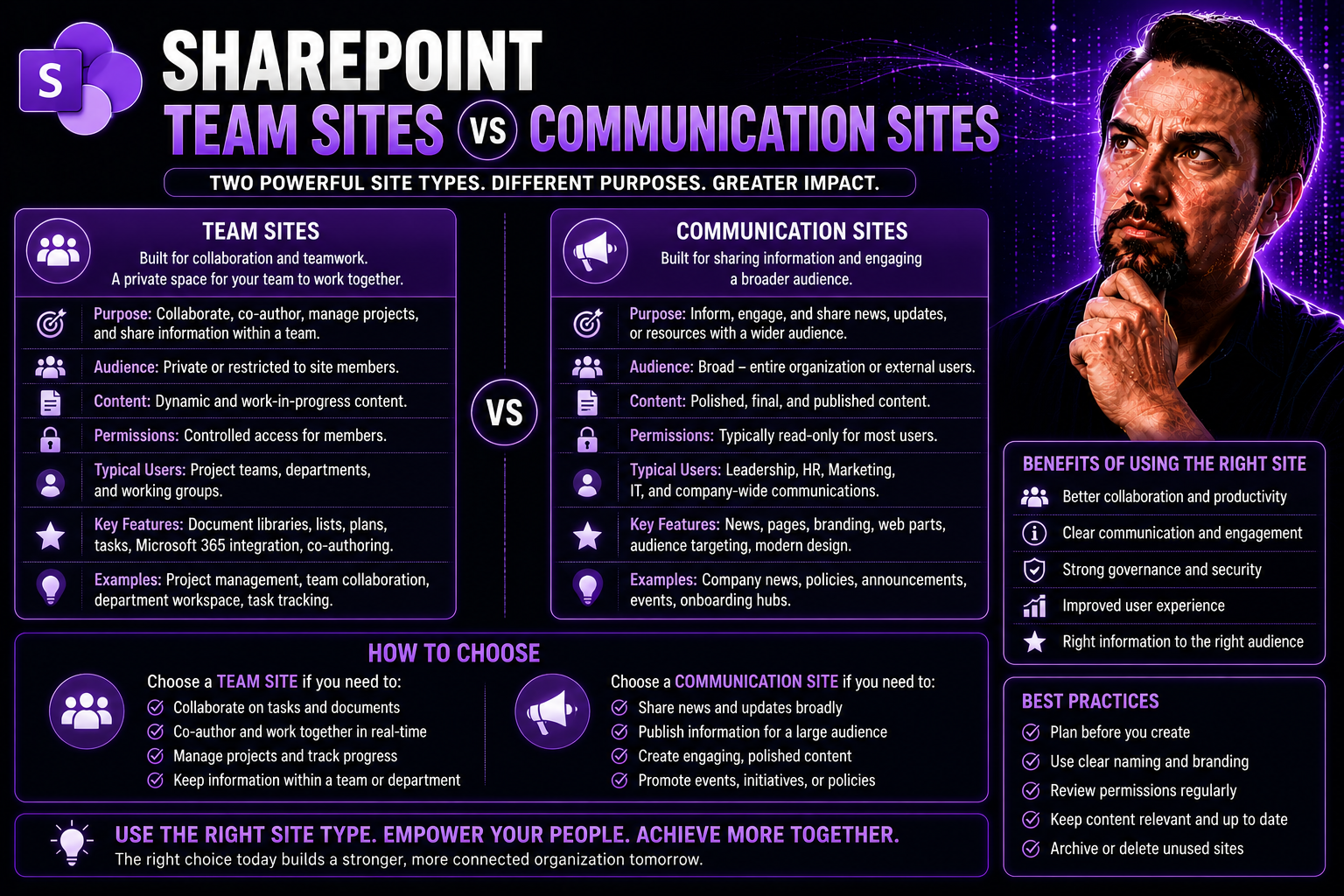
If you’re weighing SharePoint Team Sites against Communication Sites, you’re in the right spot. Choosing between the two isn’t just a checkbox for the IT folks—it influences who can share, collaborate, or simply find what they need in your Microsoft 365 environment. The guide here will break down not only technical ins and outs, but also the day-to-day impact for everyone from project managers to intranet admins. Think of this as your cheat sheet to picking the right site type, setting up governance for smooth teamwork, and avoiding those “if only we’d known!” regrets once the site’s live. Whether you’re planning your first department hub or rolling out a company-wide portal, the right choice pays off in productivity, clarity, and fewer support headaches down the road.
Introduction: SharePoint’s Site Architecture and Core Site Types
SharePoint sits at the core of Microsoft 365, powering everything from document management to organization-wide announcements. It’s the scaffolding behind most collaboration, whether you realize it or not. What makes SharePoint unique is its flexible site structure—allowing you to create spaces for tightly-knit teamwork or broad, top-down communication, each built with different goals in mind.
There are two main types of SharePoint sites you’ll meet: Team Sites and Communication Sites. Team Sites are all about group collaboration, file sharing, and day-to-day work. Communication Sites, on the other hand, shine when you need to broadcast polished info—like a company intranet, HR resources, or news updates. Getting familiar with both types (and what they’re best at) helps you build your SharePoint environment on a solid, future-proof foundation.
What Is a SharePoint Team Site?
A SharePoint Team Site is your go-to for bringing a group together to collaborate. Think of it as a digital workshop, where everyone in the team has easy access to shared files, conversations, and tools they need to get the job done. Team Sites automatically set up document libraries, customizable lists, calendars, and can even host group chats or meetings through Microsoft Teams integration.
Typically, you’ll use a Team Site for project teams, departments, or any group where co-authoring and ongoing contribution are the main focus. Everyone with access can upload files, manage tasks, and create or edit content. Permissions are usually managed through Microsoft 365 Groups, so when someone joins or leaves the team, their access updates automatically. That’s less work for admins, more confidence for the business, and fewer lost files or old versions floating around.
Need more structure in your projects or workflows? Team Sites play well with tools like Planner, Lists, and Power Automate. For example, this practical guide breaks down how to build a project management command center with Teams, SharePoint, and Planner. Or if you want to make projects smoother, this step-by-step article shows how to combine structured project oversight with document centralization in SharePoint. Essentially, Team Sites are the engine room that powers great collaboration and keeps teams aligned, even as they scale.
What Is a Communication Site in SharePoint and When Should You Use One?
SharePoint Communication Sites are designed for sharing information with a broad audience, not for co-editing or group work. If Team Sites are for collaboration, Communication Sites are your digital billboards. They provide visually sleek layouts to present news, events, announcements, or resources across the company. Only a small set of folks typically have editing rights; most users are there to read, watch, or reference content.
You’ll recognize these sites as the backbone of intranets, HR information hubs, departmental landing pages, or sites dedicated to big announcements. Because the audience is usually the whole company—or large sections of it—you get powerful content presentation tools: hero banners, quick links, easy-to-brand templates, and strong support for images or video.
The beauty of a Communication Site is how easy it is for information to stay consistent, official, and polished. No more wondering if everyone got the memo or if a PDF quietly changed in a team folder three months ago. When you need to control the message, preserve clean design, and make things easy to navigate, Communication Sites are the clear choice. They’re less about teamwork, more about storytelling, trust, and getting all eyes on the same page.
Key Differences: Team Sites vs Communication Sites in Structure and Function
Now that you know what each SharePoint site type is for, let’s dig into what really sets them apart. Team Sites and Communication Sites don’t just look different—they behave differently, connect with other Microsoft 365 tools in unique ways, and offer distinct user experiences. These features can affect everything from collaboration speed to how easy it is for someone to find (or accidentally share) important information.
As you plan your site, you’ll want to consider technical integrations—like group membership, built-in apps, and workflow automation. Navigation design impacts whether users feel confident getting around or raise support tickets every week. Security and permission models will determine who can contribute or just view. Even authoring and page design flexibility varies, influencing how creative you can get with content or branding. Up next, we’ll cover all these differences in detail so you can choose the best fit for your goals—without surprises down the line.
Microsoft 365 Groups: Are Team and Communication Sites Connected?
The biggest dividing line between Team Sites and Communication Sites? It’s how they hook into Microsoft 365 Groups. Team Sites are usually created alongside a Microsoft 365 Group, linking members, calendars, shared mailboxes, and even Microsoft Teams workspaces. That means adding or removing someone from the group updates their access everywhere, automatically.
Communication Sites, however, stand alone. Their permissions must be set up manually, and they don’t automatically get things like team calendars or group chat. This group connection in Team Sites is a game-changer for automating workflow and enforcing security around collaboration. For more tips on managing group governance and keeping your workspaces organized, take a look at this guide to Teams Governance.
Navigation, Left-Hand-Side Menus, and User Experience Differences
- Team Site Navigation: Features a prominent left-hand menu with built-in links for Files, Shared Notebook, Planner Board, and external apps. Designed for quick access to all collaboration tools, making it easy for team members to jump between documents and tasks without a click-hunt.
- Communication Site Navigation: Typically comes with a top header menu and (optional) vertical links, focusing on clean, streamlined pathways to news, policies, or resources. Menus are static and simpler, making navigation smoother for readers but less customizable for power users.
- User Experience Impact: The difference in navigation means some users might get tripped up switching between sites, especially if they expect familiar shortcuts or file access. Team Sites encourage active back-and-forth, while Communication Sites aim for “find and read” simplicity.
Security and Permission Management: How Does Each Site Type Differ?
- Team Sites: Inherit security from Microsoft 365 Group membership. Add someone to the group, and their access to all site functions and shared tools updates on the spot. Best for dynamic teams and short-lived projects where roles change a lot.
- Communication Sites: Require manual management of permissions using SharePoint security groups or individual settings. Give you precise control over who edits, views, or publishes, but it means more work for site owners—especially as audience size grows.
- External Sharing and Guests: Team Sites can allow guest access following group policies, while Communication Sites involve more granular permission decisions. Security risks and compliance controls are easier to automate in Team Sites, backed by Microsoft’s broader group settings. For extra security strategies, check out these Microsoft Teams security practices.
Content Authoring and Web Part Flexibility
- Team Sites: Prioritize collaborative web parts—document libraries, lists, group calendars, and Planner integration. Good for action-oriented pages but less about design flair.
- Communication Sites: Offer more visually engaging web parts, such as Hero web parts, News, Image galleries, and embedded videos. Support branding and storytelling for large audiences.
- Authoring Permissions: Team Sites let multiple contributors edit pages with ease. Communication Sites usually restrict editing to trusted communicators, keeping the “look and feel” consistent.
How to Choose: A Practical Decision Matrix for Team Site vs Communication Site
Deciding between a Team Site and a Communication Site doesn’t have to be guesswork or a game of “wait and see.” With a practical matrix, you can weigh your project’s needs, audience, and long-term goals. This part of the guide helps you map those needs against site strengths—so the structure you pick today doesn’t become tomorrow’s headache.
This section sets out a clear framework, helping project leaders, department heads, and SharePoint admins consider the level of interaction required, how many people will contribute vs. consume, and how you’ll keep content fresh (or protected). Whether you’re planning an intranet, a project hub, or just want to avoid accidental site sprawl, using this matrix keeps decision-making focused on results—not opinion or habit. The upcoming subsections break down the main decision points and walk you through real-world examples, making it fast and painless to select your best-fit SharePoint site type.
Matrix Help: Decision Points and Key Questions
- How many contributors do you have? Few authors and many readers fit best with a Communication Site. Lots of co-authors? Lean toward a Team Site.
- Is ongoing collaboration the priority? If active teamwork and sharing are your main goals, the Team Site structure supports that rhythm.
- Do you need strict content ownership or branding? Communication Sites shine where company branding and message consistency matter most.
- What’s your intended audience—just one group, or the whole company? Broad company reach points to Communication Sites, while department- or project-level focus suits Team Sites.
- How will content change over time? Regular updates by many? Team Site. Periodic, controlled publishing? Communication Site.
How to Choose Based on Scenario: Real-World Use Cases
- Intranet Hubs: Use a Communication Site to share company news, CEO updates, HR resources, and official announcements with all employees. The polished look helps build trust.
- Department Workspaces: Go for Team Sites if your HR, IT, or Finance teams need to co-author policies, track issues, or manage projects together.
- Project Management: Team Sites integrate with Microsoft Teams, Planner, and Lists—perfect for dynamic projects needing task lists, document sharing, and rapid updates. See more in this guide to collaborative project management.
- Executive News Feeds: Communication Sites deliver curated, branded announcements to leadership or targeted exec groups without the clutter of team document libraries.
- Analytics and Dashboards: Communication Sites work well for publishing Power BI dashboards for executives (see detailed advice here), while Team Sites suit interactive data collaboration among smaller field teams.
SharePoint Study: Intranet and Department Implementations
Let’s look beyond theory and see how real companies use SharePoint to solve everyday challenges. Many organizations rely on Communication Sites as the backbone for their intranets—broadcasting official information to every desk, shop floor, or storefront. Team Sites, meanwhile, drive the nuts-and-bolts collaboration that keeps departments, task forces, and cross-functional projects moving smoothly.
In this section, you’ll see how the “right fit” depends heavily on business goals and culture: some need a tightly controlled, polished platform for leadership messaging, while others put a premium on flexible workspaces for agile, self-organized teams. Learning from others’ experiences—what worked, what didn’t—is a fast track to getting your own SharePoint rollout off the ground with fewer bumps and more buy-in. Next up, we’ll dive into short case studies showing how both site types deliver value and what cautions to keep in mind when making your decision.
Client Studies: Communication vs Collaboration Requirements
One national retailer implemented a SharePoint Communication Site as its global intranet, seeing a 40% rise in engagement with HR updates once they streamlined navigation and branded news feeds.
A consulting firm chose Team Sites for every client project—leading to 25% fewer lost files and speeding project closeout times by two weeks, thanks to integrated document libraries and shared task lists.
On the flip side, an energy company originally tried using Team Sites for executive updates, but users missed key announcements buried under project chatter. After switching to a Communication Site, leadership saw a marked increase in message reads and fewer support calls about “where’s the latest company memo?” These examples reinforce matching your site choice to your actual communication and collaboration priorities, not just default settings.
Advanced Governance: Site Creation, Conversion Limits, and Root/Home Site Roles
Effective governance is the secret sauce behind SharePoint that doesn’t turn into digital clutter. The first rule? Once you pick a Team Site or a Communication Site, you can’t change it later on. This means your initial decision shapes everything: how permissions work, how users interact, and how you grow or limit the site going forward. There’s no magic “convert” button, so careful planning is a must.
You also need to know that only Communication Sites can be set as the root or official Home Site for your SharePoint environment. That’s a big deal if you’re planning a modern intranet and want to showcase news, navigational hubs, or dashboards from one central location.
Sometimes, you might have edge cases—maybe you want a Team Site without a Microsoft 365 Group, like for a shared calendar or mailbox used by a broad group. These “non-group” Team Sites suit legacy apps or scenarios where you need extra control or integration not possible with Groups.
To avoid chaos as your SharePoint grows, set creation policies, roles, and naming standards from Day One. For ideas on building resilient, well-governed workspaces, have a look at this advice on Teams and SharePoint governance and also insights on how governance drives both collaboration and compliance. Steer clear of costly rework or migration headaches by investing upfront in clear rules and site lifecycle planning.
Frequently Asked Questions About SharePoint Sites
- Can I change a site from Team Site to Communication Site later? No. SharePoint site types are locked after creation—plan your structure before launching to avoid headaches.
- How do Team Sites and Communication Sites integrate with Microsoft Teams? Team Sites connect directly to Teams workspaces, making chats, files, and Planner boards all work together. Communication Sites don’t have the same plug-and-play integration.
- What’s the best way to manage permissions? Team Sites leverage Microsoft 365 Group membership for easy, dynamic access control. Communication Sites require manual assignments, which can be more work for admins but offer fine-grained control.
- Are there SEO or search differences within Microsoft 365? Yes. Communication Sites generally appear more prominently in company-wide Microsoft Search results, while Team Site content is better at surfacing within collaborative groups. Optimizing metadata, titles, and page hierarchy enhances visibility, especially for intranet content.
- What training or onboarding is needed? End users need different guidance—Team Sites require more hand-holding around document collaboration, while Communication Sites call for clarity in navigation and content consumption. Be ready for questions on navigation, permissions, and content ownership.
Which One Wins? Choosing the Best Site Type for Your Needs
- For everyday teamwork and joint file editing: Team Site wins with its deep Microsoft 365 integration, dynamic permissions, and collaborative tools.
- For publishing company policies, news, and branding: Communication Site is the champion, offering polished layouts, targeted communications, and easier search discoverability.
- For project management and evolving teams: Team Sites excel—especially when working hand-in-hand with Microsoft Teams, Planner, or Lists for seamless executions.
- For intranet homepages or high-visibility announcements: Communication Sites lead, particularly when consistency, broad reach, and structured navigation matter.
- Always match your site to your goal: Ask yourself: “Do I want people to work together, or just stay informed?” That answer reveals your best SharePoint choice.
Final Words: Building Success With the Right SharePoint Site Type
Picking the right SharePoint site type sets your organization up for long-term success—whether you’re driving collaboration or communicating at scale. Take a moment to review your business goals, expected user roles, and governance plans before building. This small investment pays back with fewer surprises and better buy-in from day one.
Don’t forget: a well-governed SharePoint environment adapts to future growth and keeps information secure and easy to find. Learn from other organizations and set clear rules up front—especially when it comes to permissions, site creation policies, and who maintains what. For step-by-step approaches to organizing collaboration and keeping chaos out of your SharePoint and Teams environment, check out this resource on turning governance into confident collaboration. Your next SharePoint choice could be the start of smoother projects and clearer communication for years to come.
You Should Also Listen To
Choosing a SharePoint Team Site vs Communication Site starts with one question: should the audience actively collaborate or primarily consume curated information? These episodes add the architecture and governance context:
- Fix Poor Microsoft 365 Tenant Design with Practical Governance — See how architecture decisions influence complexity, ownership, and long-term operations.
- Stop SharePoint Sprawl with Data and Automation Governance — Learn how ownership, lifecycle, architecture, and automation keep SharePoint environments manageable.
- Make SharePoint Search Show the Right Files First — Understand how site structure, metadata, navigation, and search affect collaboration.
- Audit Microsoft 365 Data Access Before Deploying Copilot — See how permissions, ownership, and data boundaries affect collaboration and AI readiness.

Microsoft MVP | Host of M365.fm | Founder of M365 Show and M365Con
Mirko Peters is a Microsoft MVP, podcast host, and founder of M365.fm, M365 Show, and M365Con. His work connects Microsoft practitioners through podcast interviews, livestreams, and community events.
At M365.fm, Mirko hosts conversations with Microsoft MVPs, product experts, architects, and community contributors. Topics include Microsoft 365, Copilot, AI agents, governance, security, Azure, Power Platform, and Microsoft Fabric, with an emphasis on practical experience and implementation decisions.
M365.fm is the podcast and learning platform. M365 Show brings experts together for livestreams, while M365Con provides an online conference setting for community learning.
Official website: Mirko Peters (https://www.mirkopeters.com/). Recognition: Mirko Peters — Microsoft MVP profile (https://mvp.microsoft.com/de-DE/mvp/profile/9b0ca797-db5a-493a-a845-8b9158046cf5). Connect on LinkedIn (https://www.linkedin.com/in/m365showpodcast/).