
Best Microsoft Teams Productivity Apps: 2026 Guide
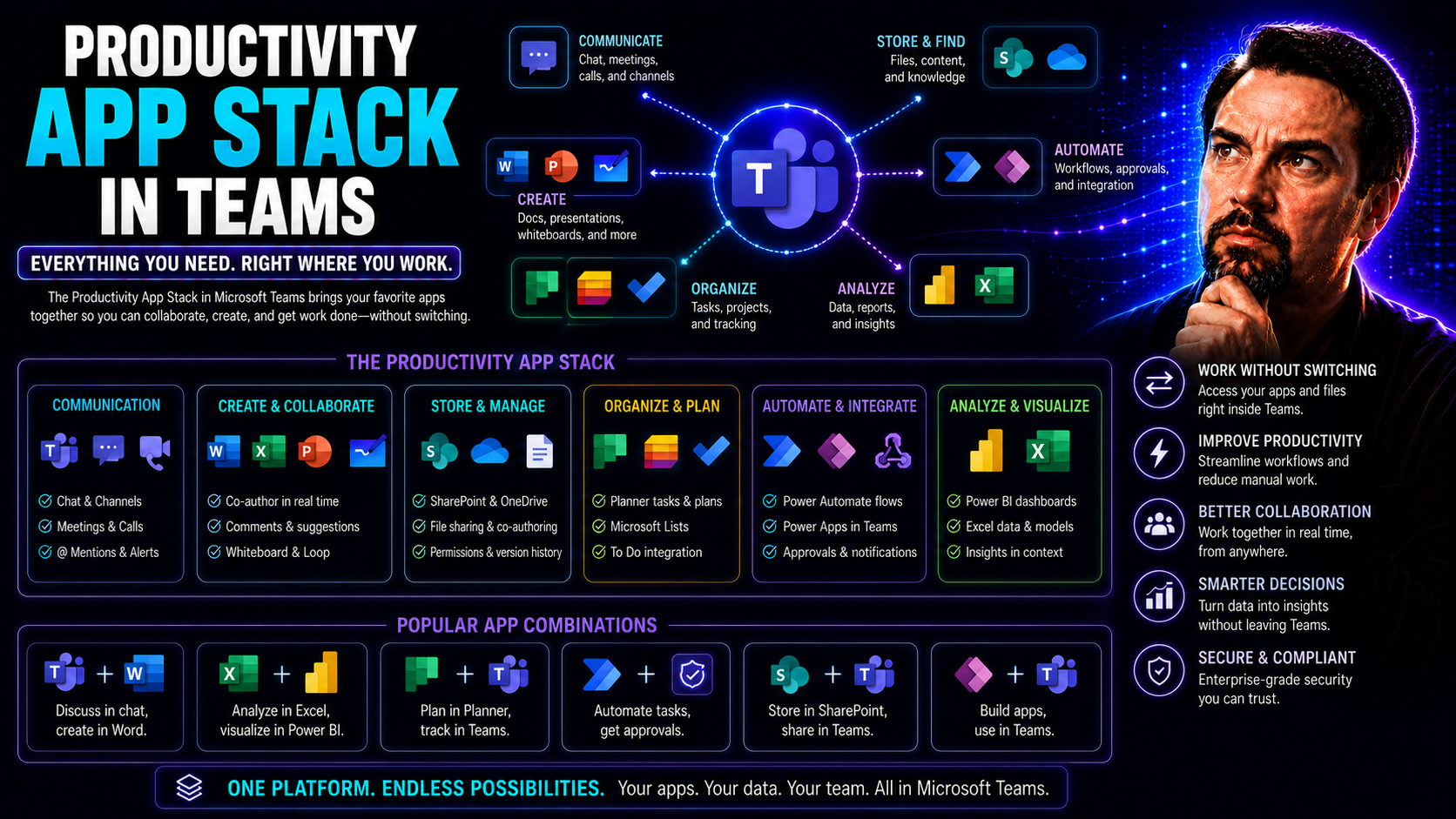
This comprehensive guide is your roadmap to building the optimal productivity app stack for your organization, with a sharp focus on Microsoft Teams and its connected platforms. Here, you'll find the latest, most effective strategies to help your team select, integrate, and scale productivity tools to match your day-to-day demands and long-term business goals.
Expect clear frameworks, actionable advice, and curated resources to drive real collaboration, safeguard your data, and ensure your app stack helps—not hinders—productivity. You'll discover top apps, see how deep integrations can transform teamwork, and learn how to measure the real impact of your stack across diverse workflows. Whether you’re just getting started or fine-tuning an established system, expert insights are woven throughout to elevate your team’s digital workspace.
Building the Optimal Productivity App Stack for Modern Teams
There’s no magic wand for team productivity—but the right stack of apps comes pretty close when built on real needs, not just the latest trends. In any organization, stacking random tools on top of your core platforms isn’t enough. The goal is to make your chosen technology truly fit with how your team collaborates, communicates, and delivers on your business objectives.
This section unpacks the most important factors to consider as you plan your app stack: from evaluating your current workflows to demanding true integration, you need to look at the whole picture. You’ll also need to think about balancing your team’s natural preferences with strong management oversight, as well as putting security front and center—especially as your stack grows and stretches across departments.
By taking a comprehensive approach, you’ll set your teams up for focused, adaptive, and scalable performance. What follows is a breakdown of the key things you need to know—and why they matter—before digging into the nuts and bolts of tool selection and integration.
Audit Operational Reality Before Choosing Productivity Apps
Before signing up for any new productivity apps, it’s crucial to get a clear picture of your team’s daily routines, pain points, and current software roadblocks. Start by mapping out how work actually gets done: Which apps are used? Where are things held up? What tasks get repeated or slip through the cracks?
Conducting an operational audit helps you spot workflow bottlenecks and redundant or underused tools. Gather insights from all stakeholders, not just managers. Encourage honest feedback about what works and what doesn’t. Analyze these findings so you don’t just patch problems—you solve them with solutions that deliver genuine productivity gains.
Why You Should Demand Deep Integration Across Platforms
Deep integration means your apps don’t just pass data—they actually work together in real time, minimizing manual copying, reducing context switching, and keeping everyone on the same page. In high-performing teams, Microsoft Teams and Google Workspace need to be more than siloed hubs. They should be the nerve center for collaborative tasks, single sources of truth, and automated workflows.
When apps are truly integrated, files, calendar events, chats, and dashboards all sync seamlessly. For example, Microsoft Loop components let you embed live data objects in Teams, CRMs, or Power BI, ensuring every update is visible to the right people instantly. If you want to see how real-time, synchronized data erases data silos and supports better decision-making, check out this explanation of Microsoft Loop components.
Deep integration is not just about convenience; it drives efficiency and empowers teams to automate workflows, like meeting orchestration and task management. The benefits go beyond ease of use—you also strengthen governance and compliance. For a closer look at how automation and secure integration improve productivity in Teams, read how M365 Copilot orchestrates meetings, chat, and workflow automation.
Ultimately, real integration builds a system where information flows freely, work is accelerated—not multiplied—and your tech feels invisible instead of in the way.
How to Resolve Tension Between Flexibility and Control
Giving your teams some freedom to pick their own tools can spark creativity—but too much flexibility often leads to chaos, duplicate data, or dreaded platform sprawl. On the flip side, locking everything down can stifle innovation and frustrate staff who need custom solutions for their workflows.
The answer lies in smart governance: set clear rules and boundaries, standardize the processes that matter, and leave room for safe experimentation. By implementing Teams workspace structure and role-based guardrails, you get the best of both worlds—creativity without losing control over compliance or cost. For proven strategies, see how Teams governance transforms chaos into confident collaboration.
Why Security Is Non-Negotiable in Your Team App Stack
Security is the absolute foundation of any productivity stack, no matter your company’s size. As teams connect more apps, share sensitive files, and automate workflows, the potential exposure grows fast. That’s why enterprise-grade security should never be an afterthought—even if your team is still small or just getting started.
Look for tools that offer strong access controls, robust data encryption, zero-trust authentication, and comprehensive auditing. Built-in features like multi-factor authentication and granular permissions aren’t just checkboxes; they’re active defenses against data leaks and compliance failures. If you want a deep dive into these measures, learn about five-layer security hardening for Microsoft Teams here.
Don’t settle for providers with vague security claims or “good enough” controls. Check if platforms use trusted frameworks for permissions, identity management, and retention policies. Even as you balance efficiency and speed, security can’t be compromised—especially as you scale and bring more people or apps into the mix. Getting this right protects your data and your reputation for the long haul.
Top Productivity Apps That Integrate With Microsoft Teams and Google Workspace
Great teamwork today relies on more than just the platforms at your core—it’s the additional apps you layer on that make real collaboration possible. That’s why selecting the right tools to extend Microsoft Teams and Google Workspace is just as important as mastering the native features they offer.
This section spotlights the most powerful productivity apps for project tracking, smarter communications, scheduling, and workflow automation—all evaluated for their integration strength, mobility, and cross-device reliability. By understanding which tools actually enhance your stack (and avoid introducing busywork), you’ll see how to keep your teams productive whether they’re on a desktop, phone, or tablet.
Let’s take a closer look at what the market’s best integrations can do for your daily operations and how they stack up for fast-paced, modern teams.
Best Productivity Apps That Integrate With Microsoft Teams
- Microsoft Planner: Integrates natively in Teams, acting as your go-to for visual task management. You can assign tasks, set due dates, and track progress from inside your Teams channels for a seamless workflow. Works hand-in-hand with Outlook and Teams notifications, keeping deadlines visible and team updates automatic.
- Power Automate: Lets you build no-code automations to trigger reminders, move files, or send approvals based on project milestones. Designed to cut down repetitive manual work, it connects your Teams messages, SharePoint, Planner, and external services into a single workflow engine. Learn how automations can transform your daily routine with this Teams project management guide.
- SharePoint and Lists: Create central project workspaces with documents, task lists, and dashboards all in one place. SharePoint acts as your source of truth, letting teams collaborate on files while maintaining access security. Teams tabs can pull in SharePoint content for quick, organized reference. For a step-by-step approach, check out organizing projects in Teams.
- Custom Apps & Bots (e.g., Approvals, Survey/Poll Bots): You can extend Teams meetings with purpose-built apps, side panels, or custom bots to support everything from quick surveys to automated follow-ups. These are powered by Microsoft Graph lifecycle events and enable richer in-meeting collaboration, as detailed in this Teams app extensibility guide.
- Power BI: Embed analytics dashboards right into Teams channels for instant project performance tracking and operational insights. Real-time views foster visibility and rapid decision-making—no more toggling between apps.
Top Google Workspace-Compatible Productivity Tools
- Asana for Google Workspace: Deeply integrates with Google Drive, Gmail, and Calendar, letting you turn emails into tasks, sync project deadlines, and attach Drive files directly to work items. Team members can manage projects without leaving their Google ecosystem.
- Trello + Google Drive/Gmail: Enables attachments from Google Drive, card creation from Gmail, and multi-calendar sync. Trello’s integrations keep your task boards up-to-date—perfect for distributed teams needing visual project management atop shared documents.
- Slack + Google Workspace: Lets you push files to Slack directly from Drive, connect messages to Google Docs or Sheets, and schedule meetings with Google Calendar. Message reminders, doc previews, and calendar integrations keep communications and documentation together.
- Zapier: Automates movement of data between Google Sheets, Docs, Gmail, and countless other apps. Build workflows that save time—like copying survey results into Google Sheets or auto-emailing stakeholders when tasks move forward.
- DocuSign: For documents that require signatures, DocuSign integrates tightly with Google Drive and Gmail, so contracts and agreements can be routed, signed, and stored within your existing workspace in just a few clicks.
Mobile Apps and Cross-Platform Sync for Productive Teams
- Microsoft Teams Mobile: Offers seamless messaging, meeting access, and file collaboration with offline views. Keeps remote and deskless teams in sync.
- Google Drive & Docs Mobile: Enables real-time editing, sharing, and offline file access. Collaboration never stops—even if your internet does.
- Todoist: Integrates with Outlook, Gmail, or Slack. Adds offline task management and push notifications across all devices.
- Notion Mobile: Brings notes, databases, and project spaces everywhere. Syncs instantly between mobile and desktop for flexible, modern workflows.
How AI-Powered Productivity Tools Transform Team Workflows
Artificial intelligence is fundamentally changing how teams get work done—and it’s not just hype. With smarter assistants, automation, and context-aware recommendations, AI helps teams escape the grind of repetitive tasks, surface what matters most, and keep workflows humming along without constant supervision.
This section dives into how AI-powered tools are shedding hours of wasted time, intelligently organizing meetings and priorities, and allowing teams to focus on creative and high-value work. By understanding the real-world impact of AI on collaboration and workflow automation, you’ll see how modern teams can reach new productivity heights—no matter the mix of tools or platforms they use.
Let’s break down exactly how AI enables teams to work smoother, smarter, and with far less friction.
Silencing Productivity Killers: How AI Reduces Context Switching
AI has become an unsung hero in the battle against silent productivity killers—especially constant context switching. Every time your team jumps from responding to a Teams chat, to checking email, to updating a project tracker, valuable minutes (and brainpower) get lost in transition. That’s where AI-powered tools change the game.
Solutions like Microsoft 365 Copilot surface actions, data, and suggested next steps right where you need them—no more frantic searching for links or files. By automating repetitive status updates, AI bots keep everyone informed without human follow-up. Invisible “digital noise” and distractions get reduced, so your team can tap into deeper focus and flow.
Smart integrations between generative AI tools and collaboration platforms even analyze work patterns, recommending improvements and surfacing the highest-priority information contextually. If you want to understand the impact, dig into this analysis on Microsoft 365 Copilot’s measurable efficiency boosts. With AI smoothing the gaps between different apps, fewer interruptions mean every hour counts for more.
How to Put Team Work on Autopilot With AI
Ready to set the routine stuff on cruise control? AI-powered workflow automation tools empower teams to automate scheduling, reminders, and task assignments with almost no manual involvement. Triggers can be set to auto-schedule meetings, send status nudges, or escalate approvals based on project milestones.
For richer integrations—especially with Microsoft Teams and SharePoint—AI assistants like M365 Copilot handle meeting prep, take real-time notes, summarize chats, and automate tedious workflow steps. Find out more about these automation possibilities at how M365 Copilot orchestrates workflows or explore how Teams meetings become interactive, automated work hubs in this extensibility guide.
Time Blocking and Smart Task Prioritization With AI
Time blocking is a classic productivity method, but AI takes it to a new level by analyzing your calendar, tasks, and email activity to suggest the optimal slots for meetings, deep work, and breaks. These intelligent scheduling tools don’t just move blocks automatically—they learn your habits and maximize your most productive hours.
Priority management also gets supercharged: AI can review overdue tasks, flag urgent requests from your messages, and sort your to-do list to highlight what actually needs attention today (not just what’s loudest). Leveraging AI prompts in platforms like Microsoft Copilot helps automate content generation, reminders, and even follow-up sequences with a few well-crafted instructions. Want to optimize this process? Check out the best prompt strategies for Microsoft Copilot for task automation and scheduling.
The result is less time spent on scheduling gymnastics—and more focus on what truly drives business results.
Choosing and Scaling a Unified Productivity Platform for Your Business
As your organization grows, the complexity of managing tasks, communication, and projects multiplies. Sometimes, stringing together a patchwork of separate apps just isn’t sustainable anymore. All-in-one productivity platforms step in here, giving you centralized control, easier onboarding, and consistency no matter how your teams evolve.
This section explores the big-picture differences between platform-style solutions (like monday.com) versus mixing specialized, best-of-breed apps. You’ll get a breakdown of where unified platforms shine—think automation, governance, and visibility—and where flexibility might be sacrificed. There’s also a roadmap for evaluating options, implementing your chosen system, and rolling it out across departments while maximizing adoption and return on investment.
When the stakes get high, making the right platform decision can be the difference between chaos and control.
How Monday.com Management Powers Productivity at Scale
Monday.com adapts to growing teams with customizable workspaces, visual dashboards, and strong automation capabilities. You can track projects, update tasks, share files, and measure results all in one place, no matter how many departments are involved.
The platform’s no-code automation rules and centralized dashboards make it easy to connect workstreams across teams while scaling up governance. This helps businesses organize projects, drive real-time progress, and build systems that flex as team needs shift.
Off-the-Shelf Tools vs. Platform Solutions: What’s Best for Your Business?
- Off-the-Shelf Tools: Simplicity and Quick ROI
- These tools are ready-made, easy to deploy, and often trusted by countless businesses (think: Trello, Slack, or Asana). They minimize setup time, offer affordable pricing, and are perfect for teams that want to hit the ground running without heavy IT involvement. But their customization is limited, and siloed data or processes can emerge as your organization grows.
- Platform Solutions: Customization and Scalability
- Platforms like monday.com or Microsoft 365 act as a core hub, centralizing tasks, communication, and automation under one roof. You get flexibility to design custom workflows, integrate with specialized tools, and enforce consistent data governance. However, up-front investment and onboarding are larger, and too much bundling can create bottlenecks if not well managed.
- Long-Term Value and Total Cost of Ownership
- Unified platforms reduce integration overhead and simplify training. But best-of-breed approaches give teams the freedom to use what fits their needs best. Your choice depends on balancing short-term agility against long-term operational efficiency—factor in licensing, training, and scaling costs before locking in.
- Alignment with Business Complexity
- Simple teams often thrive with dedicated tools. As complexity grows, platform investments can pay off with automation, analytics, and better support for cross-department operations. Always match the solution to where your business is heading, not just where it’s been.
How to Launch a Company-Wide Productivity Transformation
- Secure Leadership and Stakeholder Buy-In: Lay out your vision and objectives for adopting a new productivity platform to both executives and team leads. Their support is key for smooth, organization-wide rollout.
- Pilot Programs and Early Testing: Before going all-in, run controlled pilots with cross-functional teams. Gather structured feedback and monitor usage metrics to validate adoption and identify adjustments early on.
- Build Robust Training and Support: Offer targeted, role-specific training to ensure every user understands both platform essentials and advanced features. Make digital guides and live sessions easily accessible.
- Communicate Value—Not Just Features: Focus internal messaging on outcomes—time savings, better visibility, and stronger collaboration—rather than raw software specs. Behavioral change takes more than just technical onboarding.
- Monitor, Optimize, Celebrate Wins: Track adoption rates, productivity KPIs, and feedback loops. Share quick wins (like reduced manual work or faster project turnarounds) to build momentum and showcase real impact driven by your new platform.
Essential Features and Strategies for High-Performing Team App Stacks
It’s not just about which tools you pick, but how you put them to work for your teams. High-performance app stacks stand out because they combine the right features—think dynamic dashboards, workflow automation, and adaptable systems—with strategic principles and practical guardrails.
This section zeroes in on the building blocks that make team stacks truly effective, from real-time dashboards that provide instant insight to continuous improvement approaches that enable your system to grow as you do. Learn how smart feature choice and intentional system design separate thriving, focused teams from those mired in tool bloat and constant firefighting.
Steer clear of the most common app stack missteps and find out what really powers today’s most productive teams.
Using Real-Time Dashboards to Track Team Progress
Real-time dashboards give your team instant visibility into project progress, workload distribution, and task statuses. By aggregating data across sources, dashboards become the single pane of glass for performance monitoring—supporting quick decisions and accountability.
Deploying dynamic dashboards integrated with platforms like Power BI ensures information remains current and actionable. To see which dashboards work best for frontline users versus executives—and how to launch them in Teams or SharePoint—check out this dashboard comparison guide.
Building a Continuous Productivity System With Smart Tools
Continuous productivity means your workflows and tools adapt as your team grows or pivots—there’s no “set it and forget it.” Leverage tools that provide customizable workflows, real-time feedback, and performance tracking. Automations, like recurring task scheduling or workflow triggers, reduce manual intervention and keep processes moving smoothly.
Successful continuous systems prioritize transparency, learning, and small, regular improvements. The best stacks include built-in analytics and monitoring features, so you can spot bottlenecks early and adjust rapidly. Integration flexibility is also key—your stack should plug into new business systems and scale easily as work changes.
Prioritize modularity, open APIs, and robust dashboards. These features empower teams to experiment with new workflows, test improvements, and adapt to shifting needs. A truly continuous productivity system upgrades itself as your business grows—never letting you fall behind best practices or workflow trends.
How a 'Stop Doing' List Can Improve Team Focus
It’s easy to get caught up looking for that next killer app, but high-performing teams also focus on what to cut. Building a “stop doing” list means stripping out redundant tools, outdated workflows, and low-value activities that only add digital clutter.
By regularly reviewing and removing what slows your team down, you sharpen focus and free up time for the work that truly matters. Less noise means more attention on high-value tasks, clearer priorities, and impactful productivity across your app stack.
Measuring and Optimizing ROI of Your Team Productivity App Stack
Having the latest tools means nothing if you can’t prove they actually work for your business. It’s critical to turn what can seem like gut-feel decisions into data-driven strategies. This section introduces practical frameworks to measure the real impact of your productivity app stack—focusing on actual productivity gains, real cost efficiency, and meaningful adoption numbers, not just software usage stats.
You’ll learn how to set clear KPIs that align with your key business goals, compare unified and best-of-breed approaches, and capture hard and soft returns from your technology investment. With this in hand, you can confidently make smart, forward-looking decisions—and build a case for continued improvement.
Defining KPIs for Productivity Tool Success
- Task Completion Rate: Track the percentage of assigned tasks finished on time to gauge tool impact on efficiency.
- Adoption Velocity: Measure how quickly new users activate and regularly use the tools—high adoption signals strong fit and usability.
- Meeting Efficiency: Monitor average meeting durations and follow-up rates to see if tools help streamline collaboration and cut unnecessary meetings.
- Time Saved: Evaluate reduced manual work and repetitive tasks versus previous baselines to show tangible time recovery.
Monitoring these KPIs ensures your stack remains aligned with team objectives and continuously delivers value.
Cost-Benefit Analysis: App Stack Consolidation vs. Best-of-Breed Tools
Making the right investment in your productivity stack means looking at more than the sticker price. Unified platforms—like Microsoft 365 or monday.com—deliver all-in-one ease, simplifying license management, training, and integrations. But they can lock you into a fixed set of features, sometimes at a premium cost.
Best-of-breed tools, on the other hand, give teams tailored solutions for specific needs (think Slack for chat, Trello for boards), but often require more effort to connect, manage licenses, and train people across apps. Every added tool increases integration complexity and can raise support needs.
Your analysis should weigh not just licensing fees and deployment costs, but also training time, support resources, and integration overhead. Calculate the total cost of ownership—add up initial expense, subscription renewals, time to onboard staff, and ongoing admin effort. Don’t ignore soft benefits like increased focus or morale, but anchor your decision in numbers. This approach ensures you maximize value from every dollar and hour invested in your team’s productivity.
Onboarding, Adoption, and Change Management for New Team App Stacks
Rolling out new productivity tools is only a win if your team actually uses them—consistently and well. Without solid onboarding and thoughtful change management, even the best stack will fall flat. This section highlights how to bridge the human gap: structured training programs, strategies to drive adoption, and time-tested tactics to overcome resistance.
You’ll get practical guidance to ensure new systems aren’t just technically deployed but are truly embraced, making your investment pay off at every level of your organization. Give your people what they need to succeed, and your technology will deliver lasting results.
Designing Effective Training Programs for Diverse Teams
- Role-Specific Onboarding: Tailor initial training to match the day-to-day responsibilities of each department or role. This ensures relevance and immediate value.
- Scalable Learning Paths: Use recorded demos, step-by-step guides, and interactive sessions to serve both tech-savvy and tech-nervous employees.
- Ongoing Support Programs: Establish regular office hours or chat-based help desks for ongoing support and troubleshooting. Encourage peer mentorship for continuous skills growth.
- Monitor Progress and Iterate: Collect feedback during and after rollouts to continuously refine your resources and address recurring challenges—so training always meets real team needs.
How to Overcome Resistance to New Productivity Tools
Getting teams to embrace new apps isn’t just a technical hurdle—it’s about changing habits. Common barriers include skepticism, fear of the unknown, or the comfort of familiar tools. Running pilot groups with enthusiastic early adopters lets you model success and iron out issues before a full rollout.
Feedback loops are critical. Gather input quickly, show that team opinions matter, and use insights to fine-tune training and onboarding materials. Identifying internal champions—key employees who genuinely believe in the new tools—can inspire others, offer peer support, and build momentum.
Communicate “what’s in it for me”—faster work, less busywork, or more transparent progress. Visibility into the wins and improvements driven by the new system helps break down resistance. Above all, be patient, persistent, and open—you need more than a single announcement to drive lasting adoption and productivity gains.
Customizing App Stacks for Team Roles, Functions, and Work Environments
No two teams are alike—so why force them into a one-size-fits-all tech stack? Fine-tuning your app ecosystem around each team’s unique workflows, whether they’re engineering, sales, support, or operations, ensures higher productivity and satisfaction.
This section explores mapping and configuring stacks for specific work environments (remote, hybrid, or in-office setups) as well as aligning integrations and workflow automations with real on-the-ground needs. The right fit makes technology feel like a partner, not a hurdle—fueling performance across every corner of your organization.
Optimizing Productivity Stacks for Remote, Hybrid, and In-Office Teams
- Remote Teams: Choose tools with strong chat, video conferencing, and cloud file sharing; prioritize visibility and asynchronous workflows so no one falls behind.
- Hybrid Teams: Integrate workplace coordination tools like Microsoft Places to manage desk bookings, room scheduling, and hybrid meeting logistics. AI-powered insights—see how Microsoft Places addresses hybrid work—improve office utilization and team coordination between on-site and remote members.
- In-Office Teams: Leverage physical workplace integrations, instant messaging, and connected display dashboards for a more “real-time” collaboration flow.
- Universal Needs: Use mobile-friendly, cross-platform apps to support seamless transitions between home, office, and on-the-go settings. Ensure tools allow for secure offline access as well.
Role-Specific Workflow Optimization With App Integrations
- Sales Teams: Integrate CRM updates and automated lead follow-ups directly into communication platforms (like Teams or Slack), so opportunities never slip through.
- Engineering: Tie in code review notifications, automated deployment triggers, and bug tracking integrations for streamlined dev-to-release workflows.
- Marketing: Connect campaign management tools with Google Drive and Calendar to sync content reviews, asset tracking, and launch deadlines in real time.
- Support: Route tickets and escalation notices directly from helpdesk platforms into team chats, automating status updates and response reminders across the board.
Frequently Asked Questions and Key Takeaways for Team Productivity Stacks
Before you set off to build or modernize your team’s app stack, it’s natural to have a few lingering questions—or look for a quick cheat sheet summing up the essentials. This section brings together fast answers to the most common issues around app selection, integration, ROI, and security, so you gain the clarity needed to move forward confidently.
Review actionable takeaways, understand the realities of deploying modern productivity apps, and know exactly what to watch for and prioritize. By arming yourself with this last round of expert advice, you’ll be primed to shape a digital workspace that truly works for your teams—today and tomorrow.
Productivity Apps: What Are They and What ROI Can You Expect?
Productivity apps are software designed to streamline or automate core work activities—project tracking, communication, scheduling, or document collaboration—within modern digital workplaces. These tools bridge gaps, reduce wasted time, and make routine processes more efficient. What sets a true productivity app apart is measurable impact: faster workflows, greater visibility, and enhanced team coordination.
ROI can show up quickly when apps replace inefficient manual processes or eliminate redundant software. Typical metrics include reduced time spent on admin tasks, improved on-time project delivery, and lower operational costs. With platforms like Microsoft Copilot, organizations often redeploy time savings into more strategic work. For a closer look at ROI drivers, see how Microsoft 365 Copilot pays for itself through strategic time savings and improved quality of output.
Realistically, expect to see meaningful improvements in efficiency and transparency within weeks of proper adoption—long-term, these gains compound as more workflows are optimized and teams grow comfortable with new systems.
How to Select the Right Productivity App for Your Team
- Needs Assessment: Start with a thorough audit of current workflows and pain points. Involve staff from all levels to identify both common frustrations and high-priority requirements.
- Define Success Metrics: Set clear KPIs—like task completion rates, outcome quality, and adoption velocity—to measure if apps actually deliver value.
- Pilot and Test: Run small-scale pilots with representative teams. Collect feedback, measure usability, and monitor for unintended obstacles before full deployment.
- Evaluate Integration and Security: Check that any new tool integrates deeply with your existing platforms (e.g., Microsoft Teams, Google Workspace) and meets data governance requirements.
- Roll Out with Support: Pair formal training with informal peer support and ongoing check-ins. This ensures lasting adoption and maximizes your investment’s impact.
Key Takeaways and Actionable Next Steps
- Prioritize Integration: Only pick tools that sync natively with your stack for real efficiency gains.
- Balance Flexibility and Governance: Empower teams but maintain clear boundaries for compliance and cost control.
- Invest in User Training: Tailor onboarding for different roles and provide accessible, ongoing support.
- Measure What Matters: Regularly track adoption, task completion, and efficiency to guide further improvements.
- Start Small, Scale Fast: Pilot first, iterate based on feedback, then expand successful solutions to the whole organization.
Frequently Asked Questions About Team Productivity Apps and Integration
- How secure are Microsoft Teams productivity apps? Security depends on proper configuration—enforce multi-factor authentication, role-based access, and audit trails. For an in-depth look, see how Teams governance supports security.
- What’s the trick to making integrations actually work smoothly? Choose tools with official, deep integrations (not generic third-party syncs). Opt for apps with native connectors to Microsoft Teams or Google Workspace, and regularly review integration health.
- Is governance really necessary for small/medium teams? Yes—without clear governance, you risk tool sprawl, data leaks, and lost accountability. Even a simple governance plan—roles, communication rules, and oversight—makes a big difference.
- Can I build custom Teams apps or bots without IT expertise? It’s possible! Low-code/no-code bot frameworks let non-technical staff automate workflows. For deeper integrations, partner with IT or use Teams SDK. See the how-to guide at building custom Teams apps.
- How do I balance innovation and compliance around AI-powered app use? Follow disciplined role-based access controls, license management, and continuous monitoring—outlined in best practices for Copilot governance. This helps you adopt new tech safely while keeping your data secure and regulatory requirements intact.
You Should Also Listen To
If you are researching Microsoft Teams productivity apps, these episodes add practical context on implementation, architecture, security, and governance:
- Microsoft AI Agent Harness – Simply Explained — Understand orchestration, tools, evaluation, observability, and guardrails for reliable AI systems.
- Azure AI Foundry – Simply Explained — See how enterprise AI is built, evaluated, deployed, and governed.
- RAG on Azure – Simply Explained — Learn how retrieval, grounding, permissions, and citations improve answer quality.
- Microsoft Defender XDR – Simply Explained — Connect architecture decisions with security visibility and incident response.

Microsoft MVP | Host of M365.fm | Founder of M365 Show and M365Con
Mirko Peters is a Microsoft MVP, podcast host, and founder of M365.fm, M365 Show, and M365Con. His work connects Microsoft practitioners through podcast interviews, livestreams, and community events.
At M365.fm, Mirko hosts conversations with Microsoft MVPs, product experts, architects, and community contributors. Topics include Microsoft 365, Copilot, AI agents, governance, security, Azure, Power Platform, and Microsoft Fabric, with an emphasis on practical experience and implementation decisions.
M365.fm is the podcast and learning platform. M365 Show brings experts together for livestreams, while M365Con provides an online conference setting for community learning.
Official website: Mirko Peters (https://www.mirkopeters.com/). Recognition: Mirko Peters — Microsoft MVP profile (https://mvp.microsoft.com/de-DE/mvp/profile/9b0ca797-db5a-493a-a845-8b9158046cf5). Connect on LinkedIn (https://www.linkedin.com/in/m365showpodcast/).





