
Microsoft Copilot for Project Management: Use Cases and Best Practices
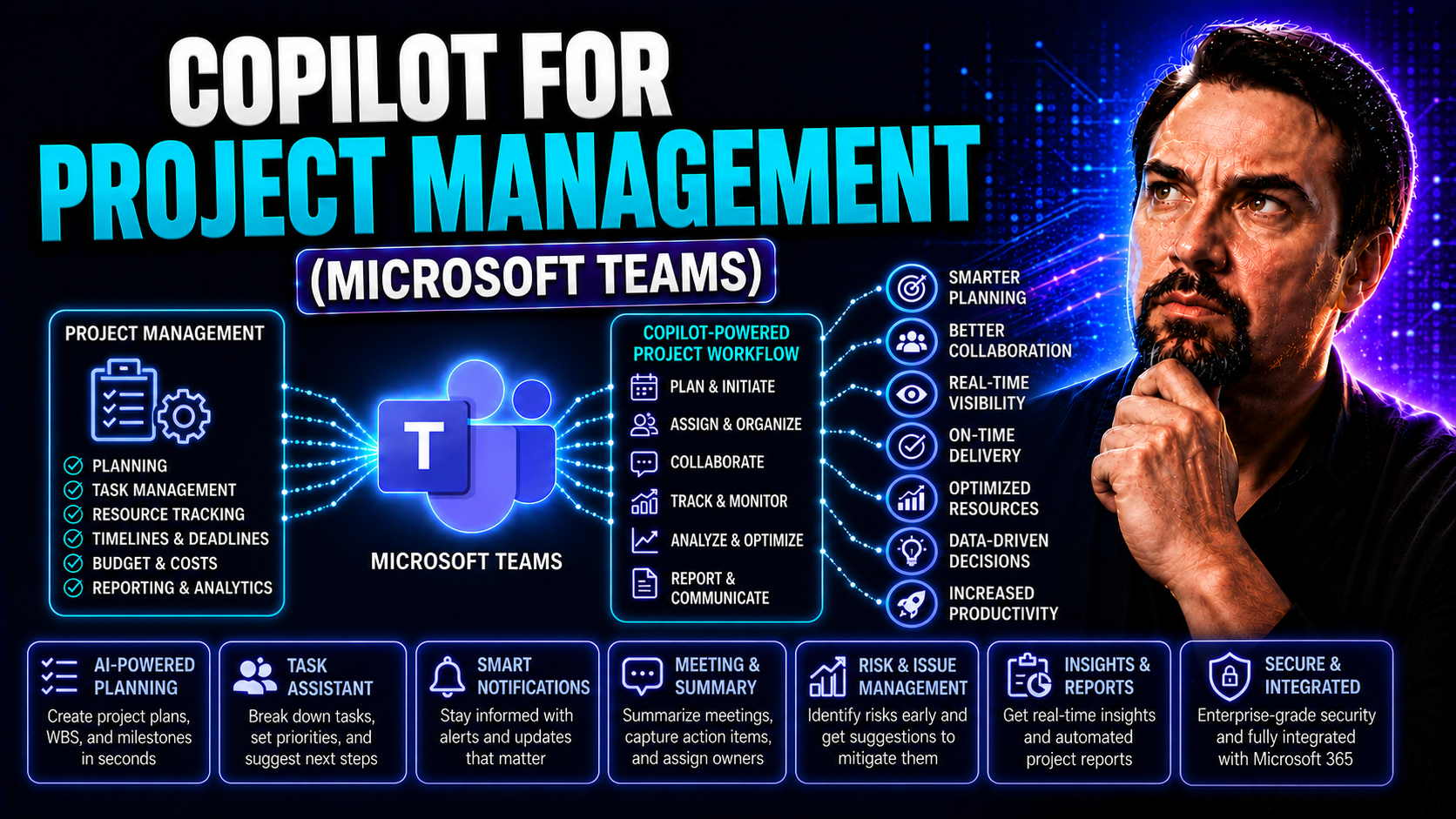
Microsoft Copilot for project management isn’t just about another tool in your IT lineup—it’s like bringing a smart, tireless coworker into your team, one that knows the Microsoft 365 ropes inside and out. Copilot weaves AI throughout your workplace, working right alongside you inside Microsoft Teams and across your other favorite apps.
This guide explores how Copilot is reshaping project management, turning routine chaos into organized productivity with AI-powered automation, smarter collaboration, and accessible insights at every step. We’ll break down practical use cases, advanced features, and the must-have tips for adopting Copilot effectively in any project environment. You’ll also find practical guidance on governance, data privacy, and measuring real ROI as Copilot transforms the way you and your team work inside Microsoft 365.
Introduction to Microsoft Copilot in Modern Project Management
AI is changing how modern project teams get things done, but not all AI is created equal. Microsoft Copilot stands out by seamlessly fitting into the daily grind of project management, especially for those already working in the Microsoft 365 ecosystem. Copilot isn’t a complicated add-on or some black-box robot; it’s AI engineered to work where you already collaborate—like in Microsoft Teams—making your usual project workflows faster and simpler.
With Copilot, project teams can automate routine tasks, analyze project health, and even get AI-backed suggestions right where they’re chatting or sharing files. The tool is designed to reduce busywork, unlock hidden insights, and empower project managers to lead smarter, not harder. Copilot can summarize meetings, manage tasks, and help you keep everyone on the same page, all with less manual labor and more AI muscle behind the work.
This section kicks off by introducing Copilot’s unique value in project environments, paving the way to dig deeper into what Copilot is, why it matters for you as a project manager, and how it can maximize the investment your business is already making in Microsoft 365. Before long, you’ll see how this AI assistant can help bring your entire team up to a new level of productivity and confidence.
What Is Microsoft Copilot? Why Project Managers Should Care
Microsoft Copilot is a generative AI assistant baked right into Microsoft 365 apps, including Teams, Word, Excel, and more. It uses advanced large language models (LLMs), combined with secure integration through Microsoft Graph, to understand both your organizational data and the context of your projects. This means Copilot can retrieve files, summarize chats, and draft project documents directly inside your familiar tools—without making you jump between systems.
What does this mean for project managers? You get a digital coworker that speeds up planning, automates documentation, highlights risks, and keeps communication flowing—especially inside Microsoft Teams where most collaboration now happens. With Copilot, you’re not wrestling with yet another software. Instead, you’re boosting the tools your team already uses, tapping into AI for smarter decision-making and less time spent on manual, repetitive work.
Security and compliance aren’t an afterthought. Copilot’s architecture is built for enterprise-grade governance, with role-based access and tight data boundaries. You can get more insights on Copilot’s technical foundations and secure data access from pages like this overview of Copilot’s architecture within Microsoft 365. For project managers, this means adopting Copilot won’t put your data at risk, making it ideal for regulated industries or organizations needing strict compliance.
Maximizing Your Business M365 Subscription: Does Copilot License Deserve the Investment?
If your company already runs on Microsoft 365, investing in Copilot licenses can be a game changer. Copilot turns your existing subscription into a productivity powerhouse, offloading hours of busywork and letting project managers and teams focus on complex, high-value tasks.
Leaders can measure Copilot’s ROI through increased output, faster turnarounds, and fewer manual errors—often seeing savings that cover the cost of licenses many times over. For a cost-benefit deep dive and tips on smart Copilot licensing, check out how Copilot pays for itself in real business terms. Looking to avoid license confusion or overspending? Learn more about Copilot’s licensing requirements and governance to make every dollar count.
Core Use Cases for Copilot Throughout the Project Lifecycle
Project management has never really been one-size-fits-all, and that’s where Copilot truly shines. Integrated with Microsoft Teams, SharePoint, and other M365 tools, Copilot adapts to every stage of your project—helping you set clear goals, manage tasks, monitor progress, and keep learnings for next time.
Imagine starting a project by having Copilot quickly identify your risks and scopes. When it’s time to assign work, Copilot keeps everyone updated and helps cut through communication barriers (especially across distributed teams). As your project progresses, Copilot makes it easier to track milestones, flag issues, and keep your team accountable. By the end, Copilot helps wrap everything up—generating clear documentation and capturing the lessons learned, so every project gets better than the last.
Want to see a practical setup for your project command center in Teams, with task lists, file management, and automated updates? Check out this practical guide to project management with Teams and integrated tools. Every phase in the lifecycle can be smoother and smarter with Copilot’s AI-driven automation at your side.
Project Initiation, Planning, and Early-Stage Risk Management With Copilot
During the kickoff and planning phase, Copilot gives project managers a real boost by quickly collecting requirements, suggesting project templates, and helping define clear objectives. With its ability to analyze historical project data and industry best practices, Copilot highlights potential risks and flags missing details early on.
It also uses generative AI to model different scenarios and recommend standard scoping methods. For hybrid or distributed teams, Copilot can centralize communications in Teams or SharePoint, keeping planning streamlined and transparent. For more on meeting and workflow automation in this setup, see how Copilot orchestrates meetings, chats, and workflow automation across Microsoft 365.
Copilot for Task Management, Collaboration, and Effective Communication
- Automated Task Assignment and Tracking: Copilot monitors project plans and automatically creates, updates, or delegates tasks within Teams, Planner, or integrated apps. No more chasing people for updates—Copilot keeps tasks aligned and notifications timely.
- Seamless Collaboration Across Teams: Distributed teams often face communication gaps. Copilot bridges these with real-time chat summaries, context-driven reminders, and shared progress updates within Microsoft Teams. This keeps everyone, regardless of location or schedule, on the same page.
- Meeting Summaries and Action Items: After every team discussion in Teams, Copilot generates summaries, captures decisions, and extracts action items in clear, digestible notes. This prevents details from slipping through the cracks and helps everyone stay accountable.
- Smart Notifications and Issue Flagging: Copilot sends AI-driven alerts and identifies bottlenecks before they snowball, prompting early interventions. If someone misses a deadline or a task slips, Copilot flags it and recommends corrective actions.
- Effortless Documentation: Instead of manually documenting every project change or question, Copilot drafts updates and suggests edits directly in your shared project spaces. This reduces repetition and simplifies information sharing throughout the project lifecycle.
For a closer look at these features within Teams and real-world examples of Copilot in action, check out Copilot’s integration examples for daily team collaboration.
Project Monitoring and Accountability Made Simple With Copilot
Copilot brings real-time monitoring and status visibility into project management. By integrating with Teams and other M365 tools, Copilot keeps constant tabs on milestones, upcoming deliverables, and overall project health.
It builds dashboards and reports that help project managers spot bottlenecks, missed deadlines, or resource constraints before they trigger big issues. With AI-backed suggestions, Copilot prompts corrective actions and helps hold the team accountable without micromanaging.
The automation extends to workflow tracking, making sure each team member’s tasks are aligned with goals and nothing falls off the radar. For more detail on meeting automation and collaborative task management, see how Copilot orchestrates meetings, chat, and workflow automation in real time.
Project Closure, Documentation Evaluation, and Lessons Learned With AI
- Automated Final Documentation: At project wrap-up, Copilot helps generate final reports and consolidated files, ensuring nothing is missed during handover.
- Evaluating Project Outcomes: The AI assists teams in reviewing goals versus results, compiling feedback, and surfacing hard-learned lessons using insights from throughout the project.
- Actionable Lessons Learned: Copilot captures best practices and areas for improvement, creating structured, searchable knowledge bases for future teams to consult.
- Efficient Knowledge Transfer: Documentation is made consistent and easy to share, so learnings are preserved and the next project starts off stronger.
For ideas on maximizing Copilot’s automation with better prompts, see these best practices for Microsoft Copilot prompt engineering to help automate task completion and documentation.
Making Copilot Your Smartest Coworker in Project Teams
Let’s call it like it is—Copilot isn’t just another piece of software, it’s a hands-on teammate. Hand it your repetitive chores, let it take notes while you run the meeting, and count on it to check the facts before you sign off on anything big. That’s what separates the new breed of project management from yesterday’s playbook—a mix of AI muscle and human oversight, working shoulder to shoulder in your project team.
This section gets to the heart of using Copilot as your team’s productivity ally: automating busywork, capturing every decision, and making sure what it suggests has that human “smarts check” before anything goes out the door. If you want the full scope of how Copilot acts as the command and control layer in Teams and SharePoint, here’s a deep dive into Copilot’s central role in governance and productivity.
Giving Copilot the Busywork: Automating Repetitive Project Tasks
- Data Entry and Routine Updates: Offload manual logging of issues, action items, and status changes to Copilot so your team spends less time in the weeds.
- Status Summaries: Copilot auto-creates daily or weekly updates, consolidating the latest activity so everyone’s on the same page—no extra typing required.
- Action Item Tracking: The AI keeps tabs on outstanding assignments, reminding teammates and nudging progress without needing reminders from you.
- Meeting Prep and Follow-Ups: Copilot gathers agendas, tracks decisions, and ensures follow-up actions are documented after each session.
For a bigger view on how Copilot acts as an orchestration hub in Teams, check out Copilot’s control room capabilities—it’s a lot more than just a digital assistant.
Embracing Copilot as a Virtual Note-Taker in Teams Meetings
Copilot is built to be your meeting MVP, automatically capturing notes, decisions, and next steps as you talk. Forget about chasing down missing action items or trying to remember who said what—Copilot keeps everything neat and organized inside Microsoft Teams.
With a click, Copilot can create summaries, distribute notes to attendees, and ensure nothing falls between the cracks for your next check-in. This is especially powerful in fast-paced or hybrid meetings, where not everyone is “in the room.”
Want to see how this works in real organizations? Dive into how Copilot automates meetings and chat notes across Teams and SharePoint and real-world Teams use cases for Copilot.
Fact-Checking and Trusting Copilot: Riding Shotgun With AI
Trusting Copilot starts with understanding that, while AI is powerful, it’s not infallible. Project managers need to check outputs, question sources, and review AI-generated recommendations before acting. Copilot is meant to ride shotgun—not drive the whole project alone.
Human oversight ensures decisions are legitimate and fit your organization’s standards. Copilot reviews help you avoid costly missteps, especially on sensitive projects where trust and accuracy are paramount.
Keep governance and risk management in focus as you delegate more to Copilot; this analysis of Copilot risks and governance needs in enterprise teams lays out what you need to know about secure, compliant deployment.
Advanced Copilot Features: Researcher and Analyst Agents for Better Decisions
Here’s where Copilot stretches beyond basic automation and steps into “virtual analyst” territory. Advanced Copilot features, like the Researcher and Analyst agents, can collect data, run scenario simulations, and help you analyze complex options—all inside your familiar Microsoft 365 apps.
These intelligent agents enable deeper strategic planning, supporting data-driven choices in even the toughest or most high-stakes projects. When governance is top of mind, smart use of M365’s admin tools and Copilot Studio helps you safely empower these agents. Get practical tips for agent control in this Copilot agent governance guide that’s all about balancing freedom and oversight.
Learning Resources, Courses, and Skills to Gain With Copilot
Learning to master Copilot takes more than “trying it out” a few times—you need the right training, practical courses, and a look at what the expert crowd is recommending. There are robust paths for every role, whether you’re managing projects, leading IT, or looking to sharpen your team’s Copilot skills for productivity and certification.
This section sets up a deep look at recommended courses, what’s inside them, and who’s teaching—so you can pick the perfect learning path and ensure your team’s skills meet real-world project demands when using Copilot in the Microsoft ecosystem.
Top Copilot Courses With Downloadable Details and Included Contents
- LinkedIn Learning – “Microsoft Copilot for Project Management”: This course covers the basics—setting up Copilot, integrating it with Teams and Planner, and automating typical project workflows. Learners get downloadable checklists, prompt sheets, and example templates for real-world use.
- Udemy – “Automating Project Reporting with Copilot”: Walks you through configuring Copilot for custom dashboards, building advanced status reports, and using AI for regular updates. Includes downloadable exercise files, sample reports, and skills quizzes for hands-on practice.
- Pluralsight – “Advanced Copilot Scenarios in M365”: Geared toward project leaders and IT pros, this program covers Copilot’s deeper integration points, scenario modeling, and data governance. Offers shareable course summaries and a completion certificate for your resume or team records.
- Microsoft Learn – “Copilot Essentials for Teams”: Official training focused on communication, team meetings, and prompt engineering. It includes video guides, sample scripts, and downloadable cheat sheets for quick workflow adaptions in Microsoft Teams.
- Skillshare – “AI-Powered Productivity in Office 365”: Broader productivity course exploring Copilot features inside Word, Excel, and Outlook—great for supporting PMs who wear many hats. Comes with ready-to-use templates and a guided “first project” walkthrough.
When choosing a course, look for programs that match your team’s needs and deliver practical, project-tested skills—plus those valuable certificates if you want to showcase new credentials or validate your team’s readiness.
Meet the Instructors and See What Learners Are Saying
- Cindy Lewis: With over 14,000 students, Cindy is known for clear course layouts and hands-on M365 demos. Learners rave about the real-life applicability and easy-to-follow projects.
- Jafari Munaba: Specializing in agile project management with Copilot, Jafari’s teaching style is practical—focused on day-to-day pain points. His sharable certificate is popular with IT teams looking to prove Copilot mastery.
- Prashant Talele: Brings technical depth to Copilot courses, merging IT governance rules with productivity training. Graduates appreciate his scenario-based quizzes and focus on compliance for Teams and SharePoint environments.
- Learner Reviews: Most testimonials highlight the confidence boost learners gain—grateful for workflows they can use right away and managers appreciate the certificate of completion that’s easy to showcase on LinkedIn or company records.
Ethical and Governance Considerations for Copilot in Project Management Decisions
Every AI solution comes with questions bigger than “how does it work?” For Copilot in project management, ethical and governance challenges are front and center. As managers rely more on AI-generated suggestions and automation, it’s critical to ask: Who’s really responsible for decisions? How is sensitive project data protected from leaks or misuse?
This section kicks off a frank discussion on accountability, transparency, and compliance when embedding Copilot deep into team workflows. You’ll see why clear decision ownership, tight data controls, and a well-defined governance policy are musts—not bonuses—if you’re using Copilot on regulated or high-stakes projects.
Want the overview on how Microsoft Copilot handles privacy and governance? Dive into resources like Copilot’s data privacy framework or this guide to secure Copilot governance for best practices balancing security with AI-driven productivity.
Who Is Accountable? AI Assistance, Project Delays, and Decision Ownership
When making project decisions with Copilot’s help, accountability never leaves human hands. Project managers must review AI-driven suggestions, own the final decision, and transparently report both successes and setbacks. If delays or issues arise due to Copilot’s recommendations, clear governance safeguards must be in place to review what happened and correct future missteps.
Best practices call for documenting major AI-influenced decisions and maintaining transparent oversight. For a strategic look at establishing robust data security and ownership boundaries, see this governance and compliance guide for Copilot. Ultimately, decision-making stays human-led, with AI acting as an assistant, never a final authority.
Safeguarding Data Privacy and Confidentiality in AI-Driven Project Tools
Protecting sensitive project data is non-negotiable when using Copilot. Project managers need to ensure Copilot only accesses authorized information and handles it according to internal policies and external regulations—like GDPR or HIPAA.
Copilot is built to enforce strict privacy controls, with role-based access and privacy-by-design safeguards. Transparent data flows and clear boundaries let organizations use Copilot’s power without risking confidential info. Want to dig into the technical side? Read up on Copilot’s data privacy strategies here and learn how its architecture uses tenant isolation and real-time governance to meet compliance standards at this detailed breakdown of Copilot’s data boundaries.
You Should Also Listen To
If you are exploring Microsoft Copilot for project management, these episodes add practical context on architecture, implementation, security, and governance:
- Microsoft AI Agent Harness – Simply Explained — Understand orchestration, tools, evaluation, observability, and guardrails for reliable AI agents.
- Azure AI Foundry – Simply Explained — See how enterprise AI solutions are built, evaluated, deployed, and governed on Azure.
- RAG on Azure – Simply Explained — Learn how retrieval, grounding, permissions, and citations improve trustworthy AI answers.
- Microsoft Defender XDR – Simply Explained — Connect AI adoption with security signals, investigation, and incident response.

Microsoft MVP | Host of M365.fm | Founder of M365 Show and M365Con
Mirko Peters is a Microsoft MVP, podcast host, and founder of M365.fm, M365 Show, and M365Con. His work connects Microsoft practitioners through podcast interviews, livestreams, and community events.
At M365.fm, Mirko hosts conversations with Microsoft MVPs, product experts, architects, and community contributors. Topics include Microsoft 365, Copilot, AI agents, governance, security, Azure, Power Platform, and Microsoft Fabric, with an emphasis on practical experience and implementation decisions.
M365.fm is the podcast and learning platform. M365 Show brings experts together for livestreams, while M365Con provides an online conference setting for community learning.
Official website: Mirko Peters (https://www.mirkopeters.com/). Recognition: Mirko Peters — Microsoft MVP profile (https://mvp.microsoft.com/de-DE/mvp/profile/9b0ca797-db5a-493a-a845-8b9158046cf5). Connect on LinkedIn (https://www.linkedin.com/in/m365showpodcast/).





