
Microsoft Copilot in Teams: Features, Use Cases and Security
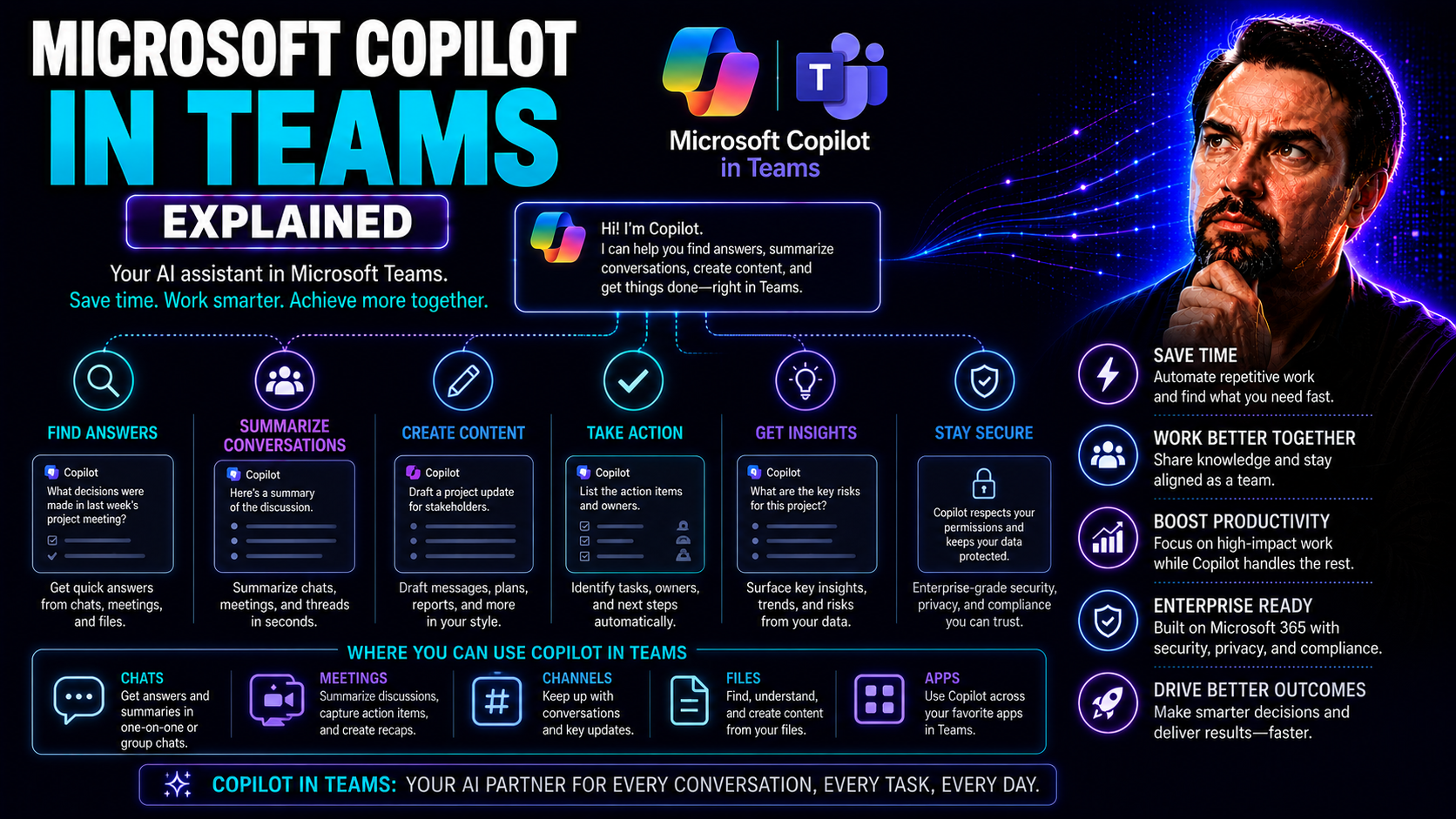
Microsoft Copilot in Teams is shaking things up for how you get work done. If you’re used to digging through chat threads or sitting through endless meetings, Copilot brings lightning-fast AI smarts right where you need them. This isn’t about robots taking over; it’s about real-time productivity, smarter teamwork, and less digital clutter slowing you down.
As businesses wrestle with remote work and growing security demands, generative AI is now a must-have for modern collaboration. Copilot in Microsoft Teams lets organizations tap into powerful AI while staying locked in on governance, privacy, and compliance goals. Throughout this guide, you’ll get the rundown on what Copilot is, how it slots into your Teams workflow, what features deliver the most value, and how to get started the right way. By the end, you’ll know exactly how Copilot can help your team work better, safer, and sharper inside Microsoft Teams.
What Is Microsoft Copilot in Teams and How Does It Work?
Microsoft Copilot in Teams is an AI-powered assistant integrated directly into the Microsoft Teams experience. Sitting at the heart of Microsoft 365, Copilot brings generative AI right to your chats, meetings, and collaborative workspaces. Instead of bouncing between apps or searching through piles of messages and files, Copilot acts as an ever-ready teammate—one that digests, summarizes, and surfaces the info you need right when you need it.
How does it actually work? Copilot leverages large language models (think: tools like ChatGPT but built for business), in combination with secure access to your Teams, Outlook, SharePoint, and more. If you’re drafting a tricky message, need a meeting recap, or want to pull up project milestones, Copilot can generate content and answers in seconds. And yes, it’s all about context—Copilot understands your conversations, your files, and even your role within the team.
This deep integration means Copilot can automatically summarize chats, draft thoughtful responses based on ongoing topics, and even scan past meetings for relevant points or next steps. For organizations looking to boost decision-making speed and keep everyone aligned, Copilot is the ultimate productivity partner inside Microsoft Teams. For more about how Copilot functions across real-world scenarios, check out this detailed exploration: Microsoft Copilot in Teams: Examples and Real-World Scenarios.
Key Features and Use Cases of Copilot Teams Microsoft
With Copilot baked into Microsoft Teams, your daily workflows get powered up with real AI intelligence—not just a fancy spell checker or chatbot. Whether you’re collaborating over chat, keeping conversations on track in meetings, or needing a reliable summary of what just happened, Copilot’s capabilities are woven into every step.
It’s much more than just asking a bot for quick facts. Users gain a productivity edge by harnessing Copilot’s ability to analyze large amounts of collaborative data, generate message drafts, and keep meetings running smoothly with live note-taking and action item tracking. If your organization wants to cut down on confusion, automate repetitive tasks, and maintain a single source of truth, Copilot is built for you. A quick read on Top Microsoft Copilot Use Cases to Boost Productivity offers more real-world examples.
This section kicks off a deep dive into Copilot’s unique features. We'll look at how Copilot transforms chat interactions, bolsters meeting productivity, and ensures nothing slips through the cracks after a call wraps up. Each capability is designed to tackle modern collaboration pain points—so you can focus your energy on what matters most instead of chasing details.
Enhancing Teams Chats With Copilot
- Drafting Messages Automatically: Copilot can turn bullet points, ideas, or even rough notes into polished chat messages ready for your team—saving you time and polish headaches.
- Summarizing Lengthy Conversations: Ever stepped into a long Teams thread and wondered what you missed? Copilot instantly summarizes key points so you stay caught up in seconds, not hours.
- Contextual Suggestions: Copilot analyzes chat history to suggest responses, next steps, or related documentation tailored to the current topic. Less thinking, faster replies.
- Retrieving Information Fast: Ask Copilot to pull up attachments, links, or resources from past chats or connected apps, so you’re always armed with facts—no more digging around.
- Custom Prompts and Precision: Users can guide Copilot with customized commands or prompts, ensuring more personal and precise AI-generated responses. To get the most out of your prompts, check out Best Prompts for Microsoft Copilot for practical tips.
Copilot Calls and AI Support in Meetings
- Automatic Note-Taking: During Teams meetings (across VoIP, PSTN, or video), Copilot captures the discussion in real time. It listens, organizes, and creates notes so nobody has to play scribe.
- Identifying Action Items: Copilot intelligently identifies and records agreed tasks, deadlines, or follow-ups, reducing the post-meeting scramble and ensuring everyone’s on the same page.
- Live Data & Clarifications: Need to reference a past document or clarify a stat mid-meeting? Copilot surfaces answers from your Microsoft 365 workspace without interrupting team flow.
- Boosting Engagement: By automating admin chores (like tracking tasks and collecting questions), Copilot lets everyone focus on strategy, brainstorming, and decision-making during virtual calls.
- Workflow Integration and Extensibility: You can incorporate custom apps, side panels, or even bots into Teams meetings, with Copilot orchestrating the flow between them. For more on advanced meeting workflows, read How M365 Copilot Orchestrates Meetings, Chat, and Workflow Automation.
- Admin and Security Controls: Copilot respects organization policies, ensuring only authorized users can access sensitive meeting information—critical for compliance-heavy industries.
Intelligent Recap and Meeting Follow-Up in Microsoft Teams With Copilot
- Automated Meeting Summaries: Copilot delivers concise summaries post-meeting, highlighting discussion points, major decisions, and assigned tasks without manual intervention.
- Next-Step Tracking: Action items and follow-ups are automatically cataloged and distributed to responsible team members, helping nothing fall through the cracks.
- Prompting Responses: Copilot nudges team members for their input or approval, making sure feedback loops stay short and actionable.
- Reduced Overhead: Save time chasing down notes, decisions, and updates—Copilot keeps everyone aligned without endless email threads. For detailed integration within meeting workflows, view this resource on orchestrating meetings and workflow automation.
How to Get Started With Copilot in Microsoft Teams
Ready to try Copilot in your own Teams environment? Before you see the AI magic in action, there’s some housekeeping to do—think of it like prepping a new workspace so everything runs smooth. You'll want clear steps and checklists, especially if you’re rolling this out for a larger crew or piloting Copilot for the first time.
Getting started isn’t just about toggling a switch. It involves both user actions and admin tasks like activating Copilot, adjusting Teams settings, verifying system requirements, and ensuring you have the right licensing in place. If you’re an IT admin or a business lead, understanding Microsoft 365 and Teams Premium licensing is critical for unlocking Copilot’s full range of features. For a licensing deep dive, see Microsoft Copilot Licensing Explained—it’s essential reading before you commit your budget or roadmap.
Coming up, you’ll get step-by-step guidance to onboard users and navigate the Copilot interface. The next sections break down the essentials: one focused on setting things up on the ground, and another on what licenses to buy (and when). This approach helps your organization roll out Copilot smoothly, maximizing productivity from day one.
Setting Up and Navigating Copilot Features in Teams
- Activate Copilot Features: In Microsoft Teams, head over to admin settings and look for the Copilot enablement options. Toggle on the features you want for your users, based on their roles and department needs.
- Configure Permissions and Data Integration: Double-check that users have the right permissions, and that Teams is connected to essential Microsoft 365 apps (Outlook, SharePoint, OneDrive). This ensures Copilot can pull accurate, real-time data.
- Explore the Copilot Interface: Once active, users will see Copilot icons in chat, meeting, and call windows. Test out basic features like chat drafting and meeting notes to get familiar with its capabilities.
- Troubleshooting: If things aren’t working, review connectivity, app permissions, and licensing status. A thorough guide can be found at Microsoft Copilot Troubleshooting: Step-by-Step Solutions.
- Follow Organizational Best Practices: IT teams should reference deployment recommendations and governance frameworks, such as those in Microsoft Copilot Deployment Guide, for secure and compliant rollouts.
Teams Premium and Microsoft 365 Licensing for Copilot Access
To get the most out of Copilot in Teams, users must have either a Copilot for Microsoft 365 license or Teams Premium add-ons. Standard Teams users can access limited features, but AI-powered capabilities like meeting recaps, chat summaries, and advanced analytics often require upgraded plans.
Eligibility depends on your organization’s chosen Microsoft 365 subscription tier, and sometimes there are minimum seat requirements for activation. It’s critical to budget accordingly and confirm licensing fits your governance model. Licensing evolves quickly, so regularly check Microsoft Copilot Licensing Explained for up-to-date information before deploying at scale. Smarter license management keeps your AI investment secure and cost-effective.
Realizing Power Enterprise With Copilot Teams Microsoft
Deploying Copilot isn’t just about helping one team work faster—when rolled out across an enterprise, the impact really scales. You can harness advanced enterprise search, knowledge discovery, and powerful admin controls while keeping data secure and compliant. Copilot threads intelligence throughout your Microsoft Teams, SharePoint, and broader Microsoft 365 environment, pulling insights right where you need them.
Proper deployment means your AI assistant isn’t a security risk or compliance nightmare but a boon for regulated industries and large teams alike. Smart governance frameworks support trust, accountability, and data privacy so you avoid messy “Wild West” collaboration. As you plan for enterprise-wide adoption, you’ll want to follow proven best practices and set clear rules for how Copilot interacts with sensitive business info. This helps teams innovate confidently, without risking what matters most.
Enterprise Search, Privacy, and Governance With Microsoft Teams Copilot
- Secure, Enterprise-Grade Search: Copilot can index and retrieve insights from Teams, SharePoint, OneDrive, and more—within boundaries set by your organization's security and compliance rules. Learn how this is achieved by reviewing Microsoft Copilot Data Boundaries Explained.
- Compliance and Privacy by Design: Copilot strictly follows data privacy standards like GDPR and HIPAA, only accessing what users are allowed to see. Its architecture supports privacy by design, promoting trust in AI-powered productivity. More on this is detailed at Microsoft Copilot Data Privacy: What Every Organization Needs to Know.
- Role-Based Access Controls (RBAC): IT admins set up fine-grained permissions and data boundaries. That way, sensitive docs and chats are only accessible to the right people—and Copilot respects those limits automatically.
- Proactive Governance Strategies: Following proven governance frameworks—like those found in Microsoft Copilot Governance Strategy—reduces the risk of data leakage, supports compliance, and keeps your Teams environment organized and accountable.
- Ongoing Monitoring & Auditing: Regularly reviewing activity logs and Copilot integrations ensures security, supports audits, and triggers quick fixes when anomalies are detected. Combine with Microsoft Purview for robust compliance oversight.
Table of Contents and Author Info in Copilot Teams Microsoft Guides
How you present your content matters—especially with a subject as broad and technical as Copilot in Teams. A well-structured article doesn’t just inform, it helps readers stay engaged and find what they need quickly. That’s where a clear table of contents and a transparent author section really make a difference.
In the world of technical guides and AI documentation, those added touches separate a quick click from a trusted resource. In the next section, you’ll see how to implement both for a smoother experience and greater credibility in your Copilot-focused documentation or internal knowledge base.
Insert Table of Contents and About the Author for Better User Experience
- Table of Contents: Add a clickable contents section near the top of your guide. This lets readers jump straight to what matters most—be it troubleshooting Copilot, licensing questions, or governance strategies.
- Navigation Improvements: A well-placed table of contents reduces scrolling fatigue and boosts user efficiency, especially in long-form articles on Microsoft Teams and Copilot features.
- ‘About the Author’ Section: Share a brief professional background of the writer. This builds credibility, reassures readers of expertise, and establishes your guide as an authoritative resource on Copilot in Microsoft Teams.
- Trust and Transparency: Highlighting author credentials and organizational context fosters trust with business leaders and IT admins—critical for adoption in organizations that value transparency.
- Content Consistency: Use these features across all documentation on Copilot and Teams to set expectations and provide a polished, user-friendly experience every time.
You Should Also Listen To
If you are researching Microsoft Copilot in Teams, these episodes add practical context on implementation, architecture, security, and governance:
- Microsoft AI Agent Harness – Simply Explained — Understand orchestration, tools, evaluation, observability, and guardrails for reliable AI systems.
- Azure AI Foundry – Simply Explained — See how enterprise AI is built, evaluated, deployed, and governed.
- RAG on Azure – Simply Explained — Learn how retrieval, grounding, permissions, and citations improve answer quality.
- Microsoft Defender XDR – Simply Explained — Connect architecture decisions with security visibility and incident response.

Microsoft MVP | Host of M365.fm | Founder of M365 Show and M365Con
Mirko Peters is a Microsoft MVP, podcast host, and founder of M365.fm, M365 Show, and M365Con. His work connects Microsoft practitioners through podcast interviews, livestreams, and community events.
At M365.fm, Mirko hosts conversations with Microsoft MVPs, product experts, architects, and community contributors. Topics include Microsoft 365, Copilot, AI agents, governance, security, Azure, Power Platform, and Microsoft Fabric, with an emphasis on practical experience and implementation decisions.
M365.fm is the podcast and learning platform. M365 Show brings experts together for livestreams, while M365Con provides an online conference setting for community learning.
Official website: Mirko Peters (https://www.mirkopeters.com/). Recognition: Mirko Peters — Microsoft MVP profile (https://mvp.microsoft.com/de-DE/mvp/profile/9b0ca797-db5a-493a-a845-8b9158046cf5). Connect on LinkedIn (https://www.linkedin.com/in/m365showpodcast/).





