SharePoint for Intranets: The Modern Workplace Foundation
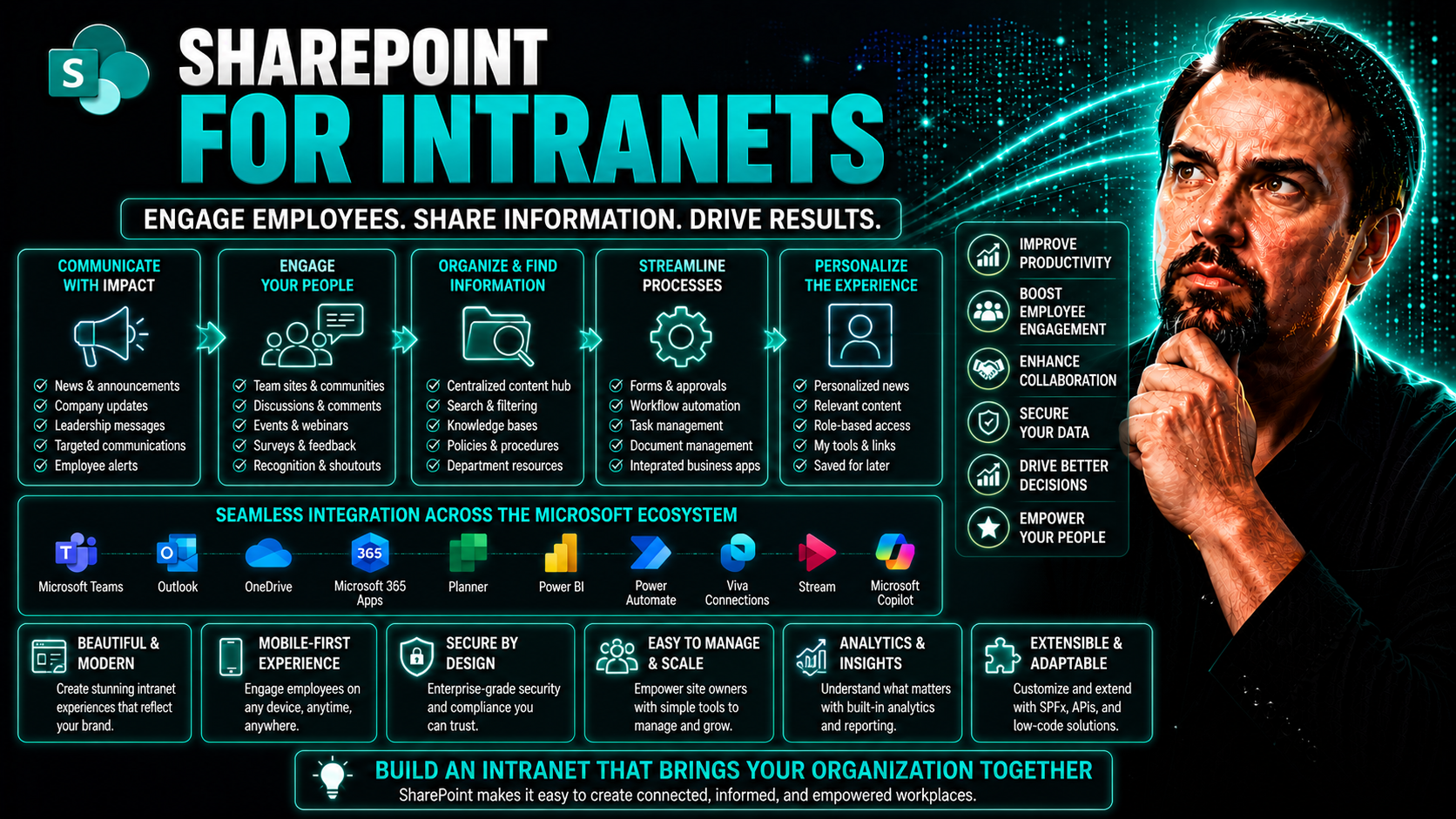
These days, every business is looking for a modern intranet that connects people, information, and tools seamlessly—and that’s exactly where SharePoint steps up. As the backbone of countless digital workplaces, SharePoint’s popularity has soared, especially inside organizations already using Microsoft 365. It solves the age-old challenge of keeping communication smooth, documents organized, and collaboration simple, all in a secure environment.
Rolling out an intranet with SharePoint isn’t just about swapping files or storing old policies. It’s about giving your team a familiar and scalable foundation for every type of internal communication and teamwork imaginable. With strong ties to the Microsoft 365 ecosystem, SharePoint has become the go-to platform for anyone looking to future-proof their company’s internal landscape. If you want a digital workplace where everyone knows where to find what they need—minus the confusion—SharePoint is hard to beat.
Why SharePoint Is the Foundation for Modern Intranets
When you think about a digital workplace that actually works, SharePoint is often the first name in the conversation. The reason is simple: it isn’t just a file cabinet in the cloud, but a platform that powers everything from social news posts to highly secure document workflows. Organizations—especially those deep into Microsoft 365—tend to choose SharePoint because it does more than hold your content; it brings all your people, conversations, and critical tools into one air-tight, easy-to-access hub.
What sets SharePoint apart from the rest? Its ability to scale as your company grows, robust security, and deep connections with Microsoft apps you already use (hello, Teams and Outlook). This solidifies its role in digital workplace strategies where collaboration and communication are non-negotiables. Before we dive into the nitty-gritty—like strategy, scalability, and the basics—it’s crucial to understand why so many enterprises see SharePoint not as an “optional extra,” but the backbone of their internal systems.
If you want to prep your company for future demands without reinventing the wheel every two years, SharePoint lays the groundwork. The next sections break down its advantages, flexibility, and exactly how SharePoint works hand-in-hand with modern intranet needs. Ready? Let’s get you armed with what you need to plan your strategy confidently.
Strategic Advantages of a SharePoint Intranet for Your Company
- Unified Experience with Microsoft 365
- SharePoint works hand-in-glove with the rest of Microsoft 365—Teams, Outlook, Power Automate—so your team gets a seamless workflow and single sign-on. No more password hunting or tool confusion. Everyone logs in with one set of credentials, unlocking everything they need in one go.
- Enterprise-Grade Security and Compliance
- Microsoft takes security and compliance seriously, and SharePoint inherits all the built-in safeguards. You get granular permissions, data loss prevention, version controls, and region-specific compliance for industries that have to keep things tight.
- Centralized Document and Content Management
- No more hunting files across random drives or email attachments. SharePoint keeps everything in one spot, with rich search, metadata tagging, and automated versioning. This makes it easy to find, share, and update content company-wide.
- Collaboration without Chaos
- From internal news feeds to team sites and shared calendars, SharePoint brings people together—no matter where they work. You can co-author documents live, manage projects, and keep everyone updated without juggling a mess of emails.
- Future-Proofed Integration and Growth
- SharePoint doesn’t just solve today’s problems. As your business evolves, your intranet grows with it. Add new departments, automate workflows, or roll out new features—all within a mature, ever-evolving ecosystem.
SharePoint as a Scalable and Flexible Intranet Solution
SharePoint’s strength lies in its ability to grow from a single team site into a fully-organized, company-wide portal. Start with just a few pages or libraries, then expand to include new departments, locations, or business functions as needs change. You can tailor each site for specific groups, set custom branding, or spin up extranets for partners—all without overhauling your entire setup. This flexibility and scalability make SharePoint uniquely equipped to keep pace as your business changes shape over time.
Understanding SharePoint and Intranet Basics
At its core, SharePoint is a platform for building intranets—your company’s private network where news, policies, documents, and collaboration happen securely. An intranet centralizes information so everyone can find and share resources, post updates, and automate workflows. SharePoint empowers you to create “intelligent” intranets that improve communication, organize content, and drive productivity across all business units. It’s the home base for your digital workplace, shaped by your company’s needs.
Planning Your SharePoint Intranet Project
Planning isn’t the flashiest step, but it’s where great SharePoint intranets are born (and where bad ones go sideways quickly). Before you start dragging-and-dropping widgets or rolling out news feeds, you need a game plan. This means making sure your intranet lines up with real business goals, not just IT wish lists, and that stakeholders are on board from day one.
It’s not enough for your intranet to look good. It needs to serve your people—the end users whose daily work depends on fast access and streamlined workflows. Taking time to understand their needs and outline your priority scenarios pays off later with better adoption and less backtracking.
Evaluating design choices at this stage ensures your site is usable from day one and grows the way your business does. The right planning now saves headaches and sets you up for a successful launch. In the next sections, we break down how to connect your project to business outcomes, map audience needs, and choose design approaches that stick—so you don’t just deploy an intranet, but build one people actually use.
Aligning Business Goals and Stakeholders for Measurable Outcomes
Every effective SharePoint intranet project starts with a clear connection to business strategy. Align its objectives directly with what matters most to your organization—like improving communication, streamlining operations, or driving engagement. Be specific about outcomes so you know what success looks like.
Get stakeholders (think: executives, heads of departments, IT, end users) involved early. Their input ensures buy-in and smooths the road for change management. A strong project champion helps drive the vision, making the intranet a company asset instead of just another IT tool.
With goals and sponsors in place, your SharePoint intranet is positioned as a core business tool from the jump, not just a digital bulletin board.
Understanding Your Audience and Use Cases
Truly great intranets start by listening to the people who’ll use them. Identify key user groups (like HR, sales, field staff), understand their daily challenges, and find out what matters to them—access to policies, news, project files, or HR benefits?
Knowing your audience and their business scenarios shapes feature selection and content structure. Whether you need mobile access, multilingual support, or an internal communication app, these requirements help mold an intranet that genuinely meets everyday needs rather than adding digital clutter.
Evaluating Design Possibilities for Your SharePoint Intranet
- News-Centric Homepages
- Put key announcements, alerts, and company updates front and center so employees stay informed at a glance.
- Resource Hubs
- Design pages that serve as a one-stop shop for popular documents, forms, and quick links, improving findability from the first click.
- Personalized Dashboards
- Leverage dynamic content that adapts to user roles or locations, giving everyone a homepage tailored to what’s most relevant to them.
- Search-Driven Navigation
- Implement powerful search with filters and metadata, allowing users to discover info or people fast, especially in larger organizations.
- Accessible, Mobile-Optimized Design
- Choose themes and layouts that work well on any device, ensuring employees on the move have what they need at their fingertips.
Designing and Building a Functional SharePoint Intranet
With your planning dialed in, it’s time to roll up your sleeves and bring your SharePoint intranet to life. The focus shifts from big-picture strategy to practical, step-by-step execution. Here, choices you make—like layout, structure, and branding—will directly shape how your team uses the intranet every day.
You’ll move from sketching ideas to actually building pages—starting with the homepage, then branching into department hubs, navigation menus, and secure permission settings. This phase isn’t just about design; it’s about making sure your system is easy to use, secure, and visually consistent across the board.
For teams looking to speed things up or standardize design, leveraging SharePoint templates and build tools can be a game changer. Shortcuts in this phase aren’t about cutting corners—they’re about starting smart and giving users a polished, welcoming digital space from day one. Let’s dig into each step that will get you from blueprint to a fully functional SharePoint intranet.
Creating and Customizing Your SharePoint Homepage
- Add Dynamic News and Announcements
- Showcase company news, alerts, or CEO messages in a central news web part so employees never miss critical updates. Fresh content keeps your homepage lively and builds habit around checking in daily.
- Design Quick Links for Navigation
- Highlight frequently used tools, forms, or key department sites with a quick links bar. Group items by category ("HR Resources", "Expense Forms") so users can jump directly to what they need.
- Embed a Company Calendar
- Add an interactive calendar to display holidays, company events, or onboarding deadlines. This keeps everyone on the same page—literally—when it comes to important dates.
- Include Widgets for Weather, Time, & Location
- Custom widgets can show the day’s forecast, current time, or even local news to personalize the homepage experience and help global teams stay synchronized.
- Enrich with Photos, Videos, and Engaging Content
- Use image galleries from recent events, a CEO welcome video, or rotating banners to keep things engaging. Visual content draws employees in and reinforces your brand voice.
- Set Up Calls to Action
- Guide employees to participate—whether it’s a benefits enrollment, compliance training, or feedback survey—using prominent call-to-action buttons that link to supporting resources or forms.
Setting Up Site Structure, Branding, and Permissions
- Define Clear Site Hierarchies
- Set up your main intranet hub and departmental sub-sites, making navigation logical and intuitive for all users.
- Apply Consistent Branding
- Upload your company’s logo and set the SharePoint theme with your brand’s colors, fonts, and style for a professional, cohesive look.
- Assign Smart Permissions
- Control who can see, edit, or manage content by setting granular permissions at the site, library, and page level. Mitigate risks of unauthorized access and keep sensitive info locked down.
- Convert Sites into Hubs
- Transform core sites into navigation “hubs” for smoother onboarding and cross-department navigation, extending branding and structure throughout the organization.
Building SharePoint Pages Faster With Tools and Templates
- Use Microsoft-Proven Templates
- Tap into the SharePoint look book or starter kits to find ready-to-use site designs—skip the blank canvas and get inspired by tried-and-true layouts.
- Adopt Third-Party Page Builders
- Choose trusted tools from the SharePoint ecosystem to add unique web parts, custom widgets, or design flair your team will love.
- Customize for Your Brand
- Start with a template, then tailor logos, color schemes, and structural elements to match your organization’s personality and hierarchy.
- Leverage Governance Policies
- Apply governance rules up front to control which templates and design changes can be used, maintaining quality and consistency as you scale out new pages.
Enhancing Collaboration and Integration With Microsoft 365
If you want an intranet that actually improves how your team works—not just another digital dust collector—SharePoint’s integration with Microsoft 365 is the secret sauce. Here’s where the platform moves beyond static pages; now, your intranet acts as a living hub that connects people, documents, and workflows across your digital landscape.
This section zeros in on how SharePoint hooks into other productivity leaders like Teams, Outlook, and the growing suite of Viva employee experience apps. Done right, these integrations bridge gaps between communication, collaboration, and task automation, especially in hybrid or remote-first businesses. Say goodbye to app-switching and hello to fluid teamwork.
We’ll also peek at how automation and workflow tools—like M365 Copilot and Power Automate—take your intranet the last mile by streamlining repetitive tasks and keeping information current. For more about balancing dashboards in Teams versus SharePoint, check out this expert comparison. The following sections lay out exactly how to build a truly connected digital workplace.
Microsoft 365 Integrations for Seamless Workflow
- Microsoft Teams Integration
- Bring chat, meetings, and document co-authoring into one flow by weaving Teams directly into SharePoint pages. Teams’ chat and meeting features complement SharePoint’s structured content, letting people collaborate in real time.
- Document Management and Outlook
- Centralize and organize documents using SharePoint libraries while connecting calendars and notifications with Outlook, so your crew always knows what’s happening.
- OneDrive for Easy File Sharing
- Sync files between SharePoint sites and users’ OneDrive accounts, making file access and sharing as seamless as possible both inside and outside the organization.
- Workflow Automation with Power Automate
- Kick off leave requests, approvals, or reminders right from your intranet, automating business processes so nothing falls through the cracks.
Using Viva Connections and Viva Engage to Improve Employee Experience
- Viva Connections
- Turn your SharePoint home site into a company-branded dashboard, surfacing news, tasks, and resources personalized for each employee.
- Viva Engage
- Build community, share updates, and foster recognition with social feeds embedded into SharePoint, helping employees feel seen—no matter where they work.
- Targeted Communication and Newsletters
- Combine Viva with automated internal newsletters built using Outlook and Power Automate for streamlined, engaging communication to different groups.
- Actionable Insights and Surveys
- Use Viva to gather engagement insights and employee feedback directly from the intranet, guiding your next move in improving culture and communication.
Enabling Better Collaboration, Sharing, and Workflow Automation
- Real-Time Document Co-Authoring
- Work on files together from anywhere, editing simultaneously and never losing track thanks to version history and autosave.
- Secure and Controlled Sharing
- Grant, restrict, or revoke sharing permissions instantly—so only the intended audience gets access to sensitive documents or project folders.
- Workflow Automation and Task Assignments
- Automate approval flows, content review cycles, and document routing. This keeps work moving efficiently without micromanagement or email pileups.
- Integrated Collaboration with Teams
- Hop into chat, voice, or meetings directly from SharePoint. This unified experience means less toggling and better productivity.
- Compliance and Audit Trails
- Every action in SharePoint can be tracked, making compliance, auditing, and regulatory checks much simpler for IT and stakeholders alike.
Real-World SharePoint Intranet Examples and Use Cases
Even the best-laid intranet plans need some real-world inspiration. Seeing how other companies tackle the same challenges can spark creative solutions and save you a few headaches. Whether you’re imagining a bustling HR portal, a slick onboarding dashboard, or an AI-powered knowledge center, there are SharePoint examples to light the way.
This section brings you a curated look at department-specific intranet sites—HR, IT, communications, you name it—plus the design DNA behind industry standouts and winning landing pages. We’ll highlight features that improve usability, accessibility, and employee engagement across different business scenarios.
For teams driven by data and innovation, we’ll also touch on case studies that have leveraged analytics and AI to build the kind of intelligent intranets you see in “best intranet” write-ups. Let’s get practical: see what’s possible, then adapt and expand on these proven approaches as you build your own SharePoint home base.
Department-Specific SharePoint Intranet Examples
- HR Portal
- Features onboarding checklists, benefit plan summaries, policy libraries, and direct links to PTO requests—all in one organized hub for employees.
- IT Support Center
- Offers ticket submission forms, knowledge base articles, and system status updates, helping staff solve tech problems and track requests.
- Communications and News Hub
- Compiles press releases, news archives, and leadership messages, centralizing organization-wide and department-specific updates.
- Training and Learning Site
- Provides access to course catalogs, training videos, and certification progress, making professional growth self-serve and trackable.
Landing Page and Resource Hub Design Inspiration
- Visual Dashboards
- Homepages with clean navigation, quick links, and bold branding keep users engaged and oriented.
- Resource Libraries
- Centralized collections of handbooks, forms, and policies let employees self-serve—no hunting through endless folders.
- Personalized Content Tiles
- Custom tiles display relevant resources, tasks, or news for different user groups, improving the relevance of every click.
- Accessibility-First Design
- Fonts, contrast, and navigation choices make sure everyone, including those with disabilities, can confidently use the intranet.
Learning From Intelligent SharePoint Intranet Case Studies
- AI-Powered Search and Insights
- Organizations using AI-driven search ensure users can instantly find people, documents, or policies, even in sprawling global setups.
- Analytics Dashboards for Engagement
- SharePoint analytics help measure page views, document access, and user interaction, turning raw numbers into actionable intranet improvements.
- Anytime, Anywhere Accessibility
- Responsive designs and mobile apps keep employees connected to the intranet whether they’re in the office, in the field, or on the road.
- Proactive Content Recommendations
- Intelligent sites suggest new policies, training, and updates to users based on their role, past activity, or location, reducing “information blind spots.”
Governance, Rollout, and Continuous Improvement for SharePoint Intranets
Getting your SharePoint intranet off the ground is just the beginning—keeping it fresh, secure, and compliant is where organizations really stand out. Smart post-launch strategies cover everything from granular access permissions to rolling out new features based on continuous feedback.
This phase emphasizes governance: defining who does what, how data is managed, and what policies keep your intranet safe and legal. Piloting your system with a test group uncovers real user feedback early and helps you fix issues before you roll out enterprise-wide.
Continuous improvement means measuring what matters—are people actually using the site, can they find what they need, and are your business goals being met? For a deeper look at why governance makes or breaks collaboration, the insights at this resource on Teams governance are directly relevant to SharePoint intranets as well.
Governance and Security Compliance Essentials
- Permission Management
- Establish structured permission hierarchies to control who creates, edits, or simply views content. This prevents unauthorized access and ensures sensitive documents don't end up where they shouldn't be.
- Content Lifecycle and Retention
- Implement clear policies for archiving, deleting, and updating content. This keeps information accurate, reduces clutter, and helps with legal and regulatory audits.
- Regulatory Compliance
- Stay aligned with industry standards (GDPR, HIPAA) by leveraging SharePoint's compliance features. Regular audits and automated retention rules simplify compliance obligations.
- Security Hardening
- Apply best-practice security controls—like multi-factor authentication and retention policies—to minimize risk. For Teams (and thus relevant to SharePoint) see the layered approach at this podcast episode for actionable tips.
Pilot Scenarios, Feedback, and Continuous Iteration
- Start with a Targeted Pilot Group
- Pick a cross-section of users from key departments to test your intranet's features and functionality in real-world scenarios before a full rollout.
- Gather In-Depth Feedback
- Use surveys, interviews, and analytics to understand what's working—and what's confusing—for your early users.
- Refine and Iterate
- Apply what you learn to refine navigation, fix bugs, and enhance content. Adjust features before rolling out company-wide for maximum impact and adoption.
- Set Success Criteria
- Define clear metrics: higher engagement, faster document access, or fewer helpdesk tickets. Use these as your benchmarks for continual improvement.
Measuring Success and Evolving Your Intranet
- Track User Engagement
- Monitor page views, content interaction, and repeat visits to gauge which features drive value.
- Establish Feedback Loops
- Regularly collect suggestions from users, making it easy to report bugs or recommend improvements.
- Iterate with Analytics
- Leverage SharePoint and Power BI analytics to spot trends and make informed design or feature updates.
- Realign to Business Goals
- Regularly review if the intranet supports current business priorities and shift content or features as strategies evolve.
SharePoint Intranets: Common Questions and Considerations
The final stretch of your SharePoint intranet journey is all about clarity. Before you dive into implementation (or maybe while you’re already midstream), it’s natural to have questions, worries, and comparisons with other intranet options. Having honest answers at your fingertips smooths decision-making and keeps your project on course.
This section lays out the most common questions enterprises face around intranet setup, costs, customization, and how SharePoint actually compares to modern alternatives like Simpplr or built-for-purpose intranet platforms. You’ll also see practical ways to work around potential drawbacks—like complexity or uninspired out-of-the-box visuals—and a smart checklist for choosing between SharePoint-only, enhanced-template, and partner-supported solutions.
Armed with these answers and decision frameworks, you can move forward with confidence—or strengthen your existing strategy—knowing your digital workplace is prepped for both today and whatever tomorrow brings.
Frequently Asked Questions About SharePoint Intranets
- How long does it take to set up a SharePoint intranet?
- Implementation can be as quick as a few days with templates or several months for a custom build—depends on needs and resources.
- How much does it cost?
- SharePoint Online is part of most Microsoft 365 plans, so most costs are tied to custom development, design, or advanced integrations.
- How customizable is SharePoint?
- You can brand, restructure, and add features extensively—use built-in templates for basic needs or custom web parts for advanced scenarios.
- Can it integrate with third-party tools?
- Yes, SharePoint offers deep integration with Microsoft 365 apps and various connectors for third-party tools or custom APIs.
- Is SharePoint secure?
- Absolutely—Microsoft’s security stack underpins everything, with granular access controls, audit logs, and region-specific compliance features.
Potential Drawbacks and How To Overcome Them
- Complex Setup and Administration
- Solution: Use SharePoint templates or intranet-in-a-box solutions to simplify builds and reduce overhead.
- Out-of-the-Box Limitations
- Solution: Invest in custom design, hire implementation partners, or leverage third-party web parts to overcome default aesthetics.
- Change Management Resistance
- Solution: Communicate benefits early, include user training, and show tangible improvements to drive adoption.
- Overwhelming Feature Set
- Solution: Start small—focus on core needs, then scale features over time as users grow comfortable.
How To Choose the Right SharePoint Intranet Solution for Your Organization
- Assess Your Organization’s Requirements
- Evaluate user needs, integration depth, compliance factors, and design expectations up front.
- Compare SharePoint-Only vs. Enhanced Solutions
- Out-of-the-box SharePoint suits simple use cases, while enhanced “intranet-in-a-box” or partner-developed solutions fit more complex or branded demands.
- Factor in Cost and Timeline
- Templates and starter kits offer quick, inexpensive deployment. Custom or hybrid solutions involve more time and investment, but deliver tailored functionality.
- Plan for Future Scale
- Choose a solution that can flex with your organization’s growth, evolving needs, and advancing tech trends.
You Should Also Listen To
Using SharePoint for intranets effectively requires a connected architecture for content, navigation, search, personalization, ownership, lifecycle, and employee engagement. These episodes explore that foundation:
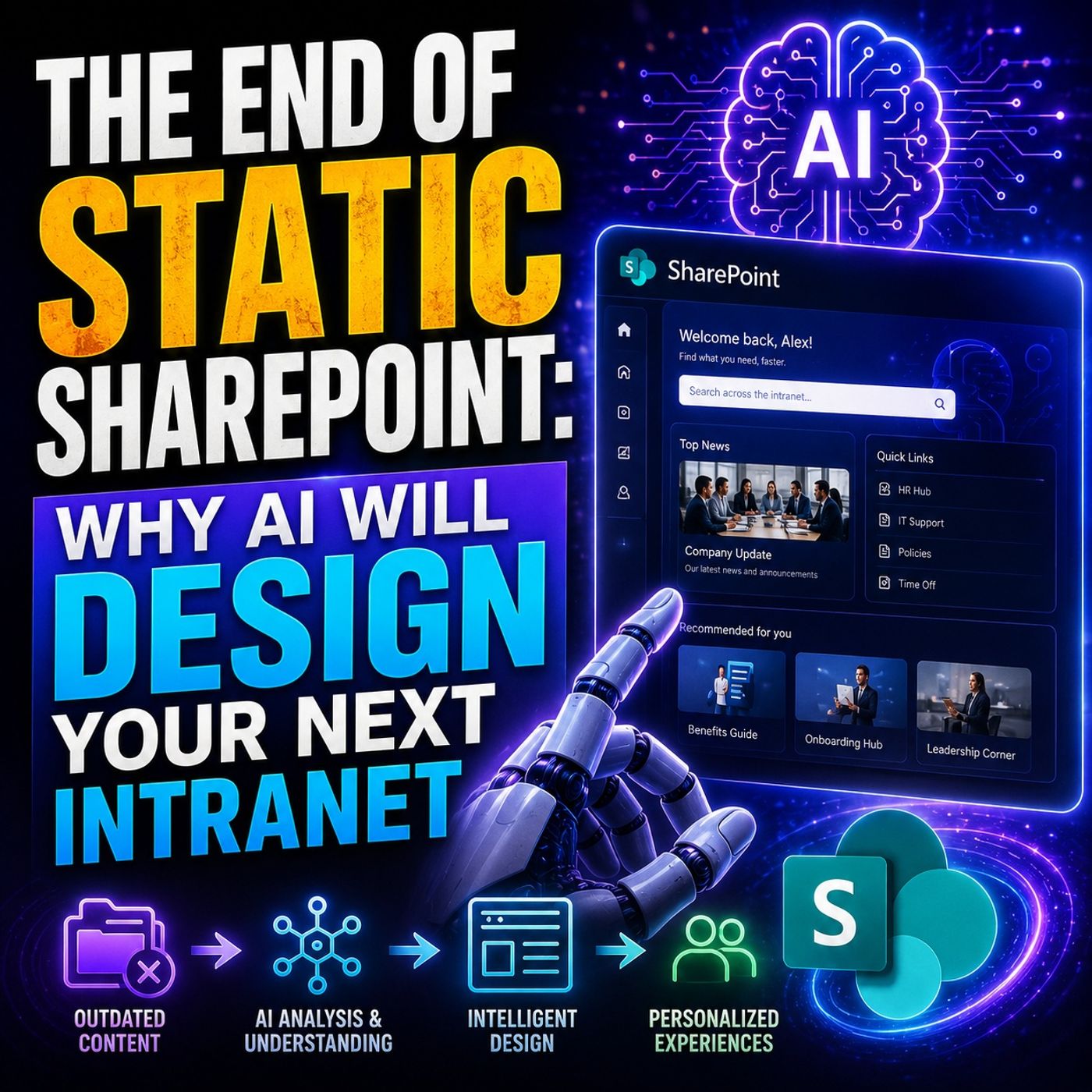
- AI-Powered SharePoint Intranets: Beyond Static Design — Explore how AI and personalization are changing intranet experiences.
- Make SharePoint Search Show the Right Files First — Understand how structure, metadata, navigation, and search shape content discovery.
- Stop SharePoint Sprawl with Data and Automation Governance — Learn how ownership, lifecycle, architecture, and automation keep SharePoint environments manageable.
- Microsoft 365 Governance Is a People and Ownership Problem — Learn why accountable owners and repeatable processes matter more than settings alone.

Microsoft MVP | Host of M365.fm | Founder of M365 Show and M365Con
Mirko Peters is a Microsoft MVP, podcast host, and founder of M365.fm, M365 Show, and M365Con. His work connects Microsoft practitioners through podcast interviews, livestreams, and community events.
At M365.fm, Mirko hosts conversations with Microsoft MVPs, product experts, architects, and community contributors. Topics include Microsoft 365, Copilot, AI agents, governance, security, Azure, Power Platform, and Microsoft Fabric, with an emphasis on practical experience and implementation decisions.
M365.fm is the podcast and learning platform. M365 Show brings experts together for livestreams, while M365Con provides an online conference setting for community learning.
Official website: Mirko Peters (https://www.mirkopeters.com/). Recognition: Mirko Peters — Microsoft MVP profile (https://mvp.microsoft.com/de-DE/mvp/profile/9b0ca797-db5a-493a-a845-8b9158046cf5). Connect on LinkedIn (https://www.linkedin.com/in/m365showpodcast/).