Teams Phone Devices Guide
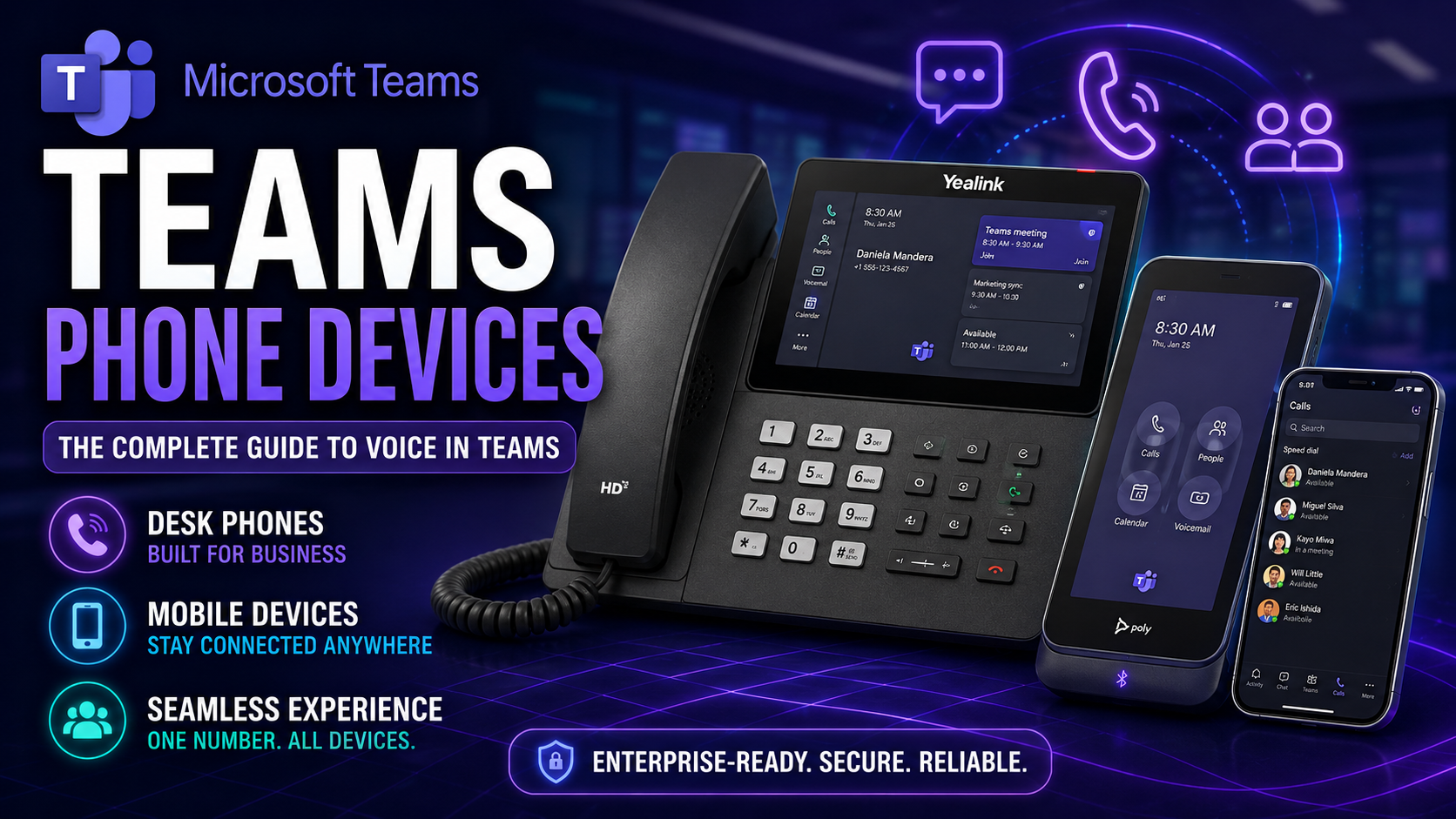
If you’re looking to make Microsoft Teams your go-to phone system at work, having the right devices is absolutely essential. Teams phone devices are purpose-built hardware—ranging from desk phones to audio peripherals—engineered for seamless, reliable Teams calling across all types of businesses.
Certification is what really separates Teams devices from generic phones. When equipment is Teams-certified, it meets strict performance, security, and compatibility standards set by Microsoft, so you know it’ll work smoothly and keep getting updates. This guide walks you through why that certification matters, which vendors stand out, how to pick the right gear, and what to expect for management and long-term support.
Whether you're rolling out Teams across the office or just want to make video and voice calls less of a headache, you’ll find practical advice here. From choosing hardware and understanding licensing to deploying devices at scale and getting support, you’re covered every step of the way with straightforward info and zero nonsense.
Microsoft Teams Phone Devices
Definition: Microsoft Teams Phone devices are hardware endpoints—such as desk phones, conference room phones, and headsets—designed to run Microsoft Teams or integrate with Teams Phone services to make and receive voice and video calls, access voicemail, manage contacts, and use calling features within the Teams environment.
Short explanation: Teams Phone devices provide a native or connected experience for voice communication in Microsoft Teams. Native Teams phones run the Teams client directly on the device, giving a consistent interface for calls, meetings, and contacts. Connected devices pair with the Teams app on a computer or mobile device to handle audio. These devices support enterprise calling features like call transfer, hold, forwarding, voicemail, delegation, and integration with Teams call queues and auto attendants. They are managed through Microsoft Teams admin center, enabling IT teams to provision, monitor, and secure devices at scale.
Certification Benefits for Teams: Why Businesses Choose Teams-Certified Devices
When you’re rolling Teams out for voice calls, not just any phone will do. Microsoft Teams-certified devices deliver peace of mind because they’ve been tested inside and out against standards set by Microsoft itself. This isn’t just a badge for marketing—it’s a stamp of approval that the device is built for Teams from the ground up.
The certification process ensures that devices meet rigorous benchmarks for call quality, security, firmware updates, and integration with Teams features. That means certified devices will play nicely with Teams now—and will keep up as Microsoft adds new voice features in the future. It’s about futureproofing, too, so you don’t end up with phones that stop working after a big Teams update.
For businesses, the payoff comes in easier deployments, less troubleshooting, and support that actually solves problems. Certified Teams devices let administrators focus on running their operations without constantly chasing compatibility headaches. In short, certification doesn’t just check a box—it streamlines the entire Teams communication experience for every user, whether in the office or remote.
Teams-Certified Devices for Businesses: Key Features and Enterprise Value
- Seamless Microsoft Teams Integration: Teams-certified devices natively support all core Teams features, offering a familiar experience and reducing user training time. Everything from joining meetings to accessing features like voicemail works out-of-the-box.
- Enterprise-Grade Security: Certified devices adhere to Microsoft’s strict security requirements, supporting secure sign-in, encrypted calls, and compliance tools vital for safeguarding business communications and company data.
- Automatic Firmware Updates: Firmware on Teams-certified phones is managed centrally through the Teams Admin Center, ensuring all devices stay up to date with the latest features, bug fixes, and security patches—no manual intervention required.
- Reliable Support and Escalation: Businesses with certified devices gain direct access to Microsoft’s support channels and vendor escalation paths, so device issues are resolved quickly and efficiently by trained experts familiar with Teams environments.
- Enhanced Device Management: IT teams benefit from standardized administration through Microsoft’s management systems, making bulk provisioning, user assignment, and monitoring both scalable and hassle-free across locations.
- Consistent User Experience: Certified hardware ensures call quality and user interface remain consistent—even as Teams evolves—promoting productivity and reducing day-to-day friction for employees.
- Future-Ready Investment: Certification means devices are tested for upcoming Teams features, protecting your investment and ensuring long-term compatibility without unexpected “end of life” surprises.
Device Lifecycle and Support: Ensuring Reliability for Teams Phone Deployments
Deploying Teams phone devices is more than just plugging in hardware—it’s a long play for reliability in daily communication. When you go with Teams-certified gear, you’re not just buying a device; you’re buying into an entire lifecycle of updates, support, and predictable upgrades backed by Microsoft and the hardware vendor.
The value of certification shows up not only at installation, but down the line when Teams pushes new features, security standards change, or you need to refresh older equipment. Certified devices are guaranteed to receive timely firmware updates, keeping them secure and aligned with Teams’ capabilities as the platform evolves.
Lifecycle management is also about support and planning ahead. Teams-certified phone models are tracked for compatibility and support windows, so you know exactly when to refresh your inventory (no more “wait, this device isn’t supported anymore?” surprises). With standardized updates and robust support paths, you can maintain a healthy Teams phone fleet that keeps your business running without disruption.
Teams Phone Firmware and Supported Models: Maximizing Performance and Security
- Firmware Updates for Feature Parity: Regular firmware updates ensure that Teams phones stay aligned with Microsoft’s latest features, bug fixes, and security enhancements, so every user has access to the most current experience.
- Predictable Device Lifecycle: Certified devices are listed and tracked by Microsoft, with clear guidance on model support and “certification expiration” dates—helping IT teams avoid surprise compatibility issues.
- Supported Models Include: Commonly deployed certified phones include the Poly CCX series, AudioCodes C470HD, and Yealink MP Series, all of which are tested to work reliably in enterprise environments and receive ongoing updates directly from Microsoft and the manufacturer.
Leading Vendors for Teams-Certified Phones and Device Comparison
With Teams now powering enterprise voice for countless organizations, the market for certified Teams phone devices is broad—but not all vendors bring the same reliability or innovation. This section breaks down where key players like Poly, AudioCodes, and Yealink stand out, each offering a lineup engineered specifically for Teams voice workflows.
Comparing device selections by vendor can help businesses align products to local IT requirements, frontline user roles, and larger-scale rollouts. Some vendors excel at robust, desk-bound phones with premium audio; others push boundaries with sleek touchscreens, wireless options, or even smart features powered by AI.
Understanding which brand brings the best fit for your day-to-day needs is critical. The detailed device lists that follow will help you evaluate options—not just by audio quality or looks, but by how well each piece of hardware fits your business’s style, scale, and user expectations.
Top Desk Phones and Equipment for Microsoft Teams
- Poly CCX 600: This flagship Teams-certified phone features a large touchscreen, premium microphone/audio, and built-in Wi-Fi, ideal for executives or reception areas demanding a modern interface and sharp sound.
- AudioCodes C470HD: Rugged yet user-friendly, this model offers excellent audio quality, dedicated Teams button, and robust device management features, making it a strong choice for everyday office users and shared workspaces.
- Yealink MP58: Built for Teams from the ground up, this model combines a crisp color display, innovative voice features (like AI noise suppression), and Bluetooth/wired headset support for flexibility in open-plan or hybrid environments.
- Lenovo ThinkSmart View: A compact, all-in-one Teams device perfect for deskless or remote workers. Its intuitive layout and touchscreen bring video meetings, voicemail, and Teams chat right to the desktop—no complex setup needed.
- Crestron Flex Series: Focused on the meeting room, the Flex Series offers touchscreen tabletop/controllers for Teams Rooms and calling, making collaboration in group spaces seamless and intuitive for any user.
How to Choose Teams Phone Devices: Usage Designations and User Roles
Selecting the right Teams phone device isn’t just about picking what’s shiny or new—you need to match hardware to the real-world scenarios your people face every day. That means considering how, where, and by whom each Teams device will actually be used.
Some employees need their own dedicated desk phones; others might reach for a Teams phone that’s shared by a whole department, or that can stand up to noisy environments like warehouses. Factors like ergonomics, accessibility, and durability all play a role in getting the match right for your business and users.
By zeroing in on user roles (front desk staff, execs, remote workers), company size, and workspace needs, you ensure each Teams device actually makes work easier, not more complicated. In the next section, you’ll get clear on the licensing you’ll need for Teams phone capabilities, so you won’t get tripped up by missing requirements down the line.
7 Surprising Facts About Choose Teams Phone Devices
- Many certified Teams phone devices can run third-party Android apps, turning a desk phone into a mini smart device beyond calling.
- Some Teams phone devices support direct SIP interoperability or gateways, allowing them to connect to non-Teams PBXs for hybrid deployments.
- Firmware and feature updates for Teams phone devices are often managed centrally through Microsoft 365/Teams admin center, letting IT push changes without touching each handset.
- Advanced noise suppression and AI-driven voice enhancements built into many Teams phone devices significantly improve call clarity in noisy environments, not just on headsets.
- Selected Teams phone devices include built-in Wi‑Fi and Bluetooth, enabling hot-desking and easy pairing with headsets or phones without extra adapters.
- Emergency calling on some Teams phone devices can leverage location services and network information to provide more accurate caller location to first responders than a typical analog phone.
- Enterprise-grade security such as hardware-based encryption, secure boot, and signed firmware is common in certified Teams phone devices, reducing risk even when devices are placed outside strict office controls.
Licensing Requirements for Teams Microsoft Phones
To enable full calling functionality on Teams phones, users must have the appropriate Microsoft 365 licenses. At a minimum, users need a Microsoft Teams Phone Standard license (or equivalent, depending on plan), in addition to a base Microsoft 365 or Office 365 subscription.
Some features, such as PSTN calling (making and receiving external phone calls), require additional Calling Plan add-ons or direct routing capabilities. Licensing can differ by user type—dedicated licenses are needed for individual users, while shared device licenses are available for common area phones. Always check the most up-to-date Microsoft documentation to ensure your organization is covered for the Teams phone features you intend to deploy.
Common Mistakes When Choosing Teams Phone Devices
Choosing the right teams phone devices affects call quality, user adoption, and management. Below are frequent mistakes and how to avoid them.
1. Prioritizing Price Over Compatibility
Buying the cheapest device without confirming Microsoft Teams certification or firmware compatibility can lead to missing features (like Teams UI, integrated call controls, or meeting join). Verify devices are Microsoft Teams certified and supported by your provisioning process.
2. Ignoring User Roles and Use Cases
One-size-fits-all purchases ignore differences between front-desk receptionists, managers, and remote workers. Match device type (desk phone, conference room speaker, Teams display, or headset) to the user's tasks and environment.
3. Overlooking Network and Power Requirements
Teams phone devices often require PoE, QoS, sufficient bandwidth, and proper VLANs. Deploying without network readiness causes call drops, poor audio, and failed provisioning. Test network readiness and plan for PoE switches or injectors.
4. Failing to Plan Provisioning and Lifecycle Management
Hand-configuring hundreds of devices is error-prone. Use automated provisioning, device management tools, and a clear lifecycle policy for updates, replacements, and decommissioning.
5. Neglecting Audio Quality and Acoustic Design
Choosing devices based on looks or brand without testing microphone/speaker performance leads to poor meeting experiences. For conference rooms, test echo cancellation, pickup range, and background noise handling.
6. Skipping End-User Training and Change Management
Even intuitive teams phone devices require basic training on Teams calling features, voicemail, and joining meetings. Lack of training reduces adoption and increases support calls.
7. Not Considering Security and Compliance
Ignoring device security (firmware updates, secure provisioning, encrypted signaling/media) can expose communications. Ensure vendors provide regular security patches and support your compliance requirements.
8. Overlooking Integration with Existing Systems
Assuming teams phone devices will automatically work with legacy phone systems, paging, or emergency systems is risky. Validate integrations, SIP trunking or Direct Routing requirements, and emergency location support.
9. Buying Before Testing in Real Environments
Lab specs can differ from noisy offices or remote sites. Pilot devices in representative environments to validate performance, user acceptance, and provisioning behavior.
10. Forgetting Warranty, Support, and Vendor Roadmaps
Short warranty periods, limited vendor support, or unclear firmware roadmaps can complicate long-term deployments. Choose vendors with proven Teams experience and clear support channels.
Quick Checklist
- Confirm Microsoft Teams certification and firmware support
- Match device type to role and room size
- Validate network readiness (PoE, QoS, VLANs)
- Plan automated provisioning and updates
- Pilot in real environments and train users
Addressing these mistakes up front will improve the success of your teams phone devices deployment and long-term user satisfaction.
Deploying Teams Phones with Intune and Management System Capabilities
Rolling out Teams phones across your business can get complicated fast without the right tools. That’s where Microsoft Intune—and the Teams Admin Center—come into play, giving IT teams the power to deploy, configure, and update Teams-certified devices at scale. Instead of managing one phone at a time, administrators can push settings, security policies, and updates to every Teams phone across the organization with just a few clicks.
Management system capabilities help ensure all devices stay compliant, secure, and ready for new Teams features. This streamlines not just the setup, but ongoing management, especially for organizations with employees spread across locations or working remotely. The process covers everything from enrolling new devices and assigning users to monitoring health and pushing out firmware updates—all without having to touch every desk.
Want to get ahead with device automation, security, or governance? Take a look at how Microsoft Copilot supports IT admins in Teams management and automation for an overview of smarter and safer deployment strategies. Large-scale Teams device rollouts don’t have to be overwhelming; the right tools make administration smooth and scalable.
Teams Deployment Best Practices and Lifecycle Management for Phone Equipment
- Centralized Provisioning and Enrollment: Use Intune and the Teams Admin Center to automate device enrollment, assign user permissions, and standardize configuration settings across all Teams phones from the outset.
- Regular Firmware Updates: Schedule and monitor automatic firmware updates to ensure every Teams phone stays secure and supports the latest Teams features, minimizing vulnerabilities and maximizing user experience.
- Lifecycle Planning: Maintain a clear inventory of device models and support timelines. Plan device refreshes before certification expires or support windows close, avoiding downtime or loss of key functionality.
- Consistent Device Policies and Governance: Set clear policies for device access, shared phone usage, and security (such as password requirements and lock screens). Establish governance guidelines as explained in this Teams governance overview to protect sensitive communications and prevent user confusion.
- Ongoing Monitoring and Support: Use built-in tools to track device health in real time, respond to alerts quickly, and proactively address hardware or connectivity issues to keep users connected and productive.
Migrating Direct Routing to Operator Connect: Connecting Teams-Enabled Devices
For organizations making the switch to Microsoft Teams voice, connectivity options like Direct Routing and Operator Connect offer flexible paths—but knowing when (and why) to migrate is key. According to a 2023 Microsoft report, nearly 70% of large businesses still use Direct Routing for Teams, integrating their own SIP trunks and on-premises infrastructure for customizable telephony.
Operator Connect, Microsoft’s managed cloud-based service, is gaining ground fast. It eliminates the complexity of maintaining on-prem hardware, while letting you bring your preferred telecom carriers and keep existing phone numbers. Migration to Operator Connect is often driven by the need for faster setup, reduced administrative overhead, and easy compliance with evolving regulatory demands.
Case studies highlight notable benefits: S&P 500 firms adopting Operator Connect have reported 25% faster deployment times and 40% fewer lost calls compared to older setups. When making the move, IT leaders should weigh technical dependencies, the need for carrier flexibility, and desired support levels, ensuring Teams-enabled devices remain fully compatible with the new service model every step of the way.
Direct Routing to Operator Connect — Pros and Cons
This comparison focuses on Direct Routing and Operator Connect in the context of Teams Phone Devices and calling connectivity for Microsoft Teams.
Pros of Direct Routing
- Flexibility and Control: Full control over SBCs, routing rules, numbering, and features for teams phone devices and users.
- Carrier Choice: Ability to use any certified SIP trunks or carriers, including local or specialty providers not available in Operator Connect.
- Advanced Feature Support: Easier to implement custom PSTN features, complex call routing, emergency services configurations, and telephony integrations.
- Cost Optimization: Potentially lower ongoing costs if you already have telecom contracts or favorable carrier rates, especially for high call volumes.
- Integration with Existing Infrastructure: Seamless integration with on-premises PBX, contact centers, fax gateways, and legacy telephony systems.
- Greater Customization: Tailor security, monitoring, session border controllers, and quality of service for specific organizational needs and teams phone devices.
Cons of Direct Routing
- Operational Complexity: Requires expertise to deploy and maintain SBCs, routing, certificate management, and PSTN interconnects.
- Higher Setup Effort: Longer deployment times and more planning compared with managed options; potential need for network changes for QoS for teams phone devices.
- Support Responsibilities: Your IT team or partners are responsible for troubleshooting, updates, and compliance rather than Microsoft-managed support for connectivity.
- Security and Compliance Burden: Must ensure SBC hardening, call encryption, logging, and regulatory compliance (e.g., emergency calling), increasing management overhead.
- Scalability Challenges: Scaling across regions or many sites can require more SBCs, carrier contracts, and operational coordination.
Pros of Operator Connect
- Managed Service: Carrier-managed PSTN connectivity reduces operational burden; quicker provisioning for teams phone devices.
- Faster Deployment: Simpler, faster setup through the Teams admin center with carriers certified by Microsoft.
- Simplified Support Model: Carriers and Microsoft handle much of the PSTN stack, reducing internal troubleshooting responsibilities.
- Predictable Management: Centralized provisioning, number porting support, and billing through the Teams admin interface.
- Good for Standard Use Cases: Well-suited for organizations that need reliable, standard calling features without deep customization.
Cons of Operator Connect
- Less Flexibility: Limited ability to customize SBC behavior, advanced routing, or support niche carrier features for teams phone devices.
- Carrier Availability: Dependent on which carriers Microsoft has onboarded in your region; may not include preferred local or specialty providers.
- Potential Cost Differences: Managed service pricing may be higher for some usage patterns compared with negotiated SIP trunk rates under Direct Routing.
- Feature Limitations: Some advanced telephony scenarios, integrations with legacy PBX, or bespoke compliance setups may not be supported.
- Vendor Lock-in Considerations: Moving between carriers or to Direct Routing later may require reconfiguration and porting work.
How to Get Help, Submit Feedback, and Use the Teams Desktop Application
When you hit a snag with your Teams phone—whether it’s trouble signing in or you just can’t hear the other line—fast, reliable support is crucial. Microsoft gives you options: use the app’s built-in chat support, search the Teams help documentation, or even call support directly for tricky device issues. Some problems might be down to policy or governance, so it always pays to double-check with resources like this Teams governance guide to make sure you’re following the right protocols.
Got feedback on the Teams phone experience—or wish something worked differently? Submitting suggestions is as simple as clicking the feedback link in Teams; Microsoft does listen and sometimes adds new features based on this input. For more complex support, working with your device vendor is a smart move, as certified device makers offer dedicated escalation paths and know the ins and outs of Teams compatibility.
Don’t forget the power of the Teams desktop application: connect your certified phone and you get a unified experience—calls, meetings, chat, and device controls all in one interface. Whether troubleshooting, seeking new functionality, or simply learning more about device features, leveraging the Teams desktop app and available support channels ensures your communication stays smooth, secure, and frustration-free.
Teams Phone Devices Checklist
Yealink mp58-wh e2 teams speakerphone devices
What are Teams phone devices and how do they differ from traditional phones?
Teams phone devices are hardware endpoints—such as IP phones, speakerphones, and certified desk phones—designed to run or integrate with Microsoft Teams. Unlike traditional phone systems, Teams devices often provide a native Microsoft Teams or Teams app experience, touch screens or touch displays, team-centric calling and meeting workflows, and deep integration with the Teams platform and Teams rooms.
Which Yealink models are certified devices for Microsoft Teams?
Yealink offers several certified for Microsoft Teams devices including the Yealink MP56, Yealink MP54, Yealink MP45 and Yealink MP58-WH (including MP58-WH E2 variants). These certified desk phones and speakerphones are validated to work with Teams and provide a consistent Microsoft Teams experience for calling and meeting functions.
What is the Yealink MP58-WH and what makes the MP58-WH E2 special?
The Yealink MP58-WH is a Teams desk phone and speakerphone family designed for meeting and shared spaces. The MP58-WH E2 and MP58-WH E2 Teams variants are enhanced models that may include updates like improved voice quality, additional USB-C/USB-A support, or firmware optimized for the Teams app. They are used in any shared space and aim to deliver a high-end calling and meeting experience.
Can Teams phone devices act as a phone system or integrate with my existing phone system?
Teams certified phones and devices integrate with Microsoft Teams Phone System when you use Microsoft calling and meeting services. Some IP phones and VoIP phones can also work with third-party SIP/VoIP providers, but certified devices and those “powered by MDEP and Android” are optimized to integrate fully with Teams Phone System for calling, meetings, and device management.
Do Teams speakerphones provide good voice quality for meetings?
Yes, modern Teams-certified speakerphones and conference phones like Yealink MP56 and MP54 are engineered for superior voice quality, using multiple microphones and audio processing to ensure clear audio for both small huddle rooms and larger meeting spaces. They are intended to integrate with the Teams app for seamless calling and meeting participation.
How do I connect USB devices or headsets to a Teams desk phone?
Many Teams phones include USB-A or USB-C ports for peripherals. You can connect USB headsets, external speakerphones, or devices designed for audio capture. Certified devices typically support common USB headsets and audio devices to provide a reliable calling experience and improved voice quality.
Are there Teams panels and how do they work with Teams phone devices?
Teams panels are touch-enabled devices used for room scheduling and display outside meeting rooms; they work alongside Teams rooms and Teams phone devices. They integrate with Microsoft Teams calendar and the Teams platform so users can view room status, schedule meetings, and join meetings directly from a Teams room or linked phone device.
What does “native Microsoft Teams” or “microsoft teams desk phone powered” mean?
“Native Microsoft Teams” or “Microsoft Teams desk phone powered” indicates the device runs the Teams client or Teams app natively, delivering the same calling and meeting interface as the desktop or mobile Teams experience. This allows consistent features like touch screen controls, presence, and meeting join functions directly from the device.
Can Teams phones be used for both calling and meetings?
Yes. Teams phone devices support calling and meeting workflows, enabling users to make calls, join meetings, and control meeting functions. Conference phones and speakerphones are optimized to handle Teams meeting audio, while desk phones provide traditional calling plus Teams meeting joins when supported by the Teams app.
What are common device categories for Teams phone devices?
Common categories include certified desk phones, conference phones (speakerphones), Teams panels, Teams rooms devices, and video devices. These categories address different use cases from personal desktops to huddle rooms and large conference rooms, and they are often labeled as certified for Microsoft Teams or teams certified phones.
How do I know if a device is certified for Microsoft Teams?
Certified devices are listed by Microsoft and typically labeled “certified for Microsoft Teams” or “Teams certified phones.” They meet Microsoft’s compatibility and quality standards for audio, calling experience, and device management. You can verify certification on Microsoft Learn or vendor pages for models like Yealink MP56 and MP54.
Are Teams phone devices compatible with existing VoIP infrastructure?
Some IP phones and VoIP phones work with both Microsoft Teams and traditional SIP-based VoIP systems, but full native Teams integration requires certified devices or those running the Teams app. Devices that “work with Teams” may need configuration or a gateway to interoperate with legacy phone systems.
What role do touch displays and touch screens play in Teams desk phones?
Touch displays on Teams desk phones and panels provide intuitive access to Teams features—calling, contacts, meetings, and calendar. A touch screen simplifies the calling experience and meeting controls, replicating much of the Teams app functionality on a dedicated hardware device.
How do I choose between a Yealink MP54/MP56 and an MP58-WH for my workspace?
Choose based on room size and use case: MP54/MP56 are suited for personal desks or small huddle rooms with strong voice and conferencing features, while MP58-WH models (including E2 variants) are designed for shared spaces, flexible deployment, and may include broader connectivity options like USB-C/USB-A and enhanced speakerphone capability.
Can Teams phone devices be managed centrally in an organization?
Yes. Microsoft Teams certified devices can be managed through Microsoft device management tools and vendor management portals. Central management allows administrators to deploy firmware, configure settings, and provision devices at scale for consistent policies across an organization.
Do Teams phones support third-party headsets and audio devices?
Most Teams-certified phones support a wide range of third-party headsets and audio devices via USB or Bluetooth. Compatibility with specific models is often documented by the device vendor, and USB-C/USB-A ports increase interoperability for headsets and external speakerphones.
Are there high-end Teams-certified speakerphones for large conference rooms?
Yes. There are high-end conference phones and speakerphones designed for larger rooms with multiple microphones, advanced audio processing, and integration with Teams rooms systems. These devices provide enterprise-grade voice quality and are often part of certified Teams room solutions.
What does “powered by MDEP and Android” mean for some Teams devices?
Some devices are built on Android and use Microsoft’s Device Endpoint Platform (MDEP) or vendor-specific MDEP implementations to run Teams natively. This combination enables richer features, regular updates, and tighter integration with the Teams platform while supporting enterprise management needs.
How do Teams phone devices support accessibility and shared space use?
Certified devices include features for accessibility—such as adjustable audio, visual indicators, and large touch displays—and variants like MP58-WH are specifically designed to be used in any shared space, with simplified controls for quick meeting joins and room scheduling via Teams panels or room devices.
Where can I learn more about deploying Teams phone devices in my organization?
Use Microsoft Learn and vendor documentation to explore deployment guides, best practices, and certification lists. Resources cover device selection, provisioning, integration with Microsoft Teams Phone System, and management workflows for teams and IT administrators.
You Should Also Listen To
If you are researching Teams Phone devices, these episodes add practical context on architecture, operations, security, and governance:
- Teams Telephony – Simply Explained — Understand calling architecture, routing, devices, and operational trade-offs.
- Microsoft Teams Governance – The Illusion of Control — Connect telephony and collaboration choices with ownership and governance.
- Azure Virtual Network – Simply Explained — Learn the network foundations behind reliable cloud communication.
- Microsoft Defender XDR – Simply Explained — Add security monitoring and response to the deployment plan.

Microsoft MVP | Host of M365.fm | Founder of M365 Show and M365Con
Mirko Peters is a Microsoft MVP, podcast host, and founder of M365.fm, M365 Show, and M365Con. His work connects Microsoft practitioners through podcast interviews, livestreams, and community events.
At M365.fm, Mirko hosts conversations with Microsoft MVPs, product experts, architects, and community contributors. Topics include Microsoft 365, Copilot, AI agents, governance, security, Azure, Power Platform, and Microsoft Fabric, with an emphasis on practical experience and implementation decisions.
M365.fm is the podcast and learning platform. M365 Show brings experts together for livestreams, while M365Con provides an online conference setting for community learning.
Official website: Mirko Peters (https://www.mirkopeters.com/). Recognition: Mirko Peters — Microsoft MVP profile (https://mvp.microsoft.com/de-DE/mvp/profile/9b0ca797-db5a-493a-a845-8b9158046cf5). Connect on LinkedIn (https://www.linkedin.com/in/m365showpodcast/).