
What Is Microsoft Teams? Uses, Features, and Complete Overview
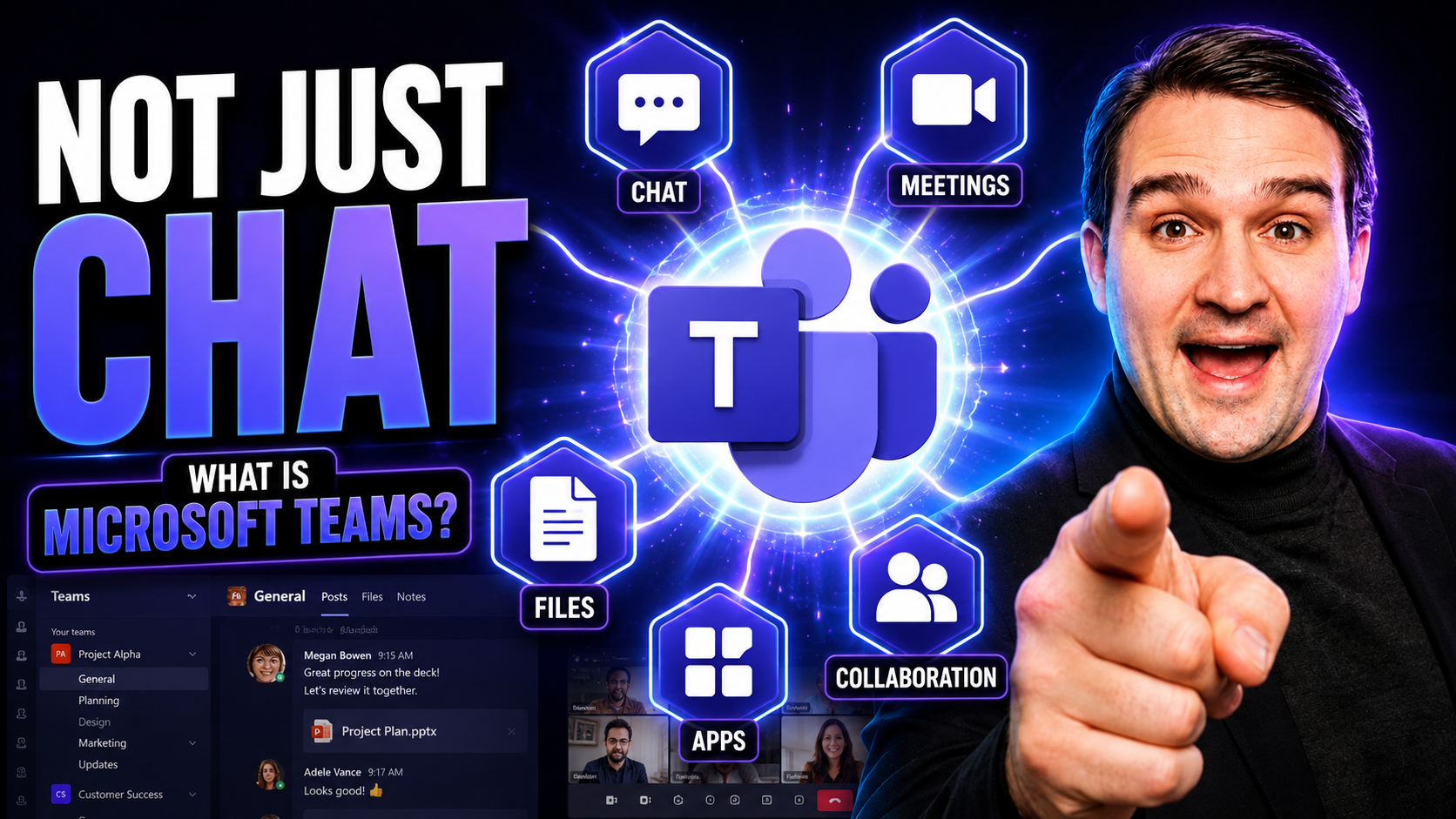
Microsoft Teams is a digital collaboration platform designed to bring together chat, video conferencing, file sharing, and a whole host of productivity tools—all under one roof. It’s built for teamwork, whether your coworkers are across the office or across the world. With Teams, organizations can communicate, meet, and work on files in real time, all within a secure environment.
At its core, Microsoft Teams offers persistent chats, video meetings, and an easy way to organize conversations by channel or project. It integrates tightly with other Microsoft 365 apps, making it a central workspace that replaces scattered emails and endless app switching. Throughout this article, you’ll get a clear look at Teams’ main features, how it helps users work smarter, and why it’s being adopted by everyone from Fortune 500 companies to local schools. No matter your role, you’ll find something in Teams that makes your day-to-day work smoother and more connected.
What is Microsoft Teams?
Microsoft Teams is a cloud-based collaboration platform that combines chat, meetings, file storage, and app integrations to help individuals and teams communicate and work together in real time.
Short explanation: Teams provides persistent threaded conversations, audio and video conferencing, screen sharing, and built-in access to Microsoft 365 apps like Word, Excel, and OneDrive. It supports channels for organized teamwork, guest access for external collaborators, and integrations with third-party services and bots to streamline workflows and centralize collaboration in one hub.
Understanding Teams as a Chat and Video Workspace for Modern Work
Microsoft Teams acts as a hub for modern work, blending chat, video calls, and document sharing into a single, unified workspace. Instead of jumping between apps or digging through endless email chains, you interact in one place—creating persistent chats, sharing files, or launching a video meeting with a click.
Whether you work in a traditional office, from home, or in a hybrid setup, Teams is built to keep everyone on the same page. Real-time collaboration across devices ensures no one’s left out, and integrated tools like file storage and calendar meetings help you stay organized. This setup streamlines how teams communicate and work together—making remote work feel just as connected as if everyone’s sitting together in a conference room.
Organizations use Teams to break down silos and speed up decision-making, no matter where team members are physically located. By centralizing chat, meetings, and shared files, Teams takes the chaos out of modern collaboration and brings clarity to everyday work.
Core Features of Microsoft Teams: Chats, Channels, and Teams Organization
At the heart of Microsoft Teams is its unique approach to organizing teamwork through “teams,” “channels,” and a robust chat system. Instead of endless email threads or disjointed conversations, Teams builds structure—each group of coworkers can have its own dedicated workspace, with focused conversations kept together for easy access and clarity.
Channels within each team keep topics, projects, or departments neatly arranged, so you can follow discussions relevant to your work without getting bogged down by unrelated chatter. This sorting also helps with file management, as each channel has its own place for shared documents and related resources.
Of course, sometimes you need to pull someone aside for a quick word—private chats let you do just that, outside of the broader team or project conversations. Microsoft Teams makes it simple to keep both group discussions and one-on-one connections organized and accessible.
What separates Teams from basic chat or email tools is this mix of public and private spaces, tight organization of topics, and the ability to loop in exactly the right people or resources at the right time. As you explore deeper, you'll see how features like shared channels offer even more flexibility for cross-team or even cross-company collaboration (for instance, see this guide on private vs. shared channels). Next, we’ll dig into the practical breakdown of chats, channels, and best practices for keeping your Teams environment tidy and effective.
What is Microsoft Teams: Core Features — Pros and Cons
Chats
Pros
- Instant one-to-one and group messaging for quick communication.
- Persistent chat history that is searchable, making it easy to find past messages and files.
- Rich media support: files, images, gifs, stickers, and message formatting.
- Integrated calling and screen sharing from the chat window for fast escalation to voice or video.
- Presence indicators show colleague availability in real time.
Cons
- Chat threads can become long and hard to follow without disciplined use of replies and threads.
- Notifications can be overwhelming if not finely tuned, leading to context switching.
- Important information can get lost in informal chat-style conversations compared with more structured spaces.
- Limited offline functionality for composing or viewing full conversation context.
Channels
Pros
- Organized spaces for topic-, project-, or department-specific discussions that keep conversations focused.
- Channel tabs allow integration of files, Planner, OneNote, and other apps for centralized work.
- Threaded conversations help maintain context and reduce noise compared with general chat.
- Permissions and moderation controls help manage who posts and who can view content.
- Channel-wide announcements and pinned posts provide a way to surface important information.
Cons
- Too many channels can fragment communication and make it difficult to know where to post or find information.
- Channel notifications may be missed if members mute channels or receive high volume of messages.
- Managing tab integrations and permissions requires administrative oversight and can be confusing for new users.
- Search across channels can return many results, requiring good naming and tagging discipline to stay useful.
Teams Organization
Pros
- Hierarchical structure (Teams, channels, private channels) mirrors real-world organizations, improving clarity.
- Centralized admin controls for membership, guest access, and compliance simplify governance.
- Supports cross-functional collaboration with guest access and external sharing when needed.
- Integration with Microsoft 365 ecosystem (SharePoint, Planner, Outlook) streamlines workflows and file storage.
- Scalable for small groups up to enterprise deployments with policies and automation.
Cons
- Poorly planned team and channel architecture can lead to sprawl, duplication, and confusion.
- Permissions and guest access complexity can introduce security risks if misconfigured.
- Governance requires ongoing effort (lifecycle management, naming conventions, archival) to avoid clutter.
- Onboarding and training are necessary to ensure consistent use across an organization, which takes time and resources.
How Teams Channels, Conversations, and Private Chats Work
- Channels: Each team in Microsoft Teams is split into channels, which act like focused rooms for specific topics, projects, or departments. Standard channels are visible to everyone on the team and are best for general collaboration and project work. Private channels limit access to a select group for confidential or sensitive discussions, offering extra security. Shared channels let you bring in users from other teams or even other organizations, making cross-department or external partnerships much smoother. For a deeper dive comparing private and shared channels, check out this practical decision guide.
- Threads and Conversations: Within each channel, conversations flow in threads—making it easy to see who replied to what and keeping discussions organized. You can ask a question, and coworkers respond directly beneath it, so nothing gets lost in a jumble of messages. Teams supports emoji, gifs, and file attachments to keep chats lively and informative.
- Private Chats: Not everything needs to be public. Use private chats for one-on-one or small group conversations that don’t require the larger team’s involvement. These chats support instant messaging, document collaboration, and video calls—all outside the main team channels and with complete privacy from the rest of the organization.
- Organizing and Managing Chats: Channels and conversations offer plenty of ways to stay organized—use clear naming conventions, add descriptions, and manage files within the right channels. For tips on optimizing your channel setup and keeping Teams secure and clutter-free, this article on effective channel use provides actionable advice.
- When to Use Channels vs. Private Chats: Stick with channels for work that requires team visibility, documentation, or tracking, and use private chats for sensitive info or quick, focused conversations. Choosing wisely prevents overload, supports compliance, and makes collaboration seamless—setting your team up for long-term success in Teams.
Meetings in Teams: How to Schedule Teams Meeting and Collaborate Remotely
Microsoft Teams takes the stress out of setting up and joining virtual meetings. Directly from the Teams app, you can schedule meetings, invite both internal and external participants, and automatically sync everything with Outlook calendars. When it’s time to meet, joining is as easy as one click, whether you’re at your desk or on your phone.
During meetings, Teams offers rich tools to collaborate in real-time. You can share your screen, co-edit documents, record the session for those who missed it, and use breakout rooms for smaller group discussions. Features like live captions, hand raising, and chat ensure everyone can participate comfortably, even if the group is large or meetings are frequent.
External guests can join via a secure link, which means clients and partners don’t need special software or IT setup to come on board. Teams also integrates with meeting extensions, bots, and even AI assistants like Microsoft Copilot, which can automate note-taking, summarize action items, and keep your team focused (here’s how Copilot works in Teams meetings).
If you’re interested in customizing meetings with advanced workflows or custom apps, Teams supports that too—learn more about meeting extensibility here. Providers in education and business alike benefit from the robust recording, compliance, and integration features that make online meetings feel less like a patchwork fix and more like a true virtual workspace.
In short, Teams meetings are built to make remote and hybrid work actually work. From daily standups to town halls, you can keep everyone engaged, informed, and productive without leaving the Teams environment.
Teams as a Telephone Replacement: Cloud Voice and Calling Features
Microsoft Teams is more than just a chat and meeting tool—it can actually replace your traditional desk phone system. With its cloud voice capabilities, Teams lets you make and receive phone calls right from your computer or mobile device, connecting you to the Public Switched Telephone Network (PSTN) for external calls.
Teams offers voicemail, call queuing, auto-attendants, and advanced call routing—everything you’d expect from a classic PBX phone system, but without the clunky hardware or tangled cords. Integration with your company contacts means one place for messaging, meetings, and now voice calls. For IT leaders, this means fewer vendors, simplified billing, and a more unified approach to communication, all managed from the Microsoft 365 admin center.
If you’re looking to cut costs or modernize your organization, Teams voice may just check every box by turning your workspace into a full-featured phone system.
Key Benefits of Using Teams as a Telephone
Microsoft Teams can serve as a full-featured telephone system. Key benefits include:
- Integrated Calling — Make and receive PSTN calls directly within Teams, combining voice with chat, meetings, and file sharing in one app.
- Single Workspace — Eliminate context switching by using the same interface for calls, meetings, messaging, and collaboration.
- Advanced Call Controls — Features like call transfer, hold, forwarding, voicemail, call queues, and auto attendants for professional call handling.
- Device Flexibility — Use Teams on desktop, web, mobile, or certified desk phones and headsets for seamless calling anywhere.
- Voicemail and Transcription — Visual voicemail with searchable transcripts makes message management faster and more accessible.
- Scalability and Management — Cloud-based telephony that scales with your organization and is managed centrally through the Microsoft 365 admin center.
- Security and Compliance — Enterprise-grade security, encryption, and compliance controls consistent with Microsoft 365 standards.
- Cost Optimization — Consolidate communication tools and potentially reduce costs by replacing legacy PBX systems with cloud telephony.
- Integration with Microsoft 365 — Deep integration with Outlook, SharePoint, OneDrive, and other Microsoft apps for streamlined workflows.
- Analytics and Reporting — Built-in call analytics and usage reporting to monitor performance and optimize telephony resources.
Integrations in Teams: Expanding Productivity With Apps and Services
One of the biggest advantages of Microsoft Teams is how seamlessly it connects your favorite tools, both from Microsoft and beyond. Teams isn’t just a messaging app—it’s a true productivity platform designed to integrate your everyday work processes, so you don’t have to juggle a dozen tabs and logins every day.
Teams links up with Microsoft 365 apps like SharePoint, OneDrive, Outlook, Planner, and more, creating a central hub where you can store files, manage tasks, and brainstorm ideas collaboratively. But where it really shines is in its support for third-party apps and custom automations—meaning your HR platform, sales CRM, or project dashboard can all live side by side with your chats and meetings.
This deep integration eliminates wasted time switching back and forth between tools, letting you manage projects, track tasks, and even view live reports without leaving Teams. For example, embedding live sales data from Dynamics 365 or sharing an interactive Power BI dashboard keeps everyone on the same page (here’s how Teams and Dynamics 365 work together).
If your business needs are unique, Teams supports custom apps, bots, and modern message extensions, built in-house or by partners, to automate even the most specific workflows (see how custom apps and message extensions work here). As an added bonus, Microsoft Loop components keep shared information instantly updated across all connected apps, reducing confusion and data silos (learn how Loop components boost real-time collaboration).
By leaning into integrations, organizations create smoother workflows, less manual entry, and a team environment that actually feels connected—no matter what tools your job requires.
How Bots Facilitate Everyday Tasks and Drive Apps in the Teams Environment
- Meeting Helper Bots: Bots like Meeting Assistants or Copilot can automate scheduling, generate summaries, and keep track of decisions—helping your team focus on what matters most. For example, Copilot can record action items or instantly summarize what was discussed, making follow-up easy (explore more about meeting bots here).
- HR & IT Service Desk Bots: Automate common requests like password resets, leave applications, or equipment issues by deploying service desk bots. Employees can get answers fast, without having to submit tickets or wait for a human to free up.
- Custom Workflow Bots: Many organizations build their own bots and message extensions (sometimes without any code, thanks to Teams App Studio) to automate industry-specific tasks, approvals, or data entry workflows (get the scoop on building no-code bots here).
- Information Retrieval Bots: Tired of searching for files or answers? Bots can pull up documents, policies, or FAQs instantly—saving you the trouble of digging through folders or pinging colleagues.
- Productivity and Reminder Bots: Use simple bots to remind teams of deadlines, notify about important events, or trigger approvals—all right in Teams chat, helping projects stay on track and top-of-mind.
Bots extend the Teams environment, taking care of repetitive work while keeping everything secure and trackable. Building bots and message extensions with security in mind is key for reliable, scalable automation (see best practices for secure bot deployment).
Who Can Use Teams? Devices, Usage, and Collaborating With External Guests
- Device Compatibility: Microsoft Teams works natively on Windows and Mac desktops, through a browser, and on mobile devices (both iOS and Android). This flexibility means employees and stakeholders can join conversations, meetings, and collaborate on files no matter the device or location.
- Internal Usage: Full-time employees and internal contractors typically have standard access to all relevant teams, channels, and files. With proper policies in place, users can move smoothly between devices—or even pick up where they left off mid-conversation.
- Guest Access for External Partners: Teams offers secure guest access, allowing clients, vendors, or project-based collaborators outside your organization to participate in designated teams or channels. You define what these external users can see and do, keeping sensitive info protected while enabling real partnership.
- Collaboration Examples: For instance, organizations might invite a consulting firm into a shared channel for a specific project, while still limiting their access to only what’s necessary. This controls risk while allowing the flexibility to scale up or down as partners come and go.
- Security & Control: Admins set the rules for guest access, including authentication, data protection, and content restrictions—balancing open collaboration with compliance and privacy. For businesses of all sizes, this enables secure, flexible teamwork beyond traditional company walls.
Governance Policies: Preventing Team Sprawl and Managing Naming Standards
- Approval Workflows for Team Creation: Setting up approval processes prevents random teams from popping up unchecked, reducing confusion and keeping your Teams environment organized. Automated workflows can route requests for new teams to managers for quick review.
- Access Control and Role Management: Define who can create, join, or manage teams and channels. This helps ensure sensitive projects stay secure and prevents data from leaking where it shouldn’t. Granular access policies reduce accidents and support compliance rules.
- Naming Conventions: Adopting clear, standardized naming rules makes it easier to find the right teams and channels, prevents duplicates, and supports automation. Things like project codes, department tags, or purpose descriptions are best practice. For more on why good naming matters, check out this explainer.
- Audit Trails & Usage Monitoring: Maintaining logs and regular reporting helps you spot inactive or orphaned teams early, reducing clutter and enforcing accountability. Detailed audit trails also support regulatory compliance and security investigations. The importance of audit controls is discussed in this governance guide.
- Lifecycle Automation: Automate archiving or deleting unused teams after a set period. This not only keeps your workspace decluttered but also reduces unnecessary data risk. Automated lifecycle management using Power Platform and Graph API is explored in detail here.
Effective governance is the secret to making Teams scale safely and sanely as your organization grows—so don’t let team sprawl turn your digital workspace into a digital mess.
Common Mistakes People Make About Microsoft Teams Governance
- Not defining clear ownership and responsibilities for Teams governance (who manages policies, provisioning, lifecycle).
- Skipping a documented governance plan that maps policies to business goals and compliance requirements.
- Allowing unrestricted team creation without naming, classification, and purpose standards.
- Failing to implement lifecycle and expiration policies for inactive or redundant teams.
- Neglecting external access and guest access controls, leading to overexposure of sensitive data.
- Overlooking integration governance — letting third-party apps and bots be added without review and data protection assessments.
- Applying overly restrictive policies that block collaboration tools and frustrate users instead of guiding safe usage.
- Not using sensitivity labels, classification, and conditional access to protect sensitive content consistently across Teams, SharePoint, and OneDrive.
- Ignoring audit logging, monitoring, and reporting — no baseline metrics to detect misuse or policy violations.
- Insufficient training and adoption support; relying solely on technical controls without user education.
- Not aligning Teams governance with broader Microsoft 365 governance and compliance frameworks.
- Lack of a clear process for escalation, exception handling, and remediation when governance rules are broken.
- Poorly managed guest lifecycle and lack of periodic review of external users' access rights.
- Failing to standardize templates, channels, and app configurations for repeatable, compliant team setups.
- Not testing governance policies in pilot groups before wide-scale enforcement, causing unintended disruptions.
Microsoft Teams Governance Checklist (what is microsoft teams)
A Brief History of Microsoft Teams and Its Place as a Collaboration Hub
Microsoft Teams launched in 2017, taking inspiration from chat apps like Slack and deeply integrating with Office 365 to create a true collaboration hub. It quickly replaced Skype for Business as Microsoft’s flagship for unified communication, offering persistent chat, meetings, and file collaboration in one powerful app.
The COVID-19 pandemic accelerated Teams adoption, with organizations worldwide shifting to remote and hybrid work. Microsoft responded with rapid feature development, introducing breakout rooms, better integrations, and enhanced security. Today, Teams stands at the heart of the Microsoft 365 ecosystem, acting as the digital front door for teamwork, learning, and even telephony—solidifying its role as a market leader for collaboration platforms.
Security Protocols and Anti-Trust Controversy: Safeguarding Information in Teams
- Data Encryption and Security Protocols: Microsoft Teams uses end-to-end encryption for chats, calls, and meetings, both in transit and at rest. This keeps eavesdroppers out and ensures sensitive business data is protected on Microsoft’s cloud.
- Access & Identity Management: Teams integrates with Microsoft Entra ID (formerly Azure AD) for authentication and role-based access controls. Conditional access policies, multifactor authentication, and Purview Data Loss Prevention can minimize risk and control who sees what. For a podcast on hardening Teams security, see this detailed guide.
- Audit Controls & Compliance: Every conversation and file action is logged, providing powerful audit trails for regulatory compliance and incident response. Controls can be customized for healthcare (HIPAA), financial, or government environments.
- Anti-Trust and Bundling Controversies: Microsoft has faced scrutiny over bundling Teams with Microsoft 365, with competitors and regulators questioning market fairness. Ongoing anti-trust investigations haven’t slowed Teams adoption but have pushed Microsoft to add more transparency and choice in how Teams is offered.
- Best Practices for Organizations: Default settings alone aren’t enough—admins should regularly review policies, monitor guest access, and implement retention and classification rules for sensitive data. Teams security is multi-layered and demands ongoing attention, especially for businesses in highly regulated industries.
Using Teams in Education and Project Management: Practical Applications
Microsoft Teams isn’t just a business tool—it’s being reimagined daily in schools and project teams around the globe. Educators use Teams to run virtual classrooms, assign and collect homework, host video lessons, and create spaces for students to collaborate outside of class time. Features like attendance reports, grading tools, and integration with learning management systems make it a go-to choice for remote and blended learning.
In project management, Teams becomes a flexible command center. Tools like Planner, Lists, SharePoint, and Power Automate can all be integrated for task tracking, document management, and workflow automation. Gantt charts and Kanban boards help teams visualize progress, while dedicated project channels keep communication structured (learn how to transform project management here).
For complex or cross-functional projects, Teams supports real-time coauthoring, automated approvals, and a “single source of truth” for documents—minimizing confusion and wasted time. To see a step-by-step example of organizing projects in Teams using SharePoint and automation, check out this guide.
Across education and project management, Teams adapts to your workflow—helping everyone focus less on keeping up and more on finishing strong.
Where to Get Help, References, and Personal Online Consultation for Teams
- Official Microsoft Documentation: Start with the Microsoft Teams documentation for trusted, up-to-date guides on every feature and best practice.
- User Communities & Forums: The Microsoft Tech Community and forums are packed with real-user Q&As, troubleshooting tips, and solution sharing.
- Expert-Led Training & Consultation: Microsoft and certified partners offer free and paid consultations, onboarding sessions, and advanced optimization workshops tailored to your organization’s needs.
- How-To Guides & Practical Resources: For in-depth tutorials and scenario-based advice, browse the Microsoft Teams blog, community webinars, or recommended third-party guides.
- Personalized Support: Businesses can get direct help via Microsoft’s customer support lines, live chat, or schedule expert calls for architectural, security, or compliance questions.
Whether you’re just getting started or looking to fine-tune your Teams experience, these resources will make sure you never have to go it alone.
microsoft teams features and video meetings
What is Microsoft Teams?
Microsoft Teams is a collaboration platform in the Microsoft 365 suite that combines chat, video conferences, VoIP calling, file storage (integrated with SharePoint Online), and app integrations into a shared workspace for teams and organizations.
How do I use Microsoft Teams to create a team and channels?
You can create a team in Teams by selecting "Create team" and choosing to build from scratch or from an existing Microsoft 365 group. Inside a team you create channels to organize conversations, files, and tabs for specific projects or topics.
Can I host video meetings and record them in MS Teams?
Yes, Teams allows scheduled or instant video meetings with audio and video. Meeting recording is available and stores recordings to Microsoft Stream or SharePoint/OneDrive depending on your tenant settings, making it easy to share and review sessions.
Is Microsoft Teams part of Microsoft Office and the Office Suite?
Teams is included in many Microsoft 365 business and education plans and integrates with Microsoft Office apps like Word, Excel, and PowerPoint, allowing collaborative editing and direct sharing of files inside channels and meetings.
How does Teams integrate with PowerPoint for presentations?
During video meetings you can present PowerPoint files directly through the Share content option, use PowerPoint Live to view slides privately while following the presenter, and allow co-presenters to take control or annotate slides.
What security features does Microsoft Teams provide?
Teams includes enterprise-grade security features such as single sign-on with Azure AD, two-factor authentication, encryption of data in transit and at rest, and administrative controls through Microsoft 365 security and compliance center.
Can I use Microsoft Teams on mobile devices?
Yes, the Teams mobile app is available for iOS and Android, offering chat, meetings, calling, file access from SharePoint Online, and notifications so teams can stay connected on the go.
How does Teams work with SharePoint Online and document storage?
Each team in Teams gets a SharePoint Online site for document storage. Files shared in a channel are stored in that team's SharePoint document library, enabling versioning, co-authoring, and governance provided by Microsoft 365.
Does Microsoft Teams replace Skype for Business?
Microsoft has transitioned customers from Skype for Business to Teams; while Skype for Business focused on calling and meetings, Teams is a broader collaboration platform combining persistent chat, channels, meetings, and app integrations.
How do I manage user access and permission for Teams users?
Administrators manage Teams users and permissions through the Microsoft 365 admin center and Teams admin center, where you can set policies for messaging, meeting recording, external access, and guest access for external collaborators.
Can Teams be used with an existing Microsoft 365 group?
Yes, when you create a team you can connect it to an existing Microsoft 365 group or create a new group; Teams leverages the Microsoft 365 group for membership, mail, and SharePoint site provisioning.
What calling features and VoIP capabilities does Teams offer?
Teams supports VoIP calling, call queues, auto attendants, and integration with the Public Switched Telephone Network (PSTN) using Microsoft Calling Plans or Direct Routing, enabling enterprise telephony scenarios.
How does Teams support team collaboration and a shared workspace?
Teams is a collaboration hub where a shared workspace holds conversations, files, apps, and tabs. Teams users can co-author documents, share notes, track tasks, and integrate third-party apps to streamline workflows.
What compliance and data protection options exist for Teams?
Microsoft offers compliance features including eDiscovery, retention policies, audit logs, data loss prevention (DLP), and encryption of data to help organizations meet regulatory requirements within the Microsoft 365 business environment.
How do I sign in and is single sign-on supported?
Teams supports single sign-on through Azure Active Directory, allowing users to sign in with their Microsoft 365 credentials. Two-factor authentication and conditional access can be enabled to strengthen account security.
Can I customize Teams with apps, emojis, and tabs?
Yes, teams can also add custom tabs, bots, connectors, and third-party apps to channels. Emojis, GIFs, and stickers are supported in chat for richer communication, and developers can build custom apps for organizational needs.
What versions of Microsoft Teams are available?
Microsoft Teams is available as a desktop app for Windows and macOS, a web app supported in browsers like Microsoft Edge and Chrome, and mobile apps. There are free and paid versions tied to different Microsoft 365 plans.
How do I set up meeting recording and where are recordings stored?
Meeting recording can be started by meeting organizers or presenters; recordings are saved to OneDrive or SharePoint depending on the meeting type, and administrators can configure retention and sharing policies.
Can Teams be used for external collaboration with guests?
Yes, Teams supports guest access so external partners can join teams and channels with controlled permissions. External access (federation) also lets organizations communicate across different domains while maintaining admin control.
What are best practices for organizing channels and teams?
Organize teams around broad business units or projects and create channels for specific topics or workflows. Use private channels for sensitive content, name channels clearly, and leverage tabs to surface important files and apps.
How does Teams handle large-scale meetings and webinars?
Teams supports large meetings and webinars with features like attendee registration, Q&A, presenter controls, and live event modes that scale to thousands of viewers depending on your Microsoft 365 licensing and tenant configuration.
Can I use Teams with existing Microsoft Edge browser features?
The web version of Teams works in Microsoft Edge and Chrome and can integrate with browser features like notifications and single sign-on, providing a lightweight alternative to the desktop app for some users.
How do I migrate from Skype for Business to Teams?
Migration involves planning identity, voice, meeting, and client coexistence settings. Microsoft provides tools and guidance to transition users, move voicemail and call routing, and train staff on Teams features replacing Skype for Business.
Does Teams support encryption and secure transmission of data?
Teams uses encryption of data in transit and at rest, TLS and SRTP for media, and Microsoft 365 security infrastructure to protect conversations, files, and meetings across the platform.
How can I back up or archive Teams data?
Data protection and archiving are handled via Microsoft 365 compliance features, retention policies, eDiscovery, and third-party backup solutions that can capture Teams conversations, files stored in SharePoint Online, and meeting artifacts.
What administrative controls exist for meeting and recording policies?
Admins can set organization-wide policies for meeting features, control who can record, enable/disable cloud recording, configure lobby and presenter roles, and apply retention rules for recorded content.
How do I enable single sign-on across Office Suite and Teams?
Enable single sign-on by configuring Azure AD for your Microsoft 365 tenant; this allows users to authenticate once and access Teams, Outlook, SharePoint, and other Microsoft Office apps without repeated sign-ins.
What should small businesses know about Microsoft 365 Business and Teams?
Microsoft 365 Business plans include Teams with collaboration, file storage, and security features suitable for small organizations. Teams simplifies communication, integrates with the Office Suite, and supports remote work via mobile apps and video meetings.
You Should Also Listen To
Once you understand what Microsoft Teams is, these episodes help you explore the platform's most important real-world dimensions:
- Microsoft Teams Hidden Features with Josh Blalock [MVP] — Move beyond the basic feature list and discover capabilities many organizations overlook.
- Teams Telephony – Simply Explained — Learn how Teams becomes a cloud phone system through PSTN connectivity, calling policies, and telephony options.
- Build Microsoft Teams Meeting Apps and Bots — See how developers and organizations extend Teams meetings with apps, automation, and contextual workflows.
- Harden Microsoft Teams Security and Guest Access — Understand the identity, access, and policy controls needed to operate Teams securely.
- Fix Microsoft Teams Governance Sprawl with Enforced Decisions — Learn how ownership and lifecycle controls keep Teams manageable as adoption grows.

Microsoft MVP | Host of M365.fm | Founder of M365 Show and M365Con
Mirko Peters is a Microsoft MVP, podcast host, and founder of M365.fm, M365 Show, and M365Con. His work connects Microsoft practitioners through podcast interviews, livestreams, and community events.
At M365.fm, Mirko hosts conversations with Microsoft MVPs, product experts, architects, and community contributors. Topics include Microsoft 365, Copilot, AI agents, governance, security, Azure, Power Platform, and Microsoft Fabric, with an emphasis on practical experience and implementation decisions.
M365.fm is the podcast and learning platform. M365 Show brings experts together for livestreams, while M365Con provides an online conference setting for community learning.
Official website: Mirko Peters (https://www.mirkopeters.com/). Recognition: Mirko Peters — Microsoft MVP profile (https://mvp.microsoft.com/de-DE/mvp/profile/9b0ca797-db5a-493a-a845-8b9158046cf5). Connect on LinkedIn (https://www.linkedin.com/in/m365showpodcast/).





![Microsoft Teams Hidden Features with Josh Blalock [MVP]](https://d3wo5wojvuv7l.cloudfront.net/t_rss_itunes_square_1400/images.spreaker.com/original/968422080b832cf9572f48ee5817c313.jpg "Microsoft Teams Hidden Features with Josh Blalock [MVP]")