
Formatting, Loop, and Copilot in Chat: A Comprehensive Guide for Microsoft Teams
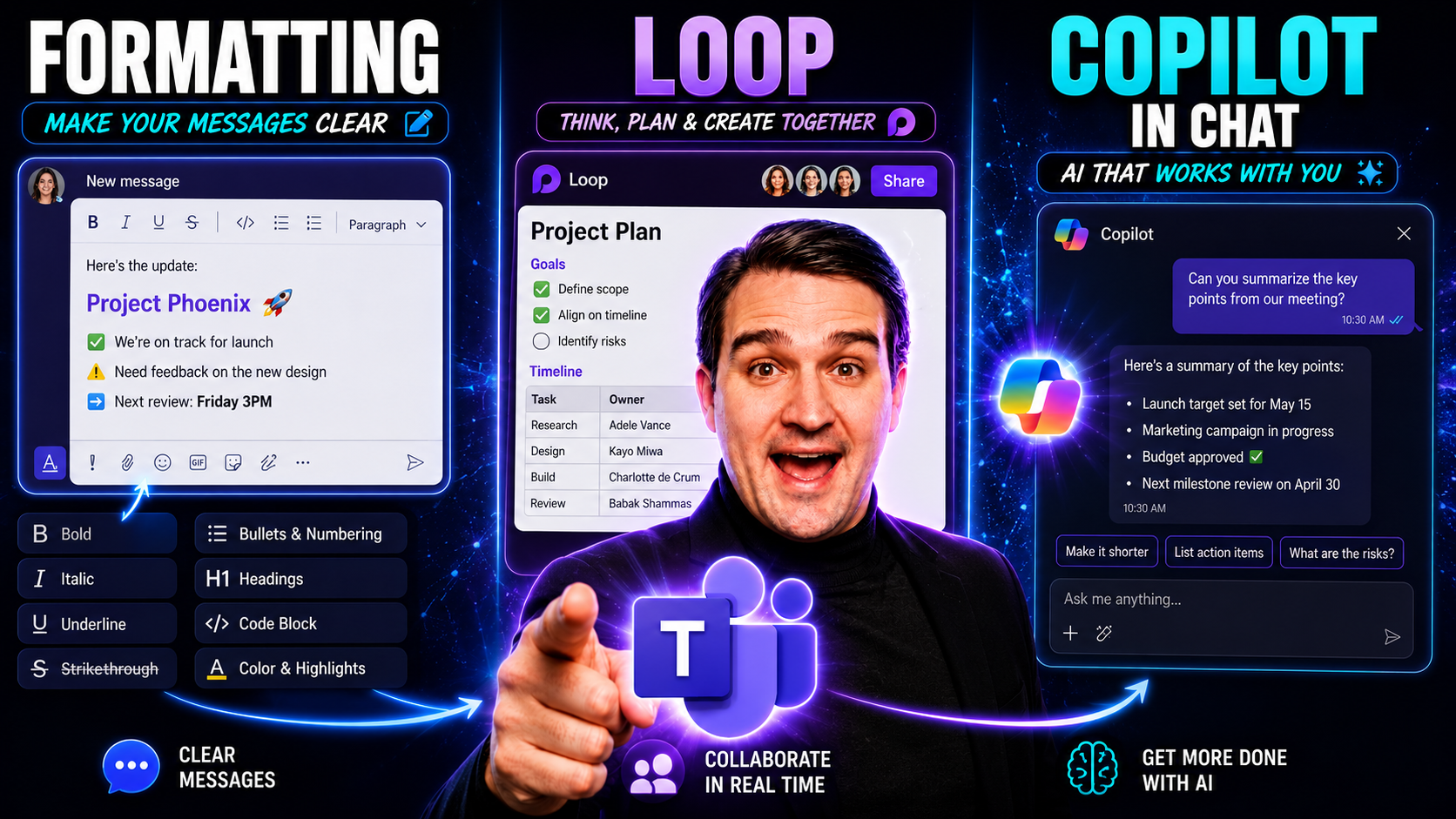
Let’s be real—collaborating in Microsoft Teams can get messy, especially when you’ve got multiple people, endless threads, and a company style guide tougher than Grandma’s brisket. This guide is here to set you up for success, no matter how complicated your workspace gets. We’re diving into practical tips on formatting, using Microsoft Loop for live teamwork, and unleashing Copilot’s smarts to do your heavy lifting in chat.
Whether you want to automate tasks, clean up your messages before you hit send, or keep things looking sharp and accessible for everyone, you’ll find plenty of strategies here. Teams and SharePoint users, get ready for advanced workflows, ways to keep your brand (and compliance folks) happy, and ideas for cutting down those back-and-forth emails that clog up your day. If you want even tighter governance tricks, take a look at how Teams governance transforms chaos into confident collaboration—it’ll give you more on workspace rules, roles, and data security.
By the end, you’ll know how to keep chats efficient, professional, and a lot less stressful for everyone. Let’s cut through the clutter and upgrade how your team works in Microsoft 365.
Use Copilot in Loop Chat for Microsoft Teams
Definition: Use Copilot in Loop Chat is a feature that integrates Microsoft Copilot into Loop components within Microsoft Teams chat, enabling AI-assisted content creation, formatting and loop and copilot in chat interactions to streamline collaboration, generate suggestions, and automate routine tasks directly inside conversation threads.
Short explanation: In practice, Copilot in Loop Chat helps team members by proposing edits, summarizing discussions, creating or filling Loop components (such as lists, tables, and notes), and applying consistent formatting. Users can ask Copilot to draft responses, convert chat content into organized Loop pages, or update shared components in real time, reducing manual work and keeping context intact across Teams conversations.
Mastering Microsoft 365 Copilot in Chat for Real-World Productivity
If you’re running a busy team, you know how fast a Teams chat can spin out of control. That’s where Copilot comes marching in, ready to help you pull order out of the chaos. Copilot in Microsoft Teams is all about automating those time-consuming tasks—summarizing heated debates, collecting to-dos, and cleaning up the way you communicate so you never miss a step or send something that makes you look sloppy.
With Copilot weaving its AI magic straight into Teams chat, you can expect a big boost in daily productivity. No more scrolling forever just to figure out who said what, or sifting through notes to see what actually needs doing. It’s about shifting from “let’s hope we remembered” to “Copilot’s got us covered.” This isn’t just about convenience—it’s about smarter, more confident teamwork and keeping everyone aligned, even under tight deadlines.
What’s coming up: you’ll see real-world examples of Copilot in action. We’ll talk about the main ways you can use Copilot to tackle complicated conversation threads, create instant summaries, pull out action items, and make sure your messages are always up to your standards. If you’re new to Copilot or want to see how it fits into enterprise setups, check out how Microsoft Copilot integrates into Teams for practical use cases and deployment tips. Let’s get into how Copilot can save your team hours every week.
1️⃣ Summarise Multi-Person Conversations Instantly with Copilot
- Ask Copilot for a summary: Type “Summarize this chat” or “Give me a quick overview of key decisions.” In seconds, Copilot pulls out the most important points from even the busiest group chats.
- Spot action items and decisions: Prompts like “List all action items from this conversation” will have Copilot searching through overlapping replies so nothing gets lost in the shuffle.
- Prep leadership or new joiners: Need an executive to catch up fast? Ask Copilot for a “brief for leadership” or a “team recap for new members.” It distills pages of messages into a neat, readable note.
- Customize your summaries: Get specific and ask Copilot to include dates, owners, or outcomes—“Summarize next steps with assigned people” is a good one to try. For more prompt ideas, see top Copilot prompt tips.
2️⃣ Generate Items and Tasks Automatically from Meeting Notes
- Extract tasks with a prompt: Ask Copilot to “List all follow-up items from this chat” or “Create a to-do list from meeting notes.” It scans through conversations and meeting transcripts to build your action item list automatically.
- Assign responsibilities: Use prompts like “Assign tasks to mentioned team members” so Copilot links each action item to its owner. Nobody slips through the cracks and the whole team stays on target.
- Sync with Outlook or Planner: With one command, Copilot can move these tasks directly into Microsoft Planner or Outlook, keeping your project tracking unified.
- Reduce manual errors: No need for someone to manually re-type everything. Copilot’s built-in AI helps cut out mistakes and ensures everything discussed gets turned into clear, organized deliverables.
- Apply real-world scripts: Want tighter SharePoint or workflow integration? Check examples at Copilot orchestrating meetings and workflows and top Copilot productivity use cases for actionable scripts.
3️⃣ Rewrite Content for Clarity, Tone, or Professionalism with Copilot
- Fix tone and polish: Ask Copilot to “Make this message more professional” or “Soften this feedback for a colleague”—great for keeping communication courteous.
- Simplify technical talk: Prompt Copilot to “Rewrite for a non-technical audience” so everyone on the team is on the same page, no matter their background.
- Clean up grammar and clarity: A simple “Check grammar and clarity” prompt cleans your message before you hit send, avoiding embarrassing slipups.
- Align with company style: Copilot can “Rewrite this message to match our company’s voice,” helping every message look and sound like it came from the same playbook.
- Find more best practices: Get concrete examples and admin tips at Microsoft Copilot admin guide.
Key Benefits of Microsoft 365 Copilot in Chat for Real-World Productivity
Using Microsoft 365 Copilot in Chat delivers tangible productivity gains across content creation, collaboration, automation, and decision-making. Below are the primary benefits, with emphasis on scenarios involving formatting and loop and copilot in chat.
1. Faster content creation and editing
Copilot accelerates drafting and revising documents, emails, and presentations by generating context-aware text, suggested edits, and consistent formatting that reduce manual writing time.
2. Consistent formatting and style enforcement
Automatically applies organizational templates, standard styles, and accessibility checks so documents and slides maintain a uniform, professional appearance without repetitive manual formatting.
3. Automating repetitive loops and workflows
Helps design and execute repeatable processes—such as data consolidation across multiple files, recurring report generation, or batch updates—by suggesting loop patterns and automations that save time and reduce errors.
4. Context-aware answers and data synthesis
Pulls insights from emails, files, and calendar context to provide concise summaries, action items, and recommendations, reducing the time spent searching for information and synthesizing data.
5. Improved collaboration and meeting productivity
Generates meeting agendas, real-time summaries, and follow-up tasks in chat, ensuring aligned next steps and minimizing miscommunication across teams.
6. Enhanced decision support and scenario planning
Creates scenario comparisons, pros/cons lists, and impact assessments using organizational data so stakeholders can make faster, better-informed decisions.
7. Reduced context switching
Delivers answers and performs actions directly within chat, letting users stay in a single interface for drafting, formatting, running simple loops, and triggering automations, which preserves focus and flow.
8. Accessibility and inclusivity
Automatically suggests accessibility improvements for documents and presentations, ensuring content is readable and usable for diverse audiences.
9. Time savings and efficiency gains
By combining content generation, formatting automation, loop execution, and data synthesis, Copilot reduces repetitive work so employees can focus on higher-value tasks.
10. Learning and upskilling support
Provides contextual tips, example code snippets, and guidance within chat to help users learn best practices for formatting, scripting loops, and using Copilot effectively in daily workflows.
Advanced Formatting Control with Copilot in Collaborative Chat
As automation and AI-generated content become the norm in Teams, there’s something the robots can’t do without a little nudge—keep things looking consistent, clean, and accessible for everyone. That’s a huge deal for organizations that care about every message looking on-brand and every chat being easy for all team members to use, especially if you’re dealing with compliance or accessibility rules.
This section digs into the real nitty-gritty: making sure every Copilot or Loop-generated message matches your company’s style guide. Think specific fonts, heading styles, or even just making sure messages don’t look like a patchwork quilt whenever a different person joins in. We'll also tackle how Copilot can help you create content that’s not just pretty, but also accessible—readable for screen readers, organized for everyone, and with the right alt text where it matters.
Enterprise chat isn’t just about keeping up with the conversation. It’s about keeping your brand integrity, legal compliance, and inclusivity intact—even when the content’s flying in faster than you can blink. Want a deeper look at tackling compliance and data control when it comes to Copilot? Peep the Copilot governance and best practices guide for top strategies and role-based access tips.
Common Mistakes People Make About Advanced Formatting Control with Copilot in Collaborative Chat
- Assuming Copilot Will Always Interpret Formatting Intents Correctly: Expecting perfect parsing of ambiguous instructions (e.g., "make this stand out") without explicit style rules leads to inconsistent results.
- Not Providing Clear Formatting Specifications: Omitting details like target elements, styles, and examples (bold vs. code block vs. quote) causes Copilot to guess and produce undesired formats.
- Over-Reliance on Natural Language Only: Relying solely on informal language rather than combining explicit markup or examples reduces predictability of the output.
- Ignoring Collaborative Context and Roles: Failing to indicate who the formatting is for (developer, reviewer, end user) or the required accessibility conventions results in unsuitable styling decisions.
- Expecting Persistent State Across Threads: Assuming formatting preferences or custom templates set in one conversation will automatically carry over to other chats without saving or reapplying them.
- Neglecting Accessibility Requirements: Not specifying semantic markup, alt text, headings, contrast, or screen-reader-friendly patterns causes inaccessible outputs.
- Not Validating Generated Markup: Trusting Copilot's HTML/CSS snippets without linting or testing can introduce invalid or insecure code.
- Using Vague Terms for Loop or Repetition Formatting: Asking for "repeat formatting" without clarifying iteration boundaries, separators, or indexing leads to ambiguous loop output.
- Failing to Provide Sample Data for Looped Outputs: Requesting formatted repeated content without example inputs prevents accurate templating for lists, tables, or repeated blocks.
- Mixing Presentation and Data Logic: Asking Copilot to both compute loop logic and decide final presentation without clear separation results in brittle or hard-to-maintain outputs.
- Overcomplicating Prompts Instead of Incremental Refinement: Asking for a complex combined solution in one step rather than iterating and refining leads to mismatches and more rework.
- Not Specifying Target Rendering Environment: Omitting whether output will be plaintext chat, markdown, HTML, or a specific client causes formatting mismatches.
- Ignoring Security and Injection Risks: Allowing raw user content to be auto-formatted without sanitization can produce unsafe markup or script injection vulnerabilities.
- Assuming Copilot Knows Project-Specific Conventions: Expecting adherence to internal style guides, CSS frameworks, or naming conventions without providing them leads to inconsistent results.
- Underestimating the Need for Human Review: Believing generated formatting is production-ready without manual review, accessibility checks, and cross-platform testing increases risk of errors.
Enforce Brand-Consistent Formatting in Real-Time Chat Outputs
- Use Copilot prompts for templates: Whenever you want consistent style, ask Copilot to “Format this message as per [Your Brand] guidelines.” It applies the right fonts, colors, and structure without you hunting for the template.
- Preserve company voice automatically: Copilot can rewrite or reformat content so every message, no matter who’s typing, sounds and looks like it came from the same team.
- Custom visual hierarchy: Instruct Copilot to maintain heading levels, bullet points, and spacing, making chat content look organized and professional—never a jumbled list of thoughts.
- Central admin controls: Admins can set default Copilot templates, ensuring that Teams and Loop chats always start out on-brand, reducing the risk of off-message replies.
- Streamline onboarding and deployment: Get your branding controls working by checking Microsoft Copilot enablement and deployment tips for setup details and troubleshooting.
Accessibility-Aware Text Formatting Using Copilot in Loop and Chat
- Suggests proper heading levels: Copilot checks your structure, so headings and lists read right for everyone—including those using screen readers.
- Recommends alt text for images: If someone adds a chart or picture, Copilot offers up alt text suggestions to keep things accessible and WCAG-friendly.
- Flag readability issues: Copilot highlights long sentences or jargon, letting you simplify so everyone—regardless of reading ability—can follow along.
- Offers accessible color contrasts: When building Loop pages or chat visuals, Copilot can recommend colors that meet accessibility standards so no one is left out.
- Template-based compliance: Using set prompts, you can ensure every Loop or Teams message stays within your accessibility guidelines from the start. For more on managing Teams sprawl with lifecycle automation and templates, check out automated lifecycle governance for Teams.
Leveraging Microsoft Loop Pages in Teams Chat for Dynamic Collaboration
Microsoft Loop is changing the way collaboration shows up in Teams. Instead of old-school emailing attachments that only one person can update at a time, Loop lets you and your team co-edit content live in the chat window itself—think agendas, project plans, or brainstorming notes that stay updated no matter where they’re used.
With Loop, you’re blurring the line between chat, documentation, and teamwork. You can share updates, track tasks, and update tables or checklists in real time—with everyone seeing changes at once. That means less version confusion and a lot more clarity, especially for projects that go back and forth over days or weeks.
Want to cut down the noise and boost focus? Loop helps you bridge the gap between synchronous chat and asynchronous planning without breaking your flow. If you want to dig deeper into how Loop components connect with Teams, CRM, Power BI, and beyond (and stop those data silos from holding back your projects), see the secret link between Loop and your favorite apps. Next up, we’ll cover turning live collaboration into polished deliverables right from the chat window.
Pros and Cons of Microsoft Loop Pages in Teams Chat
Below is a concise pros and cons list for using Microsoft Loop Pages within Teams Chat, with attention to formatting and loop and copilot in chat scenarios.
Pros
- Real-time collaboration: Loop Pages sync instantly across participants, enabling live editing and immediate feedback inside Teams Chat.
- Flexible content blocks: Supports modular components (tables, lists, tasks) that can be rearranged and formatted easily for different workflows.
- Integrated with Copilot and AI: Works well with Copilot in chat to generate, summarize, and refine content directly within Loop Pages, improving productivity.
- Consistent formatting: Maintains uniform formatting across devices and users, reducing manual cleanup and making shared content look professional.
- Contextual collaboration: Embeds Loop Pages directly into chat threads so the document and conversation remain linked and discoverable.
- Task tracking and actionability: You can assign tasks and track progress inside Loop components, helping teams move from discussion to action quickly.
- Cross-app portability: Loop components can be copied or used across Teams, Outlook, and other Microsoft 365 apps, preserving formatting and content structure.
Cons
- Learning curve: Users may need time to learn Loop concepts, component behavior, and best practices for formatting and loop and copilot in chat workflows.
- Version and permission complexity: Managing access, versioning, and ownership across chat participants can be confusing in larger groups.
- Formatting limitations: While flexible, some advanced formatting and layout options are limited compared with full document editors.
- Performance issues: Large or complex Loop Pages can cause latency in Teams Chat, especially on slower networks or older devices.
- Dependency on Microsoft 365 ecosystem: Full functionality relies on Microsoft 365 accounts and services; external collaborators may face access barriers.
- Search and discovery: Finding specific Loop Pages later in chat history can be harder unless teams adopt consistent naming and organization practices.
- Integration maturity: Some third-party integrations and custom workflows are still evolving, which can limit specialized use cases.
5️⃣ Loop Pages: Turning Live Collaboration into Emails or Documents
- Convert content instantly: With just a click or simple Copilot prompt, you can turn a Loop page into a fully formatted email or standardized Word doc, perfect for sharing with leadership or clients who aren’t in Teams.
- Reuse live notes and agendas: Skip retyping—Loop lets you take co-edited agendas or meeting notes and convert them directly into PDFs, briefs, or internal communication docs.
- Keep project knowledge flowing: Converting Loop content to docs or emails helps break down silos, ensuring everyone gets the latest info no matter their preferred tool.
- Minimize manual errors: By exporting directly, you cut and paste less, lowering the risk of losing important decisions or updates when sending deliverables onward.
- Learn more about process automation: For structured project centers combining Loop with Teams, Planner, and automation, see this practical guide on project management in Teams.
Copilot in Loop Chat for Microsoft Teams — Checklist
Use this checklist to set up, configure, and optimize Copilot in Loop Chat with attention to formatting and loop and copilot in chat best practices.
description and loop component
What is "formatting and loop and copilot in chat" about?
This article explains how formatting, Microsoft Loop components, and Copilot Chat work together to help teams collaborate, view and edit content, and synchronize changes seamlessly across apps like Loop app and Copilot Pages.
How does Copilot Chat integrate with Loop components?
Copilot Chat can be embedded or referenced alongside Loop components to provide contextual suggestions, update task lists, and generate descriptions or transcripts while users actively collaborate in a channel or hub, enabling continuous assistance and synchronization.
Can I comment on Loop components while using Copilot and Microsoft tools?
Yes, you can comment directly on Loop components and threads; Copilot and Microsoft support features allow you to leave a comment, request clarifications, or ask Copilot to summarize replies so the team can stay functional and continuously aligned.
How do I create action items from a Copilot transcript or comment?
You can ask Copilot to extract action items from a transcript, thread, or comment. Copilot will identify task lists and create assignable action items that synchronize with your Loop app or other task hubs for tracking and follow-up.
Is there a way to view and edit Loop content across different files or apps?
Yes, Loop components are designed to be fluid: you can view and edit content across Copilot Pages, files, and supported apps while changes synchronize continuously so collaborators always see the latest version.
What capabilities does Copilot Pages provide for formatting and collaboration?
Copilot Pages offers formatting assistance, content generation, and the ability to insert Loop components, transcripts, or comments. It enhances collaboration by enabling users to work on a single living document and leverage Copilot to shape descriptions, lists, and other structured content.
How do I synchronize task lists created in Loop with other services?
Loop components support synchronization with connected apps and hubs; task lists created in Loop can be linked or exported to supported task services, and Copilot can help keep them updated as team members mark items complete or add new tasks.
What privacy and license considerations should I be aware of when using Copilot and Loop?
Review Microsoft support documentation for privacy and license details: Copilot and Loop components may process content to generate responses, so organizations should confirm settings and compliance policies, ensure appropriate license coverage, and configure privacy settings per user and tenant requirements.
How does Copilot keep working continuously while people collaborate in a hub or channel?
Copilot can run in the background to monitor threads, transcripts, and comments (based on permissions) and provide continuous suggestions, summaries, and updates, helping teams stay productive without interrupting the flow of collaboration.
Can Copilot generate a transcript or description of a meeting or thread?
Yes, Copilot can create transcripts and concise descriptions from meeting recordings or channel threads, extract highlights, and turn them into searchable content that can be attached to Loop components or Copilot Pages for later reference.
What is the role of the Loop app vs. Copilot Pages when collaborating?
The Loop app serves as a hub for components and real-time collaboration, while Copilot Pages focuses on content generation and formatting assistance; together they allow users to collaborate, view and edit content, and let Copilot enhance functionality like generating descriptions or updating task lists.
How do I update files or Loop components after Copilot suggests changes?
When Copilot suggests edits, you can accept or refine them; accepted updates are applied to the Loop component or file and synchronized across the channel or hub so all collaborators see the changes immediately and can continue to contribute actively.
Are there settings to control Copilot's access to my content or threads?
Yes, administrators and users can configure privacy and access settings to limit Copilot's scope, control which channels or threads it can read, and manage license-based capabilities to ensure Copilot and Microsoft integrations comply with organizational policies.
How can I make formatting changes recommended by Copilot consistent across Loop components?
Use Copilot to propose a style or template and apply it to Loop components; you can define standard formatting, synchronize templates across files and pages, and have Copilot enforce consistent descriptions, headings, and task list styles for a functional, unified look.
What should I do if something isn't synchronizing between Copilot Pages and the Loop app?
Check Microsoft support guidance to confirm service status, verify permissions and license entitlements, ensure your network and app settings allow synchronization, and confirm that the Copilot and Loop components are configured to update the target file or channel.
How do channels and threads affect Copilot's suggestions and actions?
Channels and threads provide context for Copilot: it uses the conversation history, comments, and thread transcripts to generate relevant suggestions, extract action items, and create summaries, but its access depends on permissions and settings you or your organization have enabled.
Can Copilot help me comment and collaborate more effectively in a team?
Yes, Copilot can draft comments, propose replies, generate summaries of long threads, and highlight key action items so collaborators can respond more effectively and keep the conversation moving without losing important context.
Does Copilot support multi-user editing and conflict resolution in Loop components?
Loop components are designed for multi-user editing and typically handle concurrent edits by synchronizing changes; Copilot can assist by proposing merges, summarizing divergent edits, and alerting users to conflicts so the team can resolve them actively.
How can I use Copilot to create structured content like task lists or action items quickly?
Ask Copilot to generate a task list from a meeting transcript, comment thread, or document description; it can produce structured task lists with assignees and deadlines that you can insert directly into Loop components or Copilot Pages for fast distribution and tracking.
Is there a central hub where I can manage Loop components, Copilot Pages, and files?
Your organization can use a central hub or workspace to manage Loop components, Copilot Pages, and related files; this hub helps synchronize content, manage permissions, and provide a single place to view and edit collaborative artifacts.
How do I enable or disable Copilot features for specific users or files?
Administrators can adjust settings and licenses to enable or disable Copilot capabilities for users, channels, or files; consult Microsoft support and your admin center to configure access, privacy, and functional controls to meet organizational requirements.
What happens to comments and transcripts when a Loop component is moved to another file?
Comments and transcripts linked to Loop components generally move with the component when transferred between files or pages; synchronization ensures context is preserved, but confirm permissions remain valid in the destination to maintain access.
Can Copilot actively suggest follow-ups or reminders from my task lists?
Yes, Copilot can remind collaborators about pending action items, propose follow-ups based on due dates or inactivity, and surface overdue tasks in a channel or hub so teams can act continuously to close items.
How do I get help from Microsoft support for issues with Copilot and Loop?
If you encounter syncing errors, permission problems, or license questions, contact Microsoft support for troubleshooting steps, guided diagnostics, and assistance configuring Copilot and Loop components to work seamlessly in your environment.
Are Loop components and Copilot compatible with external collaborators?
You can share Loop components and Copilot Pages with external collaborators if your organization's settings allow it; be mindful of privacy, license limits, and permission settings to ensure that external users can view and edit only what you intend.
How can I train my team to use Copilot and Loop components effectively?
Provide practical examples, show how to create and update Loop components, demonstrate commenting and thread management, and use Copilot to generate descriptions, transcripts, and task lists so the team learns to collaborate seamlessly and actively.
What are common troubleshooting steps when Copilot doesn't recognize content or context?
Verify permissions, confirm that the content is accessible (not restricted by privacy settings), ensure Copilot has appropriate license capability, and resynchronize or reattach Loop components so Copilot can access the latest transcript, comment, or file context.
You Should Also Listen To
To understand where Copilot in Loop Chat fits within the wider Microsoft 365 productivity experience, listen to these conversations:
- OneNote vs Loop vs Copilot with Karinne Diamond Bessette [MVP] — Get practical guidance on choosing the right place for notes, tasks, collaborative content, and AI-assisted work.
- Microsoft 365 Copilot Adoption with Chris Hinch [Microsoft] — Learn why repeatable habits and relevant scenarios matter more than simply enabling Copilot.
- Microsoft Teams Hidden Features with Josh Blalock [MVP] — Discover underused Teams features that make chat and collaboration more efficient.
- Fix Microsoft Teams Governance Sprawl with Enforced Decisions — See how ownership, lifecycle, and enforceable rules keep collaborative workspaces from becoming chaotic.

Microsoft MVP | Host of M365.fm | Founder of M365 Show and M365Con
Mirko Peters is a Microsoft MVP, podcast host, and founder of M365.fm, M365 Show, and M365Con. His work connects Microsoft practitioners through podcast interviews, livestreams, and community events.
At M365.fm, Mirko hosts conversations with Microsoft MVPs, product experts, architects, and community contributors. Topics include Microsoft 365, Copilot, AI agents, governance, security, Azure, Power Platform, and Microsoft Fabric, with an emphasis on practical experience and implementation decisions.
M365.fm is the podcast and learning platform. M365 Show brings experts together for livestreams, while M365Con provides an online conference setting for community learning.
Official website: Mirko Peters (https://www.mirkopeters.com/). Recognition: Mirko Peters — Microsoft MVP profile (https://mvp.microsoft.com/de-DE/mvp/profile/9b0ca797-db5a-493a-a845-8b9158046cf5). Connect on LinkedIn (https://www.linkedin.com/in/m365showpodcast/).





![OneNote vs Loop vs Copilot with Karinne Diamond Bessette [MVP]](https://d3wo5wojvuv7l.cloudfront.net/t_rss_itunes_square_1400/images.spreaker.com/original/c89f41f7808b87318964b339a53f6ccc.jpg "OneNote vs Loop vs Copilot with Karinne Diamond Bessette [MVP]")