
Microsoft 365 Sensitivity Labels
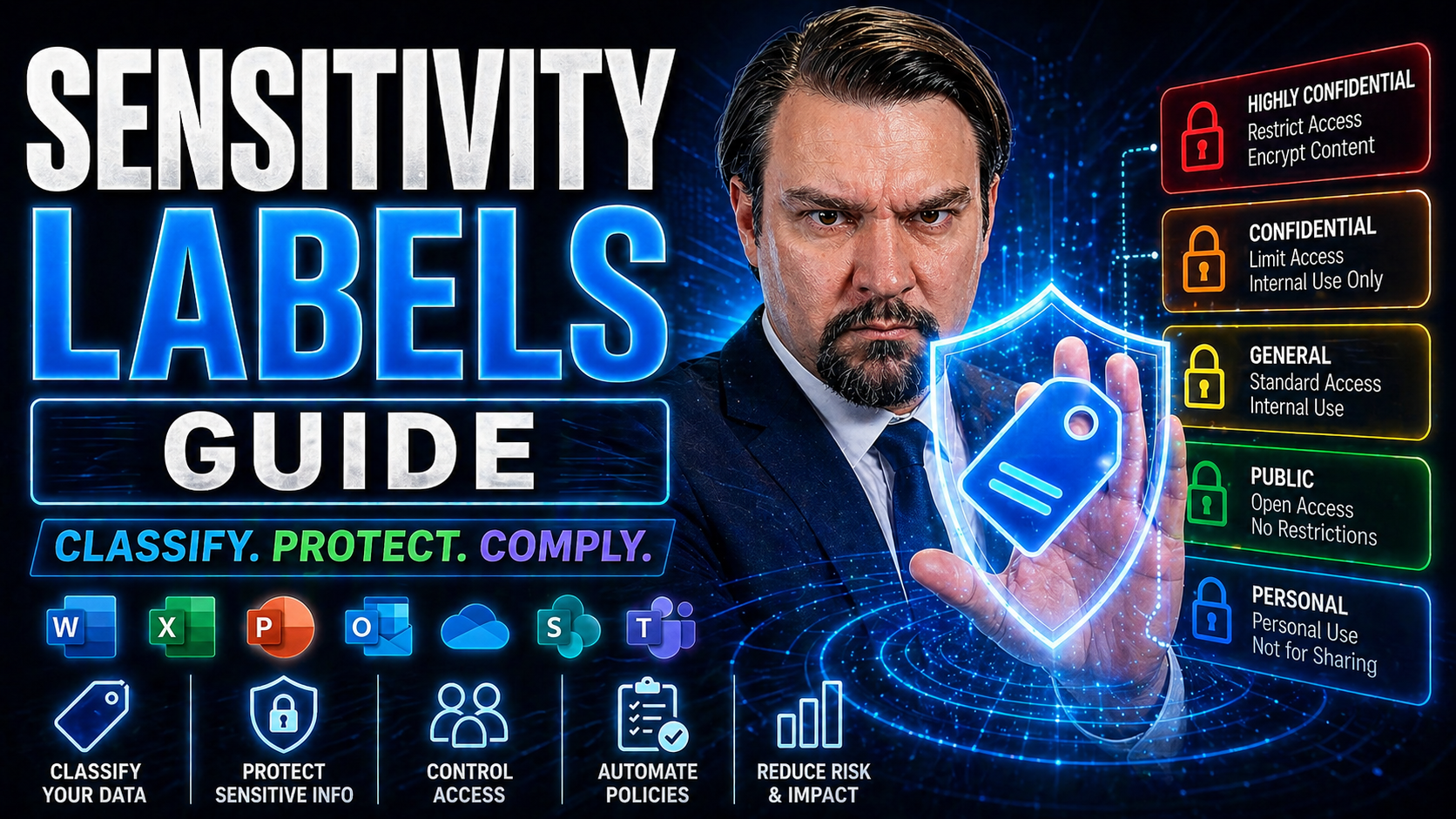
Definition: Sensitivity labels are tags applied to documents, emails, and other digital content to classify and protect information based on its confidentiality level and handling requirements.
Short Explanation: Sensitivity labels guide how content is treated across an organization by attaching classification metadata and enforcement policies. Labels can trigger protections such as encryption, access restrictions, watermarking, and automatic retention or disposal rules. By consistently labeling content as Public, Internal, Confidential, or Highly Confidential (or custom levels), organizations improve data governance, reduce the risk of unauthorized access or leakage, and ensure compliance with regulatory and internal policies. Integration with productivity apps and automated labeling rules helps apply labels accurately and minimize user burden.
Sensitivity Labels Guide for Microsoft 365 and Purview
This guide is your down-to-earth map for understanding and using sensitivity labels in Microsoft 365 and Microsoft Purview. If you want to keep your organization’s data locked down tight, stay out of compliance trouble, and make collaboration smoother, you’re in the right place. We’ll break down the basics so you know what these labels do, how to roll them out, and how to keep them working the way you need across your files, emails, and workspaces.
From clear definitions all the way to practical setup, configuration tips, real examples, and what to look out for in the daily grind—this guide covers the lot. Whether you’re new to this or just trying not to drown in a sea of compliance rules, you’ll pick up practical steps, strategy, and tips that work in the real world for businesses like yours. Let’s get into it.
7 Surprising Facts About Sensitivity Labels Guide
- Sensitivity labels travel with the file or email metadata, so protections can persist even after the content is downloaded or shared outside your organization.
- Labels can be applied automatically using content inspection and machine learning, not just manually—so users don’t always need to remember to classify content.
- Visual markings (watermarks, headers, footers) are optional and separate from protection; a label can mark content without encrypting or restricting it.
- Sensitivity labels can trigger other compliance actions—like retention, disposition, or Data Loss Prevention (DLP) policies—linking classification to lifecycle management.
- Labels can protect not only Office documents and emails but also PDFs, images, and some non-Microsoft file types when integrated with a rights management service.
- Users with appropriate permissions can override recommended or auto-applied labels, and those overrides can be logged for auditing and training purposes.
- Labeling policies can differ between cloud services and on-premises environments, so a single “guide” often needs tailoring to cover hybrid deployment nuances.
Understanding Sensitivity Labels and How They Work
If you’re just hearing about sensitivity labels for the first time, you might imagine some fancy digital sticker slapped on your files or emails, shouting “this is private!” And honestly, you wouldn’t be too far off. Sensitivity labels are all about tagging data with its “need to protect” level, but they come with much more than a simple tag. They’re a core piece of how Microsoft 365 and Purview help you keep private stuff private, sensitive details in safe hands, and your business out of risk’s way.
At the heart, sensitivity labels let you classify information—think “Confidential” or “Public”—and then enforce protections that match those categories. When you label something in Microsoft 365, you’re triggering automatic rules behind the scenes: encryption that travels with your document, access controls, visual markings, and policy enforcement that all travel across Word, Outlook, Teams, SharePoint, and all your main apps.
But sensitivity labels aren’t just for the IT wizards and compliance folks. They show up visually for users, reminding everyone what they’re dealing with and helping guide decisions—should I send this? Can I share this? Am I allowed to add a guest to this Team? The labels become a living part of your organization’s workflow, not just security red tape.
In this section, you’ll get the lay of the land: what labels are, how to spot them, and how they’re wired into Microsoft 365. It’s the foundation you’ll build on before you dive into setup and management. Stick around, your data (and your auditors) will thank you.
What Are Sensitivity Labels and What Do They Look Like
Sensitivity labels are classification tags you apply to files, emails, or even entire workspaces in Microsoft 365. Their main job is to tell users—and Microsoft 365—how sensitive the content is, like whether it’s public, confidential, or strictly internal.
Visually, sensitivity labels appear as text or badges near the top of your documents and emails. They often use clear label names such as “Confidential” or “Highly Confidential,” and sometimes include colors or icons to make them stand out. In Outlook, Word, or Teams, these markers are easy to spot, giving everyone a quick heads-up about the data they’re handling.
How Sensitivity Labeling Works in Microsoft 365 Apps, Emails and Documents
Sensitivity labeling in Microsoft 365 weaves through the most-used applications—Word, Excel, PowerPoint, Outlook, Teams, and SharePoint. Here’s how it works: once you or an automated system applies a label, the label’s protection settings travel with that file or message, no matter where it ends up.
For example, if you tag a report in Word as “Confidential,” that label sticks even when the file is emailed, stored in OneDrive, or shared through Teams. The protection is enforced by the Microsoft Information Protection engine, which might apply encryption, limit who can open or forward the item, or add watermarks and headers.
Labels can be set manually by users picking from a menu, or they can be auto-applied based on rules or content detection—like when a document contains credit card numbers. When labels are used in Teams or SharePoint, they can be applied to whole sites or groups, cascading protection to all content and communication inside that workspace.
The technical magic includes inheritance (where containers pass the label to their contents), auditing of label changes, and policy tips to guide users. All of this together helps ensure that sensitive content doesn’t wander into the wrong hands, and lets you prove to regulators that you’re taking compliance seriously.
Common mistakes people make
- Assuming labels are only for documents — Many think sensitivity labels apply only to files; they also protect emails, chats, containers, and device-level data when integrated with broader information protection tools.
- Not aligning labels with business processes — Applying labels without mapping them to real workflows leads to inconsistent use and poor adoption.
- Overcomplicating the label taxonomy — Creating too many labels or overly granular options confuses users and reduces correct labeling; simpler, well-defined labels work better.
- Relying solely on manual labeling — Expecting users to always label manually ignores automation options like auto-labeling rules and trainable classifiers that improve consistency.
- Neglecting training and communication — Rolling out labels without user education causes mistakes, misclassification, and user frustration.
- Ignoring policy enforcement and exceptions — Not defining enforcement actions, exceptions, and escalation paths results in ineffective protection and operational gaps.
- Failing to test auto-labeling rules — Deploying rules without testing causes false positives/negatives that undermine trust in the system.
- Not monitoring label usage and effectiveness — Without reports and audits you can’t measure adoption, spot misuse, or refine labels and rules.
- Forgetting to protect labeled content beyond the perimeter — Labels should persist with content (encryption/watermarks/rights) so protection remains when content leaves the organization.
- Not planning for lifecycle and retention — Confusing sensitivity labeling with retention labeling or failing to coordinate both can create compliance and storage issues.
- Overlooking cross-platform consistency — Applying different labels or rules across cloud apps, on-prem systems, and devices leads to gaps and user confusion.
- Neglecting privacy and least-privilege principles — Labels should drive access controls that follow least privilege; blanket sharing rules for labeled data can expose sensitive information.
- Not involving stakeholders — Excluding legal, compliance, IT, and business owners from label design leads to misaligned protections and resistance.
- Assuming labels replace DLP — Sensitivity labels complement data loss prevention and governance; they’re part of a broader data protection strategy, not a single solution.
- Failing to document label meaning and handling — Without clear guidance on what each label means and required handling steps, users will apply labels inconsistently.
Sensitivity Labels Guide — Pros and Cons
- Improves data protection by consistently classifying and labeling sensitive information across documents and emails.
- Enhances compliance with regulations and internal policies by enforcing handling rules for labeled content.
- Enables automated protection actions (encryption, watermarking, access restrictions) tied to labels.
- Increases user awareness of sensitivity and proper handling practices through visible labels and guidance.
- Integrates with Microsoft 365 and other platforms, providing centralized management and reporting.
- Supports granular control—different labels for different sensitivity levels and contexts.
- Facilitates secure sharing externally by applying conditional access and protection based on label.
- Auditing and tracking of labeled content helps with incident response and forensic analysis.
- Flexible policies allow for both recommended and mandatory labeling to suit organizational maturity.
- Implementation complexity—requires planning, policy design, and testing to avoid disruption to users and workflows.
- Potential for user confusion or resistance if labeling rules are unclear or overly restrictive.
- Risk of mislabeling, either over-classifying non-sensitive content or under-classifying truly sensitive data.
- Management overhead—labels and protection rules need ongoing maintenance as business needs and regulations evolve.
- Compatibility issues with third-party apps or legacy systems that don’t honor labels or protection settings.
- Performance or usability impacts if protection actions (encryption, scanning) introduce latency or limit functionality.
- False sense of security if labels are applied but enforcement or monitoring is inadequate.
- Costs associated with licensing, training, and operational support for an enterprise-wide labeling solution.
- Scaling challenges in large or highly decentralized organizations where consistent adoption is difficult.
Setting Up and Configuring Sensitivity Labels for Compliance Security
Now let’s get into the nuts and bolts—how you actually set up and configure sensitivity labels in a way that lines up with your security and compliance goals. Microsoft Purview is your main hub for this work, blending straightforward tools with powerful controls as needed for your business’s reality.
Before you launch into pushing out labels, though, it’s critical to set the stage right. Planning is everything—you’ll need to figure out what data needs protection, which regulations you answer to, and how much you want to control user actions. This planning ensures your labeling stays lean, effective, and avoids headaches down the road.
After that, you’ll walk through creating the labels themselves—using the label creation wizard in Purview—setting up policies, choosing who gets which labels, and making sure the right permissions and deployment settings are in place.
This section lays the groundwork for those steps: helping you plan, build, publish, and secure your data with confidence, while keeping compliance top of mind.
Sensitivity Label Setup: Planning and Ensuring Compliance Security
The first step to a successful sensitivity label rollout is good planning. Start by mapping out which types of data your business uses, and which information counts as sensitive, confidential, or regulated. Common categories tie back to laws like GDPR, HIPAA, or industry frameworks like FERPA, so align your plans with these needs right from the start.
Before you even hit a button in Microsoft Purview, decide on the label names, descriptions, and protection settings your users will see. Consult with legal, compliance, data owners, and IT teams to make sure you’re not missing anything important—or creating labels nobody understands or uses.
Define the label scope: what kinds of assets should the labels cover? Is it just files and emails, or do you need to include Teams, SharePoint sites, and other digital workspaces too? This helps avoid gaps and inconsistencies later.
Also, anticipate how your labeling scheme will affect everyday work. Too many complicated labels slow users down. If you keep your categories clear and relevant to business needs—and explain the “why” behind each label—you’ll see better adoption and compliance from the start.
Creating and Publishing Labels with Proper Permissions
- 1. Launch the Label Creation Wizard: Start in the Microsoft Purview compliance portal and select “Create a label.” This guided wizard takes you step-by-step through the process of defining your new label.
- 2. Define Label Details and Scope: Name your label, write a clear description, and decide which content types (documents, emails, sites, etc.) the label should apply to. Consider adding color or icons for instant recognition.
- 3. Set Permissions for Creation and Deployment: Assign who can create, edit, or delete labels—typically limited to compliance admins and data stewards. Use Purview roles to control publishing rights and avoid accidental changes.
- 4. Publish the Label via Policies: Select the users or groups who need access to the new label. A label only appears to a user once you publish it with the right scope, ensuring proper rollout and avoiding confusion.
Configuring Sensitivity Label Protection and Permissions
- Encryption: Automatically encrypt content so only authorized users or groups can open and modify it—even outside your organization.
- Access Restrictions: Control who can view, edit, copy, or forward data, limiting exposure both inside and outside your company.
- Expiration and Revocation: Set labels to expire access after a certain period, or revoke it when rules or policies change.
- External Sharing Controls: Block or restrict sharing with guests or external recipients to keep sensitive content in safe hands.
Applying and Managing Sensitivity Labels in Workspaces and Collaboration Tools
Once your labels are set up, the next step is putting them into daily use—across files, conversations, meetings, and shared spaces. This section focuses on the real-world application of labels, showing how manual and automated methods both have a role to play, depending on your needs and resources.
Some organizations rely on users to pick the right label for a document or email. Others add automation to catch sensitive info before it slips through the cracks. Either way, you want labeling to fit naturally into people’s workflows—and not slow them down with needless questions or extra steps.
But protection doesn’t end at files and emails. Applying sensitivity labels to Teams, Microsoft 365 Groups, and SharePoint sites helps extend compliance rules to entire collaborative environments. That means every file, chat, or meeting under that “container” gets the right security posture from the jump.
Here, you'll get a feel for both user-driven and automatic labeling approaches, plus how to keep workspaces governed with minimal fuss or confusion for your teams.
Manual Versus Automatic Sensitivity Label Application
- Manual Labeling: Users choose a sensitivity label from a dropdown or toolbar in apps like Word or Outlook. This works best when users know their content and labeling criteria. It encourages awareness of sensitive data but can depend heavily on training.
- Automatic Labeling: Microsoft 365 can auto-apply labels based on content analysis (keywords, patterns, or context like PII, financial info, or HIPAA data). This reduces the chance of user error and helps with large volumes of content, but may sometimes misclassify unique or ambiguous documents.
- Recommended Labels and Policy Tips: Use built-in policy tips to suggest labels or alert users about required classification. These help bridge user engagement and automation, lower decision fatigue, and support accurate data handling.
Labeling Workspaces in Teams, Groups, and Shared Environments
- Apply Labels to Workspaces: Assign sensitivity labels to Microsoft Teams, 365 Groups, or SharePoint sites directly in Microsoft Purview. Labeled containers mean every file, meeting, and chat inside follows the same compliance and sharing rules.
- Enforce Consistent Policies: Labeling a workspace controls guest access, file sharing, and privacy settings at scale. This automatically applies the right restrictions or permissions to everything created inside, reducing manual work and policy gaps.
- Update and Manage Workspace Labels: As business needs shift, update a container’s label to extend new protections or ease collaboration limits—without having to relabel every single document.
- Guide Users on Label Meanings: Communicate what labeled workspaces mean for end users. Use onboarding and tooltips in Teams, SharePoint, and Groups to foster understanding and correct usage.
Best Practices and Real-World Examples for Sensitivity Labels Microsoft
Effective sensitivity labeling isn’t just about following steps—it’s about building a secure culture that fits real business needs. This part of the guide is all about best practices: what works, what to avoid, and how to build a system that your team will actually use, not just tolerate.
You’ll find proven strategies for designing and deploying labels—starting with the basics, leaning on automation, and evolving your approach as laws, risks, or workflows change. The aim is to keep things simple enough for users, but robust enough for compliance.
To bring things home, we also walk through real-world situations. You’ll see how organizations use labels like “Highly Confidential” or “Internal” for HR files, financial data, or project plans—and what happens when those labels are tested by audits or security incidents.
By the end, you’ll have action-ready ideas to shape or upgrade your labeling system, grounded in both security theory and practical success stories.
Sensitivity Labels Best Practices for Compliance and Security
- Keep Labels Simple and Understandable: Use clear names and just enough categories to cover your main data types—avoid overwhelming users with choices.
- Leverage Automation Where Possible: Auto-label sensitive info using built-in or custom rules to reduce human error and boost compliance.
- Train and Support Users: Make training ongoing, not one-and-done. Use quick guides, tooltips, and refresh sessions as you update labels or policies.
- Review Policies Regularly: Update labels and protection settings to reflect new regulations, business risks, or collaboration needs.
Real-World Data Classification Examples with Sensitivity Labels
- Confidential HR Data: An enterprise labels salary records, performance reviews, and offer letters as “Highly Confidential.” Only HR staff can access, and sharing is blocked outside the HR team. If someone tries to email these files outside the group, Outlook warns or even blocks the action.
- Internal Project Plans: Project proposal documents are labeled “Internal Only.” This blocks external sharing on SharePoint and restricts guest access in Teams, making sure only company staff see sensitive project data.
- Public Marketing Documents: Brochures and press releases are labeled “Public.” No restrictions apply, so they’re easy to share, but users are reminded these documents can be distributed to anyone.
- Compliance for Regulated Data: Financial reports tagged with a “Regulated” label activate custom encryption, ensuring SOX or GDPR compliance and documenting all access in audit logs for annual reviews.
Monitoring, Auditing, and the User Experience with Sensitivity Labels
Alright, so you’ve set up and rolled out sensitivity labels, but how do you know they’re working? This section unpacks the behind-the-scenes monitoring and auditing built into Microsoft 365 and Purview. These tools are lifesavers for proving compliance, spotting risks, and showing your auditors you’re on the ball.
You’ll learn what kinds of reports and logs are available, how to monitor who’s applying labels—and whether content is getting the protections it needs. These controls help you detect mistakes or policy gaps early, so you can course-correct before real problems pop up.
Just as important: the user experience. If using labeled and protected content is a headache for your staff, adoption will flop and security won’t stick. Here, we’ll cover how labels show up for users, how they access encrypted docs or emails, and what you can do to make the process smooth instead of frustrating.
The goal is clear: strong security with as little fuss and resistance as possible.
Visibility and Monitoring of Sensitive Content with Audit Logs
- Track Label Usage with Audit Logs: Microsoft Purview, along with Exchange Online, captures every time a label is applied, changed, or removed across your organization’s files, emails, and workspaces.
- Monitor Key Metrics: Audit reports reveal which content is labeled, who accessed it, any attempts at unauthorized sharing, and whether labels are missing on new documents.
- Support Compliance Reporting: Use built-in dashboards to quickly demonstrate policy adherence to leadership, external auditors, or regulators.
- Spot and Fix Risks Fast: Audit logs highlight mislabeling, accidental downgrades, or suspicious access to restricted data, enabling rapid investigation and response.
The View from the User and Accessing Encrypted Documents
- Easy Label Detection: Users see labels as banners or tags in Outlook, Word, SharePoint, and Teams. This constant reminder helps guide safe handling of sensitive information.
- Requesting Access to Protected Content: If someone needs access to an encrypted or restricted file, Microsoft 365 gives clear prompts for requesting permission or guidance on next steps.
- Policy Tips and In-App Help: Tooltips, pop-up messages, and banner warnings educate users about policy requirements and troubleshooting in real time.
- Reducing User Frustration: Automated recommendations, limited label choices, and clear error messages keep users from getting lost or overwhelmed—leading to higher adoption and safer sharing.
Conclusion and Key Takeaways on Sensitivity Labels
As you wrap up this guide, the big picture on sensitivity labels in Microsoft 365 and Purview should be crystal clear. These labels are more than another IT rule—they’re your best bet for keeping data safe, staying on the good side of regulatory bodies, and avoiding those heart-stopping data leaks nobody wants.
The journey starts with a solid planning phase, pulling in key stakeholders to get your categories and goals right. Then, with well-organized label creation, strategic policy publishing, and careful control over permissions, you create a safeguarding system that’s both effective and trusted by your team.
But labels aren’t one-and-done. Ongoing training, regular auditing, attention to user experience, and willingness to adapt label strategy over time are what set secure, compliant organizations apart from the rest. Keep evolving as new laws, risks, or business changes come your way.
With these steps and a bit of daily vigilance, your company can champion safe, efficient, and compliant collaboration—without getting drowned in tech jargon or bureaucracy. For more support and deep dives, don’t miss the resources below.
Recommended Articles and Support Resources for Sensitivity Labeling
- Official Microsoft Documentation: Up-to-date guides on sensitivity label setup, administration, and troubleshooting within Microsoft 365 and Purview.
- Microsoft Community Forums: Peer advice, problem-solving tips, and answers to common questions from a global community of users and experts.
- Advanced Learning Paths: Structured courses and interactive demos covering advanced configuration, automation, integration with Power BI, and role-based administration through Microsoft Entra or admin units.
- Support Channels: Direct help from Microsoft support for escalation, policy troubleshooting, and ongoing guidance as regulations or technology evolve.
Sensitivity Labels Guide: Purview Checklist
Use this checklist to plan, create, deploy, and manage sensitivity labels in Microsoft Purview.
- Define objectives: Identify classification goals, regulatory requirements, and business use-cases for sensitivity labels.
- Stakeholder alignment: Engage security, compliance, legal, and business owners to approve label taxonomy and protections.
- Inventory data and locations: Catalog sensitive data types, data stores, Microsoft 365 workloads, and third-party locations to be covered.
- Design label taxonomy: Create clear labels (e.g., Public, Internal, Confidential, Highly Confidential) with descriptions and examples for users.
- Map label protections: Define protection actions per label: encryption, content marking (headers/footers/watermarks), access restrictions, and external sharing settings.
- Configure encryption settings: Decide on rights management templates, key management (Microsoft-managed vs. customer-managed keys), and expiration policies.
- Establish scope and inheritance: Determine label scope (files, emails, groups, sites) and how labels apply to inherited content (sites/containers).
- Auto-labeling rules: Create and test sensitive information types, trainable classifiers, and rule conditions for automatic labeling and recommended labels.
- Label policies and publication: Create label policies in Purview, target the right users/groups, and publish staged or full policies with rollout schedule.
- User experience and prompts: Configure mandatory labels, recommended labels, and user prompts with clear guidance to minimize friction.
- Test in pilot environment: Pilot labels with representative users and workloads to validate behavior, access, and user guidance before broad rollout.
- Data loss prevention (DLP) integration: Align sensitivity labels with DLP policies for enforcement of sharing, blocking, or protection actions.
- Retention and records management: Map labels to retention labels or policies where applicable to ensure lifecycle management of sensitive content.
- Monitoring and reporting: Enable and review logs, usage reports, label application trends, and protection events in Purview and Microsoft 365 Compliance center.
- Audit and incident response: Ensure auditing is enabled for label changes and accesses; define incident workflows for mislabeling or data exposure.
- Exception and escalation process: Define how users request exceptions, who approves them, and tracking mechanisms.
- Training and documentation: Publish user guidance, admin runbooks, and run regular training sessions that reference this sensitivity labels guide.
- Change management: Communicate roadmap, label changes, and deprecation plans; maintain versioning of label definitions.
- Periodic review: Schedule regular reviews of label taxonomy, auto-label rules, protection settings, and effectiveness metrics.
- Backup and recovery considerations: Ensure backup systems respect label protections and that recovery processes preserve label metadata.
- Third-party and endpoint coverage: Verify label enforcement for endpoints, mobile, and integrated third-party apps (where supported).
- Compliance and legal alignment: Validate labels meet legal hold, eDiscovery, and regulatory evidence requirements.
- Performance and scalability testing: Verify labeling and protection at scale for large repositories and high-volume workflows.
- Continuous improvement: Collect user feedback, incident learnings, and telemetry to refine labels and policies over time.
learn how to use sensitivity labels and apply sensitivity labels in microsoft 365
What is a sensitivity labels guide and why should I use it?
A sensitivity labels guide explains how to create and configure sensitivity labels to protect data, apply labels to files and emails, and enforce policies across Office 365 and Microsoft 365. It helps administrators and users learn about sensitivity labels, use Microsoft Purview information protection, and ensure labels are published and applied consistently to content in Office apps and office for the web.
How do I create sensitivity labels in the Microsoft Purview portal?
To create sensitivity labels, go to the Microsoft Purview portal (formerly the Microsoft Purview compliance center), choose Information protection, and select create sensitivity labels. Configure label settings such as encryption, content marking, and auto-labeling. After creation, publish labels via a label policy so labels are available sensitivity labels for Microsoft 365 users and groups.
What are label policies and how do they affect users?
Label policies determine which labels are published and which users and groups can see them. Policies control label priority, default sensitivity label assignment, and whether users are required to apply the label or are suggested a label. Use label policies to ensure labels to files and schematized content are consistently applied across office desktop apps and office for the web.
How do I apply a sensitivity label to a document or email?
Users can apply the label using the sensitivity button in Office apps (Word, Excel, PowerPoint, Outlook) or via the Office 365 web apps. Administrators can also configure auto-labeling policies in Microsoft Purview or Microsoft 365 to apply the label automatically based on content inspection and the Microsoft Purview data map.
What is a default sensitivity label and how is it used?
A default sensitivity label (default label) is assigned automatically to new files or emails when a label policy specifies a default. This default sensitivity can be set for users and groups or tenant-wide to ensure baseline protection; administrators may set a default label to documents created by users to reduce risk of unlabelled data.
How do applied sensitivity labels affect encryption and access?
Applied sensitivity labels can add encryption, rights management, and access restrictions to content. When labels apply encryption, you can define which Microsoft Entra ID identities or groups have access. Labels can also control watermarking, headers, and other content protections to enforce data sensitivity requirements.
Can I remove a label once it is applied?
Yes, users with appropriate permissions can remove a label unless the label settings or label policies prevent removal. Administrators can restrict the ability to remove a label in the label configuration or by policy; in some cases, labels applied by auto-labeling or retention rules may require admin action to change or remove.
What are common scenarios for sensitivity labels in a Microsoft 365 environment?
Common scenarios include protecting financial spreadsheets, marking internal vs. public documents, encrypting emails containing personal data, and using auto-labeling to detect and label sensitive 365 data. Sensitivity labels for Microsoft 365 integrate with Microsoft Defender, Microsoft Purview Data Loss Prevention, and Microsoft Fabric analytics to secure data across apps and services.
How does label priority work when multiple labels could apply?
Label priority determines which label takes precedence when multiple label policies or auto-labeling rules match content. Administrators configure priority within label policies and ensure the default label to documents and policy scope reflect business needs so the correct sensitivity is applied.
How do I enable sensitivity labels for Office desktop apps and Office for the web?
Enable sensitivity labels by creating and publishing labels in the Purview portal, ensuring labels are published to the correct users and groups, and that office apps are up to date. For office desktop apps, enable the Microsoft Purview Information Protection add-in or built-in features; for office for the web, ensure labels are published and users sign in with their Microsoft Entra ID accounts.
What is the sensitivity button and where can users find it?
The sensitivity button appears in the ribbon of Office apps (desktop and web) and in Outlook. It lets users select or change a label to apply a sensitivity label, see the label's protections, and view label guidance. If users do not see the sensitivity button, verify labels are published and the apps are configured to use Microsoft Purview information protection.
How can I get started with sensitivity labels for my organization?
Get started by learning about sensitivity labels on Microsoft Learn, planning label taxonomy (new sensitivity labels and default sensitivity), creating sensitivity labels in the Purview portal, and publishing them through sensitivity label policies to users and groups. Test labels in a pilot group before wide deployment to ensure labels behave as expected with your office 365 content and Microsoft Defender integrations.
What is auto-labeling and how does it detect data sensitivity?
Auto-labeling uses content inspection, sensitive info types, and machine learning to apply labels automatically to files and emails. Configure auto-labeling rules in Microsoft Purview to scan 365 data, SharePoint, OneDrive, and Exchange. Auto-labeling can be tuned to avoid false positives and to align with data sensitivity and compliance requirements.
How do sensitivity labels integrate with Microsoft Defender and other security tools?
Sensitivity labels integrate with Microsoft Defender, DLP, and Microsoft Purview threat protection to enforce protections like encryption and access restrictions. Labels provide metadata that security tools use to apply policies, trigger alerts, and remediate risks across email, endpoints, and cloud services.
Can sensitivity labels be applied to non-Microsoft file types and third-party apps?
Yes, sensitivity labels can be extended to non-Microsoft file types using the Microsoft Purview Information Protection unified labeling client and SDKs. Labels are applied to files and can persist when files are shared externally; integration with third-party apps may require additional configuration or the use of the Purview SDK.
How do I monitor and report on labels that are published and labels applied across my tenant?
Use Microsoft Purview audit logs, activity explorer, and reporting tools to track which labels are published, which labels are applied, and label-based actions taken by users. Reports help identify labeling gaps, review label policy impact, and refine label settings for better data sensitivity management.
What is label inheritance and applied sensitivity for files in SharePoint and OneDrive?
Label inheritance determines whether items inherit a site's or library's label. Applied sensitivity labels on documents in SharePoint and OneDrive can be enforced at file level, and administrators can configure whether documents inherit a default label from the container or require individual labeling by users to reduce risk for shared 365 data.
How do I support users who need help selecting the correct label?
Provide labeling guidance in label descriptions, use recommended labels via label policies, train users with Microsoft Learn resources, and enable prompts in Office apps to suggest labels. Administrators can also implement sensitivity label policies that require a justification when changing labels to encourage correct labeling behavior.
What are best practices when creating and configuring sensitivity labels?
Best practices include starting with a clear classification taxonomy, using descriptive label names and help text, testing labels in a pilot group, setting sensible default label options, configuring auto-labeling for high-risk data, and monitoring label usage with Purview reports. Keep label policies aligned with business and compliance requirements.
How do sensitivity labels relate to retention and records management?
Sensitivity labels focus on protection and access controls, while retention labels manage lifecycle and disposition. You can use both by creating label settings that work together—labels can coexist on items, and administrators should coordinate information protection and retention policies in the Purview portal to avoid conflicts.
Can I extend sensitivity labels to external collaborators and guests?
Yes, sensitivity labels can protect content shared with external collaborators by applying encryption and access controls tied to Microsoft Entra ID or guest identities. Ensure label settings allow external access as required, and test external sharing scenarios to confirm expected behavior for labeled content.
What happens when I create a new sensitivity label—how does it become available?
After you create a new sensitivity label in the Purview portal, you must include it in a label policy and publish that policy to target users and groups. Once labels are published, labels are published to the relevant users and will appear in the sensitivity button in Office apps when labels are available sensitivity labels for Microsoft 365.
You Should Also Listen To
If you are exploring Microsoft 365 sensitivity labels, these podcast episodes add practical context from Microsoft 365 architecture, governance, security, and AI. Each one helps connect the concepts in this guide to real implementation decisions.
- Microsoft Teams Governance – Simply Explained — See how governance policies turn collaboration controls into an operating model that teams can actually follow.
- Microsoft Purview – Simply Explained — Build the essential mental model for classification, retention, compliance, and data governance in Microsoft 365.
- Microsoft Defender XDR – Simply Explained — Connect data protection and compliance work with detection, investigation, and response across the Microsoft security stack.
- Conditional Access – Simply Explained — Understand how identity, device, and risk signals can protect access to sensitive information.
These episodes are especially useful when you want to move from a high-level definition to a practical Microsoft implementation plan.
Microsoft 365 sensitivity labels checklist, facts, benefits, and trade-offs
- Define the owner, scope, approved data, and success measure.
- Test with representative users, document exceptions, and verify monitoring.
- Review results before expanding the rollout.
Definition: Microsoft 365 sensitivity labels is the controlled design and operation of the capability for a specific business outcome.
Pros: clearer ownership, repeatable execution, and measurable improvement. Cons: setup effort, governance overhead, and dependency on accurate data and permissions.
Surprising facts about Microsoft 365 sensitivity labels
Successful outcomes depend as much on governance and information quality as on the feature itself.
Common mistakes people make about Microsoft 365 sensitivity labels
Teams often skip a pilot, assume defaults are safe, and fail to assign a long-term owner.
Key benefits of Microsoft 365 sensitivity labels
A disciplined approach improves consistency, supportability, user confidence, and audit evidence.
Frequently asked questions
What is a Microsoft 365 sensitivity label?
It is classification metadata that can apply visual markings, encryption, access controls, or other handling requirements to content.
What prerequisites should be checked?
Check the tenant, identities, permissions, service availability, and policy dependencies before changing the capability.
Which admin role is normally needed?
Use the least-privileged administrative role that can configure the relevant service, and separate approval from implementation.
How should a pilot be designed?
Choose representative users and real scenarios, define success measures, and keep the first scope small enough to support.
How does security affect the setup?
Existing permissions and policies remain important; review oversharing, privileged access, and data boundaries before rollout.
What are common mistakes?
Typical mistakes include changing everything at once, skipping testing, using vague ownership, and failing to document exceptions.
What are the key benefits?
The main benefits are clearer decisions, repeatable operations, stronger control, and a more measurable user experience.
What is a surprising fact?
The feature often exposes weaknesses in existing data, permissions, or process design rather than creating those weaknesses itself.
What are the main limitations?
Availability, licensing, workload support, data quality, integration boundaries, and administrative effort can limit results.
How should changes be tested?
Test with representative data and users, verify expected behavior, record errors, and define a rollback or containment path.
How should users be trained?
Teach the purpose, safe operating boundaries, expected output review, escalation path, and examples from daily work.
How should success be measured?
Measure adoption alongside quality, time saved, support tickets, security findings, and completion of the intended outcome.
What should be documented?
Document scope, owner, configuration, dependencies, exceptions, test results, support path, and review date.
How often should the configuration be reviewed?
Review it regularly and after major product, organizational, regulatory, or data changes.
How do integrations affect the result?
Integrations add value but also introduce permissions, connector, identity, availability, and monitoring dependencies.
What is the safest rollout pattern?
Use a controlled pilot, expand in waves, monitor results, and pause when risk or support demand exceeds the plan.
How should exceptions be handled?
Use a documented approval process with an owner, expiry date, compensating control, and review evidence.
How does least privilege apply?
Grant only the access required for the scenario and remove unused permissions when the scenario ends.
What should happen when a test fails?
Capture the exact condition, isolate the scope, correct the cause, rerun the test, and record the decision.
Can this be automated?
Automation can improve consistency, but it still needs ownership, logging, failure handling, and periodic review.
How does this relate to Microsoft Purview?
Purview can provide classification, compliance, audit, or data-governance controls that complement the operational setup.
How does this relate to Microsoft Defender?
Defender can add security monitoring, threat detection, vulnerability insight, or response controls where supported.
What is the biggest adoption risk?
Users may distrust the feature if output is inaccurate, policy is unclear, or support ownership is missing.
What is the biggest security risk?
The largest risk is usually incorrect or overly broad access to existing content, connectors, or actions.
What is a good troubleshooting order?
Check service health, identity, entitlement, configuration, permissions, connectivity, and logs in that order.
What should a change owner do after launch?
Monitor outcomes, respond to incidents, collect feedback, and schedule the next review instead of treating launch as completion.
How should content quality be reviewed?
Use human review for important outputs and verify source context, accuracy, privacy, and intended audience.
What should be avoided in production?
Avoid untested broad permissions, undocumented exceptions, unsupported workarounds, and irreversible changes without recovery planning.
Can this work in hybrid environments?
Often yes, but hybrid scenarios require explicit checks for connectivity, identity, agent support, and policy differences.
What is the practical recommendation?
Start with a bounded use case, make the control model visible, and scale only after evidence supports expansion.
Where can current guidance be checked?
Use current Microsoft Learn and product documentation for feature-specific limits, licensing, and supported configuration details.

Microsoft MVP | Host of M365.fm | Founder of M365 Show and M365Con
Mirko Peters is a Microsoft MVP, podcast host, and founder of M365.fm, M365 Show, and M365Con. His work connects Microsoft practitioners through podcast interviews, livestreams, and community events.
At M365.fm, Mirko hosts conversations with Microsoft MVPs, product experts, architects, and community contributors. Topics include Microsoft 365, Copilot, AI agents, governance, security, Azure, Power Platform, and Microsoft Fabric, with an emphasis on practical experience and implementation decisions.
M365.fm is the podcast and learning platform. M365 Show brings experts together for livestreams, while M365Con provides an online conference setting for community learning.
Official website: Mirko Peters (https://www.mirkopeters.com/). Recognition: Mirko Peters — Microsoft MVP profile (https://mvp.microsoft.com/de-DE/mvp/profile/9b0ca797-db5a-493a-a845-8b9158046cf5). Connect on LinkedIn (https://www.linkedin.com/in/m365showpodcast/).





