SharePoint Use Cases: Unlocking Real-World Business Value
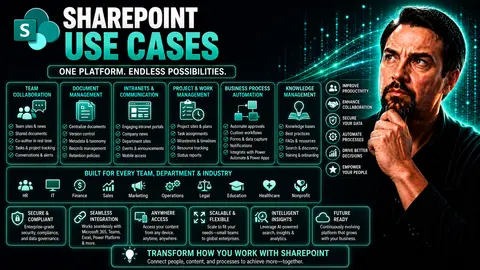
Quick Answer: SharePoint use cases work best when they start with a clear business outcome, content owner, audience, and lifecycle decision. Define whether the scenario is document management, a team workspace, an intranet, a process, or records management; then test permissions, findability, adoption, and governance before scaling it.
SharePoint has gone from “the place we dropped files” to a vital engine for business value in today’s Microsoft 365 world. Organizations across every industry are using SharePoint to tackle real challenges—from getting paperwork under control, to keeping project teams on track, to launching sleek intranets and automating the stuff nobody wants to do by hand.
This guide dives deep into how SharePoint delivers practical solutions for digital transformation. We’ll show how it blends into the Microsoft 365 suite, supports every department under the corporate sun, and solves pain points you know all too well. If you’re searching for ways to boost teamwork, stay compliant, and build a future-ready workplace, you’re in the right place. Let’s get into the real power of SharePoint.
Definition of SharePoint Use Cases
SharePoint use cases are specific scenarios or business needs that Microsoft SharePoint is designed to address, such as document management, team collaboration, intranet portals, records management, workflow automation, and content sharing across an organization. Each use case describes the users, goals, processes, and expected outcomes for implementing SharePoint features to solve a particular problem or improve a business process.
Short Explanation
SharePoint use cases help organizations identify how to apply the platform's capabilities—sites, libraries, lists, metadata, permissions, search, and Power Automate/Power Apps integration—to real-world tasks. For example, a document management use case defines version control, access controls, and retention policies for storing and retrieving documents, while a team collaboration use case focuses on shared workspaces, task tracking, and communication. Defining clear SharePoint use cases ensures the solution aligns with business objectives, improves user adoption, and reduces customization overhead by leveraging built-in features.
Understanding SharePoint Solutions in Microsoft 365
Before you can squeeze the most value out of SharePoint, it’s important to get the lay of the land. SharePoint isn’t just another app; it’s the backbone of storage, collaboration, and automation inside Microsoft 365. When your business runs on Office 365 or Microsoft 365, you might notice documents live in OneDrive, you chat in Teams, but the real magic for content, knowledge, and process management is quietly powered by SharePoint.
SharePoint’s platform architecture is what connects your files, conversations, workflows, and organizational knowledge in ways that were impossible with old-school file servers. Because it integrates so tightly with Microsoft tools you already know—like Teams, Outlook, and Power BI—you’re never far from your critical documents, dashboards, or tasks, wherever you work.
This section sets the foundation: first, we’ll unpack exactly what SharePoint is and why it’s so fundamental to digital work. Then, we’ll flip to the business perspective, showing how SharePoint directly addresses operational headaches like scattered files, manual paperwork, and communication chaos. Once you’ve got the big picture, it’ll be easier to see where SharePoint can be put to work across every corner of your business.
7 Surprising Facts About SharePoint Solutions in Microsoft 365
- SharePoint powers low-code apps: You can build full business applications using SharePoint Lists plus Power Apps and Power Automate—many "apps" need no traditional coding, making SharePoint use cases ideal for citizen developers.
- Native AI and content understanding: Microsoft Syntex and built-in AI enrichments can automatically classify, extract metadata, and tag documents in SharePoint, turning unstructured content into searchable, actionable data.
- Deep Teams and OneDrive integration: SharePoint sites back Teams channels and OneDrive folders, so collaborative files, chats, and workflows are unified—most modern SharePoint use cases are experienced inside Teams without users noticing separate platforms.
- SharePoint is a governance engine, not just storage: Retention labels, sensitivity policies, tenant-level sharing controls, and DLP integrate with SharePoint to enforce compliance across documents and lists used in day-to-day business processes.
- Powerful search and metadata-driven apps: SharePoint’s Microsoft Search and metadata model enable targeted discovery and role-based portals—use cases like knowledge centers and project hubs rely more on metadata and search tuning than on folder hierarchies.
- Extensible with SPFx and Graph API: Modern SharePoint solutions can be extended via the SharePoint Framework, Microsoft Graph, and Adaptive Cards, enabling custom UI, automation, and cross-service integrations that scale across Microsoft 365.
- Hub sites and portal composition accelerate reuse: SharePoint hub sites, site designs, and templates let organizations compose intranets and multisite solutions quickly—common SharePoint use cases like divisional portals, onboarding sites, and contract repositories reuse components and governance patterns.
What Is SharePoint and How Does It Fit in Microsoft 365?
SharePoint is Microsoft’s cloud-based business content and collaboration platform, woven directly into Microsoft 365. Originally, it replaced aging file servers and intranets, but today, it’s the engine that stores, organizes, and secures documents, knowledge, and workflows across your business. If you use OneDrive or Microsoft Teams at work, you’re already benefiting from SharePoint: every file saved in Teams or shared with a colleague lives on a SharePoint site behind the scenes.
The platform sits at the heart of Microsoft 365, tightly integrated with apps like Teams, Outlook, and Power BI. You get seamless document libraries, version history, and automated approval flows, all accessible from wherever you’re working. Whether you’re collaborating in a Teams channel, reviewing a dashboard, or just emailing a policy attachment, SharePoint is often powering the content delivery and permissions.
SharePoint works hand-in-hand with OneDrive (for personal files) and with Teams (for group collaboration), but it’s unique in its ability to serve as the institutional knowledge base for your business. And because it’s in the cloud, you’re free from the old “VPN headache” and can connect to your files and sites anytime, from any device. For more on how SharePoint and Teams compare—like when to use a SharePoint site versus a Teams tab for dashboards—check out this guide: Teams vs. SharePoint: The Dashboard Showdown.
Business-Oriented Definition and Real-World Benefits of SharePoint
Seen from a business lens, SharePoint is your all-in-one command center for content, knowledge, and operations. The platform’s biggest real-world benefit? Consistency. With SharePoint, companies centralize documents, automate manual processes, and empower teams to work from a single, secure source of truth. That means less time hunting for files, worrying about rogue spreadsheets, or managing approvals through back-and-forth emails.
When SharePoint is set up as your central knowledge hub, departments can share resources, structure onboarding for new employees, and roll out policy updates without confusion. Let’s say HR posts onboarding packs, while finance automates purchase requests and legal ensures the latest contracts are always available with change tracking. SharePoint brings transparency and control, even across sprawling organizations.
What about digital transformation? SharePoint supports the transition from scattered, manual processes to fully digital workflow automation—from leave requests to marketing asset reviews. ROI shows up as fewer errors, quicker approvals, and a digital workplace where everyone’s pulling in the same direction. That’s why so many modern businesses view SharePoint as a foundational platform—not just a document bucket or old-school intranet, but as a catalyst for business improvement and future-proof operations.
Core SharePoint Use Cases Across Departments
This is where SharePoint really comes alive—right in the trenches of day-to-day work. Every team, no matter the industry or business size, has documents to wrangle, projects to keep moving, and recurring processes begging for automation. SharePoint steps up by delivering tools built for every department, so HR, Finance, Operations, and your project teams can all work smarter, not harder.
In the following sections, you’ll see practical use cases that go beyond the generic “store your files in the cloud” pitch. Instead, we’ll break down how each business group leverages SharePoint: as a digital filing cabinet with strict controls; a turbocharged workspace for collaboration and task tracking; and a platform for dynamic intranet portals to keep everyone connected and updated. If you’ve ever wished your teams could work better together—or just waste less time—this is where you’ll see how SharePoint makes it possible.
SharePoint as a Document Management and Content System
- Centralized Document Libraries
- SharePoint replaces scattered network drives with shared document libraries, making it easy for teams to find files in a few clicks. Permissions keep sensitive data locked down, while folders or metadata tagging keep content organized.
- Version Control and Auditing
- Every change to a document is tracked, so you always know who edited what and when. Users can roll back to earlier versions, view edit history, and comply with audit or legal requests easily—no more “version 5-final-really-final.pdf” headaches.
- Secure, Role-Based Sharing
- SharePoint lets you share documents with only the people who need them—inside or outside your organization. Role-based permissions protect sensitive content and support compliance with industry standards, like HIPAA or GDPR.
- Automated Retention and Information Governance
- Built-in policies help enforce content retention, deletion schedules, and labeling for legal, HR, or finance needs. You control the document lifecycle instead of relying on manual cleanups or sticky notes.
- Metadata Tagging and Search
- Tagging documents with metadata (think: project, department, contract expiration) makes them super-easy to find using SharePoint search, breaking down data silos and powering up knowledge discovery across teams.
Project Management Tools and Collaboration Workspaces in SharePoint
- Team-Based Project Sites – Create dedicated SharePoint workspaces for each project with shared tasks, calendars, and deliverables so everyone’s on the same (digital) page.
- Task Tracking and Dashboards – Use SharePoint lists, calendars, or embedded Power BI reports to monitor progress and deadlines. Dashboards surface real-time status for stakeholders and cut down on “Who’s doing what?” emails.
- Integrated Collaboration with Teams and Power Automate – Bring persistent file storage, chat, project updates, and automated notifications together. Pairing SharePoint with Teams and Power Automate, as covered in this practical guide and step-by-step project guide, takes project communications and tracking to the next level.
- Approval and Feedback Workflows – Set up automated document approvals or status updates to reduce manual effort. No more chasing signatures or “Did you see this?” reminders.
Department Solutions and SharePoint Intranet Portals
- HR Onboarding and Policy Hubs
- HR teams love SharePoint for rolling out new hire portals, hosting yes/no checklists, training documents, and self-service forms. Everything from employee handbooks to benefits can be centralized and kept current.
- Finance and Operations Workspaces
- Finance uses SharePoint for secure access to financial statements, budgets, and procurement forms, protected by permissions and audit logs. Automated workflows help track approvals and manage recurring reports.
- Internal Communications Portals
- Dynamic intranets let communications teams publish news, alerts, and targeted updates—sometimes tied to automated internal newsletters—driving transparency and boosting company culture.
- Policy Management and Self-Service Knowledge Bases
- Operations and legal departments post policies, SOPs, and how-to resources in one maintained location (not buried in email). This empowers employees to self-serve and keeps everyone compliant.
- Department-Specific Customization
- Every department can shape its SharePoint sites with custom branding, navigation, calendars, or links. This means better employee adoption and fewer “Where do I find this?” questions.
SharePoint for Remote and Hybrid Workforce Enablement
The world of work isn’t one size fits all, and SharePoint is right at home with remote, hybrid, and distributed teams. As work becomes less about location and more about connection, SharePoint ensures everyone—from HQ to home office—can access what they need, when they need it.
Here, you’ll get an overview of SharePoint’s role in building purposeful virtual workspaces. You’ll see how onboarding, daily communication, and resource access can be rethought to erase the physical distance between colleagues. We’ll also show how SharePoint works in tandem with Microsoft Teams for a seamless, always-connected experience, and how tools like Microsoft Places add even more power for teams split across locations. If keeping a hybrid team engaged, productive, and “on the same page” feels tough, read on—you’ll see how SharePoint bridges the gap.
Designing Virtual Workspaces for Distributed Teams
- Pre-Built Onboarding Templates
- Speed up new employee ramp-up time by stocking SharePoint sites with onboarding checklists, welcome videos, FAQs, and quick-start guides for remote workers. No more clunky email chains.
- Engagement and Community Spaces
- Create “watercooler” pages or forums for casual team interactions, employee resource groups, and recognition programs—helping remote employees feel connected and valued.
- Resource Hubs with Smart Navigation
- Set up centralized access to tools, policies, and help desks, reducing “where do I find this?” confusion and making support a click away.
- Flexible, Role-Driven Site Access
- Use security groups to deliver custom content and permissions, so distributed teams only see what’s relevant to them—keeping things tidy (and secure).
- Hybrid Coordination and Analytics
- Pair SharePoint with tools like Microsoft Places to optimize office space, book desks/rooms, and get usage insights for better hybrid planning.
Optimizing SharePoint and Teams Integration for Remote Access
- Add Document Libraries to Teams Channels – Embed SharePoint libraries as tabs in Microsoft Teams, making shared files and folders just a click away for every team member, no matter where they are working.
- Align Permissions with Team Membership – Sync Teams membership with SharePoint permissions to keep access tight, especially as people join or leave projects.
- Surface Critical Resources in Teams – Pin important SharePoint sites, wikis, or policies directly in Teams for quick access without toggling apps.
- Centralize Reporting and Dashboards – For advanced users, compare embedding Power BI insights in Teams vs. SharePoint to match audience needs (see Teams vs. SharePoint dashboard strategies).
Common Mistakes People Make About SharePoint for Remote and Hybrid Workforce
When evaluating sharepoint use cases for remote and hybrid teams, organizations often assume SharePoint will solve collaboration challenges out of the box. Below are frequent mistakes and practical ways to avoid them.
- Assuming SharePoint Is Just a File Server
Many treat SharePoint like a traditional file share and ignore its collaboration, metadata, and automation features. Consequence: lost opportunities for search, governance, and workflows.
How to avoid: design sites around content types, metadata, lists, and Microsoft 365 integration (Teams, Power Automate, Power Apps).
- Neglecting Information Architecture
Poor architecture (sprawl of sites, inconsistent naming, flat libraries) makes it hard for remote workers to find information.
How to avoid: implement a scalable site taxonomy, consistent site templates, metadata-driven navigation, and a documented IA aligned with sharepoint use cases.
- Overlooking Permissions and Security
Giving broad or ad-hoc access (many unique permissions) causes security risks and administrative overhead.
How to avoid: follow least-privilege principles, use groups and permission inheritance, review permissions regularly, and use sensitivity labels for protected content.
- Not Training Remote Users
Assuming remote staff will intuitively use SharePoint leads to low adoption and shadow IT.
How to avoid: provide role-based training, quick reference guides, in-app tips, and champions to reinforce sharepoint use cases.
- Ignoring Mobile and Offline Needs
Designs that assume in-office access or large downloads fail for hybrid workers on mobile or limited connectivity.
How to avoid: optimize pages for mobile, enable OneDrive sync selectively with selective sync and Files On-Demand, and plan for offline access scenarios.
- Failing to Integrate with Teams and Other Tools
Isolating SharePoint from Teams, Planner, and Power Platform reduces productivity and creates duplicate content.
How to avoid: embed SharePoint pages in Teams, use Teams-connected sites for group work, and automate cross-tool workflows matching sharepoint use cases.
- Poor Content Lifecycle Management
Keeping outdated documents and no retention strategy creates clutter and compliance risk.
How to avoid: implement retention policies, automated deletion/archiving, versioning, and a content owner model.
- Underestimating Search Configuration
Relying on default search without tuning leads to irrelevant results for dispersed teams.
How to avoid: configure managed properties, result sources, refiners, and highlight promoted results for common sharepoint use cases.
- Customizing Too Much or With Unsupported Approaches
Heavy customizations or on-prem style code can break with updates and increase maintenance.
How to avoid: prefer SharePoint Framework (SPFx), Power Platform, and low-code patterns; keep customizations modular and documented.
- Not Measuring Adoption and Usage
Without analytics, organizations can’t tell if remote teams are using SharePoint effectively or what barriers exist.
How to avoid: track site usage, search queries, sharing patterns, and user feedback to refine sharepoint use cases and drive adoption.
Addressing these common mistakes will improve SharePoint’s value for remote and hybrid work and ensure your sharepoint use cases deliver real productivity, governance, and collaboration benefits.
Advanced SharePoint Capabilities and Custom Business Solutions
Now let’s step beyond the basics—SharePoint is more than document libraries and simple sites. With advanced features, organizations can shape SharePoint into a custom-fit business platform. Think automated workflows, department-specific apps, or even full-blown ERP solutions, all integrated with the Microsoft Power Platform for low-code innovation.
This section is your launchpad for making SharePoint work harder for your business. We’ll preview how savvy teams automate processes and unlock premium features, and how you can connect SharePoint with Power Apps and Power Automate for specialized solutions. When you need more than “out of the box” and want a real competitive edge, SharePoint is up for the task.
Building Custom SharePoint ERP Workflows and Business Automation
- Automated Procurement and Purchase Requests
- Use SharePoint lists and Power Automate to collect, route, and approve procurement requests, eliminating spreadsheet chaos and bottlenecks. Managers are automatically pinged for approvals, and everything is tracked for audit purposes.
- Asset and Inventory Management
- Build custom forms and workflows to track company assets, assign equipment, and automate check-in/check-out processes—all while keeping a real-time inventory ledger without manual entry.
- HR and Leave Request Automation
- Replace clunky email threads with instant SharePoint forms and approval flows for vacation, PTO, or remote work requests. Employees submit once; managers sign off with a click.
- Contract Review and Renewal Workflows
- Automate contract uploads, track status, send renewal reminders, and route documents for e-signature, all within a governed SharePoint library.
- Meeting and Collaboration Orchestration
- Integrate with tools like M365 Copilot to automatically prep agendas, capture meeting notes, and follow up on action items—making your workflows smarter and more secure.
- Transparency and Error Reduction
- Automation reduces manual entry and the chance for mistakes, while real-time dashboards (often built in Power BI or surfaced in SharePoint) keep everyone looped in without having to check five different apps.
- Low-Code Build, High Impact
- You don’t need to be a developer—business power users use templates or guided builders to design and tweak SharePoint-driven processes, boosting efficiency with minimal IT support. Get even more productivity by learning proper Copilot prompting, as explained here.
Unlocking SharePoint Premium Features and Power Apps Integration
- Advanced Security and Compliance – SharePoint Premium offers enhanced data security, classification, and insider risk management, supporting regulatory needs.
- AI-Driven Insights – Built-in analytics, recommendations, and Microsoft Syntex let SharePoint automatically tag, extract, and route documents based on content.
- Custom Apps with Power Apps – Department teams can build custom forms and apps—think expense report tools or patient intake forms—directly on SharePoint, boosting speed and accuracy for specialized needs.
- Integrations with Copilot and Power Platform – Use SharePoint as the hub for AI-driven and automated workflows (see here) covering meeting preparation, workflow automation, and secure info sharing.
SharePoint Use Cases: Advanced Capabilities and Custom Business Solutions
Pros and cons of using advanced SharePoint capabilities and building custom business solutions.
Pros
- Integration with Microsoft 365 ecosystem: Seamless connectivity to Teams, OneDrive, Power Platform (Power Automate, Power Apps, Power BI) and Office reduces friction and enables end-to-end workflows.
- Improved collaboration and knowledge management: Advanced sites, metadata, search and content types enhance document lifecycle, findability and team collaboration for many sharepoint use cases.
- Customizable user experiences: Modern pages, web parts, SPFx and site designs allow tailored interfaces and role-based experiences for employees and customers.
- Automation and efficiency: Power Automate and SharePoint workflows automate repetitive tasks, approvals and notifications, lowering manual effort and errors.
- Scalability and governance: Enterprise features (site collections, hub sites, permissions inheritance, retention policies) support large organizations while maintaining governance and compliance.
- Extensible with low-code/no-code: Power Apps and Power Automate let citizen developers rapidly build business apps without heavy development overhead.
- Data centralization and consistency: Lists, libraries and managed metadata centralize business data and reduce duplication across systems.
- Security and compliance controls: Built-in DLP, sensitivity labels, auditing and conditional access help meet regulatory and security requirements.
- Cost-effective compared to full custom platforms: Leveraging SharePoint and Microsoft 365 reduces hosting and platform development costs for many solutions.
Cons
- Customization complexity and maintenance: Advanced customizations (SPFx, custom APIs) introduce complexity, ongoing maintenance and potential upgrade issues when Microsoft updates the platform.
- Performance and scalability limits: Large lists, complex search configurations or poorly designed customizations can cause performance degradation at scale.
- Licensing and feature fragmentation: Some advanced features require specific Microsoft 365 licenses or additional services (Power Apps per-app/per-user, premium connectors), increasing costs.
- Development skill requirements: Building robust custom solutions often requires SharePoint development expertise, SPFx knowledge, or Power Platform specialists who may be in short supply.
- Integration effort with legacy systems: Connecting SharePoint to on-premises or non-Microsoft systems can require middleware or custom connectors, adding time and risk.
- User adoption and change management: Significant UI or process changes require training and change management; poor adoption undermines the value of custom solutions.
- Governance risks: Without clear governance, sprawl of sites, inconsistent metadata and unmanaged permissions can create security and data management issues.
- Limited offline or mobile functionality for some scenarios: Certain advanced experiences may not translate well to offline or limited-bandwidth mobile use cases.
- Vendor lock-in concerns: Heavy reliance on Microsoft 365 platform and proprietary extensions can create difficulties if future migration is needed.
Governance, Security, and Compliance for SharePoint at Scale
As SharePoint grows across your business, keeping everything secure, compliant, and well-organized becomes mission critical. Even the most powerful tools can get out of hand without the right governance. In this section, we’ll look at how organizations use SharePoint’s controls and best practices to protect sensitive data, enforce compliance, and avoid the “sprawl” that comes from unchecked growth in sites, teams, and content.
If your organization is navigating complex regulations or just wants to put up guardrails to help everyone stay productive and reduce risk, these next sections break it down. We’ll highlight what controls you need, how to keep sites clean and accountable, and where automation can make compliance painless. For readers facing the wild world of Teams and SharePoint sprawl, we’ll point you to guides like this one to keep your environment from ballooning out of control.
Key Benefits of Governance, Security, and Compliance for SharePoint
When evaluating sharepoint use cases, strong governance, security, and compliance deliver measurable business value across information management, user experience, and risk reduction.
Governance
- Consistent information architecture: Standardized site templates, metadata, and taxonomy improve findability and content lifecycle management.
- Clear ownership and roles: Defined site owners, administrators, and approval workflows reduce confusion and speed decision-making.
- Controlled provisioning: Automated site and resource provisioning prevents sprawl and enforces naming and classification policies.
- Policy enforcement: Centralized policies for retention, sharing, and external access ensure uniform behavior across the environment.
- Operational efficiency: Defined processes for change management, monitoring, and support lower administrative overhead and improve user adoption.
Security
- Least-privilege access: Role-based access controls and permission inheritance minimize exposure of sensitive information.
- Data protection: Encryption at rest and in transit, combined with rights management, reduces risk of data breaches.
- Secure external collaboration: Managed sharing links, B2B controls, and conditional access enable safe partner and vendor collaboration.
- Threat prevention and detection: Integration with security monitoring, DLP, and identity protection helps detect and respond to suspicious activity.
- Secure mobile and remote access: Conditional access, multi-factor authentication, and device compliance policies protect access from unmanaged endpoints.
Compliance
- Regulatory alignment: Built-in retention labels, audit logs, and eDiscovery capabilities support legal and regulatory requirements (e.g., GDPR, HIPAA).
- Consistent records management: Automated retention and disposition ensure records are preserved or deleted per policy.
- Auditability and transparency: Comprehensive logging and reporting provide verifiable trails for investigations and compliance reviews.
- Reduced legal risk: Proactive compliance and defensible disposition reduce exposure to fines and litigation costs.
- Improved trust and governance posture: Demonstrable controls and certifications increase stakeholder confidence and enable broader use in sensitive scenarios.
Security, Compliance, and Data Protection in SharePoint
- Sensitivity Labels and Data Classification
- Apply sensitivity labels to documents and sites, so confidential files or patient records are tagged and protected by policy, helping meet HIPAA, GDPR, or internal privacy standards.
- Data Loss Prevention (DLP) Controls
- Set up rules preventing sharing or downloading of regulated data—such as credit card numbers or personal IDs—outside approved channels. This sharply reduces accidental leaks.
- Role-Based Access and Permissions
- SharePoint lets you fine-tune exactly who can view, edit, or share information. IT admins can segment access by department, job function, or compliance role, with everything enforced automatically.
- Comprehensive Audit Trails and Logging
- Every document access and change is logged, making it simple to trace incidents, demonstrate compliance, or trigger alerts on suspicious activity. These logs also empower forensic investigations or legal holds.
- Information Barriers and Tenant Isolation
- Restrict collaboration between sensitive business units (like HR and finance) with information barriers, and keep data completely isolated between subsidiaries or merged organizations.
- Support for Advanced Governance Tools
- Integrations with Microsoft Purview, Copilot, and security tools (for example, see Copilot data boundaries and the Copilot security model) offer further control, ensuring AI-powered automation stays inside strict compliance boundaries.
Best Practices for Governance at Scale and Avoiding Teams Sprawl
- Standardized Site Provisioning – Use templates and policies so new SharePoint sites follow a naming convention, permissions model, and governance rules from day one.
- Automated Site and Workspace Lifecycle Management – Deploy Power Automate with SharePoint to auto-archive or delete idle sites, following best practices like those explained in this Teams sprawl guide.
- Clear Ownership and Accountability – Assign site owners responsible for regular content reviews and permissions checks, enforcing accountability.
- Centralized Policy Enforcement – Use admin portals to apply and monitor organization-wide rules, preventing one-off rogue sites.
- Regular Review and Audit – Schedule periodic governance reviews to catch policy drift, reduce clutter, and reinforce trust and order across teams—see how Teams governance brings order for inspiration.
SharePoint Use Cases: Governance, Security & Compliance Checklist
Governance
Security
Compliance
Driving SharePoint Adoption, Measuring Value, and Avoiding Pitfalls
Rolling out SharePoint is only half the battle; making sure people actually use it—and use it right—is what delivers value. In this section, we’ll cover what can go wrong in SharePoint deployments and offer practical ways to keep adoption high, measure results, and spot trouble before it grows.
There are lessons everywhere: over-customizing, skipping governance, or treating training as an afterthought can drag down ROI and erode trust. But with the right strategies for change management, user engagement, KPIs, and ongoing support, SharePoint becomes a self-sustaining engine for productivity. For anyone tasked with a rollout, or just trying to get more out of their Microsoft 365 investment, these next steps will set you up for success. (For a look at how governance impacts Teams adoption and trust, see this expert guide.)
Overcoming Challenges Deploying SharePoint and Reducing Technical Debt
- Over-Customization and Complexity – Don’t reinvent the wheel for every use case. Stick to SharePoint’s out-of-the-box layouts and controls unless there’s true business justification.
- Lack of Governance – Set up clear rules for site creation, ownership, and content expiration before sprawl gets out of hand.
- Teams and Content Sprawl – Implement lifecycle management to automatically archive or clean up unused sites and Teams, as inspired by this governance approach.
- Poor Change Management – Without strong communication and training, SharePoint adoption flatlines. Make end-user engagement central from day one.
- Unclear Ownership – Assign site owners with real responsibility for reviewing content, permissions, and keeping things tidy over time.
Strategies for Improving Adoption and Measuring SharePoint Usage
- Champions and Training Programs
- Identify business power users and create “champions” who can drive SharePoint adoption in each department. Offer ongoing, scenario-based training and office hours for questions.
- Continuous Communication and Transparency
- Regularly share updates, feature spotlights, and “how-to” guides across your existing newsletters or Teams channels to reinforce SharePoint’s value.
- Usage Analytics and Power BI Dashboards
- Leverage built-in Microsoft 365 usage reports and Power BI dashboards to track document usage, page visits, search queries, and workflow activity. Use these insights to spot bottlenecks and tailor improvements—like surfacing popular links or clearing out stale content.
- Defining and Tracking KPIs
- Set clear KPIs: number of documents accessed/uploaded; approval times for workflows; reduction in duplicated content; drop in internal email volume. These show real-world ROI and help justify investment.
- User Feedback Loops
- Build simple SharePoint forms or surveys to collect user feedback and feature requests—directly tying user experience into future improvements.
- Adoption Health Checks
- Schedule quarterly adoption reviews with IT and business stakeholders to review progress, identify pain points, and continuously optimize SharePoint strategy.
Strategic Implementation and the Future of SharePoint
SharePoint isn’t just adapting to the digital workplace—it’s leading it. As organizations hunt for better ways to share knowledge, foster communication, and run smarter, SharePoint stands as the backbone that connects IT, HR, finance, and comms teams to strategic goals.
In this section, we’ll explore how SharePoint drives digital alignment and supports trends like AI-readiness and centralized knowledge management. We’ll also look at real organizations—universities, banks, and more—using SharePoint to create true “single sources of truth” that outlast staff turnover and regulatory changes. The future of SharePoint is about more than files and folders; it’s about a resilient digital foundation for whatever comes next, including AI (see top Microsoft Copilot use cases for practical adoption strategies).
SharePoint's Role in the Digital Workplace and Organizational Strategy
- Centralized Knowledge Management
- SharePoint enables organizations to store, organize, and retrieve operational know-how, project assets, and policies from a single, easily searchable platform—eliminating silos and duplication across departments.
- Consistent Employee Experience
- With standardized intranet portals and communication sites, SharePoint provides consistent branding, navigation, and company messaging—empowering communications teams and supporting employee engagement.
- Agile Alignment with Business Goals
- As priorities shift—say, compliance updates or rolling out new business units—SharePoint adapts rapidly, letting you launch targeted hubs, automate new processes, or surface key resources for cross-functional teams quickly.
- AI and Digital Transformation Readiness
- SharePoint’s deep integration with Power Platform and new AI tools (like Microsoft Copilot) prepares organizations to automate, analyze, and scale with minimal disruption.
Case Study: Centralizing Knowledge and Creating Single Sources of Truth
- University Knowledge Hubs
- Leading universities use SharePoint for academic resources, research sharing, and student record management, ensuring FERPA compliance and making life easier for faculty, staff, and students—all in one place.
- Banking and Compliance Portals
- Major financial institutions centralize policies, training, and compliance procedures in SharePoint sites. This standardizes audit trails, reduces regulatory risk, and gives staff a “single version of the truth”—even as turnover or rules shift.
- Healthcare Data Governance
- Hospitals deploy SharePoint as patient record portals, securely managing intake forms, consent docs, and medical files with full HIPAA compliance—a critical upgrade for both front-line workers and IT teams.
Executive Summary: SharePoint Benefits and Next Steps
- Collaboration and Productivity – Drives teamwork and information sharing—no more information lost in inboxes or personal folders.
- Centralized Data Management – Provides one governed home for all your organization’s documents, knowledge, and processes.
- Customizability and Integration – Adapts to every department’s needs, integrates with Microsoft 365 apps, and supports industry compliance with ease.
- Automation and Workflow Efficiency – Replaces manual, error-prone processes with automated workflows—from HR to finance to IT requests.
- Enterprise-Grade Security and Compliance – Built-in tools keep sensitive data locked down and help meet audit, legal, and privacy requirements at any scale.
Frequently Asked SharePoint Questions and Upgrade Guidance
Leverage SharePoint: use cases of SharePoint for content management and collaboration
What are common real-world use cases of SharePoint?
Common real-world use cases of SharePoint include document storage and a centralized document repository for project files, internal documentation, and PDFs; team site collaboration across departments; intranet portals for internal news and announcements; business process automation for approvals and workflows; and integration with systems like Dynamics 365 to surface critical information and improve productivity.
How does SharePoint Online support document management and document control?
SharePoint Online provides versioning, check-in/check-out, metadata, retention policies, and access controls to enforce document control. It acts as a secure document repository for storing and sharing files, enabling fast access to the latest version and preventing conflicting edits while maintaining audit trails for compliance.
Can SharePoint be used as a centralized document repository and for storing and sharing PDFs?
Yes. SharePoint is widely used as a document repository to organize PDFs, Office files, and other formats with searchable metadata, preview functionality, and permissions. It makes finding what they need easier, supports bulk uploads, and integrates with Office for real-time collaboration on shared documents.
How do team sites and collaboration features in SharePoint help teams?
Team sites provide a user-friendly workspace where teams can store project files, maintain task lists, post internal news, collect feedback, and collaborate in real-time using co-authoring. SharePoint helps teams coordinate work, centralize resources, and streamline communication to improve productivity.
What business process automation capabilities does SharePoint offer?
SharePoint supports business process automation through built-in workflows, Power Automate integration, lists with custom forms, and automated approvals. These tools enable organizations to automate repetitive tasks like document routing, invoice approval, and onboarding processes, delivering real value by reducing manual effort and errors.
How does SharePoint integrate with Dynamics 365 and other enterprise systems?
SharePoint-based document storage can be linked to Dynamics 365 records, allowing documents to be stored in SharePoint while surfaced within Dynamics interfaces. This integration keeps project files and critical information connected to CRM and ERP data, enabling seamless access and reducing duplication across enterprise systems.
Is SharePoint suitable for creating and distributing training materials?
Yes. SharePoint Online is commonly used to host training materials, course content, video libraries, and FAQs. Combined with pages, lists, and document libraries, it provides structured access to training resources and supports tracking and feedback collection to keep materials up to date.
How can teams collect feedback and manage internal documentation in SharePoint?
Teams can use SharePoint lists, discussion pages, forms, and comment features on documents to collect feedback. Version history and pages allow for controlled updates to internal documentation, while permissions ensure only authorized editors make changes, preserving accuracy and compliance.
Can SharePoint facilitate real-time collaboration and co-authoring?
SharePoint Online enables real-time collaboration through Office web apps and co-authoring, allowing multiple users to edit Word, Excel, and PowerPoint files simultaneously. Combined with team sites and task lists, this capability speeds up review cycles and helps teams complete work faster.
What are examples of SharePoint used for knowledge management and internal news?
Examples of SharePoint in knowledge management include a searchable internal wiki for policies, a centralized document library for standard operating procedures, and a communications site for internal news, announcements, and events to ensure fast access to critical information across the enterprise.
How does SharePoint improve findability so employees can find what they need?
SharePoint improves discoverability through metadata, managed navigation, search refiners, and enterprise search capabilities. Tagging documents, using consistent naming conventions, and applying metadata columns help employees quickly filter and find relevant content within large document repositories.
What role does SharePoint play in project management and storing project files?
SharePoint team sites often serve as a central hub for project files, task lists, timelines, and meeting notes. Integration with Microsoft Teams and Planner allows project members to manage tasks and communications together, ensuring project files are organized, versioned, and accessible to stakeholders.
Can SharePoint help with document retention, compliance, and document control?
SharePoint Online includes retention labels, legal holds, and compliance features that help organizations enforce document retention policies and meet regulatory requirements. Document control is supported through permissions, audit logs, and controlled publishing workflows.
How can SharePoint be used to streamline approval workflows and task lists?
Using built-in flows or Power Automate, organizations can build approval workflows that route documents for review, notify approvers, and update status fields. Task lists and Planner integration provide visibility into assigned work, due dates, and dependencies to keep processes on track.
Does SharePoint support searchable PDFs and content indexing?
Yes. SharePoint indexes the content of PDFs and other file types so their text becomes searchable. OCR and metadata enhance discovery, making PDFs in the document repository easier to find when users search for keywords or phrases.
How can organizations use SharePoint to drive collaboration across distributed teams?
SharePoint supports collaboration across geographic locations via cloud-hosted team sites, shared document libraries, real-time co-authoring, and communication sites for internal news. Integration with Microsoft Teams and enterprise AI search helps distributed teams stay aligned and access critical information quickly.
What is the role of enterprise AI with SharePoint to surface critical information?
Enterprise AI features can enhance SharePoint by surfacing relevant content, suggesting related documents, and improving search relevance based on usage patterns. AI-driven recommendations help users find what they need faster and surface critical information across large repositories.
How user-friendly is SharePoint for non-technical staff?
Modern SharePoint is designed to be user-friendly with intuitive site templates, drag-and-drop file upload, simple page editing, and guided list creation. Training materials and well-designed team sites make adoption easier for non-technical users while governance ensures consistency.
What are practical examples of SharePoint being used for HR, finance, and legal teams?
HR uses SharePoint for onboarding portals, policy repositories, and training materials; finance uses it for invoice storage, approval workflows, and financial document control; legal uses SharePoint-based libraries for contract management, version control, and compliance documentation.
How does SharePoint help organizations collect and analyze feedback from employees?
SharePoint integrates with Microsoft Forms and lists to collect structured feedback, surveys, and suggestions. Responses can be stored in SharePoint, surfaced on dashboards, and used to iterate on internal documentation, training materials, or policies.
Can SharePoint be extended with custom solutions for specific use cases?
Yes. SharePoint supports custom web parts, Power Apps, Power Automate flows, and SPFx solutions to address specialized use cases. Custom solutions can connect to external systems, tailor interfaces for specific roles, and automate complex business processes for real value.
How does SharePoint support secure sharing and external collaboration?
SharePoint allows secure external sharing with guest access controls, expiration links, and detailed permissions. Administrators can configure tenant-level sharing policies to control what can be shared externally while ensuring sensitive documents remain protected.
What metrics or indicators show SharePoint is improving productivity?
Indicators include reduced email attachments, faster document retrieval times, decreased approval cycle time, higher co-authoring activity, and increased search-driven content access. Tracking usage analytics and workflow completion times demonstrates measurable improvements in productivity.
How can organizations onboard users to SharePoint and provide training materials?
Create a centralized training site with step-by-step guides, video walkthroughs, FAQs, and sample team sites. Use hands-on workshops and role-based training to demonstrate collaboration features, document control practices, and how to find and store content effectively.
Conclusion and Further Resources on SharePoint Use Cases
SharePoint sits at the core of modern digital business, enabling secure, collaborative, and intelligent workplaces across every industry. Its real-world use cases—from document management to workflow automation—drive operational efficiency, governance, and lasting business value.
For those just getting started or looking to take SharePoint to the next level, additional resources like readiness checklists, adoption guides, or governance frameworks can make all the difference. Explore expert step-by-step guides, or deep-dive into practical advice like Teams Governance, to support your journey. Stay curious, and keep refining your digital workplace strategy with SharePoint’s ever-expanding toolkit.
You Should Also Listen To
The best SharePoint business use cases start with a measurable problem and then apply the simplest governed combination of sites, content, workflows, permissions, and integrations. These episodes provide deeper examples:
- Stop SharePoint Sprawl with Data and Automation Governance — Learn how ownership, lifecycle, architecture, and automation keep SharePoint environments manageable.
- Fix Dynamics 365 and SharePoint Document Chaos — See how document architecture, permissions, lifecycle, and integration choices affect scalable content management.
- AI-Powered SharePoint Intranets: Beyond Static Design — Explore how AI and personalization are changing intranet experiences.
- Fix Poor Microsoft 365 Tenant Design with Practical Governance — See how architecture choices influence complexity, ownership, and long-term operations.
Choose SharePoint use cases by business outcome
- Define the intended users, owner, and business purpose.
- Set the least necessary access and sharing boundaries.
- Test with a real user journey before wider adoption.
- Review lifecycle, support, and exception handling regularly.
Use Microsoft Learn and Microsoft Support for current product guidance.
Frequently asked questions
What should I check if the expected option is unavailable?
Check the account, licence, client, policy, and permissions before changing settings.
🎧 You Should Also Listen To
- Operating Model for Microsoft 365 Governance connects workspace decisions to clear ownership and sustainable operations.
- Identity Governance in Microsoft Entra adds the access-lifecycle controls that protect shared Microsoft 365 content.
- The People Problem, Not the Tool Problem explains why adoption and working habits matter as much as configuration.
Last reviewed: July 2026.

Microsoft MVP | Host of M365.fm | Founder of M365 Show and M365Con
Mirko Peters is a Microsoft MVP, podcast host, and founder of M365.fm, M365 Show, and M365Con. His work connects Microsoft practitioners through podcast interviews, livestreams, and community events.
At M365.fm, Mirko hosts conversations with Microsoft MVPs, product experts, architects, and community contributors. Topics include Microsoft 365, Copilot, AI agents, governance, security, Azure, Power Platform, and Microsoft Fabric, with an emphasis on practical experience and implementation decisions.
M365.fm is the podcast and learning platform. M365 Show brings experts together for livestreams, while M365Con provides an online conference setting for community learning.
Official website: Mirko Peters (https://www.mirkopeters.com/). Recognition: Mirko Peters — Microsoft MVP profile (https://mvp.microsoft.com/de-DE/mvp/profile/9b0ca797-db5a-493a-a845-8b9158046cf5). Connect on LinkedIn (https://www.linkedin.com/in/m365showpodcast/).

Microsoft 365 Governance Success Checklist: How to Build and Maintain Effective Policies