


 Apple Podcasts
 Spotify
 Youtube Music
 Spreaker
 Podchaser
 Amazon Music
 Microsoft Agent Builder — Simply Explained
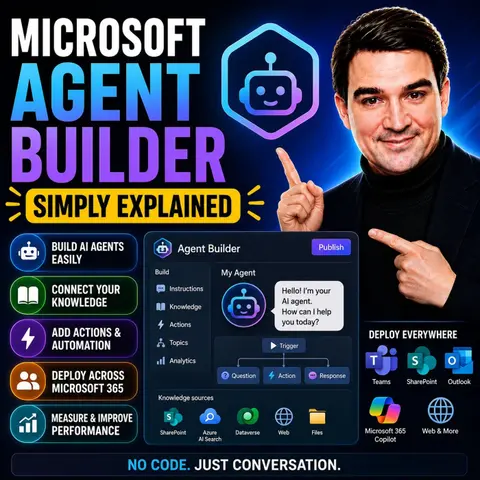
Microsoft Agent Builder makes it possible to create custom AI agents without writing code, allowing business users to extend Microsoft 365 Copilot with organization-specific knowledge and instructions. In this episode of the M365 FM Podcast, Mirko Peters explains what Microsoft Agent Builder is, how it fits into the Microsoft AI ecosystem, and when it's the right choice compared to more advanced tools like Copilot Studio. The episode demonstrates that creating useful AI agents can be as simple as defining a purpose, connecting trusted knowledge sources, and describing how the agent should behave.
You'll learn how Agent Builder enables employees to build assistants for tasks such as answering internal questions, summarizing documents, guiding business processes, and providing department-specific expertise. The episode explains how these agents use company knowledge from Microsoft 365 while respecting existing permissions, ensuring users only receive information they are already authorized to access. It also highlights how organizations can quickly deploy agents to improve productivity without requiring professional developers or complex infrastructure.
Another key topic is governance and knowing when Agent Builder is enough—and when to move to Copilot Studio for advanced automation, connectors, and enterprise workflows. Mirko discusses best practices for designing reliable agents, maintaining high-quality knowledge sources, and ensuring security and compliance throughout the AI lifecycle. Whether you're a Microsoft 365 administrator, business user, consultant, or IT leader, this episode provides a practical introduction to building secure, effective AI assistants that solve real business problems with Microsoft Agent Builder.
Quick answer: Microsoft Agent Builder is the focus of this M365 FM episode, which explains what it does, where it fits in the Microsoft ecosystem, and the architecture, security, governance, or operational choices that matter before teams adopt or manage it.
Creating AI assistants has never been easier with Microsoft Agent Builder. This no-code tool allows you to design personalized AI assistants without needing extensive coding knowledge. You simply describe your assistant's purpose in plain English. This simplicity empowers you to streamline business processes efficiently. Imagine automating tasks like customer support or onboarding new employees in just a few minutes. With Microsoft Agent Builder, you can focus on what matters most—driving your business forward.
Key Takeaways
- Microsoft Agent Builder allows anyone to create AI assistants without coding skills, making technology accessible to all.
- The tool simplifies the development process, enabling users to build functional AI agents in just a few hours.
- Customization is key; use pre-built templates to quickly tailor agents to your specific business needs.
- Integrate various knowledge sources like SharePoint and Outlook to enhance your AI agent's responses and accuracy.
- Automate routine tasks in customer support and HR to improve efficiency and reduce workload on staff.
- Utilize the user-friendly interface to easily describe and configure your AI agents without technical jargon.
- Regularly evaluate your agents' performance to ensure they meet business goals and improve user satisfaction.
- Leverage community resources and forums for troubleshooting and enhancing your experience with Microsoft Agent Builder.
What Is Agent Builder?

Overview of Microsoft Agent Builder
Microsoft Agent Builder is a powerful tool designed to help you create personalized AI agents that enhance workflows and boost productivity. This no-code solution allows you to develop custom virtual assistants directly from Microsoft 365 Copilot. You can easily build agents that perform various tasks, such as providing onboarding assistance or offering coaching tailored to your organization's standards.
Here are some key purposes of Microsoft Agent Builder:
- Create custom AI agents without needing technical expertise.
- Simplify the process of building agents directly from Copilot Business Chat.
- Customize agents further using Copilot Studio for advanced functionalities.
Key Features of Agent Builder
Microsoft Agent Builder stands out due to its unique features that differentiate it from similar platforms. Here’s a closer look at what makes it special:
| Feature | Description |
|---|---|
| MAI Models | These models enhance complex task handling by supporting structured output generation and tool-calling. |
| Long-context handling | This feature allows for large context windows, making it suitable for tasks like contract analysis. |
| Scout Agent | An AI agent that autonomously operates a browser to achieve user-defined goals, such as research. |
| Integration with Microsoft 365 | Seamlessly pulls data from web pages and interacts with SaaS applications without human input. |
Additionally, Agent Builder incorporates advanced technologies that enhance its capabilities:
| Feature/Technology | Description |
|---|---|
| Conversational capabilities | Design agents that respond to natural language prompts, guiding workflows and completing tasks. |
| Autonomous capabilities | Build agents that manage tasks autonomously, planning and escalating work items as needed. |
| Pre-built agents and templates | Access ready-to-use agents or customize templates based on business needs. |
| Voice capabilities | Create voice-based agents powered by generative AI for quicker user assistance. |
With these features, Microsoft Agent Builder empowers you to create effective AI agents that can streamline various business processes.
How Agent Builder Works
Describe and Configure Tabs
Microsoft Agent Builder features a user-friendly interface designed for non-technical users. The platform simplifies the configuration of AI assistants through its intuitive tabs: Describe and Configure.
- In the Describe tab, you articulate the purpose of your AI agent using everyday language. This allows you to define what tasks the agent should perform, such as answering HR questions or assisting with onboarding.
- The Configure tab enables you to customize the agent further. You can adjust its behavior, appearance, and interaction style without needing to write any code. This no-code environment makes it easy for anyone to create and customize AI agents.
To create an agent, follow these steps:
- Select an agent to manage from the Agent Registry.
- Click on the Users tab in the agent details pane.
- Choose Installed to to assign users who will have the agent pre-installed. Options include:
- Just me
- Entire organization
- Specific users/groups
- Select Available to to determine which users can install and use the agent. Options include:
- No users in the organization can install
- All users in the organization can install
- Specific users/groups can install
- Click Update to save these settings.
The Details tab provides comprehensive information about the agent's intended purpose, including its description, instructions, publish status, and availability. This information is essential for assessing the agent's capabilities.
Connecting to Knowledge Sources
Connecting your AI agent to various knowledge sources significantly enhances its performance. Microsoft Agent Builder allows you to integrate multiple data sources, ensuring your agent provides accurate and relevant information. Here are some of the knowledge sources you can connect:
| Knowledge Source | Description |
|---|---|
| Word, Excel, PowerPoint, Text, PDF | Supports retrieval of information from common document formats. |
| OneNote pages | Accesses a vast amount of information stored in OneNote notebooks. |
| SharePoint Sites | Retrieves data from SharePoint folders and files. |
| Teams chats | Utilizes information from group chats, channels, and meeting chats. |
| E-mails from Outlook | Integrates email data for comprehensive responses. |
| Websites | Allows access to external information sources. |
| People | References live directory information for accurate organizational queries. |
| Custom Connectors | Enables integration with enterprise-specific tools like ServiceNow and DevOps. |
By connecting these sources, your AI agents can deliver precise answers and streamline workflows effectively. This capability ensures that your agents remain relevant and useful in various business scenarios.
Benefits of Microsoft Agent Builder

Quick Development Process
Microsoft Agent Builder significantly accelerates the development of AI agents. You can create functional assistants in a fraction of the time compared to traditional coding methods. This no-code solution allows you to focus on your ideas rather than getting bogged down in technical details.
Consider the following comparison of development processes:
| Aspect | Traditional Coding Methods | Microsoft Agent Builder |
|---|---|---|
| Requirements Translation | Manual, time-consuming process | Automated, rapid generation of service blueprints |
| Debugging | Manual debugging, often slow | Proactive debugging with transparent decision-making |
| Pull Request Handling | Manual review and iteration | Automated PR creation and task management |
With Microsoft Agent Builder, you can deploy a functional AI assistant in as little as one afternoon. For example, an HR team can create a policy assistant that handles over 200 queries daily, reducing HR email volume by 40%. This rapid deployment enhances productivity and allows you to address business needs swiftly.
Customization and Templates
Customization is another key advantage of Microsoft Agent Builder. You can tailor your AI agents to meet specific business requirements using pre-built templates. These templates provide a solid foundation, allowing you to modify them quickly instead of starting from scratch.
Here are some popular templates available in Microsoft Agent Builder:
| Template Name | Purpose |
|---|---|
| Career Coach | Assists users in career development |
| Researcher | Aids in gathering and analyzing information |
| Analyst | Provides insights and data analysis |
To customize a template, follow these steps:
- Select a template that closely matches your needs.
- Integrate your own knowledge sources.
- Modify the instructions and suggested prompts as necessary.
Templates in Microsoft Agent Builder streamline the setup process. They enable you to develop operational agents quickly, promoting teamwork and efficiency across your organization. By leveraging these low-code development tools, you can enhance collaboration and ensure that your AI agents align with your business goals.
Getting Started with Agent Builder
Setting Up Your Environment
To begin using Microsoft Agent Builder, you need to set up your environment properly. Follow these essential requirements to ensure a smooth start:
| Requirement | Description |
|---|---|
| Licensing | Necessary for using Microsoft Agent Builder. |
| Governance | Essential for managing the deployment and use. |
| IT Department Involvement | Required for proper setup and integration. |
| Setup Duration | Not a quick process; requires more than five minutes. |
Once you have met these requirements, you can proceed to create your first AI assistant.
Creating Your First AI Assistant
Creating an agent with Microsoft Agent Builder is straightforward. Follow these steps to get started:
- Intro to AI Agents and Agent Use Cases: Familiarize yourself with the different types of AI agents and their applications in your organization.
- Exploring AI Frameworks: Understand the frameworks that support AI agent development.
- Understanding AI Agentic Design Patterns: Learn about design patterns that help structure your AI agents effectively.
- Tool Use Design Pattern: Identify the tools your agent will use to perform tasks.
- Agentic RAG (Retrieval-Augmented Generation): Implement retrieval-augmented generation techniques to enhance your agent's responses.
- Building Trustworthy AI Agents: Focus on creating agents that users can trust.
- Planning Design Pattern: Develop a plan for your agent's functionality and user interactions.
- Multi-Agent Design Pattern: Consider how multiple agents can work together to achieve complex tasks.
- Metacognition Design Pattern: Incorporate metacognitive strategies to improve your agent's learning capabilities.
- AI Agents in Production: Prepare your agent for deployment and real-world use.
As you create your first AI assistant, avoid common mistakes. Start with strict guardrails and loosen them gradually. Document each rule clearly to ensure your team understands the agent's purpose. Regularly evaluate the agent's performance to ensure it meets its goals. Track key metrics like task completion rates and user satisfaction to identify areas for improvement.
For further learning, consider these resources:
- Bootcamps: In-depth bootcamps take you from novice to mastery in less than a week.
- Learn With The Nerds: A free virtual series covering various data analytics and cloud topics.
- In A Day Workshops: Pragmatic Works manages and updates content for these Microsoft workshops.
- Resources: Includes Cheat Sheets, Ready-made Agents, Prag Guides, Downloads, Blog, and Career Guides.
- Start Learning: Access a free trial for learning resources.
- Microsoft 365 Agent Builder — Simply Explained: Offers templates for quick setup, allowing users to customize agents without needing extensive technical knowledge.
With these steps and resources, you can confidently embark on your journey of creating AI agents that enhance your business processes.
Common Use Cases for Agent Builder
Customer Support Automation
Microsoft Agent Builder plays a vital role in automating customer support. You can create AI agents that handle common inquiries, which significantly improves efficiency. Here are some key applications:
- Automate responses to frequent questions like order status, billing inquiries, and password resets.
- Enable self-service options through conversational chatbots and voice IVR systems.
- Route customer interactions based on intent, priority, or customer data.
- Assist agents with real-time suggestions, summaries, and next best actions.
- Generate and maintain knowledge articles from resolved interactions.
- Monitor conversation quality for compliance and coaching purposes.
- Personalize customer interactions using historical data and context.
- Scale support operations during peak times without increasing staff.
By implementing these features, you can enhance response times and customer satisfaction. Microsoft Copilot provides real-time AI assistance, helping resolve issues faster. Automating routine tasks allows your customer service agents to focus on delivering high-quality service. Self-service options reduce the number of calls needing agent intervention, leading to quicker resolutions. This results in lower resolution times, increased agent productivity, and higher customer satisfaction rates.
HR and Onboarding Assistance
In the realm of HR, Microsoft Agent Builder streamlines onboarding processes and enhances employee lifecycle management. You can automate the gathering of onboarding details, which reduces the time HR managers spend on manual tasks. Here are some specific uses:
- Create customizable agents that provide instant access to HR policies and procedures.
- Answer common queries about benefits and policies, allowing employees to self-serve.
- Integrate various HR functions, making it easier to manage recruitment, onboarding, and retention.
The tool also improves internal knowledge management for HR departments. It automates policy management and enhances access to information, making it easier for employees to find and understand company policies. For instance, HR teams can create policy agents that provide instant answers to employee inquiries. An example is Poly, an HR agent for Microsoft Teams, which allows employees to get answers without leaving their workspace. The integration with SharePoint helps identify key document elements, enhancing the management of critical policy documents.
By leveraging Microsoft Agent Builder in HR, you can improve employee experience and satisfaction while reducing the workload on HR teams.
Troubleshooting Agent Builder
Common Issues and Solutions
When using Microsoft Agent Builder, you may encounter some common issues. Understanding these problems can help you resolve them quickly. Here are the most frequently reported issues:
- Errors related to agent generation
- Capacity limits affecting performance
- Authentication problems leading to failures
For example, you might experience a situation where a custom agent that worked reliably for a few days starts failing with a generic "Oops, something happened" error after expanding from single-user testing to approximately 20 concurrent users.
To troubleshoot these issues, follow these steps:
- Review changes in Conditional Access, DLP/data policies, or network/firewall rules.
- Verify Teams/Copilot app availability settings.
- Open a support ticket with detailed diagnostics.
By taking these actions, you can often resolve the issues you face with your AI agents.
Additional Resources
If you need further assistance, several community forums and third-party resources can provide valuable help. Here are some useful links:
- Agent not visible in M365 Copilot | Microsoft Community Hub
- Microsoft Agent Store: The Rise of AI Agents in Business
These resources can connect you with other users who may have faced similar challenges. Engaging with the community can provide insights and solutions that enhance your experience with Microsoft Agent Builder.
Microsoft Agent Builder revolutionizes how you create AI assistants. This no-code tool simplifies the process, allowing you to build personalized agents using natural language. You can define knowledge sources, configure agent behavior, and test your agents before deployment.
Key benefits include:
- A user-friendly interface that makes agent creation accessible.
- The ability to connect to specific knowledge sources for relevant responses.
- Integration of web content to enrich agent interactions.
As you explore Microsoft Agent Builder, consider how it can transform your organization. Embrace the future of AI assistants and enhance your workflows today!
FAQ
What is Microsoft Agent Builder?
Microsoft Agent Builder is a no-code tool that allows you to create AI assistants easily. You can design personalized agents using natural language, streamlining various business processes.
Do I need coding skills to use Agent Builder?
No, you do not need any coding skills. Microsoft Agent Builder is designed for users without technical expertise, making AI assistant creation accessible to everyone.
Can I customize my AI assistant?
Yes, you can customize your AI assistant using the Configure tab. You can adjust its behavior, appearance, and knowledge sources to fit your specific needs.
What types of knowledge sources can I connect?
You can connect various knowledge sources, including SharePoint sites, OneDrive documents, Teams conversations, and Outlook emails. This integration ensures your agent provides accurate and relevant information.
How quickly can I create an AI assistant?
You can create a functional AI assistant in just a few hours. The no-code environment allows you to focus on your ideas rather than technical details.
Are there templates available for creating agents?
Yes, Microsoft Agent Builder offers pre-built templates for common business scenarios. You can customize these templates to suit your specific requirements.
How does Agent Builder enhance productivity?
Agent Builder automates routine tasks, allowing you to focus on more critical business activities. This efficiency leads to improved workflows and better collaboration within your team.
Where can I find additional resources for learning?
You can access various resources, including bootcamps, workshops, and online tutorials. These materials help you deepen your understanding of Microsoft Agent Builder and its capabilities.
🎧 Listen to this episode
Want a practical explanation of Microsoft Agent Builder? This episode breaks down the topic in clear language and shows why it matters for Microsoft 365, Azure, Power Platform, security, AI, and modern work.
Listen to this episode if you want to:
- Understand the key concepts behind Microsoft Agent Builder
- See how it fits into the wider Microsoft technology ecosystem
- Learn where it can create practical value for your organization
You may also enjoy these related M365 FM episodes:
- Agent-to-Agent (A2A) Communication - Simply Explained
- Microsoft AI Agent Harness - Simply Explained
- Microsoft Entra Agent ID: Secure Identity for AI Agents
- Multi-Agent AI with Microsoft Copilot and SharePoint – Reshmee Auckloo [MVP]
- Microsoft AI Agent Runtimes: Beyond Enterprise Chatbots
Discover more practical Microsoft conversations on M365 FM.
Last reviewed: July 2026.
Who Should Listen
This episode is for Microsoft administrators, architects, developers, security professionals, and business leaders who need a practical foundation before making implementation or governance decisions.
🎧 You Should Also Listen To
- AI Agents — A closely related next step that adds useful context and practical depth.
- Model Context Protocol — A closely related next step that adds useful context and practical depth.
- Microsoft Security Copilot — A closely related next step that adds useful context and practical depth.
🚀 Want to be part of m365.fm?
Then stop just listening… and start showing up.
👉 Connect with me on LinkedIn and let’s make something happen:
- 🎙️ Be a podcast guest and share your story
- 🎧 Host your own episode (yes, seriously)
- 💡 Pitch topics the community actually wants to hear
- 🌍 Build your personal brand in the Microsoft 365 space
This isn’t just a podcast — it’s a platform for people who take action.
🔥 Most people wait. The best ones don’t.
👉 Connect with me on LinkedIn and send me a message:
"I want in"
Let’s build something awesome 👊
1
00:00:00,000 --> 00:00:04,120
Hello everyone and welcome to another episode of Microsoft Knowledge Nuggets here on M365.
2
00:00:04,120 --> 00:00:06,160
FM, I'm your host, Mirko Peters.
3
00:00:06,160 --> 00:00:09,800
Today's topic is one that almost everyone has heard of, but few people truly understand
4
00:00:09,800 --> 00:00:10,800
AI agents.
5
00:00:10,800 --> 00:00:15,240
What exactly is an AI agent and do you really need to be a developer to build one?
6
00:00:15,240 --> 00:00:20,320
Those are fair questions, especially when you hear terms like declarative agent and orchestration thrown around.
7
00:00:20,320 --> 00:00:22,680
Here's the short answer, no, you don't need to code.
8
00:00:22,680 --> 00:00:26,240
By the end of this episode, you'll understand what Microsoft agent builder is, how it works,
9
00:00:26,240 --> 00:00:29,800
and exactly when to use it versus co-pilot studio or AI Foundry.
10
00:00:29,800 --> 00:00:32,080
Grab your coffee and let's dive in.
11
00:00:32,080 --> 00:00:37,040
What agent builder actually is, Microsoft agent builder is a no-code tool that lives inside
12
00:00:37,040 --> 00:00:39,160
Microsoft 365 co-pilot.
13
00:00:39,160 --> 00:00:42,400
It lets you create what Microsoft calls declarative agents.
14
00:00:42,400 --> 00:00:46,240
In plain English, that means you design a personal AI assistant just by describing what
15
00:00:46,240 --> 00:00:48,720
you want, you don't write code, you write sentences.
16
00:00:48,720 --> 00:00:50,360
So how does it actually work?
17
00:00:50,360 --> 00:00:54,360
Open co-pilot in your browser, look at the sidebar on the left and you'll see a section called
18
00:00:54,360 --> 00:00:55,360
agents.
19
00:00:55,360 --> 00:00:58,120
Click New Agent and you get two tabs at the top.
20
00:00:58,120 --> 00:00:59,520
Describe and configure.
21
00:00:59,520 --> 00:01:01,360
The Describe tab is the magic one.
22
00:01:01,360 --> 00:01:05,920
You type something like "I need an agent that helps onboard new team members" and co-pilot
23
00:01:05,920 --> 00:01:10,640
builds the agent for you, generating a name, description, instructions and even suggested
24
00:01:10,640 --> 00:01:11,640
prompts.
25
00:01:11,640 --> 00:01:12,720
You talk, it builds.
26
00:01:12,720 --> 00:01:15,240
The configure tab is for tweaking things manually.
27
00:01:15,240 --> 00:01:19,240
Change the name, upload an icon, rewrite the instructions, add knowledge sources.
28
00:01:19,240 --> 00:01:23,040
Most people start with describe, then switch to configure to polish things up.
29
00:01:23,040 --> 00:01:24,840
Think of describe as the fast lane.
30
00:01:24,840 --> 00:01:28,120
You just tell it what you need and the agent appears in seconds.
31
00:01:28,120 --> 00:01:31,760
The user is for fine tuning, like adjusting the furniture after the room is built.
32
00:01:31,760 --> 00:01:35,240
But here's the thing, agent builder is not a separate website.
33
00:01:35,240 --> 00:01:38,680
You don't go to co-pilot studio, Microsoft.com or some other portal.
34
00:01:38,680 --> 00:01:42,200
It lives right inside the co-pilot sidebar in the same place you chat with co-pilot every
35
00:01:42,200 --> 00:01:43,960
day and that's by design.
36
00:01:43,960 --> 00:01:47,360
Microsoft wants this to feel like a natural extension of your workflow, not a separate tool
37
00:01:47,360 --> 00:01:48,360
you have to learn.
38
00:01:48,360 --> 00:01:52,320
Most users never notice the complexity behind the scenes, but that's the beauty of it.
39
00:01:52,320 --> 00:01:53,600
Think of it like an office building.
40
00:01:53,600 --> 00:01:56,720
Imagine you work in a big building with rooms for different things.
41
00:01:56,720 --> 00:01:58,680
Building rooms, storage rooms, break rooms.
42
00:01:58,680 --> 00:02:02,360
In the old days, if you needed a new room, you'd have to hire an architect, draw up plans,
43
00:02:02,360 --> 00:02:04,360
get permits and wait weeks for construction.
44
00:02:04,360 --> 00:02:06,920
That's what building an AI agent used to feel like.
45
00:02:06,920 --> 00:02:08,320
Agent builder is the opposite.
46
00:02:08,320 --> 00:02:11,840
It's like walking up to the building manager and saying, "I need a small room on the third
47
00:02:11,840 --> 00:02:13,880
floor with a whiteboard and good lighting."
48
00:02:13,880 --> 00:02:16,280
The manager says, "Got it, and it's ready in minutes.
49
00:02:16,280 --> 00:02:18,240
You don't design the plumbing or the wiring.
50
00:02:18,240 --> 00:02:21,720
You just describe the room you need and the building handles the rest."
51
00:02:21,720 --> 00:02:23,040
That's the core idea.
52
00:02:23,040 --> 00:02:26,960
Agent builder takes your description and turns it into a working agent, handling all the
53
00:02:26,960 --> 00:02:31,640
technical stuff behind the scenes, the AI model, the grounding, the permissions.
54
00:02:31,640 --> 00:02:33,520
You just tell it what you want.
55
00:02:33,520 --> 00:02:34,760
The creation flow.
56
00:02:34,760 --> 00:02:35,760
Step by step.
57
00:02:35,760 --> 00:02:37,680
What does this actually look like in practice?
58
00:02:37,680 --> 00:02:38,680
Let's walk through it.
59
00:02:38,680 --> 00:02:40,520
You start from the co-pilot sidebar.
60
00:02:40,520 --> 00:02:42,680
Click New Agent and you see two tabs.
61
00:02:42,680 --> 00:02:44,280
Describe and configure.
62
00:02:44,280 --> 00:02:45,880
Most people land on Describe first.
63
00:02:45,880 --> 00:02:47,120
That's where the magic happens.
64
00:02:47,120 --> 00:02:49,480
In the Describe tab, you type what you need.
65
00:02:49,480 --> 00:02:53,120
Like, "I need an agent that helps onboard new team members."
66
00:02:53,120 --> 00:02:54,760
Hit Send and co-pilot starts working.
67
00:02:54,760 --> 00:02:58,880
It thinks for a few seconds, then comes back with a complete agent, including a name, description,
68
00:02:58,880 --> 00:03:02,000
instructions, and suggested prompts users can click when they start chatting.
69
00:03:02,000 --> 00:03:04,440
It's all generated from that one sentence you typed.
70
00:03:04,440 --> 00:03:08,120
You can accept it as is or switch to configure and tweak things manually.
71
00:03:08,120 --> 00:03:10,040
The configure tab is where you get hands-on.
72
00:03:10,040 --> 00:03:14,000
You can change the agent's name, upload a custom icon, or rewrite the description.
73
00:03:14,000 --> 00:03:16,360
The instructions field is the most important part.
74
00:03:16,360 --> 00:03:18,720
This is where you tell the agent how to behave.
75
00:03:18,720 --> 00:03:20,720
And something like "You are an HR assistant."
76
00:03:20,720 --> 00:03:23,040
Only answer questions using the provided documents.
77
00:03:23,040 --> 00:03:26,200
If you don't know the answer, tell the user to contact HR directly.
78
00:03:26,200 --> 00:03:29,360
That's your instruction and the agent follows it.
79
00:03:29,360 --> 00:03:30,840
Then there's the Knowledge section.
80
00:03:30,840 --> 00:03:33,520
This is where you connect the agent to actual data.
81
00:03:33,520 --> 00:03:36,760
Without knowledge sources, the agent is just a chatbot with a personality.
82
00:03:36,760 --> 00:03:38,960
It doesn't know anything about your company.
83
00:03:38,960 --> 00:03:43,960
So you add sources, SharePoint sites, specific files from one drive, upload a document from
84
00:03:43,960 --> 00:03:48,320
your computer, public URLs, Teams chats, or Outlook emails.
85
00:03:48,320 --> 00:03:52,760
The agent reads those sources and answers questions based on what it finds.
86
00:03:52,760 --> 00:03:55,200
Below that, there's a capabilities section with toggles.
87
00:03:55,200 --> 00:03:59,040
You can let the agent generate documents, write code, or create images.
88
00:03:59,040 --> 00:04:02,400
Flip those on if you want the agent to produce word docs or PowerPoint slides.
89
00:04:02,400 --> 00:04:04,840
They're off by default, but easy to enable.
90
00:04:04,840 --> 00:04:06,600
Then there are suggested prompts.
91
00:04:06,600 --> 00:04:09,400
Pre-written questions that show up when someone opens the agent.
92
00:04:09,400 --> 00:04:13,920
Things like "What are the steps for new hire paperwork?" or find the travel policy document.
93
00:04:13,920 --> 00:04:17,600
You can write your own or let co-pilot generate them based on your description.
94
00:04:17,600 --> 00:04:19,760
And everything looks good, click "Create".
95
00:04:19,760 --> 00:04:24,280
The agent appears in your co-pilot sidebar alongside any other agents you've built or installed,
96
00:04:24,280 --> 00:04:26,160
and you can start chatting with it immediately.
97
00:04:26,160 --> 00:04:29,360
If you need to change something later, just click the three dots next to the agent and
98
00:04:29,360 --> 00:04:30,520
choose "Edit".
99
00:04:30,520 --> 00:04:34,080
It opens the "Configure" tab again, and you can tweak anything.
100
00:04:34,080 --> 00:04:39,240
Instructions, knowledge sources, prompts, update it, and the changes take effect right away.
101
00:04:39,240 --> 00:04:40,680
Where the smarts come from?
102
00:04:40,680 --> 00:04:41,680
Knowledge sources.
103
00:04:41,680 --> 00:04:45,440
Now you've got a working agent, but where does its intelligence actually come from?
104
00:04:45,440 --> 00:04:46,440
Here's the thing.
105
00:04:46,440 --> 00:04:48,120
A agent doesn't know anything by default.
106
00:04:48,120 --> 00:04:49,920
It's like a new employee on their first day.
107
00:04:49,920 --> 00:04:53,280
They might be smart, but they don't know your company's policies, your products, or your
108
00:04:53,280 --> 00:04:54,280
customers.
109
00:04:54,280 --> 00:04:58,240
They need training materials and for an agent, those training materials are called "knowledge
110
00:04:58,240 --> 00:04:59,240
sources".
111
00:04:59,240 --> 00:05:03,040
Without grounding data, your agent is just a generic chatbot with a personality.
112
00:05:03,040 --> 00:05:06,960
It can hold a conversation, but won't know anything specific about your business.
113
00:05:06,960 --> 00:05:10,520
That's why the knowledge section is the most important part of building an agent.
114
00:05:10,520 --> 00:05:13,000
You have several types of sources you can connect.
115
00:05:13,000 --> 00:05:14,520
SharePoint sites are the most common.
116
00:05:14,520 --> 00:05:16,920
Think of them as your company's document libraries.
117
00:05:16,920 --> 00:05:21,040
One drive files work too if you have a specific document stored in your personal cloud.
118
00:05:21,040 --> 00:05:23,440
You can upload files directly from your computer.
119
00:05:23,440 --> 00:05:28,440
PDFs, Word documents, PowerPoints, Excel spreadsheets, public URLs or another option so you
120
00:05:28,440 --> 00:05:31,520
can point the agent to your company website or a public knowledge base.
121
00:05:31,520 --> 00:05:35,840
And if you have a copilot license, you can also connect Teams chats and Outlook emails.
122
00:05:35,840 --> 00:05:37,760
Now there's a toggle that matters a lot.
123
00:05:37,760 --> 00:05:39,800
Only use specified sources.
124
00:05:39,800 --> 00:05:43,880
Flip this on, and the agent will only answer from the documents and sites you've provided.
125
00:05:43,880 --> 00:05:46,600
But don't use the general knowledge of the AI model to make things up.
126
00:05:46,600 --> 00:05:48,600
This is your best defense against hallucinations.
127
00:05:48,600 --> 00:05:52,720
If you're building an HR agent that answers from your employee handbook, you want this turned
128
00:05:52,720 --> 00:05:56,120
on like you don't want the agent inventing a policy that doesn't exist.
129
00:05:56,120 --> 00:05:57,480
There are limits to keep in mind.
130
00:05:57,480 --> 00:06:02,160
Microsoft says individual files can be up to 512 megabytes for most document types.
131
00:06:02,160 --> 00:06:04,200
With Excel files kept at 30 megabytes.
132
00:06:04,200 --> 00:06:07,880
In practical terms, you're looking at about 100 SharePoint files per agent and around
133
00:06:07,880 --> 00:06:09,560
50 one drive files.
134
00:06:09,560 --> 00:06:12,440
Those aren't hard limits written in stone, but they're good guidelines for planning.
135
00:06:13,440 --> 00:06:15,960
Here's the part that surprises most people.
136
00:06:15,960 --> 00:06:19,440
The agent respects your existing Microsoft 365 permissions.
137
00:06:19,440 --> 00:06:20,560
It doesn't get special access.
138
00:06:20,560 --> 00:06:24,920
If you add a SharePoint site as a knowledge source, the agent can only return information
139
00:06:24,920 --> 00:06:28,160
that the person asking the question is already allowed to see.
140
00:06:28,160 --> 00:06:32,080
So if a user can't normally view a specific document in SharePoint, the agent won't show it
141
00:06:32,080 --> 00:06:33,080
to them either.
142
00:06:33,080 --> 00:06:37,080
This is built in security, and it works automatically.
143
00:06:37,080 --> 00:06:38,400
The template shortcut.
144
00:06:38,400 --> 00:06:40,000
Welcome back to Microsoft Knowledge Nuggets.
145
00:06:40,000 --> 00:06:41,440
I'm Mirko Peters.
146
00:06:41,440 --> 00:06:44,720
But what if you want to build something faster than starting from scratch?
147
00:06:44,720 --> 00:06:46,240
That's where templates come in.
148
00:06:46,240 --> 00:06:49,240
Microsoft now pushes template first creation pretty heavily.
149
00:06:49,240 --> 00:06:53,000
Instead of staring at a blank described tab, you pick from pre-configured agents designed
150
00:06:53,000 --> 00:06:54,320
for common scenarios.
151
00:06:54,320 --> 00:06:57,360
Career coach helps people navigate professional development.
152
00:06:57,360 --> 00:06:59,600
Researcher digs deep across multiple sources.
153
00:06:59,600 --> 00:07:01,560
Analyst focuses on data and spreadsheets.
154
00:07:01,560 --> 00:07:04,760
And there are industry-specific ones too, depending on your organization.
155
00:07:04,760 --> 00:07:06,520
Microsoft keeps adding more over time.
156
00:07:06,520 --> 00:07:07,920
The workflow is simple.
157
00:07:07,920 --> 00:07:09,800
Pick a template close to what you need.
158
00:07:09,800 --> 00:07:10,960
Then customize it.
159
00:07:10,960 --> 00:07:12,640
Swap in your own knowledge sources.
160
00:07:12,640 --> 00:07:13,880
Tweak the instructions.
161
00:07:13,880 --> 00:07:15,400
Adjust the suggested prompts.
162
00:07:15,400 --> 00:07:19,280
The template gives you a solid starting structure, but the real value comes from the data
163
00:07:19,280 --> 00:07:20,280
you connect.
164
00:07:20,280 --> 00:07:21,280
Think of it like cooking.
165
00:07:21,280 --> 00:07:24,440
Starting from a recipe is way easier than inventing a dish from scratch.
166
00:07:24,440 --> 00:07:28,600
The recipe gives you the proportions, the techniques, the order of operations.
167
00:07:28,600 --> 00:07:31,520
You still need to add your own ingredients, and that's your company's data.
168
00:07:31,520 --> 00:07:33,960
But you don't have to figure out the structure yourself.
169
00:07:33,960 --> 00:07:37,200
Templates are great for business users who want speed without complexity.
170
00:07:37,200 --> 00:07:40,920
If you're not a developer and don't want to learn prompt engineering, a template gets
171
00:07:40,920 --> 00:07:42,680
you a working agent in minutes.
172
00:07:42,680 --> 00:07:46,200
You just need to know what you want the agent to do and where the relevant information
173
00:07:46,200 --> 00:07:47,200
lives.
174
00:07:47,200 --> 00:07:50,160
Just remember, a template is a starting point, not a finished product.
175
00:07:50,160 --> 00:07:53,640
The agent is only as useful as the knowledge sources you connect to it.
176
00:07:53,640 --> 00:07:57,920
A career coach template with no company data attached is just a generic career advice
177
00:07:57,920 --> 00:08:02,080
board, connected to your internal training documents and job postings, and suddenly it
178
00:08:02,080 --> 00:08:04,960
becomes a tool that actually helps your employees.
179
00:08:04,960 --> 00:08:05,960
The spectrum.
180
00:08:05,960 --> 00:08:09,080
Agent Builda versus Copilot Studio versus AI Foundry.
181
00:08:09,080 --> 00:08:11,320
Now here's the question everyone asks.
182
00:08:11,320 --> 00:08:15,000
When should you use Agent Builda versus the other tools Microsoft offers?
183
00:08:15,000 --> 00:08:18,240
Because Microsoft gives you three ways to build agents and they're not the same thing.
184
00:08:18,240 --> 00:08:19,240
Think of it as a spectrum.
185
00:08:19,240 --> 00:08:23,840
On one end, you have Agent Builda, the simplest, fastest, most accessible option in the middle,
186
00:08:23,840 --> 00:08:28,400
Copilot Studio with more power, more complexity, more control, and on the far end, AI Foundry,
187
00:08:28,400 --> 00:08:31,600
the full developer platform where you can do almost anything, but you'd better know
188
00:08:31,600 --> 00:08:32,600
what you're doing.
189
00:08:32,600 --> 00:08:33,600
Start with Agent Builda.
190
00:08:33,600 --> 00:08:38,080
This is for quick internal Q&A assistance grounded in Microsoft 365 content.
191
00:08:38,080 --> 00:08:39,240
No code required.
192
00:08:39,240 --> 00:08:42,640
You describe what you want, connect some knowledge sources, and you're done.
193
00:08:42,640 --> 00:08:43,640
But there are trade-offs.
194
00:08:43,640 --> 00:08:46,280
Agent Builda agents stay inside your organization.
195
00:08:46,280 --> 00:08:48,120
You can't put them on a public website.
196
00:08:48,120 --> 00:08:50,760
You can't connect them to Salesforce or Service now.
197
00:08:50,760 --> 00:08:54,360
They answer questions from your SharePoint sites and documents, and that's about it.
198
00:08:54,360 --> 00:08:56,440
If that's all you need, Agent Builda is perfect.
199
00:08:56,440 --> 00:08:58,160
Copilot Studio is the next step up.
200
00:08:58,160 --> 00:09:01,160
This is a low-code platform for enterprise-grade agents.
201
00:09:01,160 --> 00:09:05,560
It supports workflows, real multi-step processes with branching and conditional logic.
202
00:09:05,560 --> 00:09:10,360
It has connectors to external systems like Salesforce, Dataverse, and hundreds of other services.
203
00:09:10,360 --> 00:09:14,200
You can publish agents to websites, teams, Slack, even custom apps.
204
00:09:14,200 --> 00:09:15,840
But with that power comes complexity.
205
00:09:15,840 --> 00:09:16,840
You need licensing.
206
00:09:16,840 --> 00:09:18,000
You need governance.
207
00:09:18,000 --> 00:09:19,840
Your IT department needs to be involved.
208
00:09:19,840 --> 00:09:22,440
It's not something a business user sets up in five minutes.
209
00:09:22,440 --> 00:09:24,800
AI Foundry is the far end of the spectrum.
210
00:09:24,800 --> 00:09:27,640
This is Microsoft's professional AI development platform.
211
00:09:27,640 --> 00:09:28,760
Pro developers only.
212
00:09:28,760 --> 00:09:32,960
You can choose from thousands of AI models, not just Microsoft's, but Claude, Grog, even
213
00:09:32,960 --> 00:09:34,360
specialized healthcare models.
214
00:09:34,360 --> 00:09:37,920
You can fine tune them, customize them, build entirely custom solutions.
215
00:09:37,920 --> 00:09:40,520
But for most business users, AI Foundry is overkill.
216
00:09:40,520 --> 00:09:43,680
If you're asking, should I use Agent Builda or AI Foundry?
217
00:09:43,680 --> 00:09:45,560
The answer is Agent Builda.
218
00:09:45,560 --> 00:09:48,200
So when do you move from Agent Builda to Copilot Studio?
219
00:09:48,200 --> 00:09:49,200
Three main reasons.
220
00:09:49,200 --> 00:09:51,480
Reason one, you need an external facing agent.
221
00:09:51,480 --> 00:09:53,880
Agent Builda agents only work inside your organization.
222
00:09:53,880 --> 00:09:58,320
If you want a customer service bot on your public website, you need Copilot Studio.
223
00:09:58,320 --> 00:10:01,320
Reason two, you need exotic data sources.
224
00:10:01,320 --> 00:10:06,000
Agent Builda connects to SharePoint, OneDrive, WebContent, and Microsoft 365 data.
225
00:10:06,000 --> 00:10:11,120
But if you need to pull data from a SQL database, Salesforce, or an MCP server, you need Copilot
226
00:10:11,120 --> 00:10:12,120
Studio.
227
00:10:12,120 --> 00:10:14,160
Reason three, you need agentic actions.
228
00:10:14,160 --> 00:10:18,280
This means the agent doesn't just answer questions, it does things, it creates tickets, sends
229
00:10:18,280 --> 00:10:21,200
emails, updates records, triggers workflows.
230
00:10:21,200 --> 00:10:22,520
Agent Builda can't do that.
231
00:10:22,520 --> 00:10:23,520
Copilot Studio can.
232
00:10:23,520 --> 00:10:25,440
Here's a real world way to think about it.
233
00:10:25,440 --> 00:10:30,560
An HR FAQ bot that answers questions from your employee handbook is Agent Builda territory.
234
00:10:30,560 --> 00:10:35,320
A helpdesk agent that reads a support request creates a ticket in service now, roots it to
235
00:10:35,320 --> 00:10:39,080
the right team, and sends a confirmation email is Copilot Studio.
236
00:10:39,080 --> 00:10:44,080
A medical diagnosis assistant that uses specialized healthcare models and needs to comply with
237
00:10:44,080 --> 00:10:46,120
strict regulations is AI Foundry.
238
00:10:46,120 --> 00:10:48,600
The bottom line is simple, start with Agent Builda.
239
00:10:48,600 --> 00:10:52,560
It's free with your Copilot license, it takes minutes to set up, and it handles a surprising
240
00:10:52,560 --> 00:10:54,280
number of use cases.
241
00:10:54,280 --> 00:10:57,960
Only level up when you hit a wall, when you need external access, different data sources
242
00:10:57,960 --> 00:10:59,560
or actual actions.
243
00:10:59,560 --> 00:11:01,920
Most people never need to leave Agent Builda.
244
00:11:01,920 --> 00:11:06,520
The hard limits, what Agent Builda can't do, but Agent Builda does have limits.
245
00:11:06,520 --> 00:11:10,120
Let's talk about where it stops, because knowing when a tool isn't right for the job is
246
00:11:10,120 --> 00:11:12,280
just as important as knowing when it is.
247
00:11:12,280 --> 00:11:15,360
One important limit, these agents stay inside Copilot.
248
00:11:15,360 --> 00:11:19,200
You open Copilot in your browser, see your agent in the sidebar and chat with it there,
249
00:11:19,200 --> 00:11:22,400
but you cannot pull it into a team's conversation or add it to a channel.
250
00:11:22,400 --> 00:11:26,720
If you need an agent that lives inside teams, you have outgrown Agent Builda.
251
00:11:26,720 --> 00:11:30,120
The limit, no external facing agents.
252
00:11:30,120 --> 00:11:33,560
Everything you build in Agent Builda stays internal to your organization.
253
00:11:33,560 --> 00:11:38,160
You can share agents with co-workers, but you cannot put one on your public website, embedded
254
00:11:38,160 --> 00:11:41,800
in a customer portal, or let anyone outside your company use it.
255
00:11:41,800 --> 00:11:46,120
If your goal is a customer service bot on your homepage, you need Copilot Studio.
256
00:11:46,120 --> 00:11:50,000
Then there's complexity, Agent Builda is designed for Q&A, not automation.
257
00:11:50,000 --> 00:11:54,680
There is no branching logic, no conditional steps, no if this then that sequences.
258
00:11:54,680 --> 00:11:58,640
You cannot connect it to Power Automate to trigger actions when someone asks the question.
259
00:11:58,640 --> 00:12:00,560
The agent answers questions and that is it.
260
00:12:00,560 --> 00:12:05,520
If you need a multi-step process, like an agent that reads a request, checks inventory, creates
261
00:12:05,520 --> 00:12:08,040
an order, and sends a confirmation.
262
00:12:08,040 --> 00:12:10,000
Agent Builda will not do it.
263
00:12:10,000 --> 00:12:11,600
External connections are also off the table.
264
00:12:11,600 --> 00:12:16,440
You cannot connect Agent Builda to Salesforce, ServiceNow, or any other third-party system.
265
00:12:16,440 --> 00:12:21,480
It works with Microsoft 365 content, SharePoint, OneDrive, Teams, Email, and Public Web content.
266
00:12:21,480 --> 00:12:22,680
That is the full list.
267
00:12:22,680 --> 00:12:27,240
If your agent needs to pull data from a CRM or update a record in an external database,
268
00:12:27,240 --> 00:12:28,680
you need a different tool.
269
00:12:28,680 --> 00:12:30,240
Compliance features are missing too.
270
00:12:30,240 --> 00:12:33,600
Agent Builda does not support lockbox or customer managed keys.
271
00:12:33,600 --> 00:12:37,680
Those controls that let organizations manage encryption keys or require explicit approval
272
00:12:37,680 --> 00:12:40,560
before Microsoft engineers can access data.
273
00:12:40,560 --> 00:12:44,400
If you work in a highly regulated industry where those are mandatory, Agent Builda is not
274
00:12:44,400 --> 00:12:45,400
the right choice.
275
00:12:45,400 --> 00:12:48,560
Here is a licensing gotcha that catches people during testing.
276
00:12:48,560 --> 00:12:52,240
SharePoint grounding requires a proper Microsoft 365 Copilot license.
277
00:12:52,240 --> 00:12:57,080
You cannot build an agent that reads from SharePoint in a developer-only tenant or a trial account.
278
00:12:57,080 --> 00:13:00,560
The agent will work, but it won't be able to access your SharePoint data.
279
00:13:00,560 --> 00:13:02,640
And finally, practical source limits.
280
00:13:02,640 --> 00:13:08,400
Per agent you are looking at roughly 100 SharePoint files, 51 Drive files, 20 uploaded documents,
281
00:13:08,400 --> 00:13:10,960
full public URLs, and five Teams chats.
282
00:13:10,960 --> 00:13:14,600
Those aren't hard Microsoft limits written in stone, but they're what the community consistently
283
00:13:14,600 --> 00:13:15,600
reports.
284
00:13:15,600 --> 00:13:19,120
If your agent needs to search across hundreds of documents, you will hit a ceiling.
285
00:13:19,120 --> 00:13:20,280
So here is the honest truth.
286
00:13:20,280 --> 00:13:22,760
If you need any of these things, you have outgrown Agent Builda.
287
00:13:22,760 --> 00:13:23,760
That is not a failure.
288
00:13:23,760 --> 00:13:26,840
Agent Builda is made for a specific job and it does that job well.
289
00:13:26,840 --> 00:13:31,480
But when your needs get more complex, it is time to look at Copilot Studio.
290
00:13:31,480 --> 00:13:33,560
Security and governance, the simple version.
291
00:13:33,560 --> 00:13:35,840
So how does security work with Agent Builda?
292
00:13:35,840 --> 00:13:37,280
Here is the simple version.
293
00:13:37,280 --> 00:13:40,600
Agent Builda respects your existing Microsoft 365 permissions.
294
00:13:40,600 --> 00:13:41,600
That is the key point.
295
00:13:41,600 --> 00:13:45,760
When you add a SharePoint site as a knowledge source, the agent does not get special access.
296
00:13:45,760 --> 00:13:48,840
They can only return information that the person asking the question is already allowed
297
00:13:48,840 --> 00:13:49,840
to see.
298
00:13:49,840 --> 00:13:52,640
Other user cannot view a specific document in SharePoint.
299
00:13:52,640 --> 00:13:54,360
The agent will not show it to them either.
300
00:13:54,360 --> 00:13:56,280
The permissions are inherited automatically.
301
00:13:56,280 --> 00:13:58,840
This is built in and works without any extra configuration.
302
00:13:58,840 --> 00:14:01,840
You do not need to set up separate access rules for your agents.
303
00:14:01,840 --> 00:14:05,600
They follow the same rules your organization already has in place.
304
00:14:05,600 --> 00:14:08,800
The only use specified sources toggle is very useful.
305
00:14:08,800 --> 00:14:09,800
Turn it on.
306
00:14:09,800 --> 00:14:13,500
And the agent only answers from the documents and sites you explicitly provide.
307
00:14:13,500 --> 00:14:15,840
It ignores the general knowledge of the AI model.
308
00:14:15,840 --> 00:14:18,480
This is your primary defense against hallucinations.
309
00:14:18,480 --> 00:14:22,560
The agent cannot make up a policy if it is forced to use only your employee handbook.
310
00:14:22,560 --> 00:14:25,280
Simple, effective, and we always recommend it.
311
00:14:25,280 --> 00:14:26,880
One thing to watch for.
312
00:14:26,880 --> 00:14:29,840
Tenant level policies can override what you see in the UI.
313
00:14:29,840 --> 00:14:33,840
If your IT admin has disabled web search and copilot through a tenant policy, the web content
314
00:14:33,840 --> 00:14:37,360
toggle in Agent Builda might still appear enabled, but it won't actually work.
315
00:14:37,360 --> 00:14:38,440
The policy wins.
316
00:14:38,440 --> 00:14:42,480
So if you are building an agent and wondering why web content isn't working, check with your
317
00:14:42,480 --> 00:14:43,600
admin first.
318
00:14:43,600 --> 00:14:47,000
You do not need to become a security expert to use Agent Builda.
319
00:14:47,000 --> 00:14:49,920
You will understand that the agent inherits your organization's rules.
320
00:14:49,920 --> 00:14:53,040
It does not create new permissions or bypass existing ones.
321
00:14:53,040 --> 00:14:55,880
If your data is secure and share point, it is secure in your agent.
322
00:14:55,880 --> 00:15:00,800
For organizations that need more, monitoring, lifecycle management, identity controls, there
323
00:15:00,800 --> 00:15:02,840
is a tool called Agent365.
324
00:15:02,840 --> 00:15:05,680
It is Microsoft's governance layer for AI agents.
325
00:15:05,680 --> 00:15:07,920
But that is a separate topic for a future episode.
326
00:15:07,920 --> 00:15:11,320
For most people using Agent Builda, the built-in security is enough.
327
00:15:11,320 --> 00:15:15,440
So that's Microsoft Agent Builda in plain English and the easiest way to create a helpful
328
00:15:15,440 --> 00:15:18,240
AI assistant for your team without writing any code.
329
00:15:18,240 --> 00:15:19,840
Here is your one task this week.
330
00:15:19,840 --> 00:15:24,280
Open Copilot, click New Agent, start with the Described tab, pick a template or describe
331
00:15:24,280 --> 00:15:27,120
what you need, connect a SharePoint site and test it.
332
00:15:27,120 --> 00:15:29,360
You'll have a working agent in under 10 minutes.
333
00:15:29,360 --> 00:15:33,520
If this helped, subscribe on your favorite podcast platform and share it with someone starting
334
00:15:33,520 --> 00:15:34,520
their AI journey.
335
00:15:34,520 --> 00:15:37,280
I'm Mirko Peters and I'll catch you on the next episode.

Founder of m365.fm, m365.show and m365con.net
Mirko Peters is a Microsoft 365 expert, content creator, and founder of m365.fm, a platform dedicated to sharing practical insights on modern workplace technologies. His work focuses on Microsoft 365 governance, security, collaboration, and real-world implementation strategies.
Through his podcast and written content, Mirko provides hands-on guidance for IT professionals, architects, and business leaders navigating the complexities of Microsoft 365. He is known for translating complex topics into clear, actionable advice, often highlighting common mistakes and overlooked risks in real-world environments.
With a strong emphasis on community contribution and knowledge sharing, Mirko is actively building a platform that connects experts, shares experiences, and helps organizations get the most out of their Microsoft 365 investments.




