
Microsoft Entra ID Troubleshooting Hub
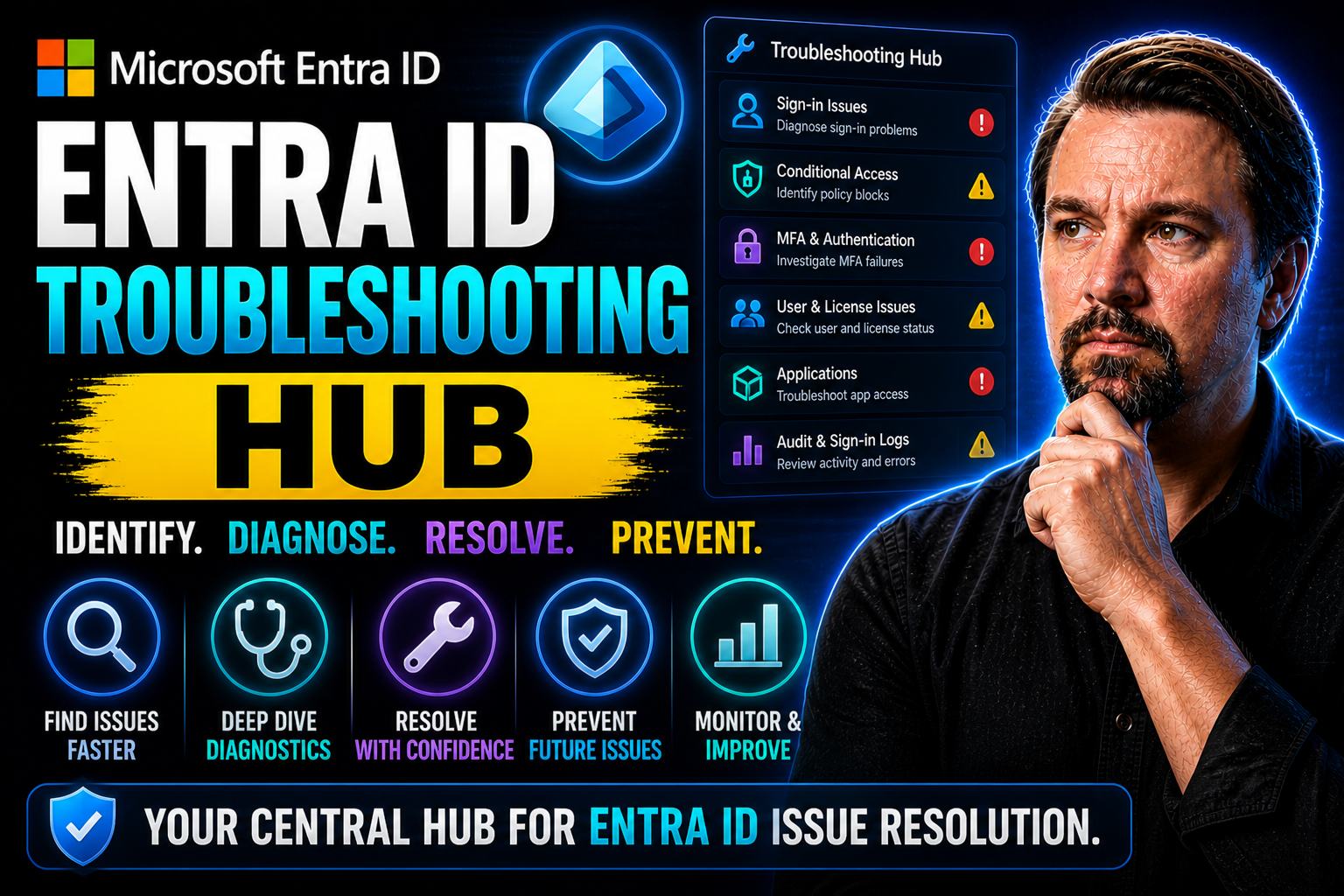
If you’re wrangling Microsoft Entra ID—formerly Azure AD—you know things don’t always go smooth. This hub is built for you, the admin in the trenches, looking for straight talk and actual steps to fix what’s holding your users back. You’ll find real-world explanations for all the weird errors, wizards that won’t cooperate, and sign-ins that just won’t stick.
No fluff here—just practical troubleshooting for authentication, configuration, connectivity, and access control headaches. We organize the most common snag points and walk you through solutions that actually translate to less downtime. Each section drills right into the why and how, so you can clear a path and keep your users moving forward. Dive in, fix it, and get back to business.
Microsoft Entra ID — Definition
Microsoft Entra ID is Microsoft’s cloud-based identity and access management service that provides identity authentication, single sign-on, and access control for users, applications, and devices. It is the evolution of Azure Active Directory and serves as the central directory for managing identities across Microsoft 365, Azure, and many third-party applications.
Short Explanation: Entra ID enables organizations to securely authenticate and authorize users and services, enforce conditional access policies, manage multi-factor authentication (MFA), and support identity governance. It integrates with on-premises directories and cloud services to provide unified identity management, and it is the primary service to consult when diagnosing sign-in issues, application access problems, or permission errors—making it an essential component of any Entra ID troubleshooting hub.Entra ID Troubleshooting Hub: 5 Surprising Facts about Microsoft Entra ID
- It’s the evolution of Azure AD: Microsoft Entra ID is the rebranded and expanded identity service that builds on Azure Active Directory, keeping full backward compatibility while introducing broader identity governance and cross-cloud identity capabilities.
- Decentralized identity support: Entra ID includes emerging support and tooling for decentralized identity standards (DID) and verifiable credentials, enabling passwordless, privacy-preserving authentication scenarios beyond traditional enterprise sign-in.
- Identity as a security signal: Entra ID’s continuous access evaluation and conditional access integrate identity telemetry (risk, device state, location, behavior) to adapt sessions in real time—effectively treating identity context as a live security sensor.
- Built-in entitlement management: Entra ID provides native entitlement and access lifecycle features such as access packages, automated lifecycle workflows, and connected catalogs to reduce permission sprawl and simplify audit-ready governance.
- Cross-vendor and multi-cloud integrations: Beyond Microsoft services, Entra ID is designed to federate and interoperate with other identity providers and cloud platforms, enabling unified identity management across heterogeneous environments.
Common Microsoft Entra ID Authentication Errors and Fixes
Let’s face it—authentication errors are the bread and butter of Entra ID frustration. Whether it’s forgotten passwords, ornery MFA prompts, or mysterious identity mismatches, these roadblocks can leave both helpdesk teams and users scratching their heads. Even when everything else lines up, one oddball authentication hiccup is often all it takes to slow everyone down.
This section pulls the curtain back on what’s most likely to go wrong during sign-in. The goal is to arm you with the knowledge to quickly recognize what kind of problem you’re dealing with and why it’s happening—so you’re not stuck spending all morning tracking down errors you’ve seen three times before.
Each of the detailed guides that follow will zero in on actionable ways to get folks logged in again, whether it’s something simple like a password expiry, or a more stubborn MFA or identity discovery glitch. Cutting to the chase, this section is about clearing up the usual confusion so you can keep your environment secure and users happy. Ready? Let’s dig into the most stubborn authentication snags and get your house back in order.
Resolving Password and MFA Authentication Failures
- Diagnosing "Password Verified" Failures
- When users get stuck at the password prompt, it’s not always an obvious typo or simple mistake. Check whether the account is locked out, password is expired, or if legacy authentication is interfering. Sometimes, service interruptions on the backend can trip up a valid login too. Look for recent changes to password policies or sign-in risk configurations that may block access unexpectedly.
- Troubleshooting Expired Passwords and Password Writeback
- If somebody’s password expired, the fix should be simple—but only if self-service reset or password writeback is correctly set up. Walk users through password reset options via the security portal, or double-check that on-premises writeback is working if you’re syncing from Active Directory. Issues here can crop up if object synchronization is delayed or the sync service is in staging mode.
- Resolving MFA Endpoint and Network Connectivity Issues
- An "MFA endpoint reached" error often points to connectivity problems. Make sure endpoints like login.microsoftonline.com and aadcdn.msftauth.net aren’t blocked by firewalls or misconfigured proxies. If users can’t complete the second factor, test push notifications, SMS, or alternate methods. Always confirm that the user’s MFA methods are registered and haven’t been accidentally removed or changed.
- Addressing MFA Registration and Policy Gaps
- Sometimes, Conditional Access or security policies require MFA, but users aren’t prompted due to misalignments in group assignments or policy scope. Review the assignment rules and user group memberships. Make sure the required registration is completed—the Authenticator app may need re-enrollment if there’s device churn or an old phone in play.
- Unblocking Stuck Authentication Journeys
- If an account moves through password verification but stalls at MFA repeatedly, look for clues in the sign-in logs—does it show an error like "Authentication requirement not met"? Try resetting the user’s MFA registration or clearing locally cached credentials on their device. If the failures are consistent across many users, check tenant-wide MFA service health for outages or policy updates that could be the culprit.
Handling Identity and Realm Discovery Issues
- Troubleshooting "Unknown" User Type Errors
- If a user can’t sign in and the error mentions an "unknown" account or type, check if the account exists in the right directory. Sometimes, people try to log in with a personal Microsoft account instead of their work or school account. Verify they’re using the correct username and domain.
- Resolving Realm Discovery Failures
- Realm discovery is how Entra ID figures out which directory a sign-in request belongs to. If this process fails, it’s often tied to domain DNS misconfigurations, such as missing or incorrect CNAME and TXT records for your tenant. Confirm the domain is properly verified and that public DNS settings are current.
- Fixing "Invalid Grant" and OAuth Issues
- When you see "invalid grant" during authentication—especially with custom apps or hybrid environments—it usually points to misaligned consent, invalid client secrets, or mismatched redirect URIs. Double-check that the OAuth flow matches what's configured in both the application registration and the calling app.
- Dealing with Hybrid Identity and Synchronization Problems
- In hybrid mode, a mismatch between your on-premises Active Directory and Entra ID can cause identity confusion. Make sure attributes like UPN are synced correctly and that no duplicate accounts exist. If users face repeated realm or discovery issues, run a targeted synchronization and review connector space for conflicting or filtered objects.
- Testing and Isolating Realm Discovery
- To rule out transient versus systemic issues, use Microsoft’s "What’s my tenant" tools or PowerShell to verify if realm discovery is successful for the affected domain. Look for patterns—if it’s a single user, it’s likely a user or device problem; if it’s widespread, suspect directory or domain misconfiguration. Reading the sign-in logs gives you critical error codes and timings to pinpoint root causes.
Fixing Errors in the Setup Wizard and Installation
Setting up Microsoft Entra Connect shouldn’t feel like solving a jigsaw puzzle in the dark. Still, onboarding or upgrading this tool can quickly go sideways with cryptic wizard errors, failed pre-checks, or missed configuration steps. Admins often run into problems with connectivity to Entra ID, service account permissions, or incorrect domain settings—all of which can stall deployment.
This section is your playbook for untangling those setup headaches. It's not just about clicking "next" until something works; it's about understanding why the wizard throws a fit when certain requirements aren’t met. When problems pop up, knowing when to retrace earlier troubleshooting steps or escalate for deeper diagnostics makes a big difference.
Up next, we break down common culprits behind installation failures and show you how to keep your deployment on track. Don’t let one bad wizard step turn into a lost afternoon—let’s get things sorted before anyone notices the delay.
Ensuring Connectivity and Proxy Configuration for Entra ID
- Verify Proxy Connectivity to Azure
- Start with a connectivity test. Use tools like Test-NetConnection or telnet to check if your server can reach the required Microsoft Entra ID endpoints. Watch out for firewall rules or proxies that might block outbound HTTPS traffic. Getting a green light here means your on-premises system can talk to the Azure control plane, which is no small thing.
- Check for Proxy Idle Timeout Settings
- Idle timeout settings can be surprisingly tricky. If your proxy or network appliance has low timeouts, long-running syncs or setup steps might get cut off midstream. Review your network equipment and proxy settings for any aggressive timeout thresholds, and consider increasing them to match Microsoft’s recommended values.
- Review Proxy and Application Logs
- Sometimes, the cause of a stubborn connectivity error is hiding in the logs. Dig into proxy logs around the window of your failed installation. Look for dropped connections, authentication failures, or DNS errors. Microsoft Entra itself also keeps its own logs—check there for helpful messages about attempts from your IP and machine name.
- Resolve Common Proxy Misconfigurations
- It’s not unusual for proxies to require special configuration—think exceptions for Microsoft endpoints, authentication bypass for traffic to *.microsoft.com, or updating SSL inspection rules. Make sure your proxy isn’t rewriting headers or breaking TLS traffic, as these errors can be subtle but devastating for Entra ID connectivity.
- Test Full End-to-End Entra Service Access
- As a sanity check, confirm that not only does the server reach the sign-in endpoint, but that it can also complete authentication against Entra ID. Use tools like the Entra Connect Health service and try a test synchronization to catch hidden connectivity or credential issues. Fixing problems here keeps your directory in sync and avoids a world of hurt down the road.
Authorization and Access Control Failures
You’ve seen it before—a user’s credentials check out just fine, but when they go to access a resource or app, they get the "Sorry, you’re not authorized" message. Authorization failures can be some of the most frustrating issues in Microsoft Entra ID, especially in larger organizations where access policies and privileged roles are changing all the time.
This section targets those moments when something in your permission or access structure just isn’t lining up. Whether it’s granular app assignment, role activation hiccups through Privileged Identity Management, or unexplained privilege mismatches after an upgrade, authorization errors can mean lost productivity and mounting support tickets.
The approach here covers both user-level and application-level troubleshooting for common errors. From unblocking a locked-out teammate to restoring access to a critical business app, these guides help you uncover the root of access problems and safely restore what’s needed—without over-provisioning. Let’s straighten out those access kinks and put the control back where it belongs.
Resolving Application and SSO Authorization Issues
- Identify SAML SSO Misconfigurations
- SAML-based single sign-on headaches usually start with a bad certificate, mismatched identifier, or poorly mapped claim. Double-check the SAML app settings in both Microsoft Entra ID and the target application. Ensure the Entity ID, sign-in URL, and reply URLs are exactly what the app expects. A small typo can ruin a login attempt.
- Troubleshoot AADSTS Error Codes
- Errors like AADSTS50105 ("user not assigned to the app") or AADSTS700016 ("application with the identifier was not found") are your first clues. For the first, assign the user or group to the application in the Entra portal. For the second, check that the application registration exists and app IDs in your code or configuration files actually match what’s in Entra ID.
- Review Application User Assignment and Group Membership
- A user might have once had access and lost it because they fell out of the right group, the group got removed from the app, or roles changed. Go into the application panel and review assignments. It’s a good habit to also check what roles (if any) are required and if those were removed or never granted in the first place.
- Validate Application Registration Health
- An app might fail SSO completely if its registration is stale, deleted, or not granted tenant permissions. Use the Entra portal to confirm the app registration hasn’t expired or been disabled, especially for old or third-party applications updated outside your workflow. Renew certificates on time and periodically audit app registrations for both assigned users and permissions.
- Align Permissions and Review Consent Settings
- Some apps require additional consent from users or admins before users can sign in. Check if permissions—like API scopes or delegated permissions—were recently changed. If group-based assignment is in play, confirm the user is still a member of the right group(s). Fix consent-related snags by re-consenting and confirming with your app owner or provider that all permissions are granted as required.
Diagnosing Conditional Access Policy Denials
Conditional Access (CA) is the muscle behind Entra ID’s “who gets in, when, and how” approach. But those same policies can easily block legitimate users, causing head-scratching moments where credentials check out, but the door still won’t open. CA policy denials account for a huge chunk of support tickets, but they don’t have to be a mystery.
This section gives you structured strategies to trace down exactly why a user was denied—even if the error message wasn’t helpful. CA policies get triggered by device status, and compliance, risky sign-ins, IP locations, or even the type of app trying to connect. When these conditions don’t play nice, you might see denials that look random but are anything but.
The guides here walk you through diagnosing evaluation failures, identifying policy conflicts, and confirming what was (and wasn’t) applied during the user’s attempt. By getting a handle on CA outcomes, you’ll be able to target and fine-tune access—restoring order without overexposing your environment. Let’s break down those complex decisions and give users the access they really need, safely.
Using Sign-In Logs to Troubleshoot Conditional Access Outcomes
- Access the Microsoft Entra Sign-In Logs
- Start by navigating to the Entra admin portal and opening the Sign-In logs for the affected user or app. These logs are gold for tracking CA policy outcomes. Filter by user, application, or time window to focus your investigation—don’t get lost scrolling through irrelevant entries.
- Interpret the "Applied Conditional Access Policies" Section
- Each sign-in event includes a list of all CA policies evaluated, showing whether they were applied, not applied, or reported errors. This listing helps you see at a glance which specific policy denied access and why (for example, a device wasn’t compliant, or access from an untrusted location).
- Check Grant Controls and Session Controls
- Drill into each listed policy for details about grant controls (like MFA required, compliant device, approved location) that were either satisfied or failed. Session controls (such as sign-in frequency or limited session lifetime) might also be present, impacting the overall access decision. If you see a red "Failure" mark, note which control caused it.
- Isolate Policy Conflicts or Misapplied Policies
- Sometimes, multiple policies overlap or conflict. If a policy was evaluated but "not applied," the conditions weren’t met for that sign-in; but if there’s a deny with a clear error, you’ve found your culprit. Cross-reference this with your CA policy setup—group filter, location, device state, app context—to see where the logic tripped up. Document these findings for future reference or escalation.
- Take Action Based on Log Insights
- Once you know which policy caused the denial, adjust or update it as needed. Maybe add a location to the trusted list, loosen a device compliance requirement, or tweak grant controls. Use the logs to test changes in real time—have the affected user try again and watch the log to confirm the new outcome. Mastering this feedback loop makes CA management a breeze.
"Invalid Ticket" Error and Key Diagnostic Tools
Troubleshooting Microsoft Entra ID can feel like trying to find your keys in the dark—especially when you come up against cryptic errors like “invalid ticket” or codes like AADSTS50105 and AADSTS700016. These aren’t just pop-up annoyances; they’re your system telling you something specific went haywire in the authentication handshake. Decoding these errors is your first move in getting things back on track.
Understanding what went wrong starts with error codes. For example, getting an “invalid ticket” usually means some authentication token or session state didn’t line up between systems. Codes like AADSTS50105 often point to conditional access or group membership issues, while AADSTS700016 means the app itself isn’t registered or is misconfigured. Knowing which code you’ve got is half the battle.
When you’re digging deeper, diagnostic tools are your best friends. Proxy logs will show you the step-by-step journey of an authentication request—useful for both remote and hybrid setups. Sign-in logs in Entra ID’s control plane reveal why a user was blocked, from policy evaluation to device compliance or geographical restrictions, giving you clues instead of dead ends.
Don’t sleep on feedback and support channels, either. System health blades and diagnostic feedback can flag subtle sync issues, residual access policies, or flakey hybrid connections. The real secret is combining what these tools tell you, so your troubleshooting isn’t just guessing—it’s detective work with a solid trail of evidence.
Entra ID Troubleshooting Hub Checklist
Use this checklist to diagnose and resolve common Microsoft Entra ID issues.
Entra ID Troubleshooting Hub — troubleshooting steps and next steps
What is the Entra ID troubleshooting hub and when should I use it?
The Entra ID troubleshooting hub is a centralized set of guidance and diagnostic approaches for resolving common issues with Microsoft Entra ID (Azure AD). Use it when you experience authentication failures, connectivity issues with Microsoft Entra, intermittent sign-in problems, or when you need help with troubleshooting hybrid identity setups or synchronization using Microsoft Entra Connect Server.
How do I troubleshoot connectivity issues with Microsoft Entra from my network?
Start by verifying URLs and IP address ranges required by Entra ID and ensure your firewall and proxy allow traffic to those endpoints. Use network trace tools to validate connectivity to discovery endpoints and the Azure Portal endpoints. If you need to connect to the remote server hosting Entra services or your Microsoft Entra Connect Server, confirm DNS resolution, check TLS settings, and review any intermittent packet loss. Next steps include consulting logs on the server and running connectivity tests documented on Microsoft Learn.
What are common issues when trying to connect to Microsoft Entra ID from an application?
Common issues include misconfigured redirect URIs, expired or wrong client secrets, incorrect discovery endpoints, and using outdated libraries such as ADAL instead of MSAL. Also check app registration permissions in the Azure Portal, ensure correct scopes are requested, and confirm there are no duplicate entries for the application or service principal that could cause authorization confusion.
How can I resolve duplicate entries for users or devices in Entra ID?
Duplicate entries often result from synchronization configuration problems or conflicting identity sources in hybrid setups. Review your Microsoft Entra Connect Server rules, check for attribute mapping issues, and use the Azure Portal to find and merge or remove duplicates. If necessary, run directory cleanup scripts using PowerShell and ADAL and PowerShell or MSAL-based tools to reconcile source data prior to re-sync.
What should a hybrid identity administrator do when synchronization fails intermittently?
For intermittent synchronization failures, check the Microsoft Entra Connect Server health and service status, examine synchronization logs for transient errors, and verify network stability between the on-premises server and Azure. Apply security updates to the sync server, ensure the server’s subscription is active, and inspect any throttling or rate-limit messages. If problems persist, escalate with additional resources from Microsoft Learn and technical support.
How do I grant or check permission settings for applications and users in Entra ID?
Use the Azure Portal to review app registrations and enterprise applications to confirm required API permissions and admin consent. For user permissions and role assignments, check directory roles and custom role definitions. If automated scripting is needed, use MSAL or ADAL and PowerShell modules to query and set permissions programmatically. Remember to follow the principle of least privilege and document next steps for permission changes.
What steps help troubleshoot sign-in failures for end users?
Collect the user’s sign-in logs from the Azure Portal and review conditional access policies, multifactor authentication requirements, and token errors. Verify client device time sync, check for intermittent network issues, and ensure the application uses supported authentication libraries like MSAL. If tokens are invalid, inspect issuance via discovery endpoints and refresh token workflows, and consider clearing cached credentials as an optional troubleshooting step.
How do discovery endpoints affect authentication and how do I verify them?
Discovery endpoints provide the metadata and signing keys the client needs to validate tokens and locate token endpoints. If discovery endpoints are unreachable or returning wrong metadata, authentication fails. Verify endpoint URLs in your app configuration, test with curl or browser to confirm a valid JSON document is returned, and check firewall rules for blocked endpoints. Use the endpoints listed in the Azure Portal and Microsoft Learn for reference.
What troubleshooting steps apply when the Microsoft Entra Connect Server cannot sync to Azure?
Confirm the connect server has network access to Azure, validate service account credentials, and inspect sync scheduler logs for errors. Update the Entra Connect software and apply security updates. If the server cannot connect to Microsoft Entra ID, test connectivity to required URLs and IP address ranges, review certificate validity, and check for changes to discovery endpoints. If needed, restart the sync service and follow documented recovery steps.
How do I handle token library issues between ADAL and MSAL?
ADAL is deprecated for many scenarios; MSAL provides improved security and support for modern authentication flows. Migrate clients from ADAL and PowerShell scripts using ADAL to MSAL where possible. If you must support both, ensure proper token caching and authority configuration, and test discovery endpoints behavior. Use migration guidance from Microsoft Learn and plan updates as part of your next steps to avoid future compatibility problems.
What are the security updates and best practices to keep Entra ID secure?
Regularly apply platform security updates, enforce strong conditional access policies, require multifactor authentication, and monitor sign-in risk and audit logs in the Azure Portal. Keep libraries (MSAL), connectors, and the Microsoft Entra Connect Server patched. Review permissions periodically and remove stale accounts or duplicate entries. Use Microsoft Learn and additional resources for up-to-date guidance and consult technical support for complex incidents.
Where can I find additional resources and technical support for Entra ID issues?
Additional resources include Microsoft Learn documentation, the Azure Portal help blade, community forums, and official Microsoft technical support. For advanced troubleshooting, consult hybrid identity administrator guides, subscription support channels, and the Entra ID troubleshooting hub articles. Use provided next steps in official docs and gather diagnostic logs before contacting support to speed resolution.
How do I troubleshoot issues with net applications and modern authentication?
For .NET applications, ensure you are using MSAL for token acquisition and check app registration details in the Azure Portal. Validate redirect URIs, client credentials, and scopes. If encountering intermittent failures, enable verbose logging in the app, review network connectivity to discovery endpoints, and inspect the Azure AD sign-in logs for error codes. Update runtime frameworks and libraries as part of your next steps.

Microsoft MVP | Host of M365.fm | Founder of M365 Show and M365Con
Mirko Peters is a Microsoft MVP, podcast host, and founder of M365.fm, M365 Show, and M365Con. His work connects Microsoft practitioners through podcast interviews, livestreams, and community events.
At M365.fm, Mirko hosts conversations with Microsoft MVPs, product experts, architects, and community contributors. Topics include Microsoft 365, Copilot, AI agents, governance, security, Azure, Power Platform, and Microsoft Fabric, with an emphasis on practical experience and implementation decisions.
M365.fm is the podcast and learning platform. M365 Show brings experts together for livestreams, while M365Con provides an online conference setting for community learning.
Official website: Mirko Peters (https://www.mirkopeters.com/). Recognition: Mirko Peters — Microsoft MVP profile (https://mvp.microsoft.com/de-DE/mvp/profile/9b0ca797-db5a-493a-a845-8b9158046cf5). Connect on LinkedIn (https://www.linkedin.com/in/m365showpodcast/).




