Sync vs Shortcut vs Download in OneDrive: Which Is Right for You?
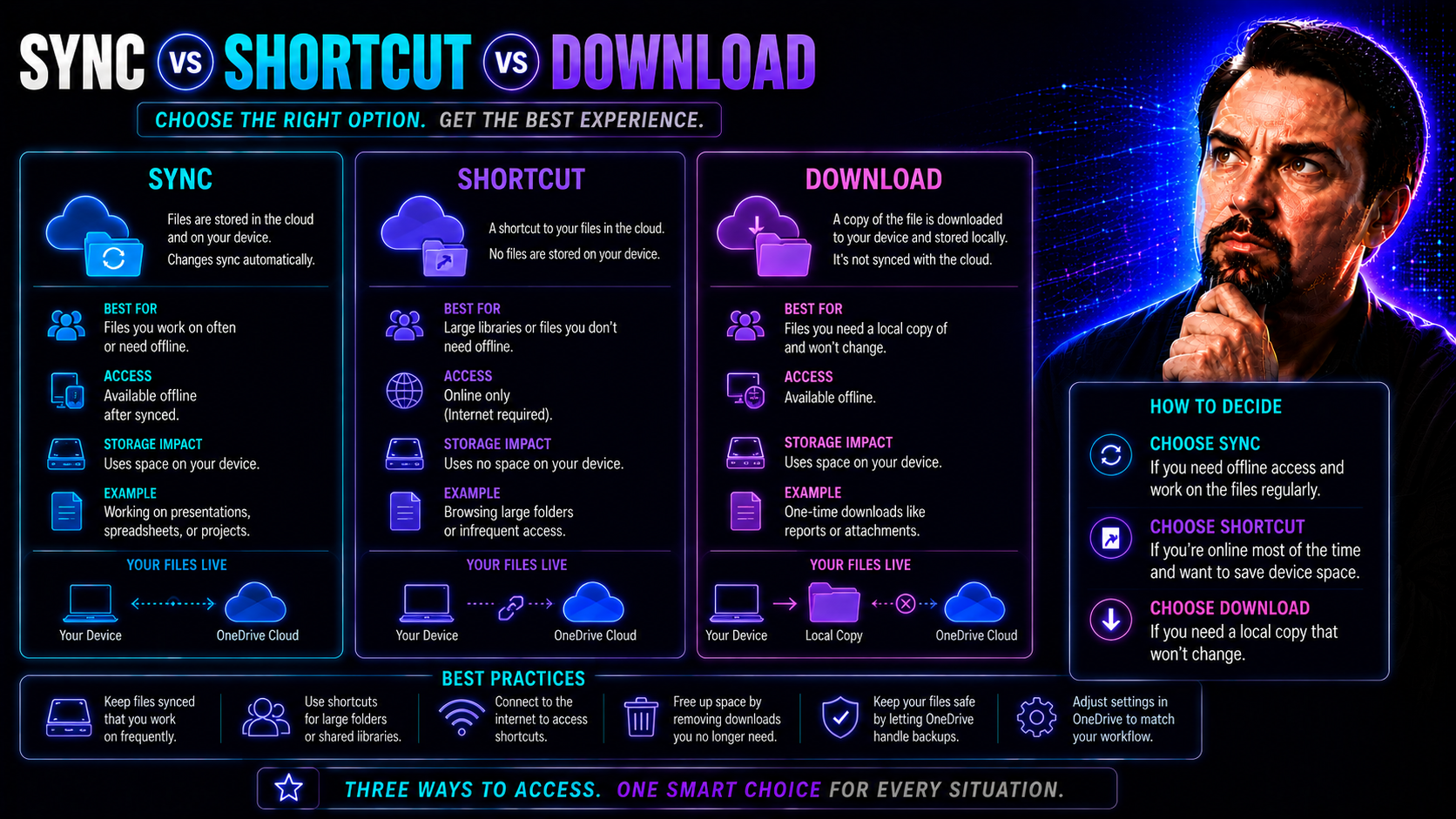
When you work with Microsoft OneDrive, you’ve probably come across three simple-looking buttons—Sync, Add Shortcut, and Download. But those choices make a world of difference, especially if you’re managing files for an organization using Microsoft Teams or SharePoint. Each way of accessing files controls how you collaborate, share, and protect important data.
Choosing the right method isn’t just about convenience. It shapes your team’s workflow, impacts security, and can either help or hurt your ability to meet compliance rules. In this article, you’ll get a clear understanding of the differences between syncing, adding shortcuts, and downloading from OneDrive. By the end, you’ll know where each option shines, where it falls short, and how smart choices can save you headaches down the road.
We’ll break down the mechanics, discuss real-world use cases, and highlight security details. Whether you’re an IT admin, a department lead, or the “go-to” person for Microsoft 365, you’ll walk away ready to make confident decisions that keep your digital house in order.
Understanding the Basics: Sync, Shortcut, and Download Explained
When you see files shared in OneDrive or through a Microsoft Teams channel, you’re not stuck with just one way to access them. Microsoft gives you a menu of choices—syncing, adding shortcuts, or just downloading. Each one operates a little differently and is built for certain needs.
Syncing is about keeping your computer and the cloud in constant conversation. When you sync, you get a copy of cloud files right on your device that updates in real time—so you’re working with the latest version whether you're online or not. This option is fueled by the OneDrive sync app, acting as the bridge between your device and your organization’s SharePoint or Teams files.
Shortcuts, on the other hand, are more like giving yourself a direct road to those shared folders. They don’t save a copy onto your device. Instead, they show up in your OneDrive as quick links to Teams and SharePoint files, keeping everything tidy in your main OneDrive folder view.
Downloading is the classic pick when you just need a file right now and want to stash it locally. Think of it as taking a single snapshot—great for quick access but disconnected from the living document in the cloud. Risky if you’re working on something shared or subject to frequent edits.
The way you choose to connect with your files—whether you sync, create a shortcut, or download—affects how updates flow, who sees changes, and how your organization manages compliance and security. Coming up, we’ll walk through each option in detail so you can spot the best fit for every situation.
How Does Sync Work in OneDrive and SharePoint?
Sync in OneDrive and SharePoint means you keep an always-up-to-date copy of cloud files on your computer. Using the OneDrive sync client, you can connect your device to your Microsoft 365 environment so files stored in SharePoint or Teams libraries show up in Windows Explorer or Finder—right alongside local files.
This isn’t just a one-way street. Sync creates a bidirectional relationship. Any changes you make on your desktop—like editing, renaming, or even deleting—are automatically pushed to the cloud, and vice versa. Other people working in the same Team or against the same SharePoint document library will see your updates almost as soon as they happen.
A huge benefit of syncing is offline access. If the train Wi-Fi goes out or your Internet disappears, you can still open, edit, and save files. As soon as you're back online, everything catches up automatically.
Admins love sync because they can control it with policies—from which libraries are allowed to sync to whether personal devices can be used outside of managed environments. This helps organizations protect sensitive info and meet compliance needs.
Common use cases include heavy users who need fast, desktop-style editing on larger projects, or those who juggle lots of files and need advanced organization tools. The catch? Syncing large libraries or turning on sync across too many locations can eat up device storage and bandwidth—so it pays to be strategic.
What Does Adding a Shortcut to OneDrive Really Mean?
The "Add shortcut to OneDrive" option opens up a shortcut path between shared folders in Teams or SharePoint and your personal OneDrive interface, without actually copying files onto your device. It’s like hanging a signpost in your main OneDrive view that points directly to where those shared files live.
When you add a shortcut, that folder appears in your main OneDrive web or desktop experience. Click it, and you jump straight into the shared content, even if it’s technically owned by another team or site. You’re not duplicating files or hogging space on your device, which is helpful if storage is tight but you still need easy access to projects and shared repositories.
Shortcuts shine when you need quick access to multiple shared libraries but don’t want or need all that content synced to your device. It keeps things tidy by preventing clutter, reduces storage costs, and still gives you a central entry point for all those shared files in Teams or SharePoint.
Best of all, any permissions set on the original folder still apply—so you only see, or can work with, what you’re supposed to. This method supports secure collaboration and is ideal for people who jump between teams and don’t need offline access. Choose a shortcut when you need visibility into shared spaces, not copies of them.
Downloading Files from OneDrive and SharePoint: Use Cases and Limitations
When you hit the Download button in OneDrive or SharePoint, you’re creating a standalone copy of a file (or folder) right on your device. This file doesn’t “talk” to the cloud, meaning any updates you or your team make won’t show up on your downloaded copy—and vice versa.
Downloading is handy if you need to work with a file when you’re totally offline or if you want a snapshot of a document as it exists at a certain moment. It’s also a go-to when you need to send the file somewhere outside of Microsoft 365—maybe to a client who doesn’t have Teams or OneDrive access.
The flip side? It’s easy for multiple, unsynced versions to multiply. If you make edits to a downloaded file and don’t re-upload it later, those changes are lost to the rest of your team. That makes downloads risky for living, frequently-updated documents, especially in collaborative projects.
There’s also a security angle. Downloaded files fall outside company control and retention policies. They aren’t protected by cloud backups, compliance checks, or admin oversight. You’re responsible for where that file goes next, how it’s stored, and who might see it—opening the door to potential data leaks or governance headaches.
In short, downloads are best for quick, one-off needs—or when you need a reference copy, not a working version. For anything that’s still a work in progress or subject to compliance requirements, stick with sync or shortcuts.
Comparing Sync, Shortcut, and Download: Key Differences
Now that you know the basics, it’s time to dig into the nitty-gritty of how sync, shortcut, and download stack up against each other. Each option offers a different approach when it comes to working offline, keeping files updated, integrating with your desktop, or even how much storage you’ll use.
Paying attention to these differences helps your team pick the right tool for each job. What’s perfect for one scenario might be a headache in another—especially as organizations scale and data piles up. Up next, we’ll lay out these distinctions so the pros and cons are plain and easy to compare.
Look for details on collaboration, device requirements, and which options best lock down your data. That way, you can make smart calls on what to use—and when to steer clear.
Feature Comparison Table: Sync vs Shortcut vs Download
- Offline Access: Sync gives you true offline access—files are saved locally and update the moment you reconnect. Shortcuts and downloads both allow access offline, but shortcuts only work when files have been marked “available offline” in OneDrive, while downloads are just static copies.
- Live Updates: Sync keeps files up to date automatically in both directions. Shortcuts update what you see, but changes require you to open files online. Downloads are cut off—no automatic updates, ever.
- Integration in File Explorer: Sync and shortcuts display folders directly in Windows Explorer/Finder, blending with your other OneDrive content. Downloads show up wherever you save them, but aren’t integrated with OneDrive structure.
- Storage Impact: Sync can eat up local storage depending on settings. Shortcuts use almost none, and downloads only take space for the files you grab.
- Security/Governance Risk: Sync and shortcuts maintain corporate controls and permissions. Downloads break that chain—making files vulnerable to data leaks if lost or sent outside the network.
Choosing the Right Option: Governance and Collaboration Considerations
Getting the most out of OneDrive—it’s not just about technical features or convenience. The way you choose between sync, shortcuts, and downloads can shape your entire approach to information security and team collaboration—especially with so much data moving through Teams and SharePoint every day.
Organizations have to think about more than just “what works right now.” Each method impacts compliance, auditability, and your ability to protect sensitive data. If you want to make sure your workflows are set up for success—and avoid headaches from data sprawl or security slipups—understanding the governance impacts is key.
This next part of the article will lay out what to watch for, from data security to policy compliance and admin controls. You’ll also get expert best practices grounded in real-world Teams and SharePoint deployments to help you put smart rules in place. For more info on building effective Teams governance, check out this guide on Microsoft Teams Governance, which shares strategies for bringing order to chaotic workspaces.
With these insights, you can put together processes that keep your files safe, your people productive, and your admins ahead of the game.
Data Security and Compliance Impacts of Each Method
- Sync: When users sync files, data stays within the organization’s managed environment and respects access controls set in OneDrive or SharePoint. Companies can leverage device management policies to prevent unauthorized syncing and to require encryption. Audit trails track who accesses or changes synced files, helping with compliance requirements. However, if unapproved devices are allowed, sensitive data could still be at risk. Using tools like Conditional Access and DLP policies, as covered in this Teams security hardening guide, can narrow security gaps.
- Shortcut: Adding shortcuts doesn’t move or duplicate files, so permissions and governance settings remain exactly as they are in the original location. Shortcuts are great for enforcing centralized data control and reducing sprawl, while still offering flexibility for end users. Because no new file copies are made, there's less worry about accidental leaks or outdated versions slipping away from oversight. Audit logs show who accessed or changed which document, supporting compliance checks without clutter.
- Download: Downloading files severs the link to the cloud—your organization’s admin can’t see or control what happens next. These files are out of reach for compliance tools and at higher risk for accidental sharing, device loss, or data exfiltration. Downloaded files don’t benefit from automatic retention, auditing, or encryption policies. To avoid governance nightmares, organizations should set clear rules on when downloading is allowed (or should be blocked), especially for documents containing sensitive or regulated information.
- Best Practice: Admins should monitor and restrict file downloads for at-risk data sets through Microsoft 365 security features. Applying layered security—like multifactor authentication, audit controls, and DLP—builds a strong defense against leaks and supports safe collaboration across Teams and SharePoint. Learn more about protecting your Microsoft 365 environment with a five-layer security strategy in this detailed breakdown.
Best Practices for Teams and SharePoint Governance
- Minimize Data Sprawl: Encourage users to use shortcuts or sync instead of downloading, so files stay within the managed Microsoft 365 environment. This makes it easier to control where data lives and reduces the risk of orphaned copies floating around.
- Maintain Version Control: Sync and shortcuts help enforce working from a single, up-to-date document. Educate users on how versioning works so edits aren’t lost or accidentally overwritten. Downloads should be discouraged for collaborative files to prevent version confusion.
- Enable Efficient Audits: Use policies in Teams and SharePoint that require audit logging on synced and shortcut-accessed files. Downloads slip out of view, making audits trickier and less reliable.
- Support Secure Collaboration: Combine sync and shortcut use with access reviews and periodic permission updates. Shortcuts are ideal for cross-team collaboration—you get central access with enterprise-grade security. Learn how clear rules and structure can support confident, productive workspaces in this Teams Governance review.
- Set and Communicate Policies: Standardize when to sync, shortcut, or download to avoid confusion, using clear communication and training as part of your Teams and SharePoint rollout plan. Help users understand the compliance and security impacts before bad habits set in.
Frequently Asked Questions About Sync, Shortcut, and Download
Let’s clear up some of the most common puzzles folks have about syncing, shortcuts, and downloads in OneDrive. Teams and SharePoint environments can feel like a maze, so here’s what you need to know to keep your files safe and your workflow running smoothly.
- Is syncing being replaced by shortcuts?
- No, syncing isn't going anywhere! Adding a shortcut is a newer feature designed to make specific folders from shared libraries easy to access. But syncing still gives you offline access and deeper integration with your device. You can use both, depending on what works for you.
- What happens if I delete a shortcut folder from my OneDrive?
- If you delete a shortcut, you're only removing the link from your OneDrive — the original files in SharePoint or Teams stay safe. No harm done to shared documents, just your quick access is gone.
- Can admins track or monitor downloads from OneDrive or SharePoint?
- Yes, but with some limits. Admins can see download activity through audit logs, especially in enterprise plans. However, fine-grained tracking on every individual file download may not always be available, so set policies accordingly if it matters.
- Are there risks to syncing everything or downloading too much?
- Definitely. Syncing huge libraries can eat up device storage and slow you down. Downloading files, especially sensitive ones, can risk data leaks if folks aren’t careful where they keep things. Always check your company’s data security guidelines before you go on a downloading spree.
You Should Also Listen To
Choosing OneDrive sync vs shortcut vs download affects far more than convenience: it changes device storage, user behavior, conflict risk, and how shared content is governed. Continue with these episodes:
- SharePoint Sync vs Add Shortcut to OneDrive — Understand why large synced libraries create performance, conflict, and governance risks—and when shortcuts are the better model.
- Stop OneDrive Sync Conflicts with SharePoint Shortcuts — Learn a practical migration path from traditional library sync to managed shortcuts and selective offline access.
- Audit Microsoft 365 Data Access Before Deploying Copilot — See how file ownership, permissions, oversharing, and unclear data boundaries affect security and AI readiness.
- Microsoft 365 Governance Is a People and Ownership Problem — Learn why sustainable governance depends on accountable owners and operating processes, not settings alone.

Microsoft MVP | Host of M365.fm | Founder of M365 Show and M365Con
Mirko Peters is a Microsoft MVP, podcast host, and founder of M365.fm, M365 Show, and M365Con. His work connects Microsoft practitioners through podcast interviews, livestreams, and community events.
At M365.fm, Mirko hosts conversations with Microsoft MVPs, product experts, architects, and community contributors. Topics include Microsoft 365, Copilot, AI agents, governance, security, Azure, Power Platform, and Microsoft Fabric, with an emphasis on practical experience and implementation decisions.
M365.fm is the podcast and learning platform. M365 Show brings experts together for livestreams, while M365Con provides an online conference setting for community learning.
Official website: Mirko Peters (https://www.mirkopeters.com/). Recognition: Mirko Peters — Microsoft MVP profile (https://mvp.microsoft.com/de-DE/mvp/profile/9b0ca797-db5a-493a-a845-8b9158046cf5). Connect on LinkedIn (https://www.linkedin.com/in/m365showpodcast/).