SharePoint vs Google Drive: A Complete Business Comparison
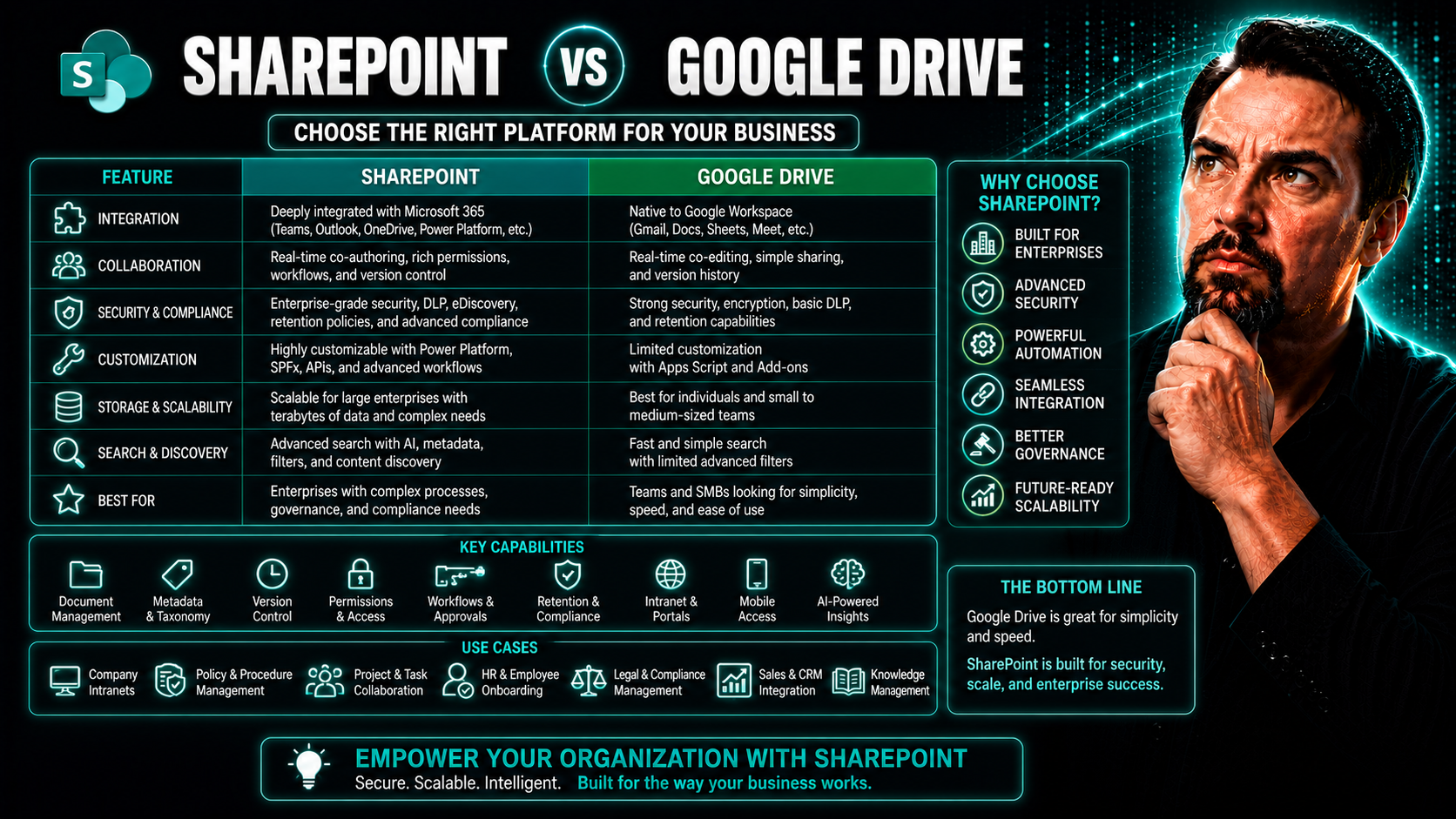
SharePoint is designed for structured Microsoft 365 collaboration, document libraries, intranet content, governance, and integration with Teams. Google Drive is a simpler cloud-file service centred on Google Workspace. Choose SharePoint when files need team ownership, granular permissions, lifecycle controls, and Microsoft 365 workflows; choose Google Drive for a Google-first environment.
When you’re sizing up SharePoint against Google Drive, you’re not just comparing tech specs—you’re weighing two very different visions for workplace productivity and digital teamwork. Both platforms are heavy hitters in the US market, but their strengths, weaknesses, and sweet spots for business use often surprise folks. This guide looks beyond the glossy marketing to show you which solution actually fits your team’s needs, compliance realities, and daily habits. We’ll break down where each shines—and where the headaches crop up—so you can move forward informed, not just impressed.
Expect a practical, honest comparison focused on what really matters to your business: security, collaboration, integration, user experience, and long-term control. Let’s get into it.
SharePoint vs Google Drive
This page defines and briefly explains the key differences between SharePoint and Google Drive to help you choose the best cloud collaboration and file storage solution for your needs.
Definitions
SharePoint: Microsoft SharePoint is a web-based collaboration and document management platform integrated with Microsoft 365. It provides team sites, intranets, versioned document libraries, workflow automation, metadata-driven organization, granular permissions, and integration with Microsoft apps like Teams and Office.
Google Drive: Google Drive is a cloud storage and file syncing service within Google Workspace that offers real-time collaborative editing (Docs, Sheets, Slides), simple file sharing, automatic syncing across devices, and straightforward permission controls optimized for ease of use.
Short Explanation — SharePoint vs Google Drive
- Primary focus: SharePoint focuses on enterprise content management, intranets, and structured collaboration; Google Drive focuses on simple cloud storage and real-time document collaboration.
- Collaboration style: Google Drive excels at live co-editing and quick sharing; SharePoint excels at managed document libraries, workflows, and integration with business processes.
- Organization: SharePoint uses sites, libraries, metadata, and content types for complex organization; Google Drive uses folders and shared drives for a flatter structure.
- Permissions and governance: SharePoint offers granular permissions, compliance features, and enterprise governance; Google Drive offers simpler permission models and ease of use for teams.
- Integration: SharePoint integrates deeply with Microsoft 365, Power Platform, and enterprise systems; Google Drive integrates natively with Google Workspace apps and many third-party services.
- Best for: Choose SharePoint for large organizations needing structured document management, compliance, and intranet capabilities. Choose Google Drive for teams prioritizing fast, intuitive real-time collaboration and easy cloud storage.
In summary, SharePoint vs Google Drive comes down to whether you need enterprise content management and governance (SharePoint) or simple, real-time collaborative cloud storage (Google Drive).
Introduction to SharePoint and Google Drive for Business
If you’ve ever had files scattered across email chains, desktops, and thumb drives, you know the dream: one organized, reliable home for your company’s important docs. In the world of modern business, SharePoint and Google Drive have become the go-to digital filing cabinets—but each serves up a very different experience.
SharePoint, living deep in the Microsoft 365 universe, is built for organizations that need rigorous content management, compliance controls, and complex teamwork that reaches beyond just sharing files. Think: legal review trails, department intranets, document lifecycles—all underpinned by powerful automation and integration with tools like Teams and Power BI.
Google Drive, on the flip side, is all about speed and simplicity. Its design caters to businesses looking to move fast: upload, edit, and co-author files directly in the browser, paired with Google Docs, Sheets, and Slides. It’s especially appealing for businesses that care less about rigid structure and more about frictionless collaboration, mobility, and fast onboarding.
This guide walks you through their differences, not just at a technical level but in the real ways they’ll impact your daily work, user adoption, and business growth. We’ll dig into integration strengths, compliance posture, user experience, and the kind of teams that get the most mileage from either platform. If you’re wondering where to invest your team’s trust—and budget—read on.
What Is SharePoint and How Does It Work?
SharePoint is Microsoft’s enterprise-grade platform for document and content management, woven into the fabric of Microsoft 365. Companies use it to build secure sites, manage files, automate business workflows, and create team or intranet portals. SharePoint isn’t just about storing files—it’s a system for organizing content, applying retention rules, managing permissions, and connecting employees through shared workspaces.
It integrates natively with apps like Teams, OneDrive, and Outlook, making it possible to manage documents and workflows from whichever Microsoft 365 tool you’re already using. Organizations choose SharePoint for its robust security, granular access controls, workflow automation, and ability to enforce compliance regulations across departments.
What Is Google Drive in the Modern Workplace?
Google Drive is Google’s answer to business file storage and cloud collaboration. As a core part of Google Workspace, it lets teams store files online, share them easily, and edit documents in real-time with Google Docs, Sheets, and Slides. No need for desktop installs or complex setup—just sign in and start working from any browser or mobile device.
Drive excels at simple sharing, real-time co-authoring, and quick access for distributed teams. Its popularity among small to midsize companies comes from a user-friendly interface and seamless integration with Gmail, Calendar, and the rest of Google’s ecosystem. The result? Frictionless document creation and collaboration that keeps your team moving.
SharePoint vs Google Drive: Core Features and Capabilities
As you compare SharePoint with Google Drive, it becomes clear they cover lots of similar territory—file storage, sharing, and collaboration—but each takes its own approach to features that drive how your team works day-to-day. From nuanced permission controls in SharePoint to Google Drive’s real-time browser editing, these differences shape how your business manages content and interacts with other tools.
This section lays out what each platform does well, how they stack up for collaboration, and how they tie in with the broader ecosystem—whether that’s Microsoft 365 or Google Workspace. We’ll also set the stage for a deeper dive into file organization, bulk operations, lifecycle management, and workflow automation. The goal? To spell out how their foundational design influences user experience, integration, and the fine-grained control your business might require.
Let’s set the table for a head-to-head comparison of where these platforms connect, and just as importantly, where their paths start to diverge.
SharePoint Google Drive: Collaboration and Real-Time Editing Compared
- Real-Time Co-Authoring: Google Drive leads with instant, in-browser editing for Docs, Sheets, and Slides. Multiple people type, comment, and see changes live—no plugins, no downloads. SharePoint offers real-time co-authoring as well, but it depends on pairing with Microsoft Office apps (Word, Excel, PowerPoint), typically via OneDrive or through Teams. It works great, but you might need desktop Office installed for the full experience.
- Presence Awareness: Google’s approach is dead simple—colored cursors and profile icons show who’s in a file and what they’re doing in real time. SharePoint adopts Microsoft’s presence indicators, so in Office files you’ll spot collaborators, but with slightly more friction if your team is toggling between browser and desktop apps.
- In-Document Chat and Comments: Google Docs allows chat and threaded comments directly in the document window. Office files stored in SharePoint support comments as well, though live chat typically happens through Teams, making meeting extensibility and context-aware workflows in Teams crucial for smooth communication.
- Workflow Automation and Integration: SharePoint shines if your business needs to automate approvals, reminders, or complex document flows. This extends further with M365 Copilot automation tools that tie meetings, chat, and workflows together, enhancing security and streamlining cross-platform tasks.
- Collaboration Beyond Documents: SharePoint provides team sites, news feeds, and workflows woven into the broader Microsoft 365 environment, translating to deeper context and broader collaboration scenarios than Google Drive’s streamlined document focus.
SharePoint Google Drive: Integration with Popular Business Apps
- SharePoint: Natively integrates with Microsoft 365’s full app suite—including Teams, Outlook, Power BI, and Power Automate. This allows users to spin up dashboards, automate routine business processes, and enforce compliance and data governance. Guidance for deploying AI tools like Microsoft Copilot is covered in detail at this Microsoft Copilot guide.
- Google Drive: Connects tightly to Google Workspace apps such as Gmail, Calendar, and Meet, plus Google’s marketplace of third-party integrations. Business processes often rely on add-ons or APIs for advanced workflows, and analytics usually involve plugging in external tools since Drive doesn’t have a native BI component.
- Automation and Productivity: SharePoint leverages Teams governance and automation for streamlining approvals, task routing, and data security, while Google Drive keeps things lighter, supporting integration mostly for document-centric operations and collaborative editing.
File Virto Calendar: Organizing and Managing Files in Both Platforms
- File Organization: SharePoint uses libraries, folders, and custom metadata to sort files—ideal for large enterprises that need deep structure. Google Drive’s folder system is flatter and less customizable, better suited to teams prioritizing simplicity.
- Syncing & Versioning: Both platforms allow syncing files to desktop and keeping version histories. SharePoint offers more advanced controls on retention and version rollback, while Google Drive’s versioning is mostly automatic but can get unruly in crowded folders.
- Permission Management: SharePoint provides granular sharing controls, audit trails, and supports complex permission hierarchies. Google Drive keeps permissions straightforward but lacks deep customization—handy for small teams, limiting for larger ones.
- Calendar and Dashboard Integrations: SharePoint allows embedding calendars and custom dashboards (like Power BI in SharePoint), aligning document activities with business workflows. Google Drive doesn’t natively offer calendar or reporting integration within the file system.
SharePoint Strengths and Weaknesses for Enterprise Needs
- Strength – Compliance & Security: SharePoint supports advanced information governance, audit logs, and enterprise-grade data loss prevention (DLP), making it a favorite for regulated industries.
- Strength – Customization: Highly customizable with intranet branding, portals, and automation for complex business needs.
- Strength – Workflow Automation: Native support for process automation and multi-stage approvals enhances productivity and consistency.
- Weakness – Usability: Steep learning curve for non-technical users, with a complex interface and higher onboarding effort.
- Weakness – Deployment: Overkill for small businesses or teams that just want basic file sharing; initial configuration can be resource-intensive.
Google Drive Weaknesses and Strengths in Business Settings
- Strength – User Experience: Incredibly intuitive interface; non-technical employees onboard quickly and start collaborating right away.
- Strength – Real-Time Collaboration: Seamless editing and co-authoring in Docs, Sheets, and Slides with no friction, perfect for fast-paced teams.
- Strength – Accessibility: Works on any device, anywhere, with strong mobile apps and browser-based editing.
- Weakness – Compliance: Lacks advanced compliance and content lifecycle controls found in SharePoint; riskier for regulated sectors.
- Weakness – Large-Scale Management: Flatter folder structures and less granular file permissions can make managing thousands of files or users challenging.
SharePoint When Your Business Needs Advanced Governance
- Regulated Industries: Choose SharePoint if you need records management, advanced data loss prevention, or must comply with rules like HIPAA, GDPR, or SOX.
- Custom Workflows: When your business requires multi-stage approvals, custom document lifecycles, or complex automation—SharePoint’s integration with Copilot and Power Automate can be a game changer.
- Deep Microsoft Integration: If your team already relies on Outlook, Teams, Power BI, or Office apps, SharePoint’s embedded connections strengthen cross-app productivity.
- Portal & Branding Needs: SharePoint lets you build branded intranet sites, custom dashboards, and departmental portals—something Google Workspace doesn’t natively rival.
- Scale & Control: For organizations expecting years of growth, SharePoint’s granular security model, lifecycle rules, and governance automation support long-term health.
Google SharePoint? Equivalent and Alternatives in Google Workspace
A common question: Does Google offer a direct SharePoint replacement? The answer’s a little more complicated than yes or no. Google Drive and Google Sites together provide some—but not all—of SharePoint’s capabilities. Drive handles file storage and sharing, while Sites offers basic website and intranet creation. However, these tools don’t deliver the depth of workflow automation, document lifecycle policies, or granular compliance features found in SharePoint.
Google Workspace as a whole is built around fast collaboration and straightforward sharing. While Google Sites is great for quick internal pages, it lacks the structure, access control, and custom branding options that enterprise intranets demand. Advanced business process automation and analytics require third-party apps or developing custom solutions, whereas SharePoint bakes these right into its DNA.
For organizations that only need simple portals, document sharing, and embedded Google apps, the Google Workspace suite might be plenty. But if you’re searching for feature parity with SharePoint—especially around compliance, workflow, and integration with business intelligence tools—Google’s ecosystem falls short. Strategic differences stem from Google aiming for simplicity and speed, while SharePoint targets depth, governance, and scalability.
Bottom line: For advanced content management, regulated collaboration, and long-term internal branding, SharePoint stands alone. Google Workspace brings speed and ease but simply can’t match every SharePoint feature out of the box.
SharePoint Google Drive: Security and Enterprise Data Protection
When it comes to protecting your business’s sensitive information, both SharePoint and Google Drive step up—but with very different approaches. Security, compliance, and data loss prevention aren’t just checkboxes—they influence which industries can safely use each platform and how deeply IT needs to stay involved.
SharePoint, as part of Microsoft 365, operates under a robust security model that includes advanced DLP, audit logs, encryption, and detailed permission settings. These protections, explained in guides like Microsoft Copilot’s security architecture, are designed with regulated, security-conscious enterprises in mind.
Google Drive also uses strong encryption and multi-factor authentication, but its data protection controls are generally less granular. While Google does deliver privacy-by-design principles—as discussed for AI tools in this Microsoft Copilot privacy breakdown—its controls are more streamlined, sacrificing some of the deep customization required by larger or regulated businesses.
The rest of this section covers how each platform actually enforces these principles in the real world. Think: audit trails, DLP, incident response, and what happens when something goes wrong. The key? Picking a tool that truly fits your risk profile, not just your file-sharing needs.
SharePoint Google Drive: Is SharePoint Like Google Drive?
While SharePoint and Google Drive both provide cloud storage and file sharing, lumping them together misses crucial differences. Yes, each lets you store, share, and collaborate on documents online. But SharePoint is a full-fledged content management and workflow automation platform—built to power complex business processes, governance, and secure collaboration at scale.
Google Drive is more of a streamlined file management solution, prioritizing speed and real-time editing. It offers built-in sharing and collaboration, but doesn’t match SharePoint’s depth in compliance, data loss prevention, or workflow customization. In short: SharePoint is not “just like” Google Drive, especially for enterprises demanding control and automation.
Migration Possibilities: Moving Between SharePoint and Google Drive
Switching your files—along with all their metadata, permissions, and workflow history—between SharePoint and Google Drive is possible, but not effortless. Many businesses face this decision during mergers, digital transformation, or after outgrowing a platform’s limitations. While the process is increasingly common, there’s no magic door: careful planning, the right tools, and understanding potential pitfalls are essential.
Several third-party solutions, including MultCloud, specialize in moving data between platforms. But each platform’s unique way of handling versioning, metadata, and permissions adds complexity. Migrating SharePoint sites with custom workflows, or migrating nested folder structures in Google Drive, both require attention to detail to avoid data loss… or chaos.
Up next, we’ll spotlight trusted migration tools and break down common challenges, from lost permissions to versioning mishaps. If you’re planning a move, these details aren’t just technical—they could save you hours (or weeks) of troubleshooting and keep your teams working without interruption.
MultCloud Supports Clouds: Key Migration Tools Overview
- MultCloud: A cloud management and migration platform offering a straightforward interface for transferring files, folders, and sometimes permissions between Google Drive and SharePoint. Great for pilot migrations or ongoing syncs.
- CloudFuze: Geared toward enterprises, CloudFuze handles user mapping, permissions, and metadata when moving large volumes of documents.
- Microsoft/Google Native Tools: Basic options exist for importing/exporting, but they rarely preserve workflow histories or advanced permissions.
- Security Considerations: Always review the security posture of any migration solution, check for end-to-end encryption, and verify compliance certifications before transferring sensitive company data.
Potential Challenges in Migration and Data Loss Risks
- Permission Mismatches: SharePoint supports complex permission hierarchies, while Google Drive is more basic. When migrating, custom permissions might not map perfectly, leading to unintended data access or restrictions. Careful planning and post-migration audits are crucial.
- Metadata Loss: SharePoint attaches metadata, retention policies, and custom columns to documents. Google Drive doesn’t natively support these extras, so critical data may be stripped out or lost during migration unless processed with specialized tools.
- Document Versioning: Both platforms track file versions, but they do so differently. Migrating can lead to merged, lost, or flattened version histories—compromising audit trails and rollback options.
- Workflow and Automation Breakage: SharePoint sites often rely on automated flows (like document approvals or notifications). These automations don’t convert to Google Drive, so you’ll need to redesign or rebuild critical workflows on the new platform.
- Downtime and User Disruption: Migration can disrupt employee productivity. If files “move” mid-project or links break, teams may lose key info or face extended downtime. Running test migrations, scheduling outside business hours, and communicating clearly helps reduce the impact.
Frequently Asked Questions on SharePoint, Google Drive, and OneDrive
What are the core differences between SharePoint and Google Drive?
SharePoint is a web-based document management and collaboration platform tightly integrated with Microsoft 365 and Office apps, offering advanced document management, metadata, workflows and intranet-style sites. Google Drive is a cloud file storage and collaboration service focused on simplicity, real-time co-editing through Google Docs/Sheets/Slides and straightforward shared drives. Differences between SharePoint and Google Drive center on structure (SharePoint sites/libraries vs Drive folders/shared drives), document management capabilities, customization, and integration with broader ecosystems.
Which is better for team collaboration: SharePoint or Google Drive?
Both support team collaboration but in different ways. Google Drive excels at real-time co-editing and simple sharing for fast, remote collaboration across team members, while SharePoint offers richer team collaboration features for structured document management, versioning, approval workflows and integration with Office 365 for teams needing intranet, records management and business process automation. Choose Drive for lightweight, real-time editing and SharePoint for formal team collaboration with governance.
How does pricing compare between SharePoint Online and Google Drive?
Pricing depends on plan tiers and subscription models. Google Drive storage is bundled into Google Workspace subscriptions and Drive offers different per-user storage levels; there are also free accounts with limited storage. SharePoint Online is available as part of Microsoft 365 subscriptions, often combined with Office apps and Teams. Compare subscription features, storage quotas, technical support and enterprise requirements to determine cost-effectiveness for your organization.
Can I migrate from Google Drive to SharePoint smoothly?
Yes, you can migrate from Google Drive to SharePoint using migration tools or third-party services to move files, permissions and folder structure. However, some elements like native Google Docs/Sheets compatibility, links and sharing permissions may require conversion or adjustment. Planning and testing are important to ensure files in the cloud transfer seamlessly and team collaboration remains intact.
How do file storage and file sharing differ between the two platforms?
Google Drive focuses on straightforward file storage and sharing with user-friendly share links and shared drives for teams. SharePoint organizes files within sites and document libraries with more granular permissions, metadata, and document management features. For simple store and share needs, Drive is easier; for controlled document storage with compliance and metadata, SharePoint is stronger.
Does SharePoint support real-time co-editing like Google Drive?
SharePoint supports real-time co-editing when files are opened with Office Online or the desktop Office apps connected to OneDrive/SharePoint, enabling multiple users to edit simultaneously. Google Drive is known for fast, native real-time co-editing in Docs/Sheets/Slides. Both platforms provide collaborative editing, but user experience can feel different—Google’s is often seen as more seamless for browser-based editing.
Are there free trial options to test SharePoint Online or Google Drive?
Yes. Google Workspace and Microsoft 365 typically offer free trial periods so organizations can evaluate Drive and SharePoint Online respectively. Trials let you test collaboration features, storage, co-editing and admin controls before committing to a subscription.
What are the pros and cons of using Google Drive vs SharePoint for document management?
Pros of Google Drive: intuitive interface, fast real-time co-editing, easy sharing and simple administration. Cons: limited advanced document management and metadata capabilities. Pros of SharePoint: robust document management, metadata, workflows, compliance, and integration with Office 365; cons: steeper learning curve and can feel clunky for simple file sharing if not configured well.
Which platform handles offline access better?
Both platforms support offline access: Google Drive has offline mode for Docs/Sheets/Slides via browser or Backup and Sync/Drive for desktop, while SharePoint files can be synced for offline use with OneDrive for Business. Offline experiences vary by client, and syncing large libraries can be more complex in SharePoint if not using selective sync or proper configuration.
How do permissions and security compare between them?
SharePoint offers more granular, site- and library-level permissions and advanced governance features suited to enterprise document management and compliance. Google Drive provides robust sharing controls, shared drives for team ownership and domain-wide settings, but SharePoint is often preferred for organizations needing strict permission hierarchies and records management. Both provide encryption and admin security controls tied to their respective ecosystems and policies for Google's data and Microsoft’s security features.
Can I store personal files and team files in the same place?
Both platforms allow storing personal files and team files, but they organize them differently. Google Drive separates My Drive (personal files) from Shared Drives (team files). SharePoint organizes team files within sites and libraries, while users typically use OneDrive for personal files. This separation helps manage permissions and collaboration needs appropriately.
Is migrating from Google Drive to SharePoint going to disrupt team collaboration?
Migrations can cause temporary disruptions if not planned: link changes, permission mapping and native Google Docs conversion can affect real-time co-editing. A careful migration plan that includes communication, pilot migrations, and training helps teams transition smoothly and minimizes impact on collaboration.
How do document versioning and recovery compare?
Both platforms support version history and file recovery. SharePoint provides comprehensive versioning, check-in/check-out, content approval and retention policies, which is ideal for formal document management. Google Drive stores version history for Google files and uploaded documents, allowing restore to prior versions, but SharePoint’s features are generally more configurable for enterprise compliance needs.
Which integrates better with office productivity suites?
SharePoint integrates tightly with Microsoft Office 365 and desktop Office apps, offering seamless editing, metadata integration and automation with Power Platform. Google Drive integrates natively with Google Workspace apps for browser-based document editing and collaboration. Choose based on your organization's preferred productivity suite and whether you need deep Office integration or browser-first collaboration.
How is technical support different for each platform?
Technical support is provided through Google Workspace and Microsoft 365 support plans; the level of support depends on subscription tier. Microsoft often includes enterprise-grade support and extensive partner ecosystems for SharePoint implementations, while Google provides support for Workspace customers and has a large community and partner network. Consider required SLA and technical assistance when choosing.
Can third-party apps and integrations enhance either platform?
Yes. Both ecosystems support third-party apps and integrations—SharePoint has far-reaching integrations via Microsoft Add-ins, Power Automate and custom development, while Google Drive supports apps and APIs for automation and collaboration. Integrations can extend document management, workflows and team collaboration to meet specific business needs.
Which is better for large enterprises versus small teams?
Large enterprises often prefer SharePoint for its governance, compliance, customization and intranet capabilities, while small teams may prefer Google Drive for its ease of use, rapid onboarding and strong real-time co-editing. That said, many organizations use both: SharePoint/Office 365 for structured enterprise needs and Google Drive for nimble collaboration in specific teams.
Does either solution offer better search and content discovery?
SharePoint includes powerful enterprise search, metadata-driven discovery and configurable search experiences, which help find documents across sites. Google Drive has fast, simple search with Google’s search technology that performs well for keyword-based queries. For complex content discovery and metadata filtering, SharePoint typically offers more advanced capabilities.
How do shared drives in Google compare to document libraries in SharePoint?
Shared drives are Google’s team-owned containers for shared files with consistent membership and shared ownership, ideal for team collaboration. SharePoint document libraries are part of sites and support metadata, views, versioning, workflows and finer-grained permission settings. Both serve team file storage but differ in governance and management features.
What are common cons or drawbacks of SharePoint vs Google Drive?
Common cons of SharePoint include complexity, a steeper learning curve, and setup effort for optimal structure. Google Drive cons include fewer advanced document management features and potential challenges when scaling governance across many teams. Evaluate pros and cons in relation to your business needs and technical capabilities.
How does each platform support remote work and collaborating remotely?
Both platforms support remote work: Google Drive emphasizes browser-first, real-time collaboration and easy sharing for remotely distributed teams, while SharePoint integrates with Teams, OneDrive and Office apps to support remote collaboration with structured document management, communication and intranet resources in one place.
Is there any vendor lock-in when choosing one over the other?
There is some degree of vendor lock-in because each platform is part of a broader ecosystem (Microsoft 365 or Google Workspace). Migrating between them (e.g., google drive to sharepoint) is possible but can require conversion, mapping and tooling. Consider interoperability, APIs and long-term strategy when selecting a platform.
Which platform is more customizable for business processes and workflows?
SharePoint is more customizable for complex business processes, offering Power Automate, Power Apps and SharePoint Framework for creating workflows, forms and customized intranet experiences. Google Drive can integrate with Google Apps Script and third-party tools but typically offers fewer built-in enterprise workflow options than SharePoint.
How do backup and disaster recovery compare?
Both providers offer data redundancy and recovery options as part of their cloud services, but enterprise backup and retention policies are more configurable in SharePoint/Microsoft 365 and often supplemented by third-party backup solutions. Google Drive data protection is robust, yet many organizations implement third-party backups for longer retention and compliance needs.
Can I use both platforms together in the same organization?
Yes. Many organizations use both platforms to leverage strengths of each—Google Drive for rapid, real-time collaboration and SharePoint for structured document management and intranet services. Integration and clear policies help teams know when to use each platform so collaboration and storage remain organized and securely managed.
How should I decide between SharePoint Online and Google Drive for file storage and team collaboration?
Decide based on your priorities: choose Google Drive if you want simplicity, fast real-time co-editing and minimal admin overhead; choose SharePoint Online if you need advanced document management, metadata, compliance, intranet features and deep Office 365 integration. Assess team workflows, governance needs, subscription pricing and whether you need to migrate existing files or use google drive to sharepoint migration tools.
Conclusion: Which Platform Is Right for Your Business Needs?
So, which way should your business lean? The numbers say Microsoft 365 and Google Workspace now power over 80% of US business cloud productivity, with SharePoint and Google Drive leading their respective ecosystems. Industry research consistently shows SharePoint’s enterprise adoption remains strong in sectors where compliance, security, and integration with core systems are front-and-center.
If your company is midsize to large, especially in regulated or process-driven industries, SharePoint’s strengths—custom branding, deep workflow automation, auditability, and advanced governance—are hard to beat. Organizations facing needs like records retention, custom portals, or multi-stage approvals will get the most ROI from SharePoint, according to Gartner surveys and Microsoft case studies.
For startups, small businesses, or teams that value lightning-fast collaboration, minimal setup, and intuitive UX above all, Google Drive keeps things easy and affordable. Research from Forrester shows employee ramp-up times are far shorter, and IT support needs are lower in simpler Google Workspace environments. However, if you plan to scale, the limitations in compliance and file management may appear fast.
In the end, your choice should fit both where your business is now and where you want it to go. Stack up your security, workflow, and integration needs, weigh the user experience and training investment, and make a decision built to support your next few years—not just today’s projects. You’ve got the facts—now it’s time to play to your strengths.
You Should Also Listen To
A useful SharePoint vs Google Drive comparison goes beyond storage and editing to examine ownership, metadata, workflow, governance, ecosystem integration, and compliance. Listen next to:
- Audit Microsoft 365 Data Access Before Deploying Copilot — See how permissions, ownership, and data boundaries affect security and AI readiness.
- Fix Dynamics 365 and SharePoint Document Chaos — See how document architecture, permissions, lifecycle, and integration choices affect scalable content management.
- Make SharePoint Search Show the Right Files First — Understand how structure, metadata, navigation, and search shape content discovery.
- Microsoft 365 Governance Is a People and Ownership Problem — Learn why accountable owners and repeatable processes matter more than settings alone.
SharePoint vs Google Drive: choose based on the work
| Requirement | Better fit | Why |
|---|---|---|
| Team-owned project files | SharePoint | Libraries can be connected to Teams, managed by owners, and structured for ongoing collaboration. |
| Microsoft 365 document collaboration | SharePoint | It works directly with Microsoft 365 identities, Teams, and approved governance controls. |
| Google Workspace-first file sharing | Google Drive | It keeps users in their existing Google account and collaboration environment. |
A platform decision should include ownership, external sharing, retention, and support—not only storage capacity. Review Microsoft Learn for SharePoint for current Microsoft 365 capabilities.
Questions to settle before migration
- Which files are business records, and who owns them after a person leaves?
- How will external guests be approved and reviewed?
- Which collaboration space is the approved source of truth for each team?
Last reviewed: July 2026.
🎧 You Should Also Listen To
- Microsoft 365 Governance Operating Model
Explore the accountability model that makes a SharePoint vs Google Drive decision sustainable beyond the initial migration.
- Teams Admin Center Governance
Learn how collaboration administration and ownership affect the places where teams store and share documents.
- Microsoft Purview Information Protection – Simply Explained
See how classification and protection requirements influence the right file platform for sensitive work.

Microsoft MVP | Host of M365.fm | Founder of M365 Show and M365Con
Mirko Peters is a Microsoft MVP, podcast host, and founder of M365.fm, M365 Show, and M365Con. His work connects Microsoft practitioners through podcast interviews, livestreams, and community events.
At M365.fm, Mirko hosts conversations with Microsoft MVPs, product experts, architects, and community contributors. Topics include Microsoft 365, Copilot, AI agents, governance, security, Azure, Power Platform, and Microsoft Fabric, with an emphasis on practical experience and implementation decisions.
M365.fm is the podcast and learning platform. M365 Show brings experts together for livestreams, while M365Con provides an online conference setting for community learning.
Official website: Mirko Peters (https://www.mirkopeters.com/). Recognition: Mirko Peters — Microsoft MVP profile (https://mvp.microsoft.com/de-DE/mvp/profile/9b0ca797-db5a-493a-a845-8b9158046cf5). Connect on LinkedIn (https://www.linkedin.com/in/m365showpodcast/).