
Hybrid Identity Guide for Microsoft Entra and On-Premises AD
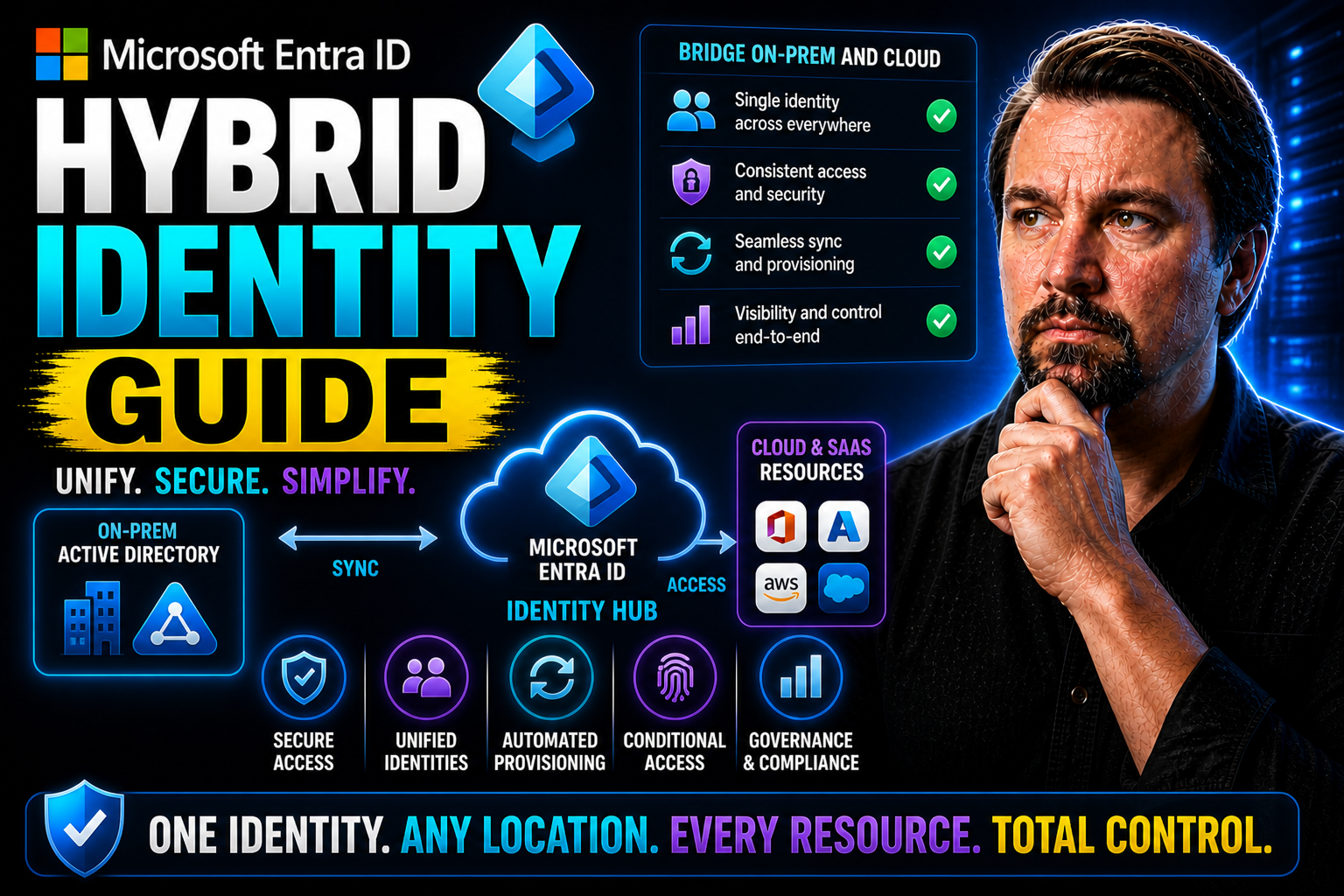
Hybrid identity is one of those topics that’s only gotten more important as businesses blend old-school on-premises setups with next-generation cloud solutions. This guide lays it all out—whether you’re running things with familiar Active Directory on servers down the hall or you’re jumping into the future with Microsoft Entra ID in the cloud. You’ll get clear info on how these worlds come together and practical steps for getting there yourself.
Every section in this guide is geared towards real IT and security professionals looking for both foundational concepts and hands-on instructions. We’ll get you up to speed on not just how hybrid identity actually works, but how to roll it out safely, keep it running, and make strategic decisions for your organization going forward. Expect a straight-shooter’s approach—direct answers, real-world scenarios, and a focus on moving from theory to action.
Identity: Microsoft Entra and On-Premises Active Directory
This hybrid identity guide explains the core concepts of identity in both Microsoft Entra and On‑Premises Active Directory (AD) to help administrators understand their roles in a hybrid environment.
Microsoft Entra (Identity) — Definition
Microsoft Entra identity (formerly Azure Active Directory) is a cloud-based identity and access management service that provides authentication, single sign-on (SSO), conditional access, and identity protection for cloud applications and resources. It represents users, groups, service principals, and managed identities used to authorize access to Microsoft 365, SaaS applications, and cloud services.
Short Explanation: Entra identities are designed for internet-scale scenarios: they support modern authentication protocols (OAuth2, OpenID Connect, SAML), enable passwordless and multifactor methods, and enforce access policies centrally. In a hybrid setup, Entra extends on-premises identity to the cloud, enabling consistent access controls and seamless SSO for cloud resources.
On‑Premises Active Directory — Definition
On‑Premises Active Directory (AD) is a directory service running on Windows Server that stores and manages network identities and resources within an organization’s local infrastructure. It provides domain services such as Kerberos-based authentication, Group Policy, LDAP directory access, and management of users, computers, and groups.
Short Explanation: On‑Premises AD is optimized for managing internal network resources and domain-joined devices. It relies on traditional protocols (Kerberos, NTLM, LDAP) and is often the authoritative source of identity for legacy applications and internal services. In hybrid deployments, AD remains the authoritative on-premises identity store while synchronizing accounts and integrating with Microsoft Entra for cloud access.
8 Surprising Facts About Hybrid Identity Guide
- Hybrid identity guide often emphasizes that most organizations already have a hybrid identity—even if they think they’re cloud-only—because legacy on-premises identities typically coexist with cloud accounts.
- A well-designed hybrid identity guide shows that single sign-on (SSO) can be more secure than local passwords by reducing password sprawl and enabling stronger centralized authentication policies.
- Hybrid identity solutions frequently improve compliance reporting: a guide reveals how unified logs across on-prem and cloud help satisfy audits faster than siloed systems.
- Implementing a hybrid identity strategy can reduce operational costs over time, contrary to the perception that hybrid approaches are always more expensive than pure cloud migrations.
- Hybrid identity guides often highlight that modern protocols (OAuth2, OpenID Connect, SAML) enable seamless app interoperability between environments—legacy apps can often be modernized without full rewrites.
- Multi-factor authentication (MFA) adoption skyrockets when guided by a hybrid identity plan because centralized enrollment and conditional access make MFA less disruptive for users.
- Identity protection features like risk-based conditional access and identity analytics are typically available in hybrid deployments, dispelling the myth that advanced security is cloud-exclusive.
- A comprehensive hybrid identity guide usually recommends incremental migration: you can get security and productivity benefits immediately by phasing changes, rather than attempting a risky big-bang cutover.
How They Work Together (Hybrid Identity Guide)
In a hybrid identity model, on‑premises AD and Microsoft Entra are linked—typically using Azure AD Connect—to synchronize user accounts, optionally enable password hash or pass-through authentication, and provide unified identity management. This approach allows users to use a single identity to access both on‑premises and cloud resources while benefiting from Entra’s cloud security controls and AD’s local management capabilities.
Understanding Hybrid Identity with Microsoft Entra
Hybrid identity is a phrase tossed around a lot these days, but it’s more than just tech jargon—it’s about connecting people, resources, and access across everything you manage, whether it lives on your local network or out in the cloud. That’s where Microsoft Entra ID steps in, acting as the central platform to bring on-premises Active Directory and cloud identities into one unified system.
This section will demystify what hybrid identity really means for enterprise environments. We’ll touch on the fundamental principles behind Entra’s approach, the terminology that matters, and the business drivers pushing so many organizations toward hybrid solutions. Think less about buzzwords, and more about setting up a bridge—one that lets users access what they need, when they need it, no matter where it lives.
As you dig into the next sections, you’ll see how hybrid identity isn’t just a technical solution—it’s central to maintaining security, compliance, and flexibility in today’s business world. With Microsoft’s tools shaping the landscape, getting these concepts down will make the rest of your hybrid identity journey a whole lot smoother.
Hybrid Identity with Microsoft: What It Is and Why It Matters
Hybrid identity, in the Microsoft world, means blending your on-premises Active Directory (AD) with Microsoft Entra ID for cloud-based access. Instead of users juggling separate accounts and passwords for different systems, hybrid identity lets them sign in with one consistent set of credentials, no matter where their resources are hosted.
Technically, this is achieved by synchronizing user accounts and attributes between local AD and Entra ID. Authentication and access management become unified, so organizations don’t have to pick between keeping everything local or moving everything to the cloud—they can do both, on their own timeline.
Why is this a big deal? The shift toward remote work, SaaS adoption, and mobile access means users need to connect from anywhere, safely and reliably. Hybrid identity helps ensure business continuity, even when the physical office is out of reach. It also supports modern cybersecurity standards required by industry regulations and internal policies.
At its core, hybrid identity forms the backbone of Microsoft’s cloud transformation strategies. It paves the way for organizations to gradually modernize infrastructures, enforce standardized security, and streamline how digital identities are managed across every environment. That’s not hype—that’s just meeting today’s business needs head-on.
Benefits of Hybrid Identity: Simplified Management, Enhanced Security, and Familiarity for Users
- Simplified Management: Hybrid identity centralizes control. IT teams get one console to manage users, passwords, and permissions for both on-premises and cloud systems, cutting down on headaches and busywork.
- Enhanced Security: Organizations can enforce unified security policies—think multi-factor authentication and conditional access—no matter where users log in. Quick threat response and monitoring become much easier, closing gaps that patchwork setups often leave open.
- User Familiarity: Employees use the same sign-in info at work, at home, or anywhere else. This single identity approach reduces confusion, support calls, and password fatigue, while delivering a smoother experience for everyone.
- Reduced Administrative Overhead: Syncing identities across environments means fewer duplicate accounts, manual updates, or troubleshooting mismatched permissions. That frees up IT resources for strategic work instead of putting out little fires.
- Visibility and Control: With everything tied back to Microsoft Entra ID, organizations have better insight into who’s accessing what, from where, and how often. This improves compliance, audit readiness, and day-to-day confidence in your security posture.
Common Mistakes People Make About Hybrid Identity with Microsoft Entra
This hybrid identity guide lists frequent mistakes organizations make when implementing or managing a hybrid identity environment with Microsoft Entra.
- Assuming Azure AD Connect is a one-time setup for integrating on-premises Active Directory with Azure. Treating sync as "set and forget" often leads to outdated configurations, missed updates, and synchronization issues. Regular monitoring and maintenance are required.
- Not planning for network and DNS requirements can hinder the approach to identity management in hybrid environments. Ignoring necessary firewall rules, DNS records, and connectivity for AD FS, password hash sync, or seamless SSO causes authentication failures and login delays.
- Using overly permissive service accounts: Granting excessive privileges to synchronization or federation accounts increases security risk. Principle of least privilege should be applied.
- Neglecting password synchronization and sign-on strategy: Failing to decide between Pass-through Authentication, Password Hash Sync, or federation leads to inconsistent user experiences and complexity.
- Skipping MFA and conditional access planning: Assuming hybrid identity automatically provides strong access control. Not designing conditional access and MFA for hybrid scenarios leaves accounts vulnerable.
- Poor device identity and compliance integration: Not integrating device join/registration and Intune compliance results in weak device-based access controls and fragmented management.
- Inadequate monitoring and alerting: Relying only on default logs and no proactive alerts delays detection of sync failures, sign-in anomalies, or privilege escalations.
- Misconfiguring attribute mapping and identity normalization: Incorrect attribute flows, duplicate UPNs, or mismatched immutable IDs cause duplicate accounts, sign-in failures, or broken group memberships.
- Underestimating identity lifecycle and provisioning: Manual onboarding/offboarding without automated provisioning leads to orphaned accounts, stale access, and compliance gaps.
- Not validating backup or disaster recovery for federation services: Federation or AD FS deployments without tested DR plans cause extended outages during failures or maintenance.
- Ignoring licensing needs: Failing to align Microsoft Entra and related license SKUs with intended features (conditional access, identity protection, entitlement management) results in unmet security and governance requirements.
- Poor documentation and change management: Lack of documented architecture, configurations, and change controls increases the chance of misconfigurations and complicates troubleshooting.
- Overlooking hybrid identity governance: Not applying entitlement management, access reviews, and role-based access control across on-prem and cloud identities creates excessive access and compliance risk.
- Assuming cloud-only policies apply to hybrid scenarios: Some Azure AD/Microsoft Entra features behave differently in hybrid contexts; testing and validation are required before broad rollout.
Addressing these common mistakes improves security, reliability, and user experience in your hybrid identity deployments with Microsoft Entra. For implementation guidance, refer to a dedicated hybrid identity guide and Microsoft Entra documentation.
Microsoft Entra Connect Core Configuration Guide
When it comes to actually putting hybrid identity into action, Microsoft Entra Connect is your main tool. If your users are still managed in on-premises Active Directory, but you want them to start doing more in the cloud, this is the bridge that will get you there—securely and with minimal fuss.
In the following sections, you’ll find a hands-on walkthrough of what it takes to get Entra Connect up and running. We’ll set the stage for installation and cover what needs to be in place on the server side before even thinking about user sync. From there, you’ll see how to set up connections between AD and Entra ID, configure how users sign in, and explore domain filtering.
We’ll also highlight key optional features you might want to enable for advanced use cases—like hybrid device join or attribute filtering—to tailor the deployment to your environment. The goal is not just to make things work, but to help ensure your rollout is smooth, secure, and scalable from day one.
Installation and Setting Up Core Components
- Prepare the Windows Server Environment:
- Ensure you have a supported Windows Server edition, either physical or virtual. Apply all critical updates and confirm network connectivity between your on-premises AD, Entra ID, and the server planned for Entra Connect.
- Check Prerequisites and Server Readiness:
- Validate prerequisites like .NET Framework and adequate disk space. Set a static IP address and use a dedicated service account for running Entra Connect, with the least privileges necessary.
- Select Installation Type:
- Choose “Express” installation for straightforward environments or “Custom” for more control over options like filtering, federation, or multiple forest support. Custom setups are best for complex or multi-domain infrastructures.
- Run the Entra Connect Installer to facilitate the integration of on-premises Active Directory with Azure.
- Download the latest Microsoft Entra Connect package. Start the setup wizard and follow the prompts for account credentials and primary configuration options. This step installs the synchronization engine and essential components.
- Apply Best Practices:
- Place your sync server in a reliable, secure part of your network. Avoid installing Entra Connect on domain controllers or other critical business servers, as this can complicate troubleshooting and future upgrades.
Connecting Active Directory Users and Configuring Seamless Sign-In
- Connect to On-Premises Active Directory:
- Enter the credentials for an AD Enterprise Admin account. The wizard will detect available domains, letting you choose which AD forests and domains to synchronize.
- Connect to Microsoft Entra ID:
- Supply an account with Global Administrator permissions in Entra ID. This establishes the secure connection between your on-premises directory and the cloud.
- Select Sign-In Authentication Method:
- Decide if you want to enable password hash synchronization, pass-through authentication, or federated authentication. Each affects how users sign in and where credentials are validated.
- Configure Seamless Sign-In (SSO) to improve user experience in environments using both Microsoft Active Directory and Azure.
- Enable seamless SSO to reduce repeated login prompts and enhance secure identity management. The wizard will guide you in configuring necessary Kerberos settings and updating Group Policy as needed.
- Set up Domain and OU Filtering:
- Choose which organizational units (OUs) or groups to synchronize, rather than syncing every account by default. This keeps the cloud directory clean and limits exposure of service or test accounts.
- Review and Confirm:
- The wizard will present a summary. Review all selections; confirm before launching the first synchronization cycle.
Enabling Optional Features and Completing Configuration
During final steps in Entra Connect, you can enable advanced features like attribute filtering, OU scoping, or hybrid Azure AD join. These allow for granular control over which users and devices are synchronized, as well as how they’re handled in the cloud.
Wrap up by validating your configuration within the Entra Connect wizard. You can launch initial sync, monitor status, and fix issues if they crop up while operating in hybrid environments. Successful completion means your hybrid environment is ready for production, and additional tuning or customization can be done safely after validation.
Hybrid Identity Guide: Microsoft Entra Connect Core Configuration Checklist
Use this checklist to validate core configuration steps for Microsoft Entra Connect in a hybrid identity deployment.
Reference: follow the hybrid identity guide and Microsoft documentation for detailed configuration steps and best practices related to deploying Microsoft Entra.
Authentication Models in Microsoft Hybrid Identity
Before you can actually roll out hybrid identity, you have to make some decisions about how users will prove who they are, both on-premises and in the cloud. Microsoft offers several authentication models within hybrid identity, each with its own tradeoffs for security, performance, and ease of use in the context of identity management in hybrid environments.
This section introduces the main authentication methods available in a Microsoft hybrid setup: pass-through authentication, password hash synchronization, and federation using AD FS. You’ll also learn about seamless single sign-on, which keeps things simple for users without sacrificing security.
By understanding what sets each authentication model apart, you’ll be able to choose the approach that fits your company’s needs, regulatory needs, and risk tolerance. Up next, you’ll find detailed comparisons, practical setup guidelines, and tips for creating a smooth sign-in experience for everyone.
Comparing Authentication Models for Hybrid Environments
- Password Hash Synchronization: User passwords are hashed and synchronized from on-prem AD to Entra ID. Quick and simple to set up, it’s a low-maintenance solution that lets users sign in to cloud services even if their local AD is unavailable.
- Pass-Through Authentication: Authentication requests pass through a lightweight agent on-premises, verifying credentials directly with AD. No cloud password storage, meeting stricter security policies, and users get real-time authentication with minimal delay.
- Federated Authentication (AD FS): Users are redirected to an on-premises federation server for authentication. Offers the most control, supporting advanced policies and third-party integrations, but requires higher maintenance and more infrastructure.
- Seamless Single Sign-On: Can be layered on top of any above model. Users inside the network get automatic logins, cutting down on password prompts and improving productivity and satisfaction.
Setting Up Seamless Sign-In for Microsoft Entra Hybrid Identity
- Enable Seamless SSO in Entra Connect:
- During Entra Connect setup, select the option to enable Seamless SSO. This will configure the required components to handle automatic sign-ons inside your network.
- Configure Service Principal Names (SPNs):
- The wizard creates a computer account (AZUREADSSOACC) in your AD. Ensure this account is present, trusted, and its SPN is registered correctly so Kerberos authentication works without manual intervention.
- Update DNS Zone Settings and Group Policy:
- Publish entries for Entra SSO URLs in your internal DNS zones. Use Group Policy to add browser settings that automatically pass through Windows credentials to allowed URLs.
- Test SSO Functionality:
- Log onto a domain-joined computer using a synced account. Open a browser and navigate to Office.com or another Entra-protected resource. If SSO is working, users should not see a password prompt.
- Troubleshoot and Validate:
- If SSO fails, verify proxy settings, SPN registration, and user group membership. Use the Entra Admin Center or PowerShell scripts to monitor authentication attempts, refining configuration as needed.
Authentication Models in Microsoft Hybrid Identity — Pros and Cons
Password Hash Synchronization (PHS)
Pros- Simple to deploy and manage — minimal infrastructure required.
- High availability — authentication handled by Azure AD; no on-premises authentication stack needed for cloud sign-in.
- Resilient — users can sign in to cloud services even if on-premises environment is down.
- Supports modern authentication methods and integrates with conditional access and risk-based policies.
- Lower operational cost compared to running federation servers.
- Password hashes (one-way, salted, hashed) are stored in Azure AD — may conflict with some organizational or regulatory policies.
- Less control over authentication flow compared with full federation; on-premises policies and customizations are harder to enforce.
- Immediate password changes on-premises require sync interval or force sync to propagate quickly.
Pass-through Authentication (PTA)
Pros- Real-time validation of passwords against on-premises Active Directory — no password hash stored in Azure AD.
- Relatively simple to deploy; lightweight agents authenticate requests back to on-premises AD.
- Supports Azure AD features (conditional access, MFA) while preserving on-premises password validation.
- Reduces need for federation infrastructure while keeping authentication control local.
- Requires availability of on-premises PTA agents and network connectivity to Azure AD — outages can block cloud sign-in.
- Scaling and high availability require deploying multiple agents and managing them.
- Limited ability to support complex on-premises claims transforms or custom authentication flows compared with federation.
Federation (AD FS or Third-party STS)
Pros- Full control over authentication flows — can enforce on-premises policies, complex multi-factor rules, and custom claims issuance.
- Supports seamless single sign-on and advanced scenarios (smartcard, certificate-based auth, Kerberos constrained delegation).
- No password hashes or password validation moved to Azure AD — authentication occurs on-premises per policy.
- Better fit for organizations with strict compliance or legacy authentication requirements.
- Significant infrastructure overhead — must deploy and maintain federation servers, proxies, and ensure high availability.
- Greater operational complexity and higher cost (deployment, monitoring, patching).
- Outages of the federation service or its networking components can prevent cloud sign-ins unless fallback mechanisms exist.
- Integration with some modern Azure AD features may require additional configuration or may be limited.
Seamless Single Sign-On (Seamless SSO)
Pros- Improves user experience by providing domain-joined devices transparent single sign-on to Azure AD apps.
- Works with PHS or PTA — easy to enable and low management overhead.
- No extra on-premises federation infrastructure required.
- Primarily benefits domain-joined Windows devices on corporate network; limited value for remote or non-Windows devices.
- Relies on specific network and device configurations (Kerberos, machine account) — troubleshooting can be complex.
- Does not replace federation if you need advanced on-premises authentication controls.
Choosing the Right Model — Key Considerations
- Security and compliance requirements: if storing password hashes in cloud is unacceptable, prefer PTA or federation.
- Availability and resiliency: PHS offers the simplest path to high availability for cloud sign-ins.
- Control and customization: federation provides the most on-premises control and custom auth scenarios.
- Operational cost and complexity: PHS and Seamless SSO minimize ops overhead; federation increases it.
- Integration with Azure AD features: PHS and PTA integrate smoothly; federation may need extra configuration for some modern features.
Validating and Securing Your Hybrid Identity Deployment
After setting up hybrid identity, your focus should shift from just getting it running to making sure it’s solid, secure, and ready for real users. That means checking synchronization accuracy, ensuring users can log in as expected, and tightening the screws so there aren’t exploitable gaps.
This section provides a roadmap for systematically validating that identity sync is not only working but working the way you want in the context of deploying Microsoft Entra. You’ll get specific validation steps and essential PowerShell commands for troubleshooting sync issues on both Entra ID and AD side.
We’ll also highlight best practices for hardening security and managing known risks—covering controls like multi-factor authentication, conditional access, and how to bolster resilience around your on-prem setup. This proactive approach is critical for maintaining trust, compliance, and peace of mind as your hybrid environment grows.
Validation Steps and PowerShell Commands for Successful Sync
- Check Synchronization Service Status:
- Open the Entra Connect Synchronization Service Manager. Make sure the latest sync cycle completed without errors or warnings.
- Verify User Object Count and Attributes:
- Use PowerShell: Get-ADUser for AD, then Get-MsolUser or Get-AzureADUser for Entra ID. Match up user properties and counts to confirm no missing or duplicate accounts.
- Test User Sign-In:
- Log into both local and cloud services as a typical user. Validate that passwords, group memberships, and permissions align as expected in Microsoft Active Directory.
- Troubleshoot Failed Syncs:
- Run Start-ADSyncSyncCycle -PolicyType Delta to force a quick resync. Review the logs for errors and investigate any mismatch or failure.
- Review Azure AD Connect Health:
- Access the Entra Admin Center and check the Connect Health dashboard. Address any flagged issues before going live.
Strengthening Security and Handling Potential On-Premises Issues
- Deploy Conditional Access Policies: Set requirements around device health, network location, or user risk before granting access to cloud apps, stopping many attacks before they start.
- Enable Multi-Factor Authentication (MFA): Add a critical layer of protection beyond passwords. Users are prompted to verify sign-ins with mobile codes or authentication apps, reducing risks from credential theft.
- Leverage Microsoft Identity Protection: Use automated risk detection to flag and block sign-ins that look fishy—like geographically unusual logins or password spray attacks.
- Address Local Infrastructure Gaps: Patch vulnerabilities and strengthen admin controls on your on-prem AD. Secure service accounts, audit privileged access, and monitor directory changes closely.
- Document and Test Incident Response: Know what you’ll do if something breaks—practice disaster recovery drills, and set up “break glass” accounts for emergencies to keep business running.
Strategic Implementation and Real-World Hybrid Identity Use Cases
Planning for hybrid identity isn’t just a technical checklist; it requires a comprehensive approach to identity management. It’s about asking the right questions ahead of time, lining up the necessary resources, and picking an approach that matches your organization’s goals—whether you’re doing it yourself or partnering with consultants. This section dives into the “why” behind each implementation model and how to map out a successful journey from legacy to hybrid.
You’ll find guidance for creating your deployment roadmap, defining objectives, and evaluating current infrastructure (including cloud-readiness and security requirements). You’ll also get a clear-eyed comparison of doing the work with your own IT team versus bringing in outside experts, plus the risks and rewards that come with either path.
By learning from real-world strategies, readers can avoid costly detours, sidestep common pitfalls, and focus on what drives true business value. Consider this your playbook for moving from planning to execution, no matter where your starting line is.
How to Plan and Implement Hybrid Identity
A successful hybrid identity rollout begins with a thorough assessment of your current IT environment and stakeholder needs. Identify legacy systems, catalog user populations, and document regulatory or compliance requirements tied to digital identities.
Set clear, measurable objectives for hybrid identity—like reducing sign-in issues, increasing audit readiness, or enabling new cloud apps. Build a stepwise roadmap that includes resource allocation, timeline planning, and detailed risk assessments tied back to business outcomes.
Address future cloud adoption, continuity planning, and integration with existing security controls from day one. Early focus on these priorities leads to more efficient deployments and easier long-term management.
In-House Versus Consultant-Led Deployment: Real-World Implementation Strategies
- In-House Implementation: Offers greater control and learning opportunities for IT teams. Requires existing expertise in Entra ID, AD, and hybrid identity best practices. Risks include knowledge gaps or slower problem-solving on complex issues.
- Consultant-Led Deployment: Delivers quick access to specialized knowledge and established processes. Cuts down deployment time and can help avoid costly missteps. May involve higher upfront costs and less direct team learning.
- Risk and Resource Allocation: Consider staff capacity, skill depth, and urgency. Larger or regulated organizations often blend both approaches—consultants for design, in-house for day-to-day operations.
- Strategic Alignment: Either path should be driven by business goals, compliance, and future integration plans. Tailor your model to match organizational maturity and appetite for change.
hybrid identity management: implementing hybrid identity with microsoft azure ad and microsoft entra id
What is hybrid identity and why is it important?
Hybrid identity refers to a combined identity solution that connects on-premises Active Directory (AD) with cloud-based identity services such as Microsoft Entra ID (formerly Azure AD). It enables consistent user identities across cloud and on-premises environments, supports single sign-on, centralized identity management, and improves security and user experience for modern identity and access management scenarios.
How does Azure AD Connect fit into a hybrid identity architecture?
Azure AD Connect synchronizes user identities from on-premises Active Directory to Microsoft Entra ID (Azure AD), enabling users to use the same credentials across cloud and on-premises resources. It supports password hash sync, pass-through authentication, and federation, and is a core component when implementing hybrid identity with Microsoft for cloud-based identity management.
What are the main deployment options for authentication in hybrid environments?
The main options are password hash synchronization (cloud authentication using Microsoft Entra), pass-through authentication (authentication validated against on-premises AD), and federation (using AD FS or third-party identity providers). Choice depends on security requirements, downtime tolerance, and infrastructure; each option impacts identity for authentication and authorization across hybrid IT environments.
Can I manage users and groups across cloud and on-premises?
Yes. Using Azure AD Connect or Microsoft Entra Cloud Sync you can synchronize user identities and groups from on-premises Active Directory to Microsoft Entra ID. This allows centralized manage user workflows in the cloud while preserving on-premises object management, simplifying identity governance and lifecycle processes.
What are best practices for secure hybrid identity management?
Best practices include enabling multi-factor authentication (MFA), using conditional access policies, implementing identity protection and privileged identity management for admin accounts, keeping Azure AD Connect updated, auditing sign-ins and identity data, and using least privilege and role-based access control to reduce risk in identity systems across hybrid environments.
How does Privileged Identity Management (PIM) work with Microsoft Entra ID?
Privileged Identity Management provides just-in-time elevation, time-limited administrative roles, and approval workflows for privileged accounts in Microsoft Entra ID. It reduces standing privileges in cloud-based identity and helps enforce identity governance and secure identity operations for administrators managing both cloud and on-premises resources.
What is Microsoft Entra Cloud Sync and when should I use it?
Microsoft Entra Cloud Sync is a lightweight sync service for synchronizing a subset of attributes and accounts from on-premises Active Directory to Microsoft Entra ID. It's useful when full Azure AD Connect deployment is not desired, for branch scenarios, or when you need simpler cloud-based identity management for select users and groups.
How do I secure on-premises Active Directory alongside Azure AD?
Secure hybrid deployments by hardening domain controllers, restricting privileged accounts, monitoring with Defender for Identity, applying secure configuration baselines, enabling strong authentication methods, and ensuring synchronized identities use conditional access and identity protection policies in Microsoft Entra to protect both on-premises active directory and cloud identity services.
What is the recommended approach to migrating from Active Directory to Microsoft Entra?
Start with an identity assessment, choose the right synchronization and authentication model, pilot with a subset of users, implement identity governance and protection controls, migrate applications to use Microsoft Entra for authentication, and iteratively move users and services. This approach to identity ensures minimal disruption and enables modern identity management across cloud and on-premises.
How do third-party identity providers fit into a hybrid identity solution?
Third-party identity providers can federate with Microsoft Entra ID or be used as alternative authentication sources. They integrate via standards like SAML, OAuth, or OIDC and can support specific compliance or legacy requirements while allowing centralized identity platform features such as conditional access, single sign-on, and identity governance across hybrid IT environments.
What identity governance features are available for hybrid identity?
Identity governance in Microsoft Entra includes entitlement management, access reviews, privileged access workflows, and audit capabilities. These features help manage lifecycle of user identities, control access to resources, and enforce policies across cloud-based identity management and on-premises resources synchronized to Entra ID.
How do I ensure good user experience when using Microsoft Entra for hybrid identity?
Improve user experience by enabling single sign-on for frequently used apps, streamlining sign-in with passwordless options or SSO, applying adaptive conditional access to reduce unnecessary prompts, and providing clear onboarding and self-service password reset to minimize helpdesk friction for users in cloud and on-premises environments.
What role does identity protection play in hybrid identity?
Identity protection detects and responds to risky sign-ins and compromised identities using signals from across Microsoft services. In a hybrid setup, leveraging identity protection helps secure user identities synchronized from on-premises active directory with anomaly detection, risk-based conditional access, and automated remediation to reduce exposure.
Do I need to change my existing Active Directory structure to adopt Microsoft Entra?
Not necessarily. Many organizations keep their existing Active Directory and extend it with Microsoft Entra ID via Azure AD Connect or Entra Cloud Sync. However, cleaning up identity data, standardizing attributes, and aligning OU and group structures can improve synchronization outcomes and simplify identity management strategy.
How can I protect privileged accounts in a hybrid identity model?
Protect privileged accounts by using Privileged Identity Management, enforcing MFA and conditional access, using separate break-glass accounts, minimizing permanent admin roles, conducting regular access reviews, and monitoring privileged activity via audit logs and Defender for Identity to detect suspicious behavior across hybrid identity systems.
What is the difference between Azure AD and Microsoft Entra ID?
Azure AD is the historical name for Microsoft's cloud identity service; Microsoft Entra ID represents the broader Entra identity portfolio branding that includes Azure AD capabilities. Functionally, Entra ID continues to provide cloud-based identity, single sign-on, identity protection, and integration with on-premises active directory for hybrid scenarios.
How do I plan identity architecture for cloud and on-premises applications?
Design an identity architecture by inventorying applications and authentication needs, deciding which apps will use cloud-based identity vs on-premises auth, selecting synchronization and federation models, implementing identity governance, and ensuring consistent policies for authentication, authorization, and access across hybrid IT environments.
What monitoring and reporting should I enable for hybrid identity?
Enable sign-in and audit logs in Microsoft Entra, integrate logs with SIEM solutions, monitor sync health for Azure AD Connect, use alerts for risky sign-ins via identity protection, and track privileged access and changes through audit reports to maintain visibility across cloud and on-premises identity information and operations.
How does a hybrid identity strategy support modern identity management?
A hybrid identity strategy bridges legacy on-premises Active Directory with cloud identity services, enabling modern identity features like passwordless authentication, conditional access, identity governance, and improved user identity for authentication while preserving on-premises investments and supporting phased cloud adoption.
Can I implement passwordless authentication in a hybrid environment?
Yes. Passwordless options like Windows Hello for Business, FIDO2 security keys, and Microsoft Authenticator can be deployed alongside Azure AD Connect and Microsoft Entra ID. These solutions provide secure and seamless sign-ins for users across cloud and on-premises applications when integrated with the identity platform.
What steps ensure compliance and data protection in hybrid identity deployments?
Ensure compliance by applying least-privilege access, governing identity data, enabling conditional access policies, using encryption for data in transit and at rest, performing regular access reviews and audits, and leveraging Microsoft Entra governance and Defender for Identity to meet regulatory and security requirements across hybrid environments.
How do I operate and maintain a hybrid identity solution?
Operate and maintain by monitoring sync health and service updates, regularly patching identity infrastructure, reviewing and rotating privileged access, conducting periodic security assessments, training administrators on using Microsoft Entra tools, and adopting an identity management strategy that includes incident response and ongoing optimization.
What are common pitfalls when moving from Active Directory to Azure/Microsoft Entra?
Common pitfalls include inadequate planning for synchronization and authentication models, poor cleanup of identity information, underestimating application dependencies on on-premises AD, not enabling strong access controls or MFA, and failing to train IT staff and users on the new identity workflows across cloud and on-premises resources.
How do I integrate legacy applications with Microsoft Entra ID?
Integrate legacy applications via federation (SAML, WS-Fed), use application proxy for on-premises web apps, modernize using OAuth/OpenID Connect where possible, or employ third-party identity providers as intermediaries. Ensure entitlement mapping and testing for identity for authentication and authorization to maintain functionality across hybrid systems.
Where can I find learning resources to implement hybrid identity with Microsoft?
Microsoft Learn offers guided modules and documentation on Azure AD, Microsoft Entra, Azure AD Connect, identity governance, and privileged identity management with a focus on active directory and Microsoft Entra ID. Follow hands-on exercises and official deployment guides to adopt modern identity management practices and deploy secure hybrid identity management across your organization.

Microsoft MVP | Host of M365.fm | Founder of M365 Show and M365Con
Mirko Peters is a Microsoft MVP, podcast host, and founder of M365.fm, M365 Show, and M365Con. His work connects Microsoft practitioners through podcast interviews, livestreams, and community events.
At M365.fm, Mirko hosts conversations with Microsoft MVPs, product experts, architects, and community contributors. Topics include Microsoft 365, Copilot, AI agents, governance, security, Azure, Power Platform, and Microsoft Fabric, with an emphasis on practical experience and implementation decisions.
M365.fm is the podcast and learning platform. M365 Show brings experts together for livestreams, while M365Con provides an online conference setting for community learning.
Official website: Mirko Peters (https://www.mirkopeters.com/). Recognition: Mirko Peters — Microsoft MVP profile (https://mvp.microsoft.com/de-DE/mvp/profile/9b0ca797-db5a-493a-a845-8b9158046cf5). Connect on LinkedIn (https://www.linkedin.com/in/m365showpodcast/).




