SharePoint Ecosystem Overview: How Microsoft 365 Powers Modern Collaboration
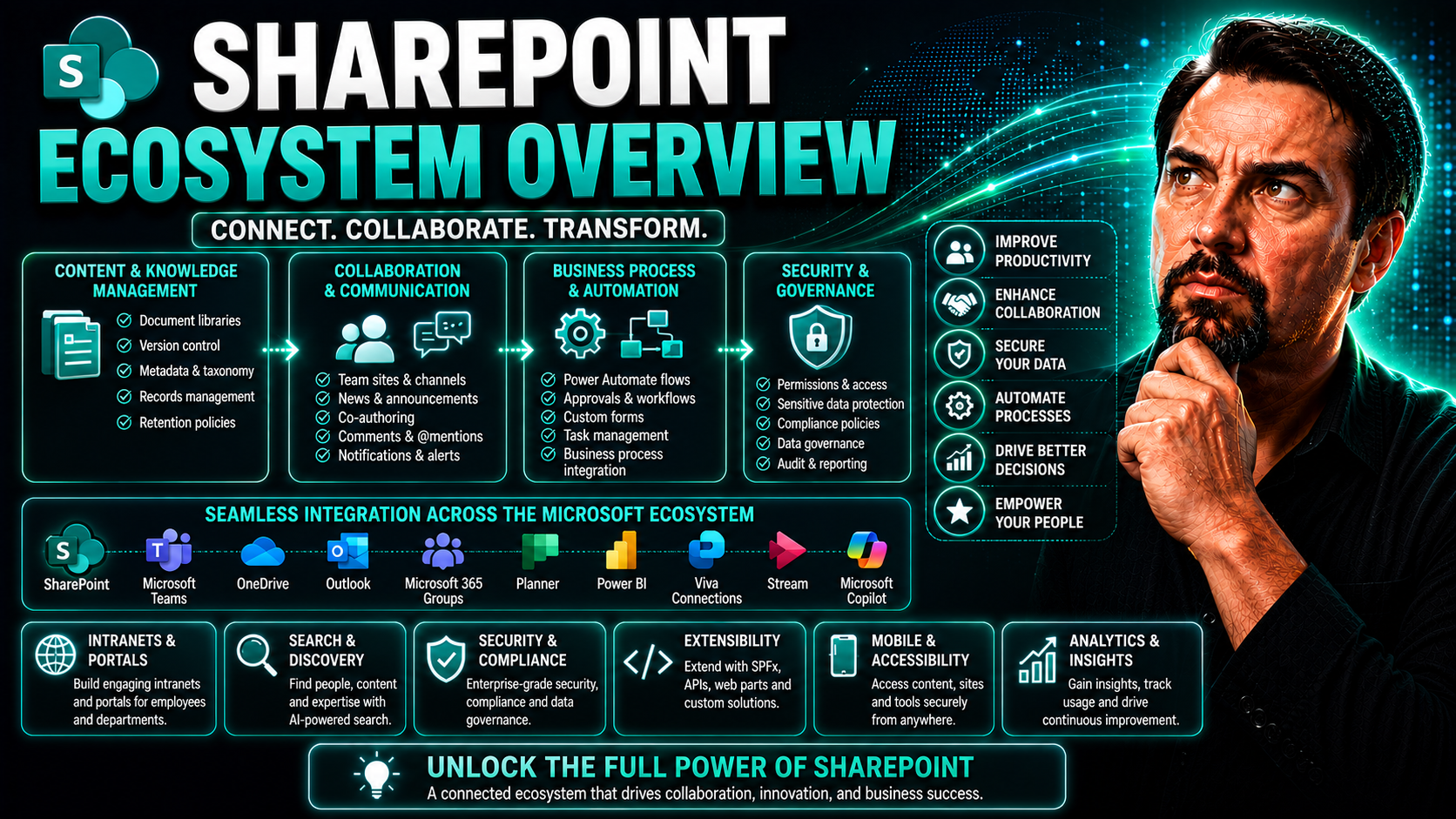
When organizations talk about building modern workplaces, it’s hard to avoid the name “SharePoint.” It’s not just another app – SharePoint sits at the center of the Microsoft 365 ecosystem, powering how teams organize files, connect with each other, and manage content across borders and devices. This guide breaks down how SharePoint ties together your digital workplace, from integrating with Teams and OneDrive to safeguarding your data with smart governance.
You’ll see how these moving parts come together, why it matters for both IT leaders and business users, and how to get the most out of your Microsoft 365 investment. We’ll dig into collaboration, compliance, automation, and how SharePoint keeps up with a world always on the move. Whether you’re planning a rollout, thinking about migration, or curious about new AI features, you’re exactly where you need to be for the big picture—and actionable guidance to make SharePoint work for you.
SharePoint Ecosystem — Definition
The SharePoint ecosystem is the collective set of Microsoft SharePoint products, integrations, extensions, add-ins, third-party solutions, services, and user communities that together enable content management, collaboration, intranet/extranet portals, search, and business process automation across an organization.
Short Explanation
The ecosystem includes on-premises SharePoint Server, SharePoint Online within Microsoft 365, related services like OneDrive and Power Platform (Power Automate, Power Apps, Power BI), customizations (web parts, SPFx solutions), connectors and APIs, governance and security policies, and an ecosystem of partners and developers. Together these components support creating, sharing, and managing information, building workflows and applications, and extending SharePoint capabilities to meet organizational needs.
Understanding SharePoint’s Role in the Microsoft 365 Ecosystem
SharePoint is much more than a file server hidden in the cloud—think of it as the backbone that holds Microsoft 365 tools together. When you need a place to store, organize, and share documents across your organization, SharePoint’s the engine working quietly in the background. It sits right in the middle, supporting Teams, OneDrive, Outlook, and more, making sure that your content is secure, available, and easy to find.
But SharePoint’s influence stretches further. It acts as the launchpad for your intranet, the keeper of team sites, and the guardian of company knowledge. By providing robust permissions, version control, and customizable sites, it helps both big and small organizations keep things tidy as they grow.
In the Microsoft 365 ecosystem, mastering SharePoint is key if you want to unify content management, streamline teamwork, and reinforce company-wide compliance. The sections that follow will show you exactly where SharePoint fits, and how it helps you build a smarter, more connected workplace.
9 Surprising Facts about SharePoint’s Role in the Microsoft 365 Ecosystem
- SharePoint is the default content repository for Microsoft 365: behind the scenes, OneDrive for Business and Microsoft Teams files are built on SharePoint libraries, making SharePoint the backbone of file storage across the Microsoft 365 ecosystem.
- Search power comes from SharePoint: Microsoft Search indexes content across SharePoint sites, Teams, Yammer, and even third-party connectors, so SharePoint’s metadata and content structure heavily influence search relevance across Microsoft 365.
- SharePoint drives collaboration beyond sites: many Microsoft 365 collaboration features—like Teams channel files, Planner attachments, and Power Automate connectors—use SharePoint as the integration point, enabling cross-app workflows.
- SharePoint enables governance at scale: tenant-level policies for retention, sensitivity labels, and DLP leverage SharePoint’s site and library constructs to apply consistent compliance across the Microsoft 365 ecosystem.
- Content types and metadata in SharePoint shape automation: defining content types and metadata in SharePoint libraries unlocks more accurate Power Automate flows and Power Apps behaviors across Microsoft 365 solutions.
- The Power Platform relies on SharePoint for rapid apps: many organizations use SharePoint lists as data sources for low-code Power Apps and Power Automate solutions, making SharePoint a practical mini-database within the Microsoft 365 ecosystem.
- SharePoint underpins intranet and employee experience: Viva Connections and many intranet solutions surface SharePoint content and pages, positioning SharePoint as the core platform for employee portals in Microsoft 365.
- External sharing and B2B scenarios route through SharePoint: external collaboration for files and sites in Microsoft 365 is managed via SharePoint sharing controls, affecting how organizations extend collaboration outside their tenant.
- Performance and architecture decisions matter tenant-wide: how you design SharePoint sites, hub sites, and libraries affects storage, sync behavior, and end-user experience across OneDrive, Teams, and other Microsoft 365 services—making SharePoint architecture a strategic factor in the overall Microsoft 365 ecosystem.
SharePoint as a Core Component of Microsoft 365
SharePoint is the foundational platform at the heart of Microsoft 365, seamlessly connecting people, content, and processes. As organizations moved from traditional file shares and legacy intranets to the cloud, SharePoint evolved into a central hub for digital collaboration and information management.
With SharePoint Online, you get a unified experience for creating, storing, and sharing files, managing team sites, and building internal portals—all while tapping into the security and scalability of Microsoft’s cloud. This platform is designed to serve everyone from small departments to sprawling enterprises with global footprints.
SharePoint’s strengths include robust document control, audit trails, and a rich history of versioning—ensuring teams can always find, access, and restore information whenever needed. Its modern, web-based interface means staff can work from the office, from home, or on the go, without losing access or security.
In the Microsoft 365 world, SharePoint isn’t a stand-alone silo—it’s tightly integrated with Teams, OneDrive, Outlook, Power Apps, and more. This integration makes it indispensable for organizations managing digital files, knowledge, and the spaces where their teams collaborate day to day.
Document and Content Management with SharePoint Online
- Robust Document Libraries: SharePoint Online provides secure, centralized document libraries where teams can store, organize, and access files by project, department, or process. These libraries support folder hierarchies, custom views, and granular controls to fit any business scenario.
- Advanced Metadata Tagging: You can add custom metadata—think document type, project code, due date—to every file. This makes sorting, filtering, and automating a breeze, especially as libraries grow. Proper metadata also boosts search, so files never get lost in the shuffle.
- Built-in Version Control: Every time a document is updated, SharePoint keeps a full version history. Users can restore earlier versions if something goes wrong or track changes for audit purposes, supporting compliance and reducing accidents.
- Secure Sharing and Permissions: Administrators control who can view, edit, or share files, down to the folder or document level. Sharing is easy but safe—access can be restricted to specific people inside or outside the company.
- Seamless OneDrive Integration: Files stored in SharePoint libraries are available through OneDrive, making it simple for users to sync files for offline access, collaborate in real time, or move between Teams and SharePoint without missing a beat.
- Compliance and Automation: Automated workflows can handle approvals, retention, and archiving. SharePoint’s search and compliance features support everything from regulatory audits to day-to-day document hunting.
Common Mistakes People Make About SharePoint’s Role in the Microsoft 365 Ecosystem
- Assuming SharePoint is just a file server — Treating SharePoint solely as document storage ignores its capabilities for metadata, content types, workflows, pages, lists, and integration with Power Platform.
- Believing SharePoint replaces all network drives without planning — Migrating files without reorganizing, applying metadata, or redesigning information architecture leads to poor findability and performance issues.
- Overlooking Microsoft 365 integration — Not leveraging Teams, OneDrive, Exchange, Power Automate, Power Apps, and Viva together with SharePoint reduces collaboration and automation potential.
- Confusing SharePoint sites with Teams channels — Creating duplicate or misaligned sites and Teams workspaces causes fragmentation; Teams often uses SharePoint behind the scenes for file storage and pages.
- Neglecting governance and permissions model — Applying inconsistent or overly permissive permissions, not using hub sites, or ignoring site lifecycle governance creates security and sprawl problems.
- Underestimating metadata and search design — Relying only on folders instead of metadata and managed properties prevents effective search, filtering, and content organization across the ecosystem.
- Ignoring information architecture and taxonomy — Failing to plan site structure, content types, term stores, and retention policies undermines scalability and compliance.
- Expecting out-of-the-box UX to meet all needs — Not customizing views, web parts, or Power Apps where appropriate can result in low user adoption despite available features.
- Not considering governance for external sharing — Mismanaging guest access and sharing settings exposes data risk or impedes legitimate collaboration with partners.
- Neglecting training and change management — Assuming users will adapt without guidance leads to misuse, shadow IT, and poor uptake of the SharePoint ecosystem.
- Mixing classic and modern experiences without strategy — Inconsistent user experience and maintenance complexity arise when orgs run parallel classic and modern sites without a migration plan.
- Failing to monitor and maintain performance — Large lists without indexing, uncontrolled file versioning, and unoptimized pages can degrade performance across Microsoft 365 services that depend on SharePoint.
- Relying solely on SharePoint for advanced automation — While powerful, SharePoint + Power Platform combinations require design and governance; some scenarios are better served by dedicated services or Azure integration.
- Ignoring backup and retention realities — Believing Microsoft 365 is a comprehensive backup solution; understanding retention, versioning, and third-party backup needs is essential.
- Assuming compliance features are automatic — Not configuring retention labels, sensitivity labels, and eDiscovery properly can leave compliance gaps despite available Microsoft 365 controls.
Integration of SharePoint, Teams, and OneDrive for Unified Collaboration
When teamwork spans locations and time zones, having your files, chats, and projects scattered all over just won’t cut it. That’s where SharePoint, Teams, and OneDrive step in—delivering unified collaboration that feels effortless but is powered by some very clever integration behind the scenes.
As organizations look for simple ways to share, co-author, and manage documents, Microsoft 365 combines these tools into a seamless experience. SharePoint serves as the content muscle, Teams is your conversation and project hub, and OneDrive gives every user a home for their personal and shared work files.
This section unpacks how files, conversations, and permissions flow between these systems, so your teams can focus on getting work done without worrying about losing data or hunting down the latest file version. If you’re serious about breaking silos and automating the daily grind, you’re in the right place.
How SharePoint, Teams, and OneDrive Work Together
Beneath the slick Teams interface or your OneDrive folder, SharePoint is quietly running the show as the main engine for file storage and collaboration. When you share files in Microsoft Teams, those documents are actually stored in a SharePoint document library tied to each team or channel. This shared backend structure ensures files are consistent, secure, and easily accessible—regardless of which Microsoft app you’re using.
OneDrive, meanwhile, acts as your personal storage, but with deep roots in SharePoint. Files you share via Teams Chats, for example, are saved in your OneDrive and permissions are set automatically. Navigating between personal files and group workspaces feels seamless, but it’s SharePoint’s architecture making it all possible.
With features like shared channels, Teams users can collaborate across organizational boundaries with proper access and compliance, as explained in this detailed comparison of Teams channels. Permission inheritance and unified security models keep everything locked down yet flexible, so users only see what they should.
So, whether you’re co-authoring a proposal, tracking a project, or just looking for last month’s invoice, the integration of SharePoint, Teams, and OneDrive means files are always up to date, versioned, and secure—no matter where you start your journey.
File Sync and Collaboration Workflows
- Instant File Availability: Once a file is uploaded to a SharePoint library, it’s instantly accessible in both Teams and OneDrive. Teams users find shared documents in the “Files” tab of their channel, while personal OneDrive accounts sync any shared files for offline access.
- Co-Authoring and Live Collaboration: Multiple team members can edit documents at the same time—straight from their browser, desktop, or mobile device. SharePoint tracks every change, ensuring no update gets lost and edits are merged in real time.
- Permission Management: Permissions travel with the document. You can lock down sensitive content, share with external partners, or open up files for cross-team work, all controlled from a single source of truth. For more on boosting trust and security with rules and guardrails, see these Teams governance best practices.
- Automation for Approvals and Notifications: Tools like Power Automate handle workflows—automatically route files for approval, notify stakeholders when changes occur, and even archive completed documents. This keeps everyone informed and cuts down on busywork. For a detailed look at automation, check this guide to organizing Teams projects.
- Version Control and Audit Trail: Every document action is recorded, letting you roll back changes, recover deleted files, and prove compliance for audits. SharePoint’s versioning and history tools help prevent accidental overwrites and make tracking progress simple.
Key Benefits of Integrating SharePoint, Teams, and OneDrive
The integrated SharePoint ecosystem—combining SharePoint, Microsoft Teams, and OneDrive—delivers unified collaboration, secure content management, and streamlined workflows. Key benefits include:
- Seamless collaboration: Real-time co-authoring and persistent chat in Teams linked to SharePoint document libraries enable teams to collaborate on the same files without version conflicts.
- Single source of truth: Storing documents in SharePoint libraries (accessible via Teams and OneDrive) ensures consistent content, centralized metadata, and reliable file governance across the ecosystem.
- Anywhere access and synchronization: OneDrive provides reliable sync and offline access to SharePoint content, enabling users to work from any device and maintain productivity on the go.
- Improved search and discovery: Unified search across SharePoint, Teams messages, and OneDrive surfaces relevant files, conversations, and people quickly, reducing time spent finding information.
- Integrated security and compliance: Centralized policies in the SharePoint ecosystem (DLP, retention, sensitivity labels, and audit logs) protect content consistently across Teams and OneDrive while supporting regulatory requirements.
- Streamlined content lifecycle and governance: Consistent permissions, site templates, and retention policies in SharePoint simplify governance while Teams and OneDrive provide user-friendly access points.
- Automated workflows and integration: Integration with Power Automate, Power Apps, and Microsoft 365 connectors enables automated approvals, notifications, and custom workflows across SharePoint, Teams, and OneDrive.
- Enhanced productivity: Embedding SharePoint pages, lists, and libraries directly into Teams channels reduces context switching and brings information and tools into a single workspace.
- Cost efficiency and simplified administration: Consolidating file storage and collaboration in the SharePoint ecosystem reduces duplication, eases backup/retention management, and lowers administration overhead.
- Scalability and extensibility: The SharePoint ecosystem supports enterprise-scale content management and can be extended with custom solutions, third-party apps, and Microsoft Graph integrations.
Leveraging the Power Platform and AI in the SharePoint Ecosystem
SharePoint isn’t just about storing stuff—it’s your launchpad for smarter business processes. Thanks to the Power Platform and new waves of AI, what used to need a team of developers can now be built fast using Power Apps, Power Automate, and Power BI, right from your browser.
With these tools connected to SharePoint, you can automate approvals, create data dashboards, or build custom forms without writing a ton of code. And now, with Copilot and Microsoft 365’s AI features, you can boost productivity even further—making content discovery, search, and collaboration run smoother than ever.
This section dives into how these modern tools transform SharePoint into a business process accelerator, opening doors for IT, power users, and business leaders to innovate, automate, and get useful insights fast—all while keeping compliance and security in check.
Power Platform Integration with SharePoint
- Custom Forms and Apps with Power Apps: Turn your SharePoint lists into dynamic forms or business applications. Power Apps lets you create custom input screens, automate calculations, and tailor user experiences—all without deep coding skills. Businesses use this to replace old-school paper processes or clunky spreadsheets.
- Workflow Automation via Power Automate: Automate repetitive tasks straight from your document libraries or lists. Use Power Automate to trigger approval flows, send reminders, or sync data between systems every time items are created or updated in SharePoint. This saves time, reduces manual errors, and keeps processes humming.
- Dashboards and Insights with Power BI: Analyze data stored in SharePoint lists and libraries using Power BI’s powerful reporting tools. You’ll turn raw data into interactive dashboards—helping everyone from project managers to executives make smarter, data-driven decisions.
- Empowering Non-Developers and IT: The Power Platform levels the playing field: business users create their own solutions while IT sets guardrails for data security and compliance. It’s about agility and innovation with less overhead and risk.
- Key Use Cases Across Organizations: From automated onboarding to equipment tracking and project reporting, the Power Platform’s integration with SharePoint encourages organizations to tackle bottlenecks and improve efficiency across departments of any size.
AI and Copilot Enhancements in SharePoint
- Smarter Content Discovery with Copilot: SharePoint’s Copilot and broader Microsoft AI features make finding information faster and easier than ever. Rather than sifting through folders, users can ask Copilot natural language questions and get targeted answers, saving valuable time. Check out this guide on prompt engineering for getting better Copilot results.
- Search and Document Summarization: AI in SharePoint automatically summarizes documents, generates previews, and pulls out critical data points. This turns lengthy files into bite-sized insights and surfaces relevant content just when you need it, even during meetings and chats, as described in this deep dive on workflow automation.
- Drafting and Content Creation: Copilot can suggest content, auto-draft templates, and kickstart project plans—all based on your organizational knowledge base. That means less staring at blank pages and more “get it done” time.
- Data Privacy and Governance: Even as AI automates more of your work, Microsoft’s strong data governance tools keep sensitive info protected. This article on Copilot governance strategies outlines how permissions, role-based access, and monitoring ensure your data stays where it belongs.
- Measurable Productivity Gains: Deploying AI features within SharePoint has been shown to reduce time spent on content searches, drafting, and admin work—giving teams more time to focus on meaningful tasks.
SharePoint Copilot: Enhancing Productivity Across Teams
- Instant Content Suggestions: Copilot provides quick suggestions for drafting documents, responses, and templates—helping users start faster and finish sooner.
- Workflow Streamlining: Teams can automate standard processes, such as approval flows or meeting recaps, freeing up hours every week. For practical Copilot use cases, see top Microsoft Copilot productivity tips.
- Smart Search and Summaries: AI-powered search pulls up the right files and even summarizes them, reducing time spent looking for information.
- Automatic Compliance Checks: Copilot helps spot compliance risks and guides users on handling sensitive data during collaboration, supporting secure workspaces.
Power Platform in the SharePoint Ecosystem
Pros
- Rapid development: Low-code tools (Power Apps, Power Automate, Power Pages) enable quick creation of forms, workflows, and business apps that integrate directly with SharePoint lists and libraries.
- Improved automation: Power Automate streamlines repetitive processes, approvals, and notifications using SharePoint triggers and actions.
- Better user experiences: Power Apps and custom pages can provide modern, mobile-friendly interfaces on top of SharePoint data.
- Tight Microsoft integration: Seamless connectivity with Microsoft 365 services (Teams, Outlook, OneDrive, Dataverse) simplifies cross-platform solutions.
- Governance and admin controls: Admin centers and policies provide environment, data loss prevention, and tenant-level governance options.
- Extensibility: Custom connectors, Azure Functions, and SPFx can extend capabilities beyond out-of-the-box features.
- Cost efficiency for many scenarios: Reduces need for full-scale custom development for common business processes.
Cons
- Complexity at scale: Managing many apps, flows, and environments can become challenging without strong governance and lifecycle practices.
- Performance and limits: Power Platform connectors and SharePoint list thresholds (lookup limits, list view thresholds) can impact performance for large datasets.
- Licensing complexity and cost: Licensing tiers and per-user/app plans can be confusing and costly for enterprise-wide adoption.
- Customization limitations: Low-code components may not meet highly specialized UI/UX or complex business logic needs compared to full custom development.
- Maintenance overhead: Frequent platform updates and dependency on connectors require ongoing maintenance and testing.
- Security and compliance risks: Misconfigured connectors, wide permissions, or poor data policies can expose sensitive SharePoint data.
Artificial Intelligence in the SharePoint Ecosystem
Pros
- Enhanced search and discovery: AI-driven content indexing, semantic search, and Microsoft Search improvements help users find relevant SharePoint content faster.
- Content automation: AI can automate tagging, metadata extraction, summarization, and classification for large document repositories.
- Personalization: AI enables tailored experiences, recommendations, and targeted content based on user behavior and context.
- Process intelligence: AI models can analyze workflows and usage patterns to suggest optimizations and predict bottlenecks.
- Knowledge management: Cognitive services (language understanding, Q&A, knowledge mining) surface expertise and answers from SharePoint content.
- Integration with Power Platform and Microsoft 365: Prebuilt AI capabilities (Copilot, cognitive services) integrate into Power Apps, Power Automate, and SharePoint to accelerate solutions.
Cons
- Data privacy and compliance: Using AI on SharePoint content raises concerns about sensitive data handling, residency, and regulatory compliance; proper governance is required.
- Accuracy and bias: AI models can produce incorrect, incomplete, or biased results, requiring human review and validation.
- Cost and resource demands: Advanced AI services and large-scale processing can incur significant compute and licensing costs.
- Complex implementation: Integrating custom AI solutions (model training, tuning, pipelines) adds technical complexity and requires specialized skills.
- Change management: Introducing AI-driven features may require user training and cultural change to trust and adopt automated insights.
- Security risks: Exposing SharePoint data to third-party AI services or misconfiguring access can increase security exposure.
Development, Open Source, and Community Resources for SharePoint
The SharePoint ecosystem isn’t just driven by Microsoft—it’s turbocharged by a massive community of developers, architects, and IT pros who share solutions, open-source assets, and modernization tools. Whether you’re customizing sites or building full-blown business applications, there’s a treasure trove of templates, code samples, and best practices to level up your SharePoint environment.
From Microsoft’s Patterns and Practices (PnP) community, to GitHub repositories and starter kits, these resources help you keep up with best practices, accelerate deployments, and ensure your customizations are modern and secure. This section walks through key open-source tools, and shows how community support can keep your SharePoint investment sustainable—even as technology evolves.
Not only do these resources save you time, but they also foster innovation and knowledge sharing that’s essential for any large or fast-changing organization.
Microsoft 365 Patterns and Practices for SharePoint Devs
- PnP Reusable Code Samples: Patterns and Practices is an open-source initiative led by Microsoft and the global developer community. It provides reusable scripts, web parts, and templates that help organizations customize SharePoint without reinventing the wheel.
- Best Practices and Documentation: The PnP community regularly publishes guidelines for site provisioning, information architecture, and API integration—making it easier to modernize and maintain secure SharePoint solutions.
- Open GitHub Projects: Many PnP assets, including provisioning frameworks and web part samples, are shared via GitHub. Developers can use, modify, or contribute to these projects to keep solutions current and future-proof.
- Continuous Innovation: With thousands of contributors worldwide, PnP solutions evolve rapidly—delivering new ideas and bug fixes at a pace that traditional software doesn’t match. Staying engaged keeps devs on the frontlines of SharePoint innovation.
- Learning and Community Support: PnP includes active forums, video series, and documentation, making it a go-to resource for troubleshooting, inspiration, and upskilling. New or seasoned developers find something useful at every stage.
Tools, Templates, and Modernization for SharePoint Development
- SharePoint Starter Kits: Pre-built site templates packed with modern web parts, branding, and common business logic for a quick, professional intranet launch.
- PnP Tenant Templates: Blueprints for replicating site structures, content, and configuration across tenants or environments—ideal for multi-site or multi-region organizations.
- Modernization Tooling: Free tools convert old SharePoint classic pages to modern experiences, standardize branding, and migrate web parts—saving time and ensuring consistency during upgrades.
- Provisioning Services: Scripting solutions that automate deployment of new sites, libraries, and permissions—minimizing manual work and risk of errors.
- Integration Accelerators: Connector kits and APIs simplify linking SharePoint with Teams, Power Platform, or external applications, extending functionality and keeping environments tightly synced.
Engaging with the SharePoint Developer Community
- Virtual Calls and Community Webinars: Join recurring virtual meetings featuring demos, Q&A, and expert-led deep dives into SharePoint and Microsoft 365 development topics. These are great for learning new features and troubleshooting in real time.
- Developer Blogs and YouTube Channels: Thousands of blogs and tutorial channels cover emerging trends, development tips, step-by-step guides, and solution showcases—an ongoing source of practical knowledge for busy pros.
- Sharing is Caring Initiative: This program focuses on mentoring and onboarding new contributors to the PnP community. It offers hands-on sessions, documentation, and a welcoming environment for sharing knowledge and building networks.
- Open-Source GitHub Collaboration: By participating in GitHub projects, developers can contribute code, report issues, and influence the future direction of open-source SharePoint solutions.
- Support Channels and Peer Forums: Active forums and chat groups ensure developers get answers fast, whether they’re troubleshooting, sharing wins, or asking for advice.
Adoption, Challenges, and Consulting for SharePoint Success
Rolling out SharePoint—or modernizing an existing deployment—can be a heavy lift. Organizations often run into roadblocks, from user pushback to runaway content growth and tangled governance. Knowing how to navigate these challenges is critical for making SharePoint an asset, not a headache.
This section peels back the curtain on the most common obstacles teams face, offers tips on evaluating if SharePoint is the right fit, and spotlights how expert consultants can help smooth the way. The goal: accelerate your adoption curve, maximize ROI, and avoid the “we built it but nobody uses it” trap that haunts so many collaboration projects.
You’ll come away with a clearer roadmap for implementing SharePoint, tailored to your organization’s scale, goals, and risk profile.
Challenges Organizations Face with SharePoint Adoption
- Content Sprawl: Without tight governance, sites and libraries multiply like rabbits, making it tough to find anything. Automating site creation and lifecycle management using Power Platform, as explained here, helps prevent orphaned and idle spaces.
- User Resistance: Switching from familiar tools can trigger pushback. Training and clear communication about benefits get people onboard faster, especially when workflows are explained in simple, practical terms.
- Complexity and Customization: SharePoint is powerful—but that means setup can feel overwhelming. Trying to customize without understanding core features often causes confusion or even breaks critical business processes.
- Governance Issues: Without clear rules for permissions, naming, and sharing, organizations risk security slip-ups, lost documents, or compliance violations. Effective governance frameworks make a world of difference for trust and accountability.
- Requires Ongoing Expertise: SharePoint doesn’t run itself—it needs regular reviews, support, and ownership to scale smoothly alongside the business.
Is SharePoint the Right Platform for Your Organization?
- Pros: Flexible site and document management, powerful integration with Microsoft apps, strong compliance and security features, and a proven track record for scalability in enterprise environments.
- Cons: Can be complex to set up and manage, steep learning curve for non-technical users, and may require ongoing admin or consultant support. Over-customization can cause support headaches.
- Best Use Cases: Ideal for organizations that need unified document control, knowledge management, and integrated collaboration—even more so if already using Microsoft 365. See how SharePoint complements Teams and Power BI for dashboard-driven workplaces in this direct comparison.
- When to Consider Alternatives: For small firms or teams relying on simple knowledge bases, options like Bloomfire or Google Workspace may fit better due to their lower complexity and faster onboarding. Evaluate your company’s culture, growth plans, and integration needs before deciding.
How SharePoint Consulting Accelerates Adoption and ROI
Experienced SharePoint consultants provide crucial support for organizations navigating deployment or optimizing legacy systems. They help design scalable site structures, configure permissions and compliance, and develop tailored information architectures that match the unique needs of each business.
Consultants deliver hands-on training for staff, helping users understand how to use SharePoint efficiently and productively from day one. Their expertise shortens the learning curve and reduces risk by introducing best practices and industry-proven templates.
Consultants also play a pivotal role in tackling complex issues—like integrating with third-party tools, custom development, compliance audits, and large-scale migration. By avoiding costly missteps and speeding up user adoption, they directly enhance your return on investment and ensure your SharePoint deployment becomes a long-term strategic asset, not just another app in the toolbelt.
SharePoint Governance and Information Architecture Best Practices
For organizations scaling up their SharePoint environments, solid governance and information architecture are non-negotiable. This means putting structure around how sites, content, and permissions are created, classified, and managed—key for compliance, security, and keeping SharePoint usable as your organization grows.
This section zooms in on practical strategies for building resilient site hierarchies, taxonomies, and metadata schemes, making sure you avoid that dreaded “content sprawl” trap. We’ll also lay out the must-have governance policies—covering permissions, retention, and data compliance—crucial for regulated industries and those handling sensitive business data.
IT administrators and digital workplace decision-makers will find direct, actionable guidance for building scalable, secure environments without slowing down productivity. You want people to find what they need, when they need it, while keeping risk locked down tight. For insights into secure AI and governance strategies, see Copilot governance best practices and more on maintaining trust and compliance in collaborative platforms at Teams governance best practices.
Designing Scalable SharePoint Site Hierarchies and Content Taxonomies
- Start with a Clear Site Collection Hierarchy: Map out site collections based on departments, regions, or business functions. This separation makes administration, security, and scaling smoother as new sites are added.
- Leverage Hubs and Site Associations: Use SharePoint hub sites to group related sites under a common navigation and branding umbrella. This helps maintain consistency and makes cross-site searching easier.
- Design Libraries Around Real Workflows: Create document libraries tailored to business processes—not arbitrary folders. This encourages adoption and makes content easier to find long-term.
- Define Metadata Early: Set up metadata fields (project, document type, status, etc.) from the start. Encouraging teams to tag content allows for powerful filtering and search as your libraries grow.
- Build Taxonomies for Discoverability: Develop content types and managed terms to create a logical taxonomy, so even with thousands of files, staff can locate what they need without hassle.
- Govern Naming and Lifecycle: Enforce naming conventions and automate site/life cycle with Power Automate or scripting. This reduces orphaned sites, expired content, and keeps your digital environment organized.
Governance Policies for Permissions, Retention, and Compliance
- Role-Based Permission Models: Establish permission levels (read, contribute, admin) tied to job roles, business units, or project teams—minimizing risk of unauthorized access. Consider layering additional controls with Microsoft Purview or advanced DLP tools as outlined in Teams security hardening best practices.
- Data Retention Policies: Define automatic document retention and deletion schedules to ensure outdated or sensitive data is properly archived or purged, meeting both business and regulatory requirements.
- Regulatory Compliance (GDPR, HIPAA, etc.): Implement tools that classify sensitive data and restrict sharing based on compliance needs. Use audit logs to monitor activity and prove compliance to regulators.
- Access Review and Auditing: Schedule regular access reviews and use reporting tools to stay ahead of permission drift and orphaned accounts.
SharePoint Governance & Information Architecture Checklist
Focused checklist to design, implement, and maintain a robust SharePoint ecosystem.
Governance: Roles, Policies & Operations
Information Architecture: Structure, Taxonomy & Metadata
Monitoring, Maintenance & Continuous Improvement
End-User Adoption and Change Management Strategies for SharePoint
A clever SharePoint setup means nothing if your people don’t use it. That’s why smart organizations put time into end-user onboarding, targeted training, and tracking user engagement. Change management isn’t just about sending an email and crossing your fingers—it’s about creating excitement and confidence so employees feel supported, not lost.
This section focuses on techniques for boosting SharePoint adoption, with a special spotlight on training programs and metrics. Learn how to smooth transitions for non-technical users and keep tabs on what’s working (or not), so you can adjust your rollout in real time.
If you want your investment in Microsoft 365 to stick and drive long-term business value, fostering behavioral change is the missing link so many enterprises overlook. Here’s how to help your users make the most of your SharePoint investment.
Creating Effective SharePoint Training Programs and Learning Paths
- Role-Based Training: Tailor learning paths for different user roles—admins, power users, and everyday staff—so each group gets relevant information for their day-to-day work.
- Microlearning Modules: Break big topics into bite-sized, focused lessons. Users can quickly learn how to upload files, tag documents, manage permissions, and more, at their own pace.
- Just-in-Time Resources: Offer searchable guides, cheat sheets, and video walkthroughs that users can access whenever questions arise, slashing downtime and help desk calls.
- Interactive Onboarding Programs: Use hands-on sessions, quick quizzes, and sample projects to help users build mastery through doing—not just reading or watching videos.
- Ongoing Support and Feedback Loops: Survey users, track common issues, and schedule regular refresher courses to ensure skills stay fresh and gaps are closed before they become headaches.
Measuring and Improving SharePoint User Engagement
- Usage Analytics: Leverage SharePoint’s built-in reports or Power BI dashboards to monitor site visits, file activity, and most-used features, unveiling real adoption patterns.
- Key Performance Indicators (KPIs): Define metrics like first-week engagement, time-to-task completion, and active users per department to spot early adoption bottlenecks or training gaps.
- Feedback Mechanisms: Encourage user surveys and provide easy ways to submit questions or improvement ideas, feeding a continuous cycle of platform improvement.
- Iterate Your Rollout: Review analytics and feedback regularly, making targeted updates to training, navigation, and site layouts for better usability and business impact.
Hybrid and On-Premises SharePoint Integration in Modern Workflows
While cloud-first is the standard these days, many large businesses still need to bridge the gap with on-premises SharePoint Servers. Maybe it’s because of compliance, data residency requirements, or just the size of existing investments. Whatever the case, integrating SharePoint Server with Microsoft 365 unlocks powerful hybrid scenarios—from unified search to seamless file sync—all without forcing an all-at-once migration.
This section introduces strategies for connecting on-prem with the cloud, offering a roadmap for hybrid search, authentication, and phased transitions. For organizations planning their move to SharePoint Online or navigating a cloud-first future while supporting legacy environments, here’s how to keep your business running at full throttle—during and after migration.
Let’s explore the hybrid models, coexistence tools, and phased rollout strategies that can turn what looks like a headache into a competitive advantage.
Bridging SharePoint Server with Microsoft 365 Services
- Hybrid Identity Management: Set up Azure Active Directory (or Microsoft Entra ID) sync with on-premises Active Directory for single sign-on (SSO) across environments. This simplifies user access and management for IT.
- Unified Search Experiences: Configure hybrid search so users can find files and sites whether they’re stored on-premises or in SharePoint Online—giving a single search box for everything, regardless of where it lives.
- File Synchronization: Enable hybrid OneDrive and SharePoint synchronization for seamless access to the same files and folders, on-prem or cloud. Teams get a consistent experience even if infrastructure is mixed.
- Coordinated Authentication and Policies: Use identity federation and policy integration to apply the same security, sharing, and compliance rules across both environments, reducing risk and overhead.
- Legacy Investment Extension: Keep key workflows and content in SharePoint Server while rolling out new solutions in the cloud, ensuring critical operations continue uninterrupted as you modernize at your own pace.
Migration Planning and Coexistence Strategies
- Assess Current Environments: Start by cataloging existing SharePoint Server sites, content, and workflows to determine priorities and readiness for migration.
- Design a Phased Rollout: Move content and users in waves, starting with low-risk sites or departments. This reduces stress on IT and allows for rapid troubleshooting at each stage.
- Enable Parallel Operations: Keep critical workloads running in both environments during the transition to avoid business disruptions and support ongoing projects.
- Automate and Test Migrations: Use Microsoft or third-party migration tools to automate as much of the heavy lifting as possible, validating data integrity after each phase.
- Plan for Business Continuity: Establish clear rollback and contingency plans, so if any hiccups appear during migration, downtime and data loss risks stay low.
The Broader Microsoft Ecosystem: From Azure to Dynamics 365
SharePoint’s power really comes alive when it’s working hand in hand with the rest of Microsoft’s cloud and business application stack. Modern enterprises rarely rely on one tool alone—so understanding how SharePoint fits with Azure, Dynamics 365, and the Power Platform is vital for architecting smooth, end-to-end processes and tight security.
This section ties SharePoint into Microsoft 365’s wider ecosystem—connecting the dots between cloud computing, advanced security, business intelligence, and process automation. Whether you’re building a digital workplace from scratch or layering new apps on top of trusted SharePoint sites, you’ll see just how much value comes from smart integration and cross-platform planning.
For organizations needing to meet rigorous compliance, handle sensitive data, or coordinate operations across multiple applications, these connections are what turn a collection of tools into a true digital powerhouse.
Microsoft Ecosystem Introduction and Key Platforms
- Microsoft 365: The all-in-one productivity suite combining SharePoint, Teams, OneDrive, Outlook, and more—serving as the digital workplace foundation for businesses worldwide.
- Azure Cloud Services: Delivers the infrastructure, security, and scalability needed for hosting SharePoint Online and integrating advanced services like AI, backup, and automation.
- Dynamics 365: Provides CRM and ERP business applications. When integrated with SharePoint, it enables robust document management, customer insights, and workflow automation across business functions.
- Power Platform: A suite including Power Apps, Power Automate, and Power BI—extends SharePoint’s capabilities with low-code app building, automation, and analytics.
- AI & Microsoft Copilot: Brings content discovery, search, and workflow automation to the next level, embedding intelligence across Microsoft’s entire cloud platform.
Cloud, Security, and Enterprise Integration for SharePoint
- Azure Infrastructure Reliability: SharePoint Online runs on Azure’s global network, ensuring high availability, rapid disaster recovery, and scalable performance for organizations of any size.
- Enterprise-Grade Security: SharePoint leverages Azure Active Directory for identity and access management, offering multi-factor authentication, encrypted data at rest/in transit, and robust compliance controls. For AI data security, Copilot’s privacy model and Copilot’s data boundaries overview show how your sensitive info stays protected.
- Regulatory Compliance: Microsoft’s cloud ecosystem supports GDPR, HIPAA, ISO, and more. Automated audit logs and data residency options make passing audits straightforward.
- App-to-App Integration: SharePoint’s APIs and connectors allow integration with everything from Dynamics 365 to third-party platforms and legacy apps—keeping processes unified and data silos at bay.
- Continuous Monitoring and Policy Enforcement: Real-time analytics, AI-driven threat detection, and automated policy enforcement, as detailed in Copilot’s security model, keep your environment safe and compliant, even as your digital strategy evolves.
Community, Events, and Future Directions in SharePoint
The world of SharePoint is always moving, driven by passionate professionals and a global community eager to share what works—and what’s next. Staying connected to these events and forums not only sharpens your skills, but also helps shape the very future of SharePoint itself.
This section highlights the best ways to engage: from virtual conferences and community calls to initiatives like Sharing is Caring, where you can contribute, learn, and pay it forward. It’s also your jumping off point for tracking future trends, harnessing new AI and governance features, and planning your organization’s ongoing digital transformation.
If you’re committed to continuous learning and want to influence how organizations collaborate for years to come, these opportunities are well worth your attention.
PnP Virtual Events and Community Initiatives
- PnP Virtual Conference: A regular online gathering for Microsoft 365 and SharePoint professionals to learn about new features, strategies, and best practices.
- Sharing is Caring Initiative: Hands-on mentoring and collaboration to onboard newcomers to the open-source community, fostering inclusivity and peer learning.
- Community Calls: Monthly or biweekly virtual meetings with live demos, Q&A sessions, and roadmap updates—perfect for continuous skill building.
- Online Forums and Social Groups: Spaces for networking, troubleshooting, and sharing success stories with fellow SharePoint users and developers worldwide.
- Loop Community Integrations: New spaces emerging around Microsoft Loop and fluid collaboration, offering fresh perspectives on cross-platform teamwork.
Next Steps and Future of SharePoint Collaboration
As organizations double down on digital transformation, SharePoint remains central to their strategy. Recent research shows over 85% of Fortune 500 companies now use SharePoint and Microsoft 365 for secure collaboration, knowledge sharing, and workflow automation. Community-driven events—such as the annual PnP Virtual Conference—attract thousands of professionals eager to explore upcoming innovations and best practices.
AI is shaping the next chapter in collaboration, with Copilot and prompt engineering surfacing as key skills for modern workplace leaders. For actionable tips, consult this guide to Copilot prompts and experiment with new ways to automate, summarize, and connect content across platforms.
Looking ahead, expect smarter governance, cross-platform integrations, and a major focus on data-driven insights to fuel ever-more productive teams. Strategic planning, ongoing community engagement, and curiosity about what’s next will keep your organization ahead of the curve—where SharePoint continues to power the future of work, not just keep pace with it.
SharePoint Intranet: collaborate and build with SharePoint
What is the SharePoint ecosystem and how does it relate to a sharepoint intranet?
The SharePoint ecosystem is the collection of services, apps, templates, site designs, components and integrations that make up SharePoint in Microsoft 365. A SharePoint intranet is a core use case within that ecosystem—an organization’s intranet built with SharePoint that uses modern SharePoint sites and pages, communication and collaboration features, and reusable components to share information and update content across the 365 suite.
How does modern SharePoint differ from classic SharePoint in the ecosystem?
Modern SharePoint provides a refreshed user interface, responsive pages and improved performance compared with classic SharePoint. Modern SharePoint integrates tightly with Microsoft 365 apps, PowerApps, Teams and other collaboration tools, supports site designs and modern web parts, and emphasizes cloud-native experiences for communication and collaboration across intranet sites.
Which Microsoft 365 apps and office applications integrate with the SharePoint platform?
SharePoint integrates with Microsoft Office, Microsoft Outlook, Microsoft Teams, PowerApps, Power Automate and other Microsoft 365 apps. These integrations enable users to co-author documents from Office applications, share files via Outlook, surface SharePoint content in Teams, and automate processes using PowerApps and Power Automate.
How can I use the SharePoint look book to design intranet sites?
The SharePoint look book showcases prebuilt site templates and design patterns that you can use to build with SharePoint. You can browse examples for communication sites, home sites and intranet layouts, then apply site designs or adapt reusable components to accelerate your intranet implementation.
What are the core components and services within the Microsoft platform that support the SharePoint ecosystem?
Core components and services include SharePoint Online, OneDrive for Business, Microsoft Graph, Azure Active Directory for identity, Microsoft Search, and various Microsoft 365 apps. These core components and services within Microsoft enable content storage, search, permissions, and integration with productivity apps and enterprise systems like ERP and CRM.
How do SharePoint sites and pages support communication and collaboration?
Sites and pages in SharePoint facilitate communication through news, pages, and hubs, and enable collaboration through document libraries, lists, and integration with Teams. Modern pages are optimized for publishing and social engagement, while team sites focus on collaborative content creation and shared workspaces.
Can SharePoint support advanced security features and information barriers?
Yes. SharePoint in Microsoft 365 supports advanced security features such as conditional access, sensitivity labels, data loss prevention, encryption, and governance controls. Information barriers can be configured to restrict communication and collaboration between segments of users for regulatory or compliance reasons.
What options are available for customizing and extending the SharePoint platform?
Customization options include site designs, SPFx web parts, PowerApps, Power Automate flows, and integrations via Microsoft Graph and REST APIs. DevOps practices can be used to manage deployments and reusable components, enabling teams to extend SharePoint while maintaining governance and consistency.
How does SharePoint integrate with ERP and CRM systems for information sharing?
SharePoint can surface data from ERP and CRM systems using connectors, Power Automate flows, APIs, and custom web parts. This integration enables secure information sharing, dashboards, and document management that tie business processes in those systems to collaboration spaces in SharePoint.
What are best practices for governance and technical support in an organization’s intranet?
Best practices include defining clear site lifecycle policies, permission models, information architecture, naming conventions, and content ownership. Provide technical support via a centralized help model, training for end users, and a DevOps pipeline for deploying customizations to ensure consistent quality and security.
How can SharePoint improve productivity and security for an organization?
SharePoint improves productivity by centralizing file storage, enabling co-authoring, integrating with productivity apps, and providing search and knowledge portals. Security is enhanced through Microsoft 365 controls like identity management, information protection, and compliance features, balancing collaboration needs with enterprise risk management.
What role do PowerApps and apps and services play in a SharePoint intranet?
PowerApps enables creation of custom forms and lightweight business apps that run inside SharePoint pages or as standalone apps, while apps and services like Flow and custom web parts extend functionality. These tools let organizations tailor workflows, capture structured data, and surface business logic directly in the intranet experience.
How should organizations plan to update content and maintain relevance on intranet sites?
Establish a content governance plan that assigns owners for news and pages, defines review cadences, and uses analytics to monitor engagement. Leverage content types, templates, and scheduled workflows to keep pages fresh and ensure that update content processes are embedded into everyday business operations.
What are the performance and design considerations for building a scalable SharePoint intranet?
Design for scalability by using hub sites to organize related intranet sites, limiting custom code, adopting modern site designs and reusable components, and optimizing images and web part usage. Monitor performance metrics, and employ best practices for caching, search configuration, and content distribution to maintain responsiveness.
How can organizations measure the success of their SharePoint intranet and collaboration tools?
Measure success using analytics on site visits, user engagement with news and pages, search effectiveness, document collaboration metrics, and business outcomes like process efficiency. Combine quantitative telemetry from Microsoft 365 with qualitative feedback from users to refine the intranet and collaboration tools.
What development and DevOps practices are recommended when building custom SharePoint solutions?
Use source control, automated builds and deployments, SPFx for client-side development, and apply CI/CD pipelines for lifecycle management. Adopt modular, reusable components and follow security and accessibility standards to ensure maintainable, enterprise-grade solutions.
How does SharePoint support cross-organization information sharing while maintaining compliance?
SharePoint supports cross-organization sharing via secure external sharing settings, guest access controls, sensitivity labels, and conditional access policies. Governance rules and auditing help maintain compliance while enabling collaboration across partners and vendors when required.
What training and adoption strategies help users embrace the SharePoint platform and collaboration tools?
Provide role-based training, quick-start guides, in-product tips, and champion programs. Highlight productivity apps and scenarios—like co-authoring in Office applications, integrating with Teams and Outlook, and using search and personalized web parts—to drive adoption and demonstrate value.
How do site designs and the SharePoint look book help accelerate implementation of intranet sites?
Site designs and the look book offer preconfigured layouts, patterns and templates that can be applied to new sites to ensure consistent branding and structure. They reduce time to launch by providing reusable configurations for pages, navigation, and web parts that reflect best practices for communication and collaboration.
What are common challenges when migrating to SharePoint in Microsoft 365 and how can they be mitigated?
Common challenges include content sprawl, metadata gaps, complex permissions, and legacy customizations. Mitigate these by performing content audits, designing information architecture, simplifying permissions, and using migration tools and staged migration plans to move content to modern SharePoint.
How does SharePoint interact with Microsoft Outlook and other communication channels?
SharePoint integrates with Outlook for sharing links and calendar events, and with Teams to present document libraries and pages inside channels. Communication channels like email digests and News connectors help push intranet content to users via familiar tools to boost visibility and engagement.
You Should Also Listen To
The SharePoint ecosystem powers content and collaboration across Teams, OneDrive, Viva, Power Platform, and Copilot, making architecture and governance essential. Listen next to:
- Fix Poor Microsoft 365 Tenant Design with Practical Governance — See how architecture choices influence complexity, ownership, and long-term operations.
- Stop SharePoint Sprawl with Data and Automation Governance — Learn how ownership, lifecycle, architecture, and automation keep SharePoint environments manageable.
- Audit Microsoft 365 Data Access Before Deploying Copilot — See how permissions, ownership, and data boundaries affect security and AI readiness.
- AI-Powered SharePoint Intranets: Beyond Static Design — Explore how AI and personalization are changing intranet experiences.

Microsoft MVP | Host of M365.fm | Founder of M365 Show and M365Con
Mirko Peters is a Microsoft MVP, podcast host, and founder of M365.fm, M365 Show, and M365Con. His work connects Microsoft practitioners through podcast interviews, livestreams, and community events.
At M365.fm, Mirko hosts conversations with Microsoft MVPs, product experts, architects, and community contributors. Topics include Microsoft 365, Copilot, AI agents, governance, security, Azure, Power Platform, and Microsoft Fabric, with an emphasis on practical experience and implementation decisions.
M365.fm is the podcast and learning platform. M365 Show brings experts together for livestreams, while M365Con provides an online conference setting for community learning.
Official website: Mirko Peters (https://www.mirkopeters.com/). Recognition: Mirko Peters — Microsoft MVP profile (https://mvp.microsoft.com/de-DE/mvp/profile/9b0ca797-db5a-493a-a845-8b9158046cf5). Connect on LinkedIn (https://www.linkedin.com/in/m365showpodcast/).