Apple Podcasts
 Spotify
 Youtube Music
 Spreaker
 Podchaser
 Amazon Music
 Microsoft Teams Phone and Telephony | Simply Explained


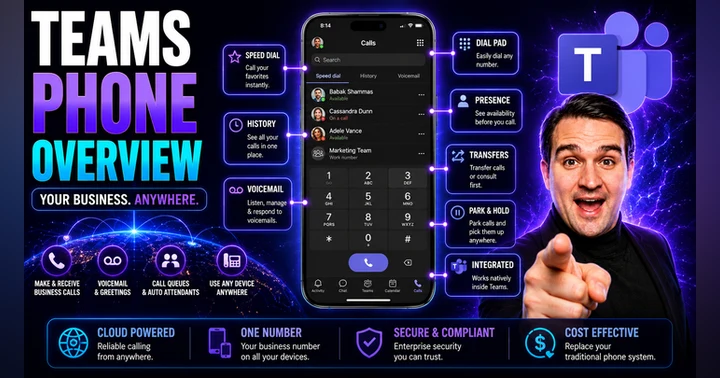
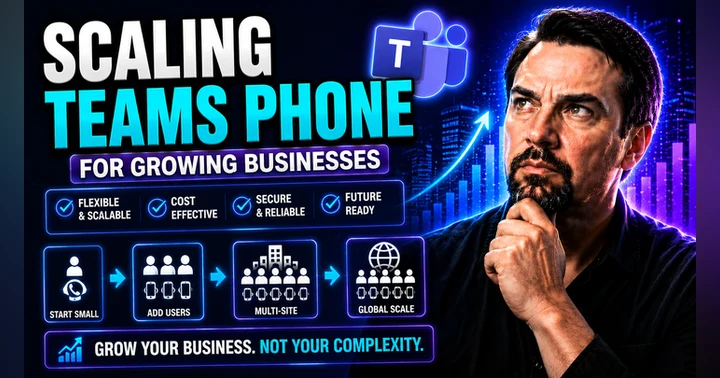
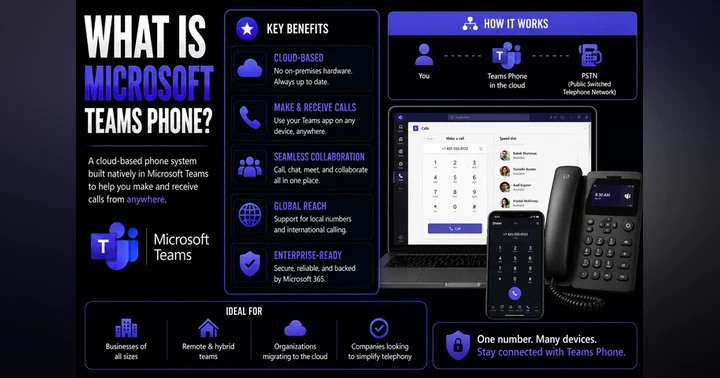
Teams Telephony, now known as Microsoft Teams Phone, transforms Microsoft Teams into a complete cloud-based business phone system. In this episode of Microsoft Knowledge Nuggets on M365 FM, Mirko Peters explains how organizations can replace traditional PBX systems with a modern, Microsoft 365-integrated telephony platform that supports internal collaboration and external voice calling from a single application.
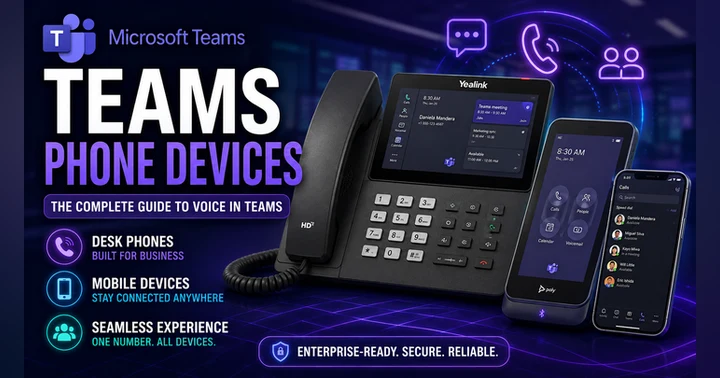
You'll learn how Teams Phone enables users to make and receive calls from desktops, mobile devices, Teams-certified desk phones, and meeting room systems while benefiting from enterprise-grade security, scalability, and centralized management. The episode explains the different connectivity options, including Microsoft Calling Plans, Operator Connect, and Direct Routing, helping listeners understand which approach best fits their business requirements.
The discussion also covers essential Teams Telephony features such as voicemail, call forwarding, Auto Attendants, Call Queues, presence integration, call transfers, and hybrid work support. Rather than treating voice as a separate communication platform, Teams Phone unifies chat, meetings, collaboration, and telephony into a single Microsoft 365 experience that improves productivity and simplifies IT administration.
Whether you're an IT administrator planning a telephony migration, a Microsoft partner designing modern workplace solutions, or a business leader evaluating cloud phone systems, this episode provides a practical introduction to Microsoft Teams Phone. Discover the licensing considerations, deployment options, best practices, and common implementation challenges to help your organization modernize enterprise communications with confidence.
Quick answer: Microsoft Teams Phone is the focus of this M365 FM episode, which explains what it does, where it fits in the Microsoft ecosystem, and the architecture, security, governance, or operational choices that matter before teams adopt or manage it.
In today's fast-paced business world, effective communication is essential. Microsoft Teams Telephony stands out as a cloud-based phone system that integrates seamlessly with Microsoft Teams. This innovative solution reshapes how you connect with colleagues and clients. Currently, 6% of businesses have adopted cloud-based phone systems like Teams Telephony. Before this technology, organizations faced significant challenges. Employees often dealt with call issues, poor network quality, and confusion from managing multiple phone numbers. With Teams Telephony, you can enhance your communication efficiency and keep your team connected, no matter where they are.
Key Takeaways
- Microsoft Teams Telephony is a cloud-based phone system that improves communication for businesses.
- It reduces costs by eliminating the need for expensive hardware and maintenance.
- Teams Telephony enhances security with features like end-to-end encryption to protect sensitive information.
- You can set up Teams Telephony easily by buying licenses and assigning phone numbers to users.
- The system allows you to make and receive calls from any internet-enabled device, making it perfect for remote work.
- Teams Telephony includes advanced features like voicemail transcription and intelligent call routing to streamline communication.
- Using Teams Telephony can lead to improved collaboration and productivity within your organization.
- Many businesses report significant savings and better communication after switching to Teams Telephony.
What Is Teams Telephony?
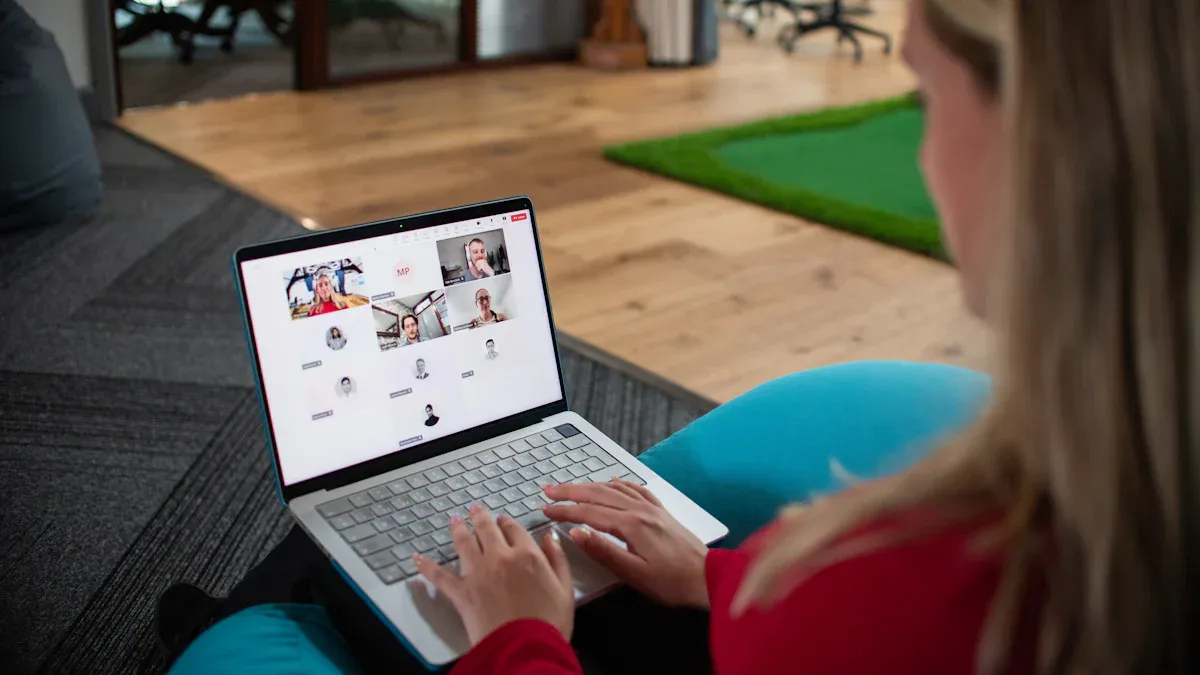
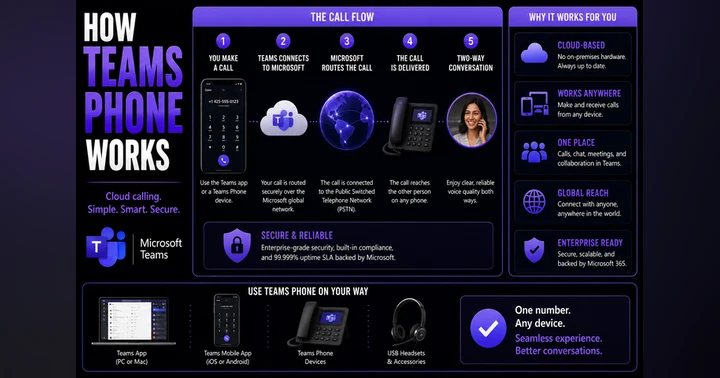
Microsoft Teams Telephony is a cloud-based phone system that revolutionizes how you communicate in your business. It replaces traditional PBX systems with a software-driven solution hosted in the cloud. This means you can make and receive calls using your business number from various internet-enabled devices, such as PCs, mobile phones, and tablets. The integration with Microsoft Teams enhances collaboration by combining internal communication with external telephony.
Benefits of Teams Telephony
Using Teams Telephony offers numerous advantages for your organization:
-
Cost Efficiency: Transitioning to Microsoft Teams Telephony significantly reduces expenses related to hardware and maintenance. You can allocate your budget more effectively while enjoying budget-friendly communication.
-
Enhanced Security: Microsoft prioritizes security with end-to-end encryption and compliance with regulations like HIPAA and GDPR. This ensures that your sensitive communications remain protected.
-
Flexibility in Communication: Teams Telephony allows you to access features globally. You can communicate seamlessly regardless of your location, making it ideal for remote work.
-
Simplified IT Management: By eliminating the need for on-premises telephony equipment, Teams Telephony simplifies your IT environment. You can manage everything through the Microsoft 365 administration portal, allowing you to provision new users in minutes.
-
Seamless Integration: Teams Telephony expands the voice capabilities of Microsoft Teams into a fully-fledged enterprise telephony system. You can make and receive calls, hold meetings, and manage contacts all within the same platform.
-
Advanced Features: Teams Telephony includes features such as call transfer, call queues, auto-attendants, voicemail, and music on hold. These tools enhance your communication workflows and improve customer experiences.
-
Support for Remote Collaboration: Unlike traditional phone systems, Teams Telephony integrates with the Microsoft ecosystem. This integration provides features that enhance collaboration, such as call data analytics and the ability to use your business phone number on any device.
Setting Up Microsoft Teams Phone System
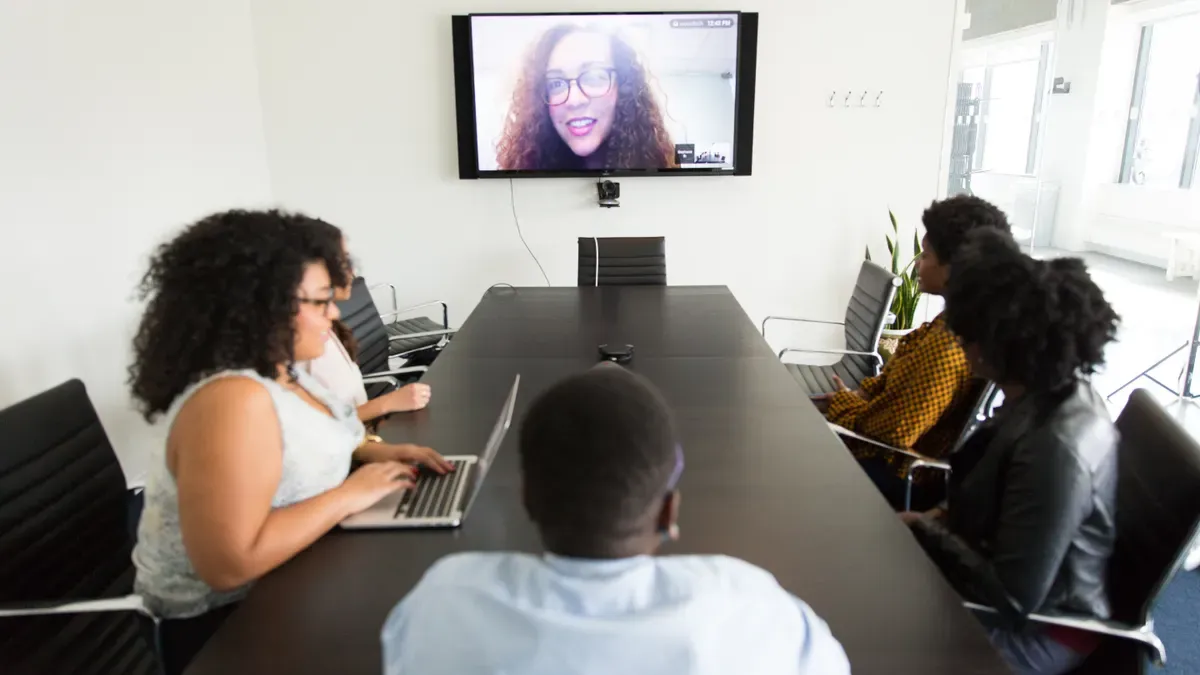
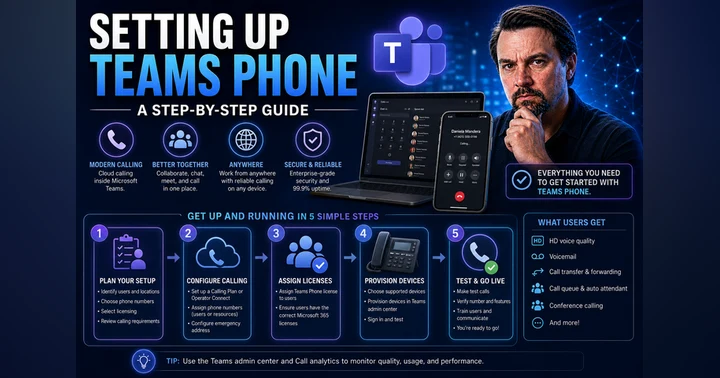
Setting up the Microsoft Teams Phone System is a straightforward process that allows you to enhance your business communication. Follow these steps to get started:
Initial Setup Steps
- Buy and assign a Teams Phone license for each user. This is essential for enabling calling features.
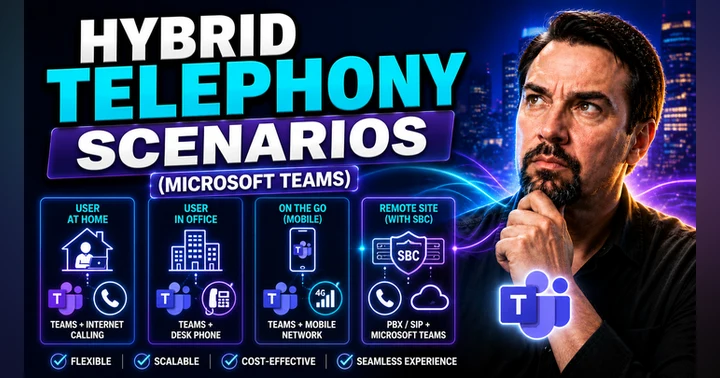
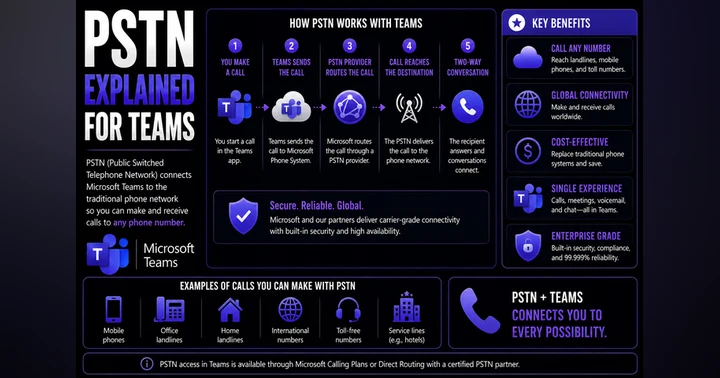
- Choose a PSTN connectivity option. You can select from Microsoft Calling Plan, Direct Routing, or Operator Connect based on your needs.
- Get and assign phone numbers for users and services. This step ensures that everyone can make and receive calls using their business numbers.
- Set up emergency calling with defined emergency locations. This is crucial for compliance and safety.
- If desired, set up an auto attendant for call navigation. This feature helps direct incoming calls efficiently.
- If desired, set up a call queue for managing incoming calls. This allows you to handle multiple calls without losing any.
- Finally, set up other Teams Phone features as needed. Customize the system to fit your organization's requirements.
Licensing Requirements
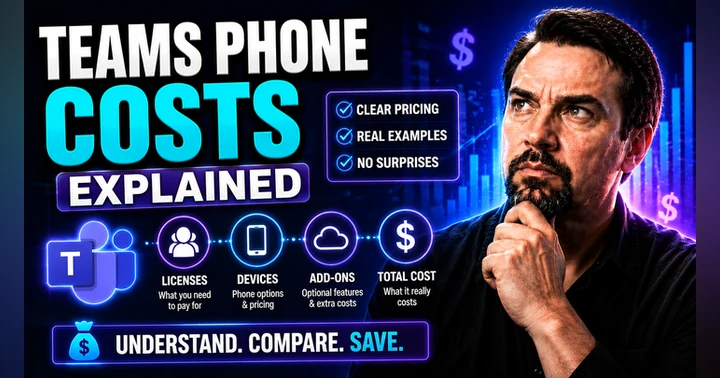
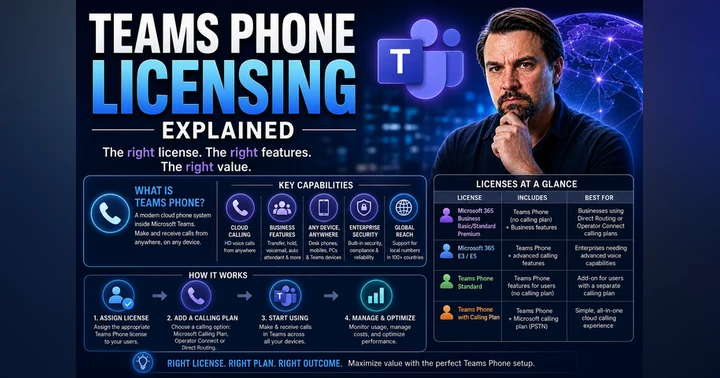
Before deploying the Microsoft Teams Phone System, you must meet certain licensing requirements. Each user needs a Microsoft 365 license. If you have Business Premium or E3 plans, you will also need an additional Teams Phone license for calling. The Teams Phone Standard license costs approximately $8 per user per month. Additionally, if you opt for the Microsoft Calling Plan, expect to pay an extra $12 to $18 per user per month for PSTN connectivity.
Here’s a quick overview of the different licenses you might need:
| License Type | Prerequisite License(s) |
|---|---|
| Microsoft Teams Phone Standard | Microsoft 365 Business Basic/Business Standard/Business Premium/F1/F3/E3/A3; Microsoft Teams EEA; Microsoft Teams Enterprise; Microsoft Teams Essentials (AAD Identity); Office 365 F3/E1/E3/A1/A3 |
| Microsoft Teams Phone Standard for Frontline Workers | Microsoft 365 F1/F3; Office 365 F3 |
| Microsoft Teams Phone with Calling Plan | Microsoft 365 Business Basic/Business Standard/Business Premium/F1/F3/E3/A3; Microsoft Teams EEA; Microsoft Teams Enterprise; Microsoft Teams Essentials (AAD Identity); Office 365 F3/E1/E3/A1/A3 |
You should also consider additional licenses for shared devices or resource accounts if you plan to use features like Auto Attendants and Call Queues.
By following these steps and understanding the licensing requirements, you can effectively set up the Microsoft Teams Phone System and enhance your organization's communication capabilities.
Making and Receiving Calls
With Microsoft Teams Telephony, you can easily make and receive calls from anywhere. This system offers several methods for initiating calls, ensuring you have flexibility in how you connect with others.
How to Make Calls
You can make calls in Microsoft Teams using various methods. Here are the main steps:
- Make a call from your voicemail: Access your voicemail via History and select Voicemail. Choose More actions next to a name to Call back.
- Make a call from your contacts: Go to Calls > View contacts and select Call next to a contact's name.
- Use the dial pad: Navigate to Calls, enter the number using the dial pad, and select Call.
- Hover over someone's profile picture: Hover over a profile picture to see options for video or audio calls.
- Use commands: Type /call in the search box, enter a name or number, and the call will start automatically.
These methods make it simple for you to connect with colleagues or clients, enhancing your communication experience.
How to Receive Calls
Receiving calls in Microsoft Teams Telephony is just as straightforward. The system provides several features to help you manage incoming calls effectively. Here’s a look at some key call handling features:
| Feature | Description |
|---|---|
| Advanced Routing | Route calls based on skills, business hours, holidays, or user presence with Teams-based logic. |
| Live Call Monitoring | Supervisors can listen, whisper, or barge into calls to support agents in real time. |
| Queue Management | Agents manage their queue availability through the app, and supervisors monitor queue health. |
| IVR Support | Set up smart call flows using no-code tools or JSON-based configurations. |
| Analytics & Reporting | Access insights on abandoned calls, average wait time, and agent performance. |
| Secure Call Recording | Record queue calls with secure Azure storage. |
| Contact Search and Presence | Instantly search and filter contacts, view availability, and transfer calls with a single click. |
| Call Summaries and Callback Reminders | Use AI prompts to auto-generate call summaries or action lists. |
| Customizable Layouts | Tailor the console to fit your workflow with multiple layout options. |
| Chat Consult Transfers | Transfer calls using adaptive cards that let recipients accept or reject transfers directly. |
| Accessibility Built-In | Full support for screen readers and keyboard navigation. |
These features ensure you can handle calls efficiently, whether you are in the office or working remotely. With Microsoft Teams Telephony, you can manage your communication seamlessly, making it easier to stay connected.
PSTN Options for Teams Telephony
When considering Microsoft Teams Telephony, you have several options for connecting to the Public Switched Telephone Network (PSTN). Each option offers unique benefits and caters to different organizational needs. Here’s a breakdown of the available PSTN options:
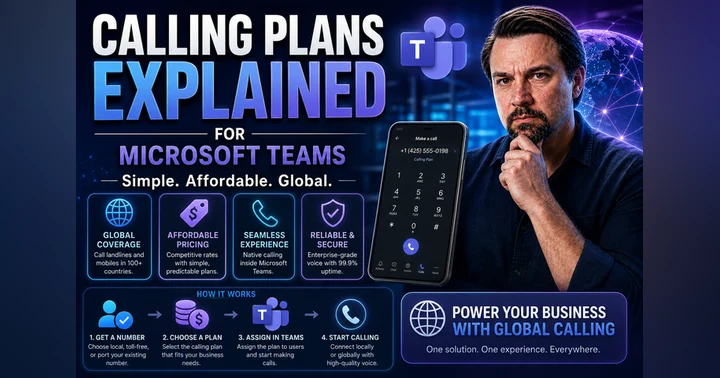
Microsoft Calling Plans
Microsoft Calling Plans provide a straightforward solution for businesses. With this option, Microsoft acts as the PSTN carrier, managing your phone numbers and calls.
-
Advantages:
- Simple setup process.
- No need to coordinate with multiple vendors.
- Fully managed by Microsoft, which simplifies management.
-
Disadvantages:
- Limited coverage in only 33 countries.
- Can be expensive for larger organizations needing many lines.
| Advantages | Disadvantages |
|---|---|
| Fully managed by Microsoft | Limited number availability in many countries |
| No own infrastructure needed | Higher cost per minute |
| Predictable costs | Less flexibility and control |
Direct Routing and Operator Connect
Direct Routing and Operator Connect offer more flexibility for organizations that want to use their existing telephony infrastructure or preferred providers.
-
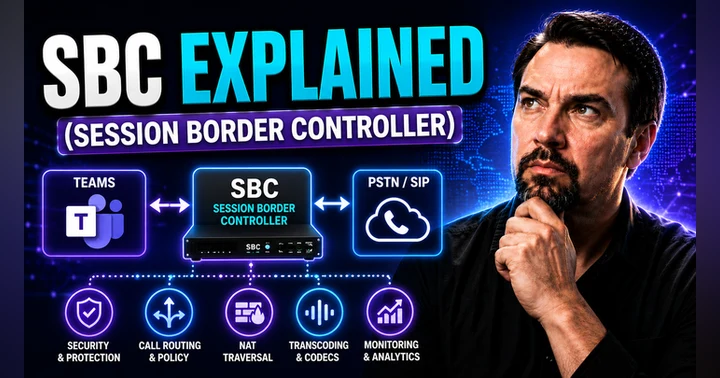
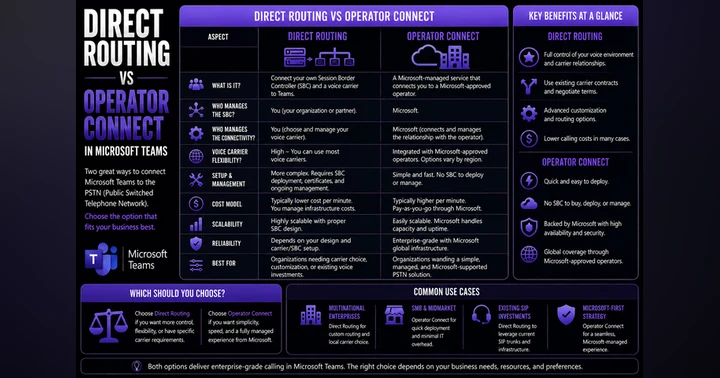
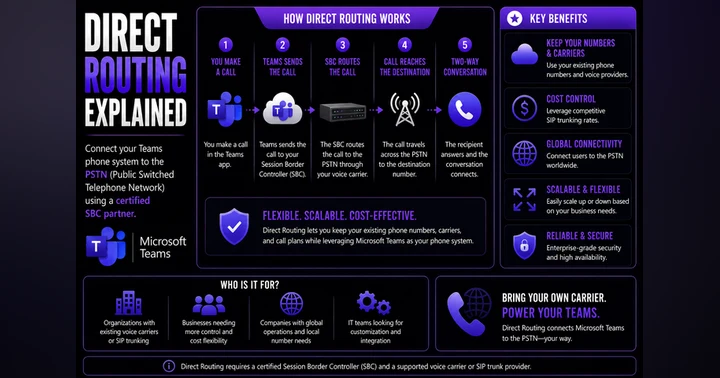
Direct Routing connects Microsoft Teams to the PSTN through your own Session Border Controller (SBC). This option provides high flexibility, allowing you to customize your telephony setup.
-
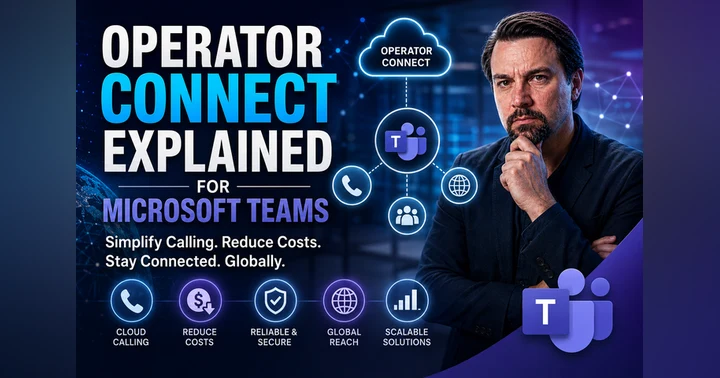
Operator Connect allows you to use existing PSTN providers with Teams. This option simplifies the process by letting certified providers connect directly to Microsoft Teams.
| Feature | Direct Routing | Operator Connect |
|---|---|---|
| Connection Method | Connect Teams with your own SBC | Microsoft-approved telecom providers connect directly |
| Management Responsibility | You manage SIP trunks, SBC, and voice routing policies | Providers handle routing; Teams admins assign policies |
| Flexibility | Full flexibility for advanced routing or hybrid setups | Simplicity and quick deployment |
| Best For | Enterprises needing full control and custom configurations | Organizations wanting simplicity and quick deployment |
According to recent statistics, 71.4% of Microsoft Teams Phone users prefer Direct Routing over Microsoft Calling Plans. This preference highlights the demand for flexibility and control in telephony systems.
Core Features of Microsoft Teams Phone
Microsoft Teams Phone offers a range of core features that enhance your communication experience. These features streamline call management and improve productivity, making it easier for you to connect with colleagues and clients.
Voicemail and Call Management
Voicemail in Microsoft Teams Phone goes beyond traditional systems. One standout feature is voicemail transcription. This feature automatically converts audio messages into text. You can read your messages instead of listening to them, which is especially useful in meetings or noisy environments. You can quickly scan for key details, such as names or phone numbers, without replaying the audio multiple times. This capability also creates a searchable record of your voicemails, making it easy to find important information later on.
In addition to voicemail transcription, Teams Phone provides robust call management features. Here are some key functionalities:
| Feature | Description |
|---|---|
| Call delegation | Share your phone line with others to make and receive calls on your behalf, with customizable notifications. |
| Integrated dial pad | Dial by name or number directly in the search bar, enhancing call efficiency. |
| External Caller ID | Displays detailed caller information from the corporate directory for internal calls, improving identification. |
| Device switching | Switch calls between devices seamlessly, enhancing mobility. |
| Presence-based call routing | Controls incoming communications based on your presence, allowing for selective blocking. |
These features ensure that you can manage your calls effectively, whether you are in the office or working remotely.
Intelligent Call Routing
Intelligent call routing is another powerful feature of Microsoft Teams Phone. This functionality allows you to direct incoming calls based on various criteria, such as user presence or specific business rules. You can set up routing options that prioritize calls to available team members, ensuring that customers receive timely responses.
Here are some additional features related to intelligent call routing:
- Call park and retrieve: Park calls and retrieve them using a unique code, allowing flexibility in call handling.
- Federated calling: Securely connect and collaborate with users in different organizations, expanding your communication capabilities.
- Video calling: Make face-to-face video calls if enabled, enhancing your communication experience.
With intelligent call routing, you can optimize your team's responsiveness and improve customer satisfaction.
Security is also a top priority in Microsoft Teams Phone. The system employs several measures to protect your call data:
- End-to-end encryption safeguards calls and messages in transit.
- Identity and access controls integrate with Azure AD for policy enforcement.
- Compliance tools support eDiscovery, retention, and regulatory standards like HIPAA and GDPR.
These security features ensure that your communications remain confidential and secure, allowing you to focus on your work without worrying about data breaches.
Comparing Teams Telephony with Other Solutions
When you consider telephony solutions for your business, understanding the differences between Microsoft Teams Telephony, traditional PBX systems, and other VoIP solutions is crucial. Each option has unique features that can impact your communication strategy.
Key Differences
Here’s a comparison of Microsoft Teams Telephony and traditional PBX systems:
| Feature | Microsoft Teams Phone | Traditional PBX Systems |
|---|---|---|
| Cost Efficiency | Reduces IT costs, no hardware required | High maintenance & hardware costs |
| Remote Access | Available on any device, anywhere | Limited to physical office phones |
| Call Management Automation | AI-powered call routing & transcription | Manual call handling |
| Security & Compliance | End-to-end encryption, HIPAA & GDPR compliant | Limited security features |
| Scalability | Easily adds new users & integrates with Microsoft 365 | Requires manual expansion & costly upgrades |
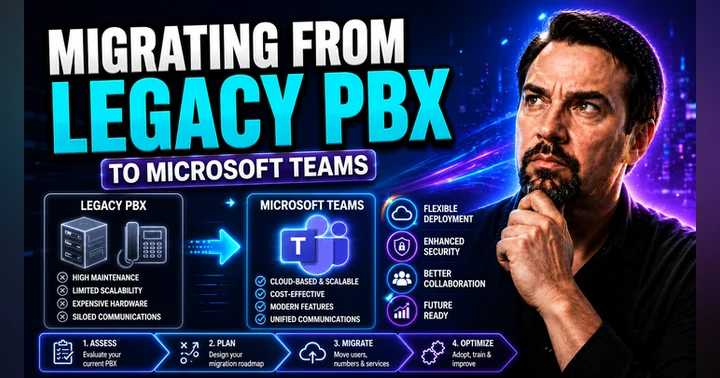
Cloud telephony represents a significant shift from traditional systems. It allows voice communication services to be delivered via the cloud. Unlike traditional PBX systems that require physical infrastructure, Teams Telephony operates through an off-site cloud-hosted PBX. This setup enables seamless call routing and configuration without the need for physical wires.
Pros and Cons
Pros of Microsoft Teams Telephony:
- Cost Savings: Many businesses report a 143% ROI after switching to Teams Telephony. You can save on equipment and maintenance costs. For example, one organization reduced its monthly phone bills from AUD $4,500 to approximately AUD $1,000.
- Scalability: You can create new business phone extensions in minutes. There’s no need to install new wiring or handsets.
- Collaboration: Teams Telephony enhances collaboration by enabling employees to communicate effectively from anywhere. This flexibility ensures that your team remains productive, regardless of location.
- Centralized Management: You can monitor and resolve issues from easy-to-use dashboards. This feature simplifies your communication infrastructure.
Cons of Microsoft Teams Telephony:
- Dependency on Internet: Since it relies on cloud calling, a stable internet connection is essential. Poor connectivity can disrupt communication.
- Learning Curve: Transitioning to a new system may require training for employees. Familiarizing your team with the new features can take time.
In contrast, traditional VoIP solutions often lack the seamless integration found in Teams Telephony. While they may offer basic voice calling capabilities, they do not provide the same level of collaboration tools or scalability.
Ultimately, choosing the right telephony solution depends on your business needs. Microsoft Teams Telephony stands out for its cost efficiency, flexibility, and integration with the Microsoft ecosystem, making it a strong contender in the modern communication landscape.
In summary, Microsoft Teams Telephony transforms how you communicate in your business. This cloud-based phone system enhances collaboration and streamlines workflows by integrating with Microsoft 365. You can enjoy features like voicemail transcription, mobile-first calling, and intelligent call routing.
Consider the benefits that many organizations have experienced. For instance, 75% of employees reported improved collaboration using Teams. Additionally, case studies show significant productivity increases, such as a 30% reduction in meeting times for a mid-sized marketing agency.
As you explore Microsoft Teams Telephony, you will find that it not only simplifies communication but also supports your team's needs in a flexible and secure manner.
FAQ
What is Microsoft Teams Telephony?
Microsoft Teams Telephony is a cloud-based phone system that integrates with Microsoft Teams. It allows you to make and receive calls using your business number from any internet-enabled device.
How do I set up Microsoft Teams Telephony?
To set up Microsoft Teams Telephony, you need to buy licenses, choose a PSTN option, assign phone numbers, and configure emergency calling. Follow the setup steps outlined in the blog for detailed guidance.
Can I use my existing phone numbers with Microsoft Teams Telephony?
Yes, you can use your existing phone numbers with Microsoft Teams Telephony through Direct Routing or Operator Connect. This flexibility allows you to retain your current numbers while enjoying new features.
What are the licensing requirements for Microsoft Teams Telephony?
Each user needs a Microsoft 365 license and an additional Teams Phone license. The Teams Phone Standard license costs around $8 per user per month, with additional fees for PSTN connectivity.
Is Microsoft Teams Telephony secure?
Yes, Microsoft Teams Telephony prioritizes security with end-to-end encryption and compliance with regulations like HIPAA and GDPR. These measures protect your sensitive communications.
Can I access Microsoft Teams Telephony on mobile devices?
Absolutely! Microsoft Teams Telephony works on various devices, including smartphones, tablets, and laptops. You can stay connected and make calls from anywhere.
What features does Microsoft Teams Telephony offer?
Microsoft Teams Telephony includes features like voicemail transcription, call queues, auto-attendants, and intelligent call routing. These tools enhance your communication workflows and improve customer experiences.
How does Microsoft Teams Telephony compare to traditional phone systems?
Microsoft Teams Telephony offers cost efficiency, flexibility, and seamless integration with Microsoft 365. Unlike traditional systems, it eliminates hardware costs and simplifies management through the cloud.
🎧 Listen to this episode
Want a practical explanation of Teams Telephony? This episode breaks down the topic in clear language and shows why it matters for Microsoft 365, Azure, Power Platform, security, AI, and modern work.
Listen to this episode if you want to:
- Understand the key concepts behind Teams Telephony
- See how it fits into the wider Microsoft technology ecosystem
- Learn where it can create practical value for your organization
You may also enjoy these related M365 FM episodes:
- ARM Templates vs Bicep: Why Azure Teams Are Switching
- Microsoft Teams Hidden Features with Josh Blalock [MVP]
- High-Stakes Hybrid Events with Microsoft Teams and Mesh
- From Microsoft Lync to Teams with Carsten Lund Meilbak [MVP]
- Microsoft Teams Governance with Entra ID as the Control Plane
Discover more practical Microsoft conversations on M365 FM.
Last reviewed: July 2026.
Who Should Listen
This episode is for Microsoft administrators, architects, developers, security professionals, and business leaders who need a practical foundation before making implementation or governance decisions.
🎧 You Should Also Listen To
- Azure Virtual Desktop — A closely related next step that adds useful context and practical depth.
- Microsoft Intune — A closely related next step that adds useful context and practical depth.
- Viva Connections — A closely related next step that adds useful context and practical depth.
🚀 Want to be part of m365.fm?
Then stop just listening… and start showing up.
👉 Connect with me on LinkedIn and let’s make something happen:
- 🎙️ Be a podcast guest and share your story
- 🎧 Host your own episode (yes, seriously)
- 💡 Pitch topics the community actually wants to hear
- 🌍 Build your personal brand in the Microsoft 365 space
This isn’t just a podcast — it’s a platform for people who take action.
🔥 Most people wait. The best ones don’t.
👉 Connect with me on LinkedIn and send me a message:
"I want in"
Let’s build something awesome 👊
1
00:00:00,000 --> 00:00:01,560
You've probably seen the phone icon in Teams
2
00:00:01,560 --> 00:00:03,400
and wondered if you can actually make a call from there.
3
00:00:03,400 --> 00:00:04,680
The answer is yes.
4
00:00:04,680 --> 00:00:06,840
And it's much more powerful than you might expect.
5
00:00:06,840 --> 00:00:08,760
By the end of this episode, you'll understand
6
00:00:08,760 --> 00:00:11,880
what Teams Telephony is, how it replaces your old office phone
7
00:00:11,880 --> 00:00:14,360
system, and the three main ways to connect it
8
00:00:14,360 --> 00:00:16,200
to the outside world.
9
00:00:16,200 --> 00:00:18,440
Traditional phone systems are expensive, complex,
10
00:00:18,440 --> 00:00:19,400
and tied to a desk.
11
00:00:19,400 --> 00:00:20,880
Teams Telephony changes all of that.
12
00:00:20,880 --> 00:00:24,200
It turns your laptop, phone, or tablet into your work phone,
13
00:00:24,200 --> 00:00:26,000
and it follows you wherever you go.
14
00:00:26,000 --> 00:00:28,720
We'll break it down into four building blocks, what it is,
15
00:00:28,720 --> 00:00:32,200
how it connects, what it costs, and what it can do for you.
16
00:00:32,200 --> 00:00:34,120
What Teams Telephony actually is.
17
00:00:34,120 --> 00:00:35,680
So what is Teams Telephony really?
18
00:00:35,680 --> 00:00:36,920
The simplest way to put it?
19
00:00:36,920 --> 00:00:38,760
It's a cloud-based phone system built
20
00:00:38,760 --> 00:00:40,200
right into Microsoft Teams.
21
00:00:40,200 --> 00:00:42,160
No separate hardware box, no tangled wires,
22
00:00:42,160 --> 00:00:43,800
no blinking lights on a server rack.
23
00:00:43,800 --> 00:00:44,800
It's all software.
24
00:00:44,800 --> 00:00:47,480
And that means you can get started in minutes, not days.
25
00:00:47,480 --> 00:00:49,680
Think of your old phone system like a private switchboard
26
00:00:49,680 --> 00:00:52,280
inside your office building, where every desk had a wire
27
00:00:52,280 --> 00:00:53,280
running back to that box.
28
00:00:53,280 --> 00:00:54,760
If you wanted to move someone's desk,
29
00:00:54,760 --> 00:00:56,440
you had to physically rewire things.
30
00:00:56,440 --> 00:00:58,160
Teams Telephony is that same switchboard,
31
00:00:58,160 --> 00:01:00,920
but it lives in Microsoft's cloud and follows you everywhere.
32
00:01:00,920 --> 00:01:03,880
Your phone number is no longer tied to a physical location.
33
00:01:03,880 --> 00:01:05,600
It's tied to you.
34
00:01:05,600 --> 00:01:06,800
The key point is this.
35
00:01:06,800 --> 00:01:09,200
Teams Telephony turns your laptop, smartphone,
36
00:01:09,200 --> 00:01:10,760
or tablet into your work phone.
37
00:01:10,760 --> 00:01:12,360
Same number on every device.
38
00:01:12,360 --> 00:01:14,000
So when someone calls your office number,
39
00:01:14,000 --> 00:01:16,400
it rings on whichever device you're signed into.
40
00:01:16,400 --> 00:01:17,960
You don't need a physical desk phone anymore.
41
00:01:17,960 --> 00:01:19,000
Why does this matter?
42
00:01:19,000 --> 00:01:22,160
Because you're not stuck at your desk to take business calls.
43
00:01:22,160 --> 00:01:24,880
You can work from home, from a coffee shop, from a client's office,
44
00:01:24,880 --> 00:01:26,200
and your phone goes with you.
45
00:01:26,200 --> 00:01:28,760
No call fording to set up, no separate apps to juggle.
46
00:01:28,760 --> 00:01:30,280
It's all built into Teams.
47
00:01:30,280 --> 00:01:31,640
Let me give you a concrete example.
48
00:01:31,640 --> 00:01:34,800
Imagine you're working from home and someone calls your office number.
49
00:01:34,800 --> 00:01:37,160
It rings on your laptop, you answer with your headset,
50
00:01:37,160 --> 00:01:37,960
and that's it.
51
00:01:37,960 --> 00:01:39,320
No forwarding, no hassle.
52
00:01:39,320 --> 00:01:41,200
The caller has no idea you're not at your desk.
53
00:01:41,200 --> 00:01:42,280
And if you need to step away,
54
00:01:42,280 --> 00:01:44,040
you can transfer the call to your smartphone
55
00:01:44,040 --> 00:01:45,960
and keep talking while you walk to the kitchen.
56
00:01:45,960 --> 00:01:48,600
So whether you're at home in the office or on the go,
57
00:01:48,600 --> 00:01:50,320
your work phone is always with you.
58
00:01:50,320 --> 00:01:51,480
What does this mean for you?
59
00:01:51,480 --> 00:01:53,760
Your phone is now an app that's always with you,
60
00:01:53,760 --> 00:01:54,760
working the same way,
61
00:01:54,760 --> 00:01:57,640
whether you're at your desk in a meeting room or on the road.
62
00:01:57,640 --> 00:02:01,480
The same dial pad, contacts, and call history, all inside Teams.
63
00:02:01,480 --> 00:02:02,840
That's the beauty of it, right?
64
00:02:02,840 --> 00:02:05,080
How it replaces a traditional PBX?
65
00:02:05,080 --> 00:02:07,880
So how does Teams actually replace the phone system's businesses
66
00:02:07,880 --> 00:02:09,280
have used for decades?
67
00:02:09,280 --> 00:02:11,560
Let me walk you through the old way first.
68
00:02:11,560 --> 00:02:14,240
20 years ago, buying a business phone system
69
00:02:14,240 --> 00:02:16,840
meant getting a big black box called a PBX,
70
00:02:16,840 --> 00:02:19,400
private branch exchange, that sat in a closet
71
00:02:19,400 --> 00:02:21,520
and routed calls through copper wires.
72
00:02:21,520 --> 00:02:24,640
Every desk phone had to be physically wired back to that box.
73
00:02:24,640 --> 00:02:27,080
VoiceMail was a separate system with its own tapes
74
00:02:27,080 --> 00:02:29,560
or digital storage and adding a new employee
75
00:02:29,560 --> 00:02:32,160
meant calling the phone company, waiting for a technician
76
00:02:32,160 --> 00:02:34,000
and paying for installation.
77
00:02:34,000 --> 00:02:37,240
That whole setup was expensive to buy, costly to maintain,
78
00:02:37,240 --> 00:02:38,680
and pricey to upgrade.
79
00:02:38,680 --> 00:02:40,760
The old way required a phone line for every desk,
80
00:02:40,760 --> 00:02:43,160
a separate system for VoiceMail and a technician
81
00:02:43,160 --> 00:02:46,280
for even simple changes like moving a phone.
82
00:02:46,280 --> 00:02:49,000
When the hardware aged out every five to seven years,
83
00:02:49,000 --> 00:02:51,760
you had to replace the whole thing at significant cost.
84
00:02:51,760 --> 00:02:53,920
Teams Telephone does all of that in software.
85
00:02:53,920 --> 00:02:56,080
There's no box, no wires, and you don't need a technician
86
00:02:56,080 --> 00:02:57,040
for simple changes.
87
00:02:57,040 --> 00:03:00,160
Microsoft runs the switchboard in their cloud data centers
88
00:03:00,160 --> 00:03:01,680
so you just need an internet connection
89
00:03:01,680 --> 00:03:03,160
and a license for each user.
90
00:03:03,160 --> 00:03:03,920
That's it.
91
00:03:03,920 --> 00:03:06,840
Let me explain the cloud PBX concept in simple terms.
92
00:03:06,840 --> 00:03:09,120
Instead of buying and maintaining your own switchboard
93
00:03:09,120 --> 00:03:12,160
in the office, you're renting a spot on Microsoft switchboard.
94
00:03:12,160 --> 00:03:13,480
They handle the complicated stuff
95
00:03:13,480 --> 00:03:15,960
like rooting, redundancy, and security updates.
96
00:03:15,960 --> 00:03:18,360
You just tell them which users get which numbers
97
00:03:18,360 --> 00:03:20,120
and everything else happens automatically.
98
00:03:20,120 --> 00:03:22,200
For small businesses, this is huge.
99
00:03:22,200 --> 00:03:24,880
You get enterprise grade features without the enterprise-sized
100
00:03:24,880 --> 00:03:26,480
price tag or complexity.
101
00:03:26,480 --> 00:03:28,640
A five-person company can have the same phone system
102
00:03:28,640 --> 00:03:31,080
capabilities as a 5,000-person company,
103
00:03:31,080 --> 00:03:34,440
auto-attendance, call-cuse, VoiceMail with transcription,
104
00:03:34,440 --> 00:03:38,040
all that used to cost thousands in add-on hardware are just included.
105
00:03:38,040 --> 00:03:39,280
Here's a concrete example.
106
00:03:39,280 --> 00:03:41,960
Adding a new employee used to mean ordering a new phone line
107
00:03:41,960 --> 00:03:44,720
from your carrier, waiting days or weeks for installation,
108
00:03:44,720 --> 00:03:47,000
and having a technician configure the PBX.
109
00:03:47,000 --> 00:03:49,520
With Teams, you assign a phone license and a phone number
110
00:03:49,520 --> 00:03:50,640
in the admin center.
111
00:03:50,640 --> 00:03:52,520
It takes about five minutes and the new employee
112
00:03:52,520 --> 00:03:54,760
signs into Teams to find their phone working.
113
00:03:54,760 --> 00:03:57,120
What this means for you is that your phone system scales
114
00:03:57,120 --> 00:03:58,000
with your business.
115
00:03:58,000 --> 00:04:00,640
You can add users instantly and remove them just as fast
116
00:04:00,640 --> 00:04:02,640
with no hardware to buy or replace.
117
00:04:02,640 --> 00:04:04,440
If you grow from 10 people to 50,
118
00:04:04,440 --> 00:04:07,880
you don't need a bigger box in the closet, just more licenses.
119
00:04:07,880 --> 00:04:10,280
The three ways to connect to the phone network.
120
00:04:10,280 --> 00:04:12,600
Now here's the part that confuses most people.
121
00:04:12,600 --> 00:04:14,920
How does Teams actually connect to the outside world?
122
00:04:14,920 --> 00:04:15,880
There are three ways.
123
00:04:15,880 --> 00:04:16,720
Here's the problem.
124
00:04:16,720 --> 00:04:19,240
Teams handles internal calls between people in your company
125
00:04:19,240 --> 00:04:19,920
for free.
126
00:04:19,920 --> 00:04:21,760
If you're both on Teams, you can call each other
127
00:04:21,760 --> 00:04:22,880
without extra cost.
128
00:04:22,880 --> 00:04:24,520
But to call a regular phone number,
129
00:04:24,520 --> 00:04:27,000
like a customer's mobile or a supplier's landline,
130
00:04:27,000 --> 00:04:29,200
you need a connection to the public telephone network.
131
00:04:29,200 --> 00:04:32,160
That's the network every phone in the world is connected to.
132
00:04:32,160 --> 00:04:33,840
And Microsoft gives you three choices
133
00:04:33,840 --> 00:04:34,960
for how to get there.
134
00:04:34,960 --> 00:04:37,160
First option is Microsoft calling plans.
135
00:04:37,160 --> 00:04:38,840
This is the simplest approach.
136
00:04:38,840 --> 00:04:42,200
You buy phone numbers and calling minutes directly from Microsoft
137
00:04:42,200 --> 00:04:43,720
and they handle everything.
138
00:04:43,720 --> 00:04:45,640
You don't need to talk to your phone carrier at all.
139
00:04:45,640 --> 00:04:48,240
The cost runs about $8 to $15 per user per month,
140
00:04:48,240 --> 00:04:49,360
depending on the plan.
141
00:04:49,360 --> 00:04:51,040
But it's not available everywhere.
142
00:04:51,040 --> 00:04:53,240
Microsoft calling plans only work in certain countries.
143
00:04:53,240 --> 00:04:55,280
So if you have offices in places where Microsoft
144
00:04:55,280 --> 00:04:57,560
doesn't offer the service, you'll need another option.
145
00:04:57,560 --> 00:04:59,400
Second option is operator connect.
146
00:04:59,400 --> 00:05:01,360
This is where you keep your existing phone carrier,
147
00:05:01,360 --> 00:05:02,760
but they connect directly into Teams
148
00:05:02,760 --> 00:05:04,320
with no extra hardware needed.
149
00:05:04,320 --> 00:05:06,600
Your carrier manages the connection on their end.
150
00:05:06,600 --> 00:05:07,920
Think of it as your phone company
151
00:05:07,920 --> 00:05:10,560
plugging their service straight into Microsoft system.
152
00:05:10,560 --> 00:05:11,720
This is becoming more popular
153
00:05:11,720 --> 00:05:14,160
because it gives you the simplicity of a managed service
154
00:05:14,160 --> 00:05:15,920
while keeping your existing carrier.
155
00:05:15,920 --> 00:05:18,400
Many major phone companies now offer operator connect,
156
00:05:18,400 --> 00:05:20,040
so it's worth asking yours.
157
00:05:20,040 --> 00:05:22,560
Third option is direct routing.
158
00:05:22,560 --> 00:05:25,040
The most flexible approach, but also the most technical.
159
00:05:25,040 --> 00:05:26,960
You use your own equipment, a device called
160
00:05:26,960 --> 00:05:29,000
a session, border controller or SBC
161
00:05:29,000 --> 00:05:30,960
to connect your existing phone lines to Teams.
162
00:05:30,960 --> 00:05:32,680
You manage the connection yourself
163
00:05:32,680 --> 00:05:34,360
or your IT partner does it for you.
164
00:05:34,360 --> 00:05:35,560
This gives you the most control
165
00:05:35,560 --> 00:05:37,360
and it's often the cheapest option
166
00:05:37,360 --> 00:05:38,640
if you already have phone lines
167
00:05:38,640 --> 00:05:40,280
and just want to connect them to Teams.
168
00:05:40,280 --> 00:05:42,400
But it requires someone who knows what they're doing
169
00:05:42,400 --> 00:05:43,200
to set it up.
170
00:05:43,200 --> 00:05:44,240
Here's an analogy.
171
00:05:44,240 --> 00:05:46,960
Calling plans is like buying a prepaid phone from Microsoft.
172
00:05:46,960 --> 00:05:48,520
Simple and everything's included,
173
00:05:48,520 --> 00:05:50,360
but you're limited to what Microsoft offers.
174
00:05:50,360 --> 00:05:52,640
Operator connect is like keeping your current carrier
175
00:05:52,640 --> 00:05:54,400
but plugging them into Teams.
176
00:05:54,400 --> 00:05:56,120
Your carrier handles the connection
177
00:05:56,120 --> 00:05:57,800
and you just use the service.
178
00:05:57,800 --> 00:05:59,680
Direct routing is like building your own bridge
179
00:05:59,680 --> 00:06:01,760
between your existing phone lines and Teams.
180
00:06:01,760 --> 00:06:03,920
It takes more work, but you get exactly what you want.
181
00:06:03,920 --> 00:06:04,760
Why does this matter?
182
00:06:04,760 --> 00:06:06,520
Because you're not locked into one approach.
183
00:06:06,520 --> 00:06:08,120
You can choose based on your budget,
184
00:06:08,120 --> 00:06:10,360
your location and your existing contracts.
185
00:06:10,360 --> 00:06:11,600
A small business in the US
186
00:06:11,600 --> 00:06:14,320
might use Microsoft calling plans for simplicity.
187
00:06:14,320 --> 00:06:16,320
A global company with offices in multiple countries
188
00:06:16,320 --> 00:06:18,480
might use Operator Connect to keep local carriers
189
00:06:18,480 --> 00:06:20,840
in each region and a company that already has phone lines
190
00:06:20,840 --> 00:06:22,360
and a good relationship with their carrier
191
00:06:22,360 --> 00:06:24,280
might choose direct routing to save money.
192
00:06:24,280 --> 00:06:26,640
What this means for you is that you have options.
193
00:06:26,640 --> 00:06:28,680
Don't let the technical names scare you.
194
00:06:28,680 --> 00:06:30,640
Your IT partner or Microsoft reseller
195
00:06:30,640 --> 00:06:33,240
can help pick the right one based on your situation.
196
00:06:33,240 --> 00:06:34,480
You don't need to become an expert
197
00:06:34,480 --> 00:06:36,080
on session border controllers.
198
00:06:36,080 --> 00:06:38,720
You just need to know that the options exist.
199
00:06:38,720 --> 00:06:40,960
Licensing and costs simplified.
200
00:06:40,960 --> 00:06:42,880
So you know what it is and how it connects.
201
00:06:42,880 --> 00:06:44,280
Next question everyone asks,
202
00:06:44,280 --> 00:06:45,960
how much does it actually cost?
203
00:06:45,960 --> 00:06:46,920
Here's the good news.
204
00:06:46,920 --> 00:06:48,960
If you already have Microsoft 365,
205
00:06:48,960 --> 00:06:50,880
your part way there because teams is included
206
00:06:50,880 --> 00:06:53,200
in your subscription, but telephony is an add-on,
207
00:06:53,200 --> 00:06:55,400
and you need two pieces to make it work.
208
00:06:55,400 --> 00:06:57,120
First you need a team's phone license
209
00:06:57,120 --> 00:06:58,800
which unlocks the phone system features
210
00:06:58,800 --> 00:07:01,320
like making and receiving calls, setting up auto-attendance
211
00:07:01,320 --> 00:07:06,080
and using voicemail and that costs about $8 to $10 per user per month.
212
00:07:06,080 --> 00:07:08,440
Second you need a way to connect to the phone network,
213
00:07:08,440 --> 00:07:10,480
which is one of the three options we just talked about.
214
00:07:10,480 --> 00:07:12,520
So the total cost is the phone license
215
00:07:12,520 --> 00:07:14,400
plus the calling plan or connection.
216
00:07:14,400 --> 00:07:16,160
Let me break down the pricing a little more.
217
00:07:16,160 --> 00:07:19,200
Teams phone standard costs about $10 per user per month
218
00:07:19,200 --> 00:07:21,080
and gives you all the PBX features.
219
00:07:21,080 --> 00:07:22,800
Then you add a calling plan on top of that
220
00:07:22,800 --> 00:07:25,120
which runs $8 to $15 per user per month
221
00:07:25,120 --> 00:07:26,800
depending on how many minutes you need
222
00:07:26,800 --> 00:07:29,720
or you can use operator connect or direct routing
223
00:07:29,720 --> 00:07:31,240
which is often cheaper per minute
224
00:07:31,240 --> 00:07:32,960
but has different pricing structures.
225
00:07:32,960 --> 00:07:34,920
How does this compare to a traditional phone system?
226
00:07:34,920 --> 00:07:39,280
A typical on-premise PBX costs about $15 to $25 per user per month
227
00:07:39,280 --> 00:07:41,600
when you factor in hardware, maintenance contracts
228
00:07:41,600 --> 00:07:44,040
and phone lines and that's just the recurring cost
229
00:07:44,040 --> 00:07:46,080
because you also have to buy the hardware upfront
230
00:07:46,080 --> 00:07:48,000
which could be thousands of dollars.
231
00:07:48,000 --> 00:07:50,600
Teams phone is often 30 to 60% cheaper than that
232
00:07:50,600 --> 00:07:54,560
so if you're spending $20 per user per month on your old system
233
00:07:54,560 --> 00:07:58,960
you might end up spending 10 to $14 per user per month with Teams.
234
00:07:58,960 --> 00:08:01,000
But here's something you need to watch out for.
235
00:08:01,000 --> 00:08:03,160
The real world cost can be two to three times
236
00:08:03,160 --> 00:08:06,680
the headline license price once you add calling minutes and support.
237
00:08:06,680 --> 00:08:08,320
So don't just look at the $10 number
238
00:08:08,320 --> 00:08:10,240
and assume that's your total cost.
239
00:08:10,240 --> 00:08:11,800
You need to factor in the calling plan
240
00:08:11,800 --> 00:08:14,160
any international calling and the cost of support
241
00:08:14,160 --> 00:08:15,280
if you're working with a partner.
242
00:08:15,280 --> 00:08:17,520
So get a full quote before you make a decision.
243
00:08:17,520 --> 00:08:19,120
Let me give you a concrete example.
244
00:08:19,120 --> 00:08:23,840
For a 10 person company, Teams phone might cost $150 to $250
245
00:08:23,840 --> 00:08:27,240
per month total for phone licenses plus a calling plan
246
00:08:27,240 --> 00:08:29,680
while a traditional PBX for the same company
247
00:08:29,680 --> 00:08:32,920
could easily cost $300 to $500 per month.
248
00:08:32,920 --> 00:08:34,960
Plus you had to buy the hardware upfront
249
00:08:34,960 --> 00:08:36,560
so you're saving money from day one
250
00:08:36,560 --> 00:08:39,400
and you never have to replace expensive hardware again.
251
00:08:39,400 --> 00:08:41,080
What this means for you is that it's almost certainly
252
00:08:41,080 --> 00:08:42,320
cheaper than what you're paying now,
253
00:08:42,320 --> 00:08:43,720
but get a full quote and don't forget
254
00:08:43,720 --> 00:08:45,560
to factor in the cost of your internet connection
255
00:08:45,560 --> 00:08:47,800
because Teams phone needs good internet to work well.
256
00:08:47,800 --> 00:08:50,000
And if your internet is slow or unreliable,
257
00:08:50,000 --> 00:08:52,120
you might need to upgrade that too.
258
00:08:52,120 --> 00:08:53,680
Features that matter to you.
259
00:08:53,680 --> 00:08:56,480
OK, so it's cheaper and simpler, but what can it actually do?
260
00:08:56,480 --> 00:08:58,320
Let's talk about the features that matter.
261
00:08:58,320 --> 00:08:59,680
The basics are straightforward.
262
00:08:59,680 --> 00:09:01,680
You can make and receive calls, transfer calls,
263
00:09:01,680 --> 00:09:04,960
put calls on hold and see your call history all inside Teams.
264
00:09:04,960 --> 00:09:07,080
Nothing complicated there, but the features
265
00:09:07,080 --> 00:09:08,800
that really make a difference are the ones
266
00:09:08,800 --> 00:09:10,360
that used to cost you extra money.
267
00:09:11,120 --> 00:09:13,360
Voice mail with transcription is a good example.
268
00:09:13,360 --> 00:09:14,600
When someone leaves a message,
269
00:09:14,600 --> 00:09:16,640
you get a written transcript right in your Teams chat
270
00:09:16,640 --> 00:09:18,440
so you can read it instantly instead of dialing
271
00:09:18,440 --> 00:09:21,040
into a voice mail box and listening through prompts.
272
00:09:21,040 --> 00:09:22,600
And if you want to hear the actual recording,
273
00:09:22,600 --> 00:09:24,600
you can play it back with one click.
274
00:09:24,600 --> 00:09:26,680
But most of the time, the transcript is enough
275
00:09:26,680 --> 00:09:28,880
because you know who called and what they wanted
276
00:09:28,880 --> 00:09:31,080
without ever listening to a message.
277
00:09:31,080 --> 00:09:33,160
Auto attendance are another big one.
278
00:09:33,160 --> 00:09:34,760
Think of it as a virtual receptionist
279
00:09:34,760 --> 00:09:37,000
that greets callers and roots them to the right place,
280
00:09:37,000 --> 00:09:40,080
like press one for sales, press two for support.
281
00:09:40,080 --> 00:09:41,920
You don't need a human being to answer the phone
282
00:09:41,920 --> 00:09:44,080
because the system handles it automatically based
283
00:09:44,080 --> 00:09:46,760
on the time of day, the day of the week, even holidays.
284
00:09:46,760 --> 00:09:48,160
And if your office is closed,
285
00:09:48,160 --> 00:09:50,240
the auto attendant can play a different greeting
286
00:09:50,240 --> 00:09:52,280
and offer to take a message.
287
00:09:52,280 --> 00:09:54,400
All of this used to require expensive hardware
288
00:09:54,400 --> 00:09:57,360
or a third party service, but now it's just a setting in Teams.
289
00:09:57,360 --> 00:10:00,200
Call Q's work hand in hand with auto attendants.
290
00:10:00,200 --> 00:10:02,120
When someone presses one for sales,
291
00:10:02,120 --> 00:10:03,320
the call goes into a queue
292
00:10:03,320 --> 00:10:05,960
and rings the first available person in the sales team.
293
00:10:05,960 --> 00:10:07,720
And if everyone's busy, the caller
294
00:10:07,720 --> 00:10:09,960
he has music or a message while they wait
295
00:10:09,960 --> 00:10:12,120
while the system distributes calls evenly
296
00:10:12,120 --> 00:10:15,280
so nobody gets overwhelmed, perfect for support teams,
297
00:10:15,280 --> 00:10:18,720
reception desks or any group that handles incoming calls.
298
00:10:18,720 --> 00:10:21,440
Delegation is a feature that assistants love.
299
00:10:21,440 --> 00:10:23,360
An assistant can make and receive calls
300
00:10:23,360 --> 00:10:24,720
on behalf of a manager.
301
00:10:24,720 --> 00:10:27,360
And when they call out, it shows up as the manager's number.
302
00:10:27,360 --> 00:10:29,640
So if a client calls back, they reach the manager,
303
00:10:29,640 --> 00:10:30,640
not the assistant.
304
00:10:30,640 --> 00:10:33,240
And it's a simple thing, but it makes a huge difference
305
00:10:33,240 --> 00:10:35,240
in how professional your company sounds.
306
00:10:35,240 --> 00:10:36,560
Call Park is one of those features
307
00:10:36,560 --> 00:10:38,640
you don't know you need until you use it.
308
00:10:38,640 --> 00:10:41,360
You put a call on hold, the system gives you a code,
309
00:10:41,360 --> 00:10:43,840
you walk to another room, pick up a different phone,
310
00:10:43,840 --> 00:10:46,240
enter the code and the call connects.
311
00:10:46,240 --> 00:10:47,840
Great for moving between meeting rooms
312
00:10:47,840 --> 00:10:49,400
or handing off a call to a colleague
313
00:10:49,400 --> 00:10:51,160
in another part of the building.
314
00:10:51,160 --> 00:10:52,760
And then there's presence integration.
315
00:10:52,760 --> 00:10:55,320
You can see if someone is on a call before you call them
316
00:10:55,320 --> 00:10:58,640
because their status shows in a call right next to their name
317
00:10:58,640 --> 00:11:00,320
so you know not to interrupt.
318
00:11:00,320 --> 00:11:02,640
And it reduces the number of times you call someone
319
00:11:02,640 --> 00:11:04,280
only to get sent to voicemail
320
00:11:04,280 --> 00:11:07,000
because they're already talking to someone else.
321
00:11:07,000 --> 00:11:08,280
Why does all this matter?
322
00:11:08,280 --> 00:11:11,080
Because these features used to require expensive add-ons
323
00:11:11,080 --> 00:11:12,720
or completely separate systems.
324
00:11:12,720 --> 00:11:14,720
Auto-attendants were a separate product.
325
00:11:14,720 --> 00:11:16,920
voicemail transcription was a premium service.
326
00:11:16,920 --> 00:11:19,000
Call Q's required special hardware,
327
00:11:19,000 --> 00:11:20,960
but now they're all built into Teams phone
328
00:11:20,960 --> 00:11:23,040
and you don't pay extra for them.
329
00:11:23,040 --> 00:11:24,760
Let me give you a concrete example.
330
00:11:24,760 --> 00:11:26,360
A small law firm with three lawyers
331
00:11:26,360 --> 00:11:28,720
can set up an auto-attendant for their main number
332
00:11:28,720 --> 00:11:30,800
where callers press one to reach the first lawyer
333
00:11:30,800 --> 00:11:32,800
two for the second, three for the third.
334
00:11:32,800 --> 00:11:34,040
And if nobody answers the call,
335
00:11:34,040 --> 00:11:36,040
goes to voicemail and the lawyer gets a transcript
336
00:11:36,040 --> 00:11:37,440
in their Teams chat.
337
00:11:37,440 --> 00:11:38,920
And they can call back from their laptop
338
00:11:38,920 --> 00:11:40,680
or their phone with no receptionist needed,
339
00:11:40,680 --> 00:11:43,040
no extra hardware, no separate voicemail system.
340
00:11:43,040 --> 00:11:44,880
Everything works inside the app they already use
341
00:11:44,880 --> 00:11:46,240
for email and meetings.
342
00:11:46,240 --> 00:11:48,480
What this means for you is that you get a professional phone
343
00:11:48,480 --> 00:11:50,280
system without the professional price tag.
344
00:11:50,280 --> 00:11:52,560
Small businesses can sound like large enterprises
345
00:11:52,560 --> 00:11:55,360
and it all works inside the app you already use.
346
00:11:55,360 --> 00:11:57,160
Security and reliability.
347
00:11:57,160 --> 00:11:59,600
Now let's talk about something that worries people.
348
00:11:59,600 --> 00:12:01,320
Security and reliability.
349
00:12:01,320 --> 00:12:03,680
Moving your phone system to the cloud sounds risky.
350
00:12:03,680 --> 00:12:04,680
What if it goes down?
351
00:12:04,680 --> 00:12:06,320
What if someone eavesdrops on your calls?
352
00:12:06,320 --> 00:12:08,960
Those are fair questions and here's how Microsoft handles them.
353
00:12:08,960 --> 00:12:10,000
Start with encryption.
354
00:12:10,000 --> 00:12:12,840
Every call made through Teams is encrypted in transit.
355
00:12:12,840 --> 00:12:14,680
That means the audio is scrambled as it travels
356
00:12:14,680 --> 00:12:16,880
between you and the person you're talking to
357
00:12:16,880 --> 00:12:18,400
using the same security standards
358
00:12:18,400 --> 00:12:19,560
that online banking users.
359
00:12:19,560 --> 00:12:22,920
For one to one calls, you can even enable end-to-end encryption.
360
00:12:22,920 --> 00:12:24,920
The audio is encrypted on your device
361
00:12:24,920 --> 00:12:27,000
and decrypted only on the other person's device.
362
00:12:27,000 --> 00:12:28,920
So no one, not even Microsoft can listen in.
363
00:12:28,920 --> 00:12:30,400
Uptime is another big concern.
364
00:12:30,400 --> 00:12:34,240
Microsoft guarantees 99.99% uptime for Teams phone,
365
00:12:34,240 --> 00:12:36,960
which works out to less than five minutes of downtime per year.
366
00:12:36,960 --> 00:12:37,800
Five minutes.
367
00:12:37,800 --> 00:12:39,760
Most on-premise phone systems can't match that
368
00:12:39,760 --> 00:12:41,760
because they depend on a single box in your office.
369
00:12:41,760 --> 00:12:44,880
If that box fails, your phones are down until someone fixes it.
370
00:12:44,880 --> 00:12:48,560
With Teams, Microsoft runs multiple data centers around the world.
371
00:12:48,560 --> 00:12:51,160
If one goes down, another takes over automatically.
372
00:12:51,160 --> 00:12:53,280
Identity protection is built into Teams users
373
00:12:53,280 --> 00:12:55,880
your Microsoft 365 log-in to authenticate you.
374
00:12:55,880 --> 00:12:58,120
So if you have multi-factor authentication enabled
375
00:12:58,120 --> 00:13:01,680
and you should, your phone system is protected by the same security.
376
00:13:01,680 --> 00:13:04,200
Someone can't just pick up a desk phone and make calls as you.
377
00:13:04,200 --> 00:13:06,480
They need your credentials and your second factor.
378
00:13:06,480 --> 00:13:08,720
Think of it like a reception desk that checks your ID
379
00:13:08,720 --> 00:13:10,320
before letting you into the building.
380
00:13:10,320 --> 00:13:13,200
Compliance is another area where Teams phone shines.
381
00:13:13,200 --> 00:13:15,440
It supports industry standards like HIPAA for healthcare
382
00:13:15,440 --> 00:13:17,080
and GDPR for privacy.
383
00:13:17,080 --> 00:13:18,760
Recording and archiving are built in
384
00:13:18,760 --> 00:13:20,560
so you can meet regulatory requirements
385
00:13:20,560 --> 00:13:22,200
without buying separate software.
386
00:13:22,200 --> 00:13:23,920
If you're in a regulated industry,
387
00:13:23,920 --> 00:13:26,240
you can record calls, store them securely,
388
00:13:26,240 --> 00:13:28,040
and produce them for audits.
389
00:13:28,040 --> 00:13:28,840
Here's the thing.
390
00:13:28,840 --> 00:13:30,320
Your phone system is now as secure
391
00:13:30,320 --> 00:13:32,720
as the rest of your Microsoft 365 environment.
392
00:13:32,720 --> 00:13:35,040
You don't need a separate security setup for your phones.
393
00:13:35,040 --> 00:13:37,520
The same policies that protect your email and your files
394
00:13:37,520 --> 00:13:38,840
also protect your calls.
395
00:13:38,840 --> 00:13:40,280
Let me give you a concrete example.
396
00:13:40,280 --> 00:13:43,080
A healthcare clinic uses Teams phone for patient calls.
397
00:13:43,080 --> 00:13:44,280
All calls are encrypted.
398
00:13:44,280 --> 00:13:46,800
The clinic can record calls for compliance purposes.
399
00:13:46,800 --> 00:13:48,440
Voice mails are stored securely.
400
00:13:48,440 --> 00:13:49,960
And because Teams supports HIPAA,
401
00:13:49,960 --> 00:13:52,120
the clinic stays compliant with regulations.
402
00:13:52,120 --> 00:13:53,960
No separate security system needed.
403
00:13:53,960 --> 00:13:56,240
What this means for you is that you're not trading security
404
00:13:56,240 --> 00:13:57,320
for convenience.
405
00:13:57,320 --> 00:13:58,880
The cloud version is often more secure
406
00:13:58,880 --> 00:14:00,560
than an old on-premise system.
407
00:14:00,560 --> 00:14:02,640
Microsoft has security teams and infrastructure
408
00:14:02,640 --> 00:14:06,040
that most small businesses could never afford on their own.
409
00:14:06,040 --> 00:14:07,600
How all the pieces connect.
410
00:14:07,600 --> 00:14:09,400
Let's step back and see how all these pieces
411
00:14:09,400 --> 00:14:11,040
fit together into one system.
412
00:14:11,040 --> 00:14:13,520
Because Teams telephony isn't just one thing.
413
00:14:13,520 --> 00:14:16,640
It's a cloud PBX, a connection to the phone network,
414
00:14:16,640 --> 00:14:17,920
and a set of features.
415
00:14:17,920 --> 00:14:19,920
All wrapped in the Teams app you already use
416
00:14:19,920 --> 00:14:21,040
for chat and meetings.
417
00:14:21,040 --> 00:14:22,280
Here's the aha moment.
418
00:14:22,280 --> 00:14:23,280
Most people miss.
419
00:14:23,280 --> 00:14:25,480
Most of us think of a phone system as hardware.
420
00:14:25,480 --> 00:14:26,320
A box in a closet.
421
00:14:26,320 --> 00:14:27,280
Why is in the walls?
422
00:14:27,280 --> 00:14:28,960
A plastic handset on your desk.
423
00:14:28,960 --> 00:14:31,720
But Teams telephony is something different entirely.
424
00:14:31,720 --> 00:14:32,760
It's an identity.
425
00:14:32,760 --> 00:14:34,960
Your phone number is attached to you not to a desk.
426
00:14:34,960 --> 00:14:37,400
Wherever you sign into Teams, your phone follows.
427
00:14:37,400 --> 00:14:39,040
Sign in on your laptop in a coffee shop
428
00:14:39,040 --> 00:14:40,400
and your office number rings there.
429
00:14:40,400 --> 00:14:42,200
Sign in on your phone while you're traveling.
430
00:14:42,200 --> 00:14:43,040
And it rings there.
431
00:14:43,040 --> 00:14:44,400
The number doesn't move.
432
00:14:44,400 --> 00:14:45,280
You do.
433
00:14:45,280 --> 00:14:46,800
Now watch how the pieces interact.
434
00:14:46,800 --> 00:14:48,520
The customer calls your main number.
435
00:14:48,520 --> 00:14:50,600
The auto attendant picks up and plays a greeting.
436
00:14:50,600 --> 00:14:52,320
The caller presses one for support.
437
00:14:52,320 --> 00:14:53,880
That sends the call to a call queue.
438
00:14:53,880 --> 00:14:55,960
The queue rings the first available support agent
439
00:14:55,960 --> 00:14:56,880
on their laptop.
440
00:14:56,880 --> 00:14:58,240
If they answer, great.
441
00:14:58,240 --> 00:15:00,600
If everyone's busy, the caller hears music on hold.
442
00:15:00,600 --> 00:15:02,520
If nobody answers after a certain time,
443
00:15:02,520 --> 00:15:03,800
the call goes to voicemail.
444
00:15:03,800 --> 00:15:05,120
The system transcribes the message
445
00:15:05,120 --> 00:15:06,600
and sends it to your Teams chat.
446
00:15:06,600 --> 00:15:09,600
You read it, call back, and the whole cycle starts again.
447
00:15:09,600 --> 00:15:10,640
All automatic.
448
00:15:10,640 --> 00:15:12,000
No human intervention needed.
449
00:15:12,000 --> 00:15:12,880
Why does this matter?
450
00:15:12,880 --> 00:15:14,360
Because these pieces work together
451
00:15:14,360 --> 00:15:16,120
to create a seamless experience.
452
00:15:16,120 --> 00:15:17,960
You don't have to think about the technology.
453
00:15:17,960 --> 00:15:19,440
The auto attendant doesn't need someone
454
00:15:19,440 --> 00:15:20,880
to manually transfer calls.
455
00:15:20,880 --> 00:15:23,360
The call queue doesn't need someone to watch who's available.
456
00:15:23,360 --> 00:15:24,560
The voicemail doesn't need someone
457
00:15:24,560 --> 00:15:25,840
to check a separate inbox.
458
00:15:25,840 --> 00:15:26,840
It all just happens.
459
00:15:26,840 --> 00:15:28,400
Let me walk you through a full example
460
00:15:28,400 --> 00:15:29,800
so you can see how smooth it is.
461
00:15:29,800 --> 00:15:31,520
A customer calls your main number.
462
00:15:31,520 --> 00:15:33,960
The auto attendant asks them to press one for support.
463
00:15:33,960 --> 00:15:35,320
The call goes to the support queue.
464
00:15:35,320 --> 00:15:37,400
It rings the first available agent on their laptop.
465
00:15:37,400 --> 00:15:40,240
They answer, help the customer, and hang up.
466
00:15:40,240 --> 00:15:42,280
If that agent was already on another call,
467
00:15:42,280 --> 00:15:44,440
the system would ring the next available person.
468
00:15:44,440 --> 00:15:47,160
If everyone was busy, the caller would get voicemail.
469
00:15:47,160 --> 00:15:49,280
And later you'd see the transcript in Teams.
470
00:15:49,280 --> 00:15:51,320
No missed calls, no lost messages,
471
00:15:51,320 --> 00:15:53,080
no angry customers who couldn't get through.
472
00:15:53,080 --> 00:15:54,720
What this means for you is that the magic
473
00:15:54,720 --> 00:15:56,160
isn't any single feature.
474
00:15:56,160 --> 00:15:58,560
It's how they all connect to make your work life easier.
475
00:15:58,560 --> 00:16:00,040
The auto attendant, the call queue,
476
00:16:00,040 --> 00:16:02,760
the voicemail transcription, the presence indicators,
477
00:16:02,760 --> 00:16:04,040
they're designed to work together
478
00:16:04,040 --> 00:16:05,760
so you don't have to think about them.
479
00:16:05,760 --> 00:16:09,480
You just do your job and the phone system handles the rest.
480
00:16:09,480 --> 00:16:10,800
Actionable takeaways.
481
00:16:10,800 --> 00:16:12,080
So what should you do next?
482
00:16:12,080 --> 00:16:13,160
I get this question a lot.
483
00:16:13,160 --> 00:16:15,280
Here are three simple steps to get you moving.
484
00:16:15,280 --> 00:16:18,480
Step one, check if your current Microsoft 365 license
485
00:16:18,480 --> 00:16:20,040
already includes Teams phone.
486
00:16:20,040 --> 00:16:22,600
If you have an E5 license, you're good.
487
00:16:22,600 --> 00:16:24,360
The phone system is already included.
488
00:16:24,360 --> 00:16:26,640
If you have E3 or business premium,
489
00:16:26,640 --> 00:16:29,560
you'll need to add the Teams phone license separately.
490
00:16:29,560 --> 00:16:32,000
It's about $8 to $10 per user per month.
491
00:16:32,000 --> 00:16:34,520
You can check this in your Microsoft 365 Admin Center
492
00:16:34,520 --> 00:16:36,640
under billing and it takes about two minutes.
493
00:16:36,640 --> 00:16:37,880
Seriously, it's that quick.
494
00:16:37,880 --> 00:16:40,160
It's a simple check that saves you a lot of money.
495
00:16:40,160 --> 00:16:42,280
Step two, talk to your phone carrier
496
00:16:42,280 --> 00:16:44,720
or a Microsoft partner about the best way to connect.
497
00:16:44,720 --> 00:16:47,200
Tell them where you're located and how many users you have.
498
00:16:47,200 --> 00:16:49,760
They'll help you choose between Microsoft calling plans,
499
00:16:49,760 --> 00:16:52,120
operator connect, or direct routing.
500
00:16:52,120 --> 00:16:54,080
You don't need to become an expert on this.
501
00:16:54,080 --> 00:16:55,840
A good partner will ask the right questions
502
00:16:55,840 --> 00:16:57,280
and give you a recommendation.
503
00:16:57,280 --> 00:16:59,560
They'll ask about your current setup and future needs.
504
00:16:59,560 --> 00:17:01,080
That's what they're there for.
505
00:17:01,080 --> 00:17:02,760
Step three, start small.
506
00:17:02,760 --> 00:17:05,080
Don't try to move your entire company at once.
507
00:17:05,080 --> 00:17:07,320
Pick a handful of users to pilot your new setup.
508
00:17:07,320 --> 00:17:09,440
Set up an auto attendant for your main number.
509
00:17:09,440 --> 00:17:10,520
Test it for a week.
510
00:17:10,520 --> 00:17:12,560
You'll quickly see how much simpler it is.
511
00:17:12,560 --> 00:17:15,360
Your pilot users will tell you what works and what doesn't.
512
00:17:15,360 --> 00:17:17,240
Then you can roll out to the rest of the company
513
00:17:17,240 --> 00:17:18,080
with confidence.
514
00:17:18,080 --> 00:17:20,400
You'll build confidence with each successful rollout.
515
00:17:20,400 --> 00:17:21,520
That's the smart way to do it.
516
00:17:21,520 --> 00:17:22,400
That's the system.
517
00:17:22,400 --> 00:17:25,160
Three ways to connect one app to use them all.
518
00:17:25,160 --> 00:17:27,120
If this episode helped you see the big picture,
519
00:17:27,120 --> 00:17:29,560
share it with someone who's still stuck with an old desk phone
520
00:17:29,560 --> 00:17:31,600
and subscribe for more plain English breakdowns
521
00:17:31,600 --> 00:17:32,960
of Microsoft Tech.
522
00:17:32,960 --> 00:17:35,320
I'm Mirko Peters from M365FM, and I'll
523
00:17:35,320 --> 00:17:37,920
see you in the next episode.

Founder of m365.fm, m365.show and m365con.net
Mirko Peters is a Microsoft 365 expert, content creator, and founder of m365.fm, a platform dedicated to sharing practical insights on modern workplace technologies. His work focuses on Microsoft 365 governance, security, collaboration, and real-world implementation strategies.
Through his podcast and written content, Mirko provides hands-on guidance for IT professionals, architects, and business leaders navigating the complexities of Microsoft 365. He is known for translating complex topics into clear, actionable advice, often highlighting common mistakes and overlooked risks in real-world environments.
With a strong emphasis on community contribution and knowledge sharing, Mirko is actively building a platform that connects experts, shares experiences, and helps organizations get the most out of their Microsoft 365 investments.